
Community listing page, reviews may not be monitored by the author.
Just Enough Dimensions


No reviews yet
Register custom dimensions to the game and/or use per-world gamerules, time, weather etc.

Community voices
Reviews
No reviews yet. Be the first to review this project!
Get it on
Available Platforms
Compatibility
Supported Environments
Must be installed on both the client and the server.
About
Project Details
For authors
Embed Badge
If you're the author of this project, you can embed a live badge anywhere that supports HTML or Markdown. It updates automatically whenever ratings change.
Use HTML for any page that supports it, or Markdown for README files and Markdown-based descriptions.
Identifiers
Platform IDs
About
Description
Description
Just Enough Dimensions allows registering new custom dimensions to the game, OR it can also be used to just tweak some properties of existing dimensions.
Examples of such tweaks would be enabling per-dimension World Borders, so that the border in the Nether could be 1/8 of the size of the overworld border and not the same size, or to change the sky and/or fog and/or cloud colors or the cloud render height.
As of version 1.6.0 it's also possible to simply use JED to force certain settings for the world when it's first created, such as the WorldType of generator settings (for example making a superflat world, or a void world [which is also a form of superflat]), or setting some GameRules. (This did work before 1.6.0 as well, but not quite the same way and not as cleanly.)
Note: Due to the way that dimension IDs (and WorldProviders) are handled in vanilla and Forge, and also due to the rendering related customization options, this mod is also required on the client side.
See the updated documentation here
https://modrinth.com/mod/just-enough-dimensions
Quick overview
All dimension registrations and configs are done via a simple JSON config file. There is also an in-game 'dimbuilder' command to create/register dimensions or to edit the properties of a previously added dimension, and it can change most of the values that the config file stores, but not quite all of them. Basically more complex things like the light brightness table or biome foliage colors etc. can only be added and configured directly via the dimensions.json config file.
The dimension registration and per-dimension settings are done via the global config/justenoughdimensions/dimensions.json file, or the worlddirectory/justenoughdimensions/dimensions.json file, if it exists. The world one takes precedence, if it exists.
Help with JSON
If you are not familiar with (or not "an expert" in) the JSON format, or you just want to check for any typos/errors in the config when editing it manually, I recommend using one of the many online JSON validators or editors. Some examples are: https://jsonformatter.org/ and http://www.jsoneditoronline.org/ and https://www.cleancss.com/json-editor/ and https://jsonlint.com/ and https://www.freeformatter.com/json-validator.html .
Also using a proper text editor with proper syntax hilighting support helps a lot. Personally I use Sublime Text, but Notepad++ or Atom are also good alternatives.
JED 1.6.0 and later config changes
If you are on the JED 1.6.0 dev versions (which I do highly recommend over the old 1.5.x versions!), then there are a number of important changes in the format and some of the options in the dimension.json config file.
The most important change is that the custom JED options tag was moved and renamed, and also some of the other options were renamed.
The tag used to be called JED and it was inside the worldinfo tag, but in 1.6.0 it's now a lower case jed, and it was moved outside of the worldinfo tag, directly inside the main per-dimension object.
The full list of changes and additions in the 1.6.0-dev version can be found here: https://pastebin.com/raw/28jeWZyv
There are numerous config examples of doing various things on my pastebin here: https://pastebin.com/u/masa-
My main/generic development testing config with lots of different features being used is here: https://pastebin.com/m9xYSHZd
Configuration options, basic custom dimension registration
There are a few config options in the main mod config, to enable certain functionality.
Note: They are all disabled by default just in case!
- enableForcedGameModes - Enables automatically changing the player's gamemode to the one set for each dimension, if the ForceGameMode option is also set for that dimension
- enableInitialSpawnDimensionOverride - Enables setting the initial spawn dimension (set in initialSpawnDimensionId).
- enableLoggingInfo - Enables INFO type logging to the server console. This is disabled by default to reduce spam. If you have any problems with the mod, I'd suggest first enabling this to see what operations succeed and where the problem might be!
- enableOverrideBiomeProvider - If enabled, then a "biome": "name" key-value pair in the dimension config will enable overriding the BiomeProvider of that dimension with BiomeProviderSingle, using the biome given as the value. The name is the ResourceLocation registry name of a biome, for example "minecraft:plains" (or just "plains" will work too for a vanilla biome)
- enableReplacingRegisteredDimensions - If enabled, then an "override": true boolean value for the dimension in the dimensions.json config can be used to override an existing dimension. Note: For overriding to work, the dimension can't be loaded when JED tries to register and override it!
- enableUnregisteringDimensions - If enabled, then an "unregister": true boolean value for the dimension in the dimensions.json config can be used to unregister existing dimension. You could for example disable the Nether or the End using this!
- enableSeparateWorldBorders - If enabled, adds custom WorldBorder syncing and removes the default linking from other dimensions to the overworld border. Note: To have separate World Borders, you also need to have the "worldinfo" key for the dimension in the config, which enabled a per-dimension WorldInfo object. Even an empty object as a value will work, so for example: "worldinfo": {}
- enableSeparateWorldInfo - If enabled, all dimensions that exist in dimensions.json and have the "worldinfo" key present will use separate WorldInfo instances (separate time, weather, world border, gamerules etc.) An empty object is enough, see above. This works even if the dimension isn't registered by this mod (because it already exists and isn't set to be overridden).
- initialSpawnDimensionId - The dimension ID of the dimension that the players will spawn in, when they join the world/server for the first time.
The dimension registration and per-dimension settings are done via the global config/justenoughdimensions/dimensions.json file, or the worlddirectory/justenoughdimensions/dimensions.json file, if it exists. The world one takes precedence, if it exists.
Here is an example of simply registering some custom dimensions, that you should easily be able to adapt:
{
	"dimensions": [
		{
			"dim": 9,
			"dimensiontype":
			{
				"id": 9,
				"name": "Test dim 9",
				"suffix": "_dim9",
				"keeploaded": false,
				"worldprovider": "WorldProviderSurfaceJED"
			}
		},
		{
			"dim": 10,
			"dimensiontype":
			{
				"id": 10,
				"name": "Test dim 10",
				"suffix": "_dim10",
				"keeploaded": false,
				"worldprovider": "WorldProviderHellJED"
			}
		},
		{
			"dim": 11,
			"dimensiontype":
			{
				"id": 11,
				"name": "Test dim 11",
				"suffix": "_dim11",
				"keeploaded": false,
				"worldprovider": "WorldProviderEndJED"
			}
		},
		{
			"dim": 15,
			"dimensiontype":
			{
				"id": 15,
				"name": "Test dim 15",
				"suffix": "_dim15",
				"keeploaded": false,
				"worldprovider": "biomesoplenty.common.world.WorldProviderHellBOP"
			}
		}
	]
}
The most important part is the dimension id, given in the dim integer.
The dimensiontype object contains the information that will get passed to the vanilla DimensionType registration:
- id - The DimensionType ID. This is in vanilla used in some places like the portal/teleportation code, to decide whether a portal can be activated and how the entity gets teleported.
- vanilladimensiontype - If this value exists, then an existing DimensionType by that name is used instead of creating a new one. The rest of the options (listed here below) are then ignored.
- name - The value is the name of the world, it is shown in the console for world load/unload messages, and used by some mod teleport related items etc.
- suffix - The value is mainly used for certain data filenames, so don't use any fancy characters or spaces in it! A good suffix is for example "_dim15".
- worldprovider - The value can be one of WorldProviderSurface (for normal overworld-type worlds), WorldProviderHell (Nether) or WorldProviderEnd for the vanilla options, or their counterparts from this mod: WorldProviderSurfaceJED, WorldProviderHellJED, WorldProviderEndJED. The value can also be the fully qualified class name of a modded WorldProvider.
Note: Using the JED-variants over the vanilla ones is highly recommended, because they have certain fixes and changes, which are a requirement for some things in this mod to work (like the color customizations).
Other keys/values on the main level of a dimension entry are:
- "unregister": true - unregister this dimension, if it's currently registered. All other options are meaningless if this option is true.
- "override": true - override the existing dimension by this id, if any. For this to succeed, it can't be loaded when JED tries to unregister it.
- "disableteleportingfrom": true - disables all teleportation (that respects the Forge event...) from this dimension.
- "disableteleportingto": true - disables all teleportation (that respects the Forge event...) to this dimension.
- "biome": "name" - use a single biome in this dimension, by overriding the BiomeProvider to BiomeProviderSingle using this biome
- "colors": <object> - Foliage, Grass and/or Water color customization data (see the section after WorldInfo)
Here is an example if you want to disable/unregister a dimension, let's say you want to disable the End:
Note: You will also need to have the enableUnregisteringDimensions config option enabled for this to work!
{
	"dimensions": [
		{
			"dim": 1,
			"unregister": true
		}
	]
}
Here is one of my testing configs from my development environment. It has several types of examples for creating different types of customized dimensions:
http://pastebin.com/LpRYUNyi.
Configuration - per-dimension WorldInfo
Thanks to the separate WorldInfo object (essentially per-dimension level.dat files), it is possible to use per-dimension world seed, level-type, generator settings etc.
You can for example create a Biomes O' Plenty dimension, even if your main overworld is vanilla or RTG or whatever.
Note: Without per-dimension WorldInfo, the /tpj <dim> teleport command that takes you to the dimension's spawn point, will often lead to hazardous places. This is because without separate WorldInfo, each dimension will inherit/use the exact same spawn coordinates from the overworld. And those can be anywhere in relation to the custom dimension's terrain, often inside the ground. So enabling the per-dimension WorldInfo is recommended in most cases (especially if you are regularly going to need the teleport command), unless it causes some specific problems for you.
NOTE: For the per-dimension settings, for example gamerules, to work, there are two requirements:
- You must enable the enableSeparateWorldInfo option in the main justenoughdimensions.cfg config
- Every dimension that you want to have separate settings, must have at least an empty worldinfo (or worldinfo_onetime) object in the dimensions.json config, see below for an example
Note: For separate World Borders, you also need to have the config option enableSeparateWorldBorders enabled, because they need to use custom syncing!
Note: The RTG (Realistic Terrain Generation) mod is currently hard-coded to only work in dimension 0, ie. the Overworld. Thus, if you want to have an RTG world, that needs to be the regular "main" overworld! You can then create the custom dimensions as regular vanilla or Biomes O' Plenty or whatever world types you want. Even superflat, amplified or the debug world type work just fine in custom dimensions!
Note about RTG: If you want to use RTG in the overworld (dimension 0), and also enable WorldInfo override for the overworld, then you need to use WorldProviderSurfaceJED and also set the "override": true option for dimension 0, and be using JED 1.3.6 or newer! Otherwise RTG decorations won't work, and you'll get no trees/flowers/tall grass etc at all.
Here is an example what the dimensions.json config should contain at minimum, if you just want to enable per-dimension settings for some dimensions, in this example the vanilla Nether and End dimensions.
This essentially separates the Nether and End WorldInfo objects from the Overworld, which allows them to have separate time, gamerules, World Border, seed, etc. Note that you also need to have the appropriate options enabled in the main JED config file (justenoughdimensions.cfg or via the in-game config menu in single player) for whatever you are using the WorldInfo override for!
{
	"dimensions": [
		{
			"dim": -1,
			"worldinfo": {}
		},
		{
			"dim": 1,
			"worldinfo": {}
		}
	]
}
Tip: The keys for the world-type/level-type and seed are: generatorName, RandomSeed. These are what they are saved as in the level.dat file.
Here is the full list of supported keys inside the "worldinfo" object:
- RandomSeed - either the numeric seed or a string, which will get parsed into the numeric seed
- generatorName - for example default, default_1_1, flat, amplified, largeBiomes, debug_all_block_states, BIOMESOP
- generatorOptions - this is where your superflat settings string would go, or BoP config json strings etc
- generatorVersion - certain WorldType may be versioned, in vanilla the 'default' WorldType must use 1 here, otherwise it will use default_1_1 type instead
- GameType
- GameRules - A list of string to string key-value pairs for all the gamerules you want to set/override from the default values
- MapFeatures
- SpawnX
- SpawnY
- SpawnZ
- Time
- DayTime
- LastPlayed
- LevelName
- clearWeatherTime
- rainTime
- raining
- thunderTime
- thundering
- hardcore
- allowCommands
- Difficulty
- DifficultyLocked
- BorderCenterX
- BorderCenterZ
- BorderSize
- BorderSizeLerpTime
- BorderSizeLerpTarget
- BorderSafeZone
- BorderDamagePerBlock
- BorderWarningBlocks
- BorderWarningTime
NOTE: The keys are case-sensitive! So you MUST use them exactly as given here, or they won't work!
Note: Any values set in the worldinfo object will always override the corresponding values from the per-dimension level.dat file when a dimension gets loaded! So you most likely don't want to set things like the world time there, unless you for some reason would always like it to reset back to a certain value when the dimension loads.
Instead, the vanilla settings should usually be set in the worldinfo_onetime object, instead of the regular worldinfo object (via commands this is done using the "-onetime" variant of the dimbuilder set/remove/list commands). That way they will only be set once when the dimension is first created, instead of getting set/overridden every time the dimension loads. Of course if you actually want to set/override them every time the dimension gets loaded, then you can set them in the regular worldinfo object/section.
Foliage, Grass and Water color customization
Starting from version 1.4.0, it is possible to customize the foliage, grass and water color multipliers per-dimension and per-biome.
This does not require WorldInfo override to be used for those dimensions.
To customize the colors, add the biome registry names and the hex color codes for the things you want to customize, inside a colors object on the main level of the dimension entry, and then an array of objects named FoliageColors, GrassColors and WaterColors inside that colors object. Each of those objects inside the array will then contain a string value named biome for the exact biome registry name, OR you can also target multiple biomes at once using a regular expression, if you use the name biome_regex instead. The other value inside that object is a hex string for the color, called color.
Note: If you use the regular expression to target multiple biomes, then the order of the array is important! The array is iterated in order, and for each entry, be it the exact name (biome) or a regular expression (biome_regex), the color is applied for whatever the biome specification matches at that time. Meaning that anything that comes later in the array, will override a previously set value.
And since an example is likely ten times easier to understand: https://pastebin.com/eWrNcwiS
In this example, dimension 12 is a simple case where only those 4 biomes are affected. In dimension 13 however, the regex causes the foliage color to be changed to a shade of red in ALL vanilla biomes, but then the later 4 entries override that color for those 4 biomes.
Note: You can specify only the types of colors you want to change (foliage or grass or water). The example config is from my testing, so I was setting them all for all the 4 biomes I tested it with.
Note: The water color multiplier event in Forge is not used in 1.10.2, meaning that the water color customization unfortunately won't work in 1.10.2! It has been fixed in Forge in 1.11.2 though, so it does work in 1.11.2.
Note: There is however another issue as well: The foliage color event is not fired for Mesa and Swamp biomes, and the grass color event is not fired for Forest, Mesa and Swamp biomes. So the colors are hard coded in those biomes, and the overrides won't work, unless it gets fixed in Forge at some point.
Tip: To get the biome registry names that you must use for the config, you can use the TellMe mod (the command /tellme dump biomes). What you are looking for, is the Registry name column. Here is a ready made dump of all vanilla biomes as of Minecraft 1.11.2: http://pastebin.com/raw/U5cvkdKz
Light brightness table customization
Starting from version 1.4.0, it is possible to customize the light brightness table for JED-type WorldProviders.
This is done by adding an array called LightBrightness inside the JED object, inside the worldinfo object. The array must have exactly 16 numeric values in it, the values should be 0...1 to indicate the brightness of the light for each block light value 0...15.
Here are a couple of config examples. These are the values used for the two example screenshots on the Images page: https://pastebin.com/nYfSE3Td
The default values for overworld-type worlds are the values in the second example (dimension 11), but in reverse order (thus the name of the test dimension...).
Per-dimension gamerules
You can set per-dimension gamerules, by adding a GameRules object inside the worldinfo_onetime (or worldinfo) object. Inside that GameRules object add all the gamerules you want to set for that dimension.
Here is an example of setting a gamerule for a dimension in the config: https://pastebin.com/GakmHRvm
As of version 1.3.8, the gamerules can also be added or removed using the dimbuilder command, For example:
/jed dimbuilder set-onetime doDaylightCycle false
If you don't need the gamerules to be set automatically during the creation of the dimension, you can also just use the /jed gamerule command while in the dimension, to set the gamerule once. Note that the WorldInfo override does need to be enabled for that dimension, otherwise the dimension will use the overworld gamerules (and changing them would change the overworld/global gamerule!).
JED-specific per-dimension options
Starting from JED version 1.1.0, it is possible to set the sky color, cloud color, fog color and cloud height for each dimension. You can also set the day length and the night length separately. You can also enable "forced gamemode" for each dimension, which means that the players' gamemode will automatically be changed (to the one set for that dimension via the /jed defaultgametype command) when they enter the dimension. When they leave such a dimension and return to a non-forced-gamemode dimension, their original gamemode will be restored.
Starting from JED version 1.3.0, it is possible to disable the sun, moon and stars, individually, if using WorldProviderSurfaceJED.
The available "JED-keys" are:
- ForceGameMode - true/false; automatically change players' gamemode when they enter a dimension. Set the gamemode in a dimension via the /jed defaultgametype command. Note: you need to also enable the option enableForcedGameModes in the main config!
- CustomDayCycle - true/false; enables the custom day and night cycle.
- DayLength - the length of the day in game ticks.
- NightLength - the length of the night in game ticks.
- CloudHeight - the height the clouds are rendered at.
- SkyColor - a hex number (without the leading 0x) in RRGGBB format.
- FogColor - a hex number (without the leading 0x) in RRGGBB format.
- CloudColor - a hex number (without the leading 0x) in RRGGBB format.
- SkyRenderType - selects between Overworld or End type sky. 1 = normal Overworld type sky, 2 = End type sky
- SkyDisableFlags - a bitmask that allows disabling the sun/moon/stars when using WorldProviderSurfaceJED. 1 = disable sun, 2 = disable moon, 4 = disable stars. Add together the ones you want to disable (for example: 7 = disable all three of them). Note: For these flags to work, you also need to specify "SkyRenderType": 1, ie. be using the JED normal/overworld sky renderer!
- CanRespawnHere (1.5.0+) - Allows respawning in this dimension. This is by default true in WorldProviderSurfaceJED, and false in the Hell and End providers. Only usable with JED WorldProviders before JED 1.5.1!
- RespawnDimension (1.5.0+) - If CanRespawnHere is false, then this will indicate the dimension where the player will respawn to. Only usable with JED WorldProviders!
In the dimensions.json config, these go inside a JED object, inside the worldinfo object (and they MUST be inside the worldinfo object, they will NOT work inside the worldinfo_onetime object. You can also set them directly using the dimbuilder command, for example: /jed dimbuilder set SkyColor f844ee or to remove a key: /jed dimbuilder remove CloudHeight.
Note: For these settings to work, the dimension in question must be using one of the JED WorldProvider variants, in most cases WorldProviderSurfaceJED (the nether and end WorldProviders have different lighting and colors, so they probably wouldn't work properly for color customization).
Note: As of version 1.3.7, the SkyRenderType and the SkyDisableFlags options also work on non-JED WorldProviders.
{
	"dimensions": [
		{
			"dim": 2,
			"worldinfo": {
				"JED": {
					"DayLength": "200",
					"NightLength": "200",
					"SkyColor": "ff8888",
					"CloudColor": "ddddff",
					"ForceGameMode": "true",
					"SkyDisableFlags": 7
				}
			},
			"worldinfo_onetime": {
				"generatorName": "BIOMESOP",
				"RandomSeed": "Kitty Cat"
			}
		}
	]
}
Tip: If you want to try out different sky colors for example, you can do it like this (this example assumes the dimension ID to be 2):
- /jed dimbuilder read-from 2 - reads the current settings from the config file to the in-memory dimbuilder
- /jed dimbuilder set SkyColor 4296ff - sets the value. You can do this for everything you want to change.
- /jed dimbuilder save-as 2 - saves the in-memory dimbuilder values back to the dimensions.json config
- /jed reload - reloads the dimensions.json config and sets all the dimension settings in memory
- Now, you can either save and exit in single player, or tp to another dimension, and watch the console for the dimension in question to unload, and then teleport back. Basically for the settings to come into effect, the world/dimension you are changing the settings for needs to unload and then load again, and that's when the reloaded settings will take effect.
Commands
To make things easier, this mod also adds a custom teleport command that works cross-dimensionally. That way you can easily get to a custom dimension at least once, so that you can set up whatever mod teleporters you have available. The command variants are:
- /tpj <entity> - Teleport yourself to another entity. Works cross-dimensionally.
- /tpj <dimension id> - Teleport yourself to the given dimension's spawn point.
- /tpj <dimension id> [x y z] [yaw] [pitch] - Teleport yourself to the given dimension. The position arguments in square brackets are optional, it will default to the given world's spawn position.
- /tpj <entity1> <entity2> - Teleport entity1 to entity2. Works cross-dimensionally.
Run the command without any arguments to see the current dimension ID, and to see the usage/help.
This command support the vanilla entity selectors, so you could for example teleport all creepers to 256, 64, 256 in dimension 6 by doing: /tpj @e[type=Creeper] 6 256 64 256 (entity name format in MC 1.10.2, in 1.11+ it would be creeper or minecraft:creeper).
The second command this mod adds is the /jed command, which has several "sub-commands". These can be used to register/unregister/create dimensions and set the per-dimension settings for dimensions that use a separate WorldInfo object.
If you don't want to fiddle around with the dimensions.json config file, everything in it can be manipulated through the /jed dimbuilder command.
Here are all the available /jed sub-commands, first the per-dimension counterparts of the vanilla commands:
- /jed defaultgamemode [dimension] [options ...]
- /jed difficulty [dimension] [options ...]
- /jed gamerule [dimension] [options ...]
- /jed seed [dimension]
- /jed setworldspawn [dimension] [options ...]
- /jed time [dimension] [options ...]
- /jed weather [dimension] [options ...]
- /jed worldborder [dimension] [options ...]
For example, assuming you are currently in dimension 6 and you want to disable the day light cycle:
/jed gamerule doDaylightCycle false.
OR, if you are in some other dimension, but you want to change the gamerule for dimension 6:
/jed gamerule 6 doDaylightCycle false. This does require dimension 6 to be currently loaded though.
Note: The dimension ID in the command is in most cases optional, and if you don't specify it, then it will affect the dimension you are currently in!
However, for the setworldspawn command the dimension ID however is required, IF you want to set the spawn and give the coordinates. Setting the spawn to your player's location or using the query command variant however don't require the dimension (ie. it's optional, like for most other commands).
Here are the actual JED commands:
- /jed debug - print some information about the current dimension to the server console
- /jed dimbuilder <options ...> - can create, read, modify and write dimension entries in the dimensions.json config
- /jed listloadeddimensions - lists all currently loaded dimensions, including the number of chunks and entities currently loaded
- /jed listregistereddimensions - lists all currently registered dimension IDs
- /jed register <options ...> - register a new dimension (it's recommended to use the dimbuilder instead!)
- /jed reload - reloads the dimensions.json config from disk
- /jed unregister <dim id> - unregisters a dimension
- /jed unregister-remove <dim id> - unregisters a dimension and removes it from the dimensions.json config. Does NOT remove the world files.
- /jed unloademptydimensions [true] - tries to unload all empty dimension (= no chunks loaded). If the true option is given, then it will also try to unload all chunks first.
About the /jed dimbuilder command
The dimbuilder command can be used to "build" dimensions by setting all the various values for it the way you want it to be. It stores and manipulates all the values in a separate in-memory json structure until you tell it to save it, create it as a dimension, clear the data or read it from an existing dimension entry in the config.
Note: The list, set and remove commands have two variants, the regular, and a "-onetime" version. The onetime versions are used to change the values for the worldinfo_onetime object, whereas the normal versions change them for the regular worldinfo object. In general, it's recommended to set the vanilla properties in the worldinfo_onetime object, so that they get set only once during the creation/first load of the dimension, instead of them getting set again/overridden every time the dimension loads.
- /jed dimbuilder read-from <dim id> - reads the values from a dimension entry in the dimensions.json config. This first clears the existing values from memory.
- /jed dimbuilder <list | list-onetime> - print the current in-memory values as json to the server console
- /jed dimbuilder clear - clears all the values from memory, ie. resets to an empty state
- /jed dimbuilder dimtype <id> <name> <suffix> <keeploaded> <worldprovider> - sets the basic DimensionType values. These can be individually changed later using the set command.
- /jed dimbuilder <set | set-onetime> <key> <value> - sets different values. They are recognized by name, so that for example "name" and "suffix" set the values inside the dimensiontype object, "override" and "unregister" are set on the "top" level where they belong, and all the other non-recognized keys/values will be set inside the "worldinfo" object.
- /jed dimbuilder <remove | remove-onetime> <key> - removes the given key-value pair
- /jed dimbuilder save-as <dim id> - saves the current in-memory values to a dimension entry in the dimensions.json file as the given dimension id
- /jed dimbuilder create-as <dim id> - saves the current in-memory values to a dimension entry in the dimensions.json file as the given dimension id, and then registers it as a dimension
All the supported JED-properties and vanilla properties (keys that are inside the level.dat file) are recognized by name and automatically added to the correct place. Meaning that for example the JED-specific property SkyRendertype will get nested inside a "JED" object, inside the "worldinfo" object.
As of version 1.3.8, it's now also possible to set gamerules via the dimbuilder command. Anything that isn't a JED-property or a key inside level.dat, is assumed to be a gamerule and will get added inside a "GameRules" object, inside one of the worldinfo objects (depending on the set or set-onetime variant). As of 1.3.8, it is now also possible to add (an empty) or remove the worldinfo (or worldinfo_onetime) objects.
Here is an example how you would create a new Biomes O' Plenty dimension as dimension ID 6, with a world seed "Super Seed":
- /jed dimbuilder clear (optional, depends on if you have older settings in memory that you don't want to keep)
- /jed dimbuilder dimtype 6 tmpname _dim6 false WorldProviderSurfaceJED
- /jed dimbuilder set name Real Name Dim 6
- /jed dimbuilder set-onetime generatorName BIOMESOP
- /jed dimbuilder set-onetime RandomSeed Super Seed
- /jed dimbuilder create-as 6 (this will save the settings to the dimensions.json and register the dimension as ID 6)
- /tpj 6 (teleports you to the spawn point of the newly created dimension 6)
NOTE: The keys (ie. what comes right after the "set" command: name, generatorName, RandomSeed etc.), and in many cases the values, are case-sensitive! So you MUST use them exactly as given here, or they won't work!
Note: The vanilla settings should usually be set in the worldinfo_onetime object, instead of the regular one (so using the "-onetime" variant of the set/remove/list commands). That way they will only be set once when the dimension is first created, instead of getting set/overridden every time the dimension loads. Of course if you actually want to set/override them every time the dimension gets loaded, then you can set them in the regular worldinfo object/section.
In this example the name for the dimension in the dimtype command is first set to tmpname because you can't use spaces in that command for any of the parameters, because space denotes a new parameter. But because the final chosen example name "Real Name Dim 6" has spaces in it, it is therefore set separately after the dimtype command by using the "/jed dimbuilder set" command with the key "name". The set command uses all of the parameters after the first one which is the key, as the value, joined by spaces. In other words, with the set command you can set values to keys that contain spaces. Using the dimtype command isn't even required, you could simply set the name, suffix, keeploaded and worldprovider keys using the set command directly, but the dimtype command is a bit of a shortcut though, setting them all in one command. And only the name can/should have spaces in it anyway.
This would produce an entry in the dimensions.json something like this:
{
	"dimensions": [
		{
			"dim": 6,
			"dimensiontype": {
				"id": 6,
				"name": "Real Name Dim 6",
				"suffix": "_dim6",
				"keeploaded": false,
				"worldprovider": "WorldProviderSurfaceJED"
			},
			"worldinfo_onetime": {
				"RandomSeed": "Super Seed",
				"generatorName": "BIOMESOP"
			}
		}
	]
}
About using existing worlds
If you want to use existing worlds as custom dimensions, you can do that in two cases:
- The existing world is a vanilla world (or ONLY contains vanilla blocks)
- You are able to use the level.dat (containing in particular the block ID map) from the old world when you first start this new world
Basically, using existing worlds as custom dimension is a bit tricky because of the dynamic block IDs. You can do it if you only need to use one such existing world, or if they only contain vanilla blocks. And you must prepare for that before first starting this new server/world. The issue here is the block IDs. They get assigned per-world, so essentially every modded world will have different numerical block IDs in the actual world data in the region files (for modded blocks anyway, vanilla IDs are still static, at least for now). So you need the block ID map that belongs for that particular world, otherwise all modded blocks will be completely messed up and will likely also lead to crashes on world load. The block ID map is stored in the level.dat file by Forge.
So if you want to use an existing modded world as a custom dimension, then you need to use the level.dat from that world as the "actual/main" level.dat file for this new world/server, ie. inside the main world directory, when you first create this new world for this project. That way the game will have the same block IDs as that old world had, and then all the new dimensions will be generated using the same IDs.
Miscellaneous tips and notes
- Note: Setting 'allow-nether=false' in the server.properties file will actually stop any other dimensions than the overworld from ticking at all! (Yes, this was found out the hard way, ie. after a few hours of debugging weird problems of dimensions not loading after teleporting on one user's testing server.)
Mod packs/permissions
- Mod packs: go ahead!
- Re-hosting the mod file otherwise is not cool, mmkay?
If you have ideas or questions or feedback, or maybe you just want to hang out, you can join us on Discord:

Description
Just Enough Dimensions (after this referred to as JED) is a mod that allows registering new custom dimensions to the game, or it can also be used to just tweak and configure some properties of existing dimensions.
A few examples of tweaks that can be done to existing dimensions:
- Use per-dimension World Borders (i.e. all dimensions would not be forced to have the same border as the overworld)
- Use per-dimension difficulty(*), Game Rules, day time, day length, world seed, sky and/or fog and/or cloud colors or the cloud render height
* Per-dimension difficulty is problematic in single player due to how some of the vanilla code works. But it should work no problem on a multiplayer server.
As of version 1.6.0-dev.??? it's also possible to use JED to force certain settings for the world when the world is first being created. These include for example the WorldType of generator settings (for example making a superflat world or a void world [which is also just a form of superflat]), or setting some Game Rules. (This did work before 1.6.0 as well, but not quite the same way and not as cleanly.)
Note: Due to the way that dimension IDs (and WorldProviders) are handled in vanilla and Forge, and also due to the rendering related customization options, this mod is also required on the client side and not only on the server.
Config file locations
All dimension registration and configuration is done via a simple(?) JSON config file located at config/justenoughdimensions/dimensions.json. There are also a number of "global" configs and toggle options to enable certain functionality, these are configured via the config file located at config/justenoughdimensions/justenoughdimensions.cfg, which will be referred to as the JED main config from now on.
There is also support for per-world-save configs (to allow using different settings in different worlds within the same game instance or mod pack).
In that case the config files would be inside the world, at <worlddirectory>/justenoughdimensions/dimensions.json and <worlddirectory>/justenoughdimensions/justenoughdimensions.cfg.
If these files exist, and the per-world configs are enabled in the "global" JED main config (inside the normal config directory), then these ones take precedence over the normal configs inside the config directory.
Config file structure overview
This section describes the rough overview of the config file structure. More detailed descriptions are further down.
Tip: There are a lot of various different example configs on my pastebin, here: masa's pastebin.
JED main config justenoughdimensions.cfg
The JED main config has a few toggle options to enable certain functionality and overrides, some of which (like B:enableOverrideWorldProvider=true) are very important for many of the configuration options the mod has to actually work.
Another important (or at least extremely useful) option is B:enableLoggingInfo=true. I would recommend you to always enable this during mod pack development or JED config testing.
With this option enabled JED will be printing lots of (not super spammy though...) useful debug information to the game console/log, which will help you see what JED is doing (or not doing) and when and using what values.
The main config also has the options to enable the per-world-save config functionality. These need to be enabled in the "global" JED main config for the mod to try to read the configs from the per-world location.
Dimension config dimensions.json
The dimensions.json config file is the (only) config file JED uses to know what to do with dimensions and how.
Every dimension you want to register or configure in some way needs to be defined and described in this config.
The main structure of this config is that there is just one JSON array of dimension definitions, called dimensions, plus the optional config_version object which is related to the per-world-save config handling, and which you can ignore and leave out in most cases.
Each entry in the dimensions array should be a JSON object, which describes what to do for that given dimension.
The most common and most important keys (config value names) inside each dimension entry are:
dim(int) - the (Forge) dimension ID this entry is fodimensiontype(object) - This defines what type of dimension to register.override(boolean) - Enable overriding an existing dimensionworldinfo(object) - All the values stored in thelevel.datfileworldinfo_onetime(object) - Same asworldinfo, but only applied once on the first load of the dimension- Note: In most cases you want to use
worldinfo_onetimeinstead ofworldinfo!
jed(object) - This object holds most JED-specific options
- Note: In most cases you want to use
See below for more detailed descriptions, and a full list of the rest of the options.
Detailed config descriptions
dimensions.json top level keys
This section describes the "top level" keys/options inside a dimension config object (which are not nested inside other objects).
Some of these are objects themselves, some (read: jed) with numerous possible contained keys/options themselves, and those will be described separately further down.
Note that all of the boolean type options here default to false, and you don't need to specify them if you don't wan to use them.
And it's basically the same with all other options - you don't need to specify any options you don't want to use.
One particular note is that if either of the worldinfo or worldinfo_onetime values exists, even as an empty object, then that enables the "WorldInfo override" feature for that dimension (see further down for more info about that).
Most common options
dim(int) - the (Forge) dimension ID this entry is for. This is an integer value, and is unique for each dimension. This value should always exist for every dimension config entry, otherwise the entry won't do anything as it doesn't target any dimension. The vanilla dimension IDs are0for the Overworld,-1for The Nether, and `1´ for The End.dimensiontype(object) - This defines what type of dimension to register.- If you want to register a new dimension, or replace/override an existing dimension, then the dimension entry should have this value
- If you are just overriding some settings for an already existing (vanilla or other mod) dimension without overriding the entire dimension, then this value is not needed
- This
DimensionTypeobject (as it's called in the MCP mappings) defines only a small number of basic settings for the dimension:id(int) - The "Dimension Type ID" (in vanilla it's the only dimension ID, but under Forge this is separate from the "actual dimension ID", and this "DimensionType ID" doesn't need to be unique)name(string) - The dimension's name. This isn't that important for many things, it's mostly just visible for teleportation related items and things.keeploaded(boolean) - Whether the dimension's spawn chunks are allowed to unload.- Note that this is not a chunk loading option. This controls the vanilla spawn chunks behavior (think overworld spawn chunks).
- Basically if this is
true, then the spawn chunks are not allowed to unload after something has laoded them. - This option will not automatically load them. Nor does this keep the chunks ticking with no players in the same dimension (for block entities) or nearby (for entities).
worldprovider(string) - This is the most important option here. It's the class name of the WorldProvide to use. In many cases you want to use one of the three JED WorldProvider variants, and those are needed for most (but not all) of the config options inside thejedobject to work.require_exact_match(boolean) - This is a JED option, which controls whether an exact match of all the values is required, or whether JED can use pre-registered commonDimensionTypeinstances that have a differentnameandid.- The name and id aren't usually that important, so re-using those pre-registered instances can avoid some issues with
DimensionTypeentries registered later after game start not actually working properly. - Apparently one cause for such issues is having Optifine installed. This is because the
DimensionTypein the vanilla code is a Java enum, and isn't supposed to be modified at run-time. So adding new entries to it might not work if the JIT has already optimized away thevalues()method to return the earlier fixed list of values. And apparently Optifine calls thevalues()method a lot, which causes the JIT to optimize it away pretty quickly. Which means that trying to register new dimensions some time after game start does not work anymore. For this reason JED pre-registers a small number ofDimensionTypevalues early on, and uses those when possible (the important thing is that theworldprovidervalue andkeeploadedboth match, as those change behavior significantly.)
- The name and id aren't usually that important, so re-using those pre-registered instances can avoid some issues with
override(boolean) - Iftrue, and a dimension already exists by this ID, then that dimension will be overridden by this dimension. Use thedimensiontypeoption to define what type of dimension to register.worldinfo(object) - This can set any of the values that vanilla keeps in theWorldInfoclass (MCP name).- If this value (or
worldinfo_onetime) exists, that also enabled the "WorldInfo override" feature for this dimension. Without the override these would have no effect on most dimensions except for the overworld. - These values are stored in the
level.datfile in vanilla, or by JED in thejed_level.datfile. - These values include: the dimension's spawn point, the world seed (
RandomSeed), the WorldType (generatorName) and the world generator settings (generatorOptions), the difficulty, game rules, game type (game mode), time settings, weather counters, world border settings and a few others. A full list of the options is provided further down.
- If this value (or
worldinfo_onetime(object) - Same asworldinfo, but the values are only applied once, when the dimension is loaded for the very first time.- In most cases you should use this instead of
worldinfo - The only cases where you need to use
worldinfoinstead ofworldinfo_onetimeare:- If you actually want to reset these settings every time the dimension is loaded
- If the server is running Sponge, then the
generatorNameandgeneratorOptionsvalues will (for some reason) get reset on subsequent dimension loads, so you need to useworldinfoto set them every time
- In most cases you should use this instead of
jed(object) - This object can hold a lot of different JED-specific options to configure the behavior and properties of the dimension. See further down for a full list of the possible options.- Most (but not all) of the options inside this object will require the dimension to be using one of JED's WorldProvider variants. This is because many of the configs are implemented by overriding the vanilla methods in the
WorldProviderclass with variants that check if the value was defined in the JED dimension config, and if not, then continue with the vanilla behavior.
- Most (but not all) of the options inside this object will require the dimension to be using one of JED's WorldProvider variants. This is because many of the configs are implemented by overriding the vanilla methods in the
The rest of the options (which might be used less often)
biome(string) - If this option exists, then JED will force the dimension to use the vanilla single biomeBiomeProviderSingle.- The dimension will only have a single biome everywhere. And no, you can't specify multiple biomes here. I know many users want that functionality, but the vanilla single biome provider is exactly just that - the same single biome everywhere.
biomeprovider(string) - Force using the given BiomeProvider class.- Note that this may be of limited use, as modded BiomeProviders might use custom constructors, meaning that JED doesn't know how to create the instance.
- This was mainly added for better compatibility with the Painted Biomes mod. For that, use the value
fi.dy.masa.paintedbiomes.world.BiomeProviderPaintedBiomes.
chunkgenerator(string) - Overrides the ChunkGenerator using the given class.disable_teleporting_from(boolean) - Iftrue, then the Forge teleport event is used to cancel any teleports from this dimension.- Note that all mods might not use/respect the event, and teleport commands will still work.
disable_teleporting_to(boolean) - Iftrue, then the Forge teleport event is used to cancel any teleports to this dimension.- Note that all mods might not use/respect the event, and teleport commands will still work.
load_on_start(boolean) - If this istrue, then the dimension will be registered earlier than than usual, so that the dimension will get loaded by vanilla/Forge during server start.- Usually you don't want the dimension to get loaded for no good reason. There are some special cases when you might need this, but by default leave this out.
normal_biomes(boolean) - Force the dimension to use the normal vanilla overworld biome provider.- This would allow you to get the overworld biomes (as in the biome value saved in the world) in the Nether or the End, however those dimensions use their own ChunkGenerators which don't care about the biome for the terrain generation.
- A more useful example is using this in a "superflat" dimension, which normally uses the single biome provider. So you can get normal biomes in a flat world with this option.
post_deletion_command(string) - A command to run after a temorary dimension is deleted (see below).spawn_structure(object) - Place a structure/schematic to the world when the dimension is first loadedtemporary_dimension(boolean) - If this istrue, then the dimension is intended to be a "temporary dimension", and it will get deleted as soon as all players leave the dimension, and it's allowed to unload (i.e. no chunks are force loaded). THis might be useful for some type of resetting quest dimensions and such.unregister(boolean) - Iftrue, then an existing dimension will be unregistered.- Note: It's not possible to unregister the overworld. So many things in the vanilla and mod code assume the overworld to always be loaded, that doing so would break the game entirely.
- Also be careful with unregistering the other vanilla dimensions. Some mods also break if you unregister the Nether or the End.
- If you want to disable access to the vanilla dimensions, then instead of unregistering the dimension entirely, it might be better to just override it to be a void dimension, use the
disable_teleporting_tooption, and maybe also set up the void/sky teleport option to immediately teleport out any player that manages to enter it anyway.
world_template(string) - Allows using a template world (shipped via the mod config directory) that gets copied to the save location for this dimension when the dimension is loaded for the first time.- Note however that you can't "just do it" for any random dimensions due to how in 1.12.2 and earlier the game still uses per-world-global block IDs, which can and will be different in every modded world. That basically means that you would need to take every such template dimension from the same source world so that they all have the same block IDs, and you would need to also ship a template for the overworld i.e. dimension 0, which includes the source world's
level.datfile, which contains the Forge block registry (along with all other registries). But then you would need to also have someworldinfo_onetimeoverrides, you would most likely at least want to reset the world time back to zero, and probably randomize the world seed so that all worlds won't be the same. And you should probably manually edit thelevel.datfile to delete the player data tag, so that the player in single player won't always spawn in the same place with the same inventory they had in the original template world. - So as a summary: This feature is problematic. In most cases you probably don't want to use it.
- Note however that you can't "just do it" for any random dimensions due to how in 1.12.2 and earlier the game still uses per-world-global block IDs, which can and will be different in every modded world. That basically means that you would need to take every such template dimension from the same source world so that they all have the same block IDs, and you would need to also ship a template for the overworld i.e. dimension 0, which includes the source world's
dimensions.json -> spawn_structure
The spawn_structure option allows you to specify a vanilla Structure Block template file or a schematic file that will be placed to the world relative to the dimension's spawn point when the dimension is loaded for the first time.
The schematic file sould be placed at config/justenoughdimensions/structures/name.<schematic | nbt>, so for example config/justenoughdimensions/structures/spawn_house.nbt.
The schematic can be created with one of the following options:
- The
/worldprimer create-structurecommand from the World Primer mod - With the Litematica mod
- Vanilla Structure Blocks (these have a 32 block limit per side when saving though)
- The Schematica mod
I would recommend either World Primer or Litematica, but maybe I'm a bit biased in that... But the vanilla Structure Blocks do have the above mentioned size limit, and I don't remember if the Schematica mod has that or is able to save in the vanilla format or not.
Actually neither of these schematic formats is the best option for this. But I haven't added support for the Sponge schematic format or the Litematica schematic format (yet?).
The vanilla format is extremely memory-inefficient, and you can't really go beyond something like 100x100x100 blocks volume before you run into some serious issues with memory usage and server crashes with it.
And the old *.schematic format doesn't really scale with large number of blocks in the game, and it still relies on the old "magic metadata". That format doesn't work if you use NEID or JEID or something else to extend the number of block IDs beyond the 0..4095 range.
So as a short summary, use the vanilla *.nbt format if your structure is small-ish, let's say around 100x100x100 blocks volume or below, or if you use NEID or JEID or something else to extend the block ID range. Otherwise you can use the *.schematic format for far better memory efficiency and performance.
Below is a sort of "pseudo-json" example showing the possible keys and values (mostly for the rotation and mirror options).
"spawn_structure": {
	"name": "spawn_house.nbt",
	"rotation": "<none | cw_90 | cw_180 | ccw_90>",
	"mirror": "<none | left_right | front_back>",
	"centered": <true | false>,
	"offset": [0, -4, 0],
	"load_around": 16
}
Both rotation and mirror options default to none, so you don't need to specify them if you don't need to rotate the structure. centered defaults to false, but it's quite often a useful option, as it will center the structure horizontally to the dimension's spawn point (plus the specified offset). The offset option allows you to move the structure relative to the dimension's spawn point.
The load_around option specifies how many blocks (scaled up to full chunks) should be pre-loaded around the structure's area before starting to place the structure. This is useful to avoid terrain generation ripping through the just placed structure, when an adjacent chunk is loaded forming the 2x2 loaded chunk area that triggers generation in the middle 16x16 blocks of those chunks.
Here is an actual valid example. The mirror option has been omitted, as it's not being used.
"spawn_structure": {
	"name": "spawn_house.nbt",
	"rotation": "cw_90",
	"centered": true,
	"offset": [12, -9, -8],
	"load_around": 16
}
The jed options
Note that most of these options need one of the custom JED WorldProviders to be used to work.
TODO: Add a list of the options that work without a JED WorldProvider.
AverageGroundLevel(int) - ?CanDoLightning(boolean) - Enable/disable lightning (and also skeleton trap horses)CanDoRainSnowIce(boolean) - Enable/disable water freezing, plus snowing and blocks (like Cauldrons) filling with water while raining.- The snowing and blcoks filling with water also depend on
HasSkyLightfor weather/rain to happen in the first place.
CanRespawnHere(boolean) - Whether the player can respawn in this dimension after dyingCanSleepHere(string) - One ofallow,denyorbed_explodesCanSpawnHostiles(boolean) - Override the normal difficulty-based mob spawning behaviour (peaceful vs. others) with this valueCanSpawnPeacefulMobs(boolean) - Override the normal value, which istruein hardcore mode and single player, and on servers it's thespawn-animalssetting inserver.propertiesCelestialAngleMin(float, 0.0 .. 1.0) - Use a customized celestial angle range (needs both min and max set to take effect)CelestialAngleMax(float, 0.0 .. 1.0) - Use a customized celestial angle range (needs both min and max set to take effect)ChunkGenFactoryWorldProvider(string) - A temporary World Provider override during dimension load, which is just used to create aChunkGeneratorfrom a mod, that will then be used with some other World Provider later onCloudColor(hex color string) - The color for the cloudsCloudHeight(int) - The render height for the cloudsCloudRenderer(string) - The fully qualified class name of a custom cloud renderer classCustomDayCycle(boolean) - Enable a customized day cycle length. Set the day and night lengths inDayLengthandNightLength.DayCycleIncrement(int, default = 24000) - The amount of ticks the world time is incremented per day cycle when using theDayTimeMinandDayTimeMaxoptions.DayLength(int) - The custom day length, ifCustomDayCycleistrueDayTimeMin(int, 0 - 23999) - Use a customized world time range. This may work weirdly with things... Needs both min and max set to take effect.DayTimeMax(int, 0 - 23999) - Use a customized world time range. This may work weirdly with things... Needs both min and max set to take effect.DisableDawnDuskColors(boolean) - Disables the sunrise and sunset sky/fog coloring at the horizonDisableEnderDragon(boolean) - Overrides theDragonFightManagerwith a dummy class, disabling the Dragon related stuff. NeedsWorldProviderEndJED.DisableEndSpikes(boolean) - UsesChunkGeneratorEndJED, which disables the End Spike (obsidian towers) generation. NeedsWorldProviderEndJED.DontAdvanceWeatherWhenSleeping(boolean) - Prevents clearing the weather when players sleep to pass the nightFogColor(hex color string) - The color for the fog effect.FoggyBiomes(object) - Defines which biomes either have or don't have fog. See further down for more details.ForceGameMode(boolean) -GenerateFallbackSpawnBlock(boolean) - Iftrueand the spawn position JED found is in mid-air (void dimensions), then a glass block will be placed right under the spawn pointHasSkyLight(boolean) - Affects things like weather and light calculationsHasXZFog(boolean) - (Thick) fog will be rendered around the playerHorizon(float) - The height of the horizon (used for sky rendering)IgnoreSpawnSuitability(boolean) - Iftrue, doesn't check the biome's spawn suitability or try to search for a grass block to spawn on when finding a spawn point for the dimension (in theoverworldspawn point search type)IsSurfaceWorld(boolean) - Compass & clock models, enables cloud & sky rendering, enables (vanilla) sleeping, enables pigmen spawning from portalsLightBrightness(array of exactly 16 floats) -MoonColor(hex color string) - The color for the moonMoonScale(float) - A scaling factor for the moon renderingMovementFactor(float) - The Nether Portal scaling factorMusicType(string) - The ambient music type that should be used in this dimension. You can get a list of the available values with the musictype dump in the TellMe mod.NightLength(int) - The custom night length, ifCustomDayCycleistruePlayerInventoryGroup(string) - The inventory group this dimension should use, if the JED player inventory swapping is enabled.RespawnDimension(int) - The dimension to respawn in, ifCanRespawnHereisfalseShouldClientCheckLight(boolean) - Whether the client should check/re-calculate the light data in the received chunksSkyBlend(float) - ?SkyColor(hex color string) - The color of the skySkyDisableFlags(int) - A bitmask to disable the sun, moon or stars, if usingSkyRenderType??. (0x1, 0x2, 0x4)SkyLightBlend(float) - Allows controlling the sky color blending with the light level, allowing to have a colored sky at night too. Range: 0.0 - 1.0, default = 1.0 (normal light blending).SkyRenderer(string) - he fully qualified class name of a custom sky renderer classSkyRenderType(int) -SpawnPointSearchType(object) - Allows customizing the spawn point search code behaviour, and the algorithm to use for itSunBrightness(float) - ?SunBrightnessFactor(float) - ?SunColor(hex color string) - The color for the sunSunScale(float) - A scaling factor for the sun renderingVoidTeleportInterval(int) - The interval in game ticks how often entities are checked if they need to be teleported from the void or the sky with thevoid_teleportandsky_teleportoptions. Default is 40 ticks (2 seconds).WaterVaporizes(boolean) - Overrides whether water should vaporize (on bucket use and ice melting, like in the Nether)WeatherRenderer(string) - The fully qualified class name of a custom weather renderer classWorldBorderCenteredOnSpawn(boolean) - Iftrue, and the dimension is using WorldInfo overrides, then the World Border will be centered on the dimension's spawn pointWorldProviderOverride(string) - Allows "manually" overriding the WorldProvider, without using a customDimensionTypeentry with the correct provider
- The snowing and blcoks filling with water also depend on
jed -> SpawnPointSearchType
This option allows you to specify the spawn point search algorithm and the allowed y-range for the spawn point.
The spawn point search automatically happens for any dimensions that use WorldInfo override. This is so that if the player is teleported to the dimension's spawn point, that position would hopefully be a safe location. If you don't want this search to happen, then use the type none.
type(string) - One ofoverworld,cavernornone. Thecaverntype is used for Nether dimensions by default.noneskips the spawn point search for that dimension, and uses the spawn point of the overworld.min_y(int) - The lowest y-coordinate to search in. Defaults to30in thecaverntype and1in theoverworldtype.max_y(int) - The highest y-coordinate to search in. Defaults to120in thecaverntype and the chunk's highest filled section's top + 1 in theoverworldtype.
Example:
"SpawnPointSearchType": {
	"type": "cavern",
	"min_y": 40,
	"max_y": 100
}
jed -> sky_teleport and void_teleport options
The sky teleport and void teleport features allow you to teleport away any entities from the dimension when the entity goes above or below the specified y height limit.
The sky teleport variant will trigger when the entity goes above the configured trigger_y y-height.
The void teleport variant will trigger when the entity goes below the configured trigger_y y-height.
Here is a "pseudo json" example showing the available options:
"<sky | void>_teleport": {
	"dimension": 10,
	"trigger_y": -10,
	"find_surface": <true | false>,
	"remove_fall_damage": <true | false>,
	"fall_distance": 4.5,
	"min_health_left": 1,
	"teleport_type": "<same_location | fixed_location | spawn | scaled_location | relative_location | scaled_relative_location>",
	"scale": [8, 1, 8],
	"fixed_location": [256, 64, 256],
	"relative_location": "~ 256 ~+32"
}
dimension(int) - The target dimension where the entity will be teleported totrigger_y(int) - The trigger y height limit for teleportation. (sky = above this, void = below this)find_surface(boolean) - Iftrue, then the teleport code will place the entity on the ground (either above or below the configured position), instead of putting it exactly at the configured position.remove_fall_damage(boolean) - Whether to completely remove fall damage when teleporting. (How did this work again? What if the entity falls after the teleport?)fall_distance(float) - Ifremove_fall_damagedoesn't exist, but this key/value does, then this value will be used as the fall distance when dealing fall damage on teleportmin_health_left(int) - If this value exists, then the maximum fall damage/distance will be limited such that this amount of health will remainteleport_type(string) - One ofsame_location,fixed_location,spawn,scaled_location,relative_location,scaled_relative_locationsame_location- the entity will be teleported to the same coordinates in the target dimension (when the teleport triggers)fixed_location- The entity will be teleported to the given exact fixed location in the target dimensionspawn- The entity will be teleported to the dimension's spawn point in the target dimensionscaled_location- The entity will be teleported to a location that is scaled from its current coordinates by the given scale factors inscale.relative_location- The entity will be teleported to a location that is relative to its current location. You can specify the vanilla command style relative offset inrelative_location.scaled_relative_location- The entity will be teleported to a location that is both scaled and relative to its current location. (TODO: scaling happens first, before relative offset, right?)
scale(array of 3 floats) - Forscaled_locationandscaled_relative_location. This is the coordinate scale factor from the entity's position in the current dimension to the position in the target dimension.fixed_location(array of 3 ints) - The teleport position in the target dimension for thefixed_locationtype.relative_location(string) - The vanilla command style relative position specifier for therelative_locationandscaled_relative_locationtypes.
Here is a real example:
"void_teleport": {
	"dimension": 123,
	"trigger_y": -50,
	"find_surface": true,
	"fall_distance": 7.5,
	"teleport_type": "relative_location",
	"relative_location": "~ 256 ~"
}
All possible options for worldinfo and worldinfo_onetime
generatorName(string) - The WorldType for the dimension- Vanilla values:
default,default_1_1,flat,amplified,largeBiomes,debug_all_block_states - Biomes 'O Plenty:
BIOMESOP
generatorOptions(string) - The generator settings. This is where your "superflat" settings string would go, or the vanilla customized overworld generator settings, or BoP config json strings etc.generatorVersion(int) - Certain WorldTypes may be versioned. In vanilla thedefaultWorldType must use1here, otherwise it will usedefault_1_1type instead.GameType(int) - The default game mode for joining players.0= survival,1= creative,2= adventure,3= spectatorGameRules(object) - An object of string-to-string key-value pairs for all the game rules you want to set/override from the default valuesMapFeatures(int) - Use0to disable most structure generation. (No mineshafts, witch huts, ocean monuments, mansions, nether fortresses etc. will generate in this dimension)RandomSeed(int or string) - The world seed. Either the numeric seed directly, or a string which will get converted into a numeric seed. If not specified, then the same seed from the overworld will be used.- A special case is an empty string, which JED will use as indication to generate a new randomized seed for this dimension.
SpawnX(int) - The dimension's spawn point's X coordinate. You don't need to specify all three coordinates. The ones you leave out will... ??? TODOSpawnY(int) - See aboveSpawnZ(int) - See aboveTime(long) - The total world time in this dimension. Note that you should never change this after the dimension is created, as it's used in various blocks and things for timing and delays, and changing it will break some stuff quite badly.DayTime(long) - The current day time in this dimension. Sleeping will advance it t othe next morning, and using/time set xxxwill set/reset the value.LastPlayedLevelNameclearWeatherTimerainTimeraining(0|1) - Whether it's currently rainingthunderTimethundering(0|1) - Whether it's currently thunderinghardcore(0|1) - Whether hardcore mode is enabled in this dimensionallowCommands(0|1) - Whether commands are allowed in this dimensionDifficultyDifficultyLocked(0|1) - Whether chaging the difficulty is allowed (this is mostly for single player menu difficulty button)BorderCenterX(int) - World border center point X coordinateBorderCenterZ(int) - World border center point Z coordinateBorderSize(int) - The size of the world borderBorderSizeLerpTimeBorderSizeLerpTargetBorderSafeZoneBorderDamagePerBlockBorderWarningBlocksBorderWarningTime
- Vanilla values:
Screenshots
Gallery
-
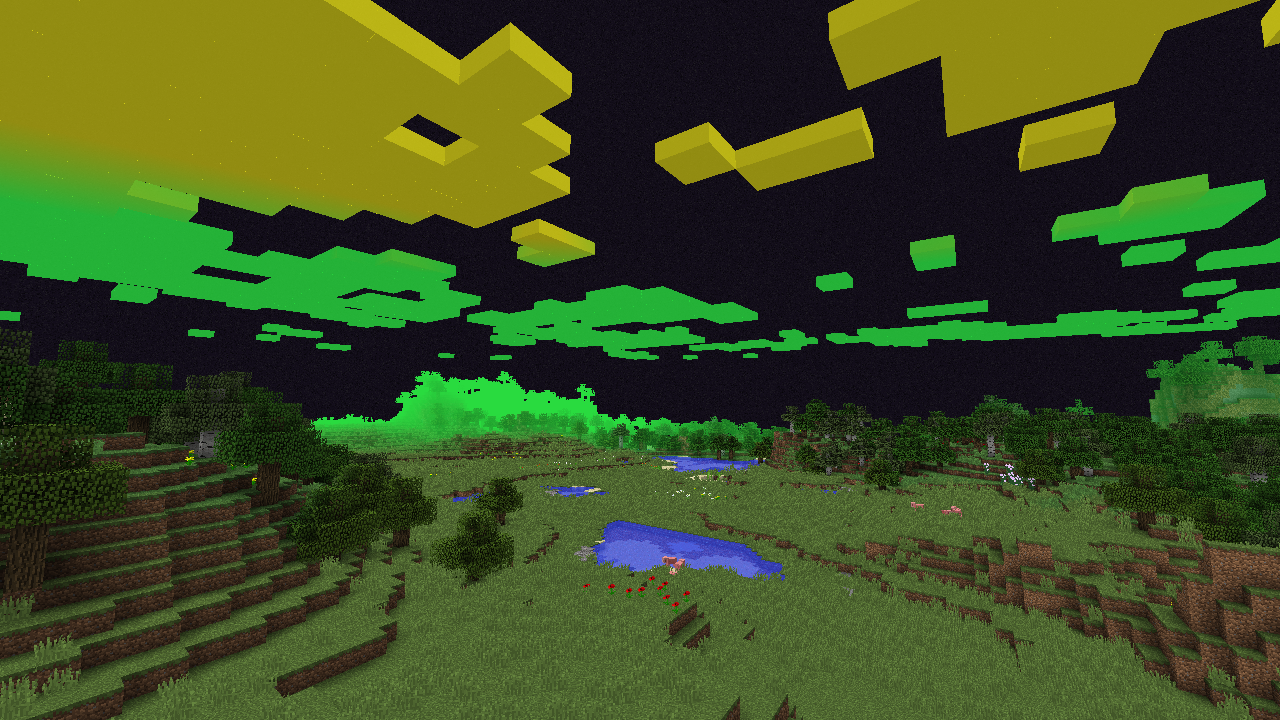 End type sky rendering (and customized Fog & Cloud colors)
 -
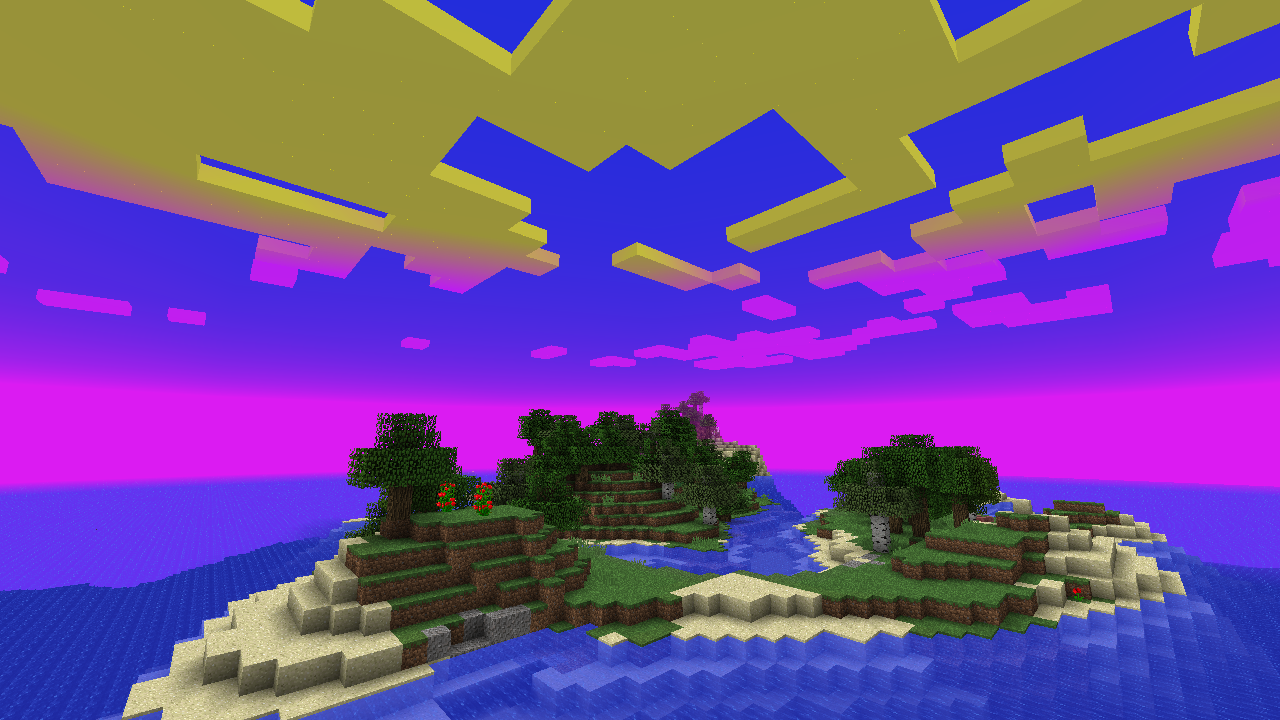 Sky, Fog and Cloud color customization
 -
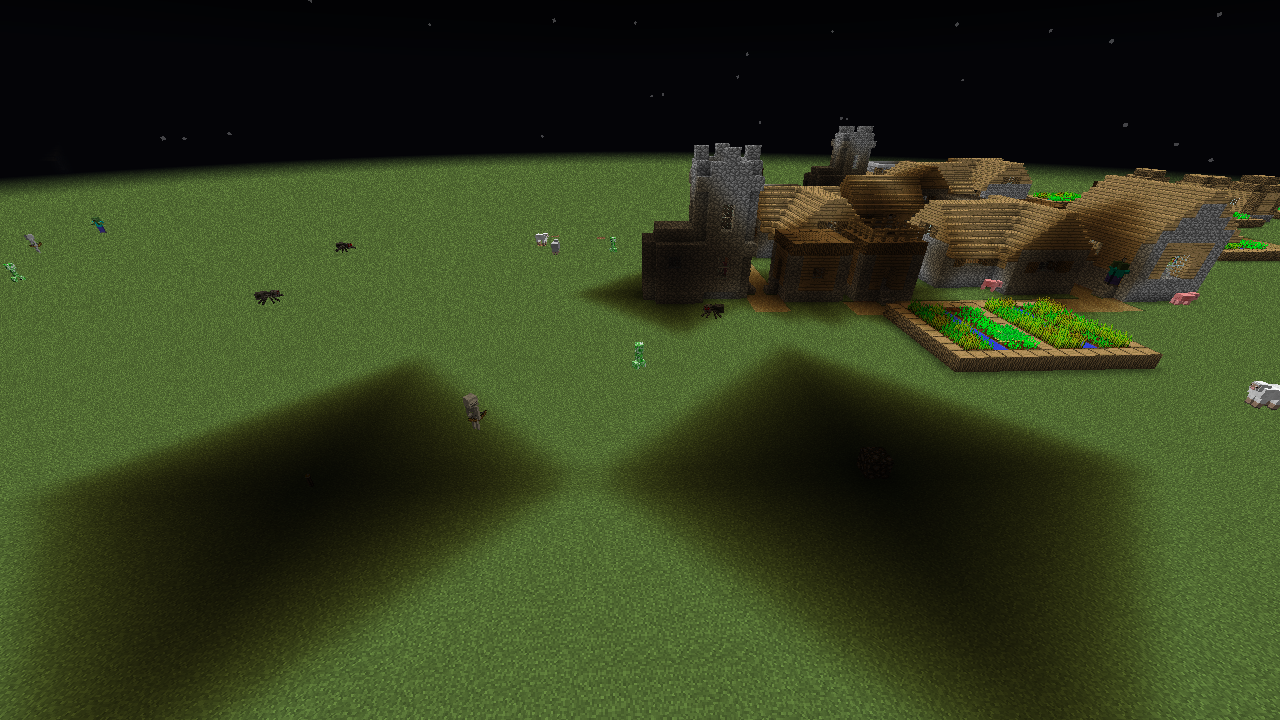 Light brightness table customization #2
 -
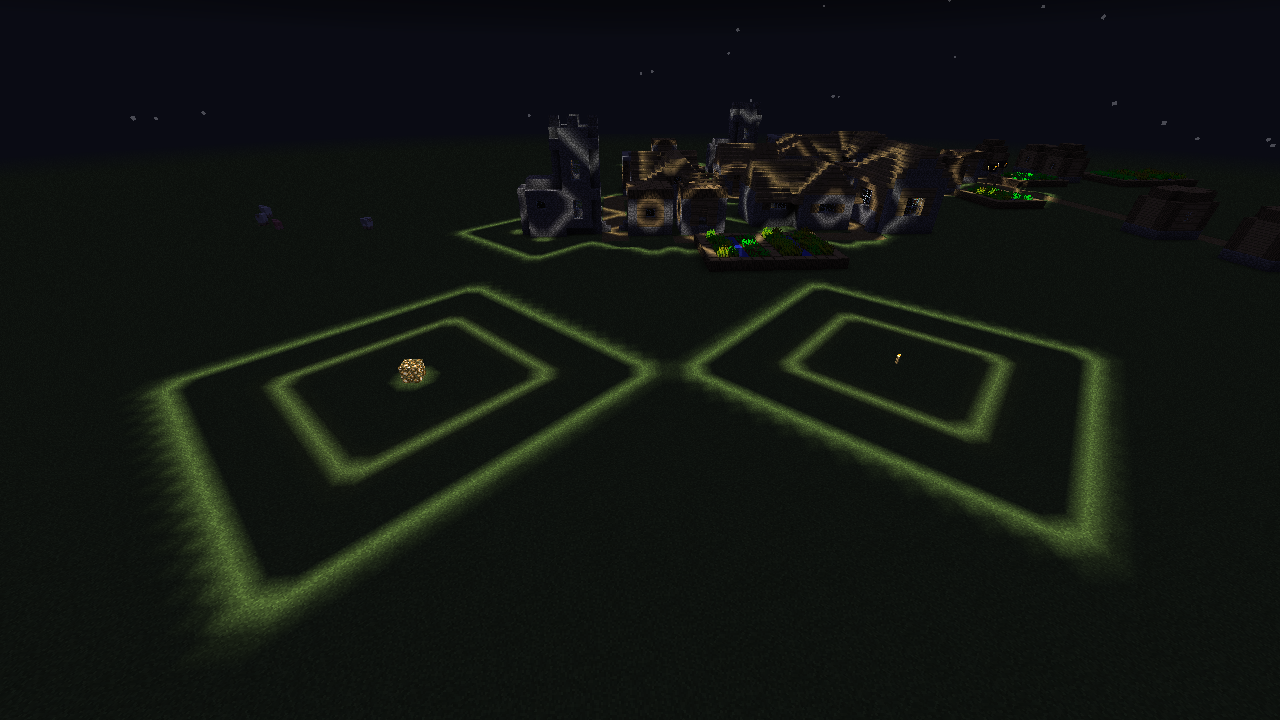 Light brightness table customization #1
 -
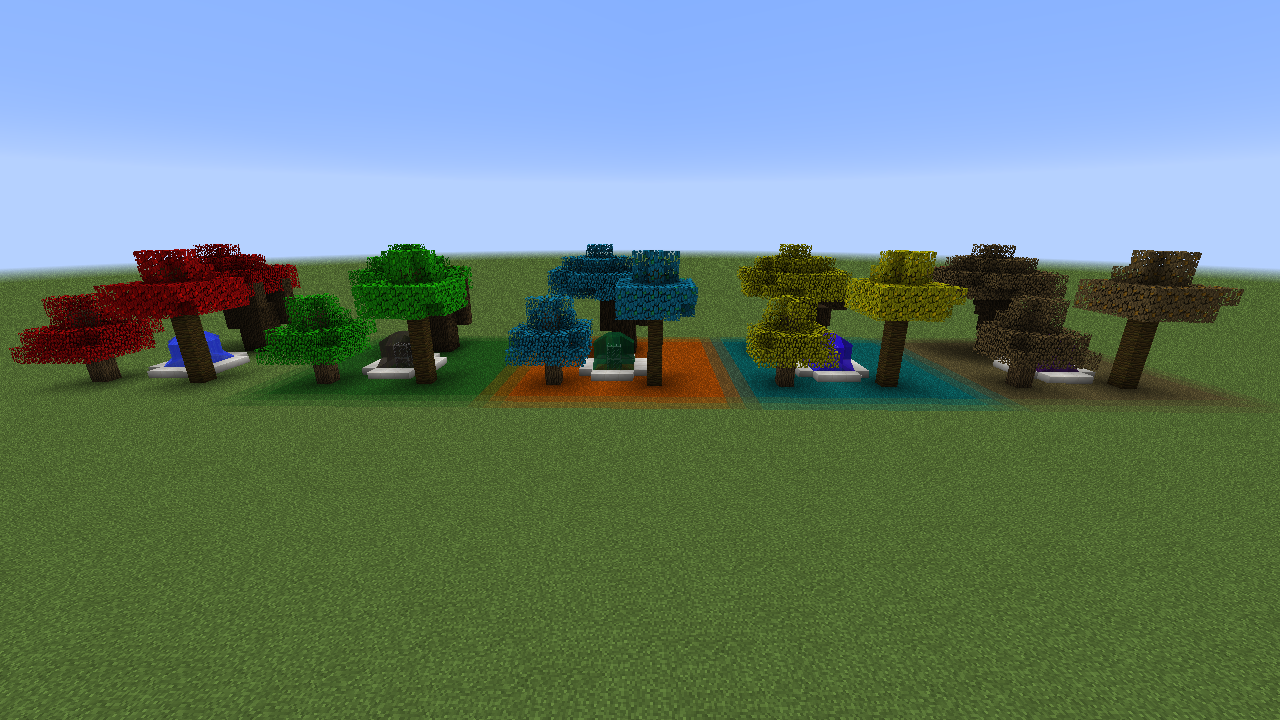 Foliage, Grass & Water color customization
Versions
Files
Relations
Project Relations
More like this
Similar Mods
Suggestions use data such as tags, dependencies, dependents, descriptions, titles, and more to rank how much they overlap with this mod.
On ModDex
Community snapshot
By the numbers
Statistics
 (opens in a new tab)
Get it on
Available Platforms
On ModDex
Community snapshot
By the numbers