
Community listing page, reviews here may not be monitored by the author.
AutoRTSManoeuvre

No reviews yet
A client-side Minecraft mod that adds an RTS-style top-down camera, command-based control, contextual interactions, and smarter building workflows for a more strategic way to play.
Community voices
Reviews
No reviews yet. Be the first to review this project!
Get it on
Available Platforms
Compatibility
Supported Environments
Runs entirely on the client. Works on vanilla servers.
About
Project Details
For authors
Embed Badge
If you're the author of this project, you can embed a live badge anywhere that supports HTML or Markdown. It updates automatically whenever ratings change.
Use HTML for any page that supports it, or Markdown for README files and Markdown-based descriptions.
Identifiers
Platform IDs
Resources
External Links
About
Description
Interaction makes great softwares.
Minecraft's default interaction model was built for first-person play. Here AutoRTSManoeuvre reworks that model for an RTS-style perspective including but not limited to click-to-move commands, queued actions, adaptive interaction, blueprint building, and tunnel-mining tools.
Main Functions
Control your character just like in an RTS game
Entering RTS Mode
Press R to toggle RTS Mode. In this mode the camera detaches from vanilla first-person control and becomes a command view.
Use WASD to pan the camera
Space and Shift to move it vertically
Hold the middle mouse button to rotate or tilt the view
Press Esc to clear selections, close menus, and cancel current previews
Commanding with the Mouse
Right-click is the primary command button. Click terrain to move there, click blocks to interact with them, or just to place a block.
Left-click selects the thing under the cursor and opens a context menu. Blocks, entities, trees, water, vehicles, animals, and hostile mobs expose different commands depending on what they are and what item you are holding.
Drag with left-click to box-select multiple targets. Multi-selected blocks can be mined together, connected block selections can be expanded with Chain, and groups of trees can be chopped as a batch.
Context-Sensitive Actions
AutoRTSManoeuvre tries to infer the action you probably want.
Holding a pickaxe, shovel, hoe, shears, axe, sword, fishing rod, flint and steel, or throwable item changes what right-click and the context menu can do. For example, an axe can chop a whole detected tree, a pickaxe can dig mineable blocks, a sword or axe can attack, a fishing rod can fish or cast, and flint and steel can ignite a target.
Storage blocks can be registered as Material Depots from the block menu. Building actions can count blocks stored in depots, not only blocks in your inventory.
Movement
Movement is the default right-click command in RTS Mode.
Right-click on terrain to set a destination. After the command is issued, the start point, destination, and calculated route are highlighted with blue, red and yellow particles, so you can see where the character will go before and while the task is running.
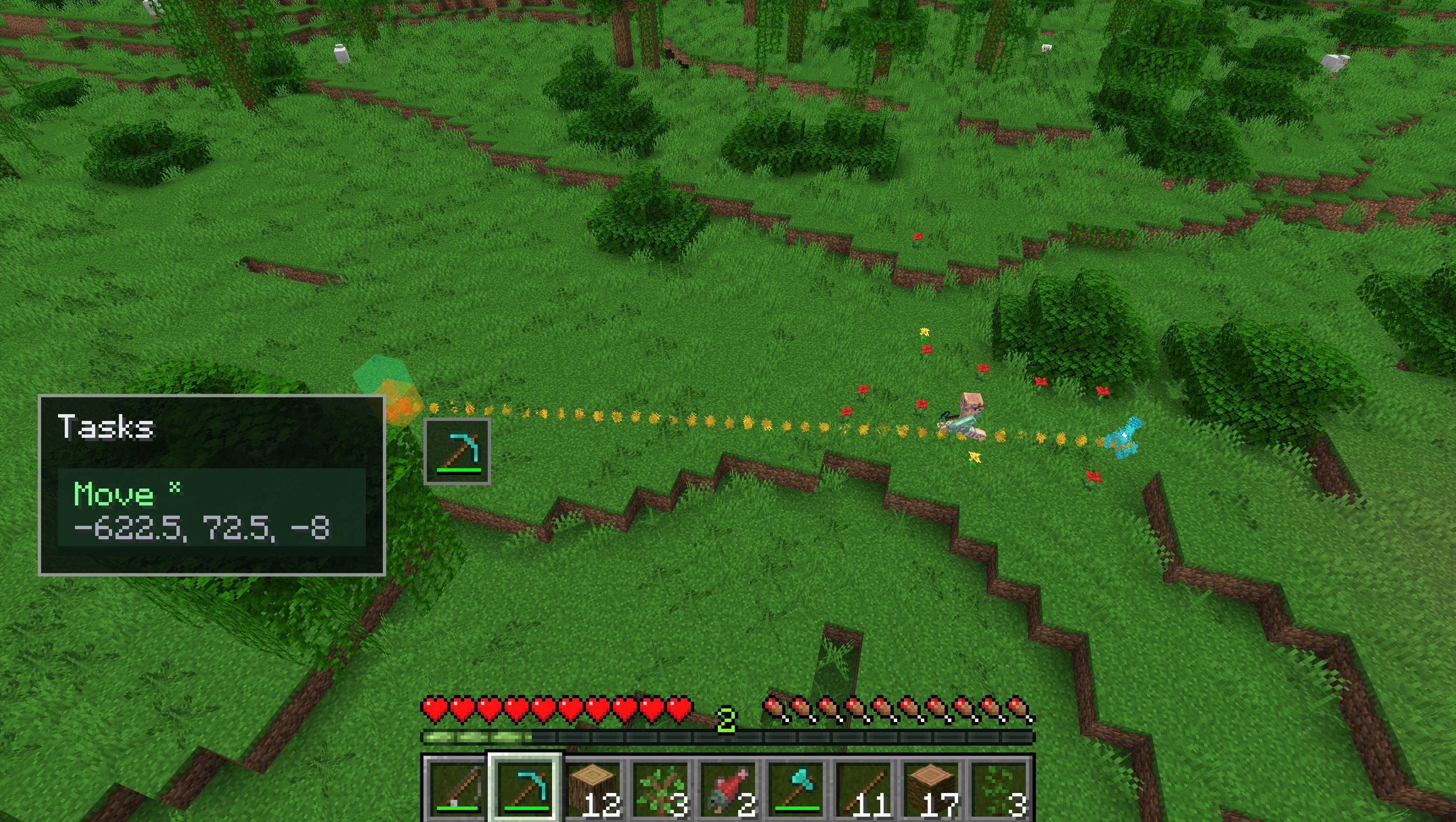 Double Right-click a destination to move there at a run.
Block Placement
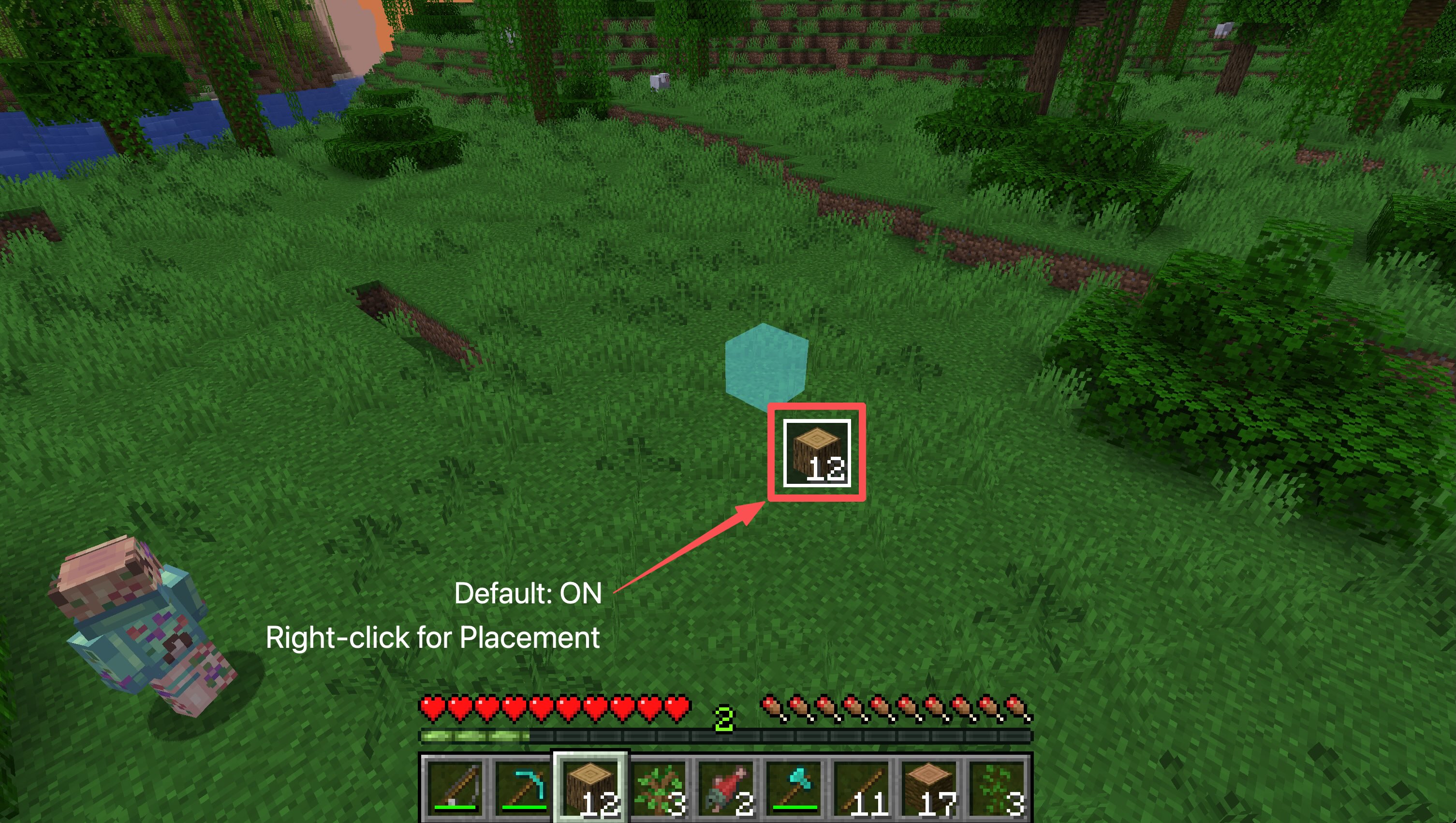
When you are holding a placeable block in RTS Mode, placement mode is activated by default and a placement preview appears under the cursor. When the block is activated, right-click means to conmmand a placement with that block. You can also hold and drag right-click to paint multiple placements over time.
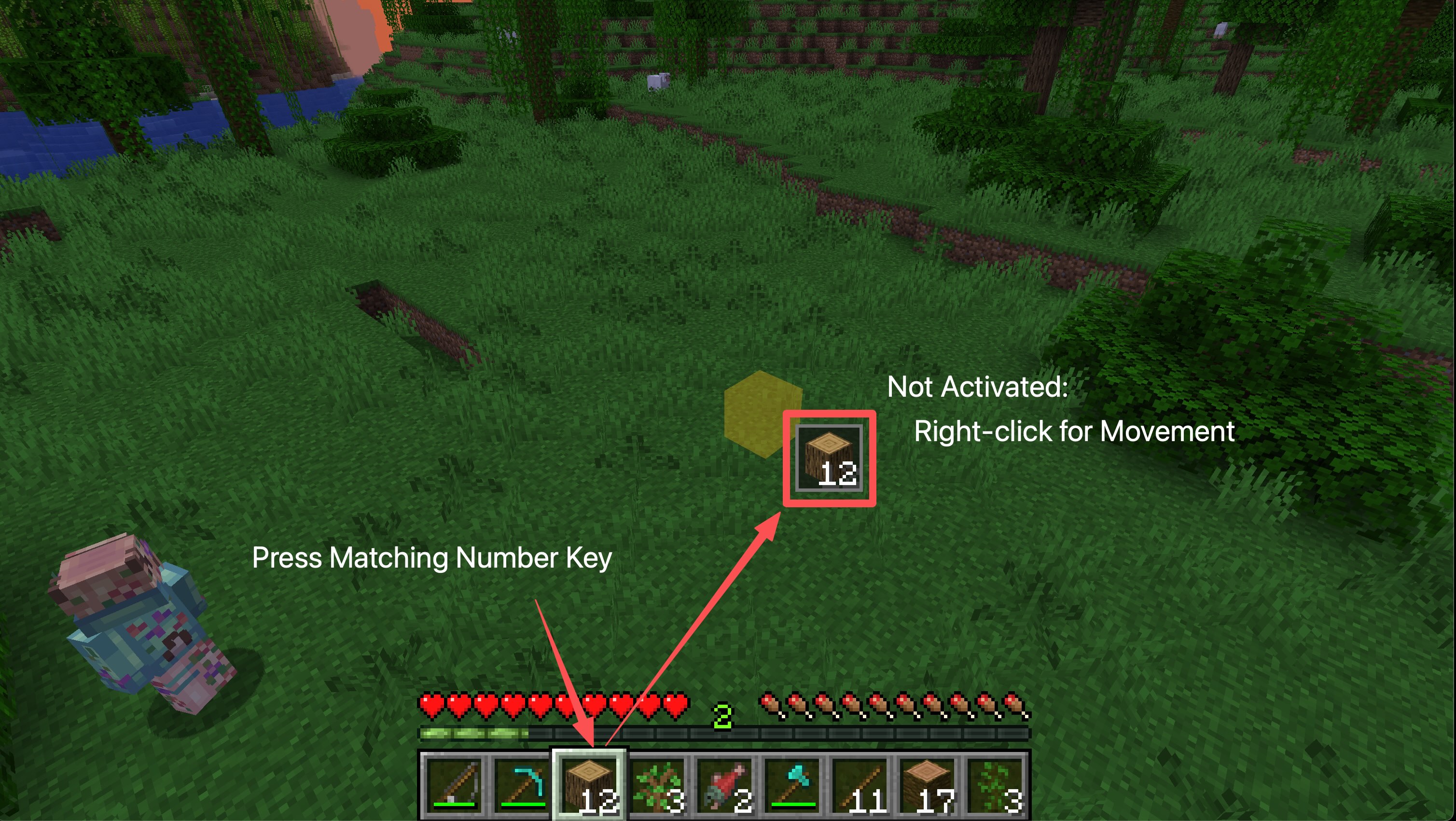
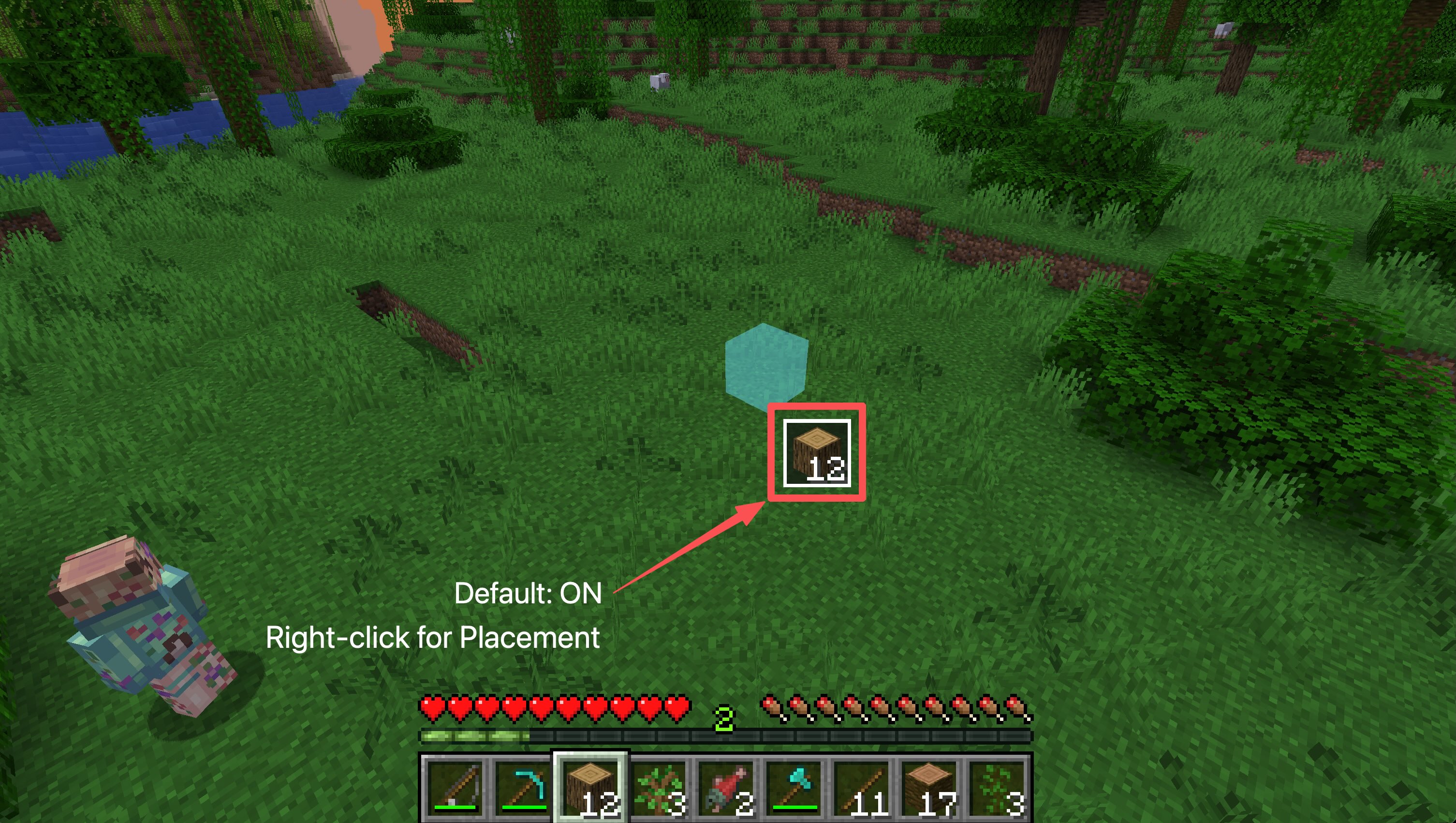 Press the matching hotbar number key,
 1 to 9, to toggle that slot’s RTS placement activation on or off. The cursor icon shows the current state: an active block has a highlighted frame, while an inactive block uses a muted frame.
Tree Chopping
When holding an axe, right-click a tree to command a full tree chop instead of breaking one block at a time.
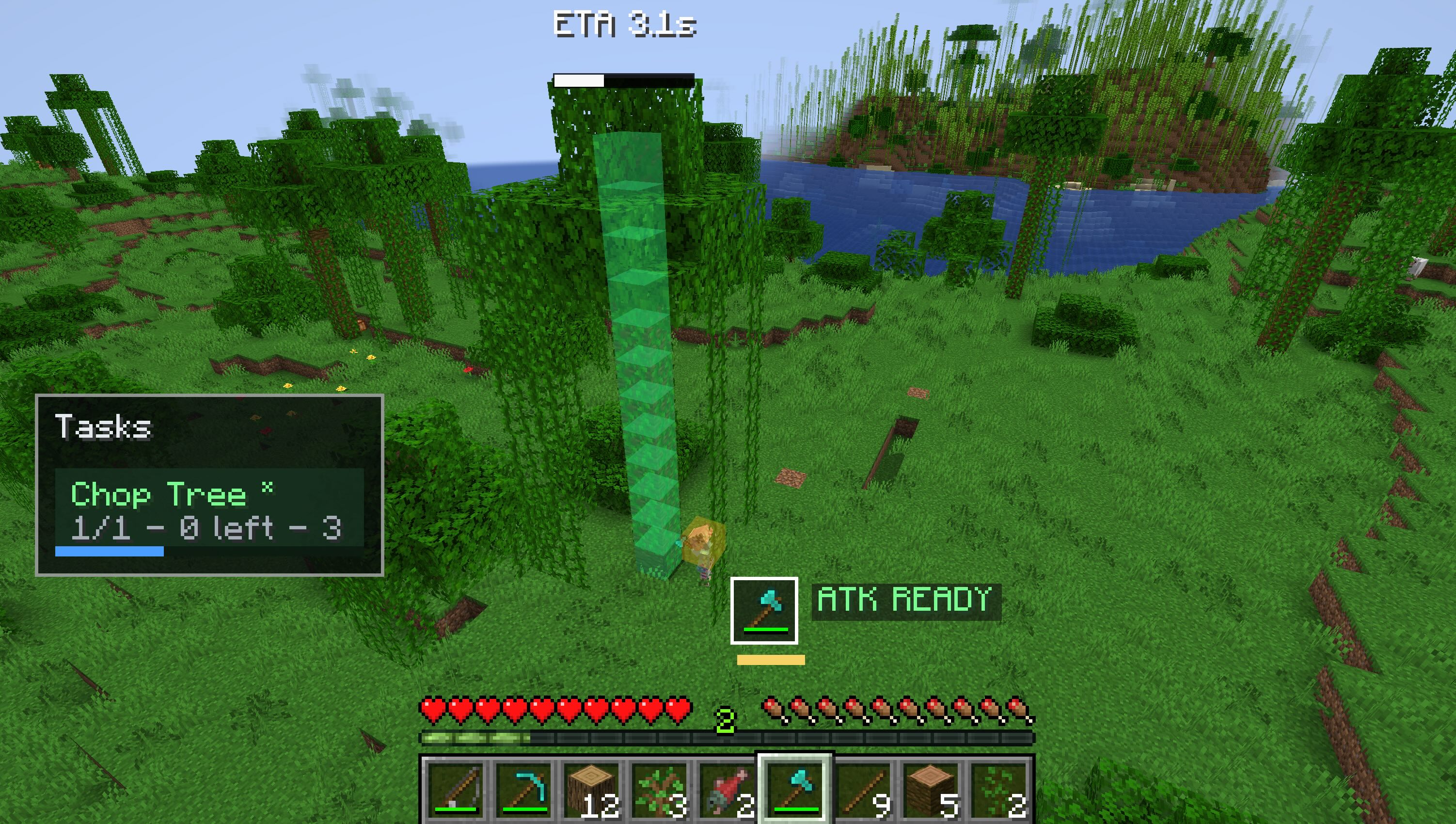 You can also left-click a tree block to open the context menu and choose Chop Tree. When multiple trees are selected, the menu can group them into a task batch and the character will cut them down one after another.
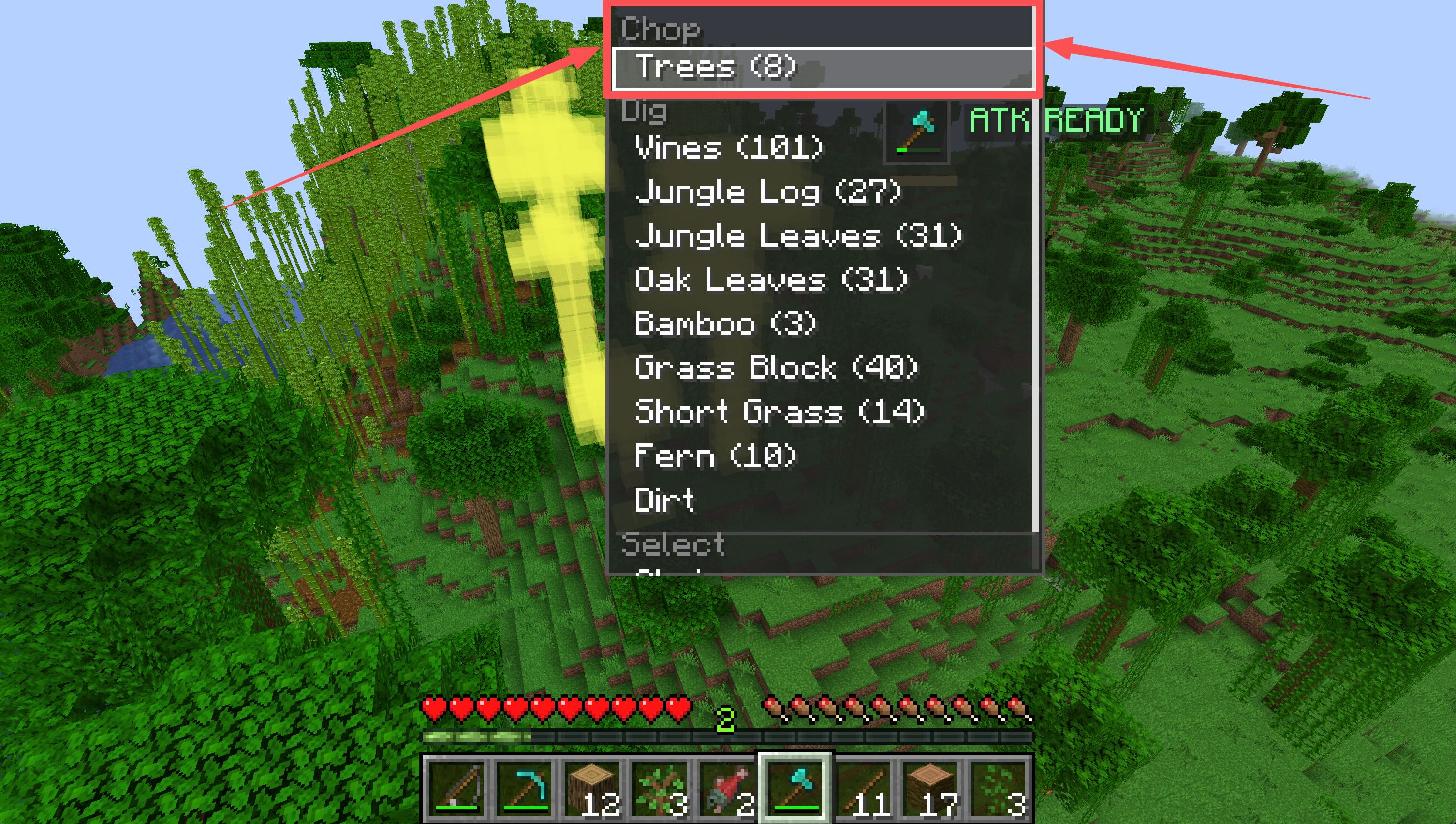 When chopping the tree, a progress bar with an ETA Time will be shown
Fishing
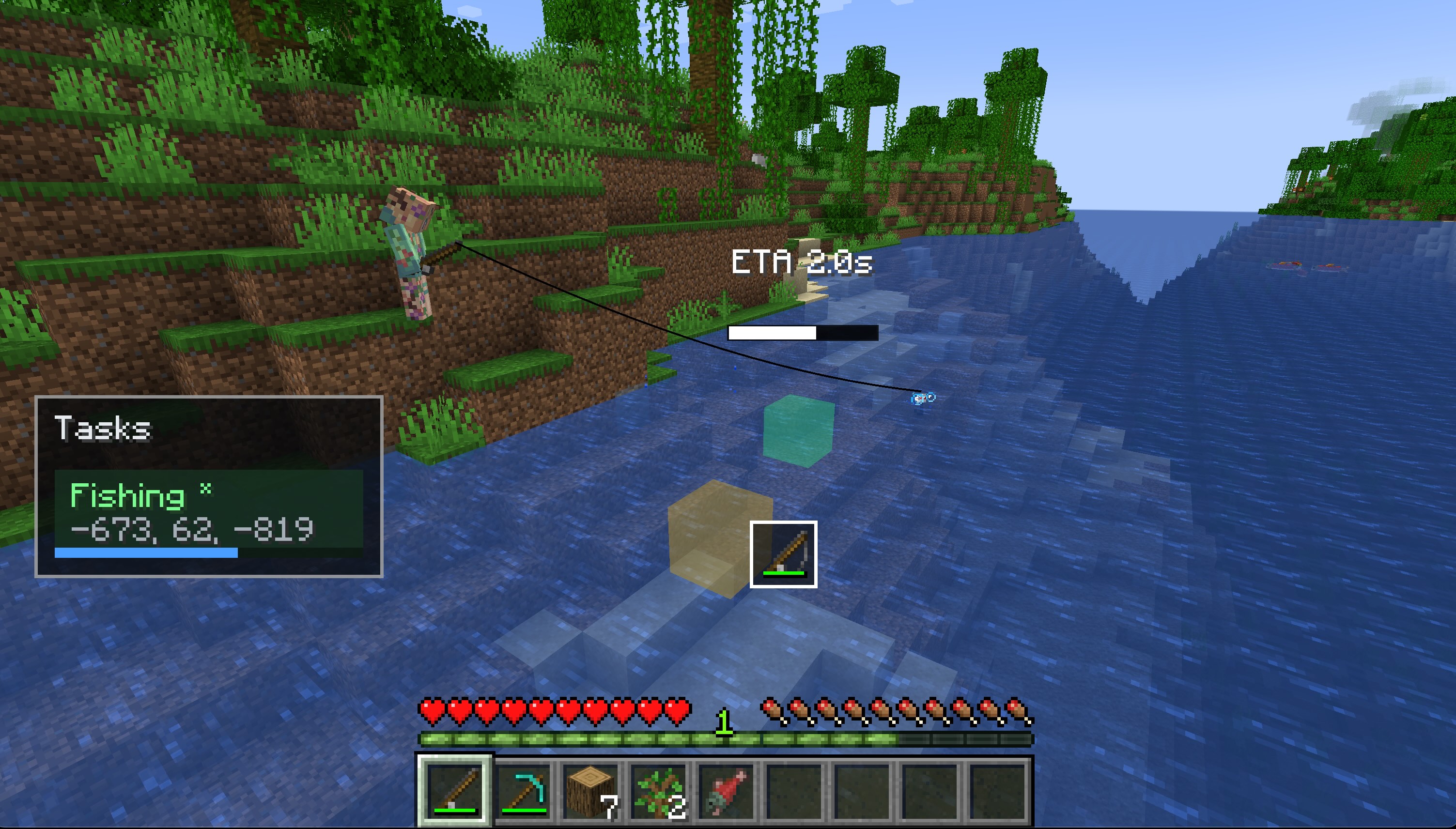
With a fishing rod selected, right-clicking water targets become fishing commands.
Right-click a valid water surface to start fishing there, or left-click the water to open the context menu and choose Fish. If you target a block or entity that is not a fishing spot, the rod can also be used to cast toward that target.
Fishing actions are handled like other RTS commands: your character moves into position, aims, casts, and continues the task through the action queue.
And you will also get a progress bar of fishing😄
Tunnel Mining
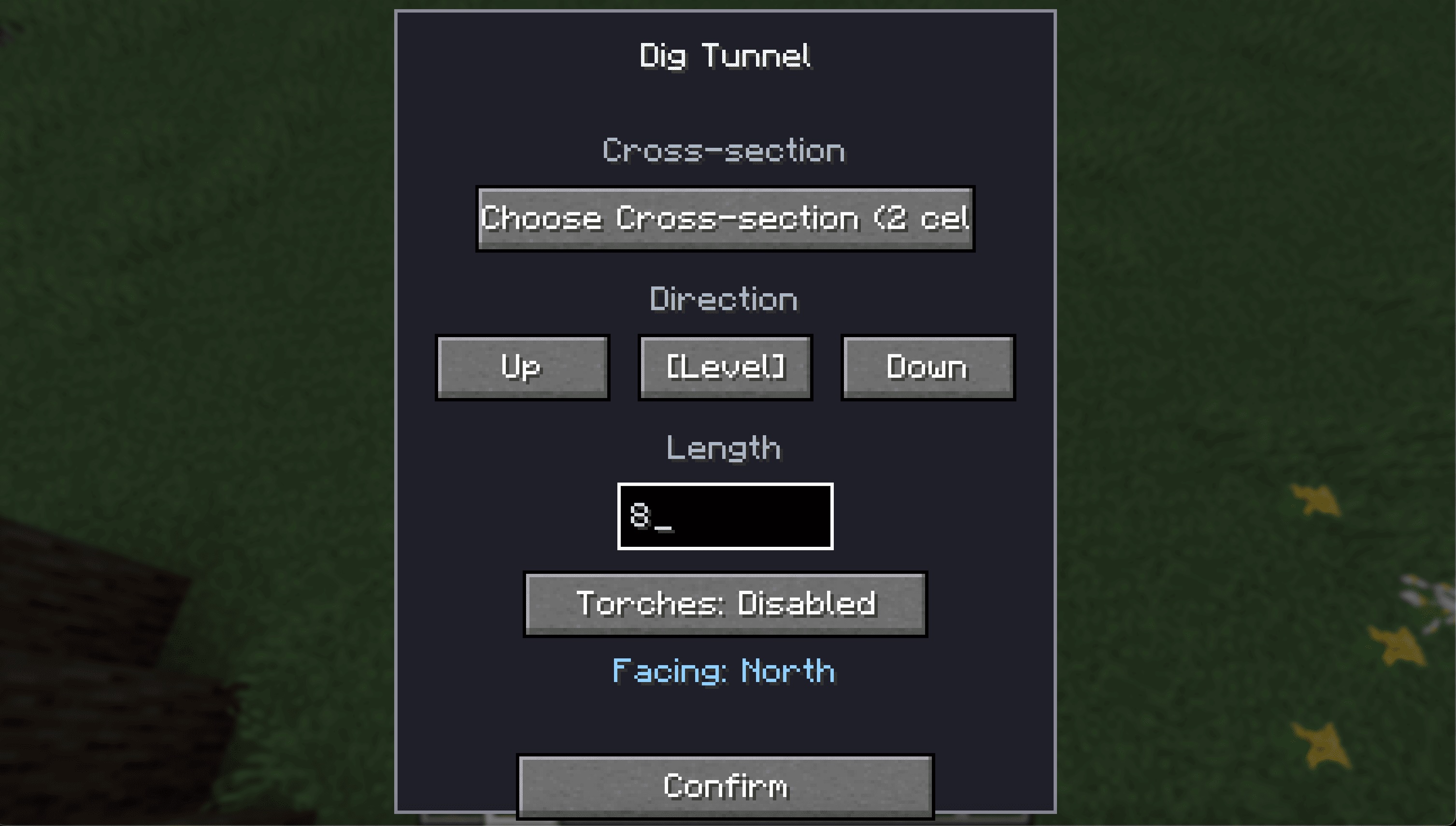
Select a block and choose Dig Tunnel from the context menu to open the tunnel planner.
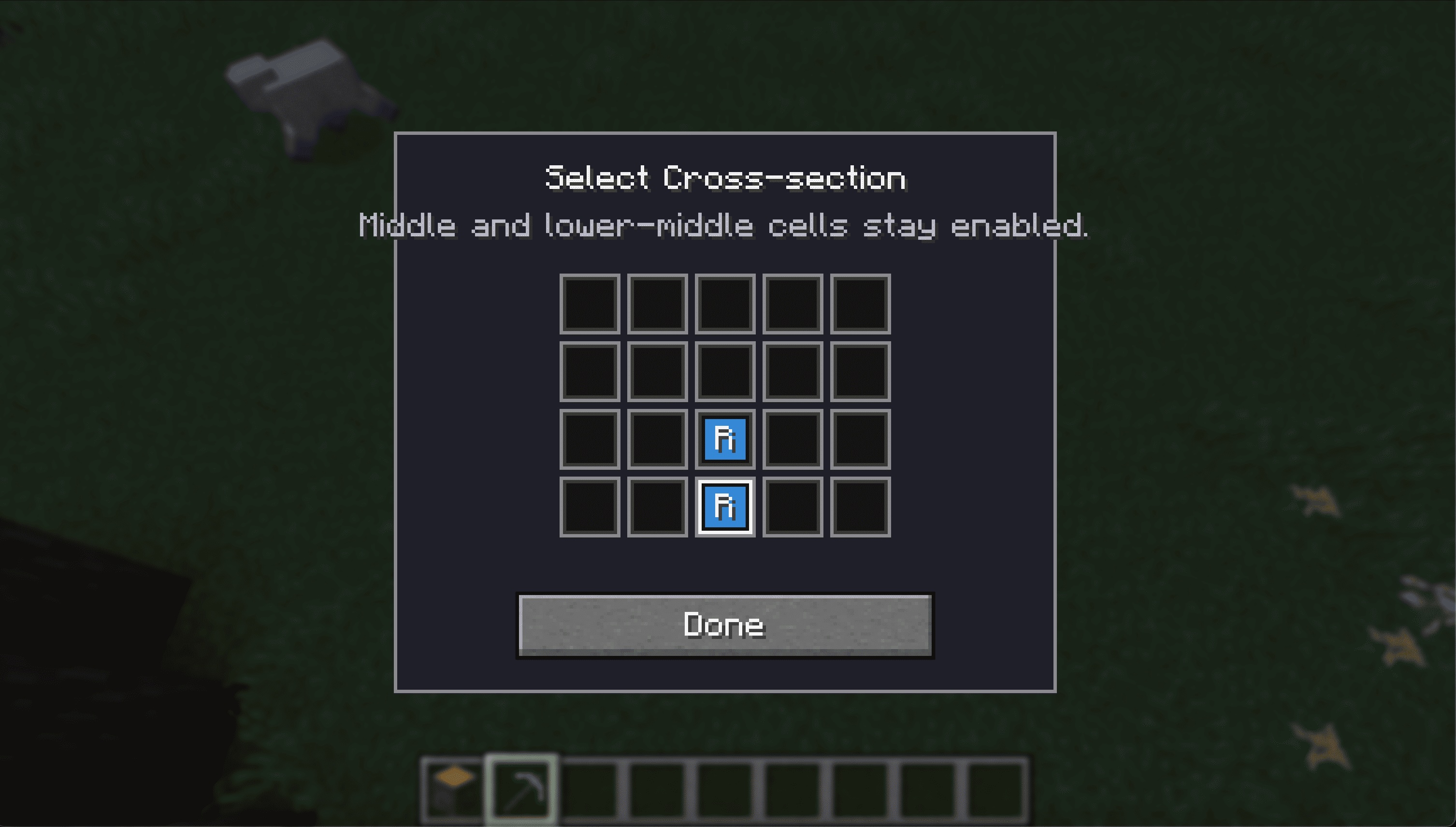
Choose the tunnel cross-section, length, direction mode, and whether torches should be placed automatically. The tunnel follows the current facing direction of the camera and can go level, upward, or downward. After confirmation, the character will dig tunnels like a real player
 Currently, the cross-section gives you a 5x4 space to choose which blocks will be dug
Build Mode
Press C to open the Feature Menu and choose Build Mode there.
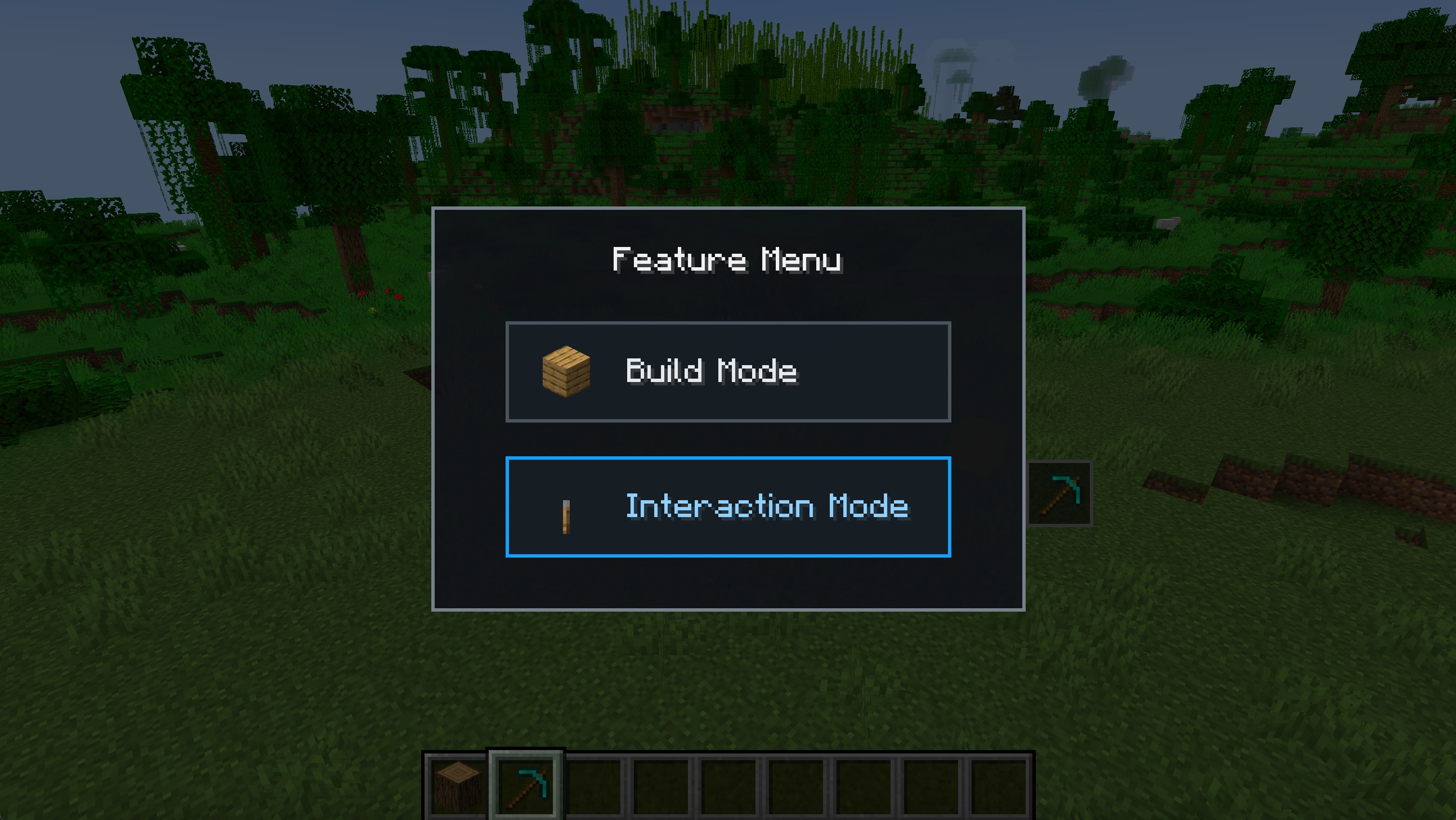 Build Mode adds a small toolbar:
Fopens Fill building tools.Bopens Blueprint tools.Wopens Wall tools.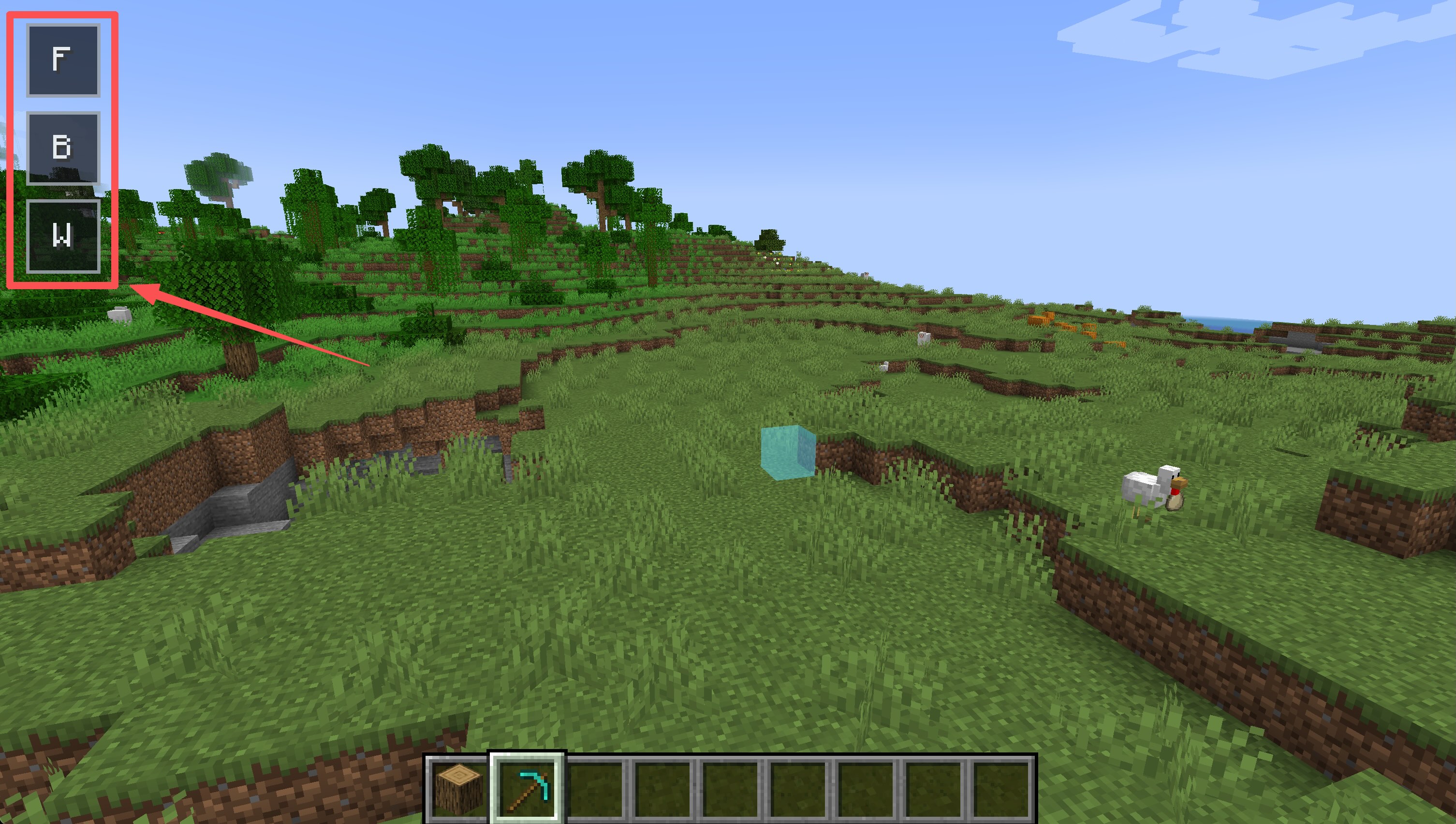
Fill Building
Use Fill mode to mark a region and build it with blocks from your inventory or Material Depots.
In cubic fill, drag a region with left-click to define the area and use wheel to adjust the height.
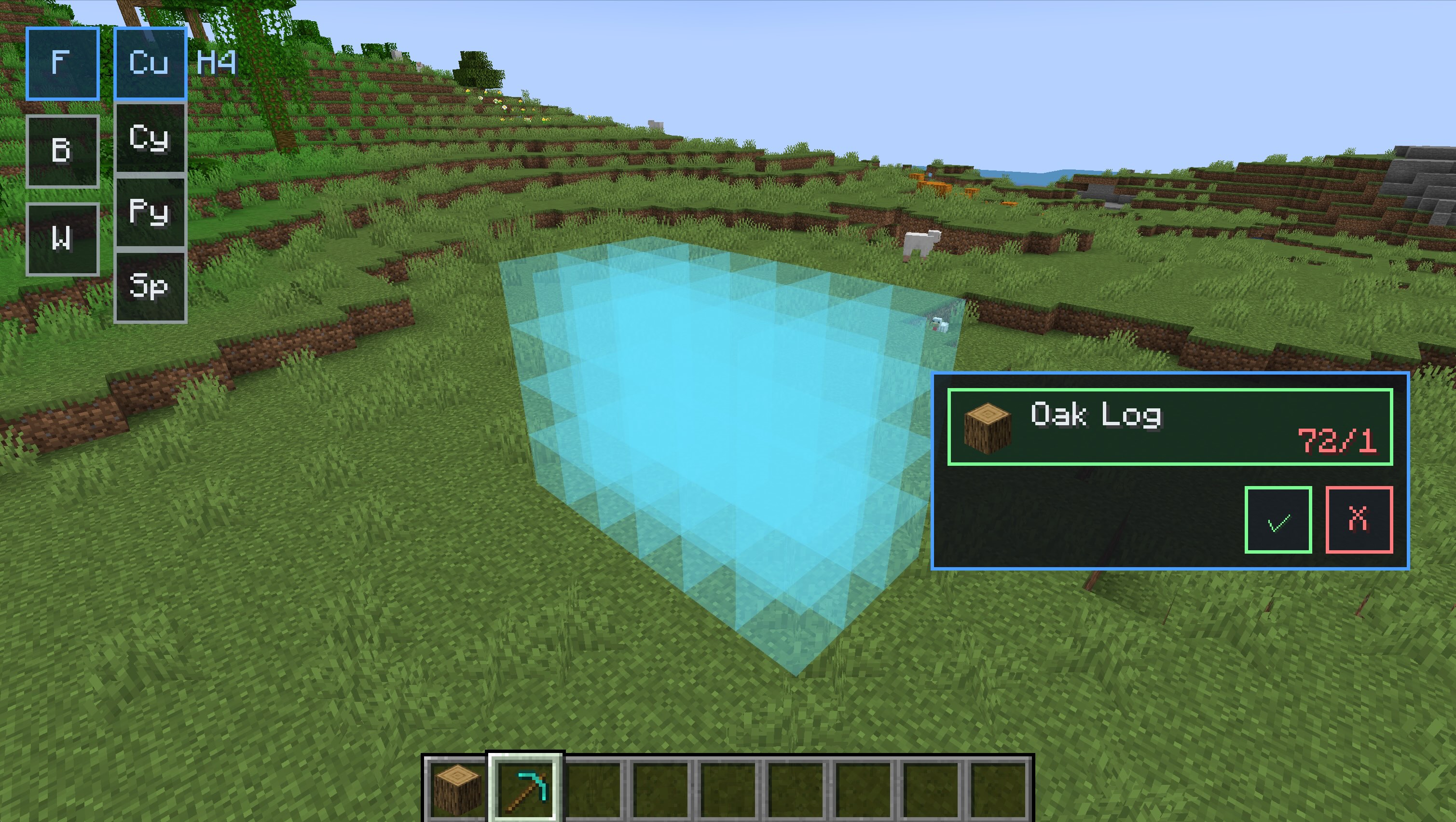 For cylinder, pyramid and sphere fill, left-click on a block face to place the anchor first, then use the anchor as the control point for the preview.
For the anchor:
For cylinder, pyramid and sphere fill, left-click on a block face to place the anchor first, then use the anchor as the control point for the preview.
For the anchor:
- Left-click and drag the anchor to move it.
- Right-click and drag the anchor to adjust the shape’s size or radius.
- Mouse wheel changes thickness, and for sphere-style fill it adjusts the anchor height instead.
- Double-click a valid preview to open the block picker and confirm the build.
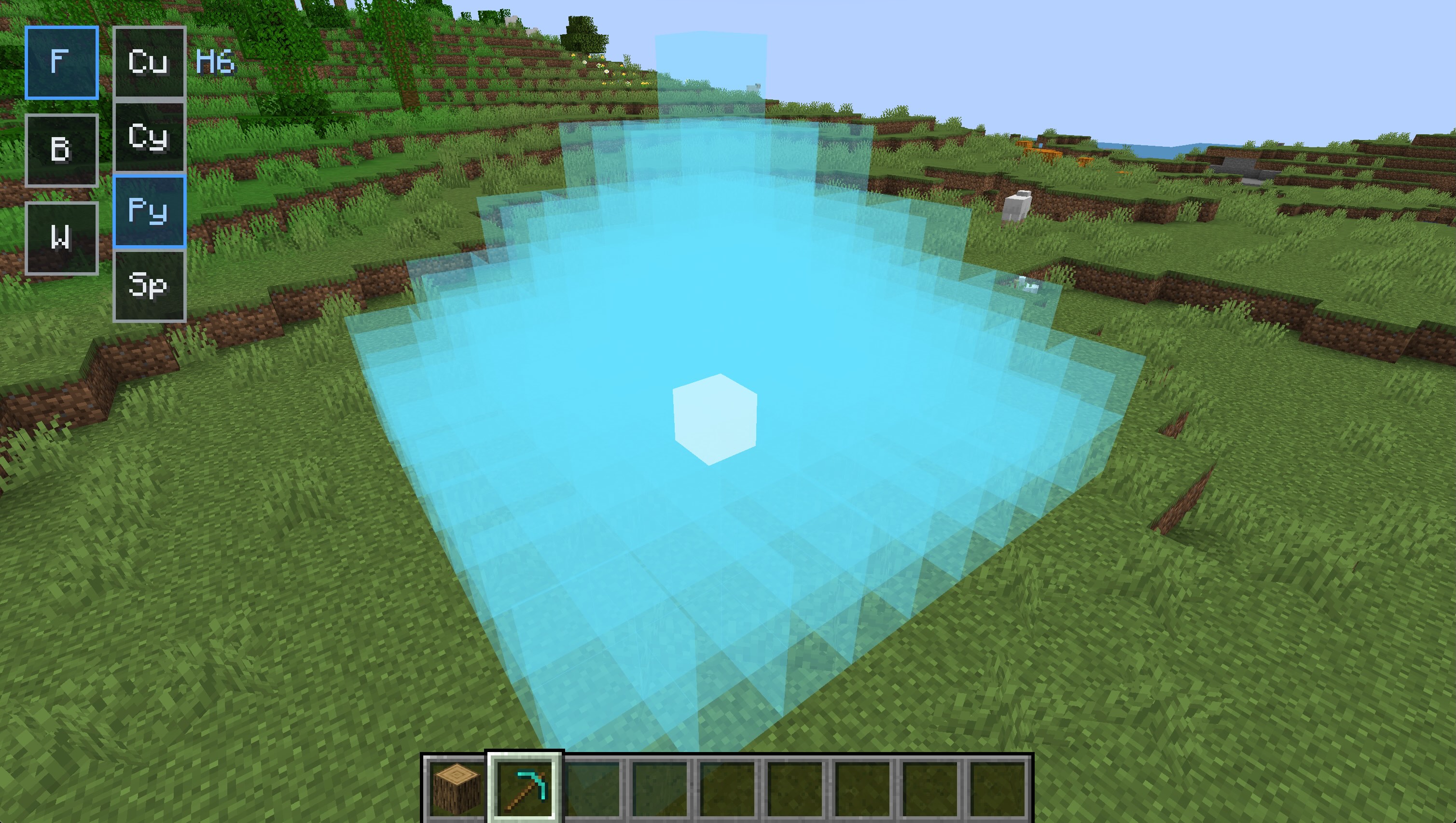 The preview updates live while you drag, so you can see the final volume before committing.
Blueprints
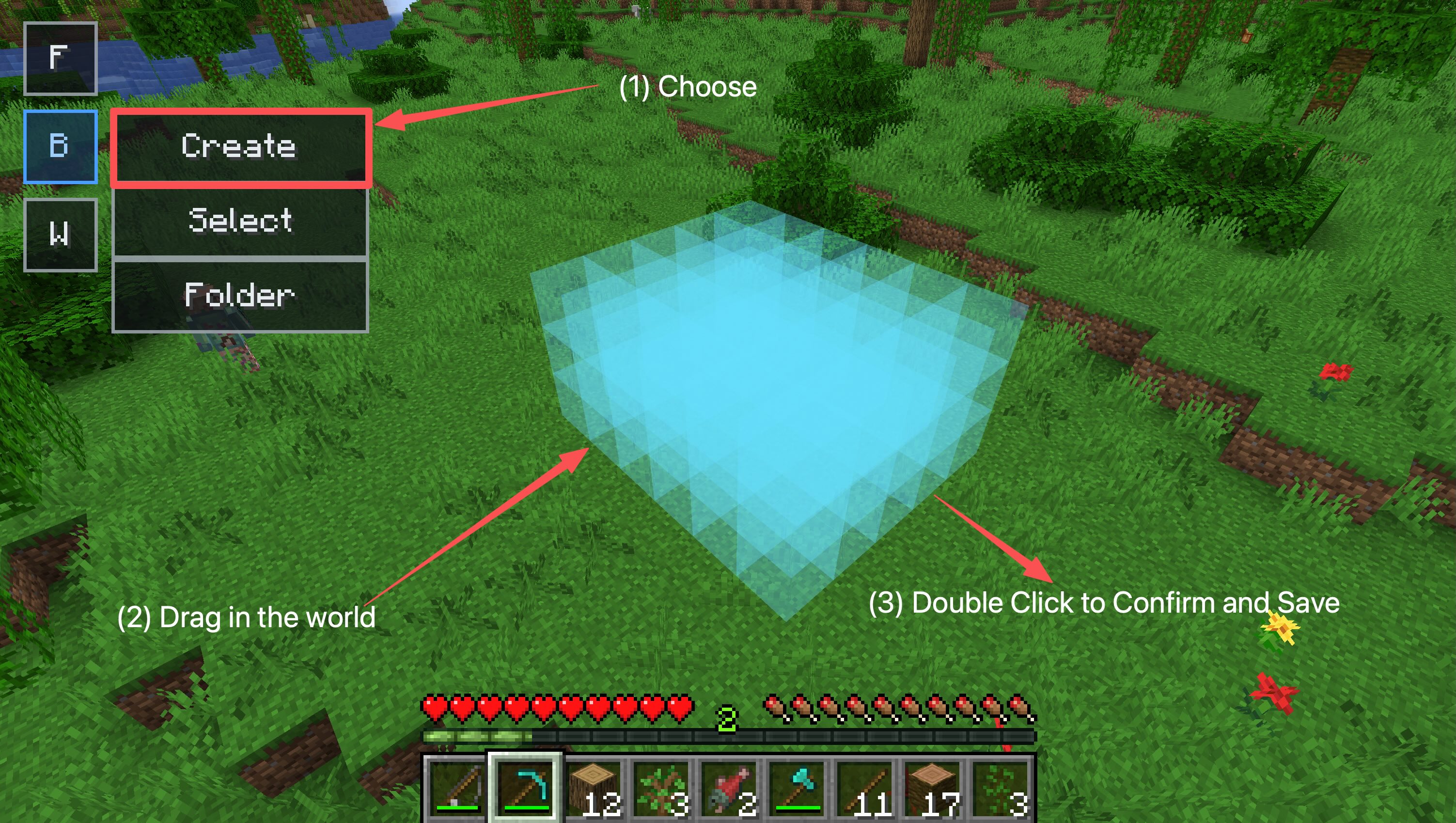
Blueprint tools let you save and rebuild structures.
Use left-click and mouse wheel to drag and select a region. Then double left-click to save it as a blueprint.
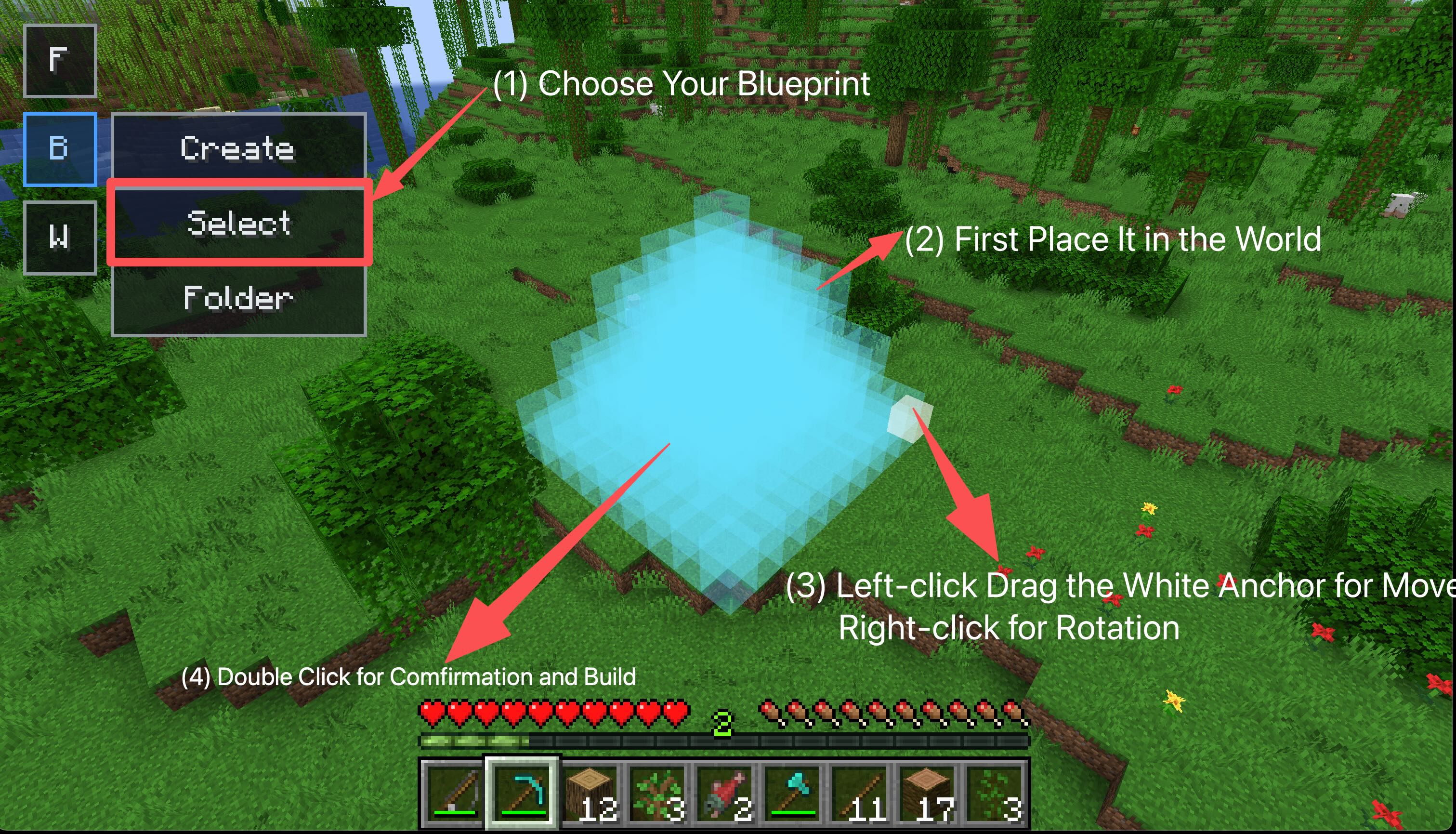
 Use Select to load an existing blueprint. Once loaded, move the floating preview into position, left-click the anchor to fix it and right-click the anchor to rotate it. Double-click the preview to open the confirmation interface. The mod checks required blocks and can include registered Material Depots in the available count.
Wall Building
Use Wall mode to place connected wall nodes. Each click adds a node, and clicking the starting anchor closes the loop when enough nodes exist.
Action Queue
Most commands become tasks in the RTS action queue. The HUD shows the active task, upcoming tasks, and progress for longer jobs such as mining, chopping trees, placing blocks, building fills, blueprints, tunnel mining, fishing, combat, and interactions.
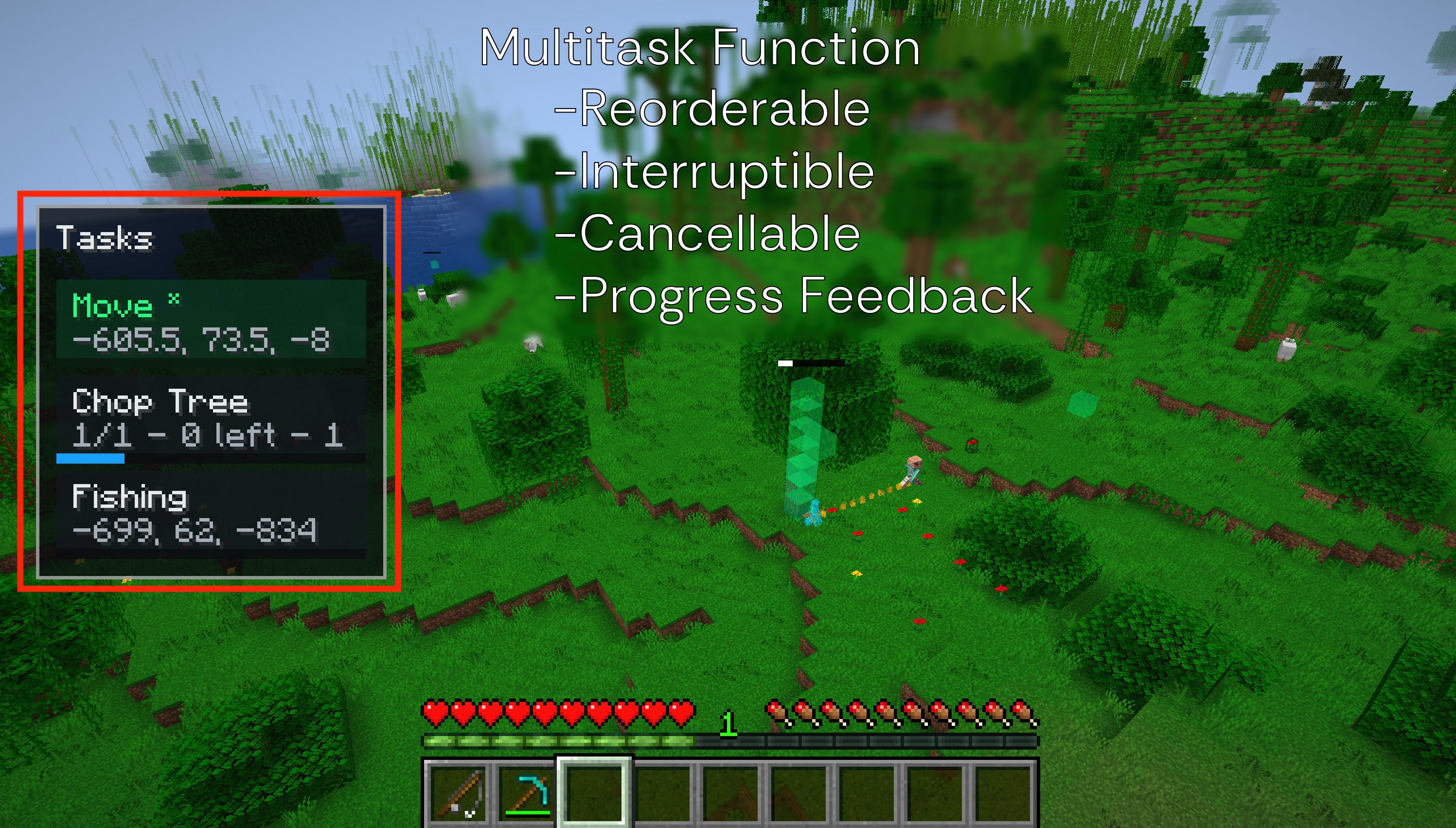 New movement commands take priority. Queued tasks can be dragged in the HUD to reorder them, and right-clicking a task cancels it. You can redirect your character immediately without losing every other queued job.
FAQ & Contact
Does this mod play the game for me?
No. AutoRTSManoeuvre changes how you issue commands, but your character still uses normal Minecraft movement, tools, blocks, inventory, and reach limitations.
Why did my character choose a different route?
The pathfinder tries to avoid hazards, pits, blocked spaces, trees, and unsafe drops. If the exact target is not reachable, it may choose the nearest valid position.
Can I cancel or reorder tasks?
Yes. The action queue is editable: drag tasks in the HUD to reorder them, and right-click a task to cancel it.
Where are blueprints stored?
Blueprint files are stored in the mod’s schematics folder. You can open the folder from the Blueprint toolbar.
Need help or want to report an issue?
Please include your Minecraft version, mod version, Fabric/loader version, a short description of what happened, and screenshots or logs if available.
Contact: https://github.com/hidonbushamn/AutoRTSManoeuvre/tree/main
Screenshots
Gallery
-
 Block Placement
 -
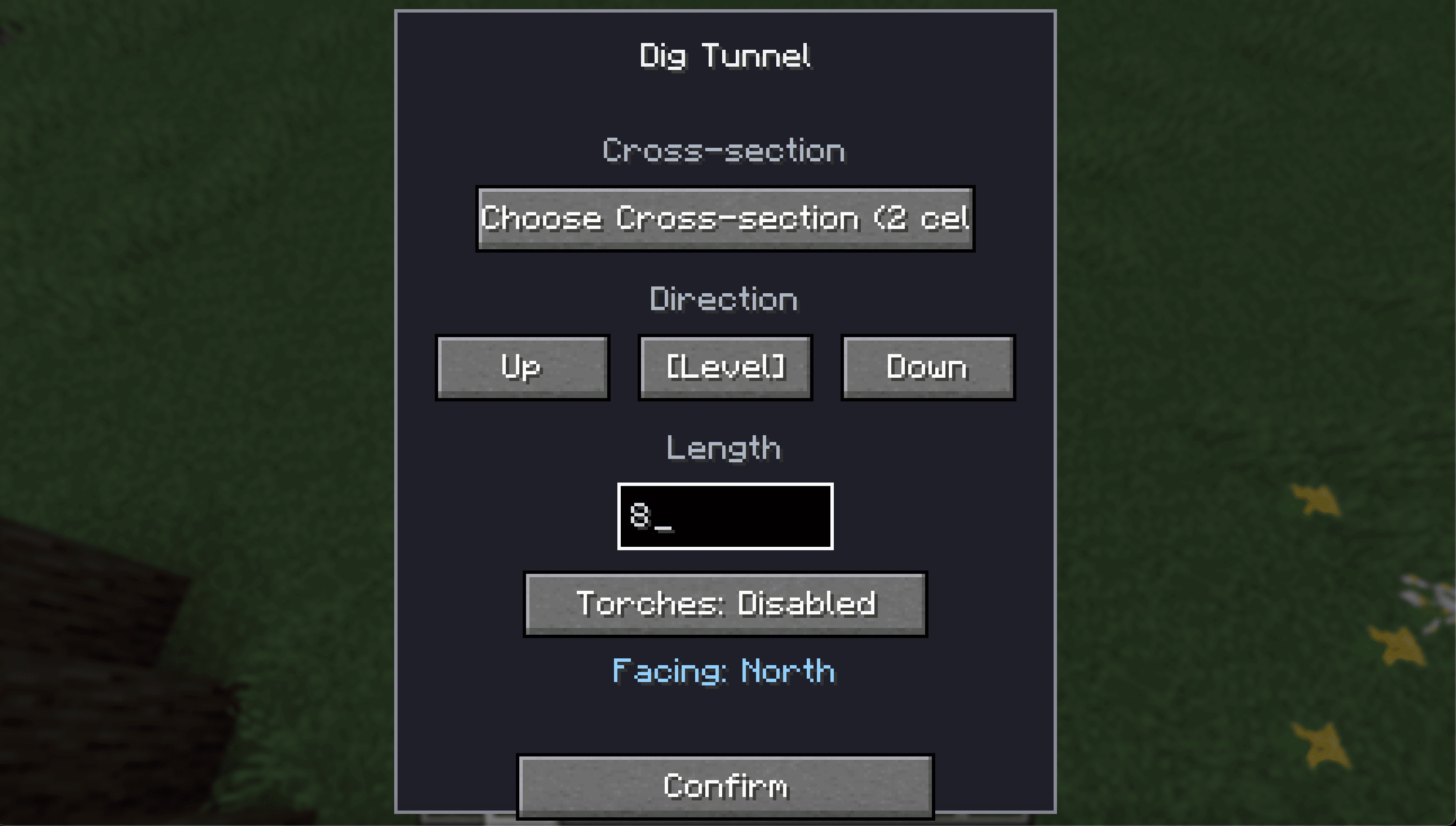 Tunnel Menu
 -
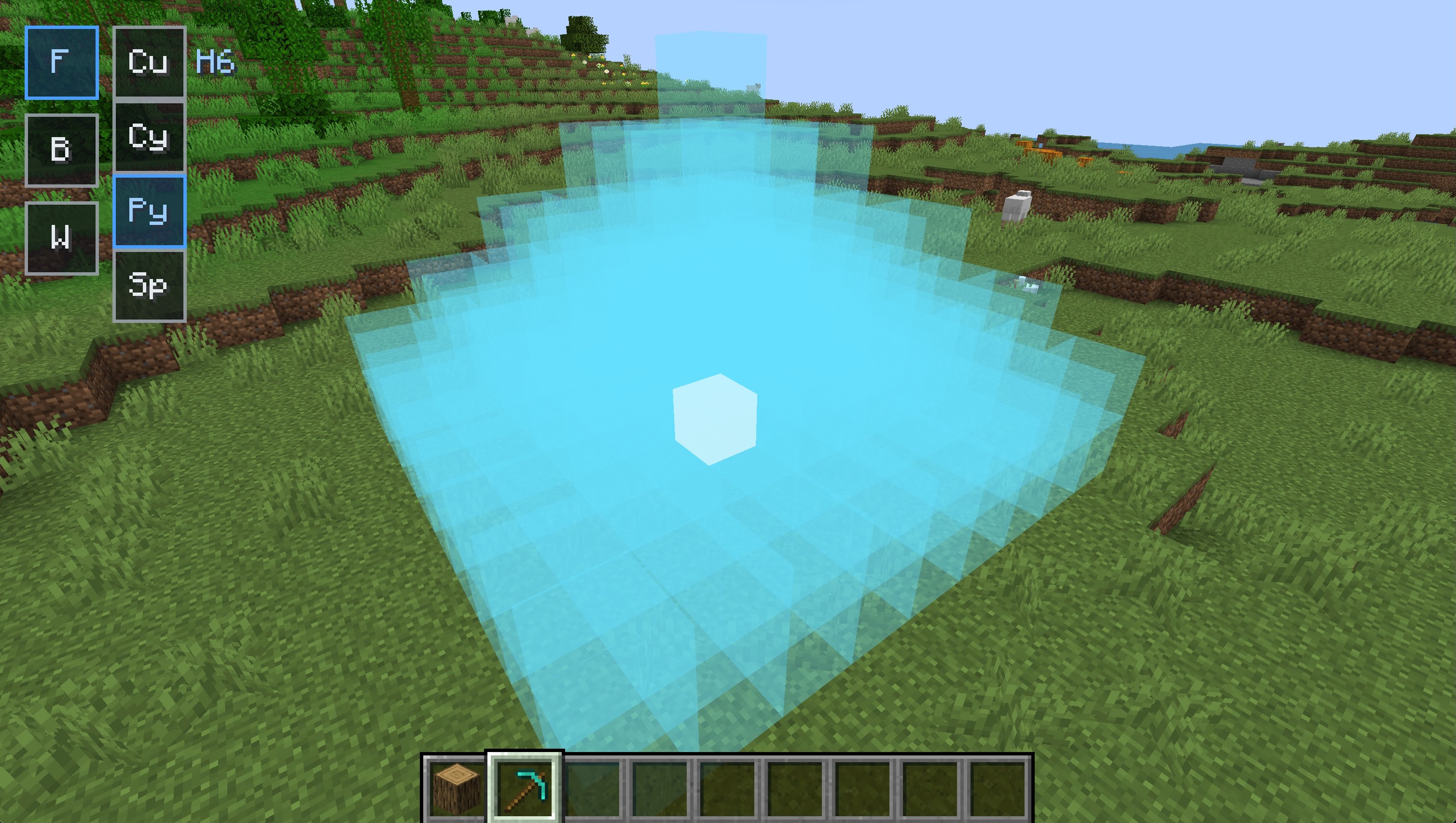 Filling Pyramid
 -
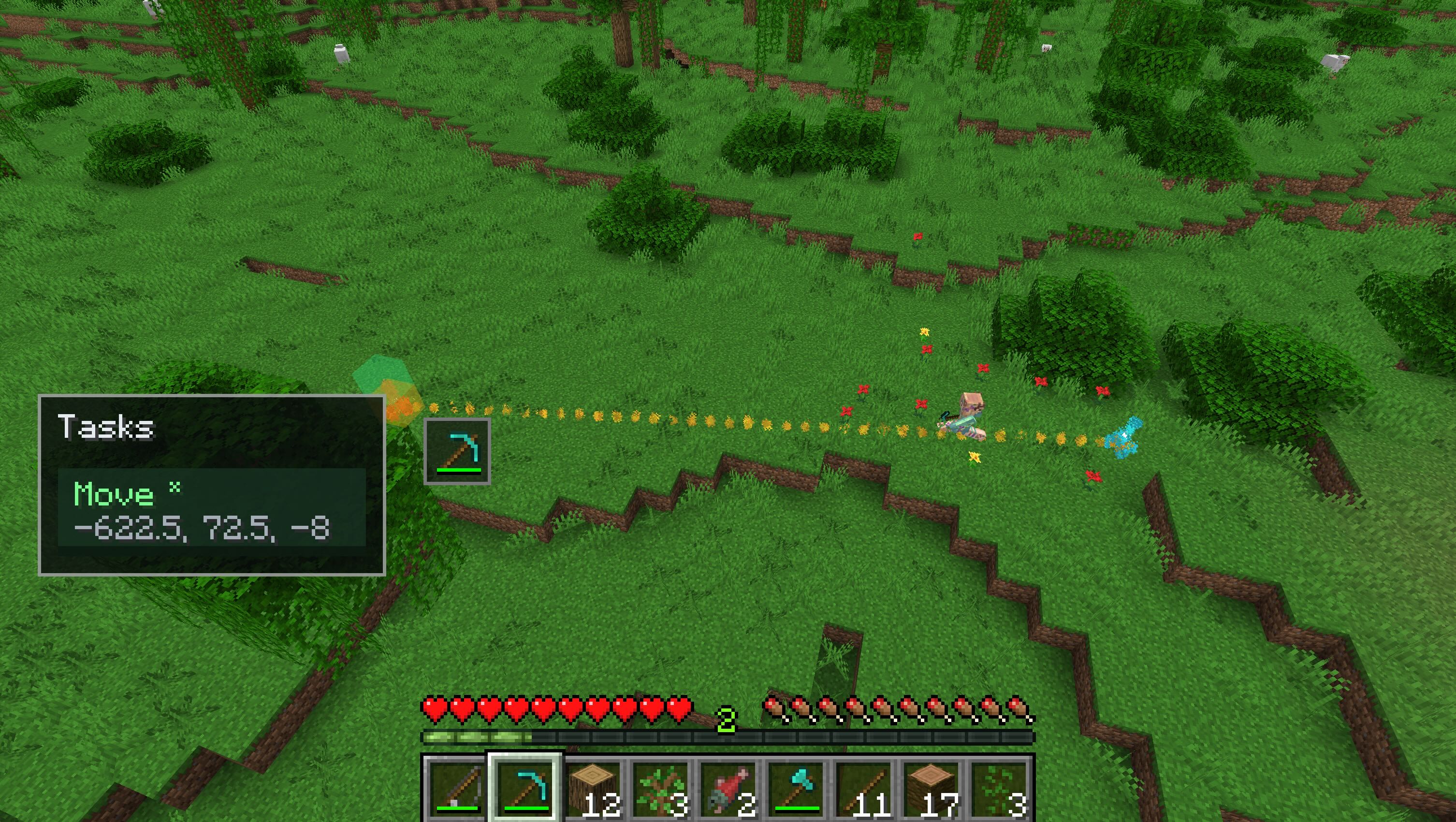 Movement
 -
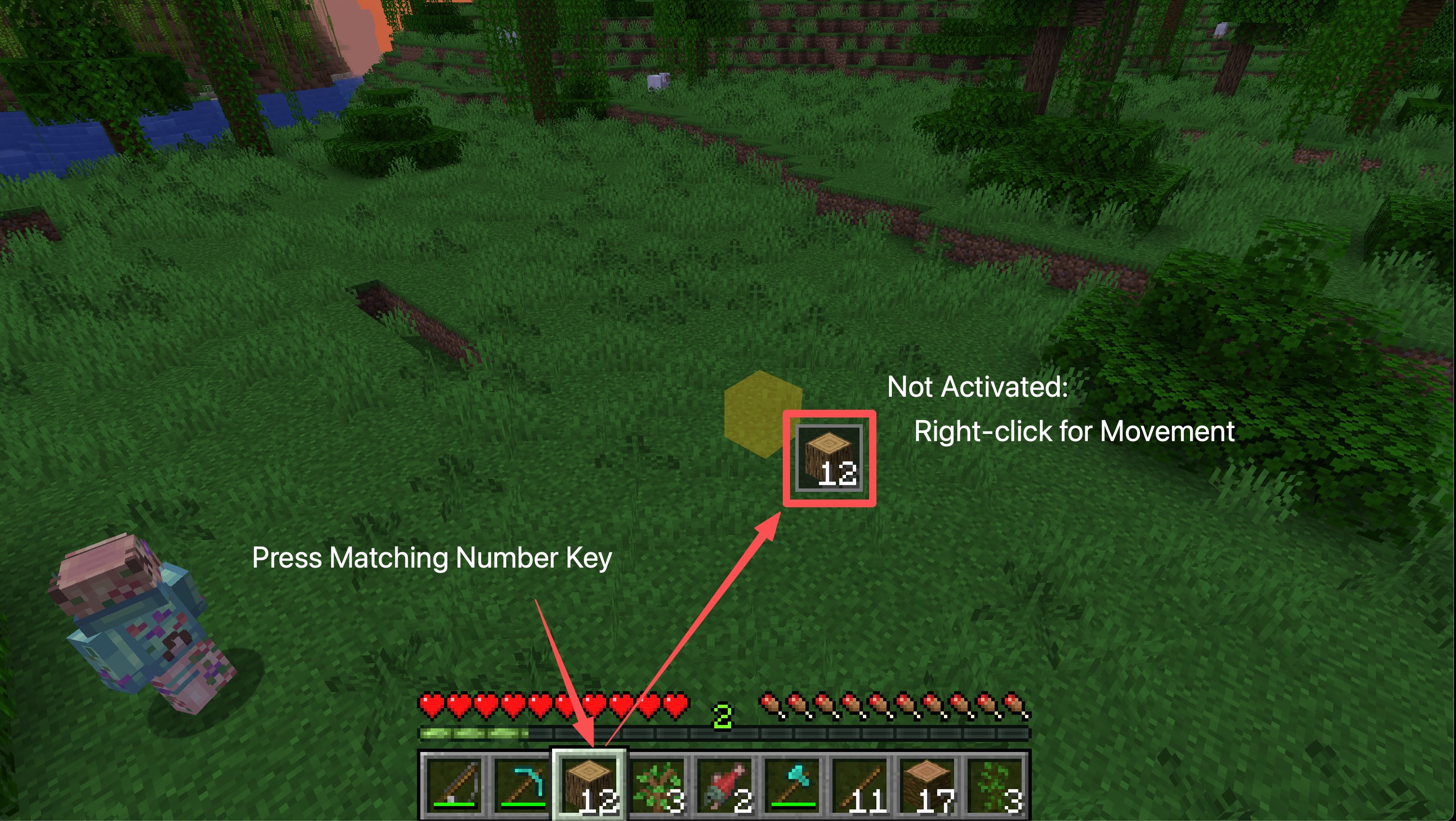 When the Block is Deactivated, Right-click is for Movement
 -
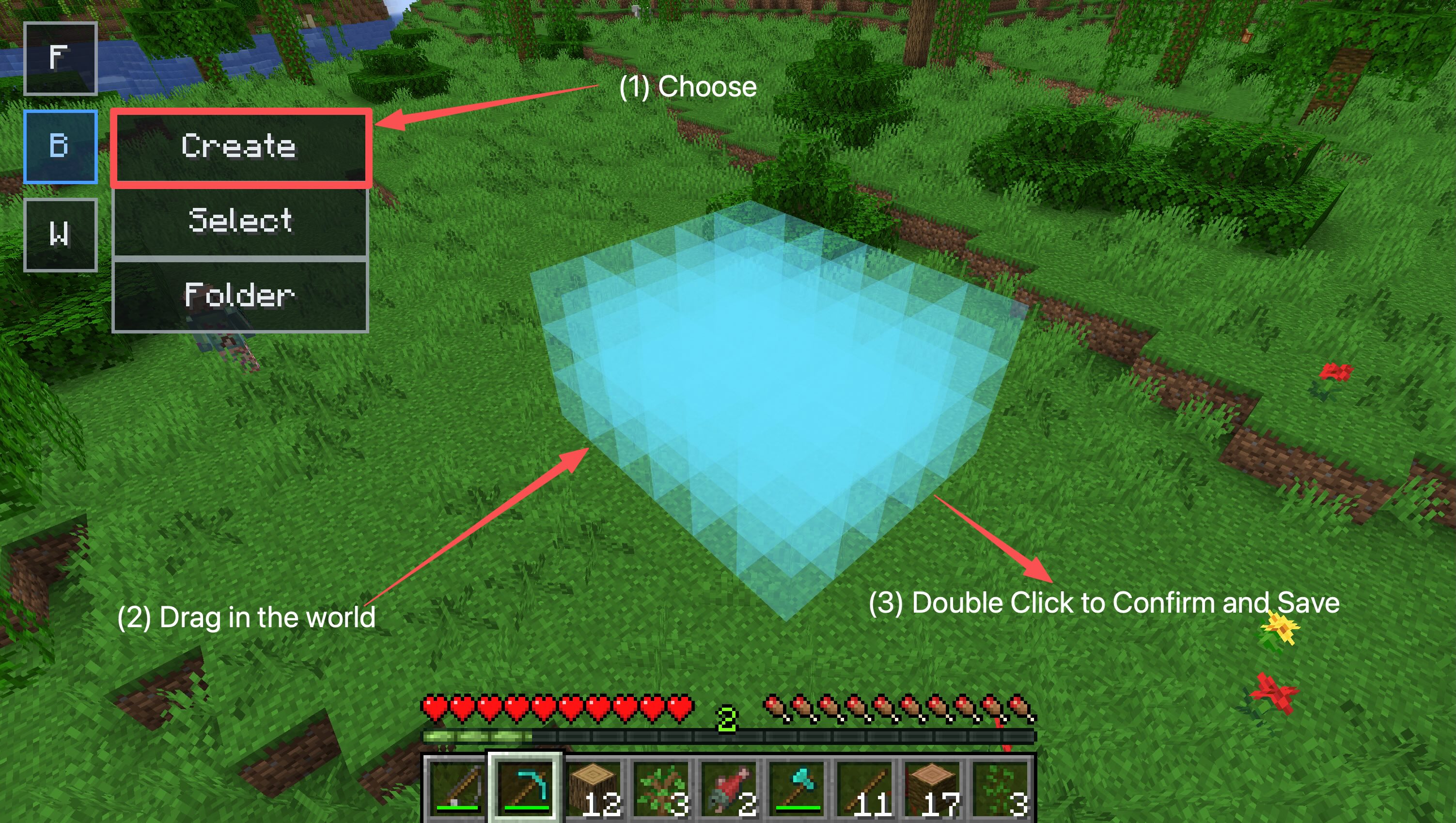 Create a Blueprint
 -
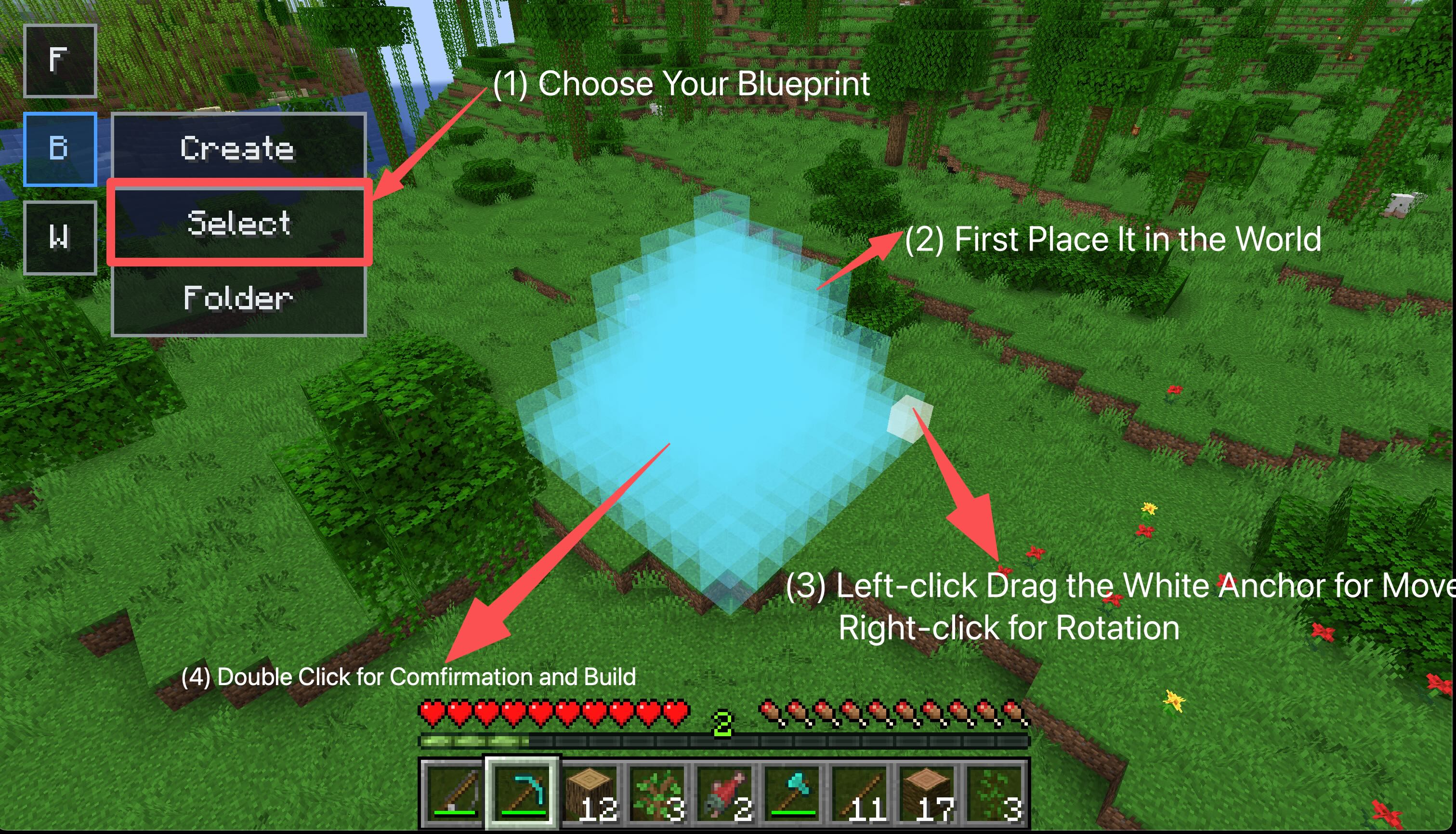 Select Blueprint and Build
 -
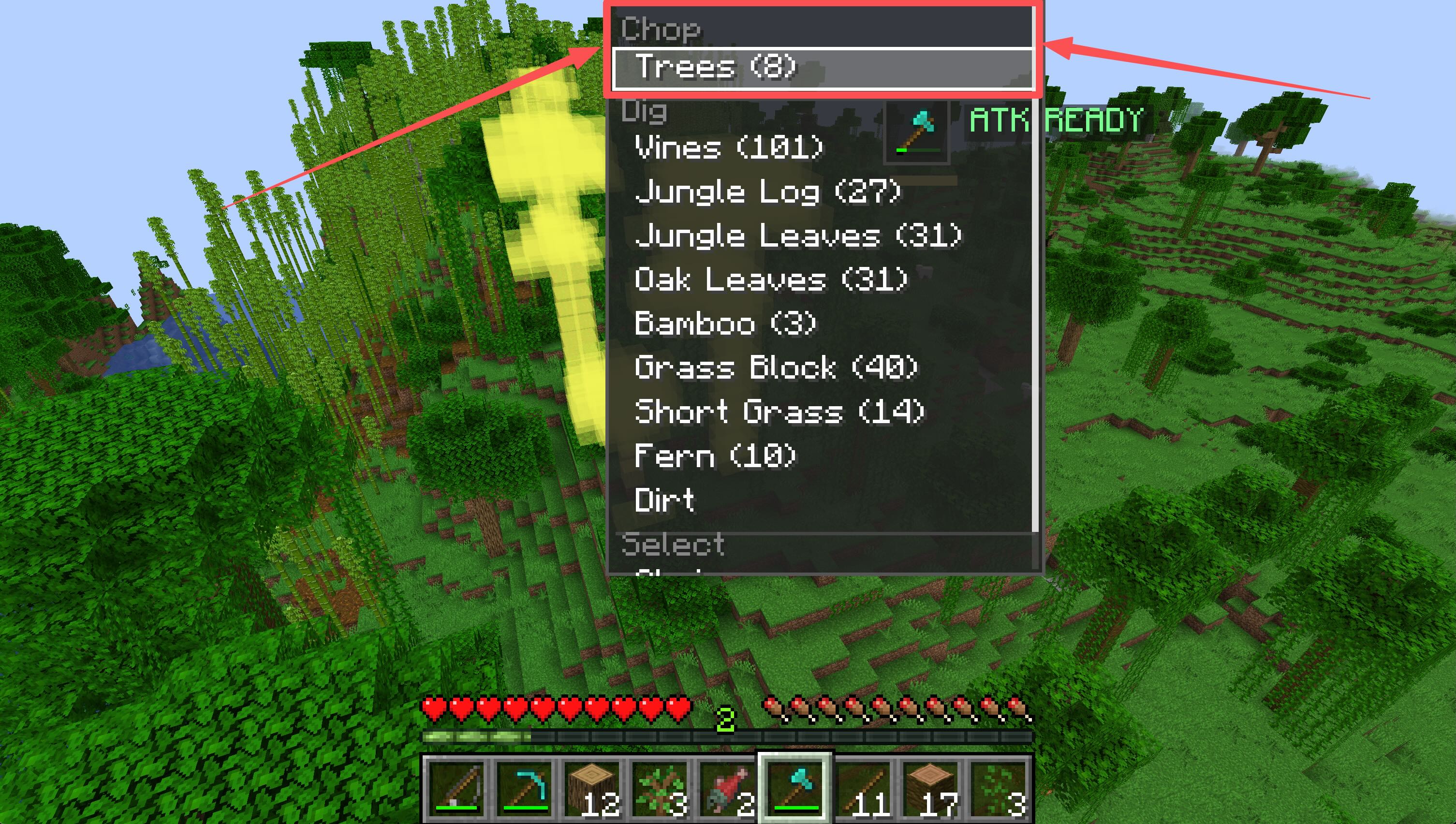 Chop Trees
 -
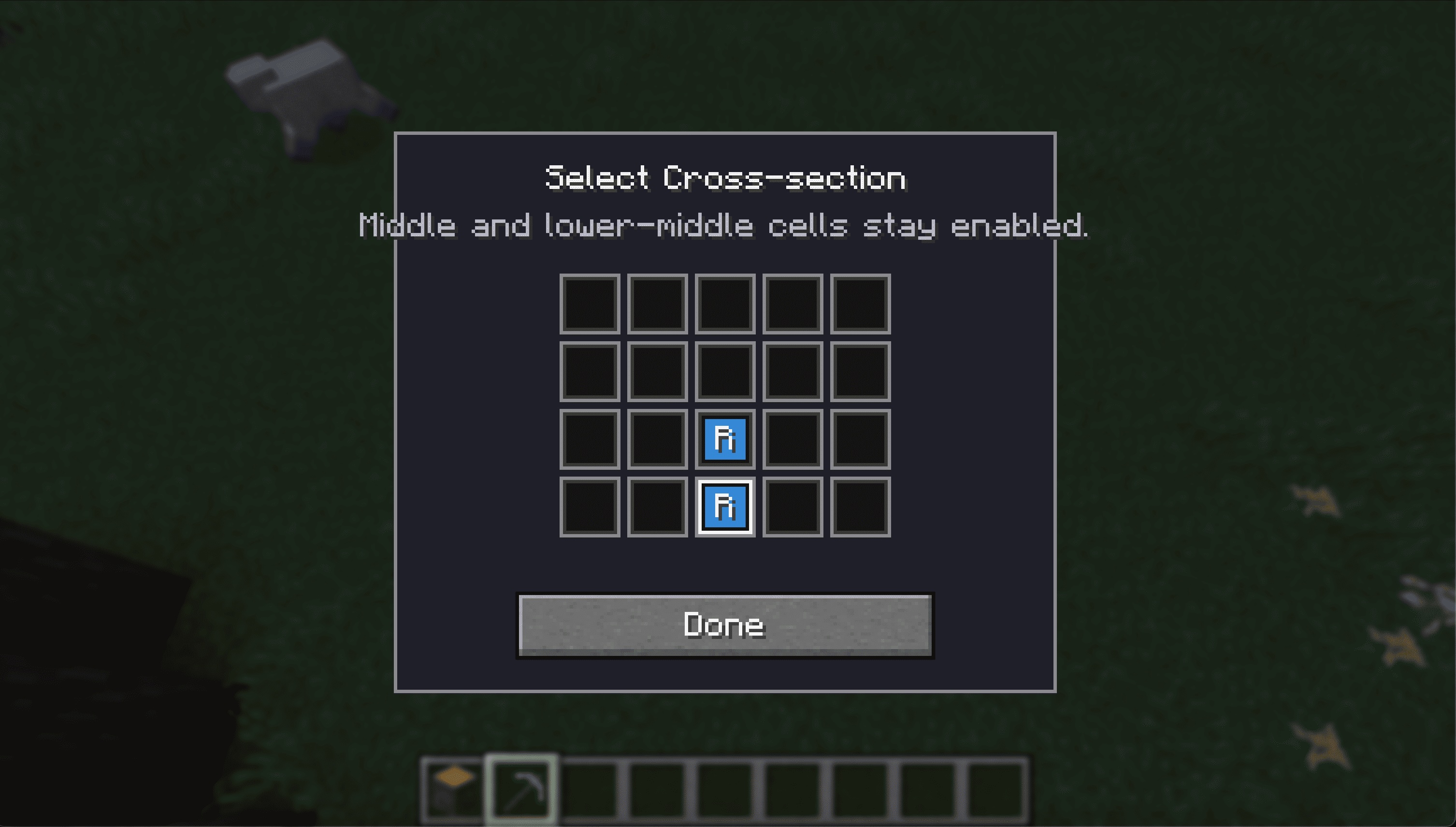 Configure Cross Section of the Tunnel
 -
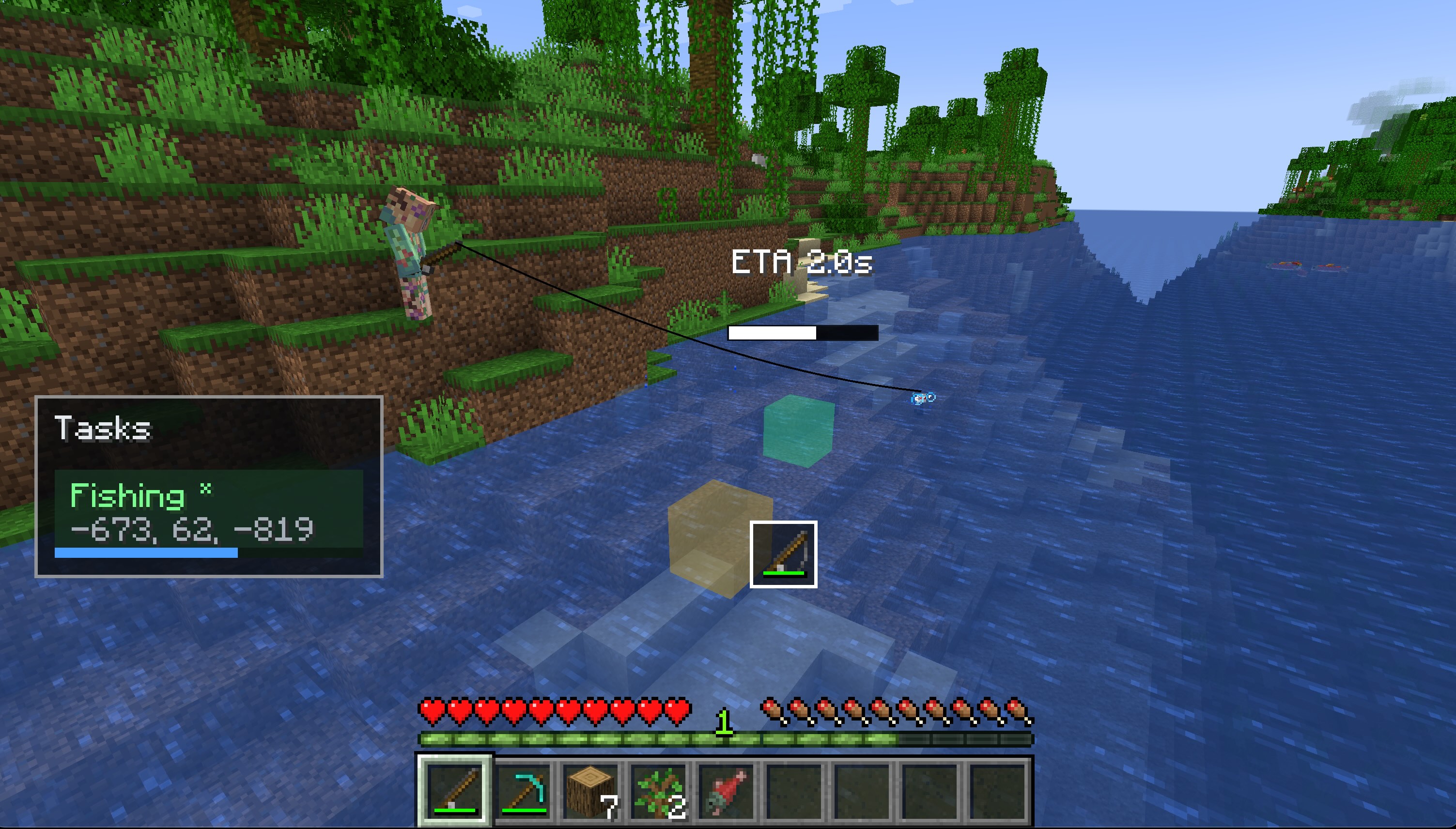 Fishing
 -
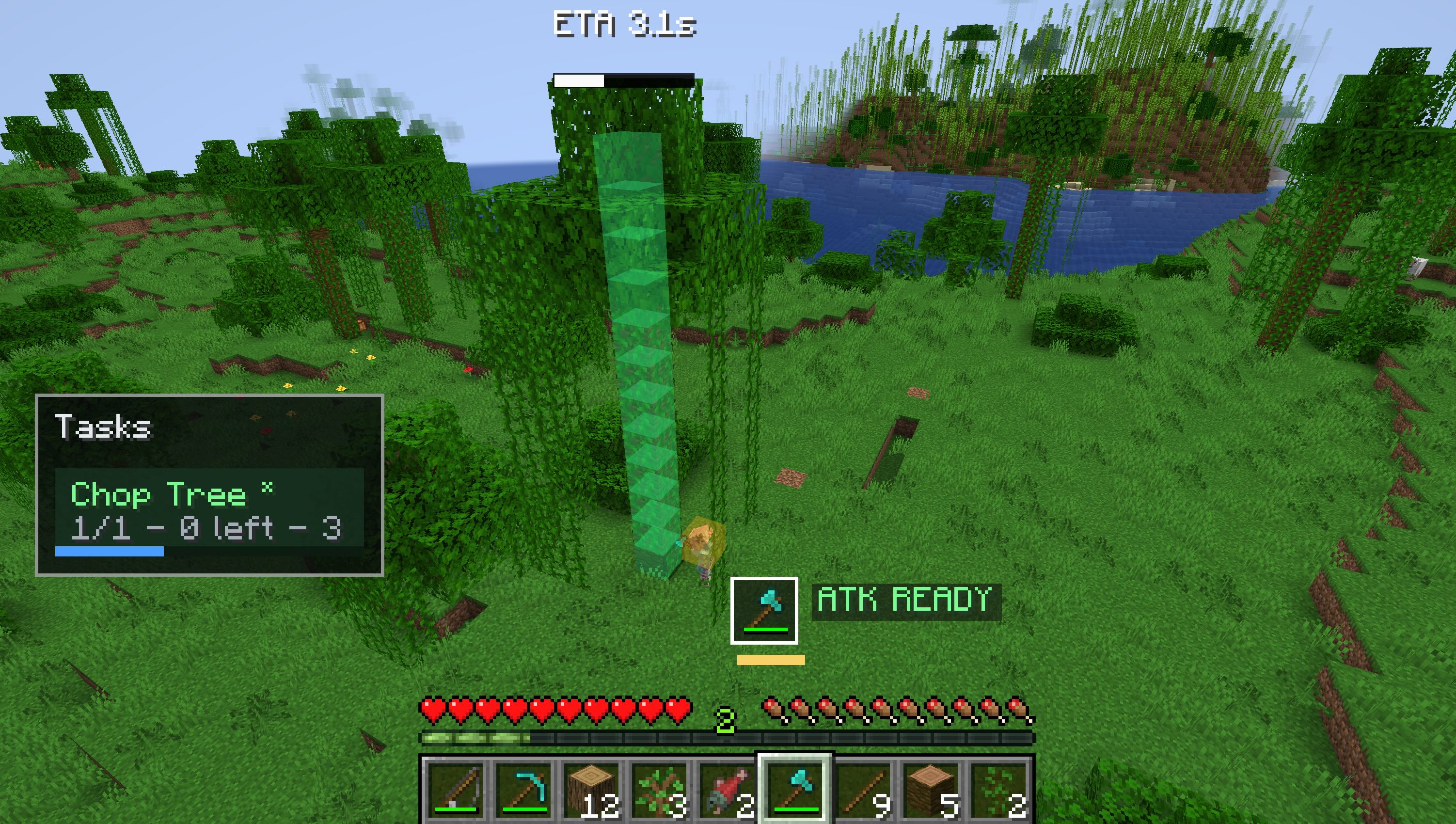 Chop a Tree
 -
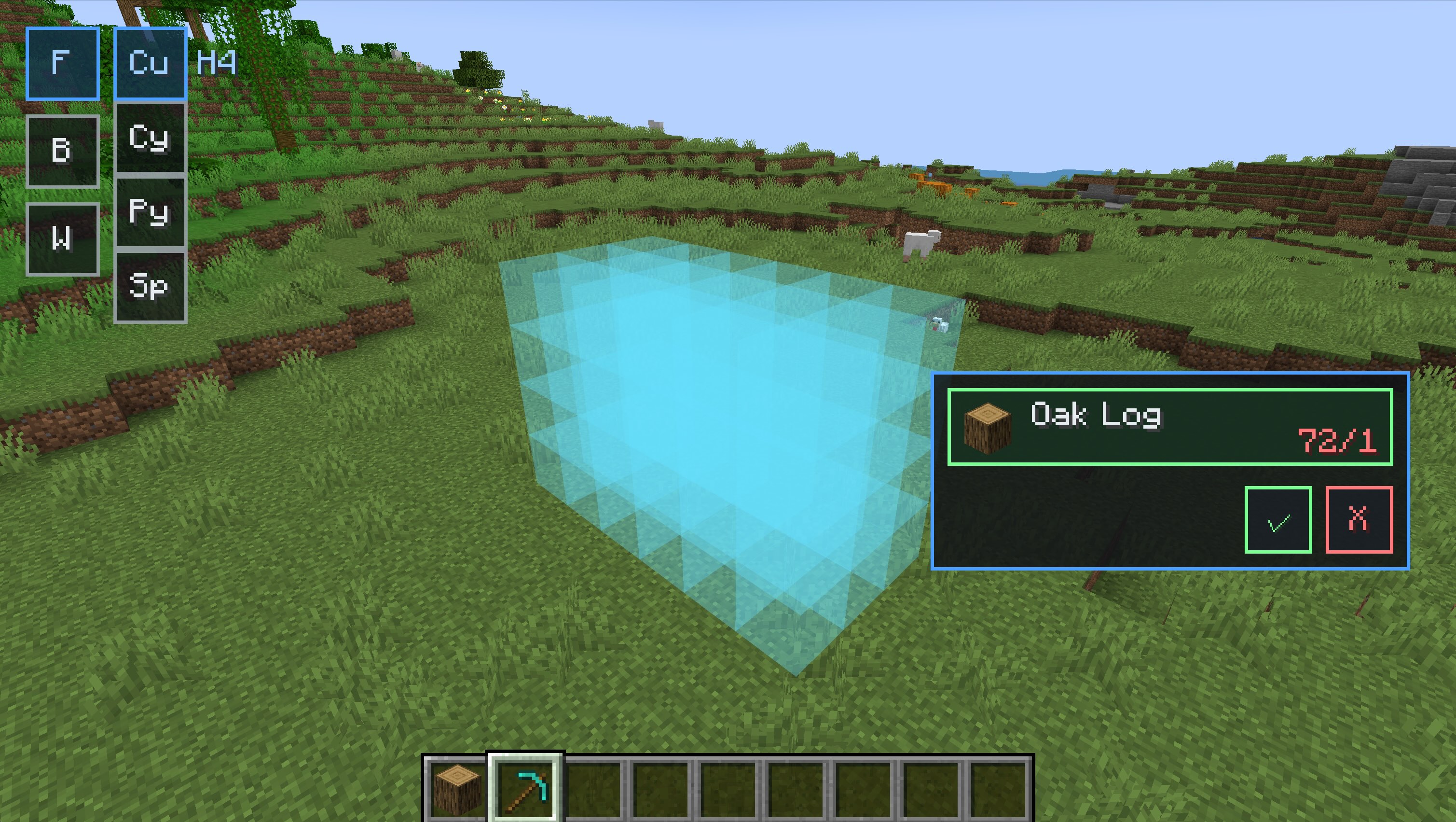 Filling Cube
Versions
Files
Relations
Project Relations
More like this
Similar Mods
Suggestions use data such as tags, dependencies, dependents, descriptions, titles, and more to rank how much they overlap with this mod.
On ModDex
Community snapshot
By the numbers
Statistics

Want to reach Minecraft players?
We're looking for a server hosting partner to feature here and other parts of the site. Interested? Send us a message!
Get in touchGet it on
Available Platforms
On ModDex
Community snapshot
By the numbers
Statistics
Resources