Community listing page, reviews here may not be monitored by the author.
Better Compass Azimut


No reviews yet
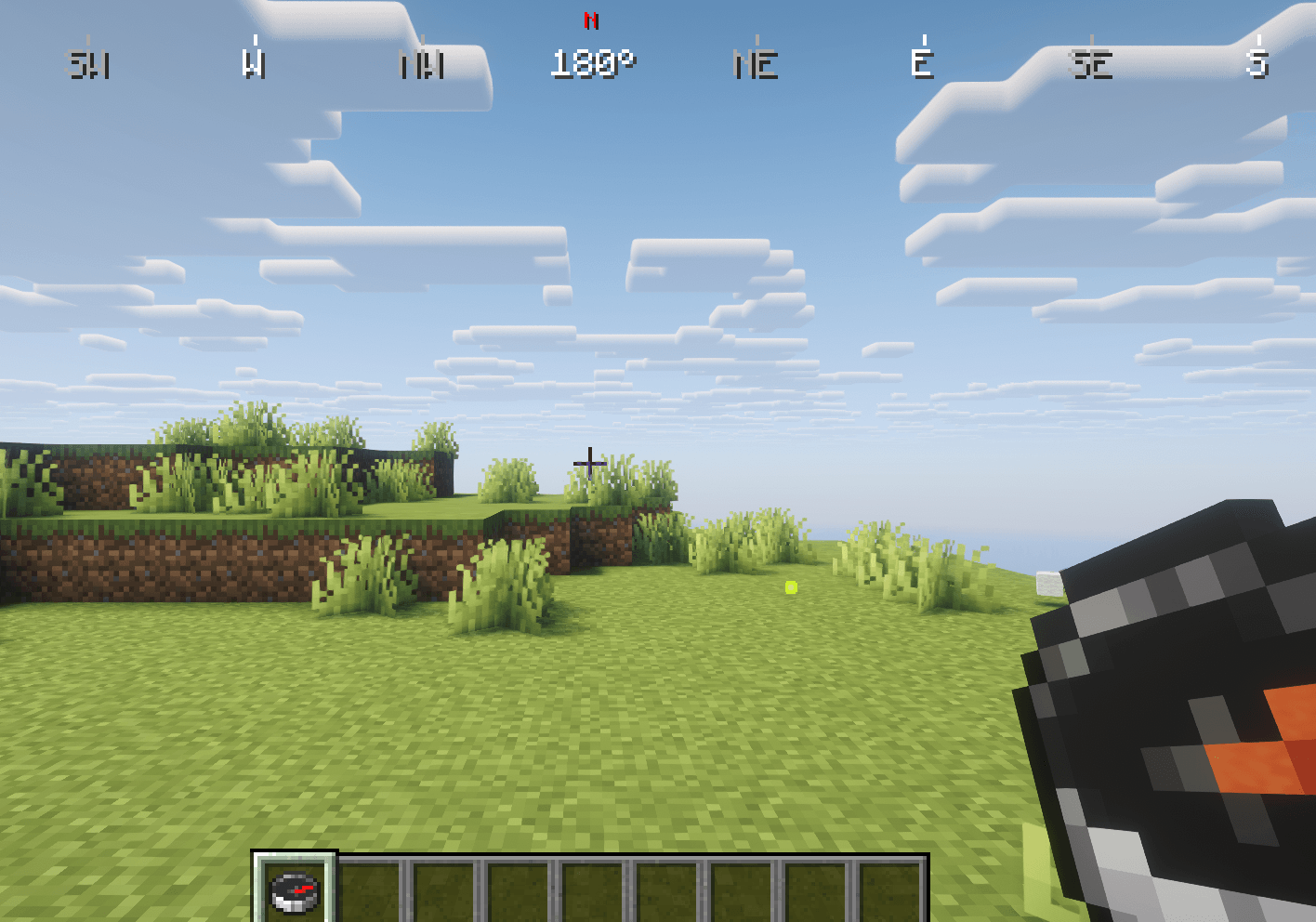
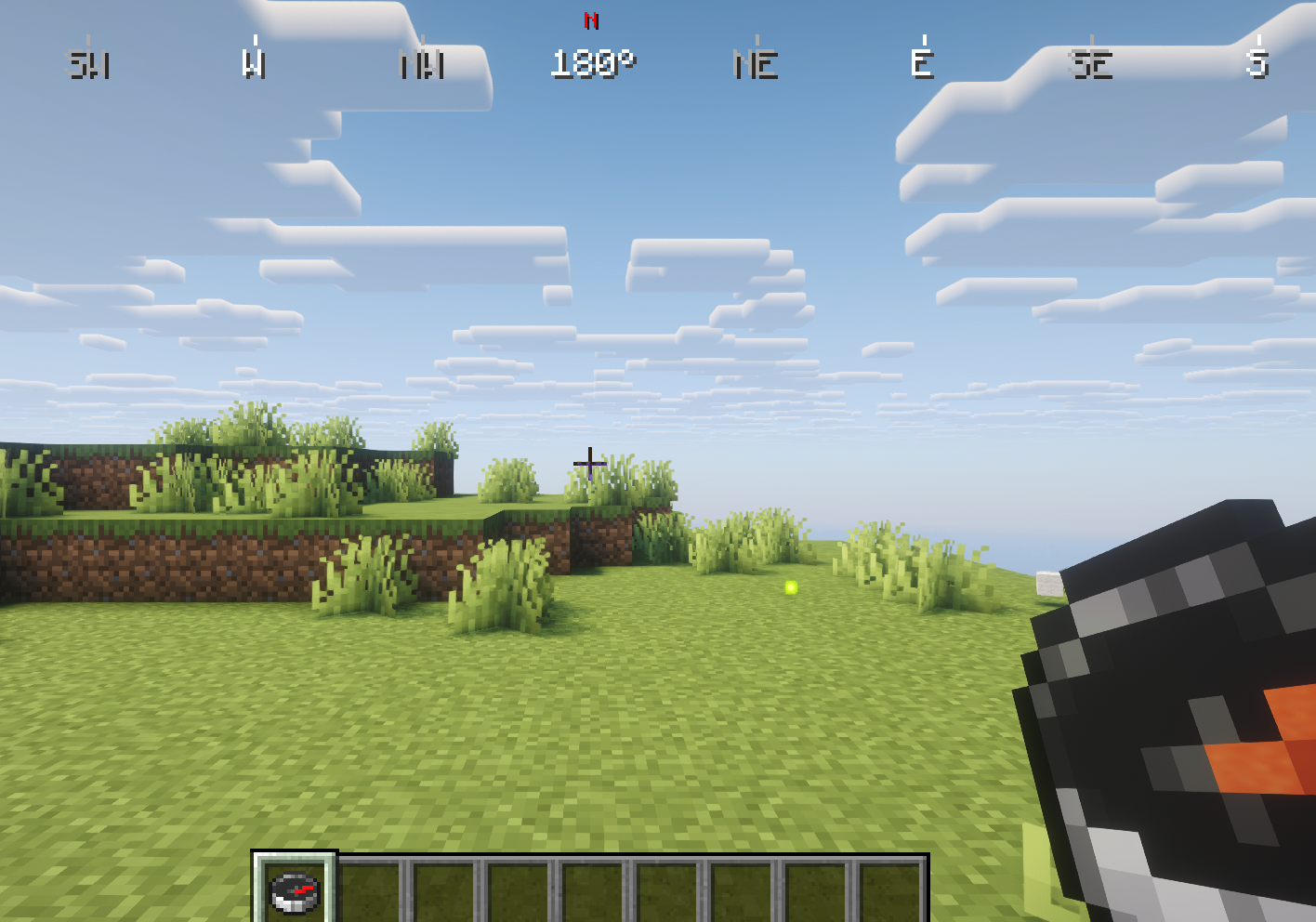
🧭 Better Compass Better Compass is a lightweight and fully configurable Minecraft mod that adds a modern compass HUD at the top of the screen. It displays the cardinal directions (N • E • S • W) along with the exact facing angle in degrees
Community voices
Reviews
No reviews yet. Be the first to review this project!
Get it on
Available Platforms
Compatibility
Supported Environments
Required on the client. Installing it on the server adds functionality.
About
Project Details
For authors
Embed Badge
If you're the author of this project, you can embed a live badge anywhere that supports HTML or Markdown. It updates automatically whenever ratings change.
Use HTML for any page that supports it, or Markdown for README files and Markdown-based descriptions.
Identifiers
Platform IDs
Resources
External Links
About
Description
🧭 Better Compass
Better Compass is a lightweight and fully configurable Minecraft mod that adds a modern compass HUD with directional indicators, coordinates display, biome info, and dimension tracking. It features a complete theming system with multiple pre-designed themes and full server-client configuration management.
⚠️ By default, a compass must be present in the player's inventory for the HUD to work (configurable via server or client settings).
✨ Features
📍 Directional Indicators - Shows 8 cardinal directions (N, NE, E, SE, S, SW, W, NW)
🎯 Facing Angle - Displays exact facing direction in degrees with smooth animation
📐 Coordinates Display - Real-time X, Y, Z coordinates with customizable position and scale
🌍 Dimension Info - Shows current dimension (Overworld/Nether/End)
🗺️ Biome Display - Displays current biome name
🎨 Theme System - 4 pre-built themes (default, compact, colorful, immersive) with full customization
⚙️ Custom Themes - Create unlimited custom themes with 50+ configurable parameters
🔧 Hot-Reload - Reload themes without restarting with /bettercompass theme reload
🌐 Full Customization - Configure colors, positions, sizes, and animations via TOML files
📡 Server Override - Servers can force themes and settings on all connected clients
🧭 Compass Requirement - Toggle compass requirement at server or client level
🚀 Lightweight - Optimized for minimal performance impact
💻 Multi-Platform - Available for both Forge and Fabric
⚙️ Configuration
The mod uses TOML configuration files for complete customization:
Client Configuration (config/bettercompass/compass.toml):
requireCompass = false
currentTheme = "default"requireCompass: If true, HUD only appears with a compass in inventorycurrentTheme: Selected theme (default, compact, colorful, immersive, or custom)
Server Configuration (server_config.toml):
serverForceTheme = false
serverTheme = "default"
requireCompass = "client"serverForceTheme: If true, forces all clients to use the specified themeserverTheme: Theme to enforce on all players (ignored if serverForceTheme = false)requireCompass: "client" (player chooses), "true" (required), "false" (optional)
🎨 Theme System
Themes are stored in config/bettercompass/themes/ as TOML files. Each theme contains:
- Colors: Primary, secondary, background, text, border (ARGB format)
- Dimensions: Compass size, text scale, padding, border width
- Positions: X, Y coordinates for each HUD element
- Coordinates Display: Position, scale, and visibility
- Dimension Display: Position, scale, and visibility
- Biome Display: Position, scale, and visibility
- Animation: Smooth rotation speed and other effects
- Metadata: Theme name, author, and description
Supported Color Formats:
- ARGB:
0xAARRGGBB(e.g.,0xFF00FF00for opaque green) - Hex:
#RRGGBB(e.g.,#00FF00) - RGB:
rgb(255, 0, 0) - RGBA:
rgba(255, 0, 0, 128)
Example Theme (config/bettercompass/themes/custom.toml):
# Better Compass Theme: default
# Classic Better Compass theme

[metadata]
name = "default"
description = "Classic Better Compass theme"
author = "Better Compass"
version = "1.0"

[position]
hudPosition = "top-center"
hudOffsetX = 0
hudOffsetY = 0

[compass]
width = 400
height = 20
spacing = 90
scale = 1.0

[colors]
background = 0x80000000
border = 0xFFFFFFFF
text = 0xFFFFFFFF
direction = 0xFFAAAAAA
north = 0xFFFF0000
east = 0xFFFFFFFF
south = 0xFFFFFFFF
west = 0xFFFFFFFF
playerDirection = 0xFFFFFFFF
coordinates = 0xFFFFFFFF
dimension = 0xFFFFFFFF
biome = 0xFFFFFFFF

[playerDirection]
position = "center"
offsetX = 0
offsetY = 0

[coordinates]
show = true
position = "bottom-center"
offsetX = 0
offsetY = -15
format = "X: %d Y: %d Z: %d"

[dimension]
show = false
position = "below-coordinates"
offsetX = 0
offsetY = 12

[biome]
show = false
position = "below-dimension"
offsetX = 0
offsetY = 12

[appearance]
showBorder = false
borderWidth = 1
borderRadius = 3
showBackground = false
backgroundPadding = 4
textScale = 1.0
textShadow = false

[animation]
smoothRotation = false
rotationSpeed = 0.3
Simply create a new TOML file in config/bettercompass/themes/ with your own theme configuration. The theme will be automatically loaded and available through commands.
All commands support Tab-completion for theme names.
/bettercompass theme list- Display all available themes with the current one marked/bettercompass theme set <name>- Switch to a specific theme (saved to config)/bettercompass theme current- Show the currently active theme and its properties/bettercompass theme reload- Hot-reload all themes from disk (useful for developers)
🌐 Server Compatibility
Better Compass features complete server-client integration:
- Client-only mode: Works seamlessly in single-player
- Server mode: Administrators can enforce themes and settings across all players
- Real-time sync: Configuration changes sync immediately when players join
- Override system: Server theme forcing takes priority over client preferences
- Flexibility: Individual settings can be left to client choice or forced server-wide
🎯 Default Themes
- default - Balanced, clean design suitable for most playstyles
- compact - Optimized for smaller screens and minimal HUD footprint
- colorful - Vibrant colors for better visibility and visual appeal
- immersive - Subtle and elegant design for atmosphere preservation
💡 Creating Custom Themes
Simply create a new TOML file in config/bettercompass/themes/ with any name. Themes are automatically loaded and available through commands. The theme system provides 50+ customizable parameters to match any player preference or server aesthetic.
🎯 Mod Goal
Better Compass enhances navigation with a modern, highly customizable interface while maintaining vanilla-friendly balance. Whether you prefer a subtle compass or a feature-rich HUD, the extensive theme system accommodates every playstyle in both single-player and multiplayer environments.
🧭 Better Compass
Better Compass is a lightweight and fully configurable Minecraft mod that adds a modern compass HUD with directional indicators, coordinates display, biome info, and dimension tracking. It features a complete theming system with multiple pre-designed themes and full server-client configuration management.
⚠️ By default, a compass must be present in the player's inventory for the HUD to work (configurable via server or client settings).
✨ Features
📍 Directional Indicators - Shows 8 cardinal directions (N, NE, E, SE, S, SW, W, NW)
🎯 Facing Angle - Displays exact facing direction in degrees with smooth animation
📐 Coordinates Display - Real-time X, Y, Z coordinates with customizable position and scale
🌍 Dimension Info - Shows current dimension (Overworld/Nether/End)
🗺️ Biome Display - Displays current biome name
🎨 Theme System - 4 pre-built themes (default, compact, colorful, immersive) with full customization
⚙️ Custom Themes - Create unlimited custom themes with 50+ configurable parameters
🔧 Hot-Reload - Reload themes without restarting with /bettercompass theme reload
🌐 Full Customization - Configure colors, positions, sizes, and animations via TOML files
📡 Server Override - Servers can force themes and settings on all connected clients
🧭 Compass Requirement - Toggle compass requirement at server or client level
🚀 Lightweight - Optimized for minimal performance impact
💻 Multi-Platform - Available for both Forge and Fabric
⚙️ Configuration
The mod uses TOML configuration files for complete customization:
Client Configuration (config/bettercompass/compass.toml):
requireCompass = false
currentTheme = "default"
requireCompass: If true, HUD only appears with a compass in inventorycurrentTheme: Selected theme (default, compact, colorful, immersive, or custom)
Server Configuration (server_config.toml):
serverForceTheme = false
serverTheme = "default"
requireCompass = "client"
serverForceTheme: If true, forces all clients to use the specified themeserverTheme: Theme to enforce on all players (ignored if serverForceTheme = false)requireCompass: "client" (player chooses), "true" (required), "false" (optional)
🎨 Theme System
Themes are stored in config/bettercompass/themes/ as TOML files. Each theme contains:
- Colors: Primary, secondary, background, text, border (ARGB format)
- Dimensions: Compass size, text scale, padding, border width
- Positions: X, Y coordinates for each HUD element
- Coordinates Display: Position, scale, and visibility
- Dimension Display: Position, scale, and visibility
- Biome Display: Position, scale, and visibility
- Animation: Smooth rotation speed and other effects
- Metadata: Theme name, author, and description
Supported Color Formats:
- ARGB:
0xAARRGGBB(e.g.,0xFF00FF00for opaque green) - Hex:
#RRGGBB(e.g.,#00FF00) - RGB:
rgb(255, 0, 0) - RGBA:
rgba(255, 0, 0, 128)
Example Theme (config/bettercompass/themes/custom.toml):
# Better Compass Theme: default
# Classic Better Compass theme

[metadata]
name = "default"
description = "Classic Better Compass theme"
author = "Better Compass"
version = "1.0"

[position]
hudPosition = "top-center"
hudOffsetX = 0
hudOffsetY = 0

[compass]
width = 400
height = 20
spacing = 90
scale = 1.0

[colors]
background = 0x80000000
border = 0xFFFFFFFF
text = 0xFFFFFFFF
direction = 0xFFAAAAAA
north = 0xFFFF0000
east = 0xFFFFFFFF
south = 0xFFFFFFFF
west = 0xFFFFFFFF
playerDirection = 0xFFFFFFFF
coordinates = 0xFFFFFFFF
dimension = 0xFFFFFFFF
biome = 0xFFFFFFFF

[playerDirection]
position = "center"
offsetX = 0
offsetY = 0

[coordinates]
show = true
position = "bottom-center"
offsetX = 0
offsetY = -15
format = "X: %d Y: %d Z: %d"

[dimension]
show = false
position = "below-coordinates"
offsetX = 0
offsetY = 12

[biome]
show = false
position = "below-dimension"
offsetX = 0
offsetY = 12

[appearance]
showBorder = false
borderWidth = 1
borderRadius = 3
showBackground = false
backgroundPadding = 4
textScale = 1.0
textShadow = false

[animation]
smoothRotation = false
rotationSpeed = 0.3
Simply create a new TOML file in config/bettercompass/themes/ with your own theme configuration. The theme will be automatically loaded and available through commands.
All commands support Tab-completion for theme names.
/bettercompass theme list- Display all available themes with the current one marked/bettercompass theme set <name>- Switch to a specific theme (saved to config)/bettercompass theme current- Show the currently active theme and its properties/bettercompass theme reload- Hot-reload all themes from disk (useful for developers)
🌐 Server Compatibility
Better Compass features complete server-client integration:
- Client-only mode: Works seamlessly in single-player
- Server mode: Administrators can enforce themes and settings across all players
- Real-time sync: Configuration changes sync immediately when players join
- Override system: Server theme forcing takes priority over client preferences
- Flexibility: Individual settings can be left to client choice or forced server-wide
🎯 Default Themes
- default - Balanced, clean design suitable for most playstyles
- compact - Optimized for smaller screens and minimal HUD footprint
- colorful - Vibrant colors for better visibility and visual appeal
- immersive - Subtle and elegant design for atmosphere preservation
💡 Creating Custom Themes
Simply create a new TOML file in config/bettercompass/themes/ with any name. Themes are automatically loaded and available through commands. The theme system provides 50+ customizable parameters to match any player preference or server aesthetic.
🎯 Mod Goal
Better Compass enhances navigation with a modern, highly customizable interface while maintaining vanilla-friendly balance. Whether you prefer a subtle compass or a feature-rich HUD, the extensive theme system accommodates every playstyle in both single-player and multiplayer environments.
Screenshots
Gallery
-
 2
2 -
 1
1

Versions
Files
Relations
Project Relations
More like this
Similar Mods
Suggestions use data such as tags, dependencies, dependents, descriptions, titles, and more to rank how much they overlap with this mod.
On ModDex
Community snapshot
By the numbers
Statistics
Want to reach Minecraft players?
We're looking for a server hosting partner to feature here and other parts of the site. Interested? Send us a message!
Get in touchGet it on
Available Platforms
On ModDex
Community snapshot
By the numbers
Statistics
Resources