Community listing page, reviews may not be monitored by the author.
Create: Redstone Link Tablet


No reviews yet
A smart-home control panel for your Create contraptions. The Link Tablet is a handheld device with an app-style GUI that toggles Create's Redstone Links on and off remotely .

Community voices
Reviews
No reviews yet. Be the first to review this project!
Get it on
Available Platforms
Compatibility
Supported Environments
Must be installed on both the client and the server.
About
Project Details
For authors
Embed Badge
If you're the author of this project, you can embed a live badge anywhere that supports HTML or Markdown. It updates automatically whenever ratings change.
Use HTML for any page that supports it, or Markdown for README files and Markdown-based descriptions.
Identifiers
Platform IDs
Resources
External Links
About
Description






A smart-home control panel for your Create contraptions.
The Link Tablet is a handheld touchscreen that drives Create's Redstone Links remotely. Name your lights, doors, trains, and machines, give them icons, and flip them from one screen anywhere in link range. It boots to a Home screen of apps — signals, gauges, a clock, a live network monitor, even Twitch chat and a paint canvas — mounts on walls where tablets merge into one big display, and pins a mini-tablet to your HUD.
📱 A pocket OS
The tablet opens to a Home screen you arrange yourself; the built-in App Store (searchable) installs and removes apps per tablet:
- Signals — the control grid below; every tablet starts with it.
- Clock — alarms, a searchable world clock, timer, stopwatch. They ring even with the tablet closed; a placed Clock tablet is a wall clock.
- Calculator — click buttons or type; a placed tablet shows its live tape on the wall.
- Gauges — the reverse of Signals: live dials that listen on link frequencies and show the received 0–15. Merged walls make great factory dashboards.
- Monitor — an X-ray for your link network (below).
- Twitch Chat — live stream chat, emotes included, no account (below).
- Paint — a persistent pixel canvas that shows on walls (below).
Placed tablets show their app right on the glass — tap to open it, tap the bezel to go Home — and the wall follows your GUI navigation.
🎛️ Signals, not levers
- Up to 32 signals per tablet (+32 per tablet on merged walls), each with a name, color, item icon, and state — grid or list view, drag to rearrange.
- Four types: Toggle (on/off), Hold (transmits only while held — a disconnect can never leave it stuck on), Slider (0–15), Timer (transmits for 0.1–30 s, then switches off by itself).
- Scenes — one signal drives up to 8 frequencies at once ("Shut down the factory").
- Signal links — signals drive each other: up to 8 targets each, set to turn ON, turn OFF, or follow. Links chain, loops are safe, and a linked signal needs no frequency of its own — pure scene master buttons.
- Per-signal strength — strongest wins, exactly like stacked Redstone Links.
📡 Real Create frequencies
Signals tune to Create's item-pair frequencies — anything a Redstone Link can trigger, the tablet can too:
- The editor includes your real inventory (slots take a copy — nothing is consumed) plus a searchable all-items picker.
- JEI/EMI: drag straight from the ingredient panel onto a frequency slot.
- One-item frequencies work, and frequencies carry the full item, components included — frequency-card mods, dyed and renamed items all count as distinct channels, exactly like Create's own links.
📋 Tip — quick-add: right-click any Redstone Link while holding the tablet — the editor opens with that frequency pre-filled. Just hit Save.
🔎 Who's on this frequency?
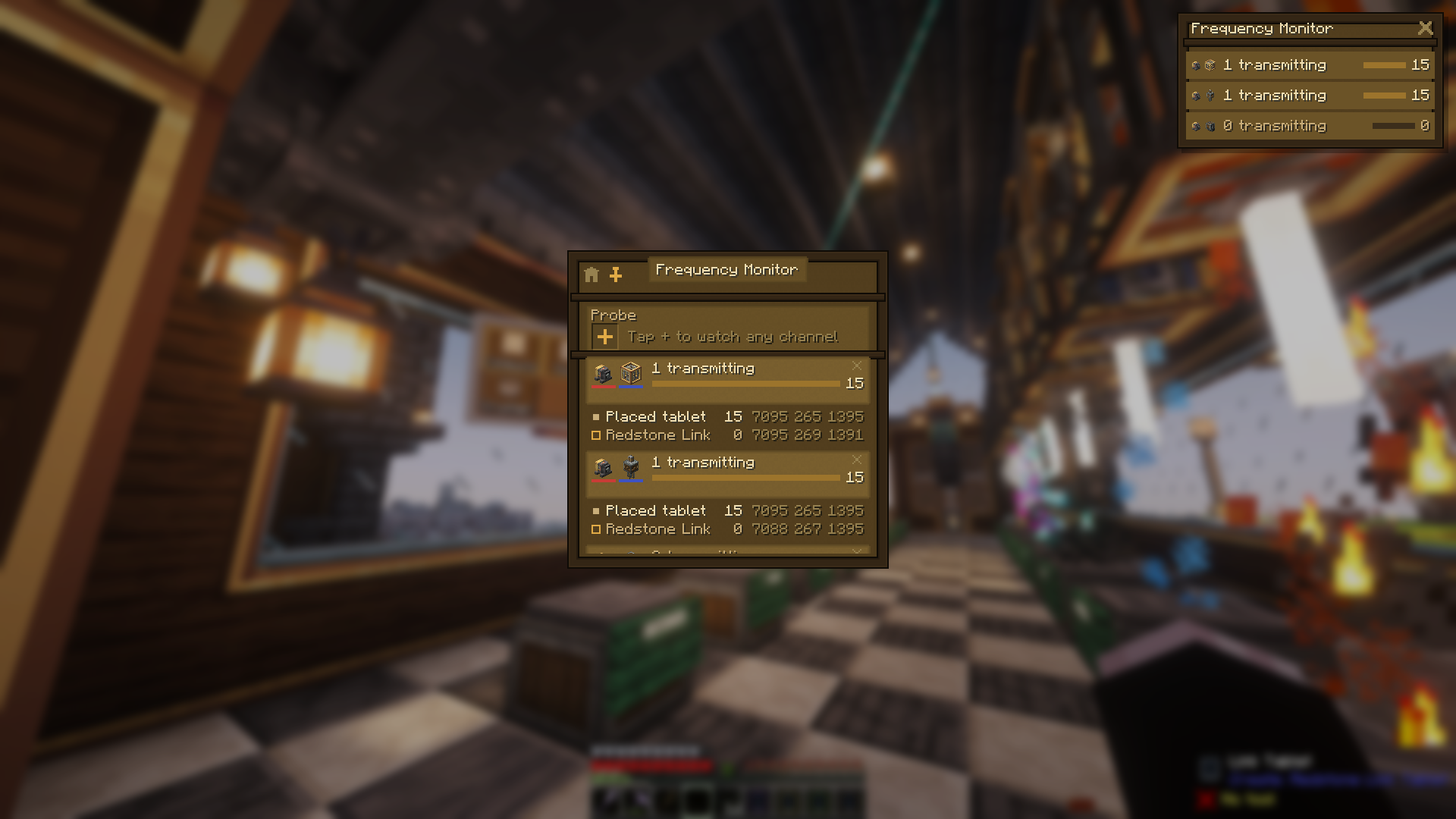
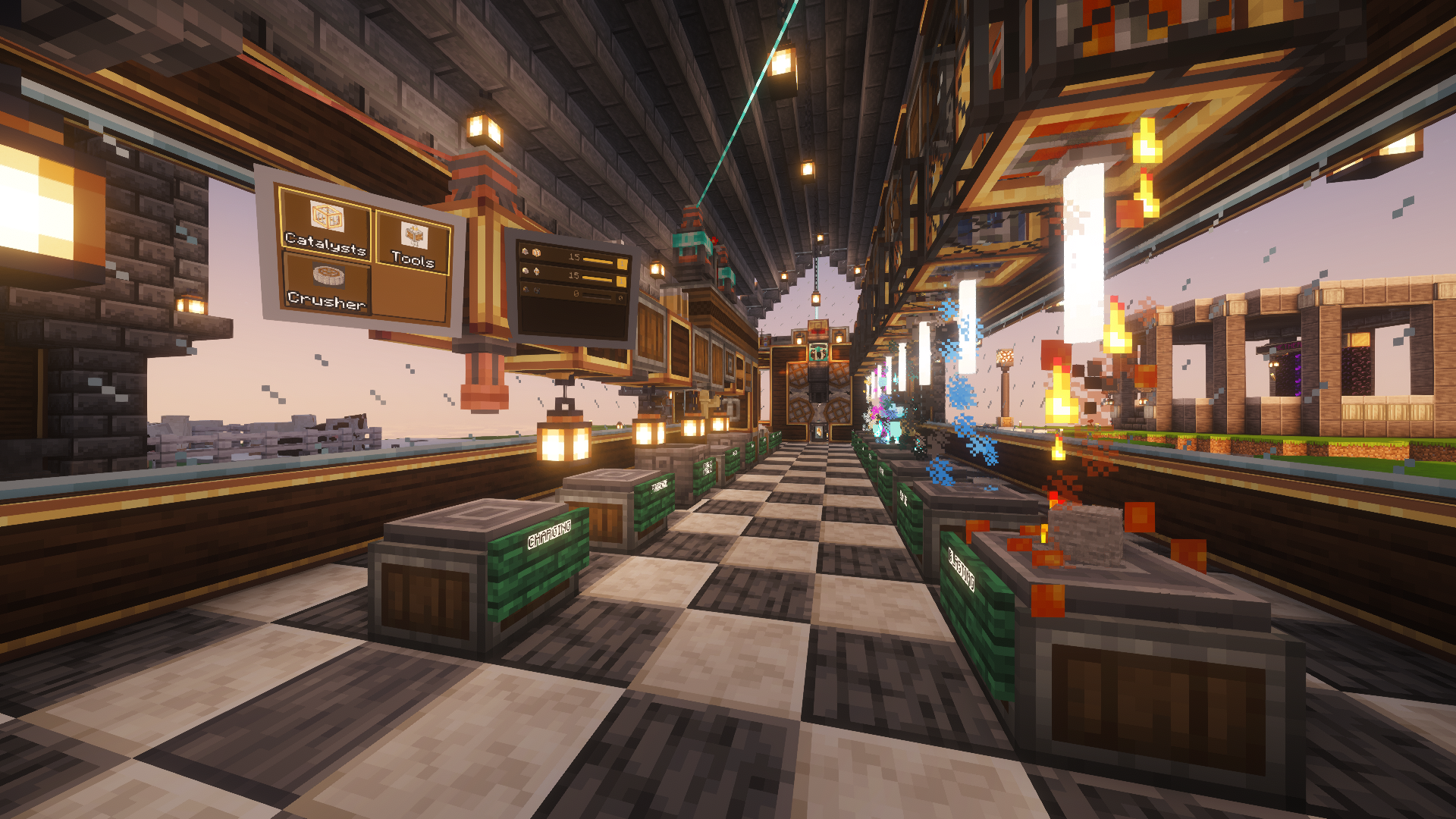
The Monitor app lists every channel your tablet touches — plus any you probe (up to 8) — with live power and every member transmitting or listening: Redstone Links, placed tablets, dropped or framed tablets, even "a tablet in someone's inventory". When a receiver is mysteriously pinned at 15, the Monitor points at the spare tablet in your pocket. Out-of-range members wear a badge; wall tablets make it a status board, and the overlay pin puts it on your HUD.
🎚️ Sliders you can feel
Sliders drag live in the GUI, and on a placed tablet you click-and-slide right on the glass. Every slider shows its numeric level, and an optional min/max range means a machine never fully turns off.
📝 Sticky notes for your factory
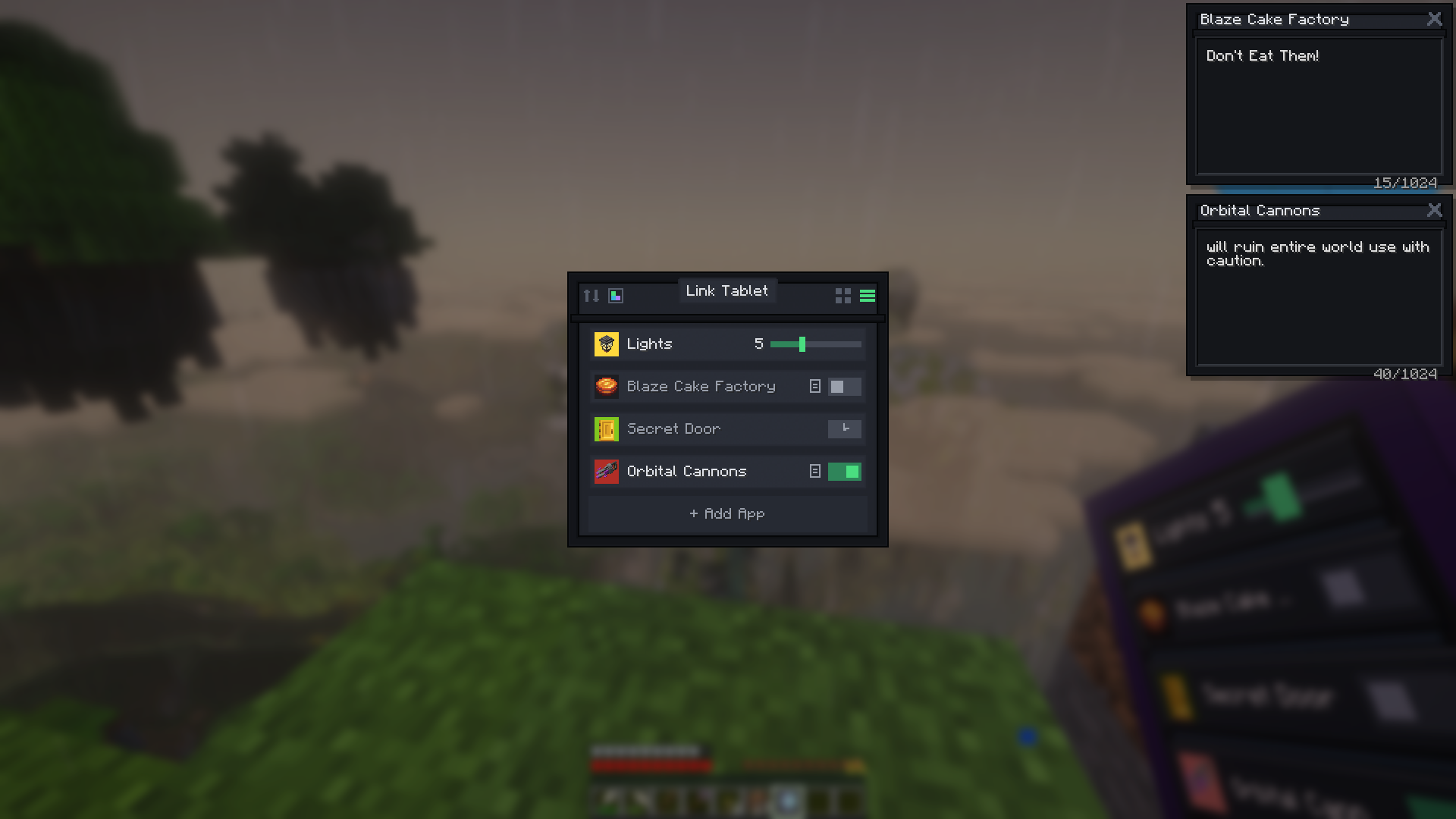
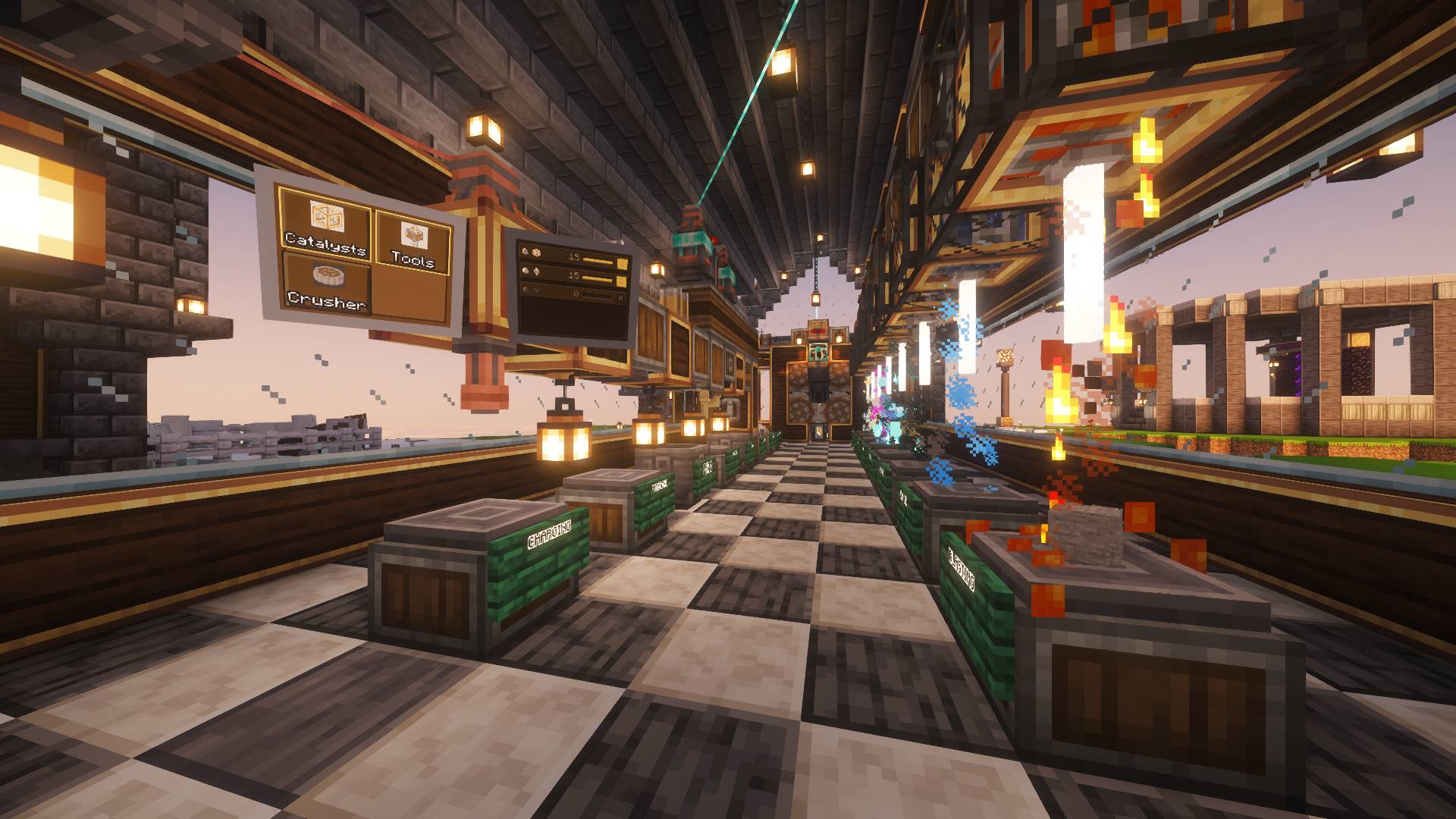
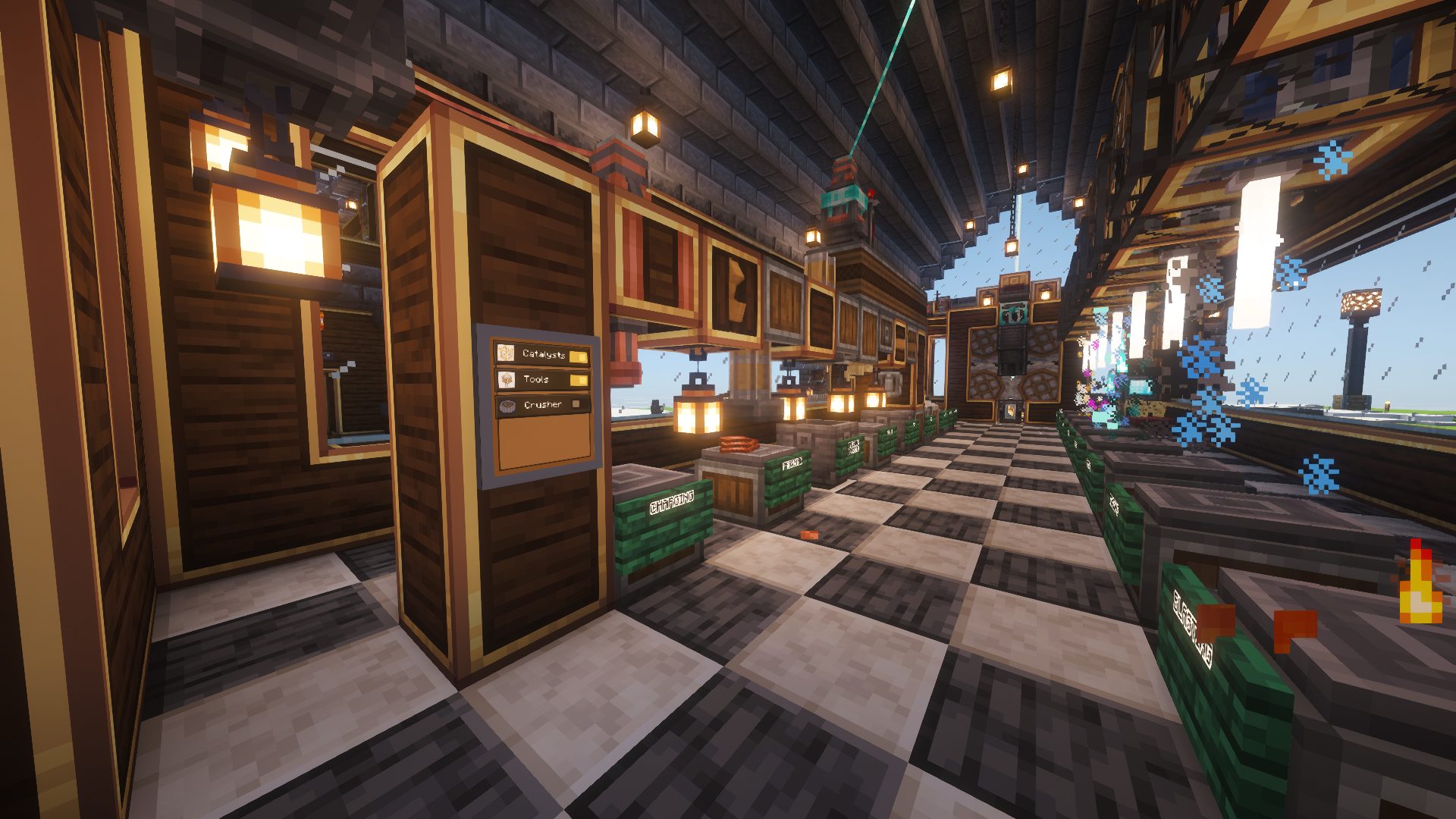
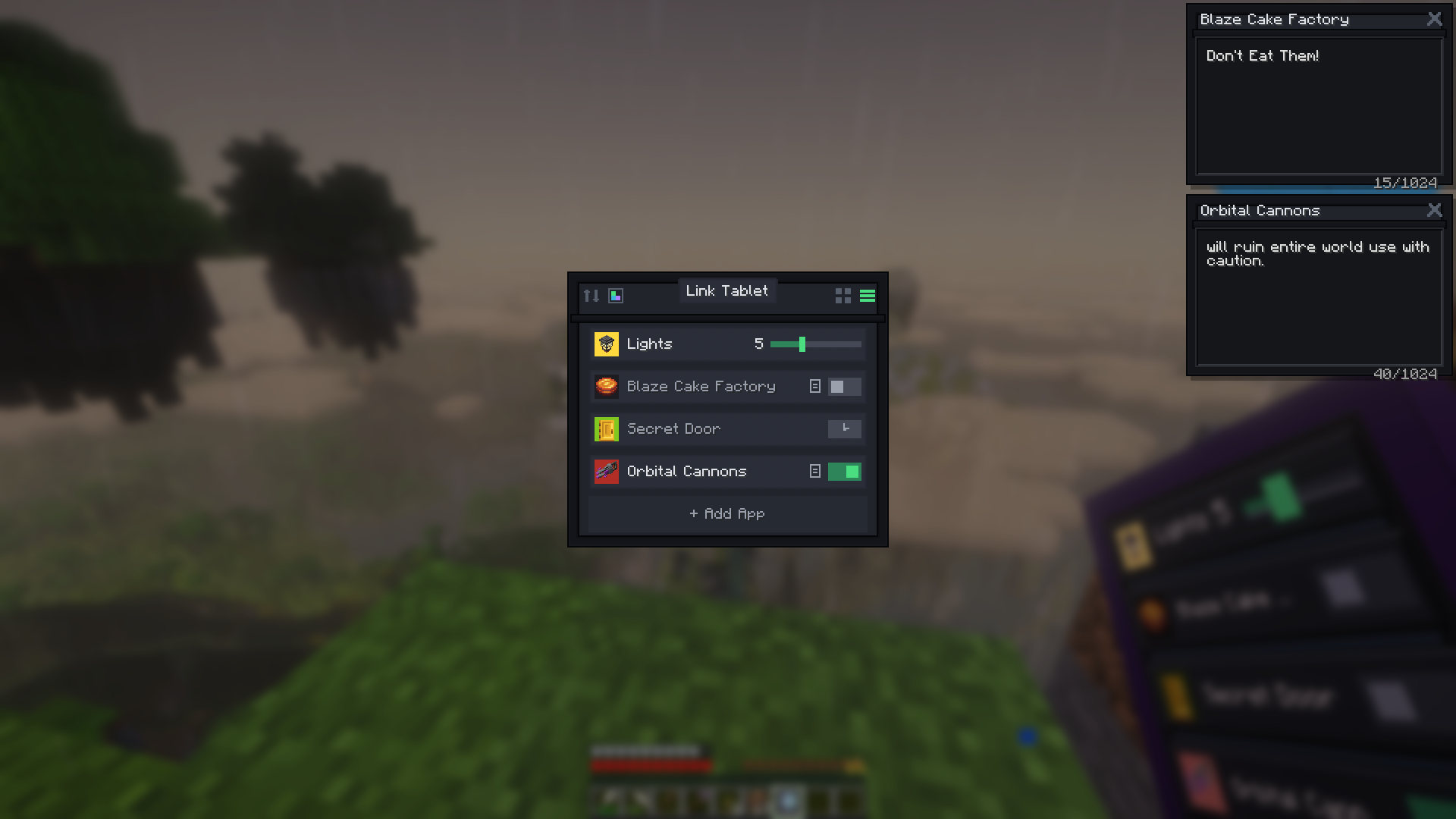
Every signal can carry a note in a floating window: drag it anywhere, keep several open, and they follow you — over the tablet, over your inventory, even pinned read-only on your HUD. Perfect for "flush the sorter before enabling" warnings — two of them are pinned in the screenshot up top.
📌 Pin it to your HUD
The pin button keeps a floating mini-tablet on your screen while you play — per app: live switch rows, a heads-up gauge cluster, the clock, a working mini calculator, or the launcher as an app dock. Press the "Use Pinned Tablet" key (default B) to free your mouse chat-style and tap toggles, drag sliders, or hold buttons mid-mining — no GUI ever opens. Right-click any row to jump into the full interface; the window remembers its spot across sessions.
✨ The screen is real
The physical screen isn't a texture — it renders your actual signals live, held or placed. Tiles size themselves to the signal count, active signals glow, and on a placed tablet the glass is touchable: tap to toggle, hold a Hold button, slide a slider — no GUI needed. Tap the bezel for the full interface.
🧱 Place it on the wall
Sneak + right-click any surface to mount the tablet on a wall, floor, or ceiling — it transmits from its own position and its screen glows while a signal runs. Sneak + right-click with an empty hand picks it back up; everything survives the trip. A Create wrench rotates the screen content (glass) or physically flips the tablet between portrait and landscape (edge).
🎯 Aim it anywhere
Craft a Swivel Mount — an iron nugget atop two brass sheets — place the stand on any surface, and click a tablet onto its ball joint. Wrench the glass and it swings around to aim straight at your eyes, wherever you're standing — one click, perfect angle. Wrench the bezel for landscape; sneak + right-click swaps tablets and leaves the stand as furniture. The tilted glass stays fully touchable.
And the party trick: power the mount with redstone and the screen follows you, gliding after the nearest player like the enchanting table's book. Cut the power and it freezes exactly where it points — aim by standing in the right spot, lock with a lever.
🖥️ One screen, many tablets
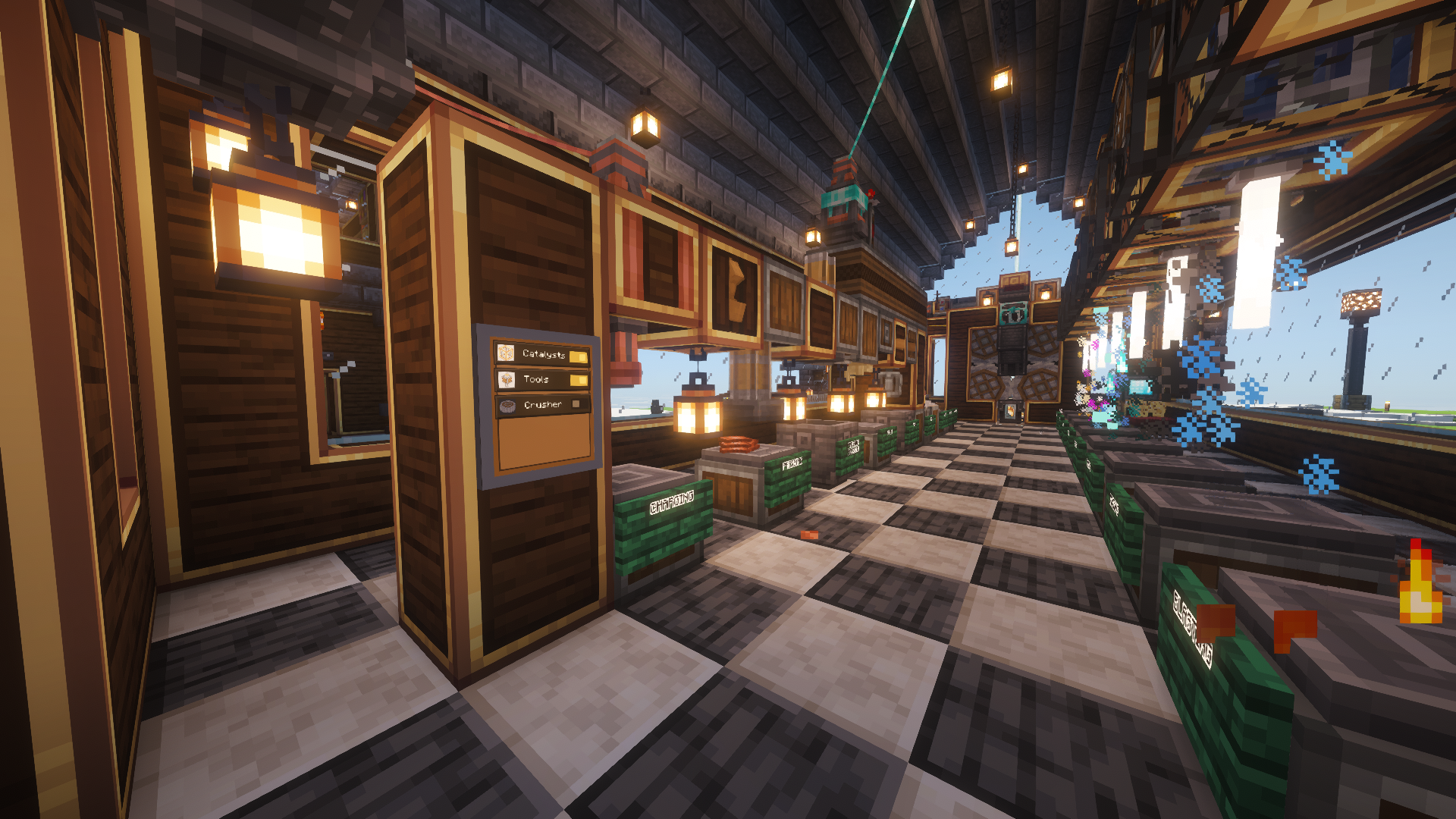
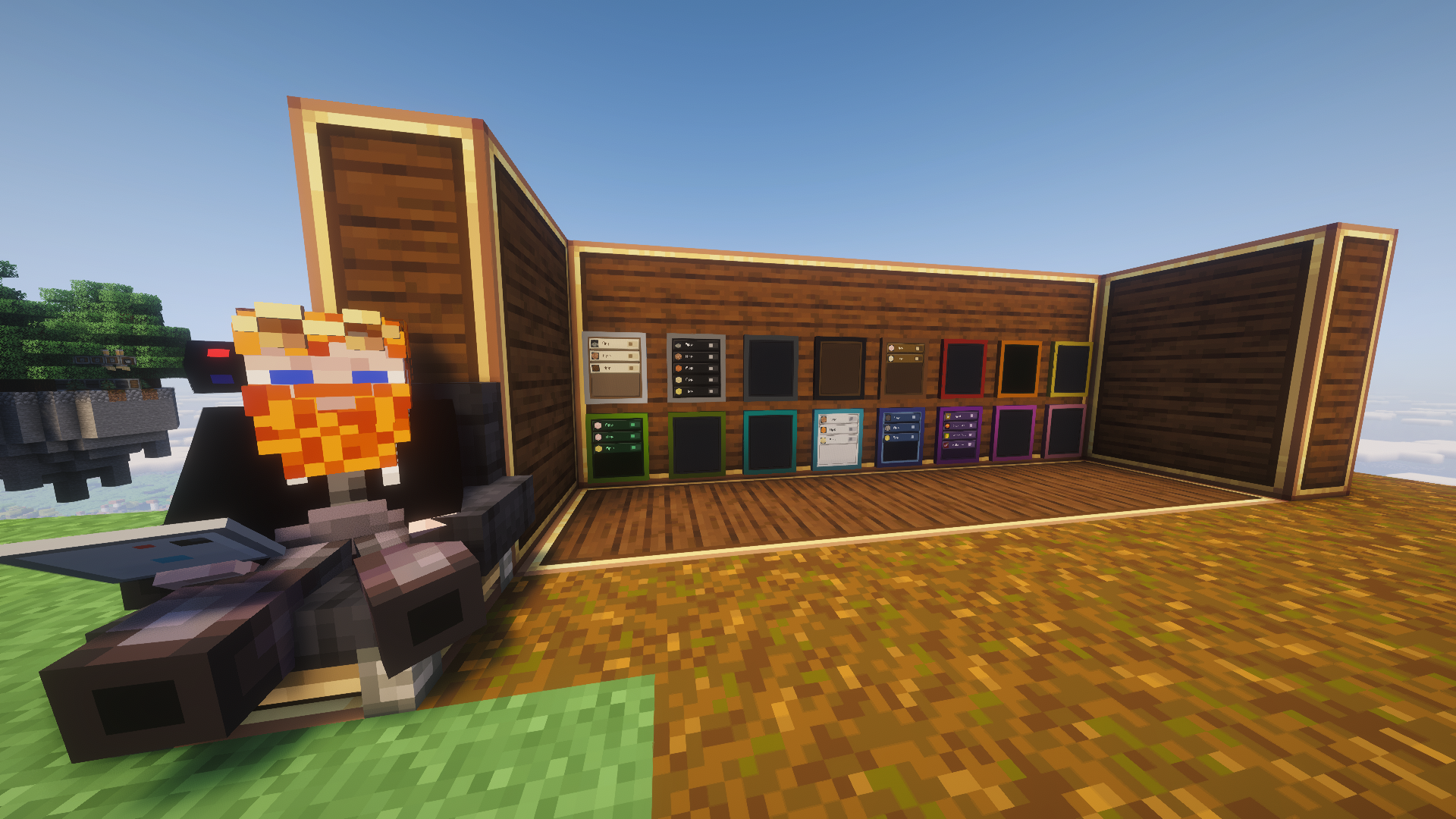
Mount tablets side by side and they merge into one big display, up to 4 wide by 3 tall: a single continuous glass panel, no seams. Signals spread across the whole surface at bigger tiles, taps and click-and-slide work anywhere on the glass — and every merged tablet raises the signal cap by another 32. Dye the lead tablet and the whole frame dyes.
🧮 A 4×3 wall = 12 merged tablets — 384 signals on one screen
Merging is always safe — every tablet keeps its own signals and gets them back the moment it's split off — and always your choice: a chain-link button keeps a tablet standalone or breaks a wall back apart.
💬 Your stream chat, in the game
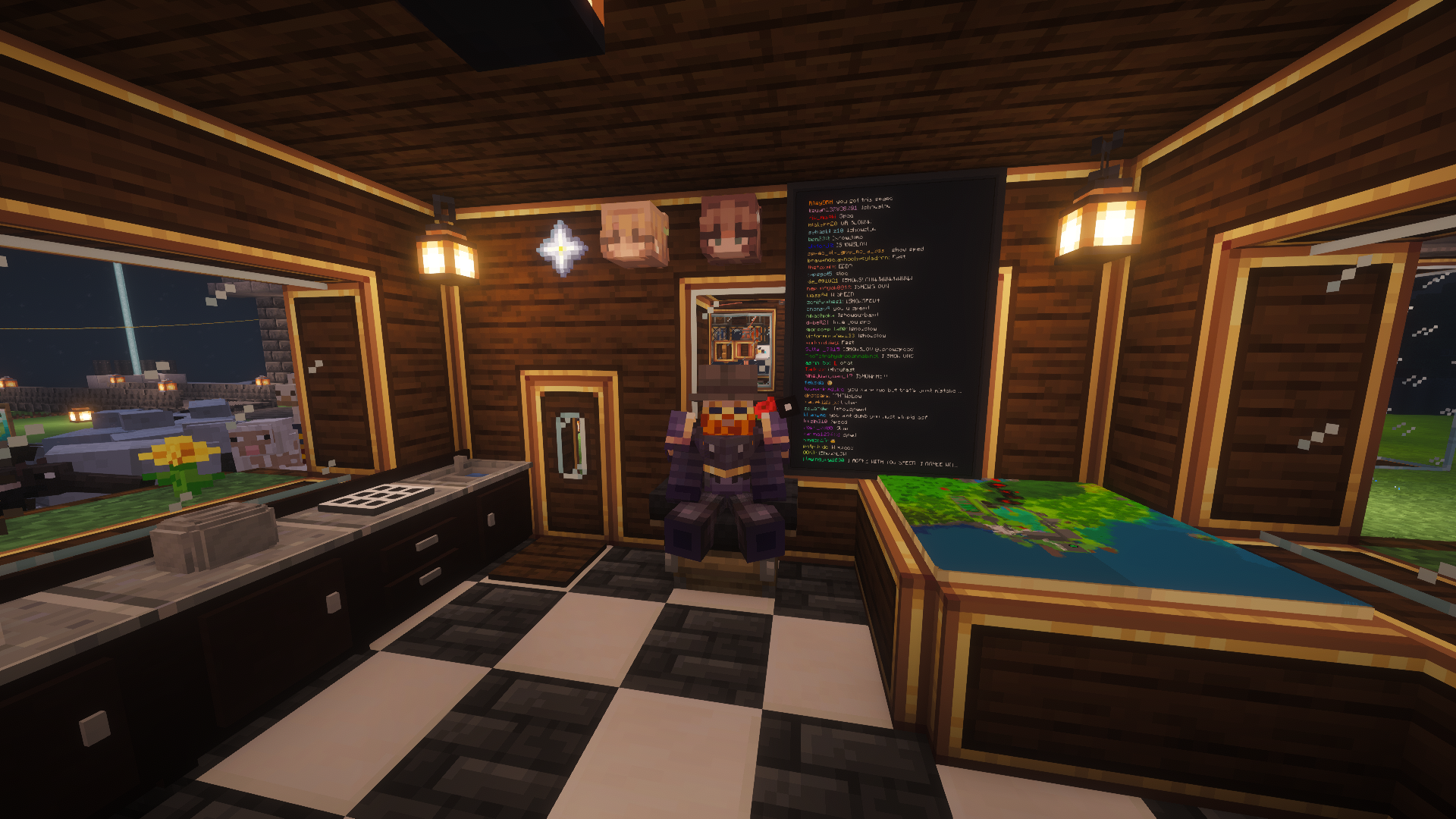
Type a channel name and its live chat flows onto your held tablet, your HUD, or a placed chat wall every viewer sees — merged walls give it the big-screen treatment. No account, no login, nothing stored: an anonymous, strictly read-only view of public chat, connected only while chat is actually on a screen somewhere.
And it's real chat: emotes render as actual images — Twitch's own plus 7TV, BetterTTV, and FrankerFaceZ, animated ones animating (a header toggle switches back to plain text). Keep Twitch as your last-used app and the tablet in your hand becomes a pocket chat screen, even in third person.
Shared-server note: chat is live, unfiltered internet, and anyone who can open a placed tablet's GUI can change its channel — same trust rules as its signals.
🖌️ Paint on the walls
A pixel canvas that lives on the tablet: doodle, place it, and the picture shows right on the glass. A proper toolbox rides along — brush, fill, line, rectangle, an eyedropper, and a 32-step undo, each with a keyboard shortcut. Merged walls become murals — paint across the seams while viewers watch your strokes land live, split the wall and each tablet keeps its slice, merge back and the mural reassembles. Break it, chest it, gift it — the art travels with the tablet.
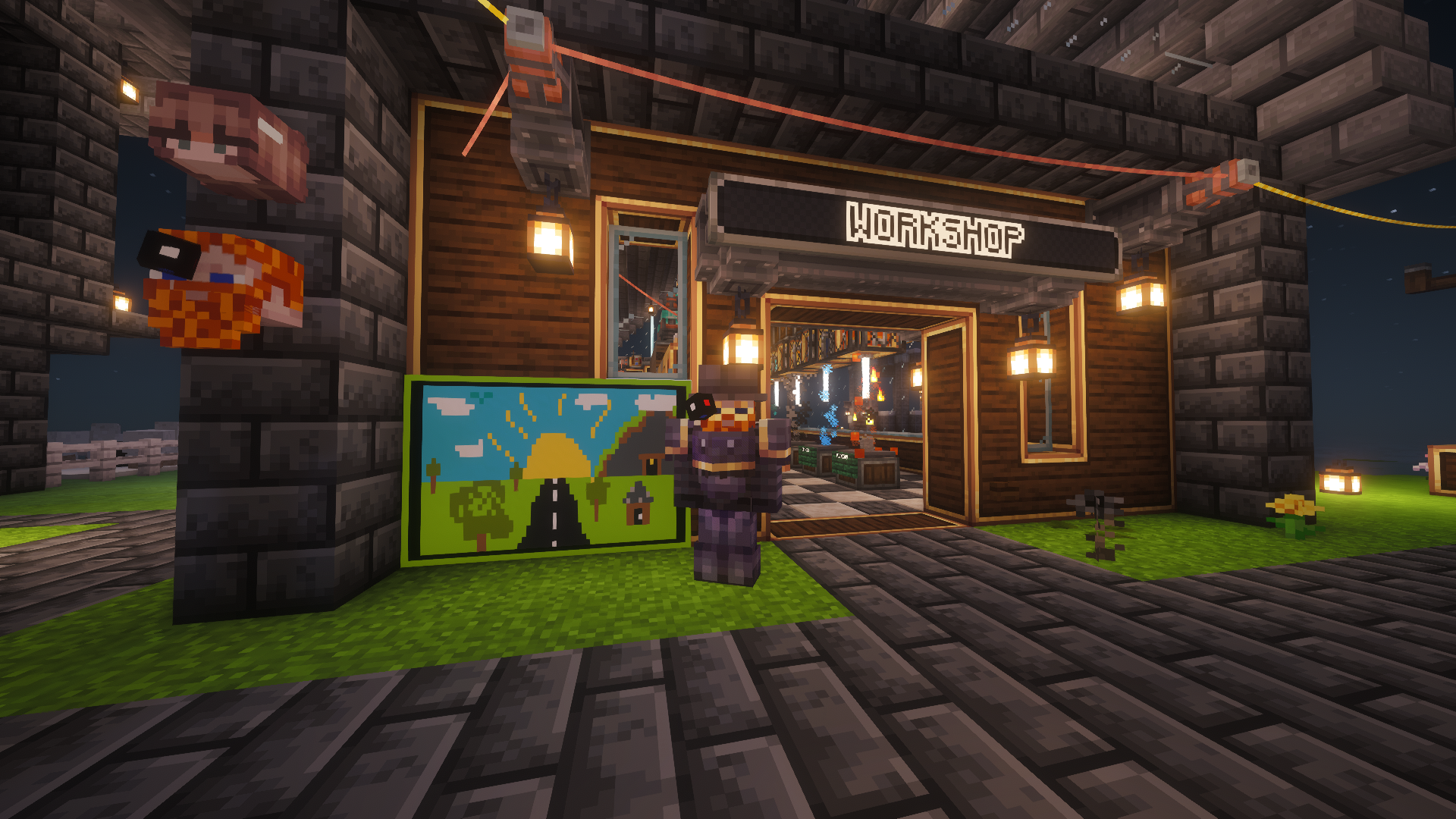
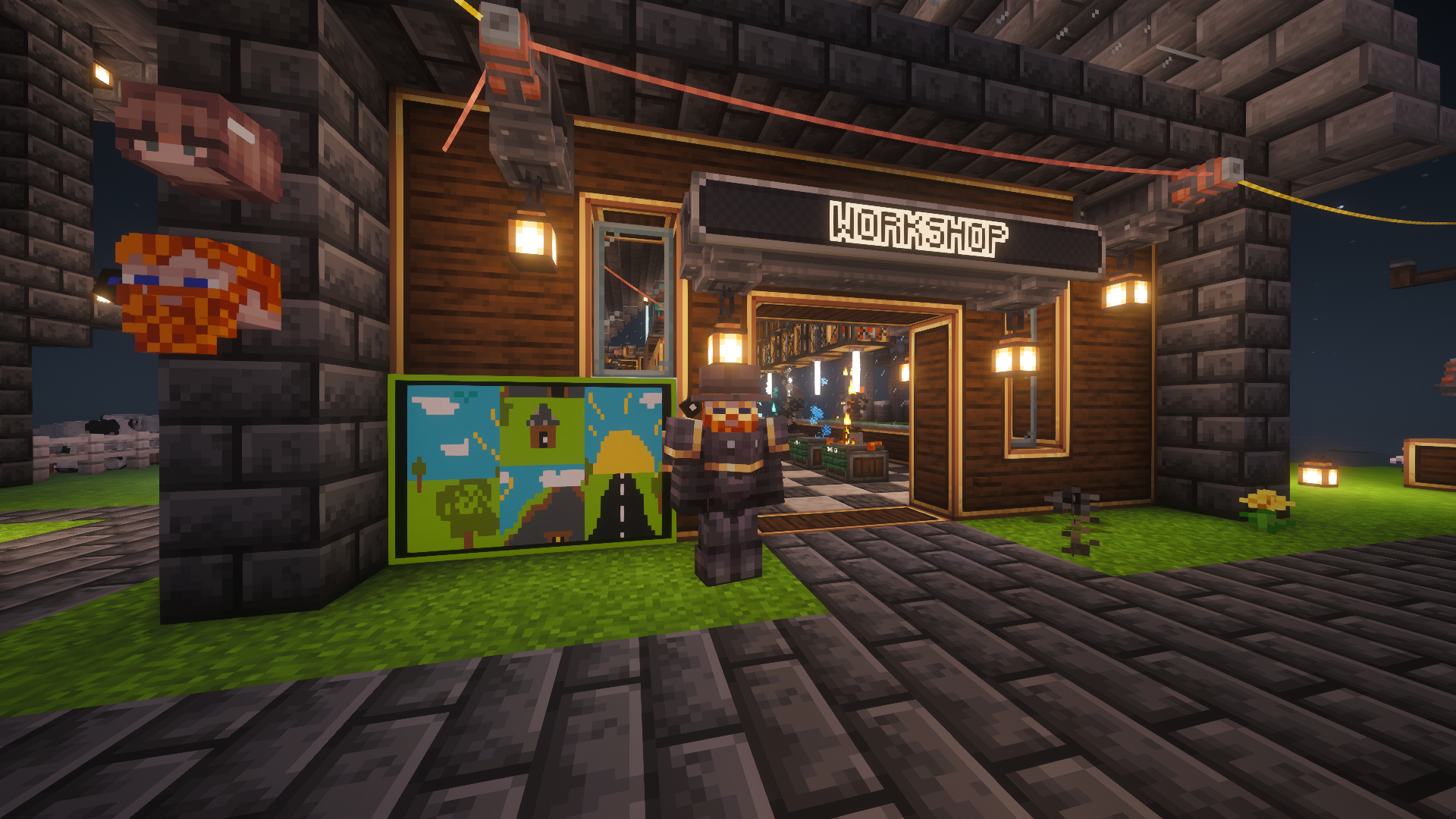
Every tablet keeps its slice — rearrange the wall, remix the painting.
🔒 Lock it down
On a shared server, tap the padlock in a placed tablet's GUI and it locks: everyone can still flip its signals, drag its sliders, and use its apps — but reconfiguring anything (signals, channels, the mural) and unlocking again take a Create wrench in hand. Locking a merged wall locks every tablet in it, and the pieces stay locked if the wall is split. Perfect for public kiosks — and for keeping your mural safe.
🎨 Make it yours
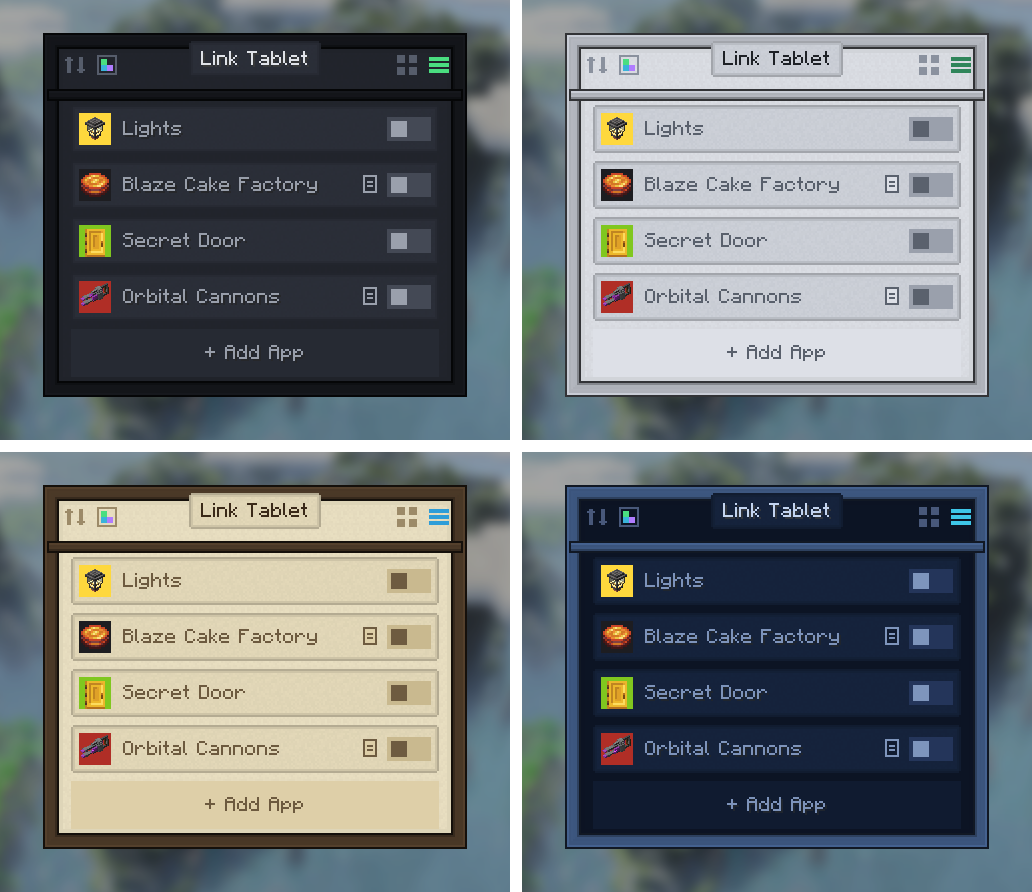
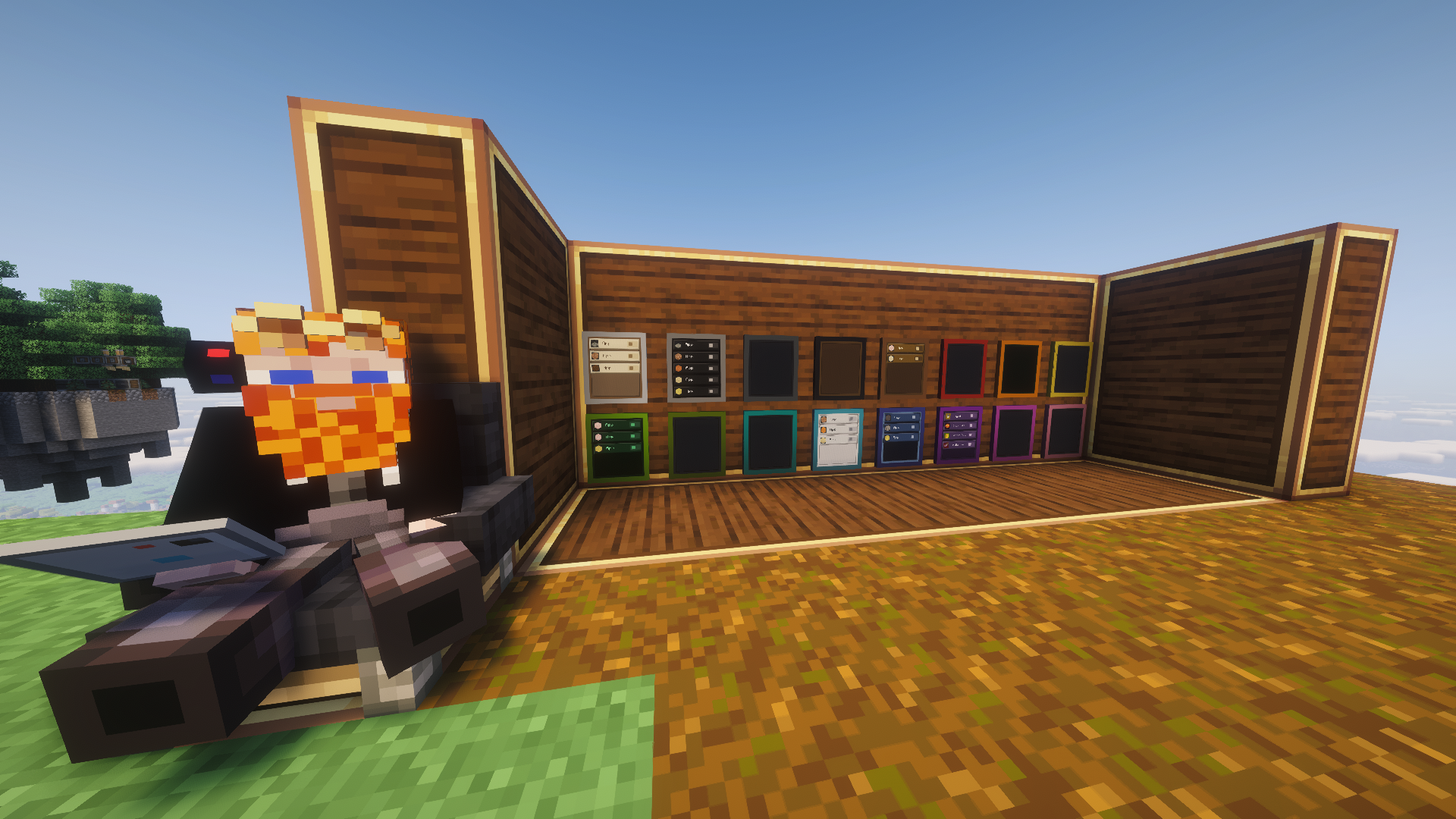
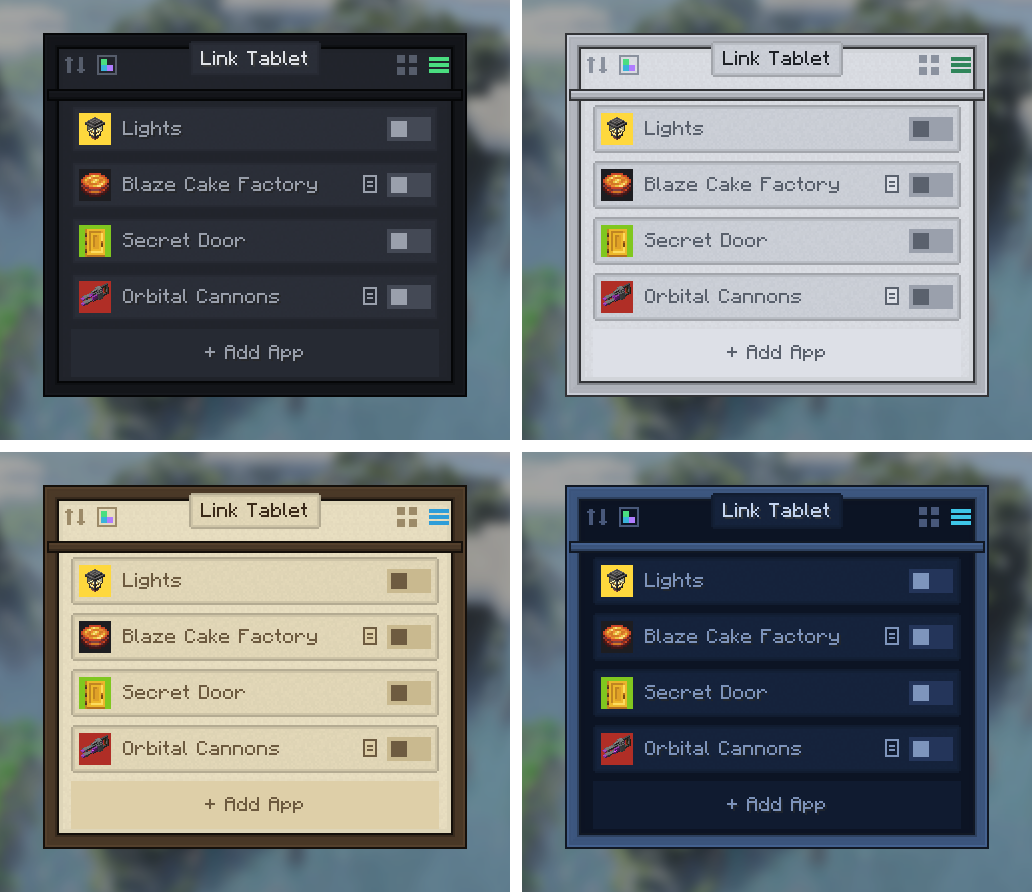
- 8 UI themes — Dark, Light, AMOLED, Brass, Terminal, PurpleFox, Parchment, Avionics — stored per tablet, styling GUI and glass alike in Create's own visual language.
- 16 dyed cases — craft with any dye; wash it off in a cauldron or a fan's washing stream.
- A full set of UI sounds, including a faint click nearby players hear when someone flips a signal.
- Name your tablets on an anvil — the name titles the GUI and overlay and survives placing and picking up.
🏭 Getting started
The tablet comes off a real assembly line — brass-age manufacturing, not crafting. Shape a Tablet Case from five brass sheets, then send it down a belt past three Deployers: the Link Logic Board (the radio), the Clockwork Cell (the power), and the Quartz Display (the screen). The in-progress tablet visibly gains each part, and JEI/EMI shows the whole sequence.
Then:
- Right-click to open the tablet, tap + to create a signal.
- Pick the frequency items (like tuning a Redstone Link), Add, Save.
- Set your receiving Redstone Links to the same frequency.
- Left-click toggles, right-click edits.
There's a Ponder scene too — hold W over the tablet item. A tablet anywhere in your inventory transmits like Create's handheld Linked Controller; placed tablets transmit from the block — and a dropped tablet, or one sitting in an item frame, keeps transmitting right from where it lies.
📦 Compatibility
- Minecraft 1.21.1 · NeoForge · Java 21 · requires Create 6.x (server and client).
- Full multiplayer support: server-authoritative edits, per-player transmitters.
- Plays nicely with other link-network senders; frequency-card mods work out of the box; optional JEI/EMI drag integration.
- Twitch Chat is client-side and optional — anonymous and read-only, connected only while chat is on a screen; nothing sent, nothing stored, and it does nothing at all on the server side.
- MIT licensed, free to use in any modpack.
❤️ Credits
Huge thanks to the Create team — this addon stands on their Redstone Link network and visual language. Go support the original mod!
Banner lettering uses the community Minecraft Ten font art by xllifi (CC-BY 4.0).
Enjoying the tablet? You can drop a tip ☕ — thank you!
Created by FryD42 · MIT licensed — free to use in any modpack.
A smart-home control panel for your Create contraptions.
The Link Tablet is a handheld touchscreen that drives Create's Redstone Links remotely. Name your lights, doors, trains, and machines, give them icons, and flip them from one screen anywhere in link range. It boots to a Home screen of apps — signals, gauges, a clock, a live network monitor, even Twitch chat and a paint canvas — mounts on walls where tablets merge into one big display, and pins a mini-tablet to your HUD.
📱 A pocket OS
The tablet opens to a Home screen you arrange yourself; the built-in App Store (searchable) installs and removes apps per tablet:
- Signals — the control grid below; every tablet starts with it.
- Clock — alarms, a searchable world clock, timer, stopwatch. They ring even with the tablet closed; a placed Clock tablet is a wall clock.
- Calculator — click buttons or type; a placed tablet shows its live tape on the wall.
- Gauges — the reverse of Signals: live dials that listen on link frequencies and show the received 0–15. Merged walls make great factory dashboards.
- Monitor — an X-ray for your link network (below).
- Twitch Chat — live stream chat, emotes included, no account (below).
- Paint — a persistent pixel canvas that shows on walls (below).
Placed tablets show their app right on the glass — tap to open it, tap the bezel to go Home — and the wall follows your GUI navigation.
🎛️ Signals, not levers
- Up to 32 signals per tablet (+32 per tablet on merged walls), each with a name, color, item icon, and state — grid or list view, drag to rearrange.
- Four types: Toggle (on/off), Hold (transmits only while held — a disconnect can never leave it stuck on), Slider (0–15), Timer (transmits for 0.1–30 s, then switches off by itself).
- Scenes — one signal drives up to 8 frequencies at once ("Shut down the factory").
- Signal links — signals drive each other: up to 8 targets each, set to turn ON, turn OFF, or follow. Links chain, loops are safe, and a linked signal needs no frequency of its own — pure scene master buttons.
- Per-signal strength — strongest wins, exactly like stacked Redstone Links.
📡 Real Create frequencies
Signals tune to Create's item-pair frequencies — anything a Redstone Link can trigger, the tablet can too:
- The editor includes your real inventory (slots take a copy — nothing is consumed) plus a searchable all-items picker.
- JEI/EMI: drag straight from the ingredient panel onto a frequency slot.
- One-item frequencies work, and frequencies carry the full item, components included — frequency-card mods, dyed and renamed items all count as distinct channels, exactly like Create's own links.
📋 Tip — quick-add: right-click any Redstone Link while holding the tablet — the editor opens with that frequency pre-filled. Just hit Save.
🔎 Who's on this frequency?
The Monitor app lists every channel your tablet touches — plus any you probe (up to 8) — with live power and every member transmitting or listening: Redstone Links, placed tablets, dropped or framed tablets, even "a tablet in someone's inventory". When a receiver is mysteriously pinned at 15, the Monitor points at the spare tablet in your pocket. Out-of-range members wear a badge; wall tablets make it a status board, and the overlay pin puts it on your HUD.
🎚️ Sliders you can feel
Sliders drag live in the GUI, and on a placed tablet you click-and-slide right on the glass. Every slider shows its numeric level, and an optional min/max range means a machine never fully turns off.
📝 Sticky notes for your factory
Every signal can carry a note in a floating window: drag it anywhere, keep several open, and they follow you — over the tablet, over your inventory, even pinned read-only on your HUD. Perfect for "flush the sorter before enabling" warnings — two of them are pinned in the screenshot up top.
📌 Pin it to your HUD
The pin button keeps a floating mini-tablet on your screen while you play — per app: live switch rows, a heads-up gauge cluster, the clock, a working mini calculator, or the launcher as an app dock. Press the "Use Pinned Tablet" key (default B) to free your mouse chat-style and tap toggles, drag sliders, or hold buttons mid-mining — no GUI ever opens. Right-click any row to jump into the full interface; the window remembers its spot across sessions.
✨ The screen is real
The physical screen isn't a texture — it renders your actual signals live, held or placed. Tiles size themselves to the signal count, active signals glow, and on a placed tablet the glass is touchable: tap to toggle, hold a Hold button, slide a slider — no GUI needed. Tap the bezel for the full interface.
🧱 Place it on the wall
Sneak + right-click any surface to mount the tablet on a wall, floor, or ceiling — it transmits from its own position and its screen glows while a signal runs. Sneak + right-click with an empty hand picks it back up; everything survives the trip. A Create wrench rotates the screen content (glass) or physically flips the tablet between portrait and landscape (edge).
🎯 Aim it anywhere
Craft a Swivel Mount — an iron nugget atop two brass sheets — place the stand on any surface, and click a tablet onto its ball joint. Wrench the glass and it swings around to aim straight at your eyes, wherever you're standing — one click, perfect angle. Wrench the bezel for landscape; sneak + right-click swaps tablets and leaves the stand as furniture. The tilted glass stays fully touchable.
And the party trick: power the mount with redstone and the screen follows you, gliding after the nearest player like the enchanting table's book. Cut the power and it freezes exactly where it points — aim by standing in the right spot, lock with a lever.
🖥️ One screen, many tablets
Mount tablets side by side and they merge into one big display, up to 4 wide by 3 tall: a single continuous glass panel, no seams. Signals spread across the whole surface at bigger tiles, taps and click-and-slide work anywhere on the glass — and every merged tablet raises the signal cap by another 32. Dye the lead tablet and the whole frame dyes.
🧮 A 4×3 wall = 12 merged tablets — 384 signals on one screen
Merging is always safe — every tablet keeps its own signals and gets them back the moment it's split off — and always your choice: a chain-link button keeps a tablet standalone or breaks a wall back apart.
💬 Your stream chat, in the game
Type a channel name and its live chat flows onto your held tablet, your HUD, or a placed chat wall every viewer sees — merged walls give it the big-screen treatment. No account, no login, nothing stored: an anonymous, strictly read-only view of public chat, connected only while chat is actually on a screen somewhere.
And it's real chat: emotes render as actual images — Twitch's own plus 7TV, BetterTTV, and FrankerFaceZ, animated ones animating (a header toggle switches back to plain text). Keep Twitch as your last-used app and the tablet in your hand becomes a pocket chat screen, even in third person.
Shared-server note: chat is live, unfiltered internet, and anyone who can open a placed tablet's GUI can change its channel — same trust rules as its signals.
🖌️ Paint on the walls
A pixel canvas that lives on the tablet: doodle, place it, and the picture shows right on the glass. A proper toolbox rides along — brush, fill, line, rectangle, an eyedropper, and a 32-step undo, each with a keyboard shortcut. Merged walls become murals — paint across the seams while viewers watch your strokes land live, split the wall and each tablet keeps its slice, merge back and the mural reassembles. Break it, chest it, gift it — the art travels with the tablet.
Every tablet keeps its slice — rearrange the wall, remix the painting.
🔒 Lock it down
On a shared server, tap the padlock in a placed tablet's GUI and it locks: everyone can still flip its signals, drag its sliders, and use its apps — but reconfiguring anything (signals, channels, the mural) and unlocking again take a Create wrench in hand. Locking a merged wall locks every tablet in it, and the pieces stay locked if the wall is split. Perfect for public kiosks — and for keeping your mural safe.
🎨 Make it yours
- 8 UI themes — Dark, Light, AMOLED, Brass, Terminal, PurpleFox, Parchment, Avionics — stored per tablet, styling GUI and glass alike in Create's own visual language.
- 16 dyed cases — craft with any dye; wash it off in a cauldron or a fan's washing stream.
- A full set of UI sounds, including a faint click nearby players hear when someone flips a signal.
- Name your tablets on an anvil — the name titles the GUI and overlay and survives placing and picking up.
🏭 Getting started
The tablet comes off a real assembly line — brass-age manufacturing, not crafting. Shape a Tablet Case from five brass sheets, then send it down a belt past three Deployers: the Link Logic Board (the radio), the Clockwork Cell (the power), and the Quartz Display (the screen). The in-progress tablet visibly gains each part, and JEI/EMI shows the whole sequence.
Then:
- Right-click to open the tablet, tap + to create a signal.
- Pick the frequency items (like tuning a Redstone Link), Add, Save.
- Set your receiving Redstone Links to the same frequency.
- Left-click toggles, right-click edits.
There's a Ponder scene too — hold W over the tablet item. A tablet anywhere in your inventory transmits like Create's handheld Linked Controller; placed tablets transmit from the block — and a dropped tablet, or one sitting in an item frame, keeps transmitting right from where it lies.
📦 Compatibility
- Minecraft 1.21.1 · NeoForge · Java 21 · requires Create 6.x (server and client).
- Full multiplayer support: server-authoritative edits, per-player transmitters.
- Plays nicely with other link-network senders; frequency-card mods work out of the box; optional JEI/EMI drag integration.
- Twitch Chat is client-side and optional — anonymous and read-only, connected only while chat is on a screen; nothing sent, nothing stored, and it does nothing at all on the server side.
- MIT licensed, free to use in any modpack.
❤️ Credits
Huge thanks to the Create team — this addon stands on their Redstone Link network and visual language. Go support the original mod!
Banner lettering uses the community Minecraft Ten font art by xllifi (CC-BY 4.0).
Enjoying the tablet? You can drop a tip ☕ — thank you!
Created by FryD42 · MIT licensed — free to use in any modpack.
Screenshots
Gallery
-
 factory-hall.jpg factory-hall.jpg
Versions
Files
Relations
Project Relations
More like this
Similar Mods
Suggestions use data such as tags, dependencies, dependents, descriptions, titles, and more to rank how much they overlap with this mod.
On ModDex
Community snapshot
By the numbers
Statistics
 (opens in a new tab)
Get it on
Available Platforms
On ModDex
Community snapshot
By the numbers
Statistics
Resources