
Community listing page, reviews here may not be monitored by the author.
Developer Tools


No reviews yet
A utility mod, that enables you to select different parts of your world and see information about them and debug them.
Community voices
Reviews
No reviews yet. Be the first to review this project!
Get it on
Available Platforms
Compatibility
Supported Environments
Runs entirely on the client. Works on vanilla servers.
About
Project Details
For authors
Embed Badge
If you're the author of this project, you can embed a live badge anywhere that supports HTML or Markdown. It updates automatically whenever ratings change.
Use HTML for any page that supports it, or Markdown for README files and Markdown-based descriptions.
Identifiers
Platform IDs
About
Description
DevTools, the World Inspector
DevTools is a client-side Fabric mod for versions through 26.x-1.14.x that adds a powerful Inspect mode to your game. By freezing your movement and unlocking your cursor, you can point at blocks, fluids, dropped items, and entities to read rich, debug-style data directly on your screen.
It features customizable layouts, deep NBT-style data dumps, and clipboard copying.
Requirements & Versioning
| Requirement | Version / Constraint | Notes |
|---|---|---|
| Minecraft | 26.x-1.14.x |
Compatible with 26.x/1.21.x/1.20.x/1.19.x/1.18.x/1.17.x/1.16.x/1.15.x/1.14.x releases. |
| Mod Loader | Fabric >=0.18.6 |
Client-side only. Safe to leave in your mods folder when joining servers. |
| Fabric API | * (Any version, but the latest is reccomended) |
Required for core mod functions. |
Quick Start
- Install Fabric, then drop DevTools and the Fabric API mod into your
modsfolder. - Launch the game and enter a world.
- Press F6 (default) to toggle Inspect mode.
- Move your mouse over blocks or creatures, and Left-Click to select them.
- Press M to expand detailed data for your selected target.
- Head to Options → DevTools… to tweak colours, toggle data lines, or change the layout.
How Inspect Mode Works
When you turn Inspect mode on, the game adjusts your interactions so you can focus on the environment data.
| Feature | Behaviour |
|---|---|
| Movement | You stay completely still. Movement is suppressed so you do not accidentally walk away from your inspection point. |
| Mouse Freedom | Your cursor is unlocked. Vanilla left-click does not punch blocks or attack; it is used exclusively for selecting targets. |
| Smart Raycasting | The mod picks targets based on camera + cursor. You can target blocks, flowing fluids, item entities on the ground, XP orbs, and mobs. |
| World Outlines | A thin outline shows what you are hovering over. A thicker, brighter outline shows what you have selected. |
| Scrolling | Use your mouse wheel over the info panel to scroll through long text. |
Keybinds
All keys can be remapped under Controls → DevTools. The info panel always displays the actual names of the keys you have currently bound.
| Action | Default Key | Description |
|---|---|---|
| Toggle Inspect | F6 |
Turns Inspect mode on and off. |
| Select Target | Left Mouse |
Locks the HUD onto the hovered block/entity. |
| More Info | M |
Toggles the detailed NBT/data dump. |
| Free Player | Hold L-Alt |
Restores movement and camera while keeping Inspect on. |
| Copy Value | Hold L-Ctrl |
Click any line in the HUD to copy its value to your clipboard. |
Free Camera (Alt Mode)
If you hold Left Alt, you temporarily get your movement and camera controls back. Raycast updates are frozen, so the outlines stay fixed to your last targets, and the HUD becomes transparent so you can see the world.
Menu Suspensions
Opening any fullscreen menu (for example the Pause or Inventory screen) suspends and freezes raycasting and its updates, so you won't mess up your selection.
The Info Panel (HUD)
The HUD is designed to provide immediate summary data, with the option to expand into detailed categories.
- Header: Shows if you are HOVERING or have a target SELECTED. Includes the icon of the selected block/entity, display name, and registry ID. Rarity colours automatically match vanilla Minecraft tiers (common, uncommon, rare, epic).
- Summary: Quick facts like coordinates, HP for living entities, or drop info for items.
- Detailed Info ("More Info"): Hitting
Mopens a categorized text dump. Default category order:Source,Item Form,State Properties,Block Data,BlockEntity,Environment,Type,Identity,State,Living,Equipment,Effects,Mob,Raw NBT. - Boolean Styling:
true/falselines are coloured distinctly for quick scanning. - Copy Feedback: Successfully copying a line flashes a quick "copied" message.
Settings Menu
Options → DevTools… opens the settings menu. The button is placed under the FOV slider, in the middle.
| Button | Opens |
|---|---|
| HUD | Submenu for Colours and Preferences |
| Keybinds | Vanilla Key Bindings screen |
| Layout | Panel corner positioning and category ordering |
Configuration File (devtools.properties)
Location: .minecraft/config/devtools.properties
| Key | Type | Purpose |
|---|---|---|
tutorialSeen |
true / false |
Tutorial already shown / skipped forever |
hud.color.<name> |
8 hex digits AARRGGBB |
HUD colour overrides (see table below) |
pref.<key> |
true / false |
Per-line / per-section HUD preference |
layout.position |
TOP_LEFT, TOP_RIGHT, BOTTOM_LEFT, BOTTOM_RIGHT |
Inspector panel corner |
layout.categoryOrder |
Comma-separated names | Custom More info category order |
HUD Colours Screen
Each line has a colour square, a hex code field, a copy button, and a reset button. Clicking the square opens a colour picker with Hue, Saturation, and Brightness sliders.
HUD Colour Keys (hud.color.*)
| Config suffix | UI label | Role |
|---|---|---|
bg |
Background | Panel fill |
borderTop |
Border (top) | Top accent line |
headerBg |
Header background | Header band |
header |
Header label | “HOVERING” / “SELECTED” text |
category |
Category label | Section titles in dumps |
key |
Property key | Text before : |
value |
Property value | Text after : |
dim |
Dim text | Hints / secondary lines |
scrollbar |
Scrollbar track | Scroll gutter |
scrollThumb |
Scrollbar thumb | Scroll handle |
boolTrue |
True value | Boolean badge / styling |
boolFalse |
False value | Boolean badge / styling |
(Note: Item rarity colours are strictly tied to vanilla and are not configurable here).
HUD Preferences Screen
You can toggle exactly which lines show up. The top row, All Preferences, sets every other box on or off together.
General Preferences
| Key | Label |
|---|---|
pref.showIcon |
Show icon |
pref.showId |
Show identifier |
Block-related Preferences
| Key | Label |
|---|---|
pref.block.source |
Source mod |
pref.block.destroyTime |
destroyTime |
pref.block.resistance |
resistance |
pref.block.lightEmit |
lightEmit |
pref.block.lightDamp |
lightDamp |
pref.block.friction |
friction |
pref.block.speedFactor |
speedFactor |
pref.block.jumpFactor |
jumpFactor |
pref.block.isSolid |
isSolid |
pref.block.isAir |
isAir |
pref.block.liquid |
liquid |
pref.block.blocksMotion |
blocksMotion |
pref.block.canOcclude |
canOcclude |
pref.block.redstone |
redstone |
pref.block.randomTick |
randomTick |
pref.block.ignitedByLava |
ignitedByLava |
pref.block.stateProps |
State properties |
pref.block.blockEntity |
Block entity NBT |
pref.block.environment |
Environment (biome/light) |
Entity-related Preferences
| Key | Label |
|---|---|
pref.entity.source |
Source mod |
pref.entity.category |
category |
pref.entity.dimensions |
dimensions |
pref.entity.fireImmune |
fireImmune |
pref.entity.uuid |
UUID |
pref.entity.customName |
customName |
pref.entity.tags |
tags |
pref.entity.onGround |
onGround |
pref.entity.invulnerable |
invulnerable |
pref.entity.silent |
silent |
pref.entity.glowing |
glowing |
pref.entity.noGravity |
noGravity |
pref.entity.frozen |
frozen |
pref.entity.inWater |
inWater |
pref.entity.onFire |
onFire |
pref.entity.HP |
HP |
pref.entity.armor |
armor |
pref.entity.isBaby |
isBaby |
pref.entity.effects |
Active effects |
pref.entity.equipment |
Equipment |
pref.entity.noAI |
noAI |
pref.entity.persistent |
persistent |
pref.entity.leftHanded |
leftHanded |
pref.entity.target |
target |
pref.entity.owner |
owner |
pref.entity.rawNbt |
Raw NBT |
Layout Screen
| Control | Cycles through |
|---|---|
| Window position | Top Left → Top Right → Bottom Left → Bottom Right |
| Ordering | Default, then “<Category> First” for each known category. |
Remember to press Save on the Colours, Preferences, and Layout screens to keep your changes.
Project Metadata & Links
| Mod ID | devtools |
| Authors | Beef and Capybarabeef Studios under Miljö AB |
| Source Code | GitHub Repository |
| Issue Tracker | GitHub Issues |
License
DevTools is released under the MIT License. The complete legal text is available in the LICENSE file at the repository root.
DevTools, the World Inspector
DevTools is a client-side Fabric mod for versions through 26.x-1.14.x that adds a powerful Inspect mode to your game. By freezing your movement and unlocking your cursor, you can point at blocks, fluids, dropped items, and entities to read rich, debug-style data directly on your screen.
It features customizable layouts, deep NBT-style data dumps, and clipboard copying.
Requirements & Versioning
| Requirement | Version / Constraint | Notes |
|---|---|---|
| Minecraft | 26.x-1.14.x |
Compatible with 26.x/1.21.x/1.20.x/1.19.x/1.18.x/1.17.x/1.16.x/1.15.x/1.14.x releases. |
| Mod Loader | Fabric >=0.18.6 |
Client-side only. Safe to leave in your mods folder when joining servers. |
| Fabric API | * (Any version, but the latest is reccomended) |
Required for core mod functions. |
Quick Start
- Install Fabric, then drop DevTools and the Fabric API mod into your
modsfolder. - Launch the game and enter a world.
- Press F6 (default) to toggle Inspect mode.
- Move your mouse over blocks or creatures, and Left-Click to select them.
- Press M to expand detailed data for your selected target.
- Head to Options → DevTools… to tweak colours, toggle data lines, or change the layout.
How Inspect Mode Works
When you turn Inspect mode on, the game adjusts your interactions so you can focus on the environment data.
| Feature | Behaviour |
|---|---|
| Movement | You stay completely still. Movement is suppressed so you do not accidentally walk away from your inspection point. |
| Mouse Freedom | Your cursor is unlocked. Vanilla left-click does not punch blocks or attack; it is used exclusively for selecting targets. |
| Smart Raycasting | The mod picks targets based on camera + cursor. You can target blocks, flowing fluids, item entities on the ground, XP orbs, and mobs. |
| World Outlines | A thin outline shows what you are hovering over. A thicker, brighter outline shows what you have selected. |
| Scrolling | Use your mouse wheel over the info panel to scroll through long text. |
Keybinds
All keys can be remapped under Controls → DevTools. The info panel always displays the actual names of the keys you have currently bound.
| Action | Default Key | Description |
|---|---|---|
| Toggle Inspect | F6 |
Turns Inspect mode on and off. |
| Select Target | Left Mouse |
Locks the HUD onto the hovered block/entity. |
| More Info | M |
Toggles the detailed NBT/data dump. |
| Free Player | Hold L-Alt |
Restores movement and camera while keeping Inspect on. |
| Copy Value | Hold L-Ctrl |
Click any line in the HUD to copy its value to your clipboard. |
Free Camera (Alt Mode)
If you hold Left Alt, you temporarily get your movement and camera controls back. Raycast updates are frozen, so the outlines stay fixed to your last targets, and the HUD becomes transparent so you can see the world.
Menu Suspensions
Opening any fullscreen menu (for example the Pause or Inventory screen) suspends and freezes raycasting and its updates, so you won't mess up your selection.
The Info Panel (HUD)
The HUD is designed to provide immediate summary data, with the option to expand into detailed categories.
- Header: Shows if you are HOVERING or have a target SELECTED. Includes the icon of the selected block/entity, display name, and registry ID. Rarity colours automatically match vanilla Minecraft tiers (common, uncommon, rare, epic).
- Summary: Quick facts like coordinates, HP for living entities, or drop info for items.
- Detailed Info ("More Info"): Hitting
Mopens a categorized text dump. Default category order:Source,Item Form,State Properties,Block Data,BlockEntity,Environment,Type,Identity,State,Living,Equipment,Effects,Mob,Raw NBT. - Boolean Styling:
true/falselines are coloured distinctly for quick scanning. - Copy Feedback: Successfully copying a line flashes a quick "copied" message.
Settings Menu
Options → DevTools… opens the settings menu. The button is placed under the FOV slider, in the middle.
| Button | Opens |
|---|---|
| HUD | Submenu for Colours and Preferences |
| Keybinds | Vanilla Key Bindings screen |
| Layout | Panel corner positioning and category ordering |
Technical stuff
Configuration File (devtools.properties)
Location: .minecraft/config/devtools.properties
| Key | Type | Purpose |
|---|---|---|
tutorialSeen |
true / false |
Tutorial already shown / skipped forever |
hud.color.<name> |
8 hex digits AARRGGBB |
HUD colour overrides (see table below) |
pref.<key> |
true / false |
Per-line / per-section HUD preference |
layout.position |
TOP_LEFT, TOP_RIGHT, BOTTOM_LEFT, BOTTOM_RIGHT |
Inspector panel corner |
layout.categoryOrder |
Comma-separated names | Custom More info category order |
HUD Colours Screen
Each line has a colour square, a hex code field, a copy button, and a reset button. Clicking the square opens a colour picker with Hue, Saturation, and Brightness sliders.
HUD Colour Keys (hud.color.*)
| Config suffix | UI label | Role |
|---|---|---|
bg |
Background | Panel fill |
borderTop |
Border (top) | Top accent line |
headerBg |
Header background | Header band |
header |
Header label | “HOVERING” / “SELECTED” text |
category |
Category label | Section titles in dumps |
key |
Property key | Text before : |
value |
Property value | Text after : |
dim |
Dim text | Hints / secondary lines |
scrollbar |
Scrollbar track | Scroll gutter |
scrollThumb |
Scrollbar thumb | Scroll handle |
boolTrue |
True value | Boolean badge / styling |
boolFalse |
False value | Boolean badge / styling |
(Note: Item rarity colours are strictly tied to vanilla and are not configurable here).
HUD Preferences Screen
You can toggle exactly which lines show up. The top row, All Preferences, sets every other box on or off together.
General Preferences
| Key | Label |
|---|---|
pref.showIcon |
Show icon |
pref.showId |
Show identifier |
Block-related Preferences
| Key | Label |
|---|---|
pref.block.source |
Source mod |
pref.block.destroyTime |
destroyTime |
pref.block.resistance |
resistance |
pref.block.lightEmit |
lightEmit |
pref.block.lightDamp |
lightDamp |
pref.block.friction |
friction |
pref.block.speedFactor |
speedFactor |
pref.block.jumpFactor |
jumpFactor |
pref.block.isSolid |
isSolid |
pref.block.isAir |
isAir |
pref.block.liquid |
liquid |
pref.block.blocksMotion |
blocksMotion |
pref.block.canOcclude |
canOcclude |
pref.block.redstone |
redstone |
pref.block.randomTick |
randomTick |
pref.block.ignitedByLava |
ignitedByLava |
pref.block.stateProps |
State properties |
pref.block.blockEntity |
Block entity NBT |
pref.block.environment |
Environment (biome/light) |
Entity-related Preferences
| Key | Label |
|---|---|
pref.entity.source |
Source mod |
pref.entity.category |
category |
pref.entity.dimensions |
dimensions |
pref.entity.fireImmune |
fireImmune |
pref.entity.uuid |
UUID |
pref.entity.customName |
customName |
pref.entity.tags |
tags |
pref.entity.onGround |
onGround |
pref.entity.invulnerable |
invulnerable |
pref.entity.silent |
silent |
pref.entity.glowing |
glowing |
pref.entity.noGravity |
noGravity |
pref.entity.frozen |
frozen |
pref.entity.inWater |
inWater |
pref.entity.onFire |
onFire |
pref.entity.HP |
HP |
pref.entity.armor |
armor |
pref.entity.isBaby |
isBaby |
pref.entity.effects |
Active effects |
pref.entity.equipment |
Equipment |
pref.entity.noAI |
noAI |
pref.entity.persistent |
persistent |
pref.entity.leftHanded |
leftHanded |
pref.entity.target |
target |
pref.entity.owner |
owner |
pref.entity.rawNbt |
Raw NBT |
Layout Screen
| Control | Cycles through |
|---|---|
| Window position | Top Left → Top Right → Bottom Left → Bottom Right |
| Ordering | Default, then “<Category> First” for each known category. |
Remember to press Save on the Colours, Preferences, and Layout screens to keep your changes.
Technical stuff again, sorry
Project Metadata & Links
| Mod ID | devtools |
| Authors | Beef and Capybarabeef Studios under Miljö AB |
| Source Code | GitHub Repository |
| Issue Tracker | GitHub Issues |
License
DevTools is released under the MIT License. The complete legal text is available in the LICENSE file at the repository root.
Screenshots
Gallery
-
 Banner
 -
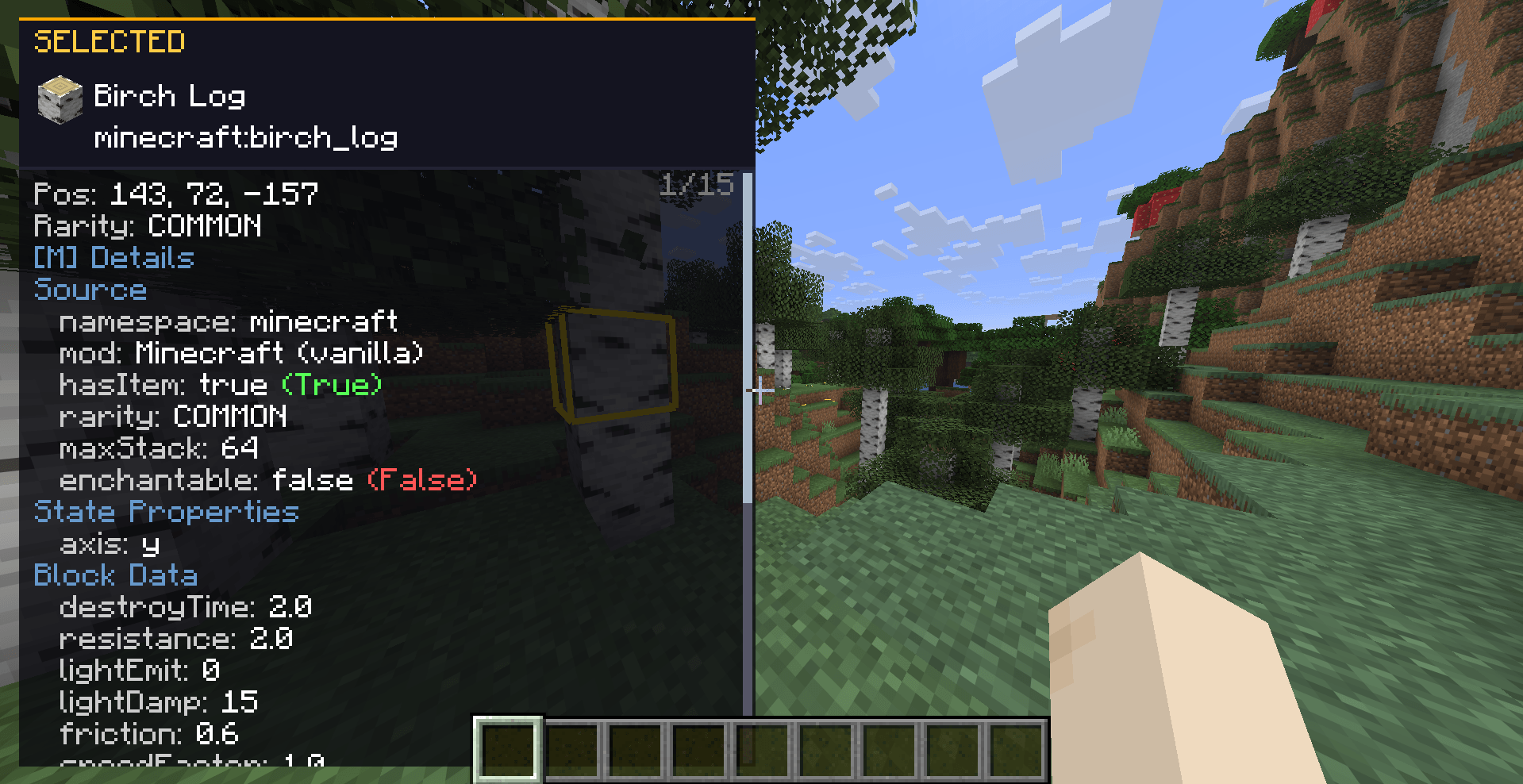 Inspect Overlay - Detailed view Selected Birch Log
 -
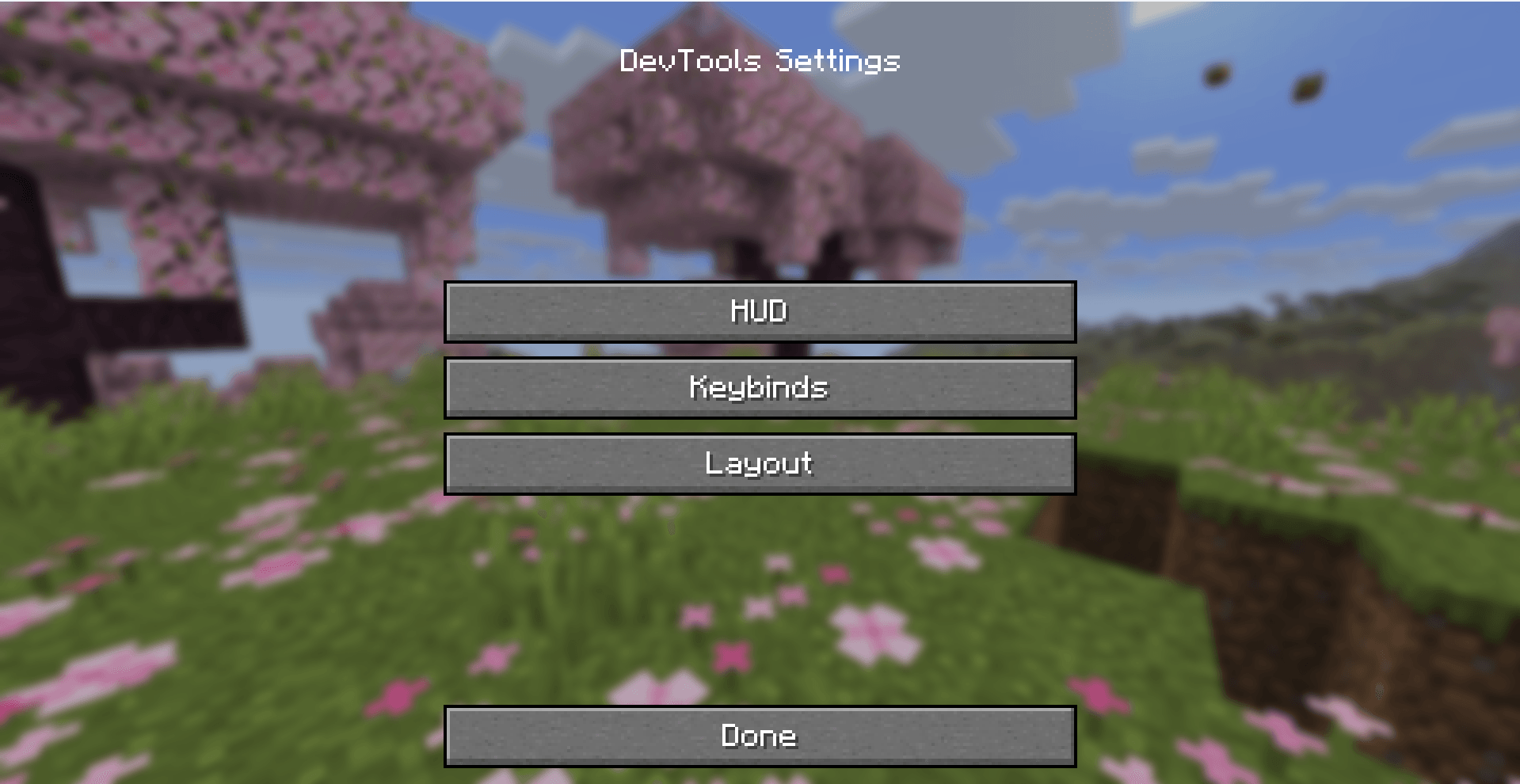 DevTools Settings
 -
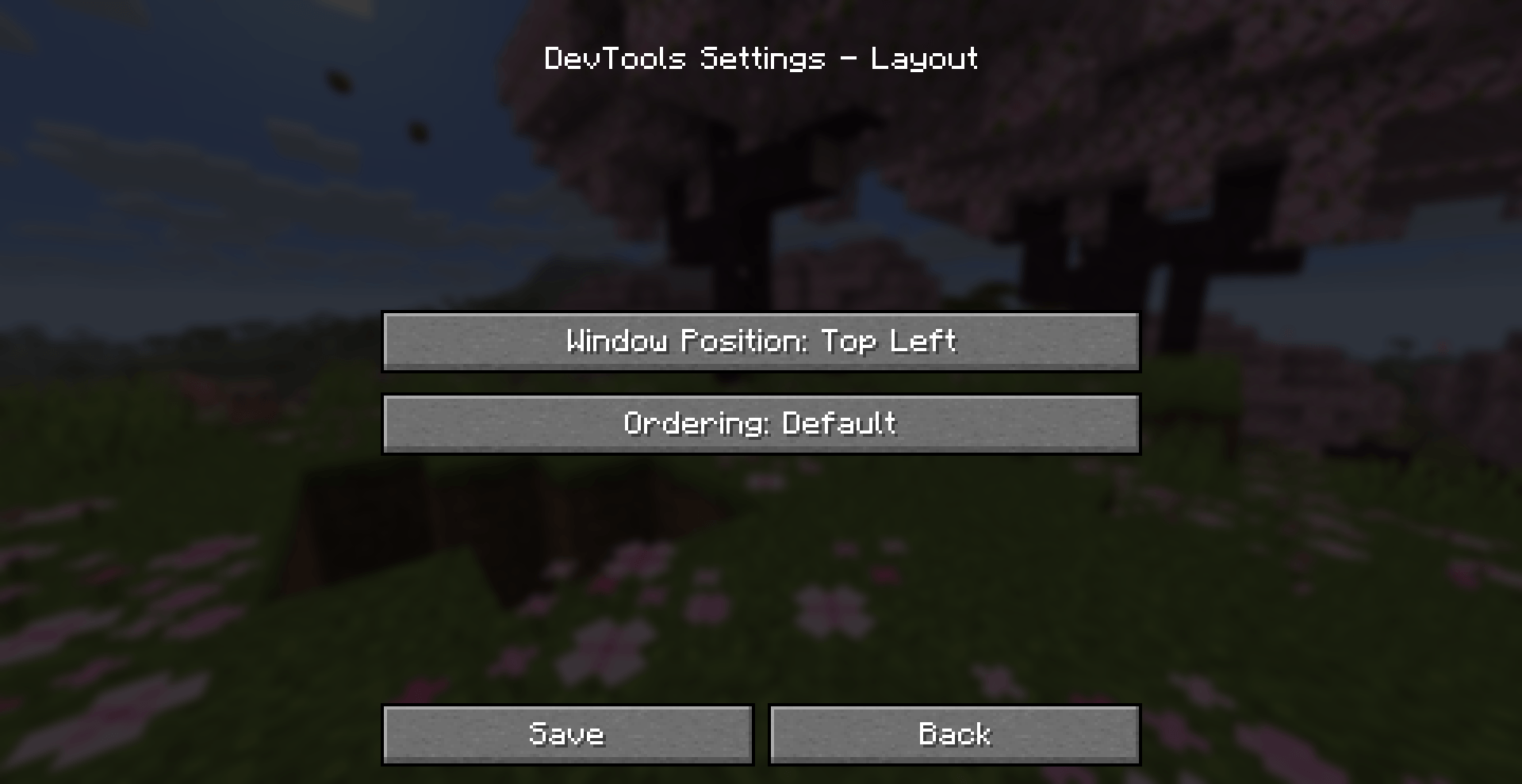 DevTools Settings - Layout
 -
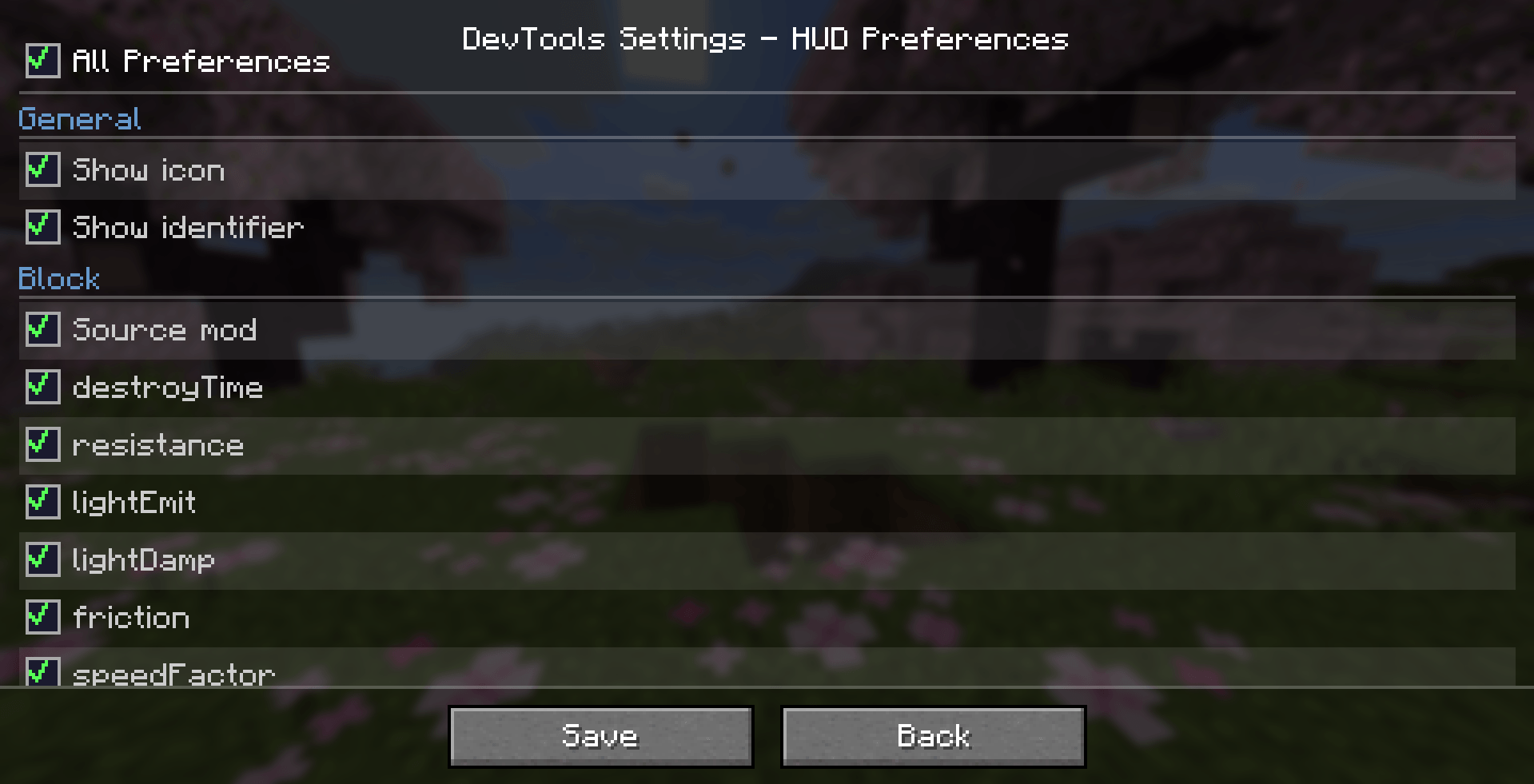 DevTools Settings - HUD Preferences
 -
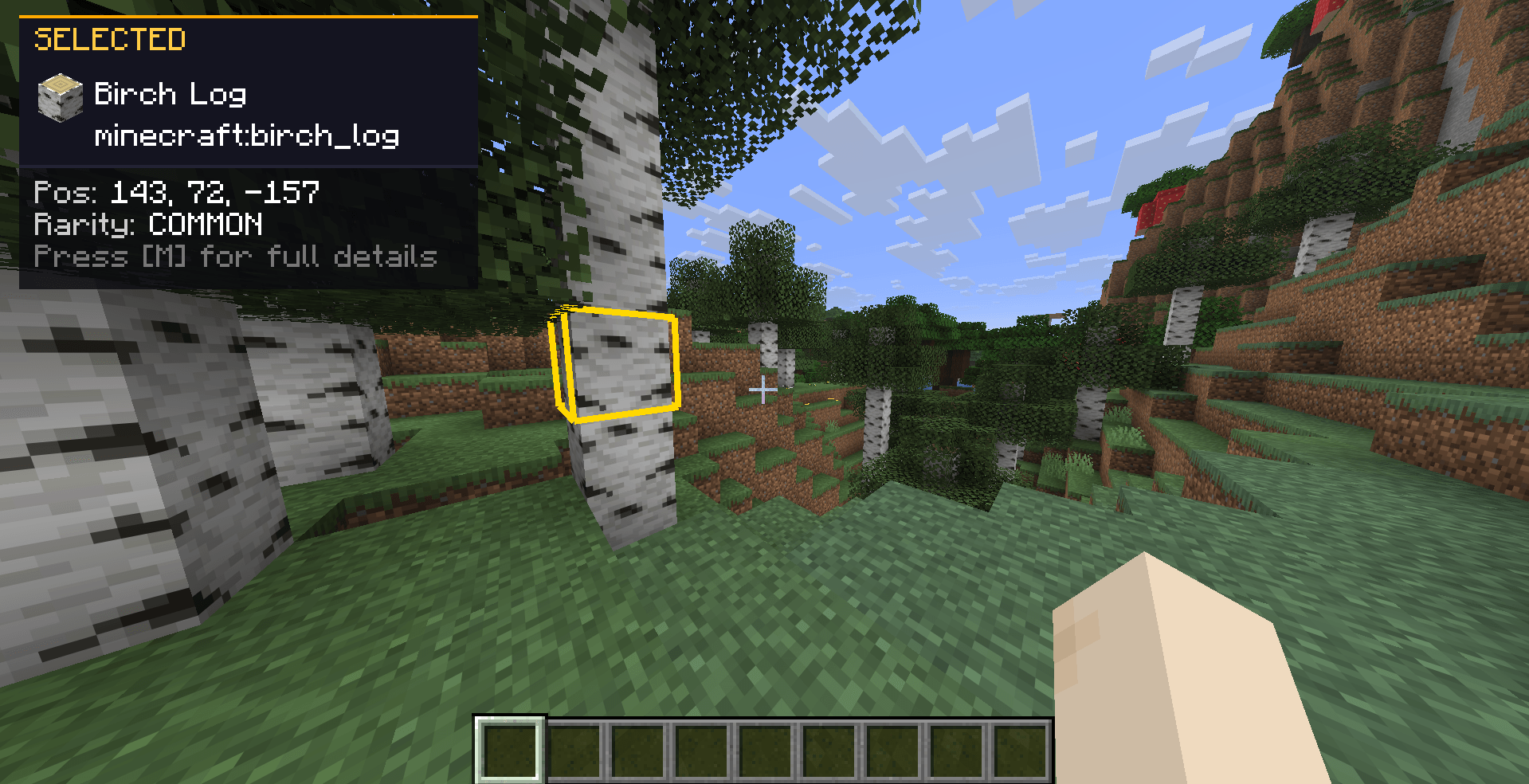 Inspect Overlay Selected a Birch Log
-
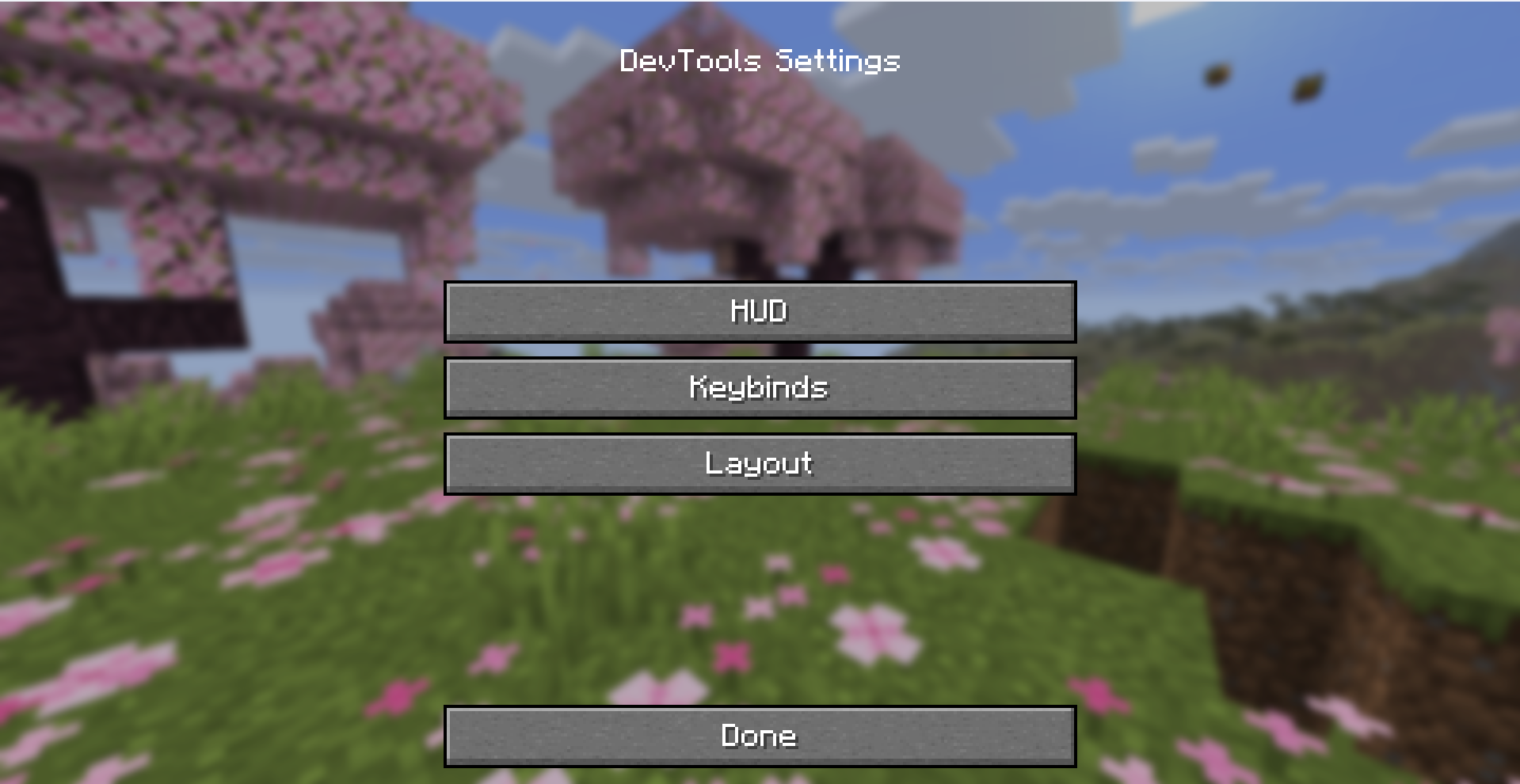 DevTools Settings
 -
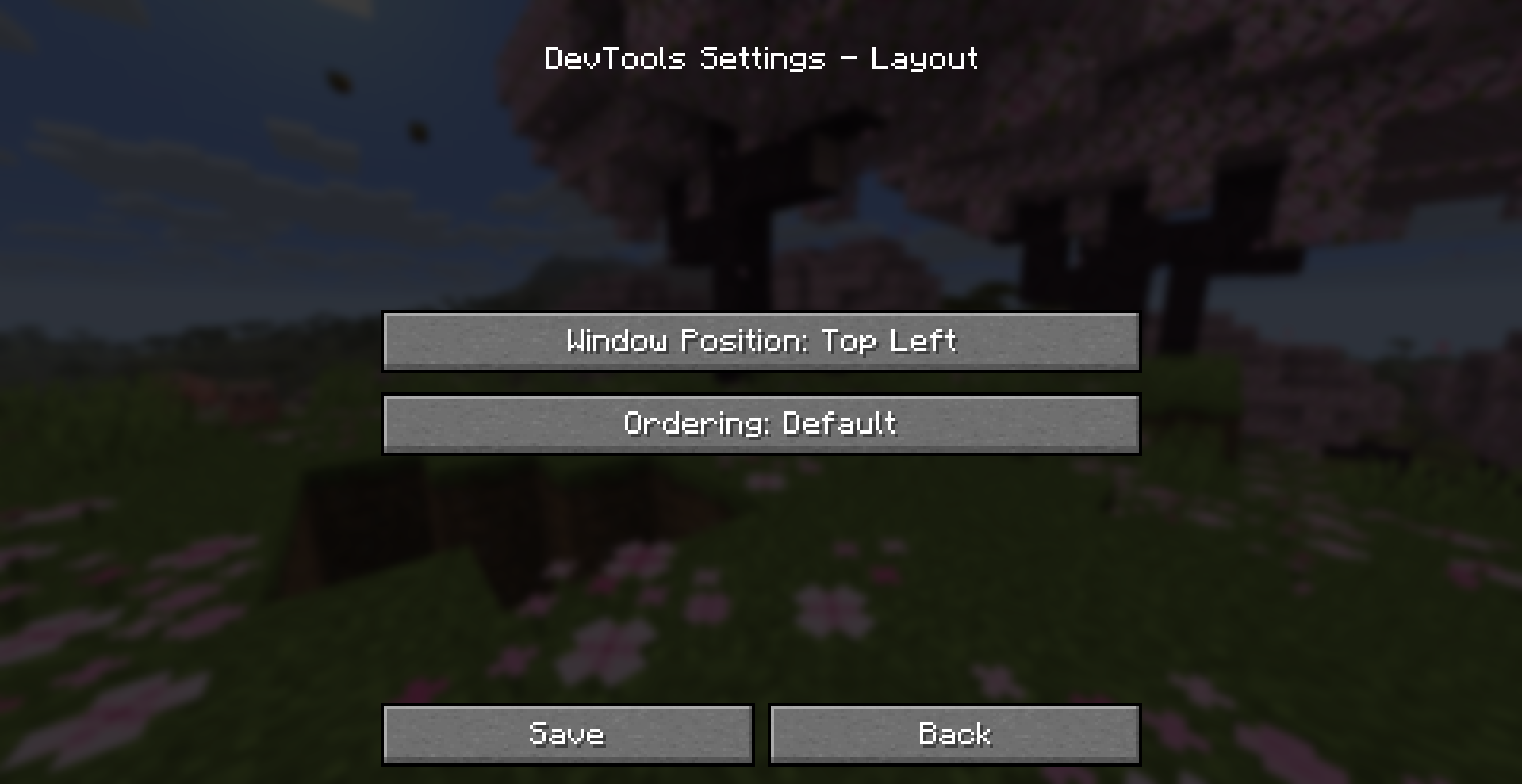 DevTools Settings - Layout
 -
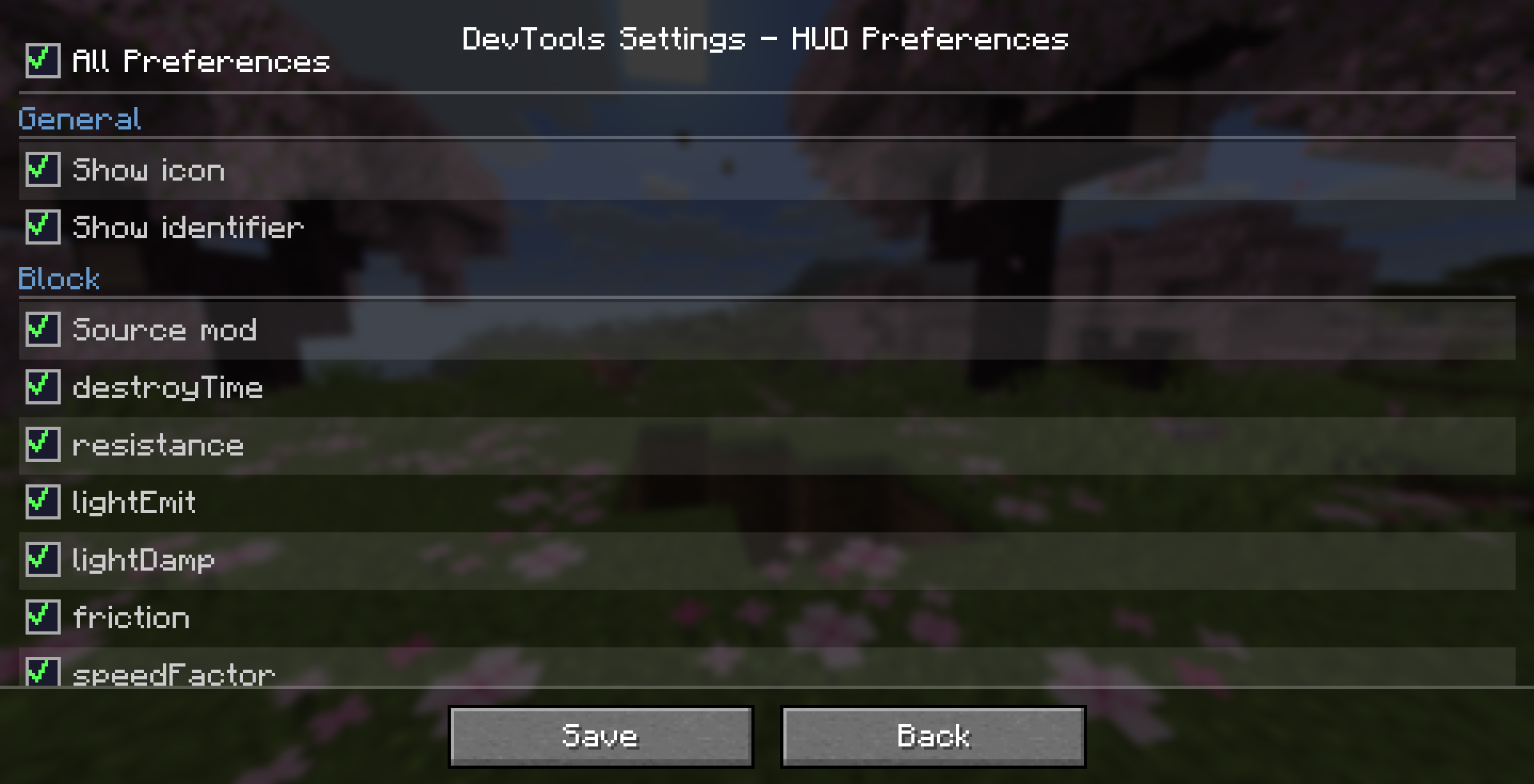 DevTools Settings - HUD Preferences
 -
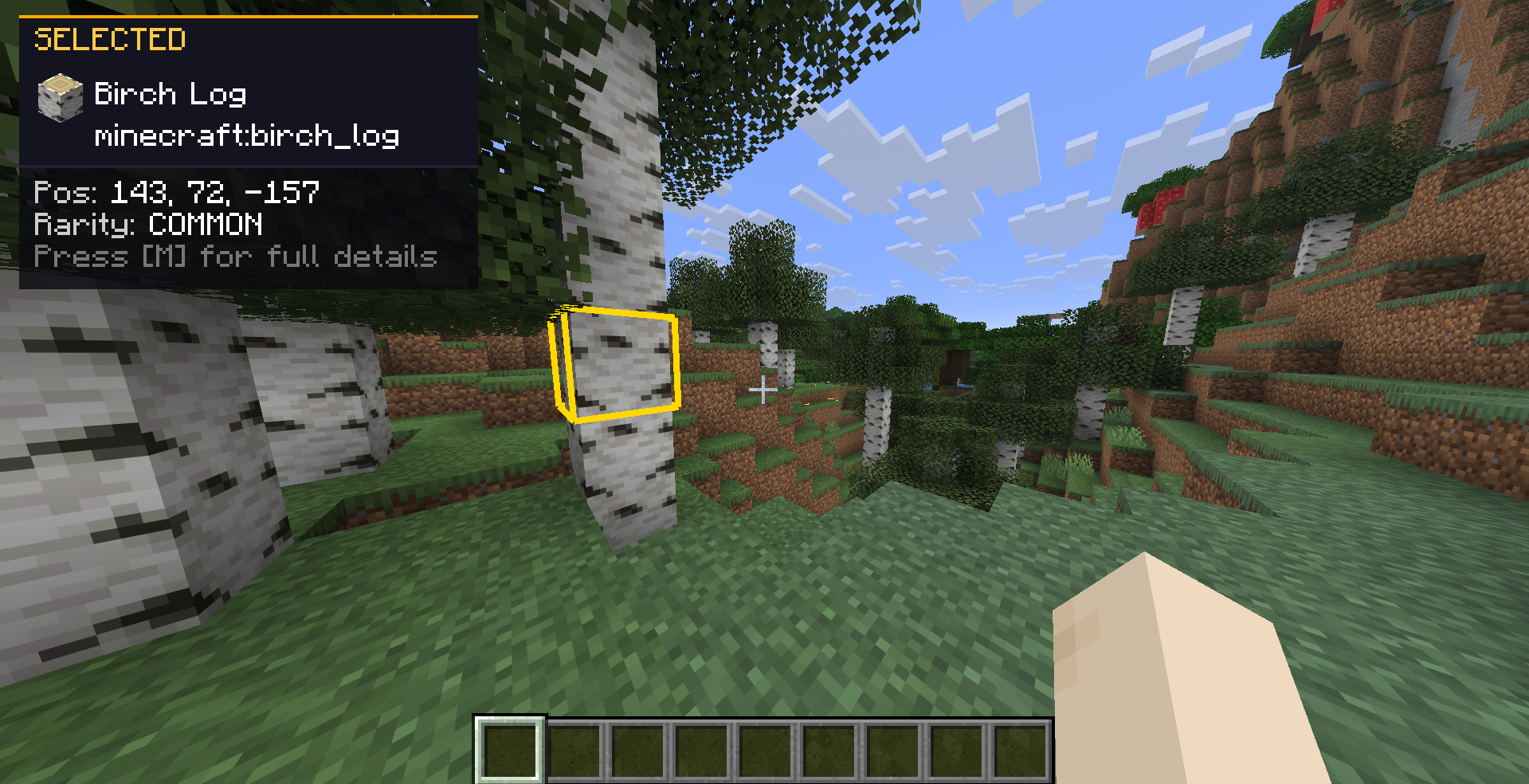 Inspect Overlay Selected a Birch Log
 -
 Banner
 -
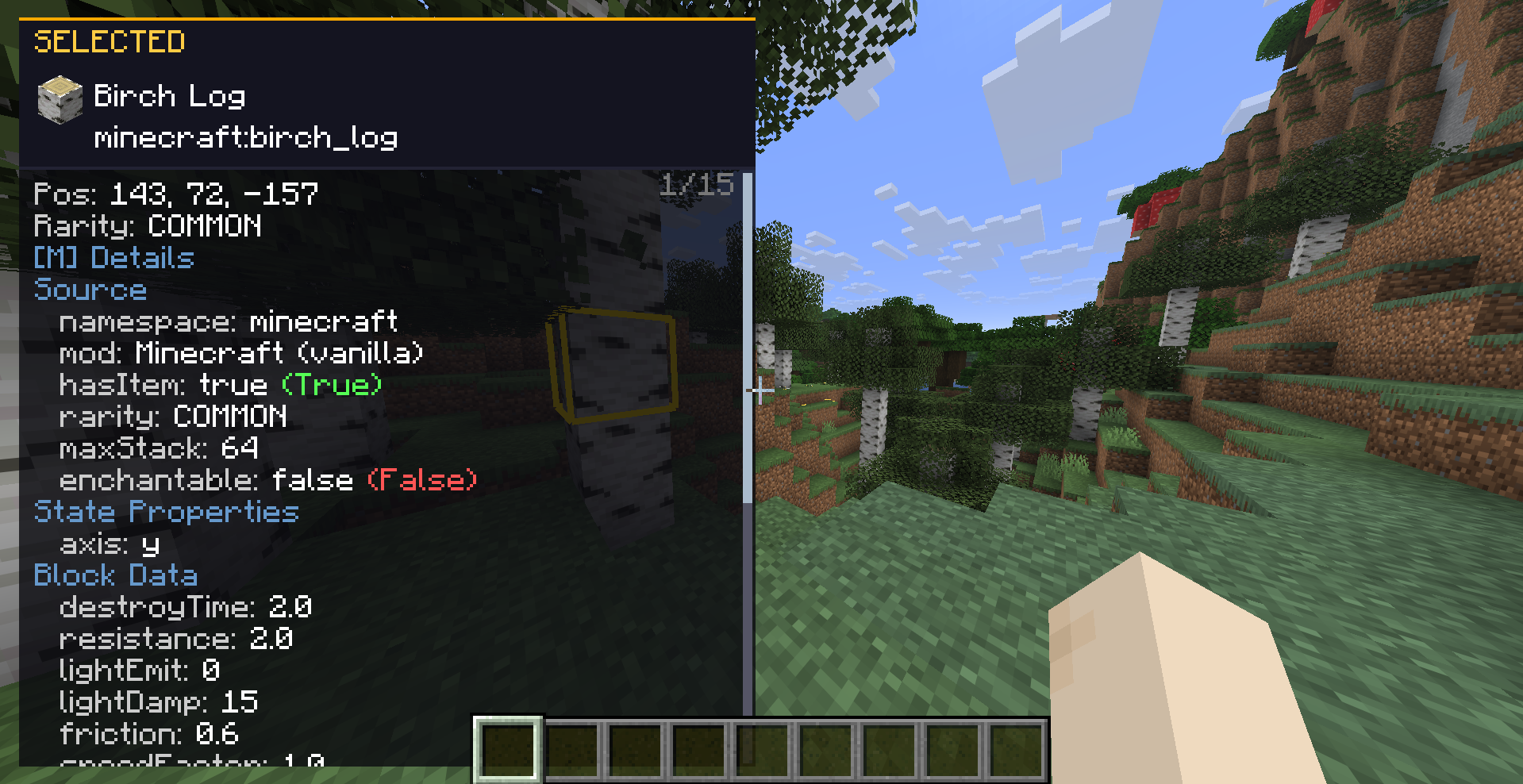 Inspect Overlay - Detailed view Selected Birch Log
Versions
Files
Relations
Project Relations
More like this
Similar Mods
Suggestions use data such as tags, dependencies, dependents, descriptions, titles, and more to rank how much they overlap with this mod.
On ModDex
Community snapshot
By the numbers
Statistics
Want to reach Minecraft players?
We're looking for a server hosting partner to feature here and other parts of the site. Interested? Send us a message!
Get in touchGet it on
Available Platforms
On ModDex
Community snapshot
By the numbers