
Discord integration Luckperms
No reviews yet
Combining Discord roles and Luckperms groups
Community voices
Reviews
Click once to include, again to exclude, again to clear
No reviews yet. Be the first to review this project!
Get it on
Available Platforms
 Modrinth
Compatibility
Supported Environments
About
Project Details
For authors
Embed Badge
If you're the author of this project, you can embed a live badge anywhere that supports HTML or Markdown. It updates automatically whenever ratings change.
Use HTML for any page that supports it, or Markdown for README files and Markdown-based descriptions.
Identifiers
Platform IDs
Resources
External Links
About
Description
This modification is a fork of DiscordLoom created by Dreaming Codes
This version was created only for 1.20.1 no updates and new versions are planned. You can contact luciferrium in Discord to create the version you need.

The mod allows you to fully synchronise Discord and Minecraft server based on the Luckperms permissions modification.
What a mod can do:
- Synchronisation of Discord roles with Luckperms groups
- change Discord username to the name specified in Minecraft
- By enabling the function: mandatoryVCChannels = [] specifying in it the id of the voice chat of your server, for example mandatoryVCChannels = [‘435457687658665856856’], then players will be able to log in to the server and play on it while they are online in this voice chat.
The mod is fully tested on the following modpacks:
- Forge - Craft to Exile 2
- Fabric - Prominence II
Work with other mods and modpacks may not be stable.
Instructions for proper installation:
1. Bot creation
You need to go to https://discord.com/developers/applications/
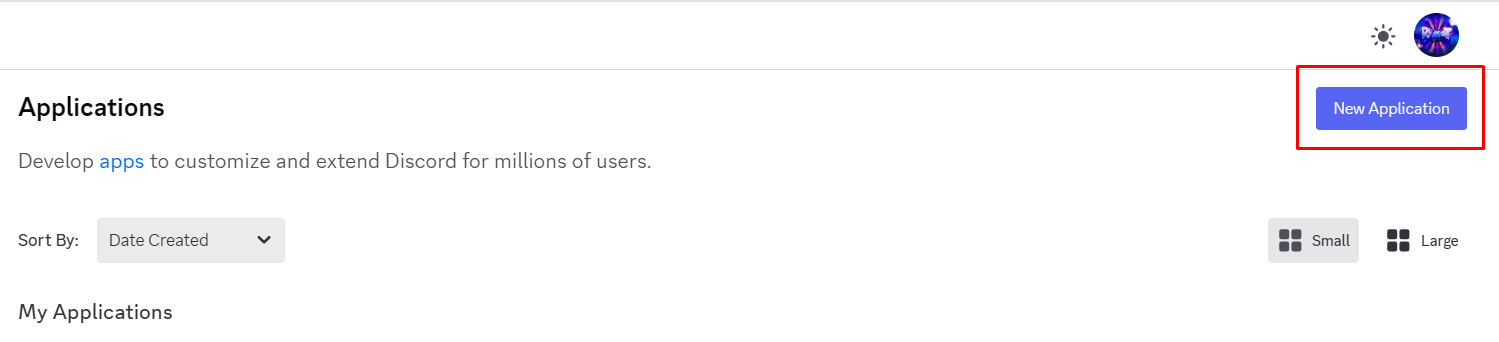
Click on the New application button
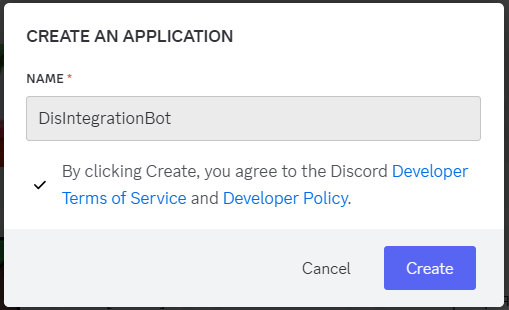
 Come up with a name for the bot
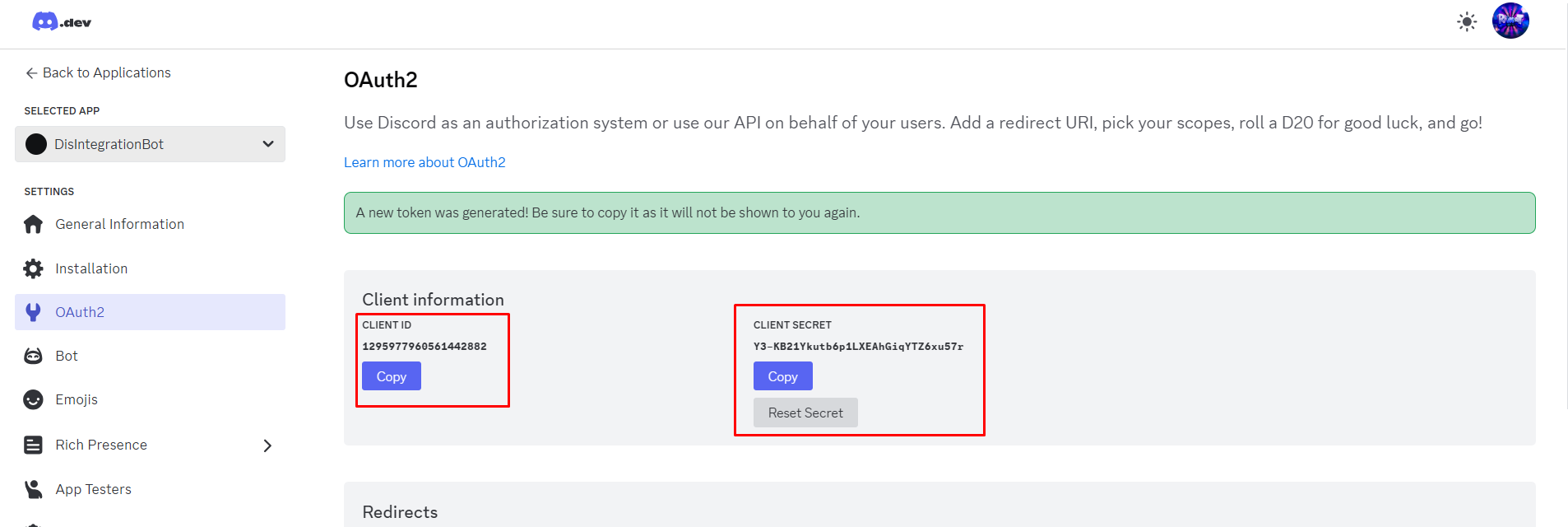
 The bot configuration menu will open, you need to go to the OAuth2 section
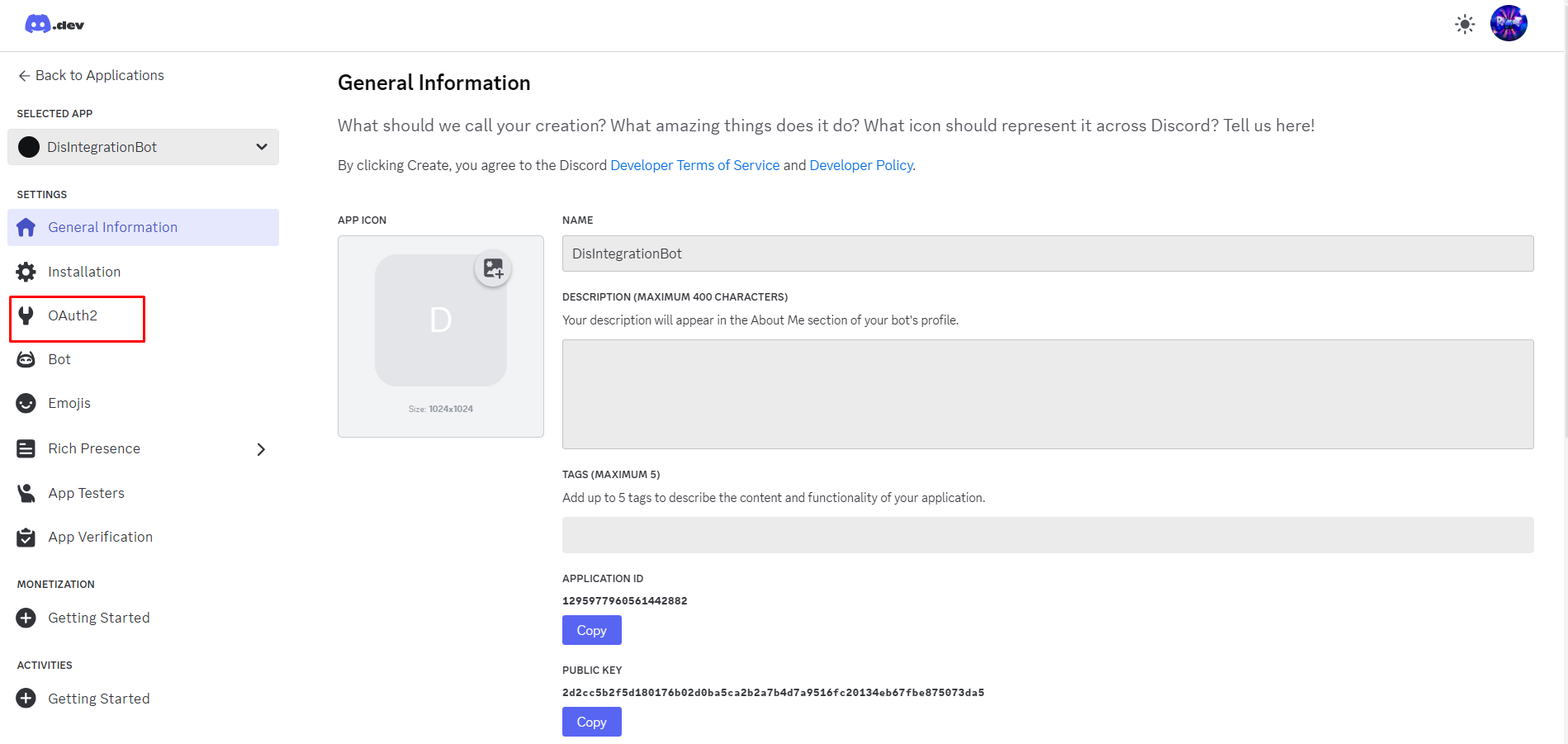 Get Client Id and Client Secret
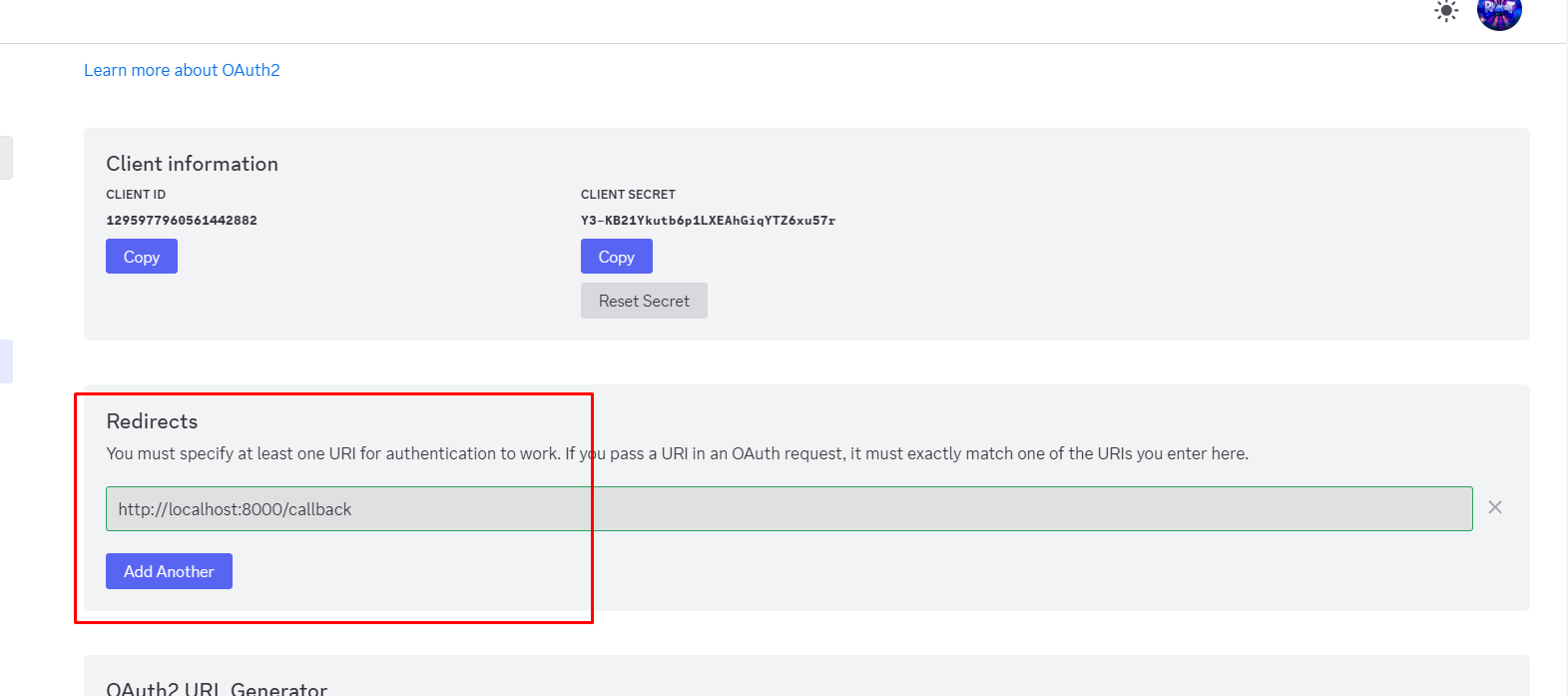
 The following link should be added to the Redirects line: http://localhost:8000/callback
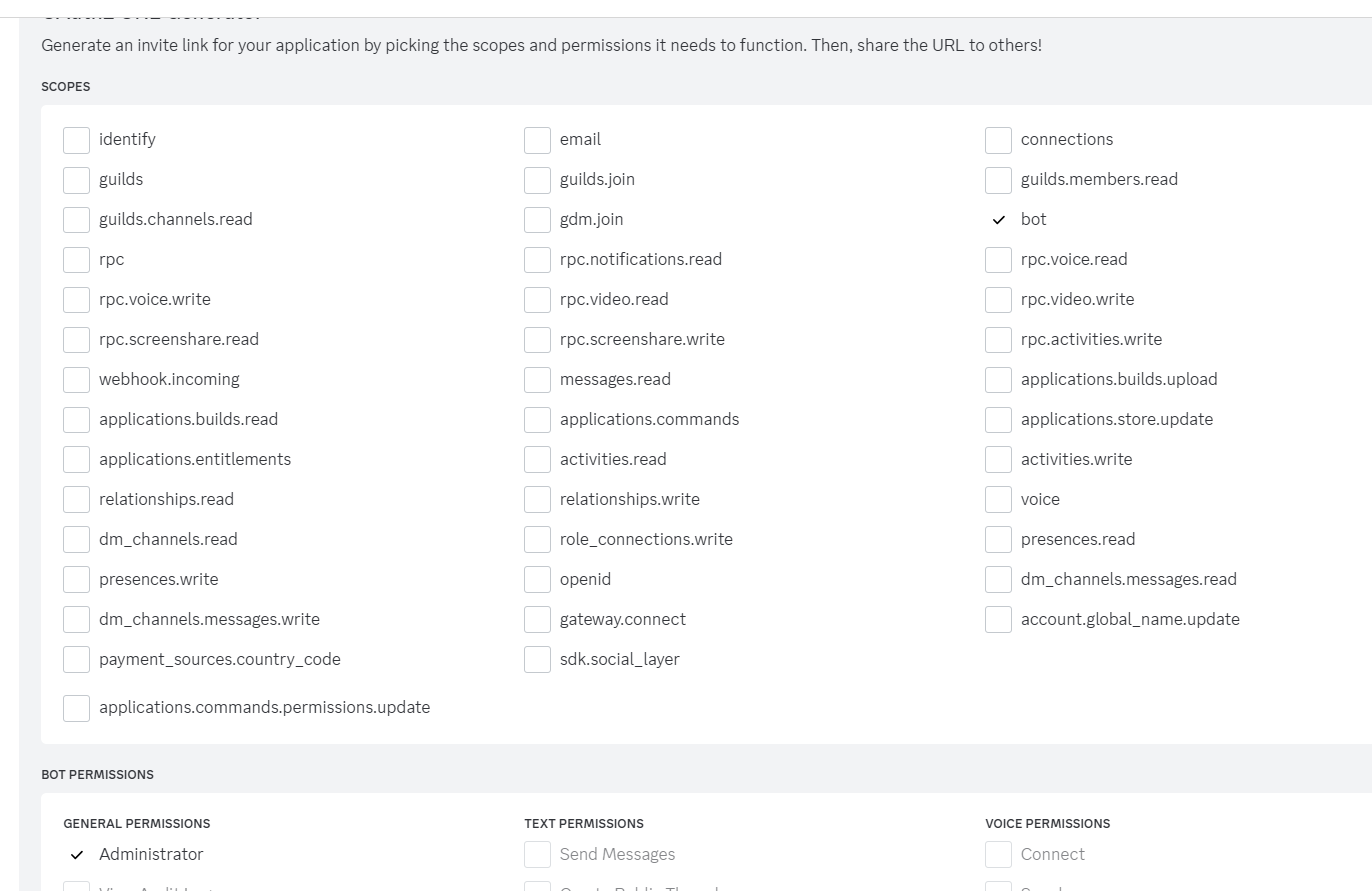
 Generate a link to the bot invitation by setting the Bot and Administrator parameters
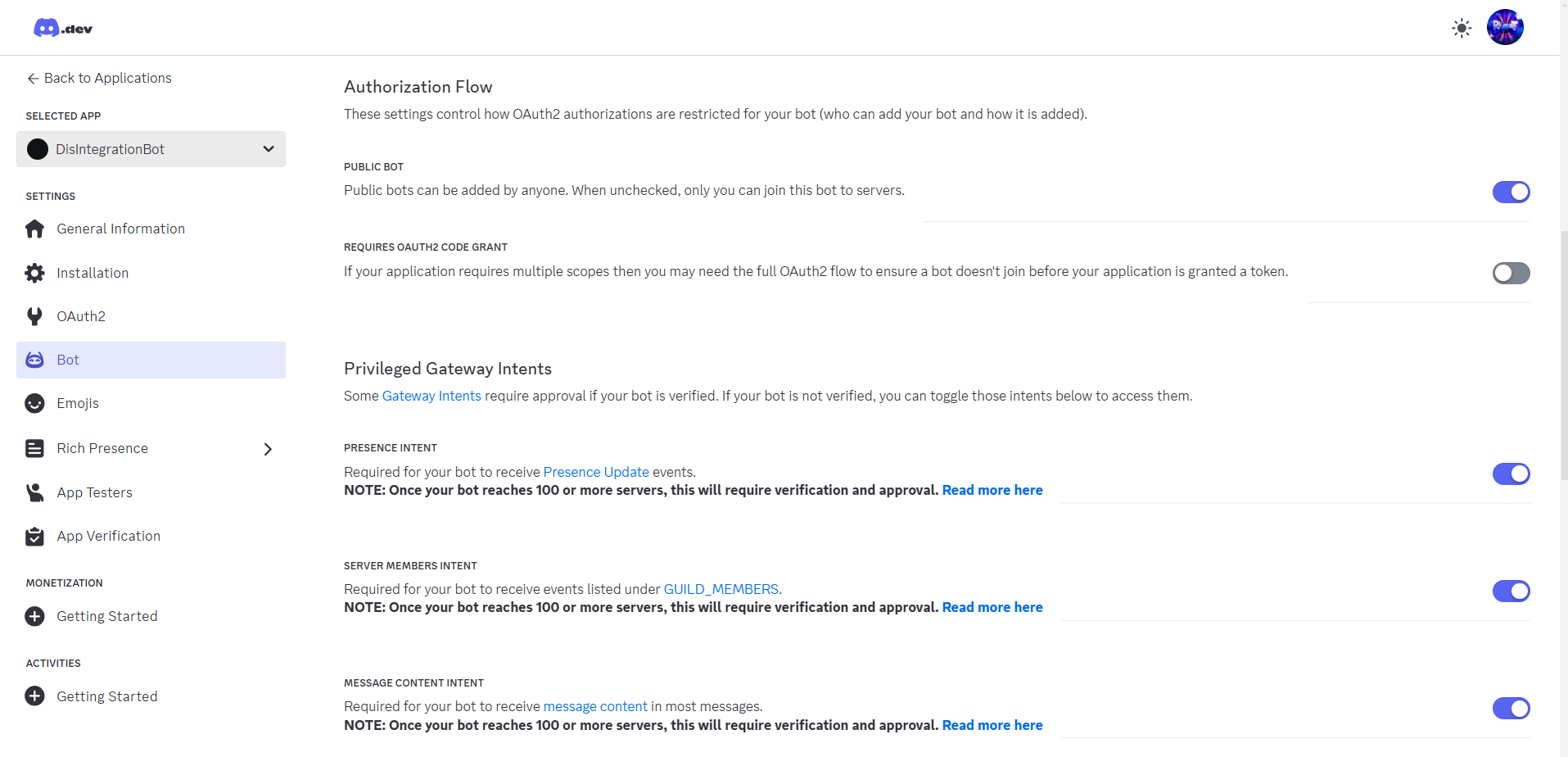
 Then go to the Bot tab and set the parameters as shown on the image
 Congratulations! You have successfully created and added a bot to your Discord server. Now let's move on to the next step.
2. Installing the mod on the server, setting the configuration, configuring Luckperms
After you download the mod, add it to your server and try to run it, you will get an error. This means that the configuration has been created and it needs to be configured.
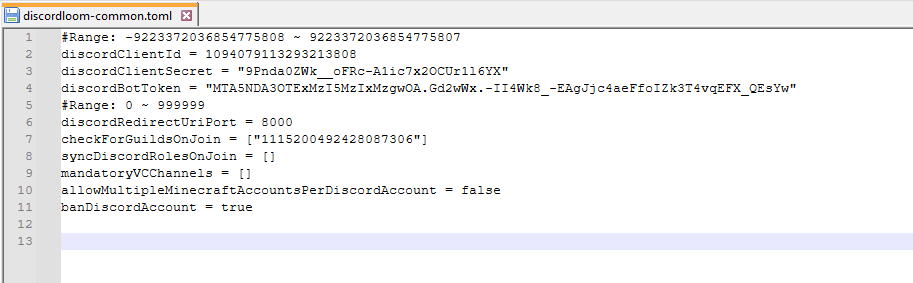
Go to the path config/discordloom-common.toml
Open this file with any text editor and start filling it in.
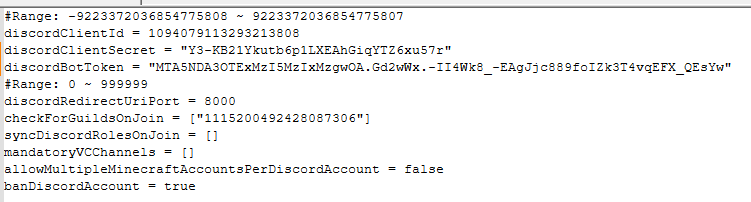
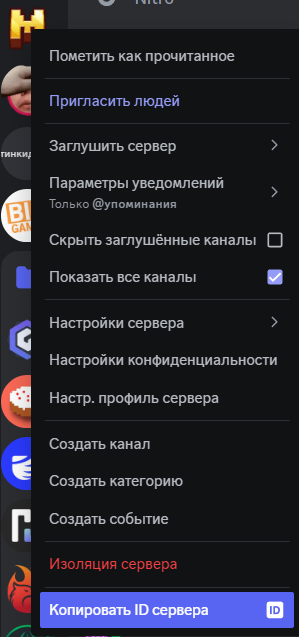
The checkForGuildsOnJoin parameter is the id of your Discord community, to get it you must be an administrator of the community, click the community icon and click Copy Server ID.
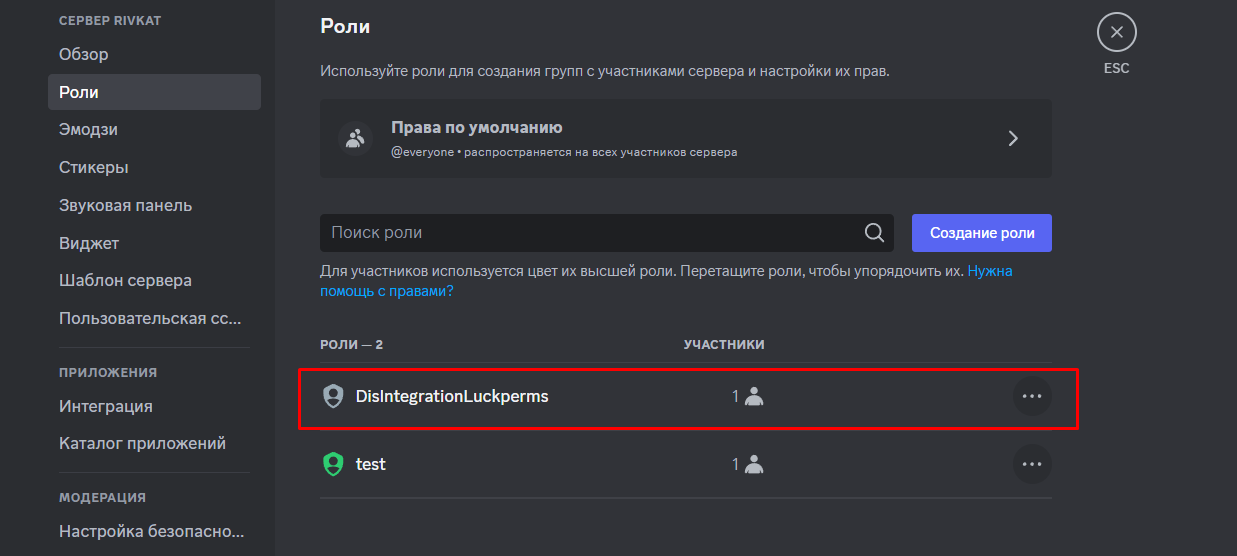
Don't forget to set the role created by the bot to the first role in the list of server roles.
After filling out the configuration file, if you have entered all the parameters correctly, the mod will allow you to start the server. After the first login to the server, you will be prompted to link your Discord account and Minecraft account.
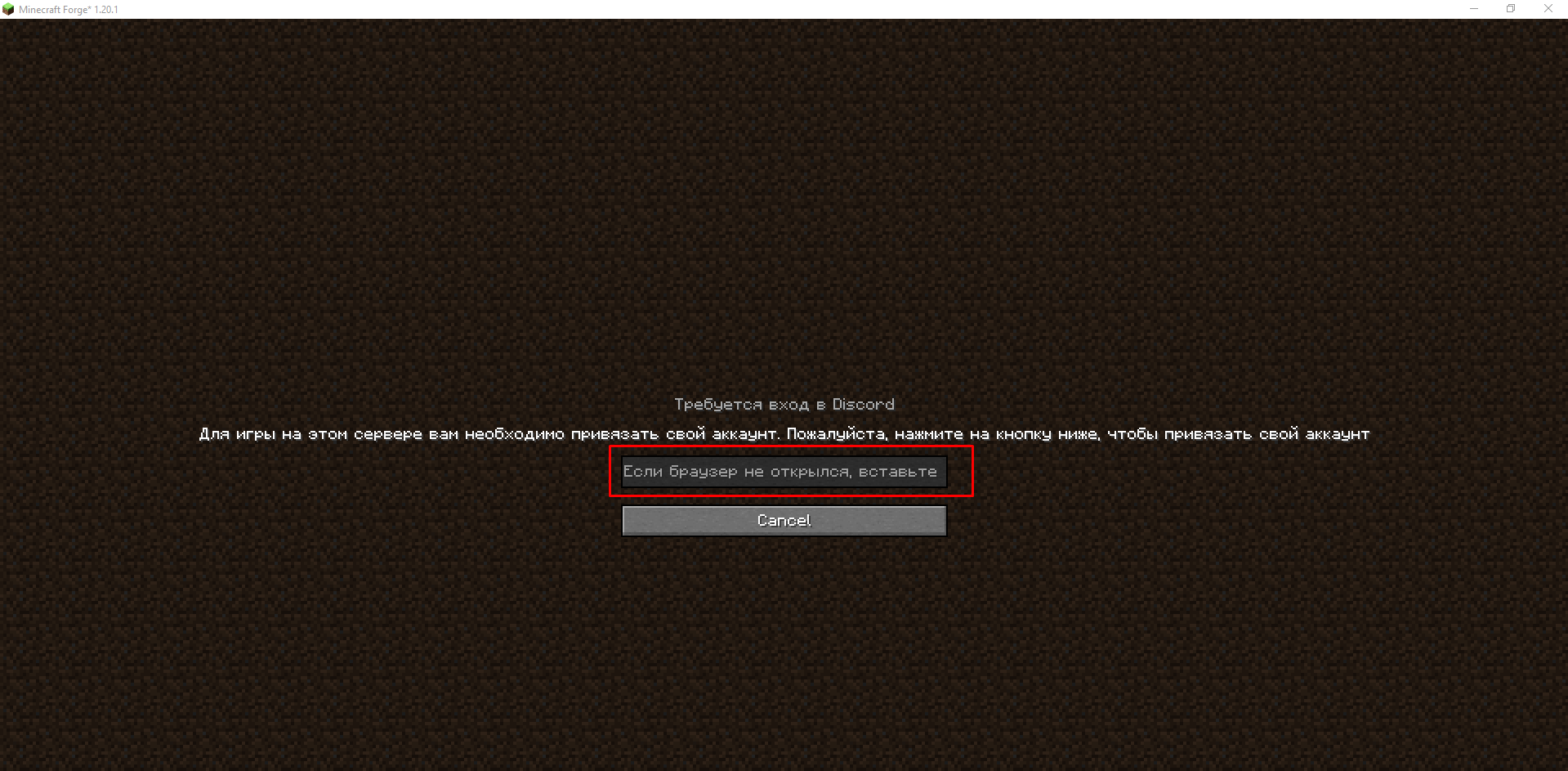
You will see a window where you need to allow the bot to manage your usernames on the server and synchronise your accounts
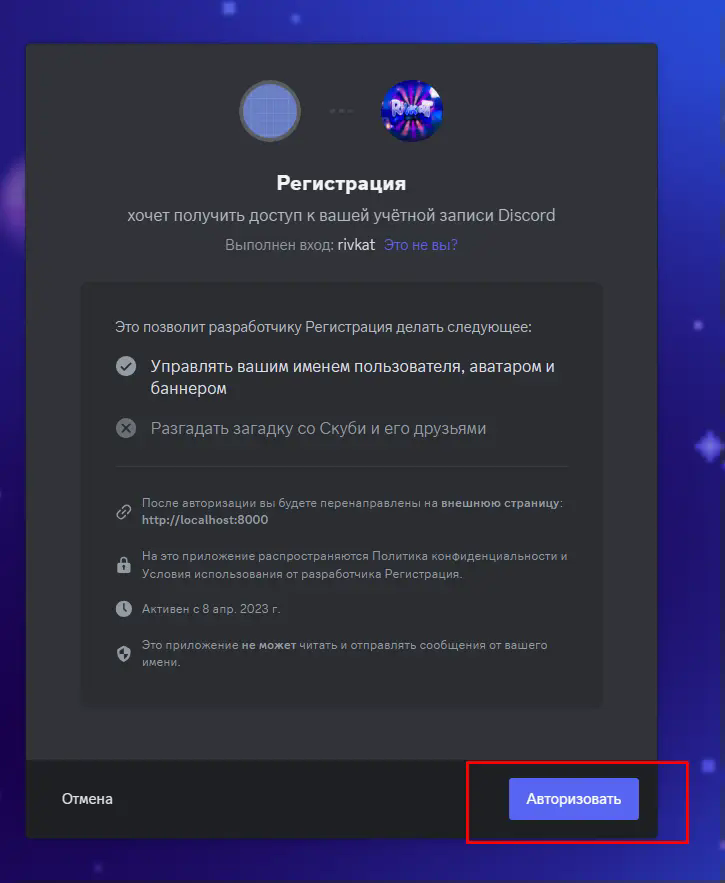
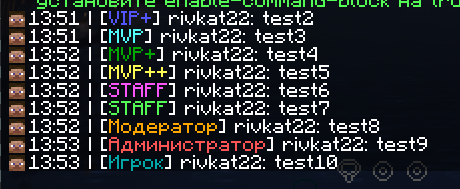
Now your Discord name will become the same as in Minecraft, and Luckperms will give all groups matching Discord.
Now I will briefly tell you how to create a Luckperms group that will match Discord.
To do this in the server console type lp editor and open the graphical editor on the link given to you.

Click the + next to the Group button.
In the window that appears, you need to type discordloom:idrolediscord in the group name.
To get idrolediscord you need to click on the role you created and click Copy role id. Your group name in Luckperms should look like this: discordloom:3948293850239502395023509.
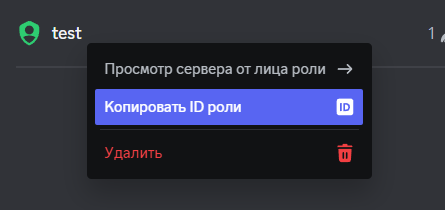
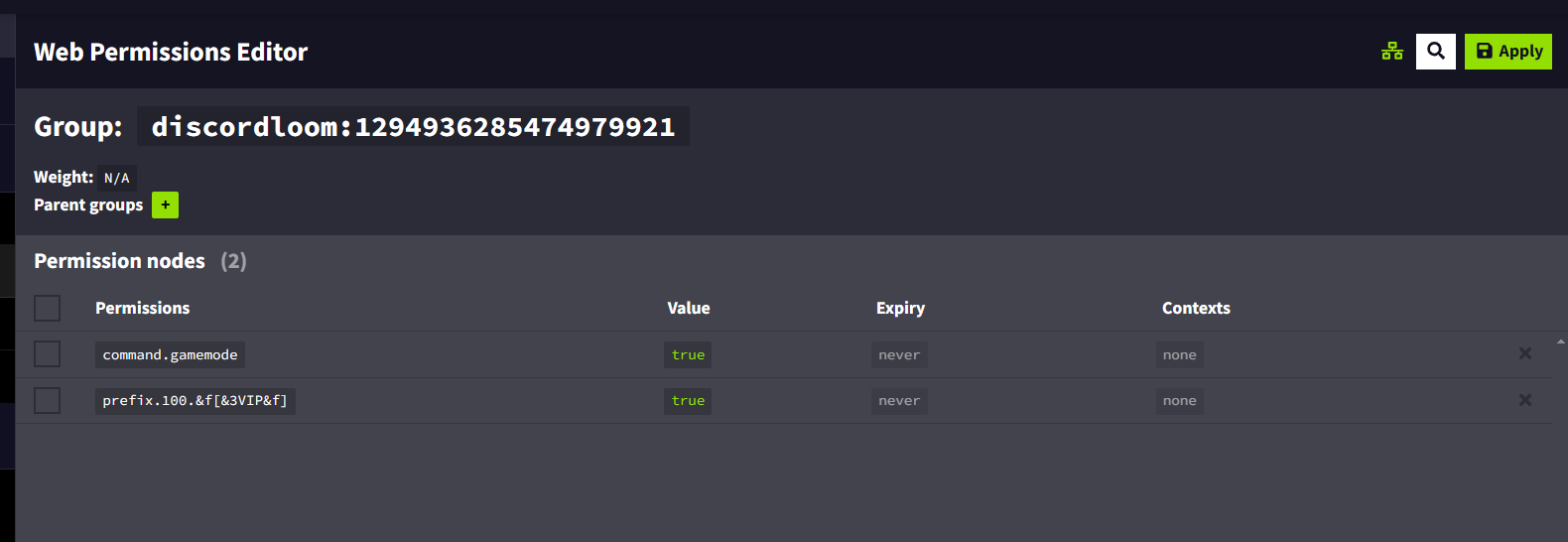
That's it, you have successfully integrated your Discord with your Minecraft server. If you still have any questions or need help, join my Discord community: https://minecraft.press/
Screenshots
Gallery
Versions
Files
Relations
Project Relations
More like this
Similar Mods
Suggestions use data such as tags, dependencies, dependents, descriptions, titles, and more to rank how much they overlap with this mod.
On ModDex
Community snapshot
By the numbers
Statistics

Want to reach Minecraft players?
We're looking for a server hosting partner to feature here and other parts of the site. Interested? Send us a message!
Get in touchGet it on
Available Platforms
On ModDex
Community snapshot
By the numbers
Statistics
Resources