
Easy Configs
No reviews yet
Easy Configs easily save and change between different configs—and export and import to your configs to share with friends.
Does not follow a specific thematic focus apart from vanilla Minecraft.
Used for mods with little to no gameplay elements.
Includes quality of life improvements and small tweaks to enhance and customize gameplay.
Provides tools specifically for customizing modpacks.
Adds tools to customize the user interface and menus.
Forge is a popular mod loader for versions 1.1+ of Minecraft.
Community voices
Reviews
Click once to include, again to exclude, again to clear
No reviews yet. Be the first to review this project!
Get it on
Available Platforms
 Modrinth
Compatibility
Supported Environments
About
Project Details
For authors
Embed Badge
If you're the author of this project, you can embed a live badge anywhere that supports HTML or Markdown. It updates automatically whenever ratings change.
Use HTML for any page that supports it, or Markdown for README files and Markdown-based descriptions.
Identifiers
Platform IDs
About
Description
EasyConfigs
EasyConfigs is a Minecraft mod designed for modpack creators and regular users alike. It simplifies the configuration process by providing a GUI for managing configurations and supports exporting and importing of configuration files. This allows modpack creators to ship default settings without fear of them being reset with every update. Regular users can also benefit from this mod by easily switching between different sets of configurations or sharing their configurations with friends.
Features
- Save and load configurations with ease.
- Import and export configuration files.
- GUI for managing configurations.
- Ideal for mod pack creators to ship default settings.
- Allows regular users to switch between different configurations or share their configurations.
Installation
- Download the latest release of EasyConfigs from the releases page.
- Place the downloaded
.jarfile into your Minecraft'smodsfolder. - Run Minecraft with the Forge mod loader.
Usage
After installing the mod, you can access the EasyConfigs GUI from the Minecraft pause menu. From there, you can manage your configurations.
Some other notes to consider
In the config folder will there be a file that you can but files and folder that you don't want to copy or export. Some mods makes files that don't have configs and are no need to copy them.
Commands
-
Save Configurations:
/EasyConfigs saveConfigs [1-9] [addMCOptions|don'tAddMCOptions]- Saves the current configurations to a specified slot (1-9). You can also specify whether to include Minecraft options in the save. -
Load Configurations:
/EasyConfigs loadConfigs [1-9] [loadMCOptions|don'tLoadMCOptions]- Loads configurations from a specified slot (1-9). You can also specify whether to load Minecraft options. -
Load Default Configurations:
/EasyConfigs loadDefaultConfigs [loadMCOptions|don'tLoadMCOptions]- Loads the default configurations. You can specify whether to include Minecraft options. -
Confirm Overwrite:
/EasyConfigs confirmOverwrite [1-9] [addMCOptions|don'tAddMCOptions]- Confirms the overwrite of a specified slot (1-9) when saving configurations. You can also specify whether to include Minecraft options in the save. -
Export Configurations:
/EasyConfigs exportConfigs [sourceFolder] [zipFileName] [addMCOptions|don'tAddMCOptions]- Exports configurations from a specified source folder to a zip file. You can also specify whether to include Minecraft options in the export. -
Import Configurations:
/EasyConfigs importConfigs [1-9] [setAsCurrentConfigs|onlyImportToSaveSlot] [zipFileName] [loadMCOptions|don'tLoadMCOptions]- Imports configurations from a specified zip file to a slot (1-9). You can specify whether to set the imported configurations as current or only import to the save slot. You can also specify whether to load Minecraft options.
Please replace the placeholders with the actual values when using these commands.
For Mod Pack Developers
EasyConfigs is a powerful tool for mod pack developers. It allows you to create a consistent configuration setup across all instances of your mod pack, ensuring that every player has the same gameplay experience. Here's how you can use EasyConfigs:
-
Setup Your Configurations: Start by setting up all the configurations for your mods and the vanilla game. Make sure everything works as you want it to.
-
Open EasyConfigs GUI: Once your configurations are set, open the EasyConfigs GUI. You can do this from the Minecraft pause menu.
-
Create Default Configurations: In the EasyConfigs GUI, click on the "Modpack" button. Then, click on the "Create Default Configs" button. This action will copy all the configurations from the game (including your mods and the vanilla game settings) to the default configs folder located at
easyconfigs/easyconfigsave0. -
Review the Default Configurations: Go through the
easyconfigs/easyconfigsave0folder and ensure all necessary configuration files are present. Some mods create multiple files, and not all of them might be necessary. Delete any files that are not needed. -
Export Your Configurations: Now that your default configurations are set, you're ready to export. When including files in your mod pack, do not select the
configsfolder or theoptions.txtorserver.datfiles. Instead, include theeasyconfigsfolder.
Bonus Step for Mod Pack Developers
If you want to provide your users with the ability to choose between different configuration setups, you can do so by using the save slots feature of EasyConfigs:
-
Save Different Configurations: Set up different configurations for your mods and the vanilla game. For each setup, save the configurations to a different slot using Save Configs option in the menu.
-
Inform Your Users: In your mod pack description, inform your users about the different configuration setups available. Tell them they can load the different setups by using the EasyConfigs GUI.
-
Export Your Configurations: Now export just as before.
By following these steps, you can ensure that your mod pack users have a consistent configuration setup, and they don't have to worry about losing their settings when updating the mod pack.
Written by: Kd_Gaming1 and ChatGPT (I was lazy)
Screenshots
Gallery
-
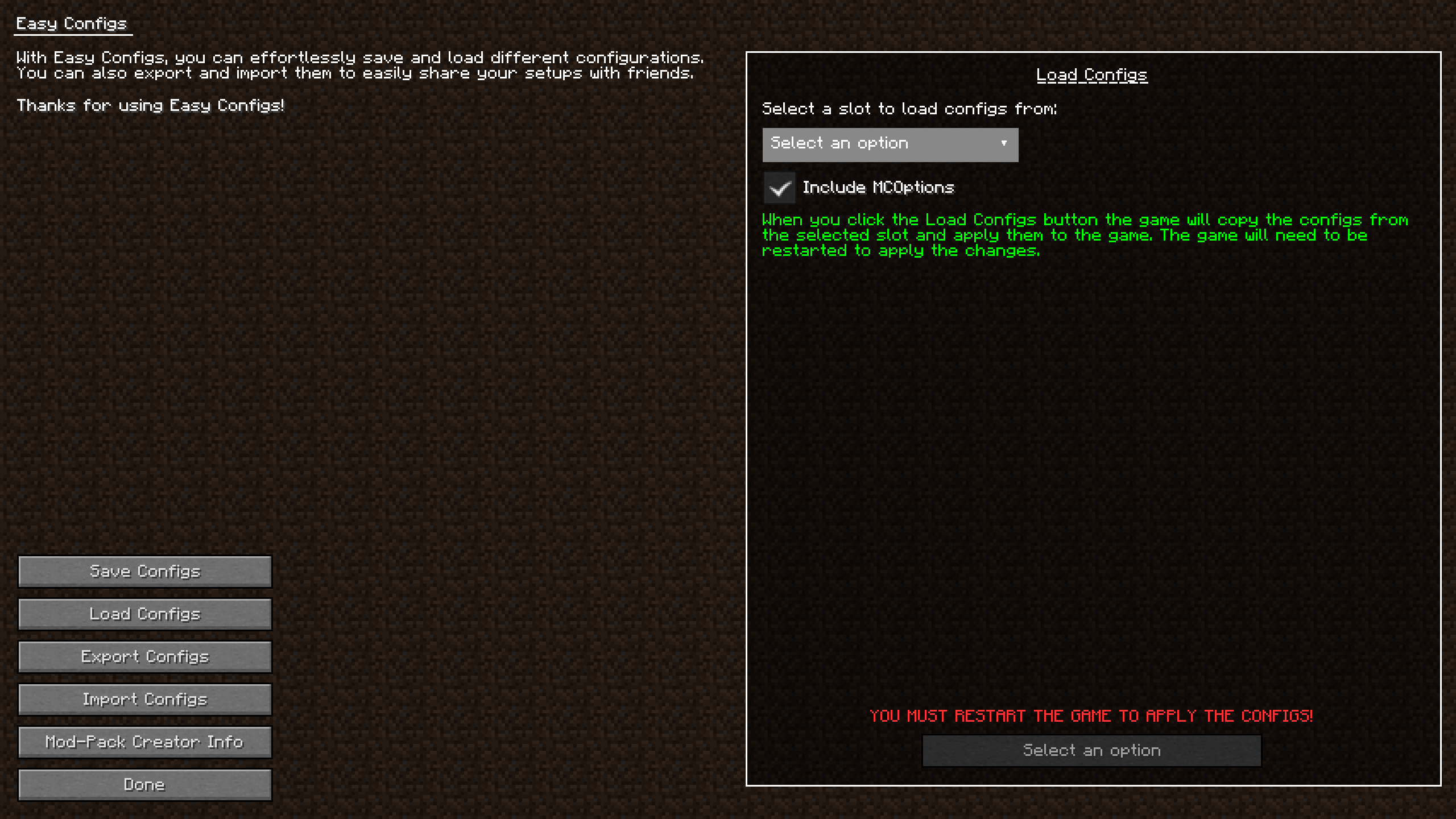 Load Your Configs Load one of your configs that you have saved earlier.
 -
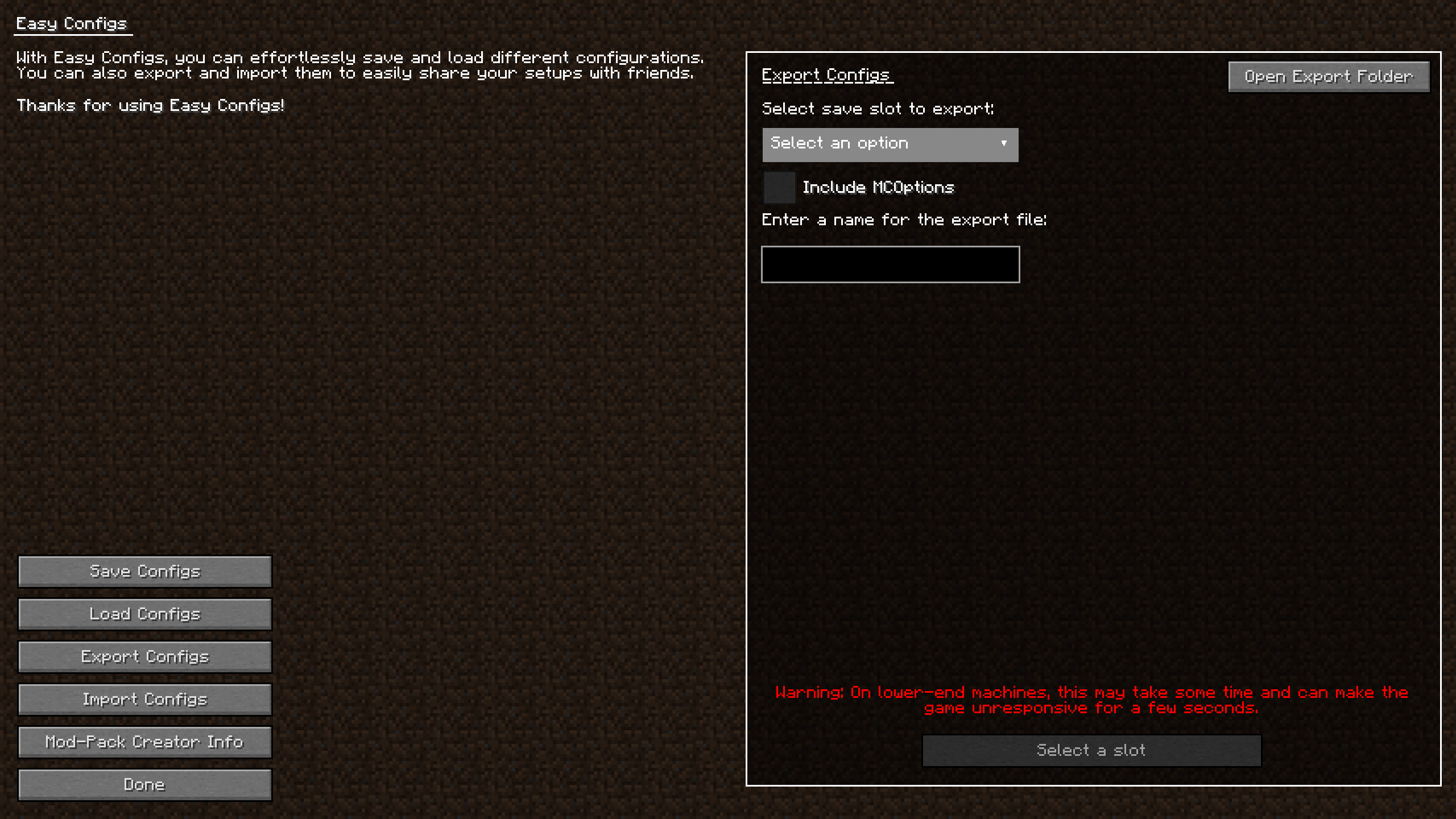 Export Your Configs Export and share with friends.
 -
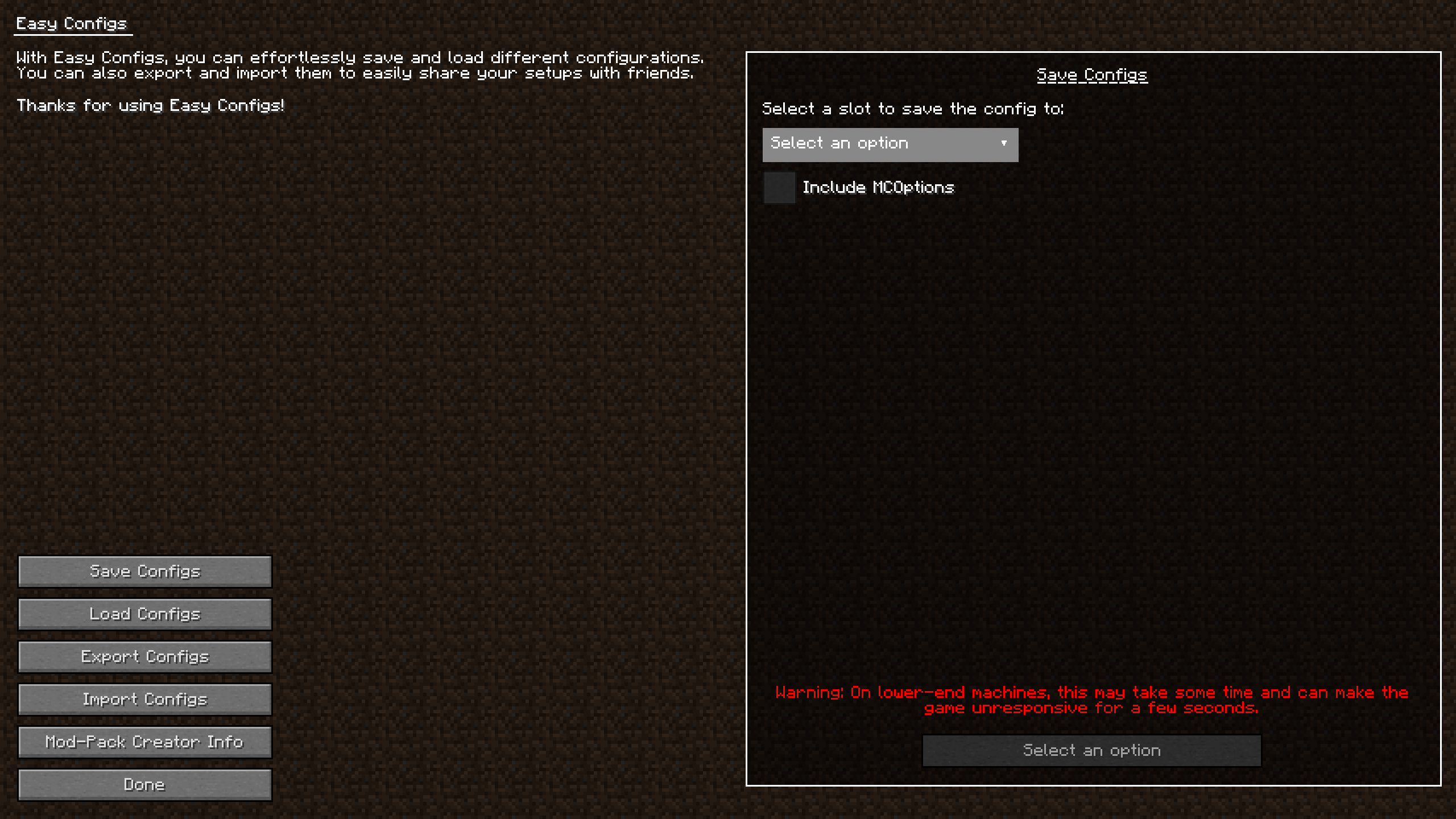 Save Your Configs
 -
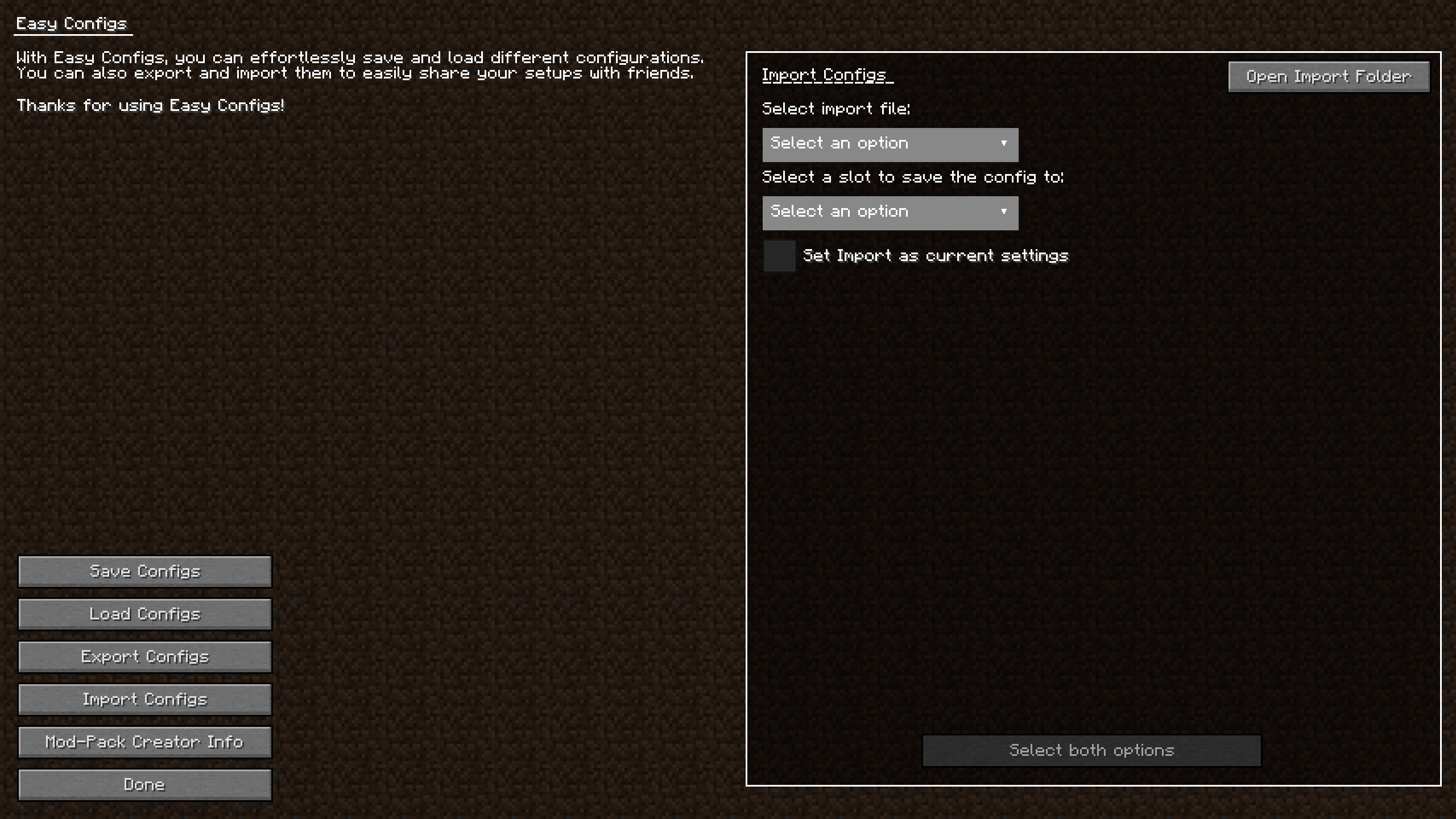 Import Your Configs Import the configs that your friends share with you.
Versions
Files
Relations
Project Relations
More like this
Similar Mods
Suggestions use data such as tags, dependencies, dependents, descriptions, titles, and more to rank how much they overlap with this mod.
On ModDex
Community snapshot
By the numbers
Statistics

Want to reach Minecraft players?
We're looking for a server hosting partner to feature here and other parts of the site. Interested? Send us a message!
Get in touchGet it on
Available Platforms
On ModDex
Community snapshot
By the numbers