
ElytraUtils
No reviews yet
Client-Side mod that adds detailed Elytra utilities, such as optimal ascend/descend angle, estimated distance/flight time, and an optinal immersive flight dynamics HUD modeled after that of an aircraft. Extends CoordinatesDisplay, works when CD is hidden.
Fabric is a mod loader for versions 1.14+ of Minecraft, particularly popular for client side and optimization mods.
Community voices
Reviews
Click once to include, again to exclude, again to clear
No reviews yet. Be the first to review this project!
Get it on
Available Platforms
 Modrinth
Compatibility
Supported Environments
About
Project Details
For authors
Embed Badge
If you're the author of this project, you can embed a live badge anywhere that supports HTML or Markdown. It updates automatically whenever ratings change.
Use HTML for any page that supports it, or Markdown for README files and Markdown-based descriptions.
Identifiers
Platform IDs
About
Description
ElytraUtils
A Fabric companion mod that turns CoordinatesDisplay's HUD into a proper elytra flight instrument panel — a fighter-jet-style attitude display, impact damage prediction, glide range, and a "bingo fuel" durability warning, all derived from Minecraft's actual flight physics rather than eyeballed guesses.
Flight instrument HUD
While gliding, a screen-centered attitude display appears — a real HUD, not a text readout:
- Pitch ladder — horizon-referenced climb/dive rungs (10° apart), with green/red reference brackets at the derived ideal rocket-climb angle (-34°) and the dive-caution threshold (+30°).
- Boresight — a fixed waterline marker showing where your nose actually points.
- Flight path marker — a small floating reticle showing where you're actually going (your velocity vector), independent of where you're looking. The gap between it and the boresight is your angle of attack.
- AoA indexer — a compact vertical tape reading out angle of attack directly, with a STALL flag grounded in the real airspeed floor (~0.35 blocks/tick), not a guessed angle.
- Bearing tape — a compass heading strip across the top.
- Airspeed tape — horizontal speed, scaled to blocks/second.
- Altitude tape — barometric altitude (BALT) on a scrolling tape, with a radar altitude (RALT) box beneath it that reads "no lock" instead of faking a number when there's nothing to bounce a ray off.
Every rung, bracket, and threshold on the display comes from the same
decompiled-and-simulated vanilla physics as the text HUD below — see
agents.md if you want the derivations.
The whole display fades out — rather than hard-clipping — as it approaches a configurable "immersive HUD height," so it reads like a real HUD's limited glass instead of painting over your whole screen. Scale, color (with alpha, for a HUD-brightness-style transparency control), and every individual element are independently configurable or toggleable, and the display runs independently of the text HUD below — turn either one off without affecting the other.
The instruments can also be held back until you're actually up at altitude: Min Radar Altitude hides them below a configured raycast (radar) AGL height, so they don't clutter the screen right at launch or landing. With Sticky Enable on, once you've climbed above that height during a flight the display stays on even if you dip back below it — e.g. buzzing the treetops after already climbing out — until you land and take off again.
Hotkeys
Two hotkeys, unbound by default (bind them in Options → Controls → ElytraUtils):
- Toggle Immersive HUD — flips Show Flight Instruments.
- Toggle Text HUD — flips Show Elytra Overlay.
Both just flip the same setting the config screen controls — they don't change when a display is allowed to show (still gated by fall-flying, or elytra-equipped-with-rockets for the text HUD). If you press one while that condition isn't currently met (so nothing on screen would otherwise change), a fading center-screen message confirms it anyway: green "... Enabled" or red "... Disabled", reflecting whichever way it actually just toggled.
Text HUD row
While gliding — or while standing on the ground with an elytra equipped and rockets in hand (pre-launch) — extra rows appear attached to the CoordinatesDisplay overlay:
Elytra  -18.4°  ✓ GLIDE  Vy -0.18  H 1.24
  Impact H:2.5❤ V:0.0❤
  Range 342 blocks
  Time to ground ~1:12
Flight line
| Field | Meaning |
|---|---|
| Pitch | Signed degrees; negative = nose up |
| Status | Flight-regime indicator (below) |
| Vy | Vertical speed, blocks/tick |
| H | Horizontal speed, blocks/tick |
The status indicator, with derived optimal angles:
| Status | When | Color |
|---|---|---|
LAUNCH |
Pre-launch (grounded, elytra + rockets). Gradient vs. ideal takeoff angle | green→red gradient + ▲/▼/● arrow |
⚠ STALL |
Horizontal speed dropped near the ~0.35 blocks/tick airspeed floor | red |
CLIMB |
Nose-up. Gradient centered on the ideal rocket-climb angle (≈ -34°) | green→red gradient + arrow |
GLIDE |
Shallow. Green at level (max range) → red toward +30° (max speed) | green→red gradient + arrow |
DIVE |
Steep nose-down. Gradient on descent rate; red ≈ "pull up now" | green→red gradient |
The gradient arrows (▲ pitch up / ▼ pitch down / ● on target) tell you which way to correct toward the optimal angle for that regime. The same physics-derived colors and thresholds drive the flight instrument HUD above.
Impact line
Predicted damage in hearts if you hit something right now, accounting for your actual armor enchantments:
- H — horizontal wall-splat damage (reduced by Protection).
- V — vertical ground-impact damage (reduced by Protection and Feather Falling — Feather Falling correctly does not reduce wall impacts).
Range & Time to ground
Distance and time until you meet the ground at the current glide slope, using the configured altimeter mode (see below). Both hide themselves when you're not descending.
Time to ground is two-phase accurate, not a naive straight-line extrapolation: if your elytra will break from durability loss before you'd otherwise land, it simulates the actual post-break free-fall physics for the remaining distance instead of pretending the glide rate holds all the way down. When durability is genuinely the limiting factor, the number flashes red on the same clock as Master Caution — so turning Master Caution's banner off doesn't cost you the warning, it just moves to this row.
Master Caution
A screen-centered, slowly-flashing (epilepsy-safe 1 Hz) ELYTRA DESTRUCTION IMMINENT warning that fires when your elytra will break from durability loss before you reach the ground — i.e. you'd fall to your death mid-flight. It's a "bingo fuel" style time-vs-time comparison, so it isn't fooled by rocket-boost speed spikes.
Configuration
Configure in-game via ModMenu (optional), or
edit config/coordinatesdisplay_elytrautils.json. The in-game screen groups
settings under headings matching the sections below.
General
| Setting | Default | Description |
|---|---|---|
| Show Elytra Overlay | on | Master toggle for the text HUD row (and Master Caution) |
Master Caution
| Setting | Default | Description |
|---|---|---|
| Caution Threshold | 100 | Blocks of early-warning lead time before the death point; 0 = Master Caution off |
| Master Caution Color | red | Color of the warning text |
Altimeter
| Setting | Default | Description |
|---|---|---|
| Altimeter Mode | Auto | Radar (raycast terrain), Barometric (fixed reference), or Auto (radar low, barometric high) |
| Switchover Height | 100 | In Auto mode, the AGL height to switch radar→barometric |
| Barometric = Sea Level | on | Use a dimension-aware reference instead of a fixed Y — see below |
| Barometric Y | 63 | Custom reference height when the above is off |
The dimension-aware reference isn't just a flat sea level everywhere:
- Overworld — vanilla sea level (63).
- Nether — the lava sea's level while below the bedrock ceiling; once you're flying above the roof (Y > 127), the reference switches to the roof itself, since the lava far below is irrelevant up there.
- End — there's no meaningful "sea level" (the world-gen value is just a noise-shaping parameter, not a surface), so this tracks the height of whichever island you were last actually over, rather than a fixed number.
HUD Lines
| Setting | Default | Description |
|---|---|---|
| Show Impact Line | on | Toggle the impact-damage row |
| Show Range Line | on | Toggle the range row |
| Show Flight Time Line | on | Toggle the time-to-ground row |
Flight Instruments
| Setting | Default | Description |
|---|---|---|
| Show Flight Instruments | on | Master toggle for the fighter-jet HUD (independent of Show Elytra Overlay) |
| Min Radar Altitude | 0 | Radar (raycast) AGL height below which the instruments stay hidden even while fall-flying; 0 = no minimum |
| Sticky Enable | off | Once above Min Radar Altitude during a flight, keep showing even if you dip back below it until you land |
| Instrument Scale | 1.0 | Uniform size multiplier for the whole instrument display |
| Instrument Color | yellow | Color (with alpha/transparency) for the display's structural elements |
| Show Pitch Ladder | on | Toggle the horizon-referenced climb/dive ladder |
| Show Flight Path Marker | on | Toggle the velocity-vector reticle |
| Show AoA Indicator | on | Toggle the angle-of-attack tape |
| Show Bearing Tape | on | Toggle the compass heading strip |
| Show Airspeed Tape | on | Toggle the airspeed tape |
| Show Altitude Tape | on | Toggle the BALT/RALT altitude tape |
| Immersive HUD Height | 120 | Half-height (pixels) of the simulated HUD glass before elements fade out |
Requirements
- Minecraft 1.21.11, Fabric Loader 0.19.2+
- CoordinatesDisplay 19.x
- BoxLib 20.x (CoordinatesDisplay's own dependency)
- Fabric API
- ModMenu — optional, only for the in-game config screen
Build & dev deploy
./gradlew build # -> build/libs/coordinatesdisplay-elytrautils-fabric-<version>.jar
cp .env.example .env, edit the paths, then use the "Build & Deploy to Dev
Instance" editor task to build and copy the jar straight into your PrismLauncher
instance's mods/ folder.
Publishing
./scripts/release.sh 1.0.0
Cuts a GitHub release; also publishes to Modrinth/CurseForge when the
MODRINTH_PROJECT_ID / CURSEFORGE_PROJECT_ID repo variables are set.
Scaffolded from modrinth-curseforge-repo-template.
See agents.md for the architecture and conventions.
configurable "immersive HUD height," so it reads like a real HUD's limited
glass instead of painting over your whole screen. Scale, color (with alpha,
for a HUD-brightness-style transparency control), and every individual
element are independently configurable or toggleable, and the display runs
independently of the text HUD below — turn either one off without affecting
the other.
Text HUD row
While gliding — or while standing on the ground with an elytra equipped and rockets in hand (pre-launch) — extra rows appear attached to the CoordinatesDisplay overlay:
Elytra  -18.4°  ✓ GLIDE  Vy -0.18  H 1.24
  Impact H:2.5❤ V:0.0❤
  Range 342 blocks
  Time to ground ~1:12
Flight line
| Field | Meaning |
|---|---|
| Pitch | Signed degrees; negative = nose up |
| Status | Flight-regime indicator (below) |
| Vy | Vertical speed, blocks/tick |
| H | Horizontal speed, blocks/tick |
The status indicator, with derived optimal angles:
| Status | When | Color |
|---|---|---|
LAUNCH |
Pre-launch (grounded, elytra + rockets). Gradient vs. ideal takeoff angle | green→red gradient + ▲/▼/● arrow |
⚠ STALL |
Horizontal speed dropped near the ~0.35 blocks/tick airspeed floor | red |
CLIMB |
Nose-up. Gradient centered on the ideal rocket-climb angle (≈ -34°) | green→red gradient + arrow |
GLIDE |
Shallow. Green at level (max range) → red toward +30° (max speed) | green→red gradient + arrow |
DIVE |
Steep nose-down. Gradient on descent rate; red ≈ "pull up now" | green→red gradient |
The gradient arrows (▲ pitch up / ▼ pitch down / ● on target) tell you which way to correct toward the optimal angle for that regime. The same physics-derived colors and thresholds drive the flight instrument HUD above.
Impact line
Predicted damage in hearts if you hit something right now, accounting for your actual armor enchantments:
- H — horizontal wall-splat damage (reduced by Protection).
- V — vertical ground-impact damage (reduced by Protection and Feather Falling — Feather Falling correctly does not reduce wall impacts).
Range & Time to ground
Distance and time until you meet the ground at the current glide slope, using the configured altimeter mode (see below). Both hide themselves when you're not descending.
Master Caution
A screen-centered, slowly-flashing (epilepsy-safe 1 Hz) ELYTRA DESTRUCTION IMMINENT warning that fires when your elytra will break from durability loss before you reach the ground — i.e. you'd fall to your death mid-flight. It's a "bingo fuel" style time-vs-time comparison, so it isn't fooled by rocket-boost speed spikes.
Configuration
Configure in-game via ModMenu (optional), or
edit config/coordinatesdisplay_elytrautils.json.
| Setting | Default | Description |
|---|---|---|
| Show Elytra Overlay | on | Master toggle for the text HUD row (and Master Caution) |
| Caution Threshold | 100 | Blocks of early-warning lead time before the death point; 0 = Master Caution off |
| Master Caution Color | red | Color of the warning text |
| Altimeter Mode | Auto | Radar (raycast terrain), Barometric (fixed reference), or Auto (radar low, barometric high) |
| Switchover Height | 100 | In Auto mode, the AGL height to switch radar→barometric |
| Barometric = Sea Level | on | Use the dimension's sea level as the barometric reference |
| Barometric Y | 63 | Custom reference height when the above is off |
| Show Impact Line | on | Toggle the impact-damage row |
| Show Range Line | on | Toggle the range row |
| Show Flight Time Line | on | Toggle the time-to-ground row |
| Show Flight Instruments | on | Master toggle for the fighter-jet HUD (independent of Show Elytra Overlay) |
| Instrument Scale | 1.0 | Uniform size multiplier for the whole instrument display |
| Instrument Color | yellow | Color (with alpha/transparency) for the display's structural elements |
| Show Pitch Ladder | on | Toggle the horizon-referenced climb/dive ladder |
| Show Flight Path Marker | on | Toggle the velocity-vector reticle |
| Show AoA Indicator | on | Toggle the angle-of-attack tape |
| Show Bearing Tape | on | Toggle the compass heading strip |
| Show Airspeed Tape | on | Toggle the airspeed tape |
| Show Altitude Tape | on | Toggle the BALT/RALT altitude tape |
| Immersive HUD Height | 120 | Half-height (pixels) of the simulated HUD glass before elements fade out |
Requirements
- Minecraft 1.21.11, Fabric Loader 0.19.2+
- CoordinatesDisplay 19.x
- BoxLib 20.x (CoordinatesDisplay's own dependency)
- Fabric API
- ModMenu — optional, only for the in-game config screen
Build & dev deploy
./gradlew build # -> build/libs/coordinatesdisplay-elytrautils-fabric-<version>.jar
cp .env.example .env, edit the paths, then use the "Build & Deploy to Dev
Instance" editor task to build and copy the jar straight into your PrismLauncher
instance's mods/ folder.
Publishing
./scripts/release.sh 1.0.0
Cuts a GitHub release; also publishes to Modrinth/CurseForge when the
MODRINTH_PROJECT_ID / CURSEFORGE_PROJECT_ID repo variables are set.
Scaffolded from modrinth-curseforge-repo-template.
See agents.md for the architecture and conventions.
Screenshots
Gallery
-
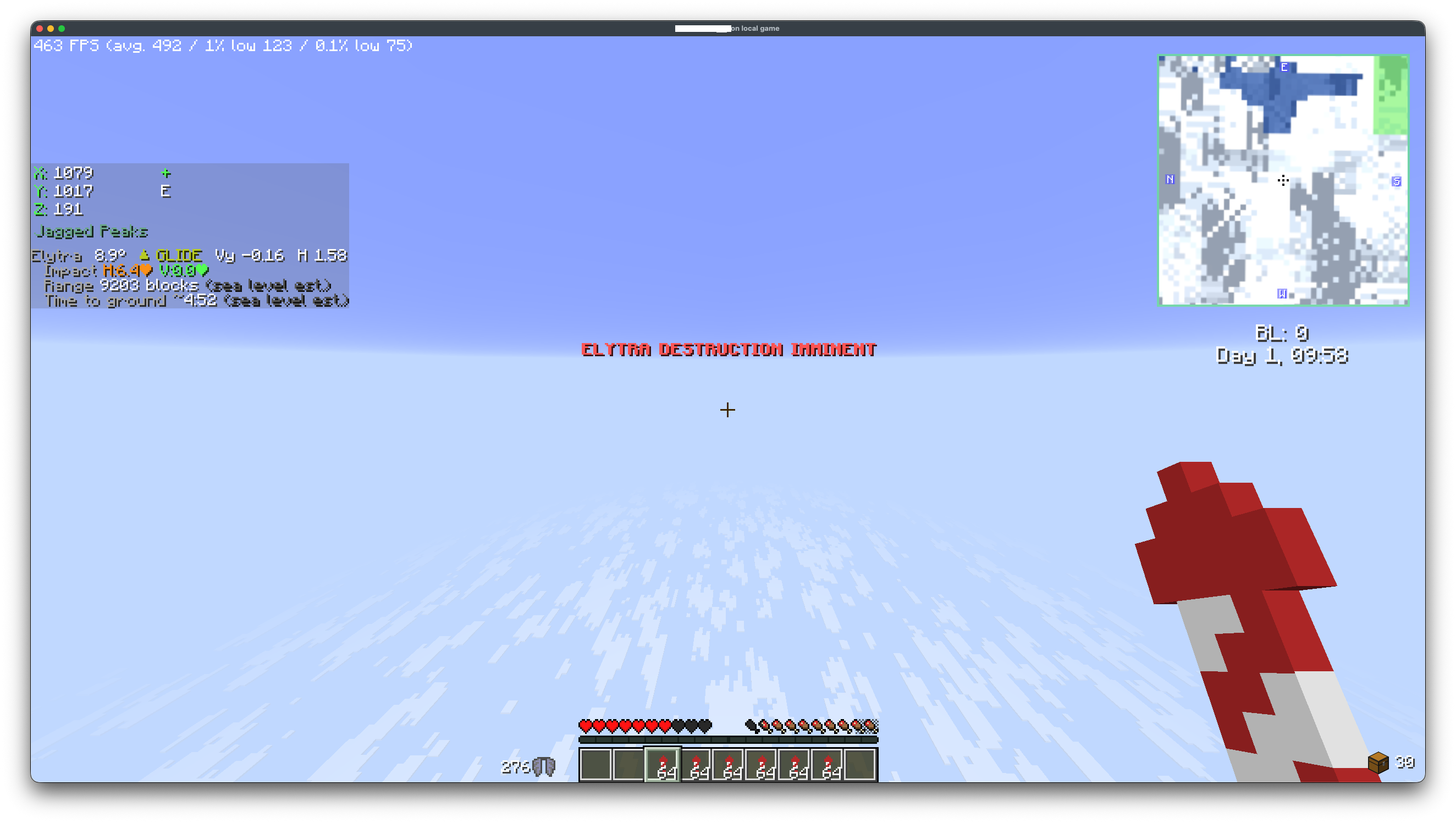 Basic HUD Angle, optimal glide/climb indicator, horizontal velocity and ascending/descending rate, expected damage on horizontal impact/fall (adjusted for armor/enchants), expected range and expected flight time based on current angle (barometric alt. shown)
 -
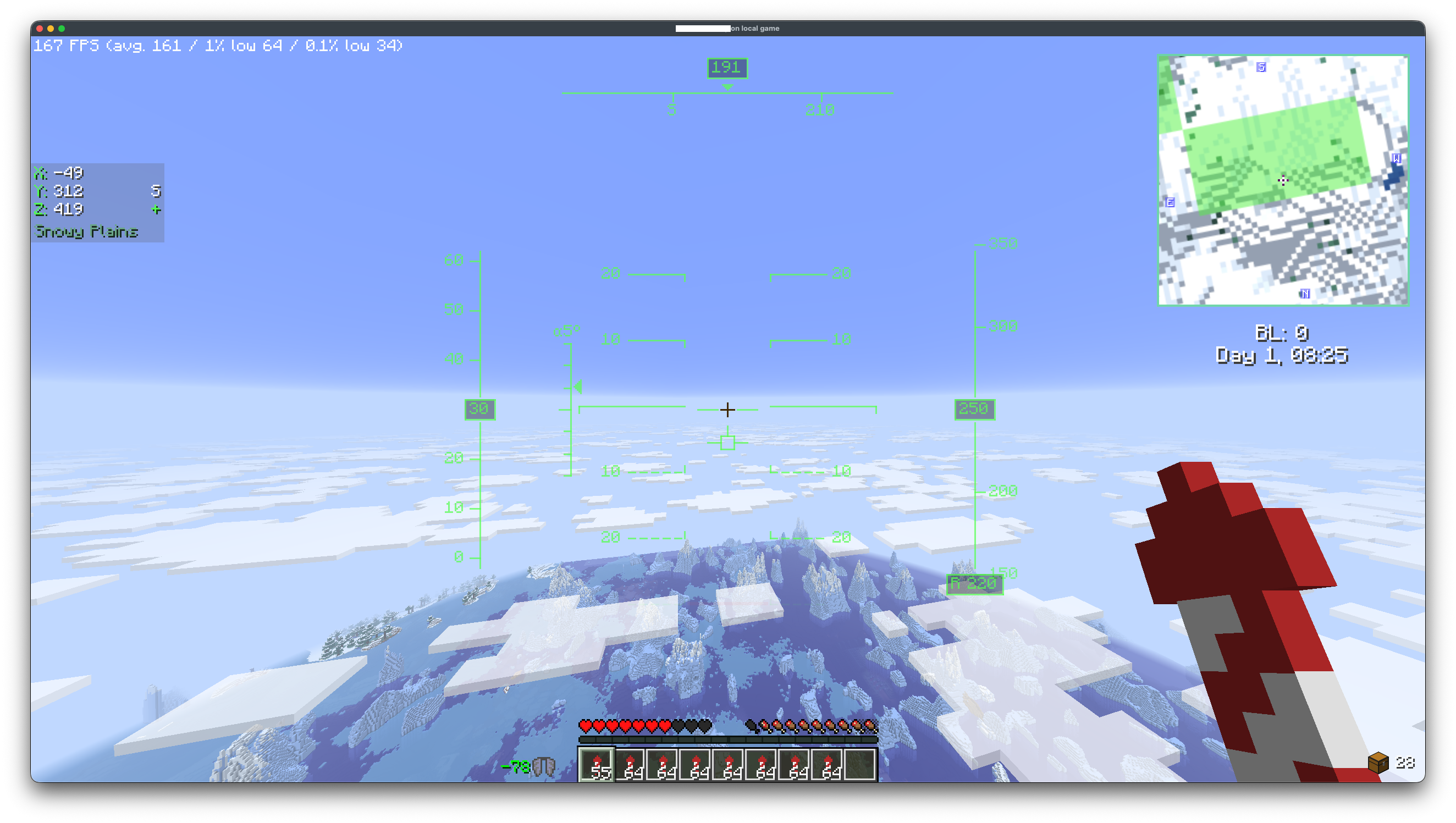 Flight Instruments Left to right: altitude/altitude ladder, Angle Of Attack (AoA) indicator, angle, barometric altitude (set via mod settings, default sea level), radar alt, bearing.
Versions
Files
Relations
Project Relations
More like this
Similar Mods
Suggestions use data such as tags, dependencies, dependents, descriptions, titles, and more to rank how much they overlap with this mod.
On ModDex
Community snapshot
By the numbers
Statistics

Want to reach Minecraft players?
We're looking for a server hosting partner to feature here and other parts of the site. Interested? Send us a message!
Get in touchGet it on
Available Platforms
On ModDex
Community snapshot
By the numbers