
Green Screen Photography
No reviews yet
Green Screen Photography adds clean green-screen tools to Minecraft, making it easy to capture characters, builds, items, and scenes for screenshots, thumbnails, and creative editing.
Neoforge is a fork of the Minecraft Forge available for versions 1.20.1+ of Minecraft. Many Forge mods are compatible with Neoforge and vice versa.
Community voices
Reviews
Click once to include, again to exclude, again to clear
No reviews yet. Be the first to review this project!
Get it on
Available Platforms
 Modrinth
Compatibility
Supported Environments
About
Project Details
For authors
Embed Badge
If you're the author of this project, you can embed a live badge anywhere that supports HTML or Markdown. It updates automatically whenever ratings change.
Use HTML for any page that supports it, or Markdown for README files and Markdown-based descriptions.
Identifiers
Platform IDs
About
Description
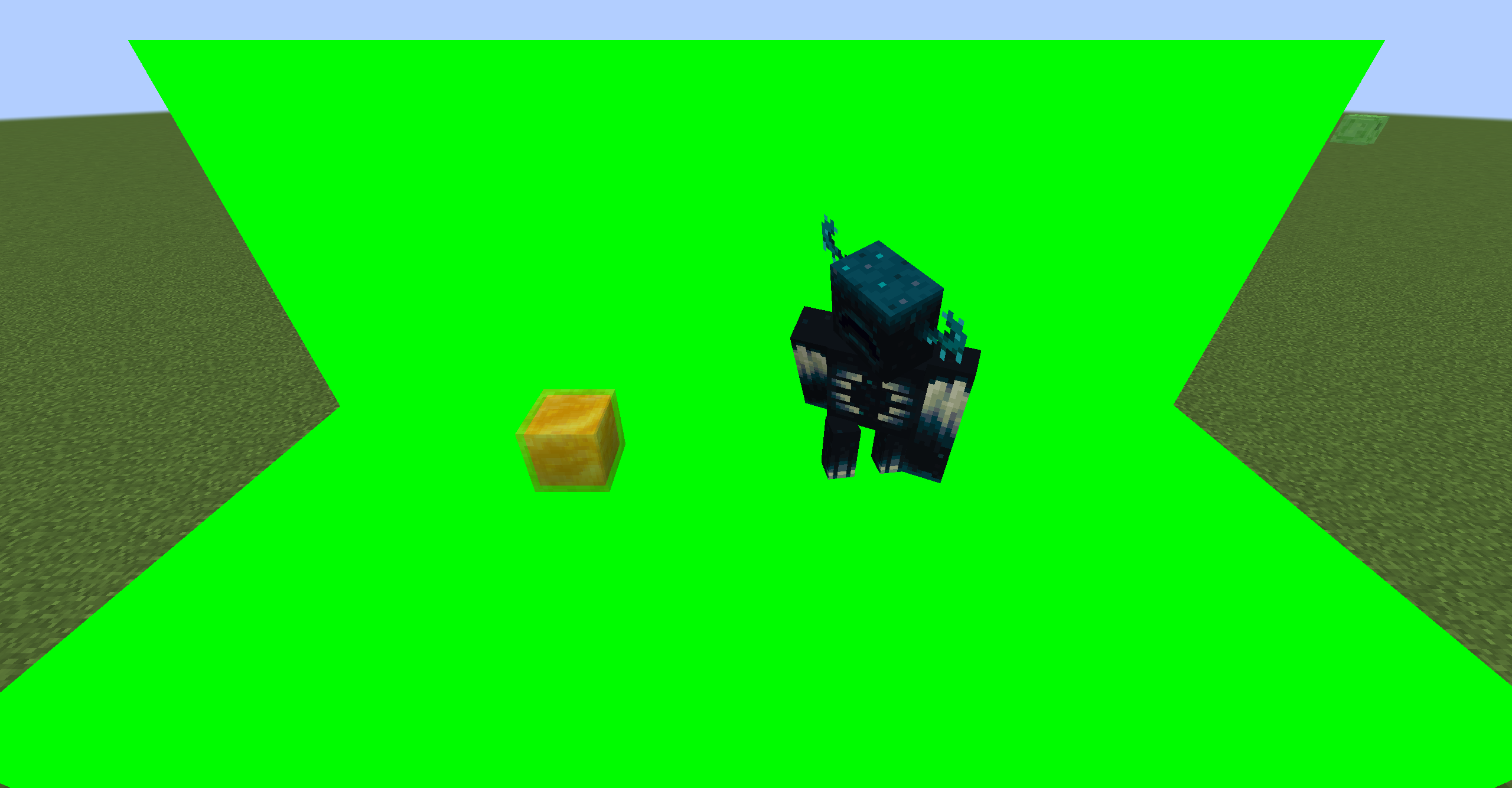
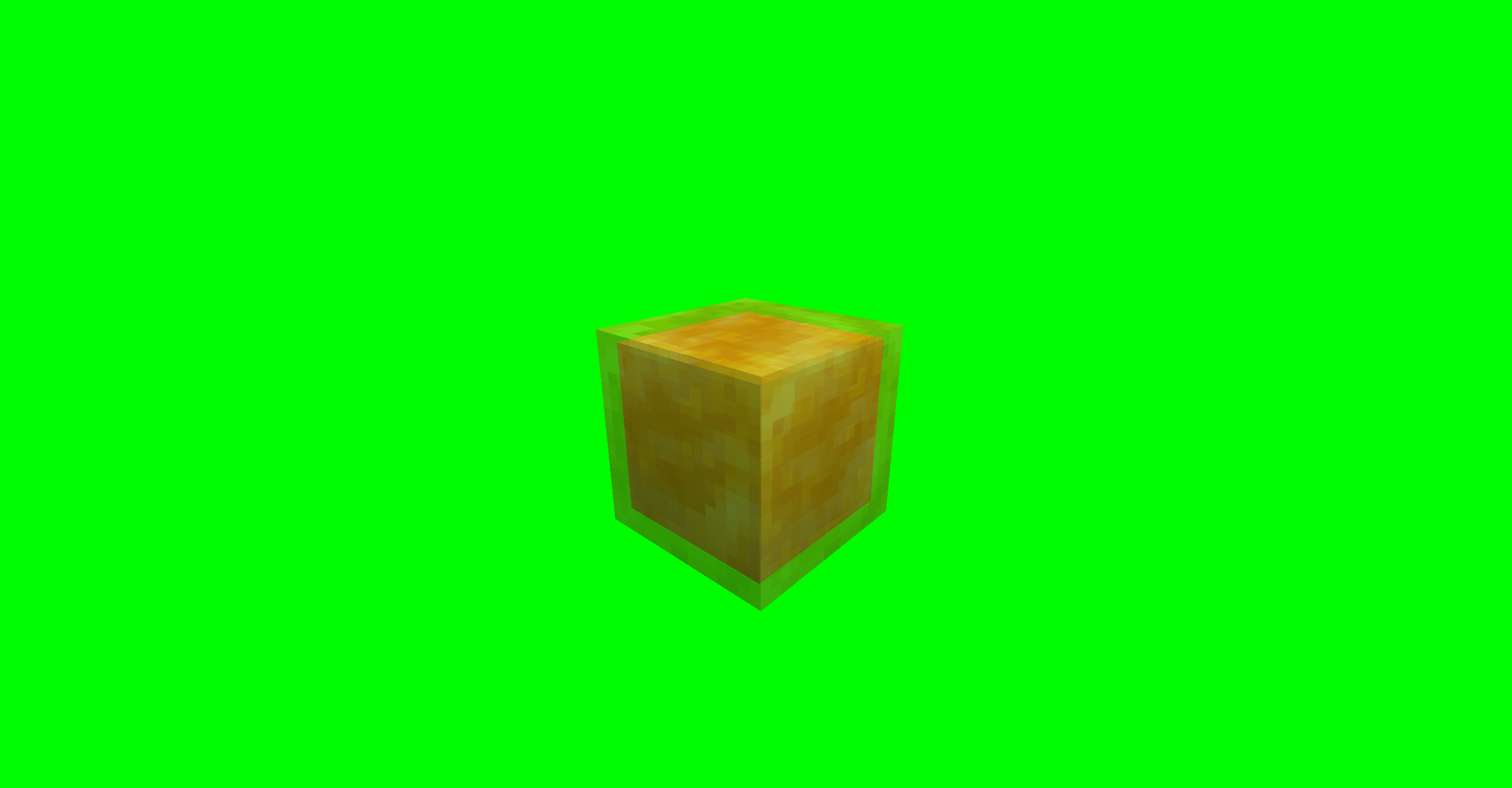
GreenScreenPhotography is a NeoForge mod for Minecraft scene capture and compositing. It provides a green screen block, a free camera, world freeze controls, and transparent screenshot export, making it suitable for character showcases, scene screenshots, footage capture, and post-production keying and compositing.
To use it, first build a solid-color background around and behind the subject with green screen blocks, and try to cover the areas in the frame that should be made transparent. After setting up the scene, use the free camera to choose the right angle and world freeze to keep the image stable. Once the framing is ready, use the transparent screenshot feature to export the image. When free camera is enabled, the world is frozen automatically, and the freeze function can only be used while in free camera mode.
Default key bindings, which can be changed in Minecraft’s key settings:
- N: toggle free camera on or off
- P: freeze or restore the world
- H: export a transparent screenshot
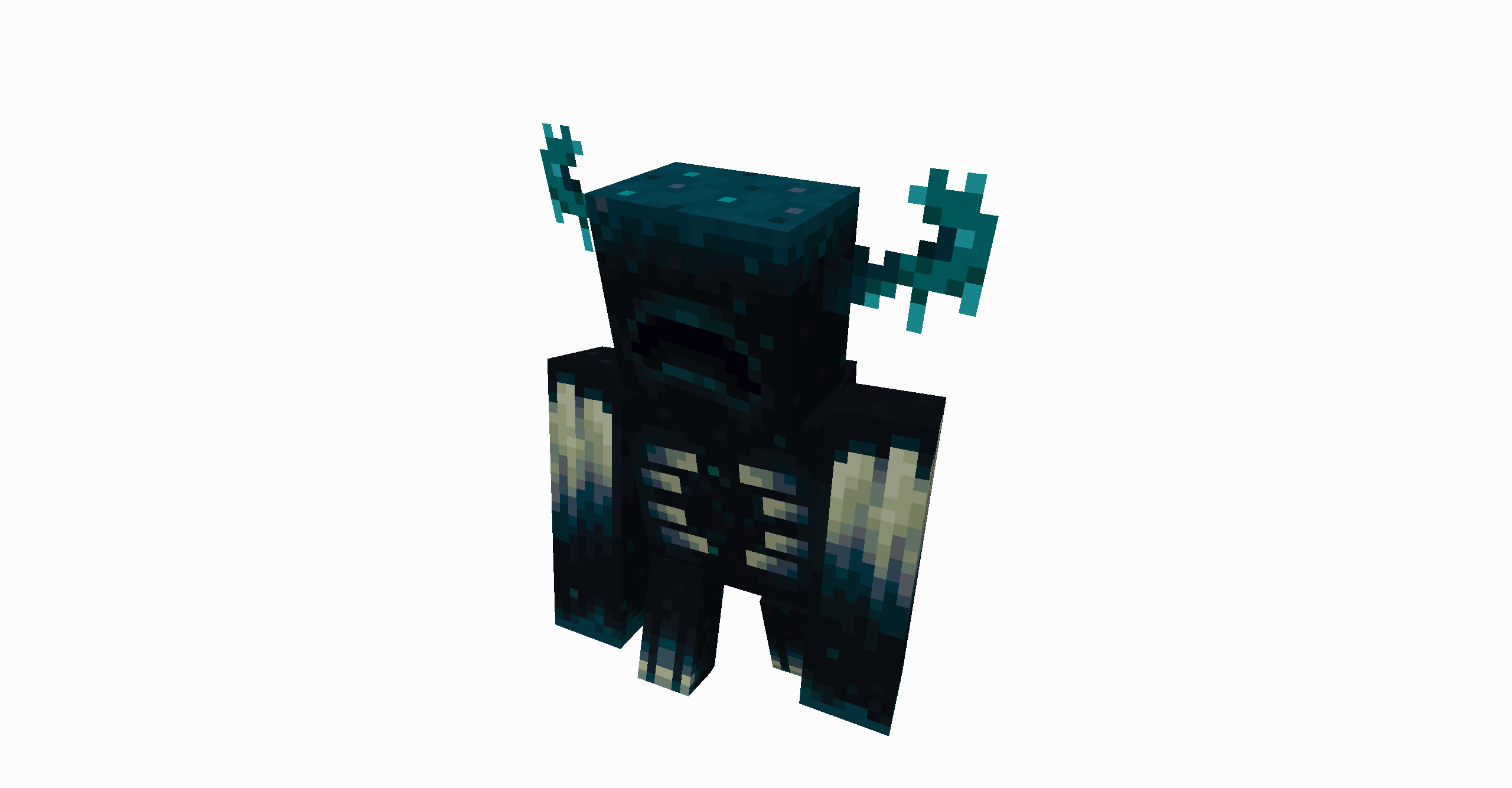
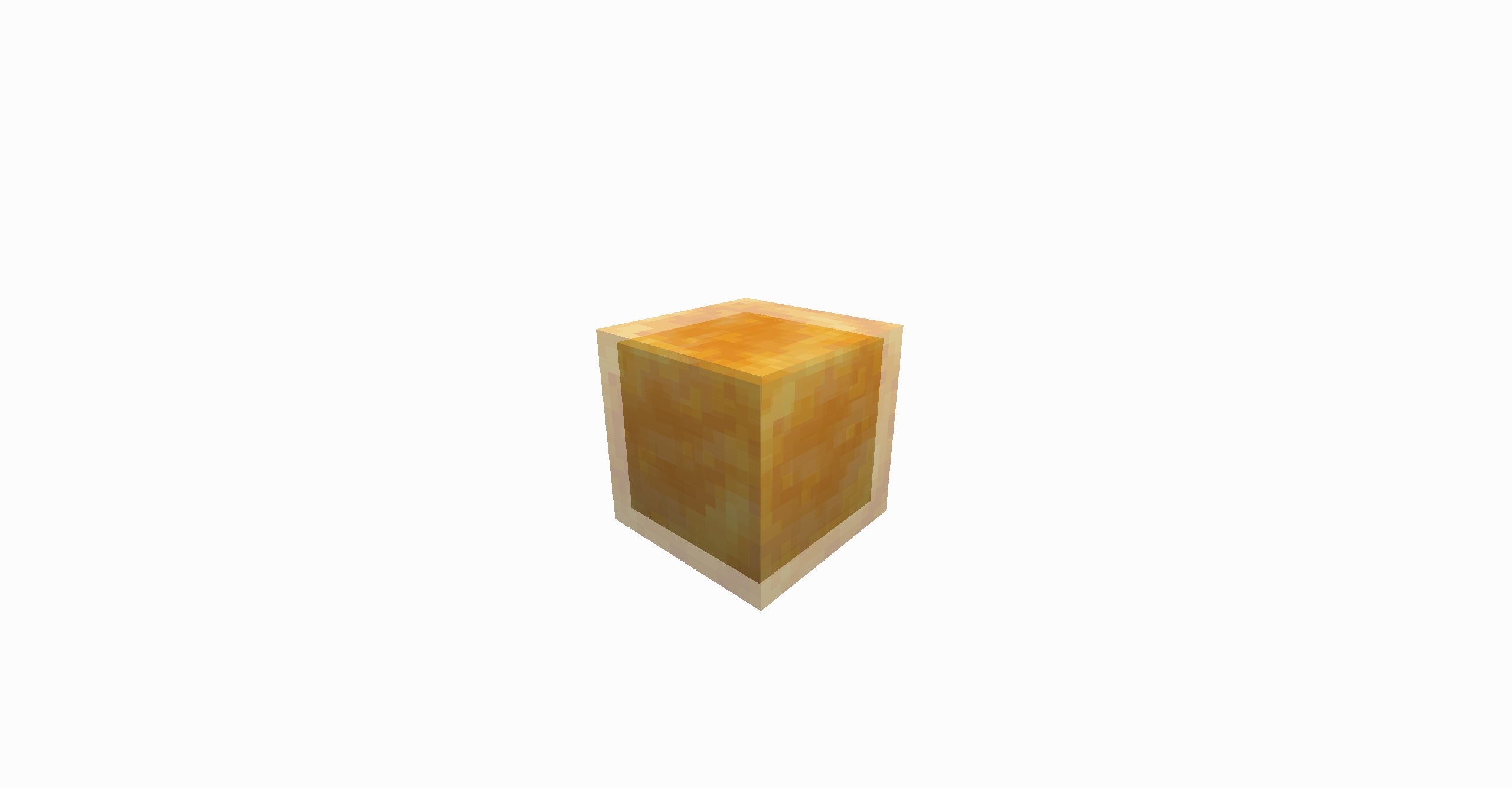
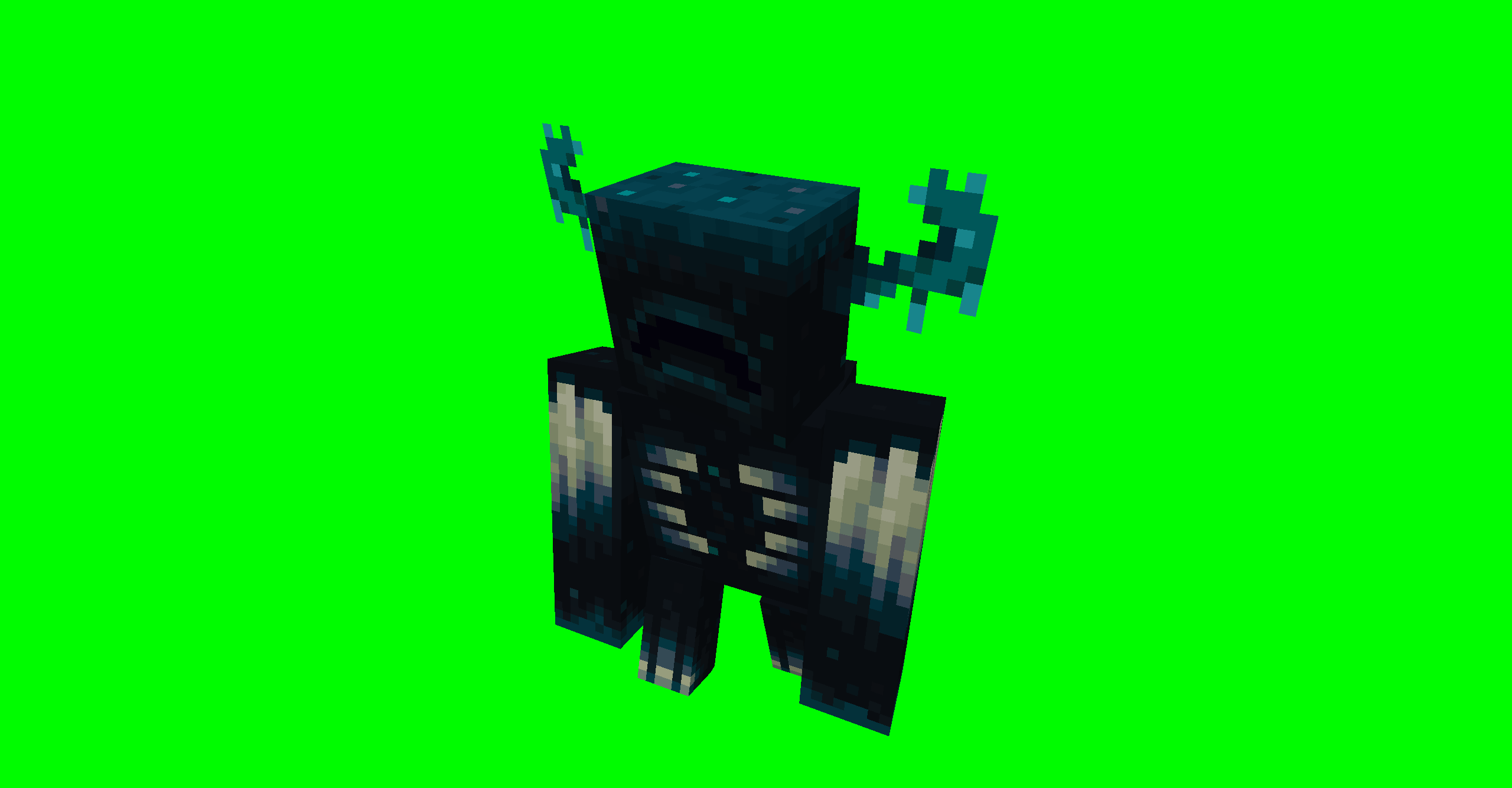
Transparent screenshots are saved in the green_screen_photography folder under the current game version directory. Each export generates two images: a transparent PNG and a matching matte image. The transparent image can be used directly in image editors, video editors, or compositing software.
Note that transparent screenshot export uses a two-pass capture process. If a mob or player moves during the capture passes, the exported image may show slight ghosting or trailing. For the cleanest result, freeze the world first or wait until the subject is still before exporting.
Screenshots
Gallery
Versions
Files
Relations
Project Relations
More like this
Similar Mods
Suggestions use data such as tags, dependencies, dependents, descriptions, titles, and more to rank how much they overlap with this mod.
On ModDex
Community snapshot
By the numbers
Statistics

Want to reach Minecraft players?
We're looking for a server hosting partner to feature here and other parts of the site. Interested? Send us a message!
Get in touchGet it on
Available Platforms
On ModDex
Community snapshot
By the numbers