Community listing page, reviews here may not be monitored by the author.
HUDini

No reviews yet
Fully customizable HUD mod.
Does not follow a specific thematic focus apart from vanilla Minecraft.
Used for mods with little to no gameplay elements.
Includes mods that provide maps, minimaps, and informational tools for navigation.
Includes quality of life improvements and small tweaks to enhance and customize gameplay.
Adds client-side tools and features to enhance the user experience.
Adds tools to customize the user interface and menus.
Forge is a popular mod loader for versions 1.1+ of Minecraft.
Community voices
Reviews
Filters
Click once to include, again to exclude, again to clear
No reviews yet. Be the first to review this project!
Get it on
Available Platforms
About
Project Details
For authors
Embed Badge
If you're the author of this project, you can embed a live badge anywhere that supports HTML or Markdown. It updates automatically whenever ratings change.
Use HTML for any page that supports it, or Markdown for README files and Markdown-based descriptions.
Identifiers
Platform IDs
Resources
External Links
About
Description
HUDini v2

This mod does a number of things:
- Heads Up Display (incl. minecraft-style, non-cheaty minimap)
- Graphical menu system used in place of a config file (config still exists, but you can modify HUDini ingame).
- Command interface for some of the more esoteric config options and also for keybindings.
- Text Editor
- Recipe helper
Essentially any part of the mod can be enabled or disabled at any time.
Heads Up Display
The HUD is one of the main features of HUDini. By default, all HUD items (each [item] [data] combo) will be aligned to the left. When something is added or removed, the HUD items will adjust themselves so that there are no random gaps in the list.
A lot of stuff uses the modifier key (LControl by default) to display (usually extra info) or hide information.
HUD Items:
- Armor info (one for each armor slot) - Percentage of that armor's health left
- Item info - Percentage of your currently held item's health left, if applicable. If not, and it's a block, it will show how many of that block is in your inventory. If it's a bow, it will show how many arrows you have left in your inventory, next to the percentage health remaining.
- Food notice - when you reach 5 shanks of hunger, you'll get a warning to find food, if you don't have anything edible in your inventory.
- Minimap - If you have a map in your inventory (anywhere), it will be displayed on the opposite side of the HUD to the rest of the HUD items. You don't have to hold the map any more :3 Holding modifier will hide the map.
- Clock - displays the current time in Minecraft, or with modifier held, your current time IRL.
- Potion info (one for each active potion effect) - displays what potion effects are...effecting...you at the moment, and how long until they will stop. Modifier shows the potion tier.
By pressing the modifier key, the HUD items will reveal their extra info - if you're using the default settings, percentages will turn into raw damage values, how much the held food will heal will turn into its saturation value, and more. You will also turn on the crosshair-info.
Crosshair-info
The crosshair-info is a collection of data that is displayed around the user's crosshairs. It displays things such as the blockname [blockid: metadata], the distance to the block you're looking at, your pitch, and your speed, in meters per tick.

What happens when the modifier key is pressed.
If you look down, HUDini will also tell you your fall damage you would recieve from a drop of that height. Note that it assumes you won't jump, just fall. If you want to jump, add 1 to whatever it says.
Menu
Down with config files! The menu system allows you to easily configure HUDini to your individual needs. You can turn on and off basically anything in the mod. The menu system is tabbed, and by default you are show the tab where you configure the aesthetics settings of HUDini. You can open the menu by pressing H.

The functionality tab (accessed by clicking the functionality tab button near the top of the window) does a similar thing, except rather than changing aesthetics, changes what things are enabled.

If you don't wish to use the menu system, you can still edit the config file. It's in the root of your .minecraft directory, called HUDini.conf.
Finally, for the more esoteric options in HUDini that people aren't likely to change, and for making keybinds via scripts, there's the Commands tab.
Commands
The commands tab is very simple, although it may(?) look daunting. Rest assured, efforts are in place to make sure you don't break minecraft by entering the wrong thing. You'll just get an error, or nothing will happen.

The commands:
Perhaps the most important command is listcommands, which will display the list of all the commands that you can use. Secondarily, there is usage - type a command after usage to read about how that command should be used.
All commands are lowercase, and case sensitive.
Binding keys with Commands:
You can bind a key to an action with:
bind k do something cool
Where k is the name of a key, and "do something cool" is the command. I like to use this one, for example:
bind o /time set day
and also
bind p /time set night
If what you type after the key doesn't match any commands, Commands will interpret it as you wanting to bind speech to the key.
Other commands:
set - set <name> <value> - sets name to the given value. It's a variable, and can be used anywhere else. To use it, type $name. For example:
echo - simply prints whatever's after it to the output. echo $name will print the value of $name.
listkeybinds - lists all keybinds made by Commands.
about - information about Commands.
removebind - removebind <key> - remove the bind activated by <key>.
id - id <item name> print the id of the given item.
clear - remove all text from the output.
clearbinds - remove all keybinds.
listhudbinds - list all of HUDini's internal keybinds. NYI.
exec - exec <name> executes the given file. The file must have the extension .hsf.
More on the exec command:
exec should be called with a filename after it. You don't need to include the extension when calling it, but the file must have the extension .hsf. What exec does it it runs every line of the given file through Commands, as if you had typed them all individually. This means you can store keybinds for later, or run a whole bunch of commands at the click of a button! Yes - it does work as a "thing" to go after bind <key> !
Text Editor

HUDini has it's own text editor. You can open this by pressing ;. With this you can write and read files stored inside the HUDini folder (its created by HUDini) inside .minecraft. Once you have a file open, you can click "todo-ify" to make the contents of the file display on the HUD when you press modifier-x.
By default, when saving a file, if you don't supply an extension (e.g. .txt), it will append .txt for you. However, if you do supply one, your extension will be used instead. This would be how you make .hsf files for Commands to use.
Not much else to say about the text editor; it's a text editor! I do have some cool plans for it though.
Recipe Helper

Unlike most implementations of recipe helpers, HUDini's will only show you the recipes you can make from the current gui you're looking at. This is intentional, and means you dont get as much lag when looking at a gui that is completely unrelated to anything, if you're one of those peope with many, many mods installed.
By default the layout of the recipe helper is the good ol' fashioned column-to-the-right style. However, if you like, you can choose to use the Ticker layout, which is what HUDini originally shipped with. I wouldn't recommend using it.
There's a search bar (its small, to save space) that you can use to search through your items. It's displayed under your inventory. To type in it, you must move your cursor into it, though. This is because the recipe manager uses a number of keyboard keys to navigate the recipe items.
Scroll the recipe items with either the mousewheel or the WASD keys or the arrow keys. If you hold LShift, you'll go faster!
Recipe Sorting - you can sort the list of recipes by pressing tab. By default it's sorted alphabetically. There's also metadata, creative, and favourites. Keep pressing tab and eventually you will end up at Alphabetical again.
Hide the current recipe - You can hide the recipe you're currently looking at with spacebar.
Favourite the current recipe - Press F to favourite the selected recipe. Press F again to "unfavourite". This isn't saved between sessions, yet.
Screenshots
Gallery
-
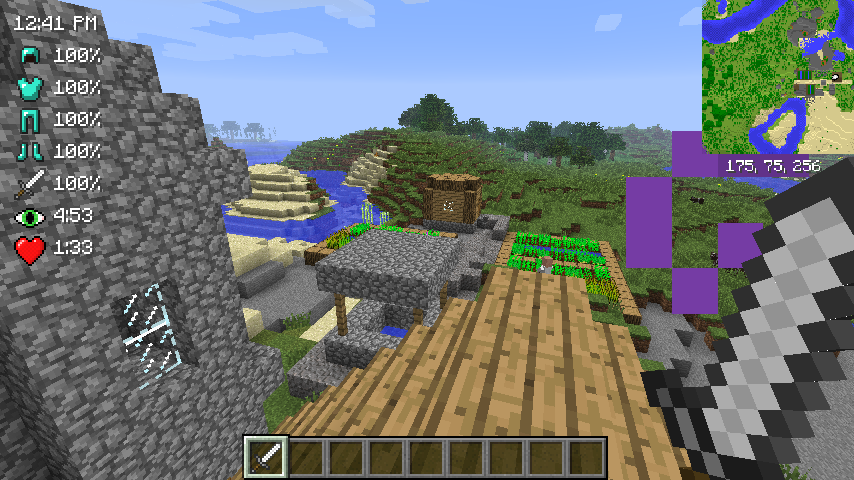 HUDini's HUD HUDini's HUD with the default configuration options.
Versions
Files
Relations
Project Relations
More like this
Similar Mods
Suggestions use data such as tags, dependencies, dependents, descriptions, titles, and more to rank how much they overlap with this mod.
On ModDex
Community snapshot
By the numbers
Statistics
Want to reach Minecraft players?
We're looking for a server hosting partner to feature here and other parts of the site. Interested? Send us a message!
Get in touchGet it on
Available Platforms
On ModDex
Community snapshot
By the numbers
Statistics
Resources