
Community listing page, reviews may not be monitored by the author.
Inspection

No reviews yet
In depth in game utility for locating performance issues. Analyze reports in game and export as well.

Community voices
Reviews
No reviews yet. Be the first to review this project!
Get it on
Available Platforms
About
Project Details
For authors
Embed Badge
If you're the author of this project, you can embed a live badge anywhere that supports HTML or Markdown. It updates automatically whenever ratings change.
Use HTML for any page that supports it, or Markdown for README files and Markdown-based descriptions.
Identifiers
Platform IDs
Resources
External Links
About
Description
Inspection
(Fabric)
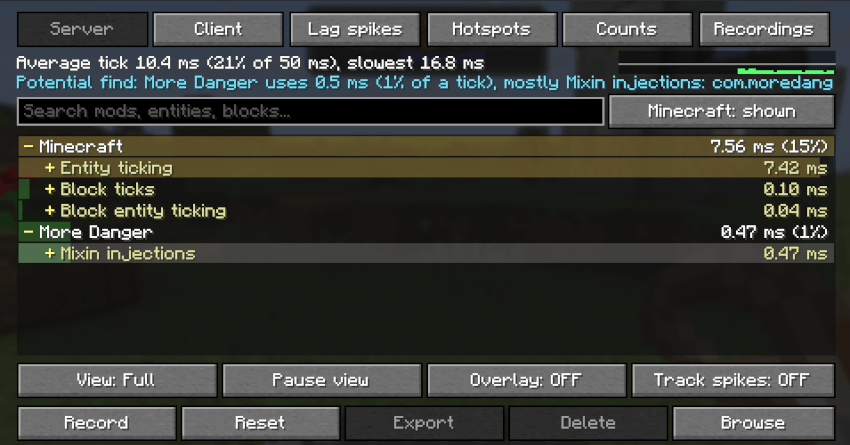
A task manager for Minecraft. See which mods cost how many milliseconds per
tick, and drill down to the entity, block or piece of code behind it.
----------------------------------------------------------------
FEATURES
----------------------------------------------------------------
Everything is done in the screen (key or /inspection). Tabs: Server, Client,
Lag spikes, Hotspots, Counts, Recordings.
Reading the numbers
- Simple view: the eight heaviest mods with a coloured bar (green is fine,
yellow is noticeable, red is costly), the biggest kind of work beside each,
and "Minecraft itself" at the bottom.
- Full view: the whole tree. Click a row to open it.
Mod and its total ms per tick (and % of the 50 ms tick)
Category: Entity ticking, Block entity ticking, Block ticks,
Event listeners, Mixin injections, Other mod code
Detail: the entity type, block entity type, block, or class.method,
with how many times per tick it ran.
- Potential find: one line saying where to look first (the one that came up
most in the last ten seconds), for example
"Potential find: Some Mod uses 4.0 ms (8% of a tick), mostly Entity
ticking: somemod:robot". On the Lag spikes tab it names what is the
biggest cost in most of the spikes. It is a hint, not a verdict.
- Graph: the slowest tick of each of the last 60 seconds (the white line is
50 ms). It is drawn from the buffer (below). Hover it to pause the view (it
jumps back to live when the mouse leaves), with a tooltip for the bar under
the mouse. Click a bar to open a report of that moment.
- Search box: filters mods, entities, blocks and classes by name.
- "Minecraft: shown/hidden": hide Minecraft's own rows to see only mods.
- Pause view: freezes what you see so you can read it. Measuring carries
on in the background and Export still uses the live numbers.
- Counts tab: what ticks most often (for example 600 item entities or 2000
hoppers), per tick on average, and what it costs.
The buffer
- While the screen is open and you are not recording, the last 60 seconds
of both sides are kept (one small snapshot a second). The graph is that
buffer, so a yellow or red bar you can see can always be opened.
- Click a bar: a frozen copy of the buffer opens in the Recordings tab as an
unsaved report, jumped to that second, with Save to Recordings and
Discard. The buffer keeps running behind it.
- Starting a recording clears and stops the buffer (there are never two
recordings); closing the screen clears it. The buffer only exists while
the screen is open: to catch something with the screen closed, record.
Recordings
- Record starts a recording that runs until you press Stop, even with the
screen closed. While it runs the overlay is shown (it says RECORDING and
the time) whether or not the overlay is switched on.
- Stop puts the recording in the Recordings tab. Open one to see, for the
server and for the client (click to switch):
Highlights: the Potential find, mods that are getting worse over time
(for example 1 ms at the start and 6 ms at the end), the percent of
ticks over 50 ms, the slowest tick and when it happened, the lag spikes
in that time, and the most numerous thing ticking.
Potentials over time: every different Potential find with when it first
appeared, how many seconds it lasted and its peak (click one to jump to
it).
The full tree of averages over the whole recording (with the same search
and Minecraft hide), and a graph of the slowest tick of each second. The
graph scrolls (mouse wheel over it) past 60 seconds; click a bar to see
that second's full tree, click it again for the whole recording.
A recording keeps one small snapshot per second and stops by itself at 30
minutes (it is saved). While recording, clicking a bar on the Server or
Client tab opens a copy of the recording so far, with Close.
- Recordings are kept in memory only: they are gone when you close the game
unless you export them. Delete removes one from memory.
Exporting
- Export (Recordings tab, with a recording open) writes that recording as a
text and a JSON file and copies the text to the clipboard. Export on the
Lag spikes tab does the same for the recorded lag spikes.
- Browse opens the inspection folder in the game folder, where exports are
saved. The screen also shows the folder's path after every export.
- Nothing is written to disk unless you press Export.
Lag spikes
- Track spikes (a button in the screen): keeps measuring all the time, so
every tick longer than the spike limit (60 ms by default) is recorded with
what was running in it. The list stays until the game closes or you press
Reset, and is included when you press Export on the Lag spikes tab (and
in any recording made while they happen). Operators switch it on for the
server too. The Lag spikes tab lists them; click one to open it.
Hotspots
- The ten costliest chunks on the server: dimension, block position, ms per
tick, and how many entities and block entities are in it.
- Click a green row to teleport to the middle of that chunk (any dimension). Needs
creative mode or operator rights; in the Nether you land on the first open
floor under the roof.
Server tab and Client tab
- Server: the world's simulation (mobs, hoppers, crops, mods' server code).
Slow here means world lag for everybody. In singleplayer it is the built-in
server. On someone else's server it needs the mod on that server and
operator rights; otherwise the Server and Hotspots tabs are greyed out
(hover for the reason) and the screen opens on the Client tab.
- Client: your own game, the client tick plus drawing frames (renderers,
particles, client-only mods). Slow here means low FPS for you only.
Overlay
- A small pinned display with the client and server ms per tick and the
three heaviest mods (button "Overlay").
How it measures
- Entity ticks, block entity ticks, block and fluid ticks and random ticks
are timed exactly and charged to the mod that owns the entity or block.
- A light sampler (about 100 looks per second, only while measuring) finds
mod code that cannot be timed that way: event listeners, mixin injections,
AI goals and other code, charged to the mod the code belongs to. Time that
another mod's code uses inside an entity's tick is taken off that entity's
owner, so the totals add up.
- Nothing is measured unless the screen is open, the overlay is on, a
recording is running, or Track spikes is on. When idle it costs almost
nothing.
----------------------------------------------------------------
COMMANDS
----------------------------------------------------------------
/inspection Open the screen. (Operators, and the owner of a singleplayer
world.) Everything else is done with the screen's buttons.
Keybind: "Open Inspection" in Controls (unassigned by default). It also works
on a server without Inspection and shows your client.
----------------------------------------------------------------
SETTINGS
----------------------------------------------------------------
Saved in config/inspection.json. The screen's buttons change view, overlay
and Track spikes.
sampler_hz 100 How often the sampler looks, per second (10 - 500).
spike_ms 60 Ticks longer than this are lag spikes (51 - 100000).
track_spikes false Keep measuring so every spike is recorded.
hud false The overlay.
simple_mode true The screen opens in Simple view.
----------------------------------------------------------------
HQ COMPATIBILITY
----------------------------------------------------------------
With HQ installed, an "Inspection" button in the HQ list runs /inspection.
Without HQ the mod works exactly the same.
----------------------------------------------------------------
COMPATIBILITY & NOTES
----------------------------------------------------------------
- Only operators (and the singleplayer owner) can see server numbers and
use Track spikes and Reset for the server. Recording works for anyone on
the client side and shows the server's numbers only to operators.
- The server keeps one spike list for everybody; recordings are kept by each
player's own game.
- Sampled numbers are estimates; entity, block entity and block numbers are
exact. Mixin injections that cannot be linked to a mod are not shown.
- A mod whose registry namespace differs from its mod id shows under the
namespace.
- Works with any mod: nothing is needed from the mods being measured.
----------------------------------------------------------------
CHANGELOG
----------------------------------------------------------------
1.0.0
- First version.
Screenshots
Gallery
Versions
Files
Relations
Project Relations
More like this
Similar Mods
Suggestions use data such as tags, dependencies, dependents, descriptions, titles, and more to rank how much they overlap with this mod.
On ModDex
Community snapshot
By the numbers
Statistics

Get it on
Available Platforms
On ModDex
Community snapshot
By the numbers
Statistics
Resources