
Community listing page, reviews here may not be monitored by the author.
MeloSync

No reviews yet
Control your Spotify music directly inside the game with a clean, simple in-game player.
Community voices
Reviews
No reviews yet. Be the first to review this project!
Get it on
Available Platforms
About
Project Details
For authors
Embed Badge
If you're the author of this project, you can embed a live badge anywhere that supports HTML or Markdown. It updates automatically whenever ratings change.
Use HTML for any page that supports it, or Markdown for README files and Markdown-based descriptions.
Identifiers
Platform IDs
Resources
External Links
About
Description
MeloSync
Control Spotify from Minecraft, keep your music on the device you already use, and see what is playing without leaving your world.
MeloSync is a client-side Fabric mod for Spotify control and browsing. It uses Spotify Connect: audio still plays through Spotify on your desktop, phone, browser, console, or other active device. MeloSync gives you the controls and a clean now-playing HUD inside Minecraft.
Spotify Premium is required for Spotify playback controls. MeloSync does not include, play, or redistribute music files.
At A Glance
- Control your active Spotify Connect device: play, pause, next, previous, seek, shuffle, repeat, and volume.
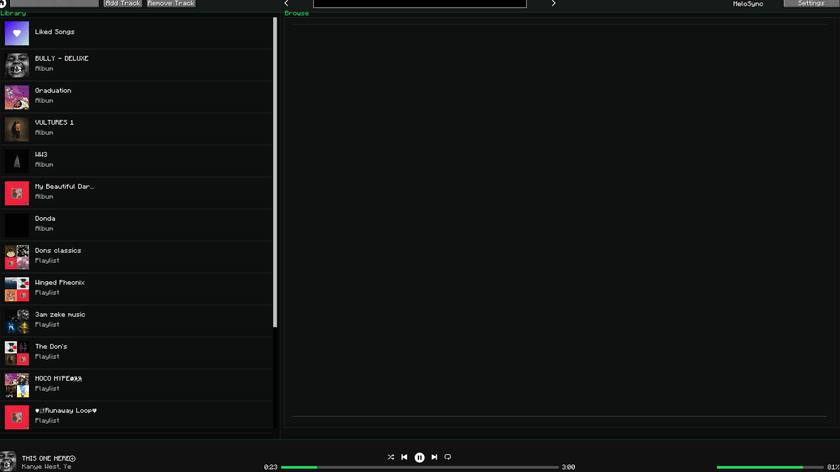
- Search tracks, albums, artists, and playlists from the in-game menu.
- Browse liked songs, saved albums, and your playlists.
- Open an album or playlist, then use the built-in Play Album or Play Playlist action.
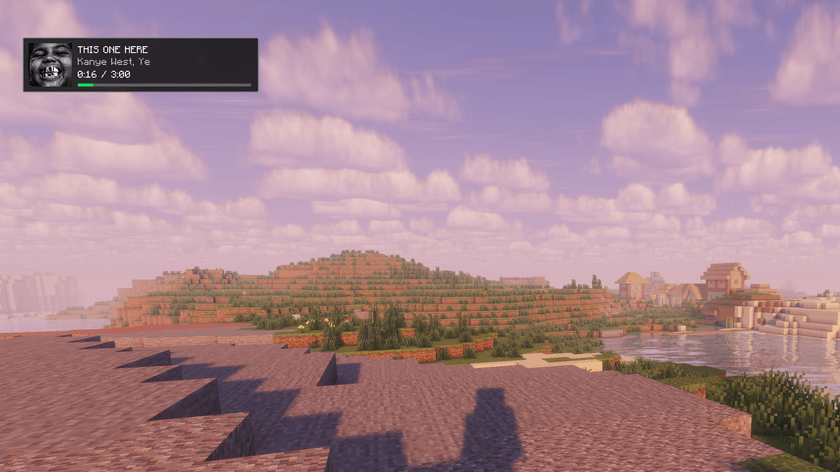
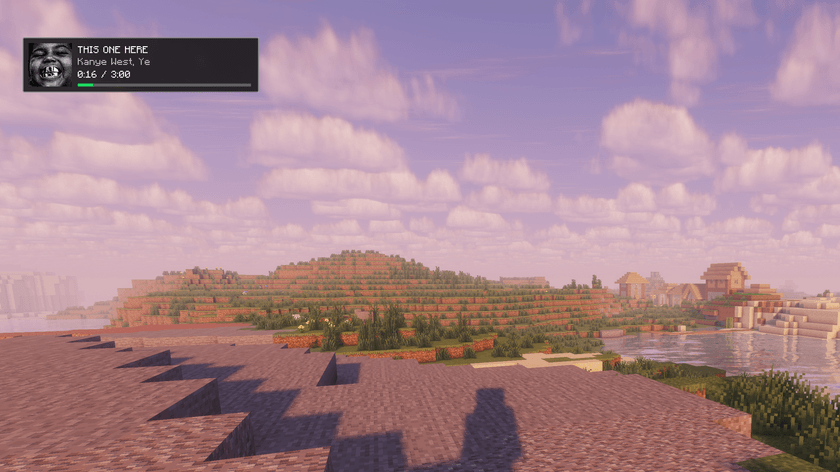
- Show a lightweight, transparent now-playing HUD with cover art, title, artist, progress, and duration.
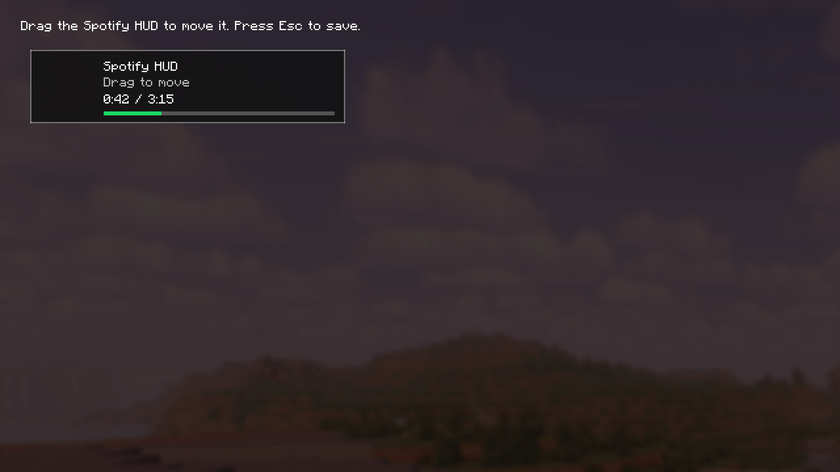
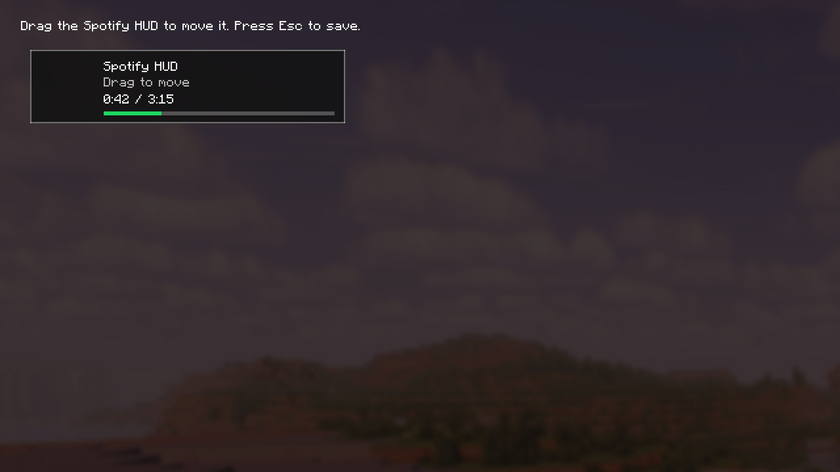
- Move the HUD anywhere on screen and adjust menu/HUD colors from the Settings panel.
- Use P to open MeloSync and O to open the HUD editor. Both are rebindable in Minecraft Controls.
In-Game Library and Player
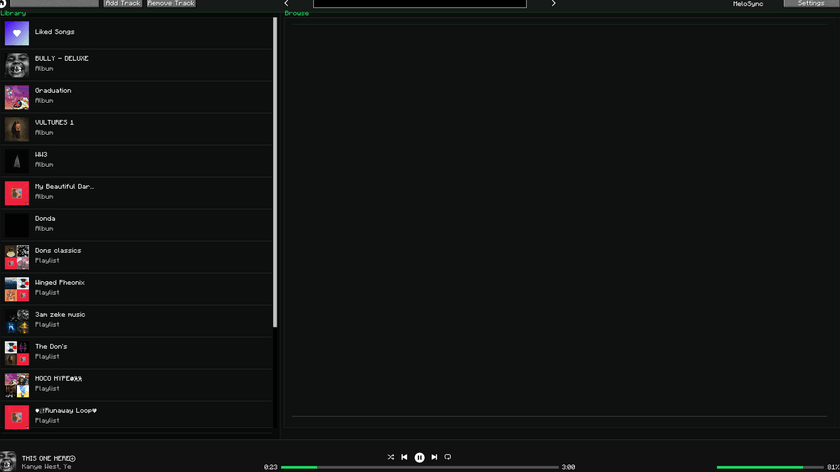
Your library stays on the left while the browse and search area stays on the right. The player bar at the bottom gives you quick playback, progress, and volume control without obscuring the rest of the menu.
Clean, Movable HUD
The HUD is intentionally small and see-through: it keeps the current track visible while leaving your game unobstructed. Press O, drag it where you want it, then press Esc to save its position.
Requirements
| You need | Details |
|---|---|
| Minecraft | 26.1.2 or 26.2 |
| Mod loader | Fabric Loader 0.19.3 or newer |
| Dependency | Fabric API |
| Java | Java 25 or newer |
| Spotify | Spotify Premium and your own Spotify Developer app Client ID |
Version support: Minecraft 26.1.2 and 26.2 are the primary releases. Earlier Minecraft versions are experimental ports and may receive fixes more slowly.
Quick Start
1. Install MeloSync and Create Its Config File
- Install MeloSync and Fabric API in your CurseForge profile.
- Launch that Minecraft profile once, then return to the title screen or close the game.
- MeloSync creates its configuration folder inside that profile's config folder.
Open Your CurseForge instance folder/config/melosync/spotify_app.json.
For example, the folder structure is: C:\Users\YourName\curseforge\minecraft\Instances\YourPack\config\melosync\spotify_app.json
2. Create and Configure Your Spotify Developer App
- Open the Spotify Developer Dashboard and create an app.
- Enable Web API.
- Add this Redirect URI exactly: http://127.0.0.1:12589/callback
- Copy the app's Client ID.
3. Paste the Client ID Into MeloSync
- Open spotify_app.json from the MeloSync config folder in step 1.
- Paste the Spotify Client ID into the client_id field.
- Save the file.
Use the Client ID only. Do not paste your Client Secret.
4. Sign In and Play
- Start Minecraft with the same CurseForge profile.
- Press P and choose the MeloSync login option.
- Approve the Spotify permissions in your browser.
- Start a song once on any Spotify Connect device.
- Return to Minecraft and control that device with MeloSync.
Controls
| Default key | Action |
|---|---|
| P | Open MeloSync |
| O | Open the HUD editor |
| Esc | Save HUD position and close the editor |
Both keybinds can be changed in Minecraft's Controls menu under MeloSync.
Playlist and Album Notes
- Albums load their tracks directly in the menu.
- Playlists and saved albums remain available in the Library panel.
- Some Spotify playlists can restrict track-list access. When that happens, MeloSync shows a clear Could not load songs for this playlist message, but keeps the Play Playlist action available so you can start it on Spotify.
Troubleshooting
Nothing happens when I use playback controls
Open Spotify on a device and start a song once. Spotify requires an active playback device before remote controls can work.
client_id: Invalid
Use the 32-character Client ID from the Spotify Developer Dashboard, not the Client Secret.
The browser reports a redirect URI mismatch
The Redirect URI in your Spotify Developer Dashboard and spotify_app.json must both be exactly: http://127.0.0.1:12589/callback
Playback stopped working after a permissions change
Delete Your CurseForge instance folder/config/melosync/spotify_tokens.json, then open MeloSync with P and sign in again.
MeloSync is not affiliated with Spotify. Spotify is responsible for account access, playback, and Premium eligibility.
Screenshots
Gallery
-
 melosync-hud-gameplay.png melosync-hud-gameplay.png
 -
 melosync-menu-library.png melosync-menu-library.png
 -
 melosync-hud-editor.png melosync-hud-editor.png
Versions
Files
Relations
Project Relations
More like this
Similar Mods
Suggestions use data such as tags, dependencies, dependents, descriptions, titles, and more to rank how much they overlap with this mod.
On ModDex
Community snapshot
By the numbers
Statistics
Want to reach Minecraft players?
We're looking for a server hosting partner to feature here and other parts of the site. Interested? Send us a message!
Get in touchGet it on
Available Platforms
On ModDex
Community snapshot
By the numbers
Statistics
Resources