
Community listing page, reviews may not be monitored by the author.
MyNpc


No reviews yet
MyNPC adds customizable guide NPCs that help players find structures, receive direction hints, and obtain teleport scrolls for exploration.

Community voices
Reviews
No reviews yet. Be the first to review this project!
Get it on
Available Platforms
Compatibility
Supported Environments
Must be installed on both the client and the server.
About
Project Details
For authors
Embed Badge
If you're the author of this project, you can embed a live badge anywhere that supports HTML or Markdown. It updates automatically whenever ratings change.
Use HTML for any page that supports it, or Markdown for README files and Markdown-based descriptions.
Identifiers
Platform IDs
Resources
External Links
About
Description
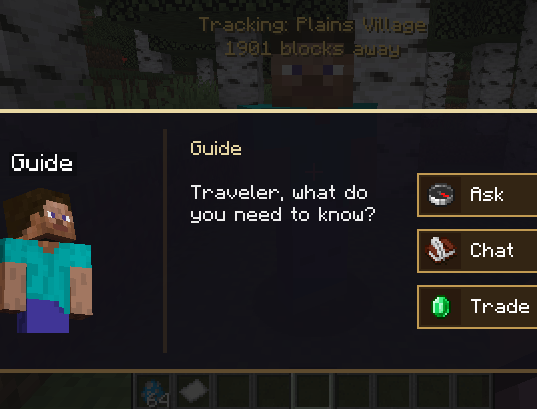
MyNPC
# MyNPC 1.1 User Guide
## Requirements
- Minecraft `1.20.1`
- Forge `47.x`
- MyNPC `1.1`
## Installation
1. Put the MyNPC jar into your instance `mods` folder.
2. Start the game once.
3. The mod will create config folders automatically.
Important folders:
- `config/npc_types` stores NPC definition JSON files.
- `config/mynpc_custom_assets/textures` stores custom NPC skin textures.
- `config/mynpc_custom_assets/sounds` stores custom NPC sound files.
- `config/mynpc_custom_assets/lang` can be used for extra language entries.
## Default Guide NPC
The built-in guide NPC is `village_guide`.
By default, the guide:
- Spawns in vanilla villages.
- Has a 100% spawn chance when the village spawn check succeeds.
- Spawns at most one guide per village area.
- Knows a random set of structures.
- Can sell structure location help and teleport scrolls.
- Can fight hostile mobs, retaliate when attacked, and avoid creepers.
- Stays near its home village instead of wandering freely.
If the default config was already generated before updating, delete `config/npc_types/village_guide.json` and restart the game to regenerate the latest default version.
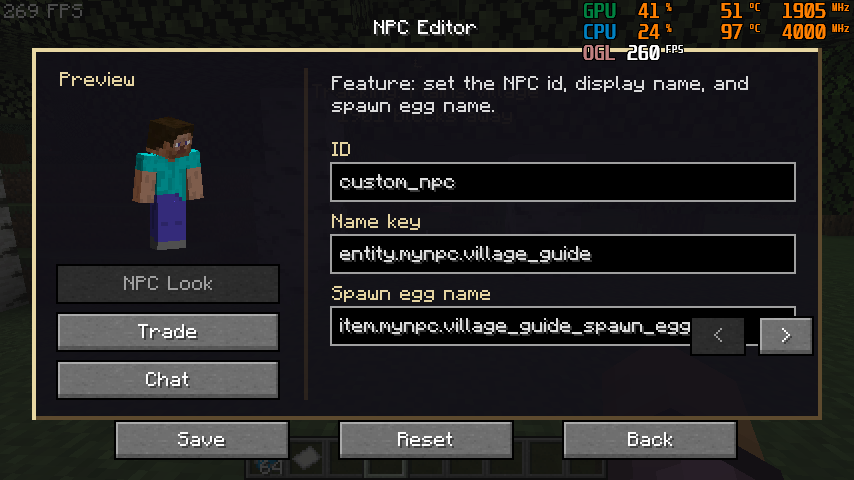
## NPC Manager
Press `H` in game to open the NPC manager.
Main actions:
- `+` creates a new NPC from the default template.
- Select an NPC from the left list to edit it.
- Use the small box beside NPC entries for multi-select.
- `Save` saves current changes.
- `Copy` duplicates the selected NPC. The copy keeps most settings but gets a unique id.
- `Cancel` discards the current edit session.
- `Delete` removes selected NPC definitions after confirmation.
- `Reset` restores selected NPCs to the built-in default guide settings.
Tabs:
- `Look`: skin, name, entity id, and sounds.
- `Behavior`: spawn structures, spawn chance, and min/max spawn count.
- `Structure`: known structures and structure hint behavior.
- `Trade`: teleport scroll trades and custom item trades.
- `Chat`: random chat lines and structure-related dialogue.
## Custom Skins
1. Put PNG skin files into `config/mynpc_custom_assets/textures`.
2. Open the NPC manager with `H`.
3. Select an NPC.
4. Go to `Look`.
5. Use the custom skin button to choose a texture.
6. Save the NPC.
The skin should use the normal Minecraft player skin layout.
## Custom Sounds
1. Put sound files into `config/mynpc_custom_assets/sounds`.
2. Open the NPC manager with `H`.
3. Select an NPC.
4. Go to `Look`.
5. Choose sounds for interaction, hurt, death, or ambient slots.
6. Use the preview button to test sounds.
7. Save the NPC.
## Structure Selection
Structure lists support:
- Search by keyword.
- Clicking the structure name for single selection.
- Clicking the small box for multi-selection.
- Scrolling when the list is longer than the panel.
Structure names use language keys where available. Unknown structures fall back to a readable id-based name.
## Trading
NPCs can offer:
- Teleport scroll trades for known structures.
- Structure location hint trades.
- Custom item trades.
For each structure trade, you can configure:
- The structure name.
- The item used as currency.
- The required item count.
- Whether the structure trade is disabled.
## Chat And Hints
NPCs can have general chat lines and structure-specific hint text.
Structure hint text can use:
- `{structure}` for the translated structure name.
- `{direction}` for the direction text.
Example:
```text
If my memory serves, {structure} lies somewhere to the {direction}.
```
## Spawn Eggs
Spawn egg NPCs use the same base initialization as naturally spawned NPCs:
- Default known structures can be generated.
- Home position is set when spawned.
- Random equipment can be assigned.
- Combat behavior is enabled.
## Troubleshooting
If a custom skin shows as missing texture:
- Check that the file is inside `config/mynpc_custom_assets/textures`.
- Make sure it is a valid PNG.
- Reopen the selector and save the NPC again.
If a custom sound does not play:
- Check that the file is inside `config/mynpc_custom_assets/sounds`.
- Use the sound preview button in the `Look` tab.
- Restart the game if the asset pack was just created for the first time.
If the default guide settings look old:
- Delete `config/npc_types/village_guide.json`.
- Restart the game.
- The mod will regenerate the latest default config.
__________________________________________________________________
# MyNPC 1.2 Update Guide
This guide covers the main new workflows added or changed in MyNPC 1.2.
## Opening the NPC Manager
- Press `H` to open the custom NPC manager.
- Use the NPC list on the left to select an NPC.
- Use the search box under the NPC list to filter NPCs.
- Use the `+` button beside the search box to create a new NPC.
- The selected NPC now appears pressed in the list, matching the selected page tabs.
## NPC Ids and Defaults
- The built-in guide NPC still uses the display name `village_guide`.
- Its internal id is now `npc`.
- New custom NPCs use ids like `npc1`, `npc2`, and `npc3`.
- Reset restores the shared default guide settings while keeping a safe unique id for the edited NPC.
## Spawn Eggs
- MyNPC spawn eggs are now placed in their own creative tab.
- Use `/mynpc egg <npc_id>` to create a spawn egg for a specific NPC.
- The command supports suggestions, so you can type part of an NPC id and pick it from the command list.
## Commands
### `/mynpc egg <npc_id>`
Gives the player a spawn egg for the selected NPC definition.
Examples:
```mcfunction
/mynpc egg npc
```
Gives the default guide NPC spawn egg.
```mcfunction
/mynpc egg npc1
```
Gives the spawn egg for the custom NPC with the id `npc1`.
The command supports Minecraft-style suggestions. Type part of an NPC id, then use the command suggestion list to choose the correct NPC without typing the full id.
This is useful when a pack contains many custom NPCs and you do not want every spawn egg mixed into the normal creative inventory workflow.
## Appearance Page
- Set the NPC display name and entity id.
- Choose a custom skin from the custom asset folder.
- Reset the skin back to Steve when needed.
- Configure interaction, hurt, death, and ambient sounds.
## Behavior Page
- Use `Spawn Structures` to edit where an NPC can naturally spawn.
- Each spawn rule contains:
- Structure id
- Minimum spawn count
- Maximum spawn count
- Spawn chance
- Use the search field and `+` button in the spawn rule screen to add structures.
## Structure Page
The Structure page is now simplified.
- `View Known` opens the known-structure rule list.
- `Random known max` controls the maximum number of known structures selected for a naturally spawned NPC.
- `Random known min` controls the minimum number of known structures selected for a naturally spawned NPC.
Known-structure rules can be used to control which structures an NPC can know about and how likely each structure is to be selected.
## Trade Page
- Use the custom trade list to add and manage normal item trades.
- Custom trades are shown before scroll trades in the right-click trade GUI.
- Use the teleport scroll price list to configure structure scroll trades.
- Item id fields can be typed manually or selected with the item icon button.
- Trade text can be customized for before-trade and after-trade messages.
## Chat Page
- The old separate `Add Text` button has been removed.
- Use `View Text` to manage chat lines.
- In the text list editor, add, edit, or delete chat lines from one place.
- Use the structure text tools to configure structure-related dialogue.
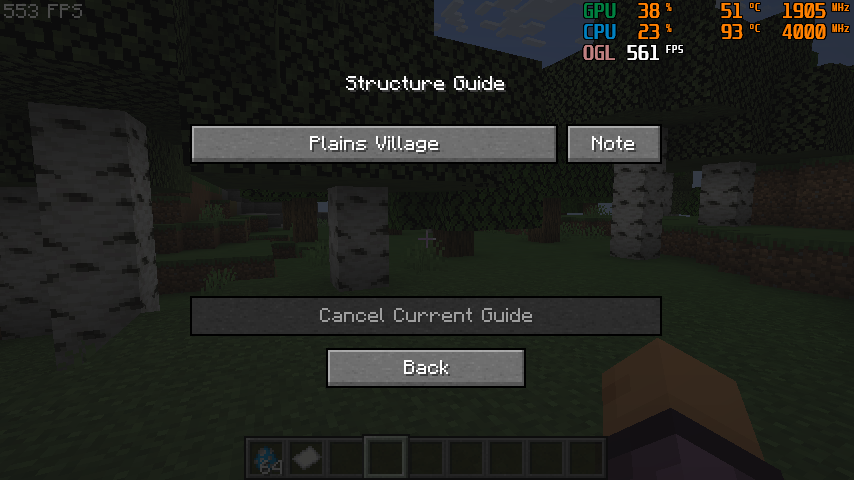
## Structure Guide
- Press `G` to open the structure guide.
- When the player reaches a tracked structure, the guide entry is marked as visited.
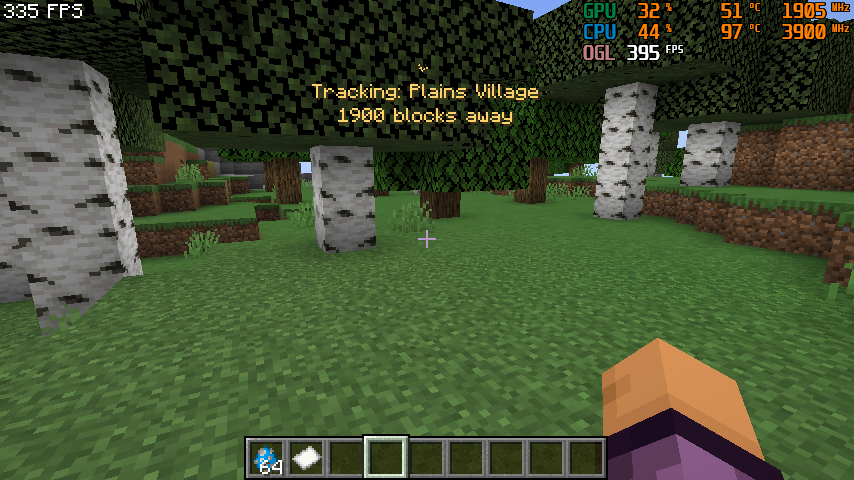
- The guide can show the tracked structure name and distance using the config options.
## Custom Assets
Custom skins and sounds are loaded from the custom asset folders under the MyNPC config area.
- Put textures in the texture folder.
- Put sounds in the sound folder.
- Reopen the relevant picker screen to refresh and select the asset.
## Notes for Modpack Authors
- Existing NPC JSON files are not deleted automatically.
- New installs use `npc.json` for the default guide definition.
- Older `village_guide.json` files remain compatible.
- For large NPC packs, use the `/mynpc egg` command and the dedicated MyNPC spawn egg creative tab to avoid clutter.
MyNPC
MyNPC 1.1 User Guide
Requirements
- Minecraft
1.20.1 - Forge
47.x - MyNPC
1.1
Installation
- Put the MyNPC jar into your instance
modsfolder. - Start the game once.
- The mod will create config folders automatically.
Important folders:
config/npc_typesstores NPC definition JSON files.config/mynpc_custom_assets/texturesstores custom NPC skin textures.config/mynpc_custom_assets/soundsstores custom NPC sound files.config/mynpc_custom_assets/langcan be used for extra language entries.
Default Guide NPC
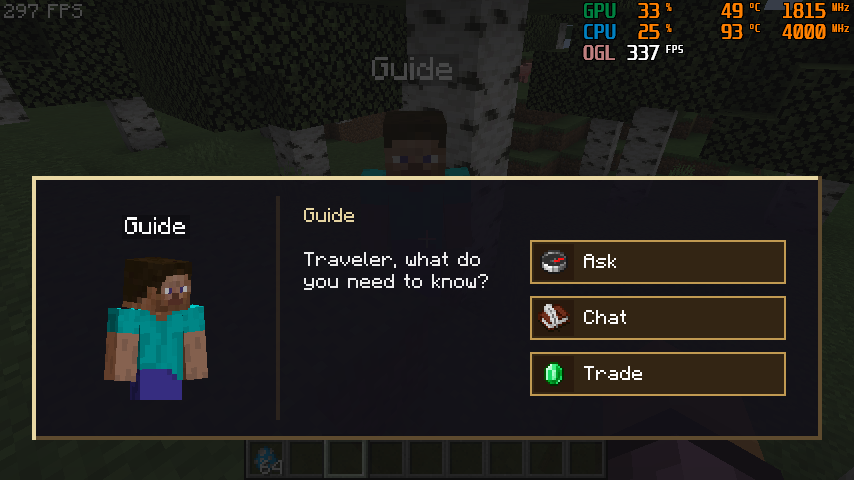
The built-in guide NPC is village_guide.
By default, the guide:
- Spawns in vanilla villages.
- Has a 100% spawn chance when the village spawn check succeeds.
- Spawns at most one guide per village area.
- Knows a random set of structures.
- Can sell structure location help and teleport scrolls.
- Can fight hostile mobs, retaliate when attacked, and avoid creepers.
- Stays near its home village instead of wandering freely.
If the default config was already generated before updating, delete config/npc_types/village_guide.json and restart the game to regenerate the latest default version.
NPC Manager
Press H in game to open the NPC manager.
Main actions:
+creates a new NPC from the default template.- Select an NPC from the left list to edit it.
- Use the small box beside NPC entries for multi-select.
Savesaves current changes.Copyduplicates the selected NPC. The copy keeps most settings but gets a unique id.Canceldiscards the current edit session.Deleteremoves selected NPC definitions after confirmation.Resetrestores selected NPCs to the built-in default guide settings.
Tabs:
Look: skin, name, entity id, and sounds.Behavior: spawn structures, spawn chance, and min/max spawn count.Structure: known structures and structure hint behavior.Trade: teleport scroll trades and custom item trades.Chat: random chat lines and structure-related dialogue.
Custom Skins
- Put PNG skin files into
config/mynpc_custom_assets/textures. - Open the NPC manager with
H. - Select an NPC.
- Go to
Look. - Use the custom skin button to choose a texture.
- Save the NPC.
The skin should use the normal Minecraft player skin layout.
Custom Sounds
- Put sound files into
config/mynpc_custom_assets/sounds. - Open the NPC manager with
H. - Select an NPC.
- Go to
Look. - Choose sounds for interaction, hurt, death, or ambient slots.
- Use the preview button to test sounds.
- Save the NPC.
Structure Selection
Structure lists support:
- Search by keyword.
- Clicking the structure name for single selection.
- Clicking the small box for multi-selection.
- Scrolling when the list is longer than the panel.
Structure names use language keys where available. Unknown structures fall back to a readable id-based name.
Trading
NPCs can offer:
- Teleport scroll trades for known structures.
- Structure location hint trades.
- Custom item trades.
For each structure trade, you can configure:
- The structure name.
- The item used as currency.
- The required item count.
- Whether the structure trade is disabled.
Chat And Hints
NPCs can have general chat lines and structure-specific hint text.
Structure hint text can use:
{structure}for the translated structure name.{direction}for the direction text.
Example:
If my memory serves, {structure} lies somewhere to the {direction}.
Spawn Eggs
Spawn egg NPCs use the same base initialization as naturally spawned NPCs:
- Default known structures can be generated.
- Home position is set when spawned.
- Random equipment can be assigned.
- Combat behavior is enabled.
Troubleshooting
If a custom skin shows as missing texture:
- Check that the file is inside
config/mynpc_custom_assets/textures. - Make sure it is a valid PNG.
- Reopen the selector and save the NPC again.
If a custom sound does not play:
- Check that the file is inside
config/mynpc_custom_assets/sounds. - Use the sound preview button in the
Looktab. - Restart the game if the asset pack was just created for the first time.
If the default guide settings look old:
- Delete
config/npc_types/village_guide.json. - Restart the game.
- The mod will regenerate the latest default config. ——————————————————————————
MyNPC 1.2 Update Guide
This guide covers the main new workflows added or changed in MyNPC 1.2.
Opening the NPC Manager
- Press
Hto open the custom NPC manager. - Use the NPC list on the left to select an NPC.
- Use the search box under the NPC list to filter NPCs.
- Use the
+button beside the search box to create a new NPC. - The selected NPC now appears pressed in the list, matching the selected page tabs.
NPC Ids and Defaults
- The built-in guide NPC still uses the display name
village_guide. - Its internal id is now
npc. - New custom NPCs use ids like
npc1,npc2, andnpc3. - Reset restores the shared default guide settings while keeping a safe unique id for the edited NPC.
Spawn Eggs
- MyNPC spawn eggs are now placed in their own creative tab.
- Use
/mynpc egg <npc_id>to create a spawn egg for a specific NPC. - The command supports suggestions, so you can type part of an NPC id and pick it from the command list.
Commands
/mynpc egg <npc_id>
Gives the player a spawn egg for the selected NPC definition.
Examples:
/mynpc egg npc
Gives the default guide NPC spawn egg.
/mynpc egg npc1
Gives the spawn egg for the custom NPC with the id npc1.
The command supports Minecraft-style suggestions. Type part of an NPC id, then use the command suggestion list to choose the correct NPC without typing the full id.
This is useful when a pack contains many custom NPCs and you do not want every spawn egg mixed into the normal creative inventory workflow.
Appearance Page
- Set the NPC display name and entity id.
- Choose a custom skin from the custom asset folder.
- Reset the skin back to Steve when needed.
- Configure interaction, hurt, death, and ambient sounds.
Behavior Page
- Use
Spawn Structuresto edit where an NPC can naturally spawn. - Each spawn rule contains:
- Structure id
- Minimum spawn count
- Maximum spawn count
- Spawn chance
- Use the search field and
+button in the spawn rule screen to add structures.
Structure Page
The Structure page is now simplified.
View Knownopens the known-structure rule list.Random known maxcontrols the maximum number of known structures selected for a naturally spawned NPC.Random known mincontrols the minimum number of known structures selected for a naturally spawned NPC.
Known-structure rules can be used to control which structures an NPC can know about and how likely each structure is to be selected.
Trade Page
- Use the custom trade list to add and manage normal item trades.
- Custom trades are shown before scroll trades in the right-click trade GUI.
- Use the teleport scroll price list to configure structure scroll trades.
- Item id fields can be typed manually or selected with the item icon button.
- Trade text can be customized for before-trade and after-trade messages.
Chat Page
- The old separate
Add Textbutton has been removed. - Use
View Textto manage chat lines. - In the text list editor, add, edit, or delete chat lines from one place.
- Use the structure text tools to configure structure-related dialogue.
Structure Guide
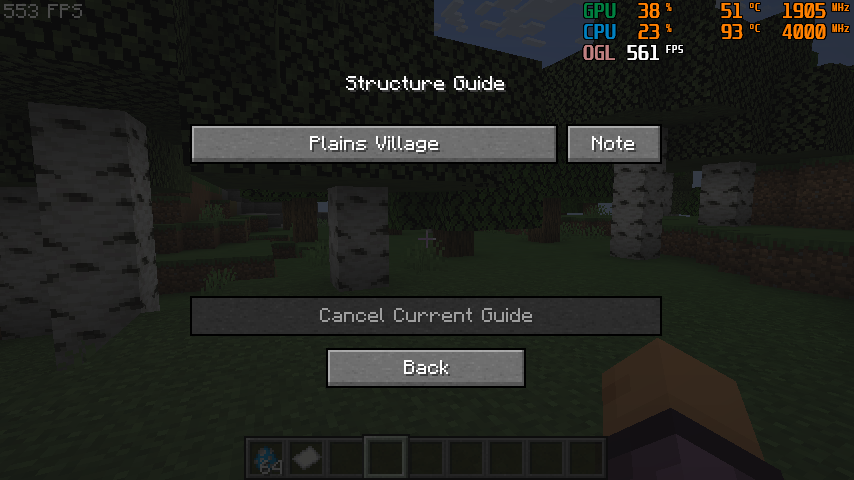
- Press
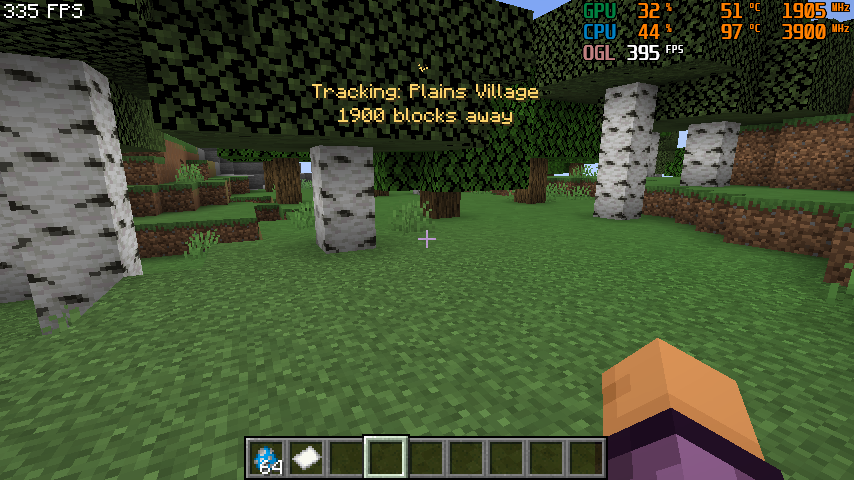
Gto open the structure guide. - When the player reaches a tracked structure, the guide entry is marked as visited.
- The guide can show the tracked structure name and distance using the config options.
Custom Assets
Custom skins and sounds are loaded from the custom asset folders under the MyNPC config area.
- Put textures in the texture folder.
- Put sounds in the sound folder.
- Reopen the relevant picker screen to refresh and select the asset.
Notes for Modpack Authors
- Existing NPC JSON files are not deleted automatically.
- New installs use
npc.jsonfor the default guide definition. - Older
village_guide.jsonfiles remain compatible. - For large NPC packs, use the
/mynpc eggcommand and the dedicated MyNPC spawn egg creative tab to avoid clutter.
Screenshots
Gallery
-
 npc
npc -
 npc
npc -
 npc
npc
Versions
Files
Relations
Project Relations
More like this
Similar Mods
Suggestions use data such as tags, dependencies, dependents, descriptions, titles, and more to rank how much they overlap with this mod.
On ModDex
Community snapshot
By the numbers
Statistics

Get it on
Available Platforms
On ModDex
Community snapshot
By the numbers
Statistics
Resources