NeoStructureMapper
No reviews yet
NeoStructureMapper is a mod allows you to preview, annotate, and export a multi-block structure.
Community voices
Reviews
Click once to include, again to exclude, again to clear
No reviews yet. Be the first to review this project!
Get it on
Available Platforms
 CurseForge
 Modrinth
Compatibility
Supported Environments
About
Project Details
For authors
Embed Badge
If you're the author of this project, you can embed a live badge anywhere that supports HTML or Markdown. It updates automatically whenever ratings change.
Use HTML for any page that supports it, or Markdown for README files and Markdown-based descriptions.
Identifiers
Platform IDs
About
Description
DISCLAIMER: The project is ENTIRELY vibe-coded by me using ChatGPT. Although the features provided are not likely to cause trouble, think twice before using it in a large modpack/server.
Introducing NeoStructureMapper
NeoStructureMapper is a mod allows you to preview, annotate, and export a multi-block structure. You can create a selection using the selection wand. Once created, a structure diagram can be placed on it and you can preview, annotate, and export the structure with it.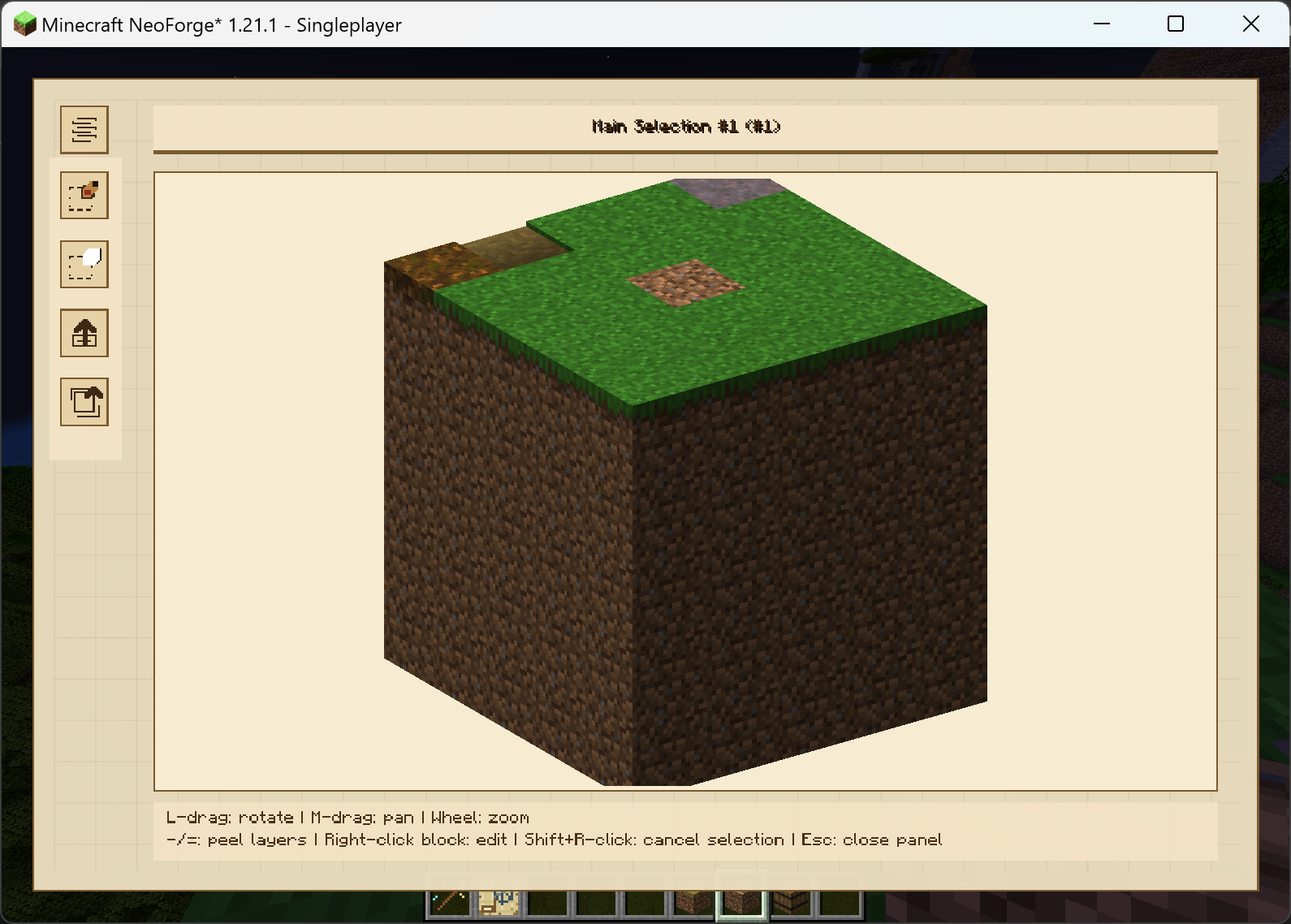
Preview
In the center of the GUI is a 3D model of the selection, you can rotate, zoom, and pan. Additionally, you can press "-"/"=" to peel the outmost layer, which allows you to interact with inner layers. The transparency of outer layers are configurable. In some rare cases, the function might not shows you the inner blocks as you wish (such as a inner block surrounded by air), or you just want a different view, feel free to swap to the layered mode by clicking the top-left button.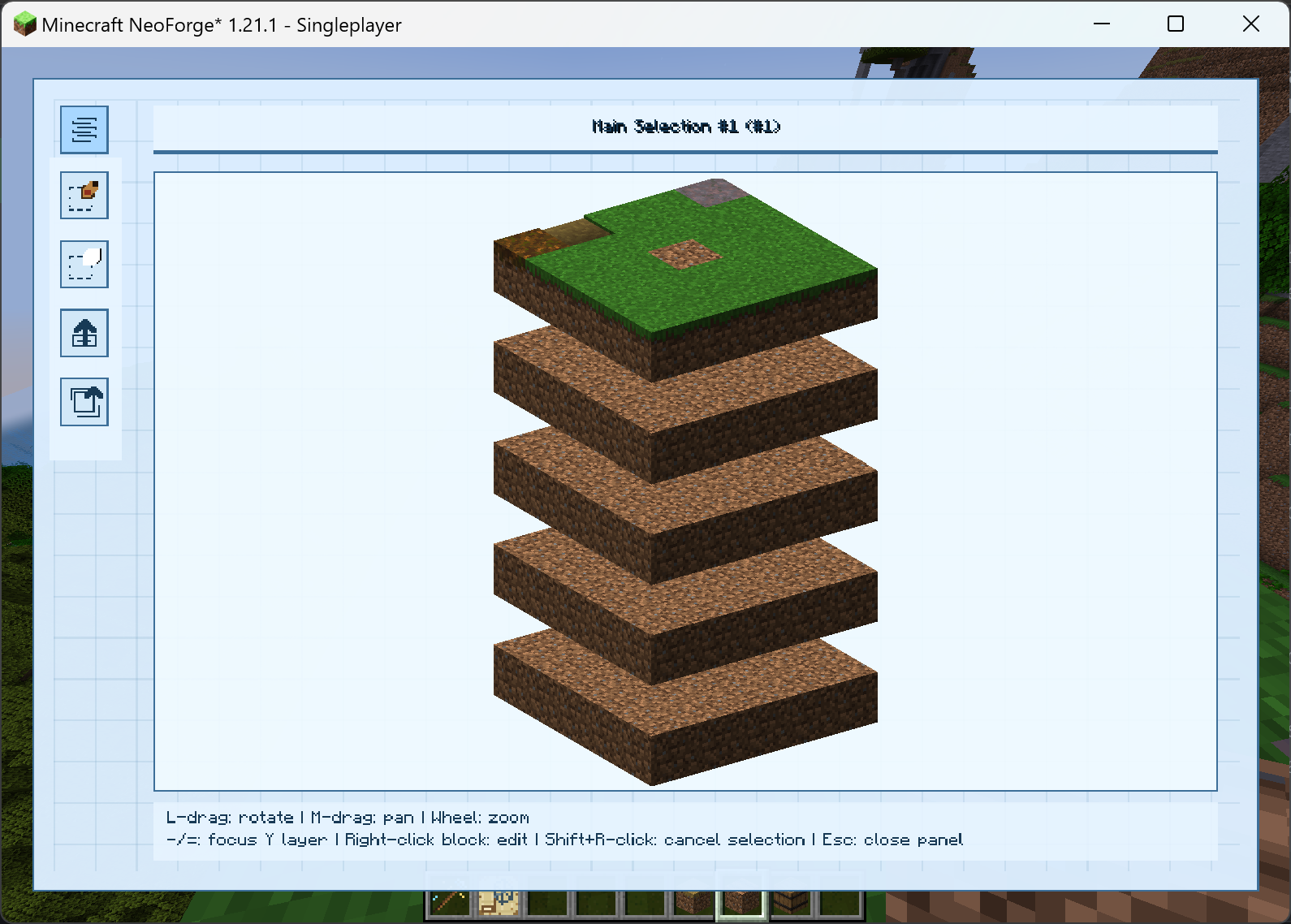 You can highlight different layer using "-"/"=". The distance between layers are configurable. In the left of the GUI is a toolbar. The first button allows you to create a sub-selection in the 3D model with 16 colors available (two connecting sub-selections with the same color will merge in a 3D preview, so you might want to use different colors if you don't want to merge them). The second button allows you to delete sub-selections. The third one is for exporting, which will introduce later, and the last one is to reset the 3D model.
Annotate
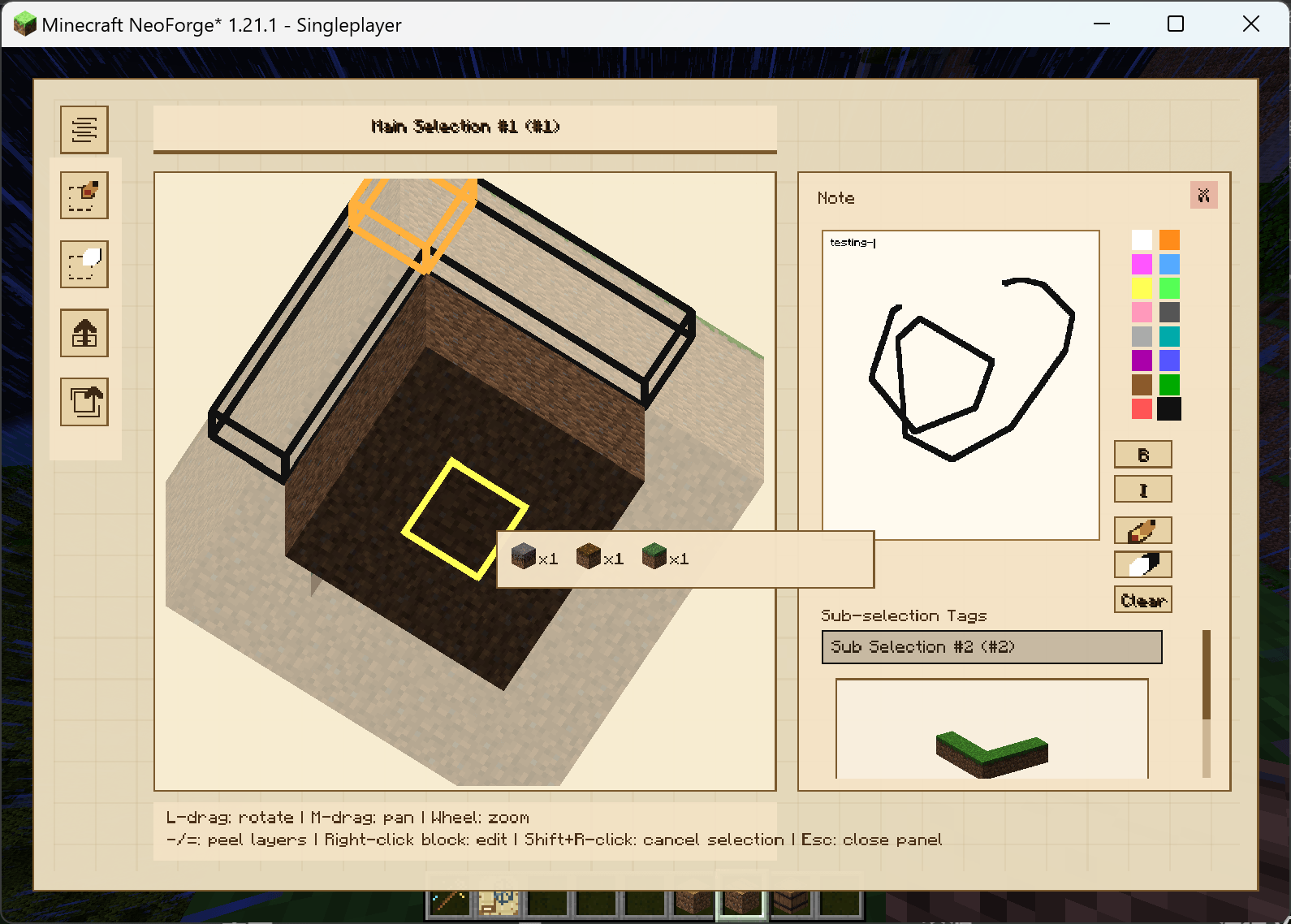
Right-clicking on a block will open a panel that allows you to annotate.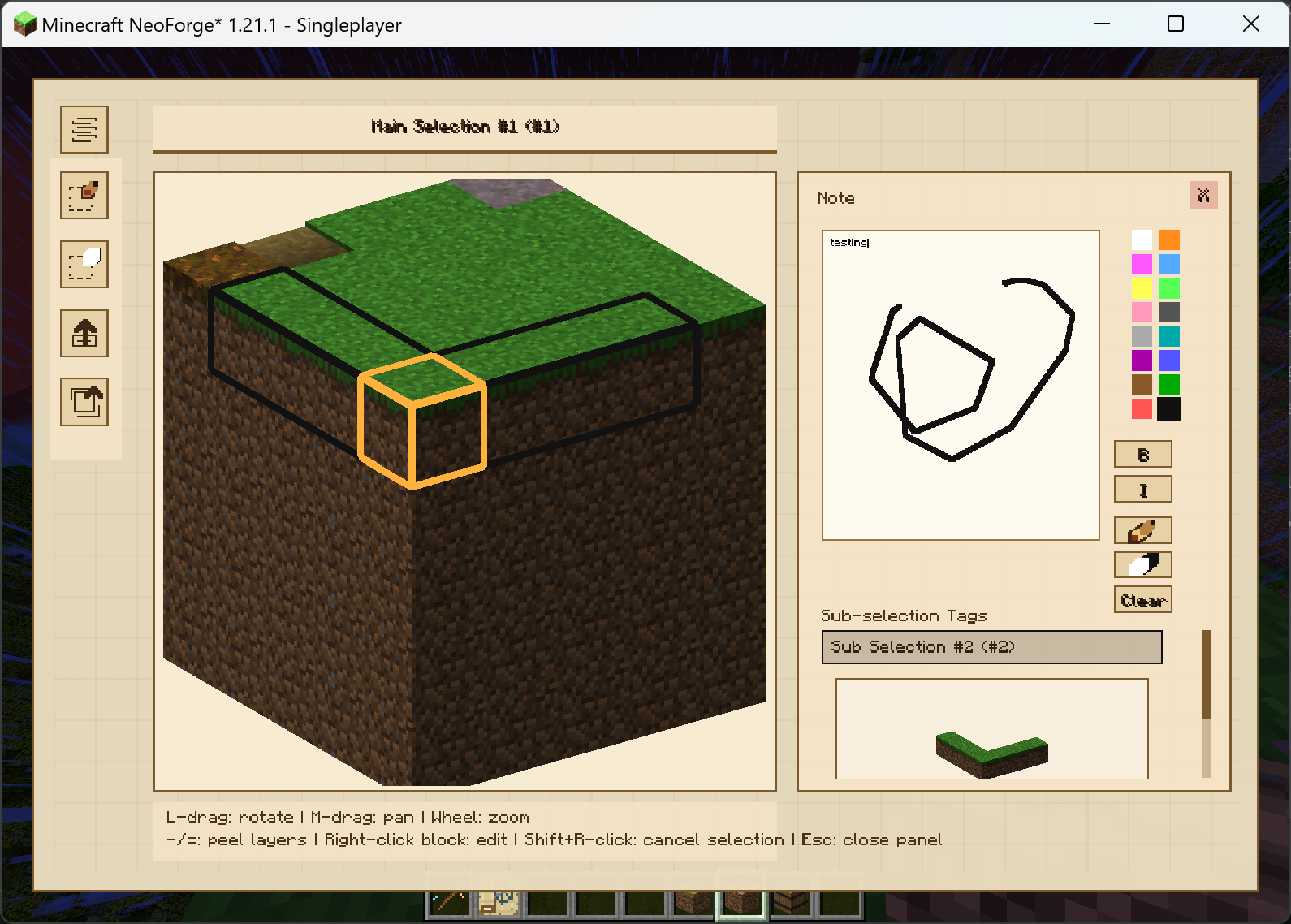 You can type words or draw in 16 colors. You can also preview the 3D model of sub-selections the block belongs to. Both main-selections and sub-selections can be renamed by right-clicking on them. When you hover a mouse on a block, it'll show its annotation text and its inventory.
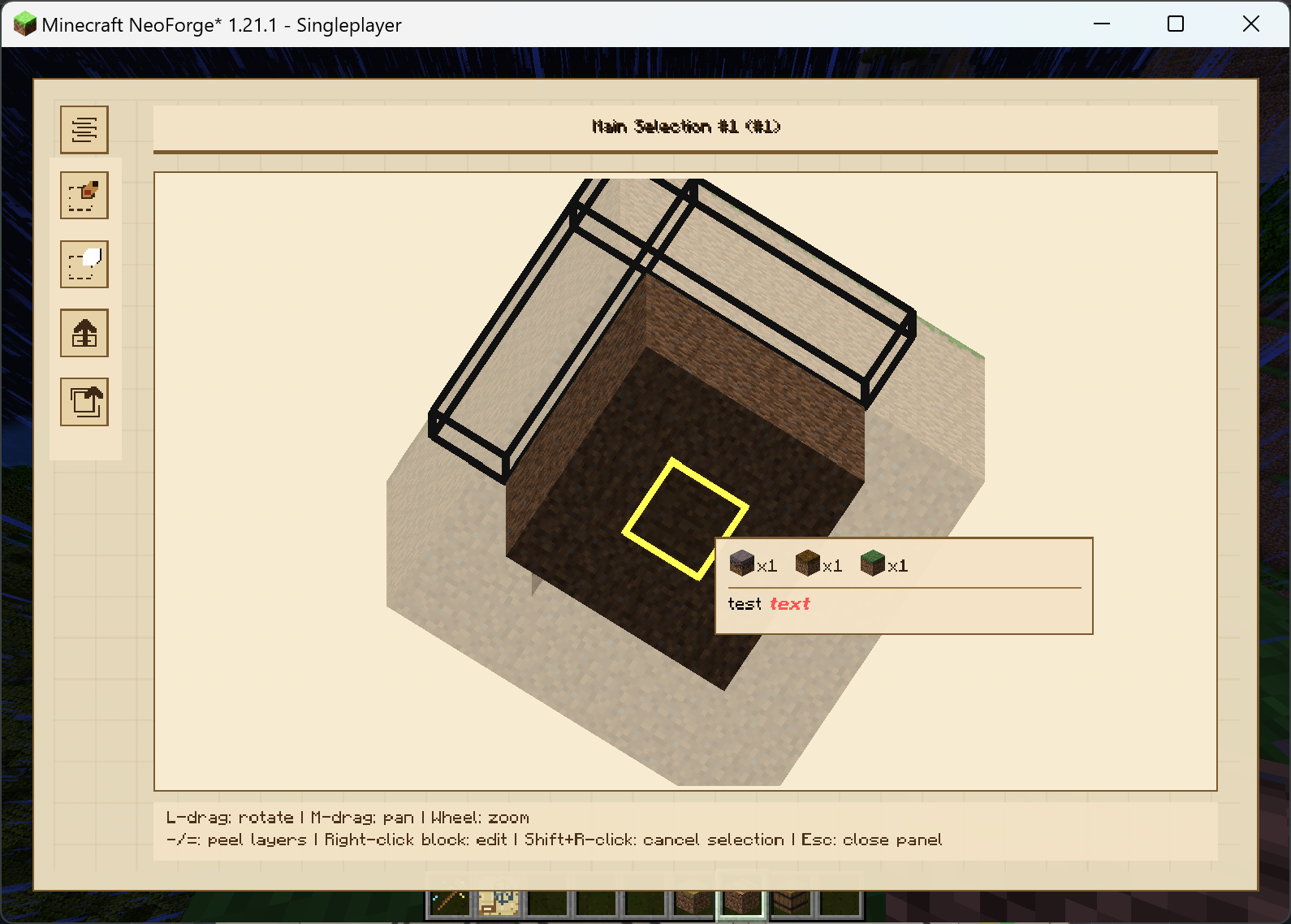 (this is the main function with the briefest introduction lol)
Export
Portable & .ess file
A selection can be exported to a portable diagram for convenience. Once exported, the portable diagram no longer relates to the original selection and can be edited seperately. You can also export a selection to a .ess file. When holding a structure diagram, crouch + right-click to import a .ess file and create a portable diagram, which allows cross-world sharing.
PNG file
A selection can also be exported to a picture. This function is highly(maybe) configurable. You can export in both 3D view modes. There are 3 export modes: opaque, noted, and onion. Opaque mode just export a solid 3D model. Noted mode let all blocks go transparent except noted ones. Onion mode let the model shows layer by layer.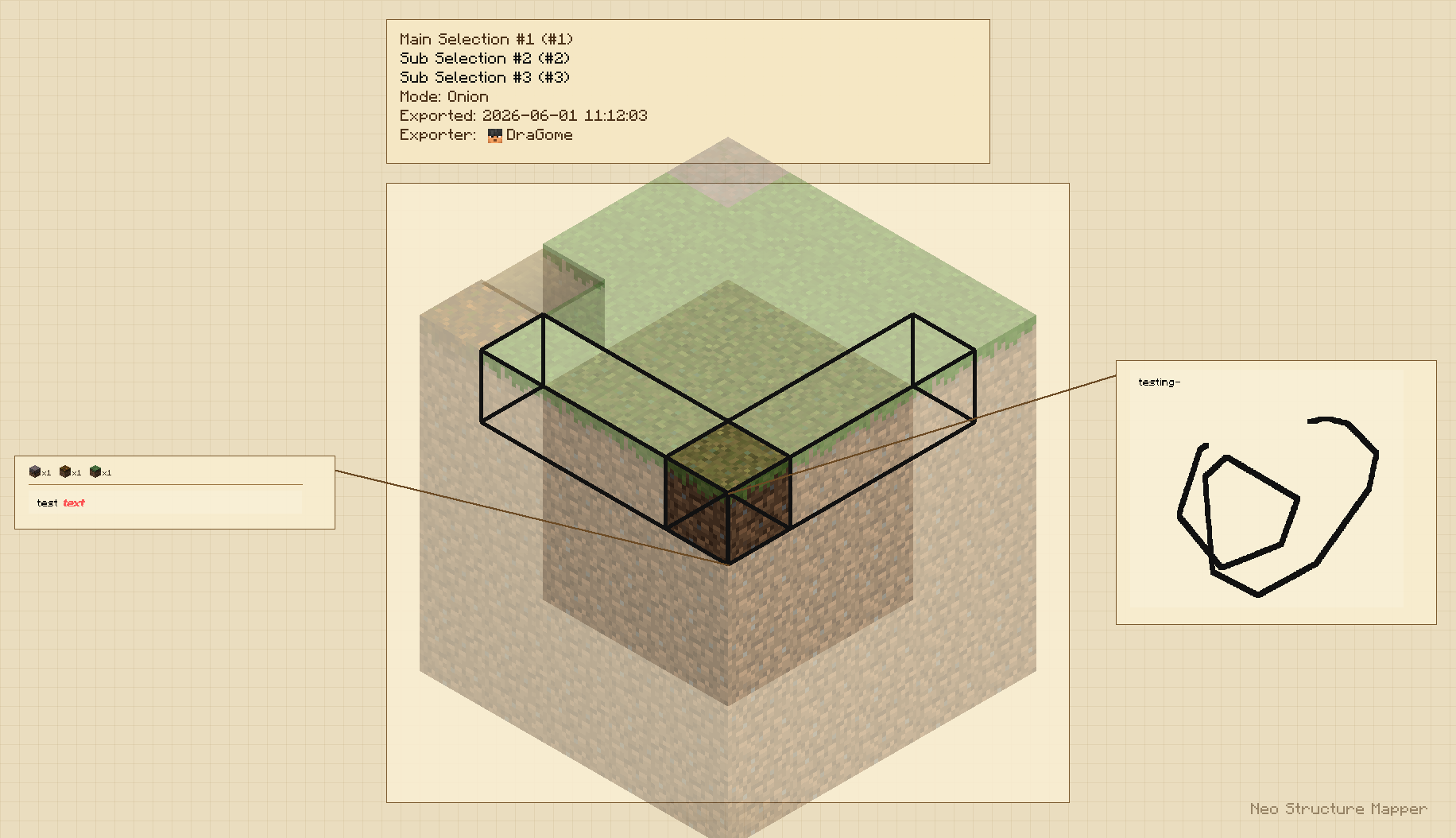 You can also configure the rotate angle of the model, "fixed" means isometric views and "custom" uses your current rotation when exporting. Annotations, drawings and inventories will be shown by the side of the 3D model. You can close this function as you wish.
Config
Client-side
[diagram]
    #Maximum note characters shown in hover previews.
    # Default: 25
    # Range: 1 ~ 512
    notePreviewCharacters = 25
    #Maximum inventory item types shown in hover previews.
    # Default: 5
    # Range: 1 ~ 64
    contentPreviewItems = 5
    #Maximum inventory item types shown in PNG annotations.
    # Default: 64
    # Range: 1 ~ 256
    pngContentItems = 64
    #Whether PNG annotation boxes include captured block inventory contents.
    showPngBlockContents = true
    #Extra vertical block gap between Y layers in layered blueprint mode.
    # Default: 1.0
    # Range: 0.0 ~ 16.0
    layerModeGap = 1.0
    #Extra vertical block shift applied to layers above and below the focused Y layer.
    # Default: 1.0
    # Range: 0.0 ~ 16.0
    layerModeFocusShift = 1.0
    #Alpha used for peeled and transparent model layers.
    # Default: 0.35
    # Range: 0.05 ~ 0.95
    peeledLayerTransparency = 0.35
    #PNG export rendering mode.
    #Allowed Values: OPAQUE, NOTED, ONION
    pngMode = "ONION"
    #PNG export camera mode. FIXED uses an isometric view; CUSTOM uses the current GUI rotation.
    #Allowed Values: FIXED, CUSTOM
    pngViewMode = "FIXED"
    #Whether PNG exports draw annotation boxes and callout lines.
    showPngAnnotations = true
Server-side (1.0.1+)
[server]
    #Whether clients may list and import .ess files stored in the server expstrsch folder.
    allowClientServerEssImport = true
    #Whether only operators may create or delete main selections with the selection wand.
    requireAdminSelectionWand = true
    #Whether only operators may open placed structure annotations.
    requireAdminStructureDiagramOpen = true
    #Whether ESS importing is enabled at all. Disabling this blocks both client-local and server-folder ESS imports.
    enableEssImport = false
DISCLAIMER: The project is ENTIRELY vibe-coded by me using ChatGPT. Although the features provided are not likely to cause trouble, think twice before using it in a large modpack/server.
Introducing NeoStructureMapper
NeoStructureMapper is a mod allows you to preview, annotate, and export a multi-block structure. You can create a selection using the selection wand. Once created, a structure diagram can be placed on it and you can preview, annotate, and export the structure with it.
Preview
In the center of the GUI is a 3D model of the selection, you can rotate, zoom, and pan. Additionally, you can press "-""=" to peel the outmost layer, which allows you to interact with inner layers. The transparency of outer layers are configurable. In some rare cases, the function might not shows you the inner blocks as you wish (such as a inner block surrounded by air), or you just want a different view, feel free to swap to the layered mode by clicking the top-left button. You can highlight different layer using "-""=". The distance between layers are configurable. In the left of the GUI is a toolbar. The first button allows you to create a sub-selection in the 3D model with 16 colors available (two connecting sub-selections with the same color will merge in a 3D preview, so you might want to use different colors if you don't want to merge them). The second button allows you to delete sub-selections. The third one is for exporting, which will introduce later, and the last one is to reset the 3D model.
Annotate
Right-clicking on a block will open a panel that allows you to annotate. You can type words or draw in 16 colors. You can also preview the 3D model of sub-selections the block belongs to. Both main-selections and sub-selections can be renamed by right-clicking on them. When you hover a mouse on a block, it'll show its annotation text and its inventory. (this is the main function with the briefest introduction lol)
Export
Portable & .ess file
A selection can be exported to a portable diagram for convenience. Once exported, the portable diagram no longer relates to the original selection and can be edited seperately. You can also export a selection to a .ess file. When holding a structure diagram, crouch + right-click to import a .ess file and create a portable diagram, which allows cross-world sharing.
PNG file
A selection can also be exported to a picture. This function is highly(maybe) configurable. You can export in both 3D view modes. There are 3 export modes: opaque, noted, and onion. Opaque mode just export a solid 3D model. Noted mode let all blocks go transparent except noted ones. Onion mode let the model shows layer by layer. You can also configure the rotate angle of the model, "fixed" means isometric views and "custom" uses your current rotation when exporting. Annotations, drawings and inventories will be shown by the side of the 3D model. You can close this function as you wish.
Config
Client-side
[diagram]
	#Maximum note characters shown in hover previews.
	# Default: 25
	# Range: 1 ~ 512
	notePreviewCharacters = 25
	#Maximum inventory item types shown in hover previews.
	# Default: 5
	# Range: 1 ~ 64
	contentPreviewItems = 5
	#Maximum inventory item types shown in PNG annotations.
	# Default: 64
	# Range: 1 ~ 256
	pngContentItems = 64
	#Whether PNG annotation boxes include captured block inventory contents.
	showPngBlockContents = true
	#Extra vertical block gap between Y layers in layered blueprint mode.
	# Default: 1.0
	# Range: 0.0 ~ 16.0
	layerModeGap = 1.0
	#Extra vertical block shift applied to layers above and below the focused Y layer.
	# Default: 1.0
	# Range: 0.0 ~ 16.0
	layerModeFocusShift = 1.0
	#Alpha used for peeled and transparent model layers.
	# Default: 0.35
	# Range: 0.05 ~ 0.95
	peeledLayerTransparency = 0.35
	#PNG export rendering mode.
	#Allowed Values: OPAQUE, NOTED, ONION
	pngMode = "ONION"
	#PNG export camera mode. FIXED uses an isometric view; CUSTOM uses the current GUI rotation.
	#Allowed Values: FIXED, CUSTOM
	pngViewMode = "FIXED"
	#Whether PNG exports draw annotation boxes and callout lines.
	showPngAnnotations = true
Server-side (1.0.1+)
[server]
	#Whether clients may list and import .ess files stored in the server expstrsch folder.
	allowClientServerEssImport = true
	#Whether only operators may create or delete main selections with the selection wand.
	requireAdminSelectionWand = true
	#Whether only operators may open placed structure annotations.
	requireAdminStructureDiagramOpen = true
	#Whether ESS importing is enabled at all. Disabling this blocks both client-local and server-folder ESS imports.
	enableEssImport = false
Screenshots
Gallery
-
 å±å¹æªå¾ 2026-06-01 105526.png å±å¹æªå¾ 2026-06-01 105526.png
Versions
Files
Relations
Project Relations
More like this
Similar Mods
Suggestions use data such as tags, dependencies, dependents, descriptions, titles, and more to rank how much they overlap with this mod.
On ModDex
Community snapshot
By the numbers
Statistics
Want to reach Minecraft players?
We're looking for a server hosting partner to feature here and other parts of the site. Interested? Send us a message!
Get in touchGet it on
Available Platforms
On ModDex
Community snapshot
By the numbers