Community listing page, reviews may not be monitored by the author.
PixelCross

No reviews yet
Draw your own pixel-art crosshair and rebuild your HUD in-game: move and resize every element, add smooth animations, auto-hide the hotbar, share crosshairs with codes. Fabric, MC 26.2.

Community voices
Reviews
No reviews yet. Be the first to review this project!
Get it on
Available Platforms
About
Project Details
For authors
Embed Badge
If you're the author of this project, you can embed a live badge anywhere that supports HTML or Markdown. It updates automatically whenever ratings change.
Use HTML for any page that supports it, or Markdown for README files and Markdown-based descriptions.
Identifiers
Platform IDs
Resources
External Links
About
Description
PixelCross
Draw your own crosshair. Reposition your HUD. No resource packs, no restarts — see it in-game instantly.
PixelCross is more than a crosshair mod — it's a full HUD editor built right into the game. It adds a built-in pixel-art editor for designing your own crosshair (or picking one from a gallery), a drag-to-reposition editor for the whole HUD, optional smooth animations, and, separately, a way to hide the entire vanilla HUD while keeping just your drawn cursor on screen. Everything is done from in-game settings screens — no texture files to create, package, or install.
Features
Cursor editor
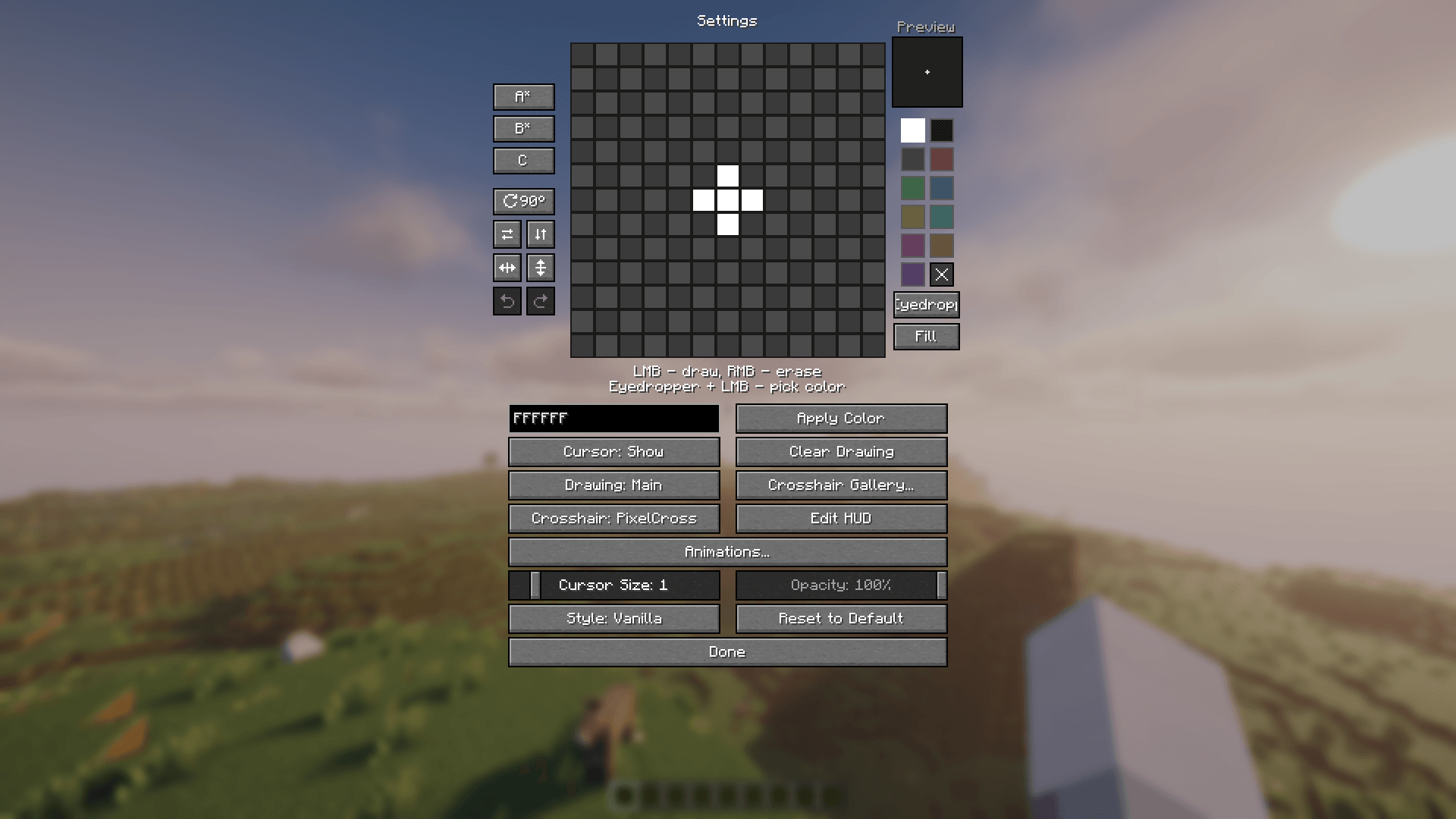
- 13×13 pixel drawing grid
- 11-color built-in palette, plus a transparent "eraser" swatch
- Direct hex color entry (6 or 8-digit, with alpha)
- Eyedropper — sample any color already on the grid
- Fill — flood-fill a connected area with the current color
- Rotate 90°, mirror horizontally, mirror vertically
- Symmetry drawing — mirror left/right, up/down, or both (all four quarters) as you draw
- Undo / Redo (Ctrl+Z / Ctrl+Y, or the ↶ / ↷ buttons) — up to 50 steps
- 3 preset slots (A/B/C) to save, switch between and clear designs
- Reset to the default design at any time
- Live preview panel, scaled and with opacity applied, next to the grid
- Hover tooltips on every button explain what it does
Crosshair gallery & share codes
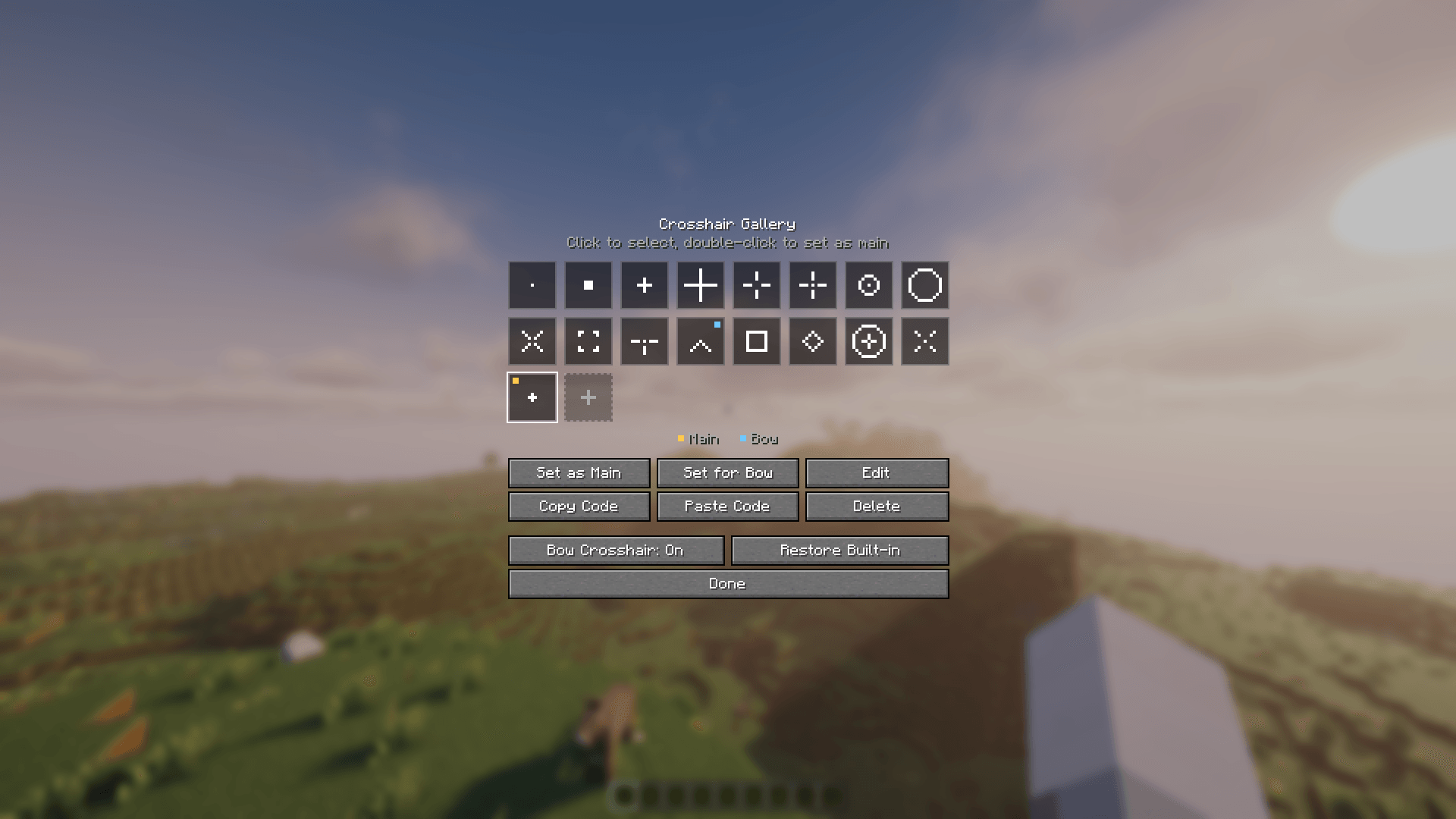
- 16 ready-made crosshairs — dot, plus, CS-style gap, ring, X, brackets, T, chevron, box, diamond, scope and more — plus your own designs
- Set any of them as your main crosshair or your bow crosshair, edit it in the editor, or delete it; the + tile adds your current drawing to the gallery
- Small marks show which crosshair is your main one and which is the bow one
- Share codes — copy any crosshair as a short text code (
PX1:…) and send it to a friend, or paste one in (Ctrl+C / Ctrl+V work too) - Restore Built-in brings back built-in crosshairs you deleted
Bow crosshair
- A second crosshair that switches in automatically while you hold a bow, crossbow or trident in either hand
- Drawn in the same editor (Drawing: Main / Bow), turned on with one switch in the gallery
Display options
- Adjustable cursor size (0.5×–5×, in steps of 0.5)
- Adjustable opacity (0–100%, Flat style — Vanilla style is always fully opaque, like the real crosshair)
- Two render styles:
- Vanilla — same invert-blend look the real crosshair uses (limited to white / transparent, so it reads correctly against any background)
- Flat — plain alpha-blended fill, full color palette
- Cursor on/off toggle, independent of everything else
HUD editor
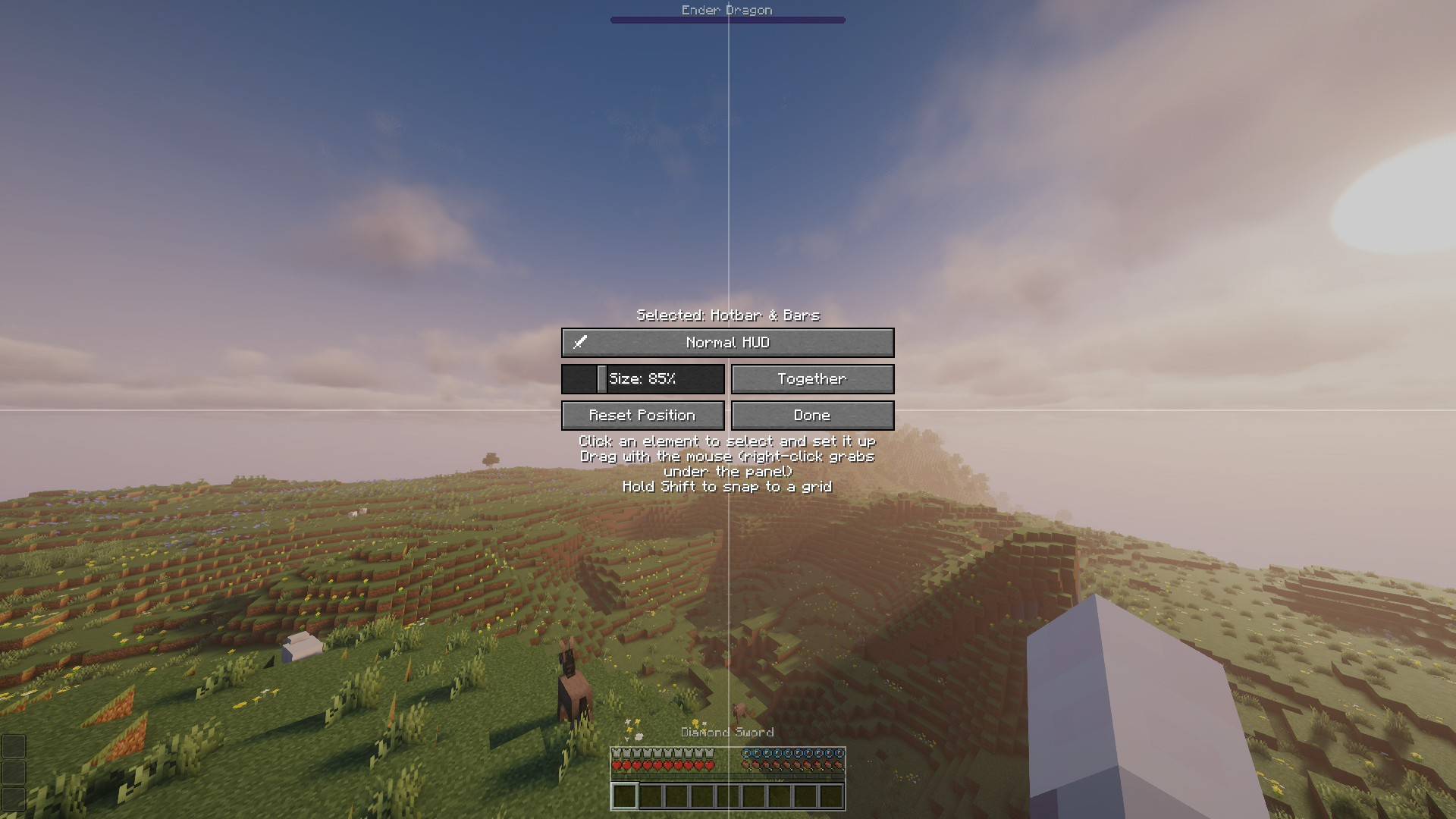
- A dedicated editor screen where you grab the real, live HUD with your
mouse and drag it anywhere on screen. You can move and resize:
- Hotbar & status bars (hearts, armor, food, air, experience, locator bar) — one element while the bars ride on the hotbar, or split them with one click and edit each on its own
- Text above the hotbar (held item name, action bar) — riding on the hotbar or anywhere on its own, with separate settings for survival and creative
- Mob effects — icons in a row or in a column, always growing away from the nearest screen edge (newest effect closest to it), so they never go off screen
- Boss bars
- Spectator HUD — its own tab (eye icon) for the spectator hotbar and its hint text
- Free movement by default, or hold Shift to snap to a grid
- Two center guide lines, and elements magnet-snap onto them when they get close, so centering is exact every time
- Size slider (0.5×–2.0×) for the selected element
- Elements can't be dragged off-screen, and stay on screen when you resize the window or change the GUI scale
- Anything not showing right now (armor, air, effects, boss bar…) appears as a 50% placeholder, so you can always place it
- "Reset Position" and "Done" buttons — Esc cancels any unsaved changes
- The settings panel sits in the middle of the screen and fades out while you're dragging, so it doesn't block your view
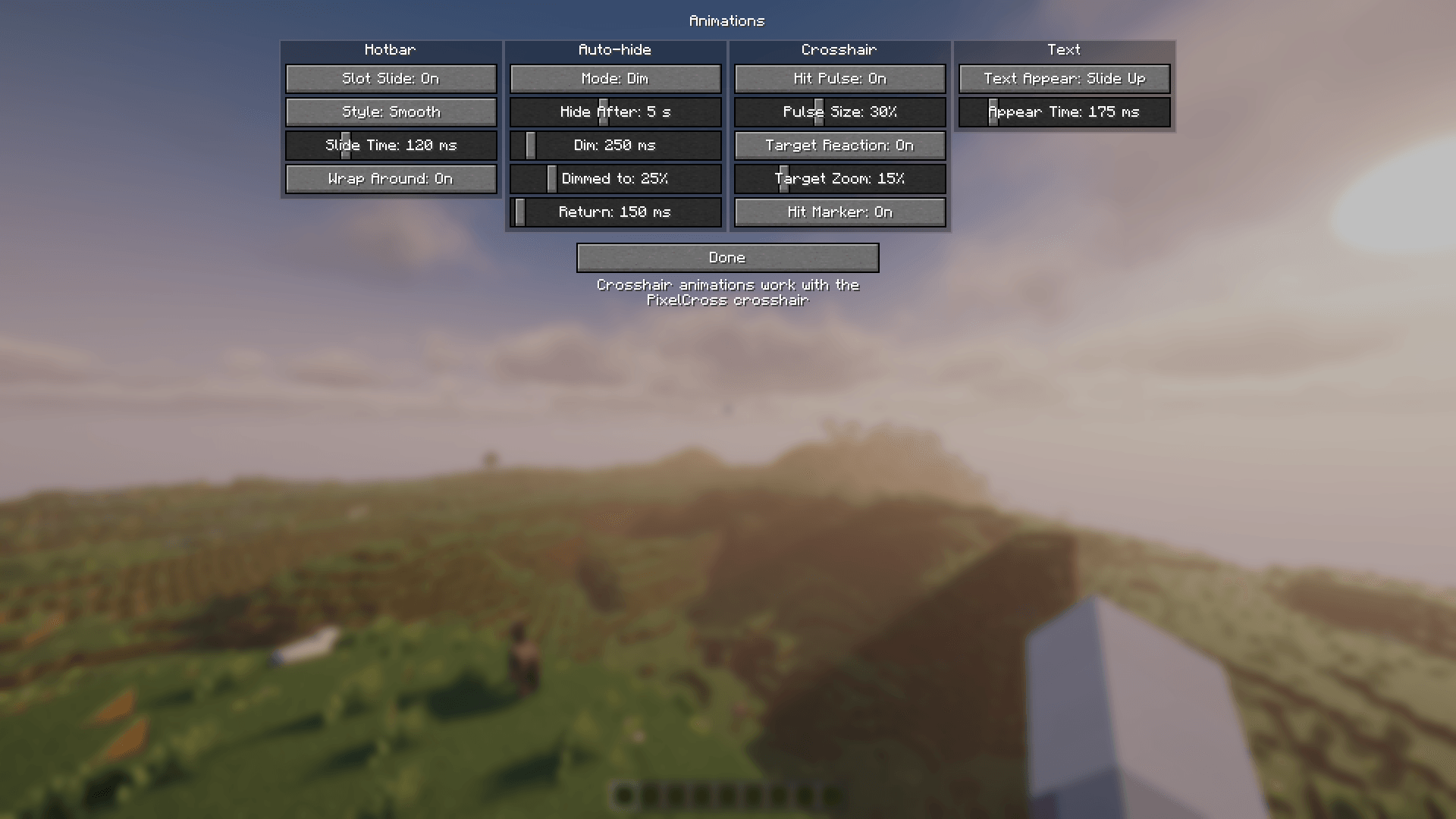
Animations (each one optional, on its own switch — Animations… in settings)
- Slot slide — the hotbar selection highlight slides smoothly between slots (the spectator hotbar's too), in Smooth or Springy style, with adjustable slide time
- Wrap around — from the last slot to the first, the highlight slides out off one edge and back in from the other, carousel-style
- Auto-hide — the hotbar and bars fade out, drop down, or just dim when you're idle, and come back as soon as something changes: switching slots or hands, damage, hunger, air, armor, experience, your mount, the spectator menu
- Hit pulse — the PixelCross crosshair briefly grows when you attack or mine, with adjustable size
- Target reaction — the PixelCross crosshair smoothly grows bigger while you aim at a mob, with adjustable zoom
- Hit marker — a short X flash around the crosshair when you hit a mob or a player; a big crosshair never covers it
- Text appear — the held item name, action bar text and spectator menu hint fade, slide up or pop in
HUD & crosshair control
- Full HUD-hide toggle — flips the same flag
F1does, so other HUD mods (minimaps, status overlays, etc.) that check it hide right along with it. Your drawn cursor keeps rendering even with the rest of the HUD gone. - Permanent crosshair replacement — swap the real crosshair for your drawn one during normal play, on its own switch, independent of the HUD-hide toggle.
- The PixelCross crosshair follows all vanilla crosshair rules: hidden in third person, spectator rules, F3 axes
- The attack cooldown indicator stays visible and moves down just enough that a bigger crosshair never covers it
Compatibility
- Shoulder Surfing Reloaded — the crosshair works in its over-the-shoulder view
- Immersive Hotbar — no double text animations
- Mod Menu integration — open the settings from the mod list (optional, not required)
Other
- Localized into 14 languages
- Client-side only — safe to use on any server
Controls
In-game keybinds (both unbound by default — set them in Controls)
| Action | Default key |
|---|---|
| Toggle full HUD hide (cursor stays visible) | Unbound |
| Open PixelCross settings | Unbound |
Inside the cursor editor
| Action | Control |
|---|---|
| Draw with the current color | Left-click on the grid (click-drag to paint continuously) |
| Erase a pixel | Right-click on the grid (click-drag to erase continuously) |
| Pick a palette color | Left-click a palette swatch |
| Sample a color already on the grid | Click Eyedropper, then left-click the grid |
| Flood-fill a connected area | Click Fill, then left-click the grid |
| Enter a custom color | Type into the hex field, click Apply Color |
| Save current drawing to a preset | Shift + Click preset A/B/C |
| Load a saved preset | Click preset A/B/C |
| Clear a preset slot | Ctrl + Click preset A/B/C |
| Rotate the drawing 90° | Click ⟳90° |
| Mirror horizontally / vertically | Click ⇄ / ⇅ |
| Symmetry drawing (left/right, up/down) | Toggle the two symmetry buttons (both = four quarters) |
| Undo / Redo | Ctrl+Z / Ctrl+Y, or click ↶ / ↷ |
| Draw the main / bow crosshair | Click the Drawing: Main / Bow toggle |
| Show/hide the drawn cursor | Click the Cursor toggle |
| Clear the entire grid | Click Clear Drawing |
| Enable/disable the crosshair replacement | Click the Crosshair toggle |
| Adjust size | Cursor Size slider (0.5×–5×) |
| Adjust transparency | Opacity slider (0–100%) |
| Switch render style | Click the Style toggle (Vanilla / Flat) |
| Restore defaults | Click Reset to Default |
| Scroll the settings screen (if it overflows) | Mouse wheel |
| Save and close | Click Done |
Inside the crosshair gallery (opened via Crosshair Gallery… in settings)
| Action | Control |
|---|---|
| Select a crosshair | Click it |
| Use it as your main crosshair | Set as Main (or double-click it) |
| Use it as your bow crosshair | Set for Bow |
| Edit it | Edit, then Save to Gallery (or Cancel) |
| Delete it | Delete (click twice) |
| Add your current drawing | Click the + tile |
| Copy / paste a crosshair code | Copy Code / Paste Code, or Ctrl+C / Ctrl+V |
| Turn the bow crosshair on/off | Bow Crosshair toggle |
| Bring back deleted built-in crosshairs | Restore Built-in |
Inside the HUD editor (opened via Edit HUD in settings)
| Action | Control |
|---|---|
| Select and move an element | Click and drag it |
| Grab an element under the panel | Right-click and drag |
| Snap movement to a grid | Hold Shift while dragging |
| Snap to screen-center guides | Drag close to a guide line — it snaps automatically |
| Resize the selected element | Size slider (0.5×–2.0×) |
| Split / join the hotbar and bars | Together / Separately |
| Text: survival / creative settings | The small heart / block button next to the controls |
| Effect icons in a row / column | Select the effects → Icons: In a Row / In a Column |
| Switch between normal and spectator HUD | The tab button at the top of the panel |
| Undo to the default position/size | Click Reset Position |
| Save and close | Click Done |
| Discard changes made this session | Press Esc |
Requirements
- Minecraft 26.2
- Fabric Loader 0.19.3+
- Fabric API
- Java 25+
- Mod Menu (optional) — adds a Configure button in the mod list
Screenshots
Gallery
-
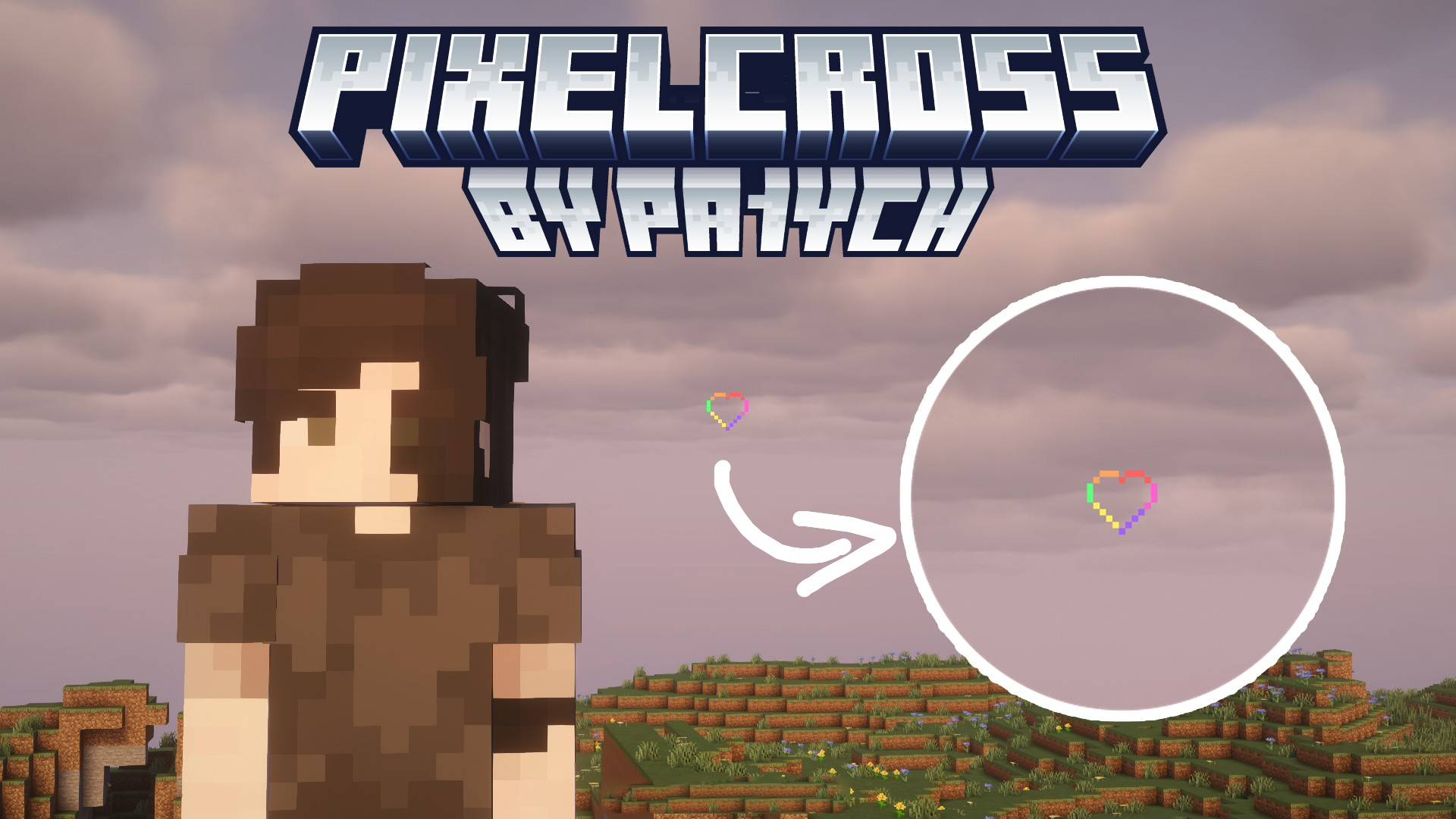 image-attachment_15d487eb-dd17-46c2-819d-c305856008ec.jpg
 -
 ÐнÑмок екÑана 2026-10-11 131103.png ÐнÑмок екÑана 2026-10-11 131103.png
 -
 ÐнÑмок екÑана 2026-10-11 131111.png ÐнÑмок екÑана 2026-10-11 131111.png
 -
 ÐнÑмок екÑана 2026-10-11 131132.png ÐнÑмок екÑана 2026-10-11 131132.png
 -
 ÐнÑмок екÑана 2026-10-11 131123 copy.jpg ÐнÑмок екÑана 2026-10-11 131123 copy.jpg
Versions
Files
Relations
Project Relations
More like this
Similar Mods
Suggestions use data such as tags, dependencies, dependents, descriptions, titles, and more to rank how much they overlap with this mod.
On ModDex
Community snapshot
By the numbers
Statistics

Get it on
Available Platforms
On ModDex
Community snapshot
By the numbers
Statistics
Resources