
Screenshot Manager Enhanced
No reviews yet
A advanced screenshot manager mod to help organize your screenshots between different worlds, dimensions, and game modes. Works in single player and multiplayer
Fabric is a mod loader for versions 1.14+ of Minecraft, particularly popular for client side and optimization mods.
Community voices
Reviews
Click once to include, again to exclude, again to clear
No reviews yet. Be the first to review this project!
Get it on
Available Platforms
 Modrinth
Compatibility
Supported Environments
About
Project Details
For authors
Embed Badge
If you're the author of this project, you can embed a live badge anywhere that supports HTML or Markdown. It updates automatically whenever ratings change.
Use HTML for any page that supports it, or Markdown for README files and Markdown-based descriptions.
Identifiers
Platform IDs
About
Description

Screenshot Manager Enhanced was designed to keep your Minecraft screenshots organized automatically. Say goodbye to a cluttered screenshots folder! This mod organizes your screenshots into folders based on the world, dimension, date, or a combination of the options.
✨ Features
- Automatic Organization: Screenshots are instantly sorted into subfolders upon capture.
- In-Game Gallery 📸: Browse, manage, and share your screenshots directly from within Minecraft.
- Per-World Configuration: Customize settings for you single-player or specific server worlds.
- Flexible Grouping Modes: Customize how you want your folders structured. The mod generates paths based on your current context.
WORLD(Default): Groups screenshots by the world or server name.- Example:
screenshots/My_Survival_World/
DATE: Groups screenshots by the current date (yyyy-MM-dd).- Example:
screenshots/2025-01-30/
- Example:
WORLD_DIMENSION: Groups by World, then by Dimension.- Example:
screenshots/My_Survival_World/minecraft_overworld/ - Example:
screenshots/My_Survival_World/minecraft_the_nether/
- Example:
WORLD_DATE: Groups by World, then by Date.- Example:
screenshots/My_Survival_World/2025-01-30/
- Example:
WORLD_DIMENSION_DATE: A three-level hierarchy: World -> Dimension -> Date.- Example:
screenshots/My_Survival_World/minecraft_the_end/2025-01-30/
- Example:
WORLD_DATE_DIMENSION: A three-level hierarchy: World -> Date -> Dimension.- Example:
screenshots/My_Survival_World/2025-01-30/minecraft_the_nether/
- Example:
NONE: Disables grouping. Screenshots are saved directly in the screenshots folder (standard Minecraft behavior).- Example:
screenshots/
- Example:
- Example:
- In-Game Configuration: Fully configurable via Mod Menu
📸 In-Game Gallery
Manage your moments without leaving the game!
- Browse: View screenshots in a responsive grid.
- Review: Click any image for a full-screen view.
- Organize: Use the Copy button to share or Delete to clean up unwanted screenshots.
- Navigate: Cycle through your collection with Next/Previous controls.
⚗️ Advanced Features
- Metadata Support 🗃️: Automatically embeds rich game details directly into the screenshot file (XMP format). This data travels with the image!
- World Context: World Name, Dimension, Biome
- Location: Exact X, Y, Z Coordinates
- Time: In-game Days Played, World Age
- Game State: Difficulty, Game Mode, Minecraft Version
- Custom Save Location 💾: Choose exactly where your screenshots go.
- Override the default
.minecraft/screenshotslocation. - Use any absolute path on your system (e.g., a shared network drive or cloud storage folder).
- Note: Requires enabling advanced settings validation.
- Override the default
📥 Installation
Dependencies
- Fabric Loader enabled version of Minecraft
- Mod Menu
- Cloth Config API
Using your Minecraft Launcher
- Start your Minecraft Launcher (i.e. Modrith, ATLauncher, MultiMC, Prism, GDLauncher, etc.)
- View or Edit your game instance
- Open the section to add Mods
- Search from Modrith for "Screenshot Manager Enhanced"
- Complete the install process
- Start Minecraft
Manually Adding
- Click the Versions tab above
- Download the mod file for your version of Minecraft
- Open the
modsfolder in your Minecraft game save location
- Windows:
%appdata%\.minecraft\modsorC:\Users\<username>\AppData\Roaming\.minecraft\mods - MacOS:
~/Library/Application Support/minecraft/modsor/Users/<username>/Library/Application Support/minecraft/mods
- Copy the mod file from your Downloads location to the
modsfolder - Open the Minecraft Launcher
- Start Minecraft
📝 Change Grouping Options
- Navigate to the
configfolder of your Minecraft save location
- Windows:
%appdata%\.minecraftorC:\Users\<username>\AppData\Roaming\.minecraft - MacOS:
~/Library/Application Support/minecraftor/Users/<username>/Library/Application Support/minecraft
- In the
configfolder find the file called screenshot-manager-enhanced.json - Open the file in a text editor
- Locate the line with the keyname called
groupingMode - Change the grouping mode option to the desired grouping option
See the Features section for grouping options
☕ How to Support
- Give this project a heart ❤️
- If you have any issues, please use the Issue link.
- If additional features are wanted, please add your request via the Issue link.
Screenshots
Gallery
-
Screenshot Manager Enhanced banner Banner Image
-
 Screenshot Gallery View An example of the in-game screenshot gallery
 -
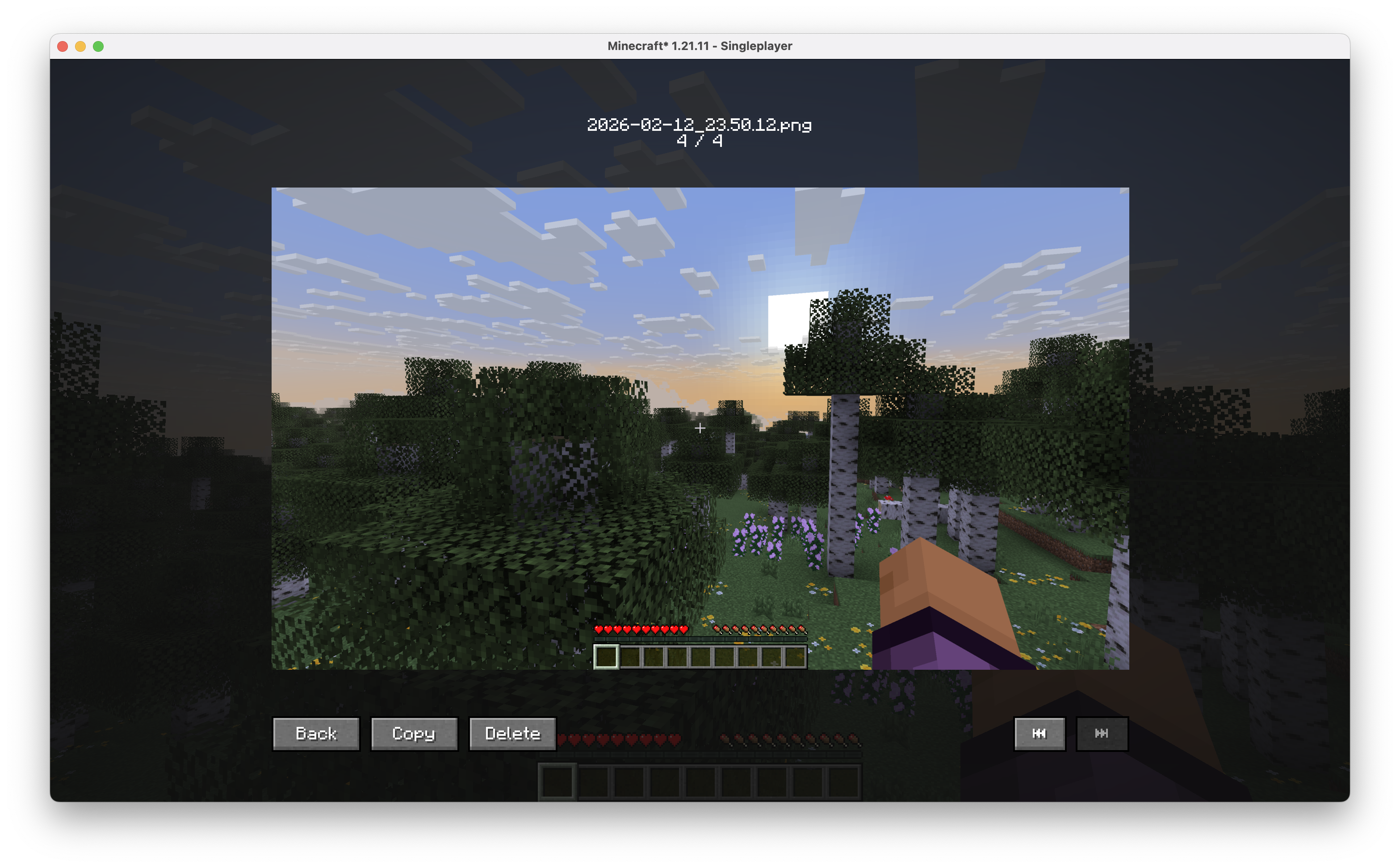 View individual screenshot in the Gallery Users can view individual screenshots, navigate between all screenshot, copy the screenshot to your clipboard and delete the ones you don't want.
 -
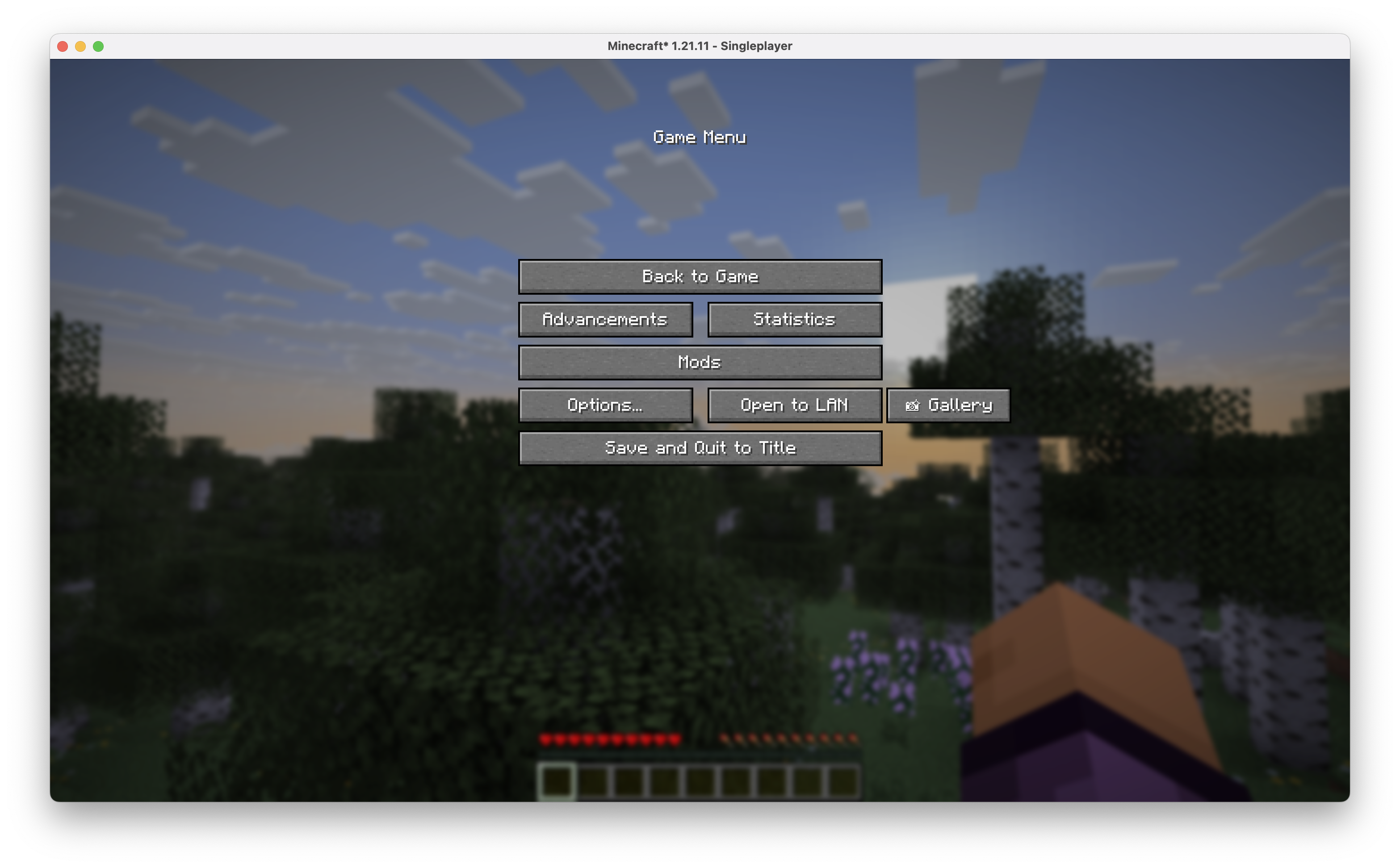 Screenshot Gallery button on Pause menu Now with Screenshot Manager Enhanced you can access the screenshot gallery from the pause menu
 -
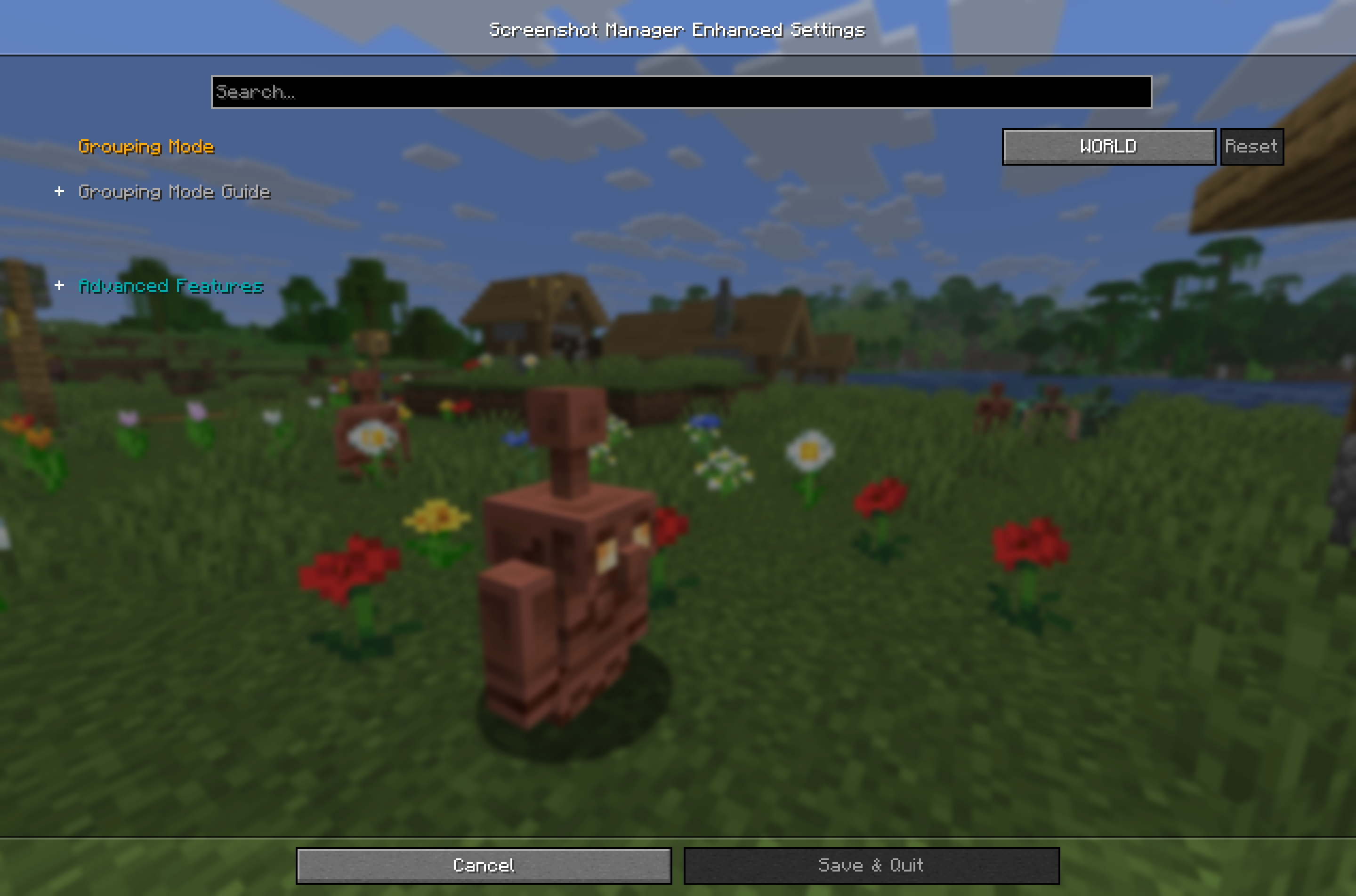 Setting Menu
 -
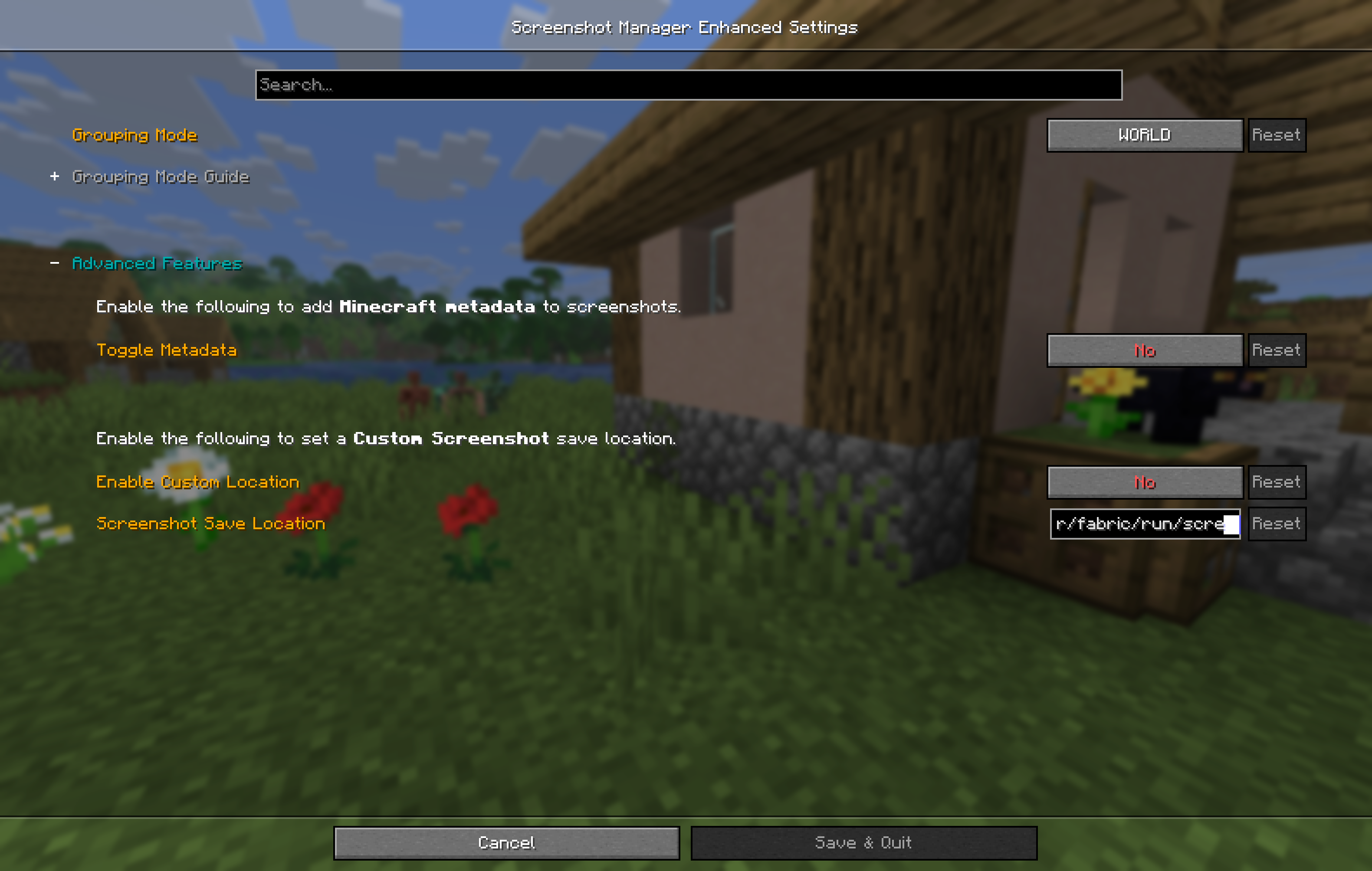 Setting Menu: Advanced Features In the Advanced Features section you can enable the collection & embedding of Minecraft game metadata with every screenshot. You can also set a custom screenshot base folder so all game play can be store into your desired location
 -
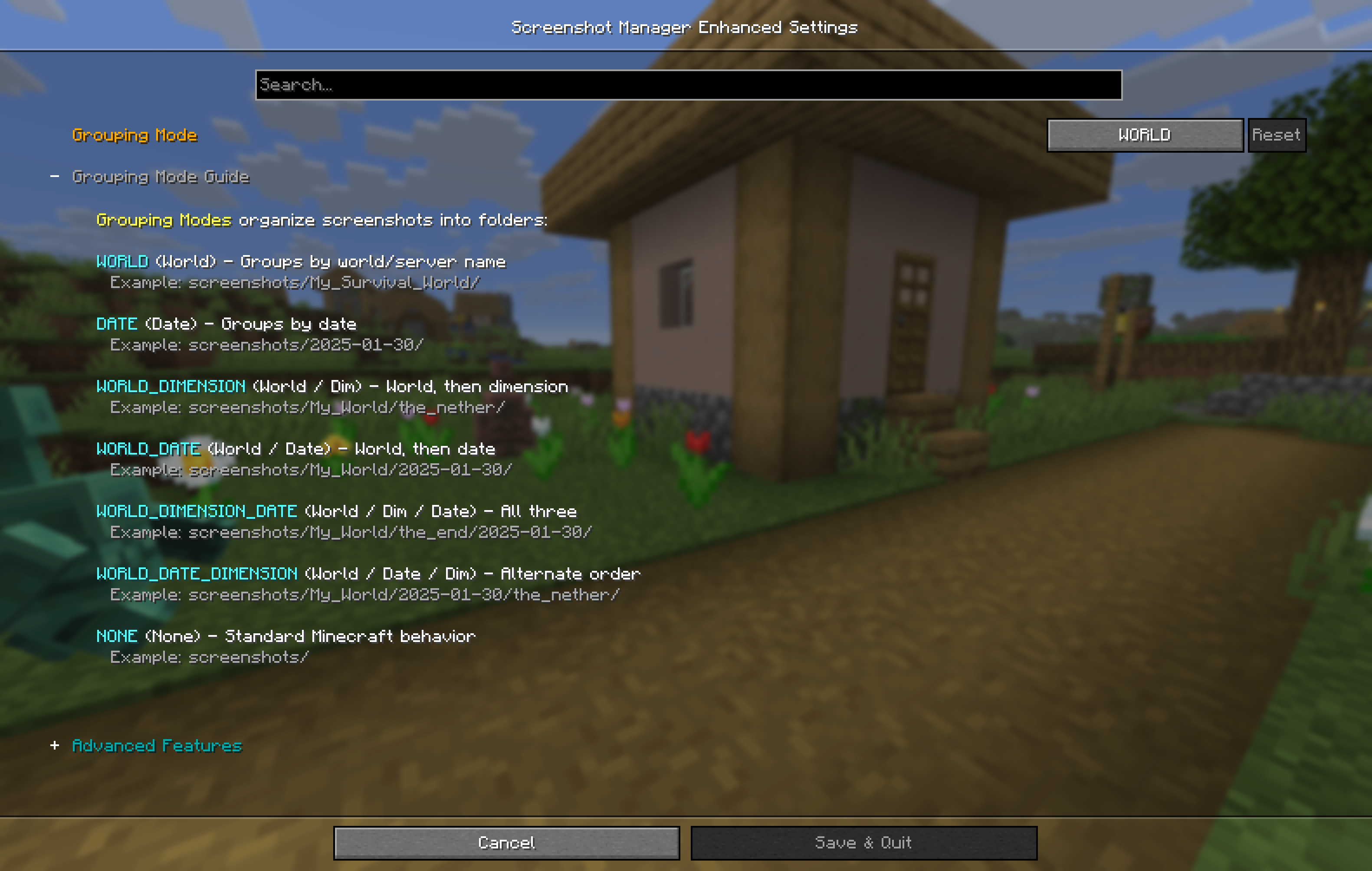 Setting Menu: Grouping Help Showing the help information for how screenshot grouping works
 -
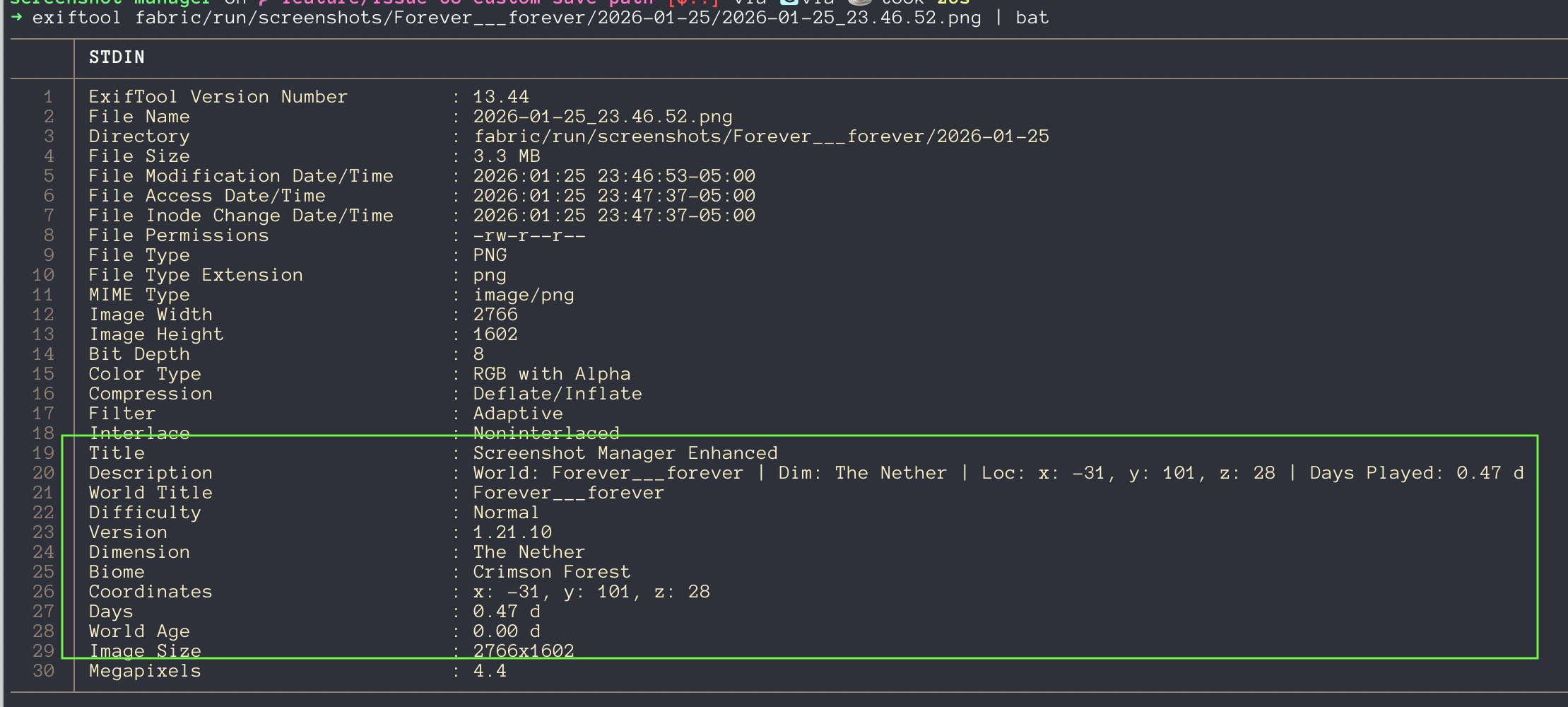 Screenshot Metadata Example The image shows the use of exiftool to view the screenshot embedded additional metadata from the game.
 -
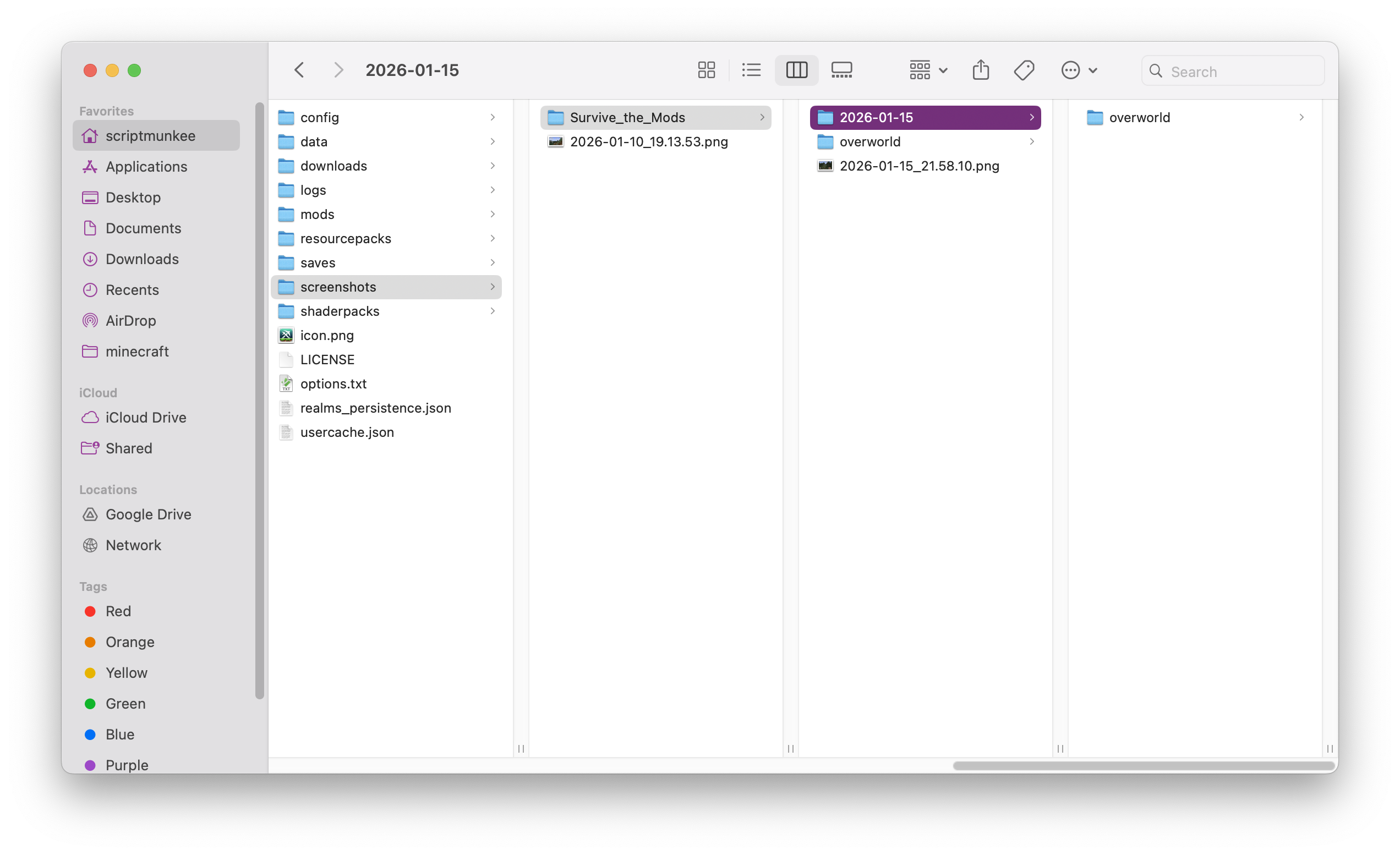 Screenshot Organization Example Screenshot of a File Manager showing an example of how the various save options will organize screenshots.
Versions
Files
Relations
Project Relations
More like this
Similar Mods
Suggestions use data such as tags, dependencies, dependents, descriptions, titles, and more to rank how much they overlap with this mod.
On ModDex
Community snapshot
By the numbers
Statistics

Want to reach Minecraft players?
We're looking for a server hosting partner to feature here and other parts of the site. Interested? Send us a message!
Get in touchGet it on
Available Platforms
On ModDex
Community snapshot
By the numbers