
Community listing page, reviews may not be monitored by the author.
senthryX

No reviews yet
A server-side mod that implements a username-IP-based whitelist system, enforcing access control based on both username and IP address. Includes Discord bot integration for convenient server management.

Community voices
Reviews
No reviews yet. Be the first to review this project!
Get it on
Available Platforms
Compatibility
Supported Environments
Runs entirely on the server. Also works in singleplayer.
About
Project Details
For authors
Embed Badge
If you're the author of this project, you can embed a live badge anywhere that supports HTML or Markdown. It updates automatically whenever ratings change.
Use HTML for any page that supports it, or Markdown for README files and Markdown-based descriptions.
Identifiers
Platform IDs
Resources
External Links
About
Description
Disclaimer: > This mod collects and logs player IP addresses solely for the purpose of maintaining server integrity, and enforcing username-IP-based access control. All collected data is used exclusively for the features provided by this mod.
Before using this mod, server administrators must ensure:
Player Consent: Players must be informed and acknowledge that their IP addresses will be collected and linked to their usernames for access control.
Data Use: Collected IPs are used solely for access enforcement and are stored internally — never shared outside the server staff.
Data Security: Server owners are responsible for securing this information and ensuring only authorized administrators have access.
Description
SenthryX is a server-side whitelist mod that binds usernames to specific IP addresses. It enforces strict access control by allowing only whitelisted and trusted players to join the server. This prevents unauthorized access, blocks login attempts from unbound IP addresses, and protects against username spoofing. SenthryX is especially recommended for servers running in offline mode. It also supports multiple IP bindings per player, making it compatible with dynamic IP addresses. For added convenience, SenthryX integrates with a Discord bot that provides real-time alerts for failed login attempts and enables server management through bot commands, the bot integration can also be disabled.
Features
-
Access control based on username and IP address
-
Whitelist players by username and IP using commands like
whitelist_add player1 127.0.0.1(Discord) orsenthryx whitelist add player1 127.0.0.1(console). -
Players can only connect from approved IPs tied to their usernames; multiple IPs per user are supported.
-
Blocks connection attempts from unknown players or unapproved IPs.
-
Supports adding new IPs for users with dynamic addresses.
-
Discord bot integration:
- Access attempt alerts.
- Manage whitelist entries directly from Discord.
- Enable or disable Discord bot feature as needed.
-
Installation guide
-
Download the Mod
- Download the mod here.
-
Install the Mod
-
Place the downloaded mod file into the
modsfolder within your Minecraft directory. -
In
server.properties, it’s recommended to disable the built in whitelist (white-list=false) to allow the mod to fully handle access control based on usernames and IPs.- Optionally, you can leave the built in whitelist enabled for an additional layer of security, but this is not required.
-
-
Initial Server Startup
- Start or restart your server. On the first startup, an error is expected—this is normal. During this process, a file named
config.jsonwill be generated in theconfig/senthryXdirectory.
- Start or restart your server. On the first startup, an error is expected—this is normal. During this process, a file named
-
Configure the Discord bot if you want to enable the Discord integration feature. See the details for step by step process below.
-
Configure the Mod
- Open the
config.jsonfile and adjust the settings as needed. Refer to the Configuration Values section below for guidance.
- Open the
-
Restart the Server
- Once you’ve configured the config.json file, restart your server to apply the changes.
Configuration Values
Click to expand
To configure, navigate to /config/senthryX/config.json
| Key | Value | Description |
|---|---|---|
| activate | boolean | Enables or disables the mod. Set to true to enable, or false to disable it. |
| enable_discord | boolean | Enables or disables Discord integration. Set to true to use the Discord bot, or false to turn it off. |
| bot_token | String | Your Discord bot token. Required for the bot to connect to your Discord server. |
| admin_channel_id | String | ID of the Discord channel where admins can run commands like whitelisting players. |
| enable_public_logging | Boolean | Enables or disables public logging. Set to true to post logs in a public channel. |
| public_log_channel | String | ID of the Discord channel where public logs will be sent. |
| admin_ids | Array of Strings | A list of Discord user IDs who have admin permissions for using bot commands. |
| presence | String | Custom status text shown by the Discord bot (e.g., “Watching the server”). |
| kick_message | String | Message shown to players who are not whitelisted. You can customize this. |
| unknown_ip_message | String | Message shown to players connecting from an unknown IP address. You can customize this. |
Console Commands
Click to expand
| Command | Usage |
|---|---|
/senthryx whitelist add <username> <ip> |
Command for whitelisting a player. |
/senthryx whitelist remove <username> |
Command to remove a player from whitelist entry. |
/senthryx ip add <username> <ip> |
Command to add a new ip for player. |
| /senthryx reload | To reload the player list in case of editing player list file manually |
| /senthryx count | To count total whitelisted players. |
Discord Admin Commands
Click to expand
| Command | Usage |
|---|---|
/whitelist_add <username> <ip> |
Command for whitelisting a player. |
/whitelist_remove <username> |
Command to remove a player from whitelist entry. |
/add_ip <username> <ip> |
Command to add a new ip for player. |
| /player_count | To count total whitelisted players. |
Configure Discord Bot
Click to expand
Step 1: Create a Discord Bot
-
Go to the Discord Developer Portal
-
Click "New Application", give it a name (e.g., MinecraftBot), and click Create.
-
In the left sidebar, go to Bot → Click Add Bot → Confirm by clicking Yes, do it!.
Step 2: Get the Bot Token
-
Under the Bot section, click "Reset Token" or "Copy" under the Token field.
-
Save this token somewhere secure — you'll need it in the config file(Do not share this token. It gives full control of your bot.).
Step 2: Get the Bot Token
Still under the Bot section:
-
Scroll down to Privileged Gateway Intents.
-
Enable: - Presence Intent
-
Prensence Intent
-
Server Members Intent
-
Message Content Intent
-
-
Click Save Changes at the bottom.
Step 4: Invite the Bot to Your Discord Server
-
Go to the OAuth2 → URL Generator section.
-
Under Scopes, check:
- bot
-
Under Bot Permissions, check:
-
Send Messages
-
Read Message History
-
-
Copy the generated URL and open it in your browser.
-
Select your server and click Authorize.
Step 5: Configure Your config.json File
- Now edit the
config.jsonfile located in /config/setrix/. Here’s an example:
Screenshots
Gallery
-
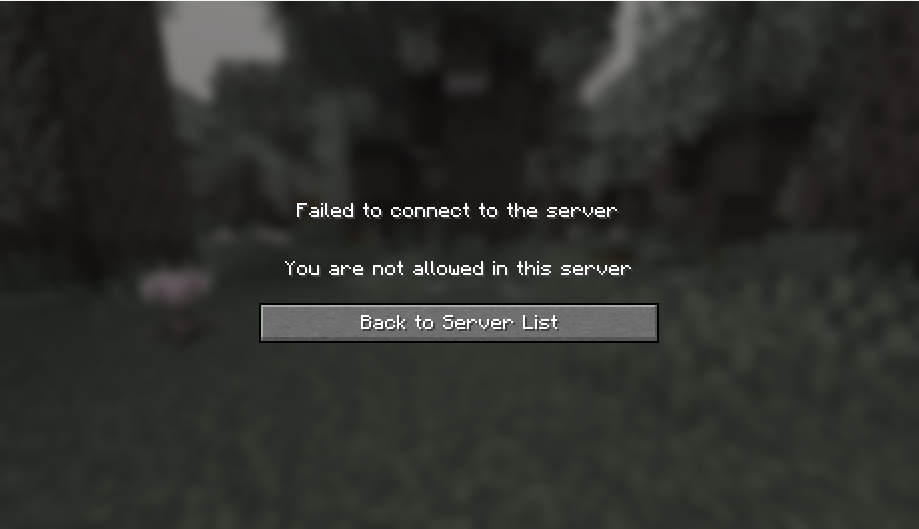 Failed server access by non-whitelisted player.
 -
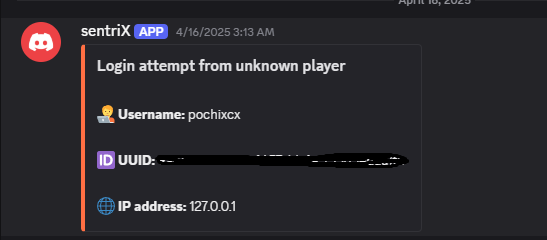 Discord access attempt alert message for non whitelisted player
 -
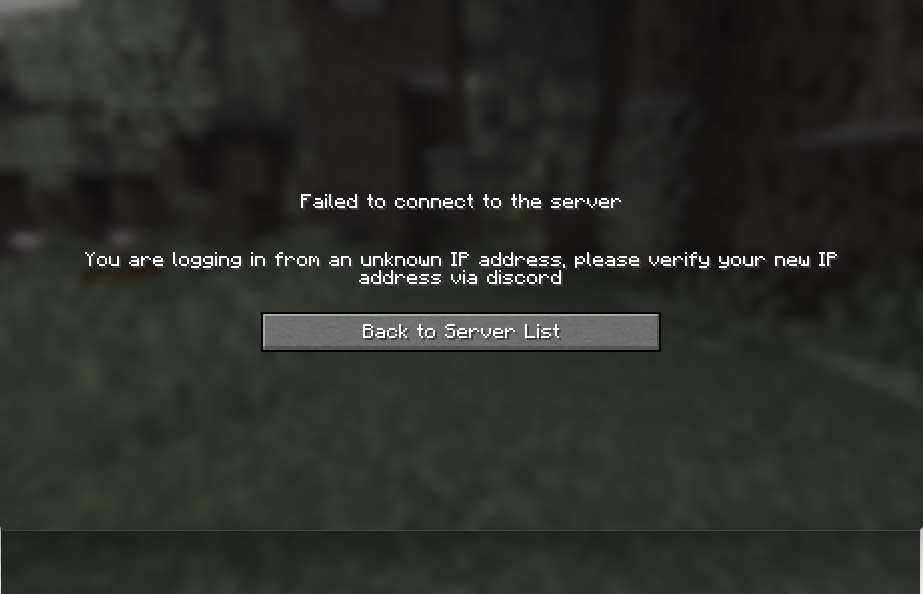 Failed access by whitelisted player from unbound IP
 -
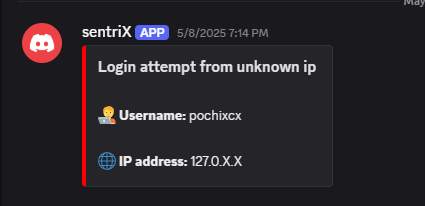 Discord access alert from unbound IP IP is obfuscated for this alert to protect player privacy.
Versions
Files
Relations
Project Relations
More like this
Similar Mods
Suggestions use data such as tags, dependencies, dependents, descriptions, titles, and more to rank how much they overlap with this mod.
On ModDex
Community snapshot
By the numbers
Statistics


Get it on
Available Platforms
On ModDex
Community snapshot
By the numbers
Statistics
Resources