
Snapmatica
No reviews yet
Pro-grade photography, strictly client-side.
Provides a framework or library for other mods to use.
Fabric is a mod loader for versions 1.14+ of Minecraft, particularly popular for client side and optimization mods.
Community voices
Reviews
Click once to include, again to exclude, again to clear
No reviews yet. Be the first to review this project!
Get it on
Available Platforms
 Modrinth
Compatibility
Supported Environments
About
Project Details
For authors
Embed Badge
If you're the author of this project, you can embed a live badge anywhere that supports HTML or Markdown. It updates automatically whenever ratings change.
Use HTML for any page that supports it, or Markdown for README files and Markdown-based descriptions.
Identifiers
Platform IDs
About
Description
Snapmatica
"Transform your Minecraft screenshots into true photography."
Snapmatica is a premium photography and cinematic video recording mod that strictly replicates the authentic operation and immersive experience of a real-world camera inside Minecraft. Created as the sister mod to the acclaimed Photographica.
Since Snapmatica is a purely client-side mod (Client-only), you can freely bring it into your favorite multiplayer servers or modpacks without needing any server-side installations! It is also fully compatible with Photon Shader and Distant Horizons (DH).
Uncompromising Camera Simulation
Just like a real mirrorless or DSLR camera, you have granular control over essential exposure settings: Aperture (F-number), Shutter Speed, and ISO. Perfect your lighting, shadows, and blur to capture your world at its absolute best.
- Advanced Manual Mode: Fine-tune every single parameter to construct dramatic, intentional compositions.
- Beginner-Friendly Auto Exposure Mode: New to photography? No problem. Simply toggle on the Auto Exposure (such as "Av" mode) and "AF" (Auto Focus), and the mod will automatically optimize the brightness for a flawless snapshot instantly.
Snapmatica
「マイクラのスクリーンショットを、本物の『写真』へ。」
Snapmaticaは、現実のカメラの操作感と撮影体験をマインクラフト内で厳密に再現した、最高峰のフォトグラフィ&シネマティック録画MODです。拙作『Photographica』の姉妹作として誕生しました。
本MODは**クライアントサイドのみで動作する(Client-only)ため、お気に入りのマルチプレイサーバーやModパック環境にも、サーバー側を気にすることなくそのまま導入して撮影を楽しめます!さらに、PhotonシェーダーやDistant Horizons (DH)**にも対応しています。
妥協なきカメラシミュレーション
本物のミラーレス一眼やDSLRカメラさながらに、F値(絞り)、シャッタースピード、ISO値といった露出の要素を詳細にコントロール可能です。光と影、飾らないボケ味をチェンジして、あなたのワールドを最も美しい状態で切り取ることができます。
- 本格マニュアルモード:各数値を自分で追い込み、意図した通りのドラマティックな1枚を構築。
- 初心者向けオート露出モード:カメラに詳しくない方でも安心。「Av(絞り優先)」などのオート露出や「AF(オートフォーカス)」に設定するだけで、MODが自動で最適な明るさに調整し、一瞬で最高のスナップを撮影できます。
Snapmatica - Controls & Usage Guide
🇺🇸 English
Some of Snapmatica's controls can be customized via the standard in-game "Controls" menu. Below is the manual for default keybindings and primary operations.
Controls
| Action | Input |
|---|---|
| Open Config Screen | Unassigned ←Please assign a key in the settings! |
| Toggle Viewfinder Mode | , |
| Open Camera Mode (Viewfinder) | Shift |
| Take Photo (Shutter) | Enter |
| Adjust Focal Length (Zoom) | Shift+Mouse Wheel |
| Adjust Aperture (F-number) | Shift+Ctrl+Mouse Wheel (Depending on mode) |
| Adjust Shutter Speed | Shift+Alt+Mouse Wheel (Depending on mode) |
| Fine-tune Focus Distance | Shift+Ctrl+Alt+Mouse Wheel (Depending on mode) |
| Start Video Recording (Open Config) / Stop | R |
Usage & Instructions
1. Entering Camera Mode & Composing
- Configure your preferences via the Snapmatica settings screen. (If you are unsure about the options, set the top two settings to "Av" and "AF" from the top.)
- Press the Shift key to switch into the dedicated viewfinder (EVF) overlay screen.
- Move your mouse to aim at your subject, and scroll the mouse wheel up or down to adjust your zoom (focal length).
2. Auto Focus (AF) & Capturing
- When AF is enabled, the camera automatically focuses on the object or entity at the center of the screen (near the crosshair), or any target with high screen occupancy.
- Once focus is achieved, the background or foreground will blur in real-time (Depth of Field effect). By adjusting the F-number, you can fine-tune both the overall brightness and the intensity of the blur.
- Once your shot is composed, press Enter to release the shutter and capture the photo.
3. Instant Sharing via Clipboard
- When a photo is captured, it is saved as a png file in the "snapmatica/photos" folder inside your game directory, and automatically copied to your clipboard at the exact same time. (Verified to work on Windows only)
- After taking a shot, you can keep the game running, switch to external apps like Discord or X, and press
>Ctrl + V<or right-click and paste to share your high-quality capture.
4. Video Recording (Beta)
- Press R to bring up the video recording settings screen.
- Configure your desired F-number and FPS value, then click the REC button to start recording.
- A dedicated Recording HUD will be displayed on screen during the capture so you can monitor your current status.
- Press the same key again to stop and save your recording.
- The video goes through a brief encoding phase before being saved. You can track the encoding progress status at the top of your screen.
- The finalized video file will be saved in "snapmatica/videos". Just like photos, it will also be automatically copied to your clipboard.
🇯🇵 日本語 (Japanese)
Snapmaticaの一部操作は、ゲーム内の「設定」 > 「キー割り当て」から変更可能です。以下はデフォルトおよび主要な操作手順のマニュアルです。
基本操作方法 (Controls)
| 操作内容 | 入力方法 |
|---|---|
| 設定画面表示 | 未割当 ←設定画面から割り当てて下さい! |
| ファインダー起動切り替え | , |
| カメラモード(ファインダー)の起動 | Shift |
| シャッター(静止画撮影) | Enter |
| 画角(ズーム)調整 | Shift+マウスホイール |
| F値設定 | Shift+Ctrl+マウスホイール(設定やモードによる) |
| シャッタースピード設定 | Shift+Alt+マウスホイール(設定やモードによる) |
| フォーカス距離の微調整 | Shift+Ctrl+Alt+マウスホイール(設定やモードによる) |
| ビデオ録画の開始(設定画面表示) / 停止 | R |
実際の操作手順と仕様
1. カメラモードの起動と構図調整
- Snapmatica用設定画面から撮影の設定をします。(わからない人は下の二つを上から「Av」と「AF」にしてください。)
- Shiftキーを押すと、専用のファインダー(EVF)オーバーレイ画面へと切り替わります。
- マウスを動かして被写体にカメラを向け、マウスホイールを前後に回転させることで、画角(ズーム)を調整できます。
2. オートフォーカス(AF)と撮影
- AF設定をしている場合、画面中央(クロスヘア付近)にあるオブジェクトやエンティティ、もしくは画面占有率の高いオブジェクトに対して、自動的にピントが合います。
- ピントが合うと、背景や手前がリアルタイムでボケます(被写界深度エフェクト)。F値を設定することで、全体の明るさやボケ感を調整できます。
- 構図が決まったら、Enterを押すことでシャッターが切れ、静止画が撮影されます。
3. 撮影した画像の共有(クリップボード転送)
- 静止画を撮影すると、起動構成ファイル内の「snapmatica/photos」フォルダにpngが保存されると同時に、自動的にクリップボードへ画像データがコピーされます。(Windowsでのみ動作確認)
- 撮影後、ゲームを開いたままの状態でDiscordやXなどのアプリやブラウザを開き、
>Ctrl + V<もしくは右クリックからペーストを押すことで、撮影した画像をペーストできます。
4. 録画機能(β)
- Rを押すと、録画設定画面が開きます。
- F値とFPSを設定し、RECボタンを押すと撮影が開始します。
- 録画中は専用の録画HUDが画面上に表示され、ステータスを確認できます。
- 再び同じキーを押すことで、録画を停止・保存できます。
- 動画は短時間のエンコードを挟んで保存されますステータスは画面上部に表示されます。
- 出力動画は「snapmatica/videos」に保存されるほか、写真と同様クリップボードに自動コピーされます。
Screenshots
Gallery
-
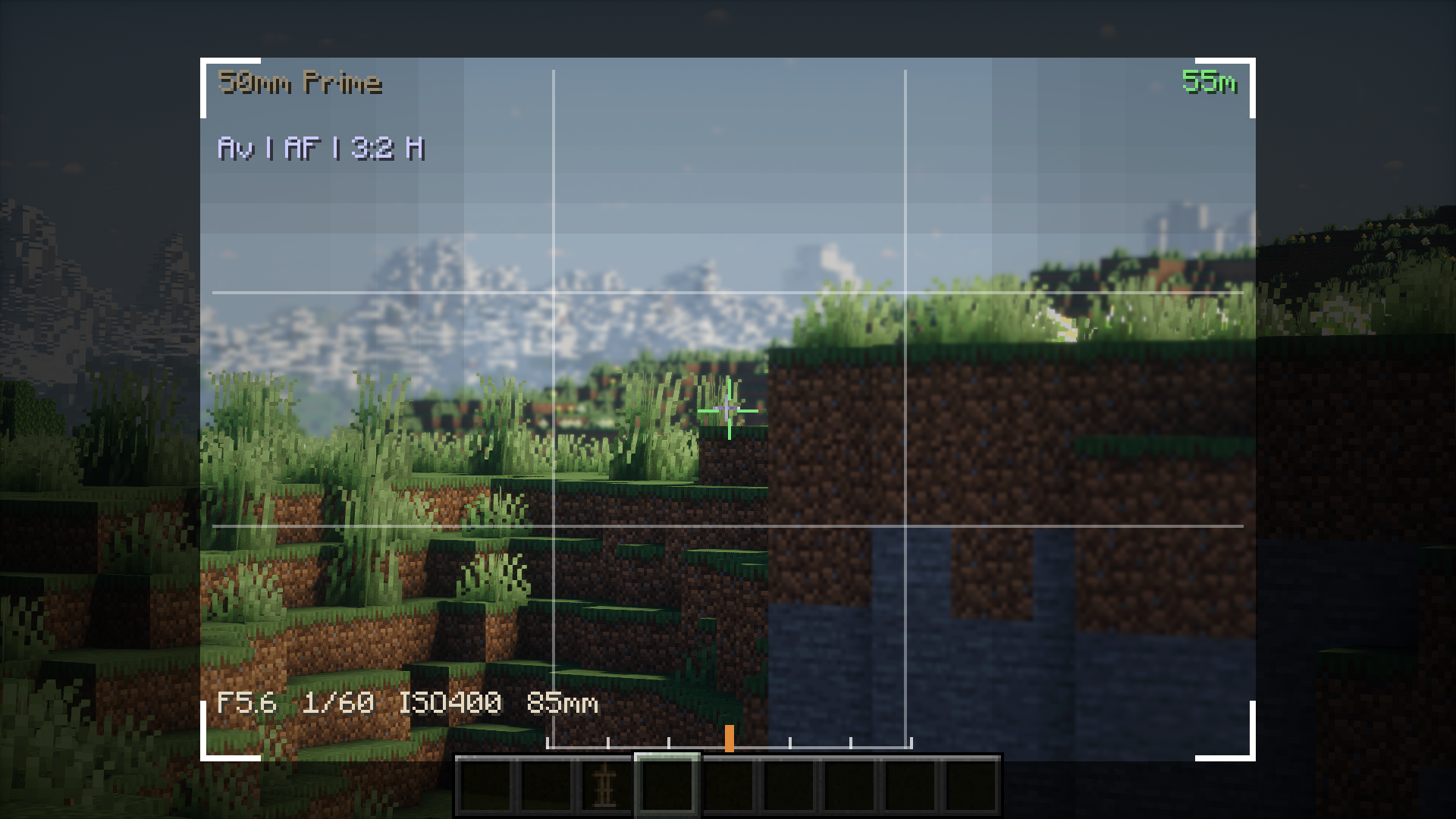 finder
 -
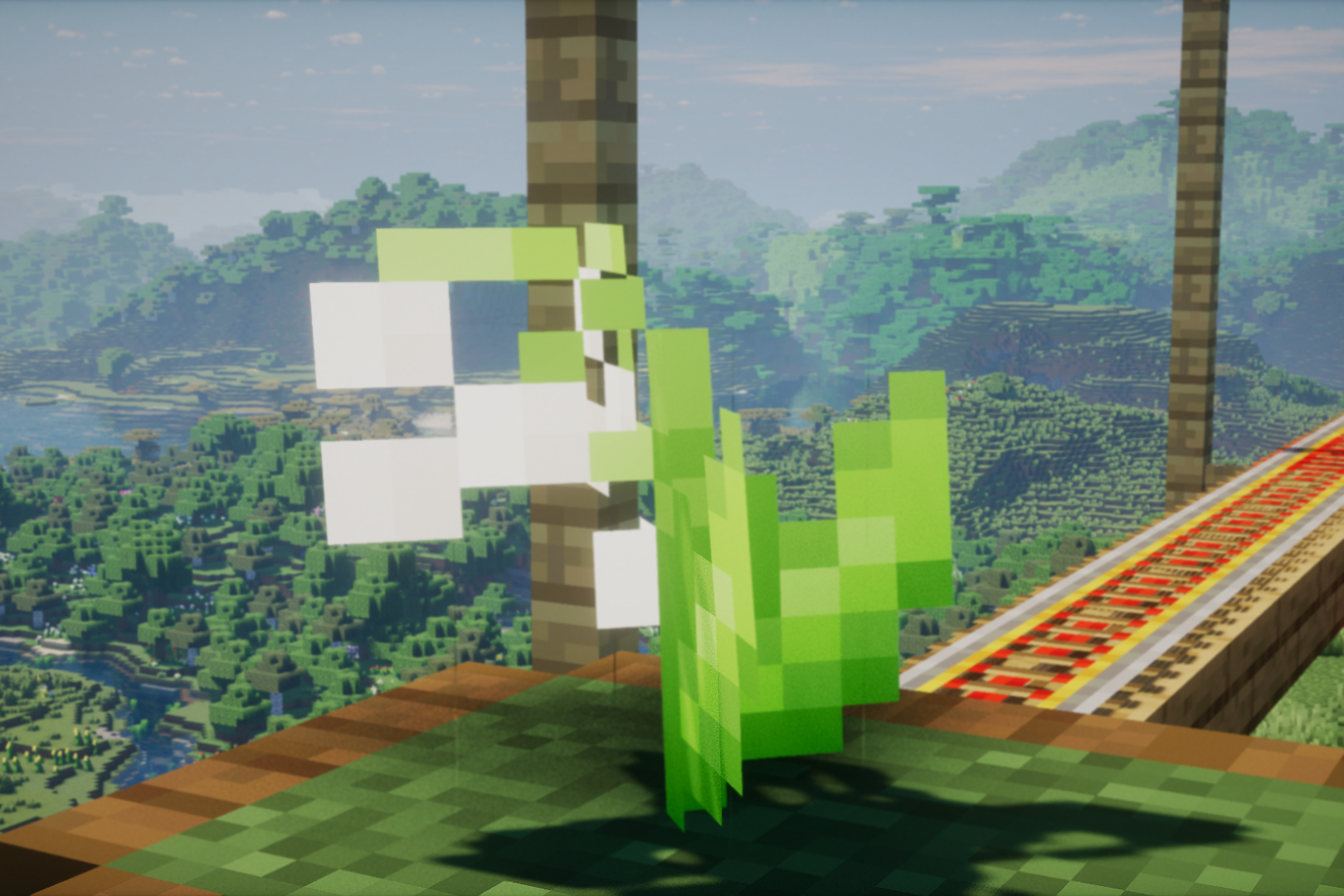 output photo B
 -
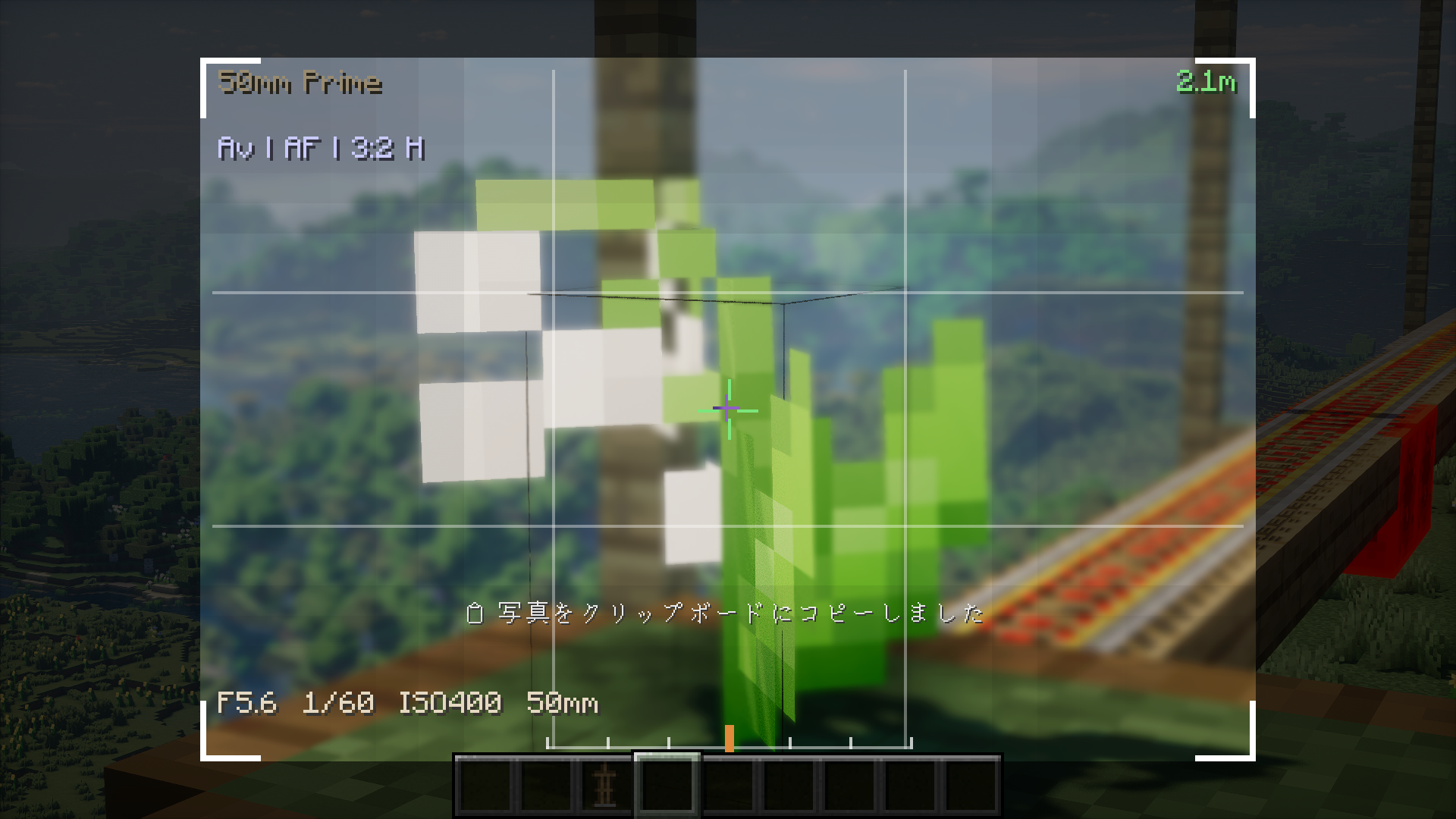 finder
 -
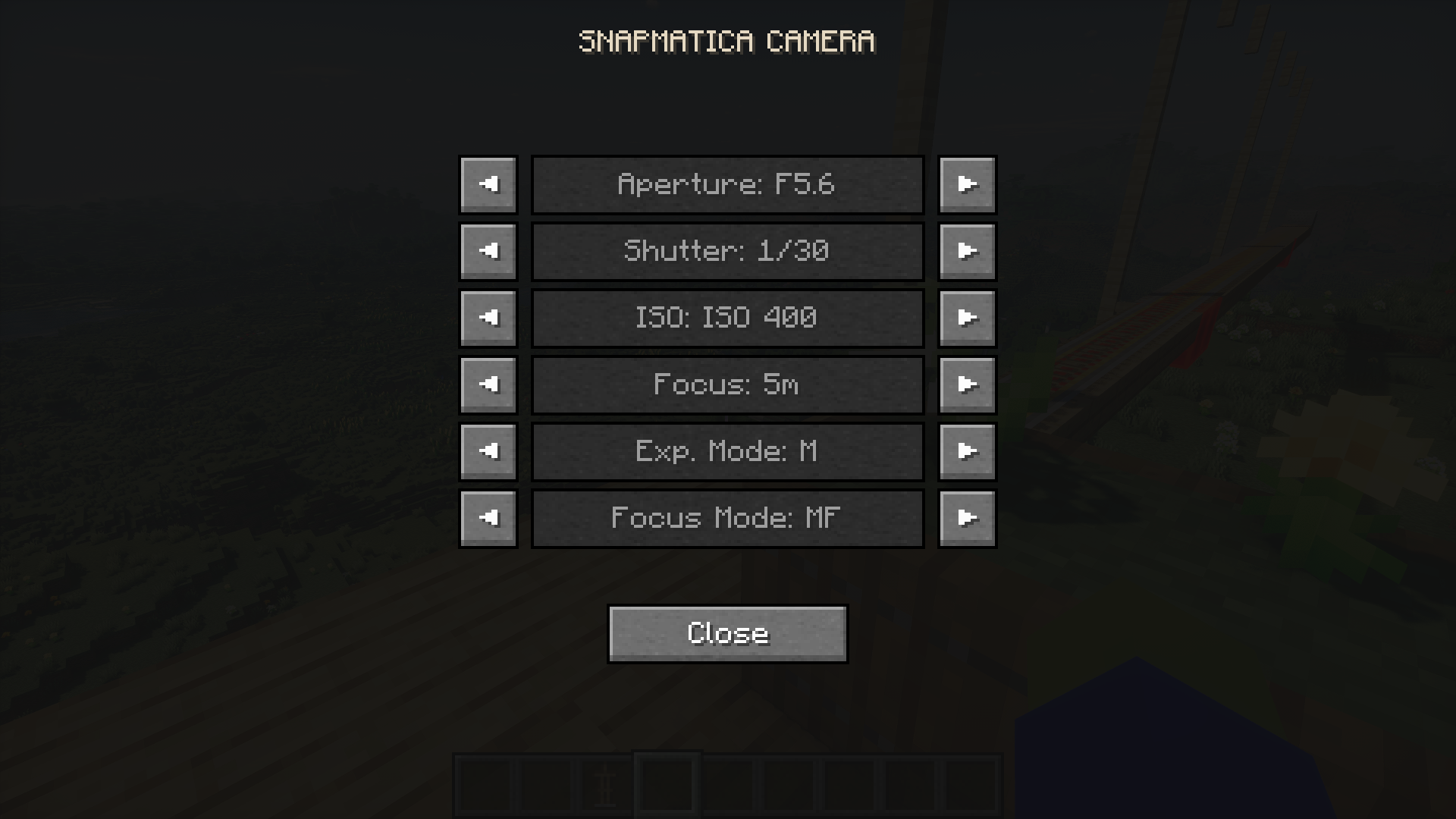 Settings screen
 -
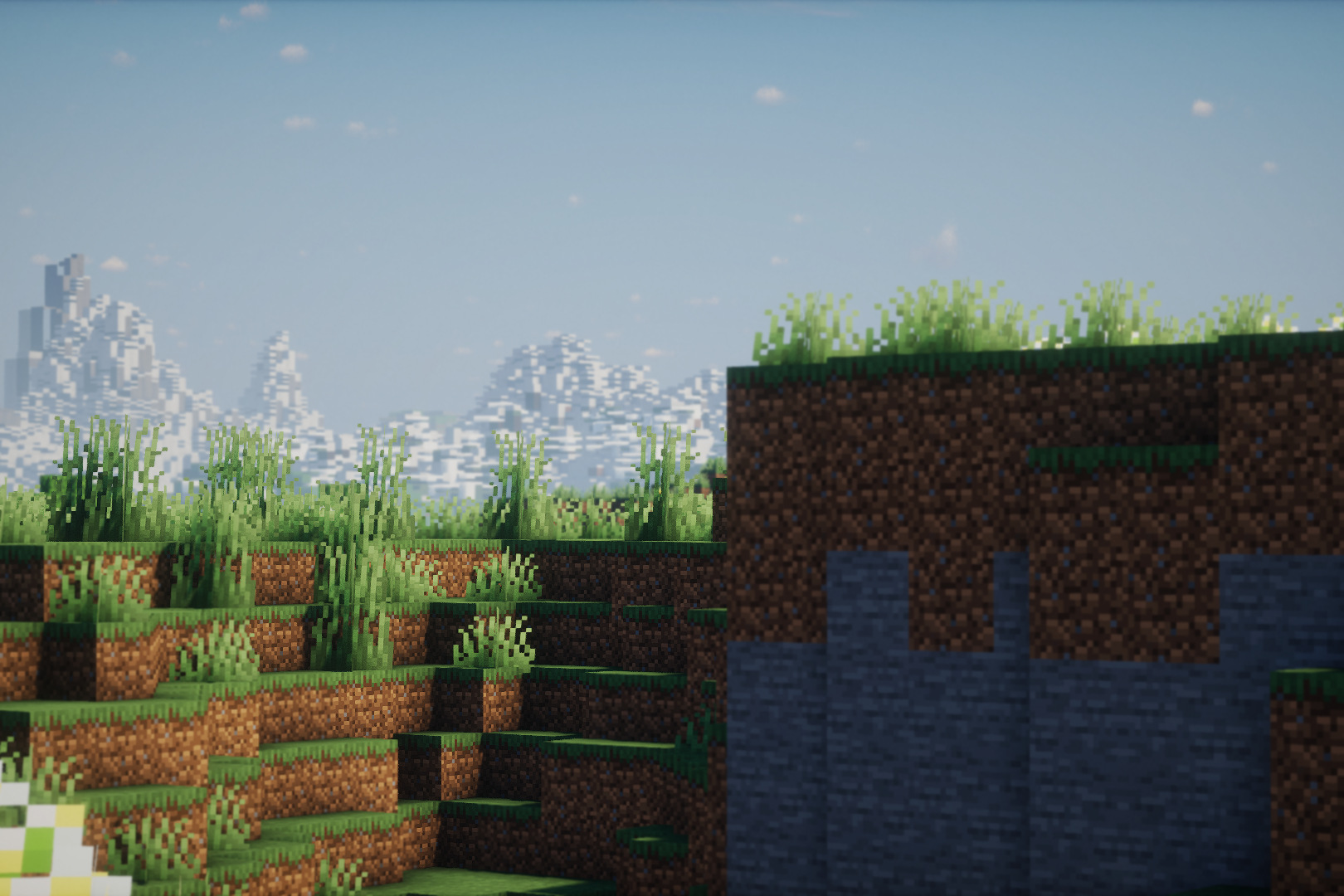 output photo A
 -
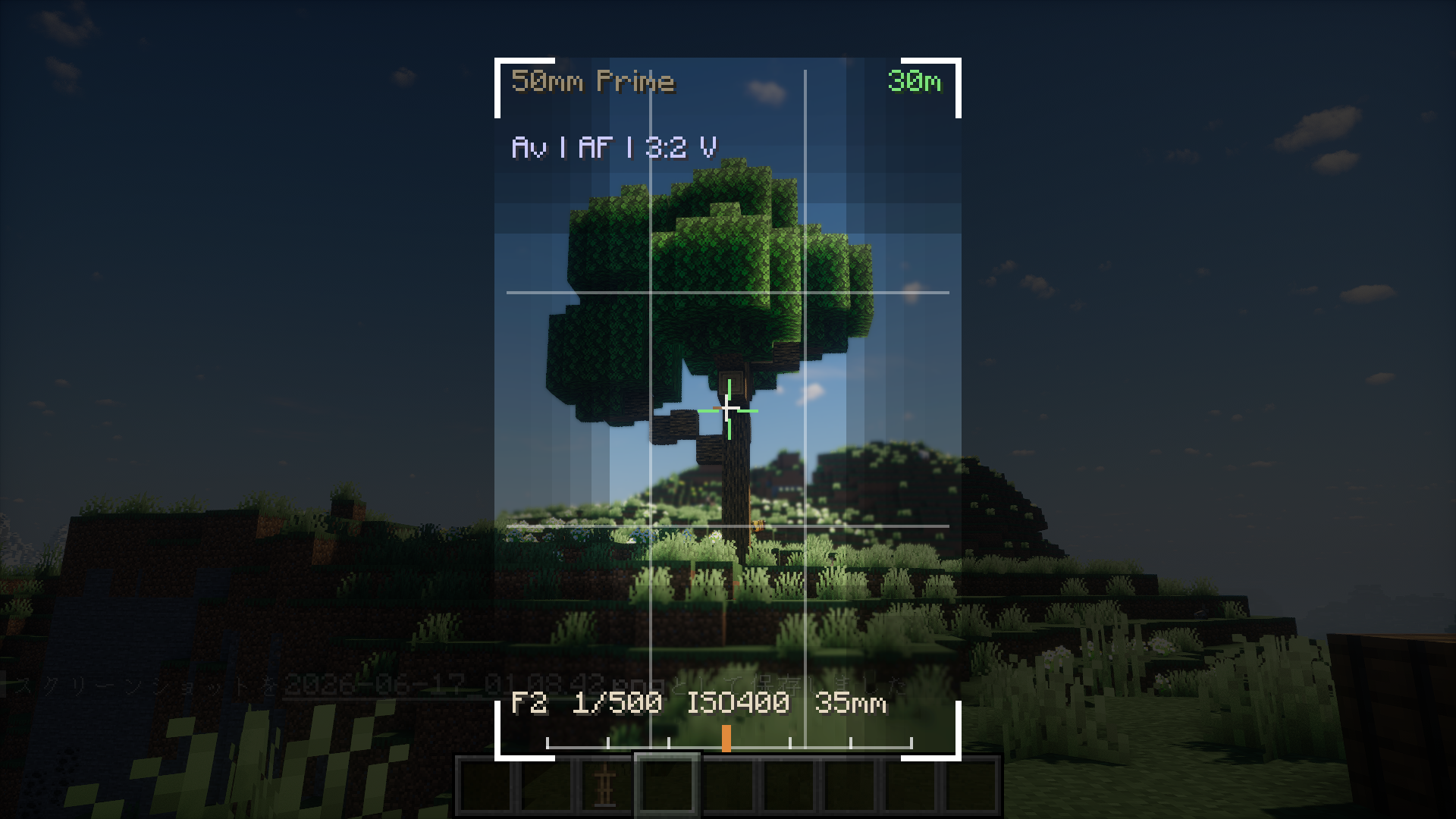 finder
 -
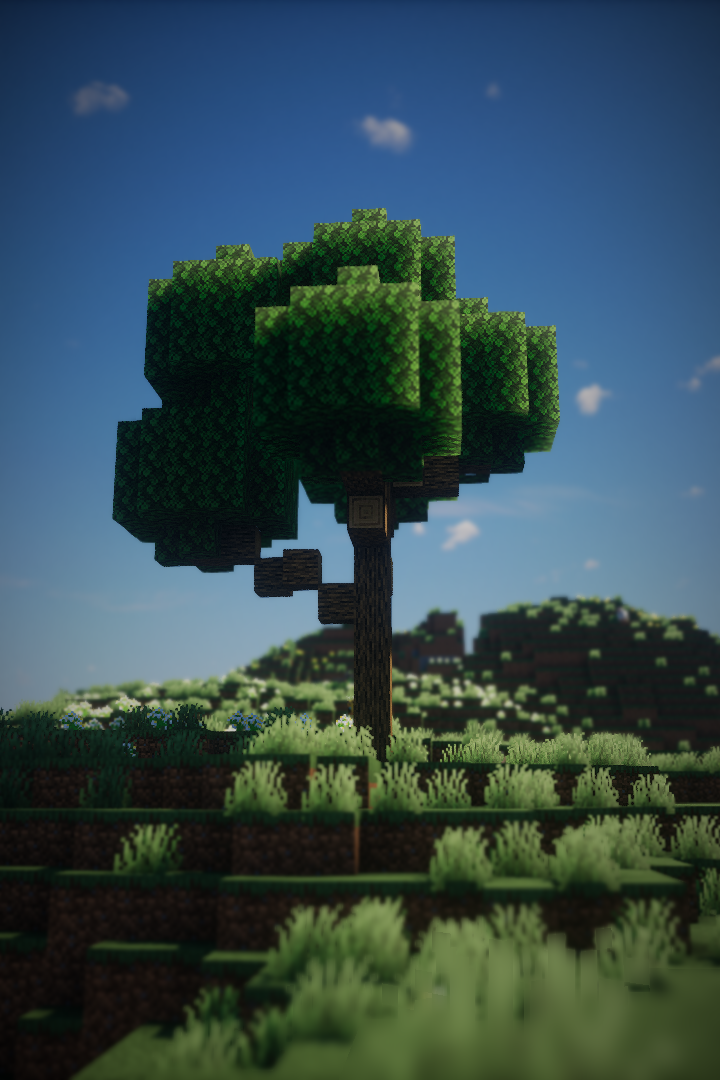 output photo C
Versions
Files
Relations
Project Relations
More like this
Similar Mods
Suggestions use data such as tags, dependencies, dependents, descriptions, titles, and more to rank how much they overlap with this mod.
On ModDex
Community snapshot
By the numbers
Statistics

Want to reach Minecraft players?
We're looking for a server hosting partner to feature here and other parts of the site. Interested? Send us a message!
Get in touchGet it on
Available Platforms
On ModDex
Community snapshot
By the numbers