
Standby Speedrun Mod
No reviews yet
A Parkour Speedrun Tool to see Runticks and set custom Splits
Fabric is a mod loader for versions 1.14+ of Minecraft, particularly popular for client side and optimization mods.
Community voices
Reviews
Click once to include, again to exclude, again to clear
No reviews yet. Be the first to review this project!
Get it on
Available Platforms
 Modrinth
Compatibility
Supported Environments
About
Project Details
For authors
Embed Badge
If you're the author of this project, you can embed a live badge anywhere that supports HTML or Markdown. It updates automatically whenever ratings change.
Use HTML for any page that supports it, or Markdown for README files and Markdown-based descriptions.
Identifiers
Platform IDs
Resources
External Links
About
Description
Standby Speedrun Mod
This Mod is a useful tool for Minecraft parkour speedrunning!
-
Show a counter that displays how many ticks have passed since your last jump, and freely customize its position and color.
-
Create custom splits for maps and use them to compare against your personal best.
-
The mod also tracks your stats for every split, which you can view on a website that visualizes them in detail.
-
Additionally, there are many other features you can access through commands.
List of All Commands
General
/+help [page/command]
→ Lists all commands (3 Pages)
→ Shows help for a specific command
Counter Settings
/+counterpos [x] [y] [alignment (L/R/C)]
→ Sets counter position and alignment
/+visibility [global (0/1)] [normal (0/1)] [hide_if_zero (0/1)]
→ Sets visibility of each counter.
→ global shows how many total ticks you ran in your speedrun (only resets on startpos touch)
→ normal shows how many total ticks you ran since your last jump/landing.
/+color [hexCode] [bold (0/1)]
→ Changes counter color to hexCode (without #)
→ Make the Counter bold or not
Start / End Setup
/+startpos [allowRun (0/1)] [radius]
→ Sets position that automatically resets the counter.
→ allowRun starts the counter if out of region. (useless if global counter is disabled)
→ radius defines the region size
/+removeend
→ Removes end position
/+removestart
→ Removes start positions
/+endbox [lengthX] [lengthY] [lengthZ] [alignment (center/off/on)] [posX] [posY] [posZ]
→ Defines a precise box that ends the timers.
→ alignment aligns the player to center or nearest edge/corner.
→ posX, posY, posZ allows optional custom coords of the box center if desired.
/+startbox [lengthX] [lengthY] [lengthZ] [alignment (center/off/on)] [posX] [posY] [posZ]
→ Defines a precise box that starts the timers on first entry. (needs a /+startpos to reset)
→ Alignment and optional coords same as /+endbox
Splits
/+setsplit [splitNum] [lengthX] [lengthY] [lengthZ] [alignment (center/off/on)] [posX] [posY] [posZ]
→ Defines a box used to split the timer. splitNum = split sequence.
/+addsplit [splitNum] [lengthX] [lengthY] [lengthZ] [alignment (center/off/on)] [posX] [posY] [posZ]
→ Same as /+setsplit but inserts instead of overwriting existing splits.
/+savesplits [namespace]
→ Saves or overwrites your current splits as namespace
/+loadsplits [namespace]
→ Loads splits from namespace
/+copysplits
→ Copies your currently active splits to clipboard (without namespace)
/+pastesplits [namespace]
→ Saves or overwrites splits from clipboard as namespace
/+removesplits [splitNum]
→ Removes the saved split time and position of splitNum - removes it from all if empty.
/+removesplittimes [splitNum]
→ Removes the saved split time of splitNum – removes all times if empty.
/+removepbtimes
→ Removes the split times of your personal best run.
/+splitstats [splitNum]
→ Shows the split stats of splitNum – shows all split stats if left empty.
→ Additionally, links to a page with in-depth statistics about your runs.
/+togglesplitmode
→ Toggles between comparing against your best paces and your personal best run.
/+hidesplits [ListOfSplits (example: 3,4,7)]
→ Hides the split messages in chat
→ Hides all if -1 / shows all if empty
Miscellaneous
/+togglechat
→ Toggles visibility of the chat (custom mode that only shows essential info)
/+toggleblacklist
→ Toggles the visibility of the blacklist (can be edited in the config file)
/+toggleplayers
→ Toggles visibility of players (only for versions 1.21.4 and lower)
/+toggletimeformat
→ Toggles the time format in the split comparison from ticks/formatted time
/+facing [set/clear]
→ Sets or clears the facing after restarting a Timolia map
/+reloadconfig
→ Reloads the config file
/+airtime
→ Returns the total airtime between command usages
/+togglecountupwhilefalling
→ Toggles if the counter counts up after dropping from an edge
/+jnrkit
→ Gives you a Set Checkpoint and Respawn item
/+pracpos [radius]
→ Sets the practice position to your current position with radius (check splits multiple times without restarting)
/+openconfig
→ Opens the config file
(some useless commands are not listed)
How to Setup Splits
Setting Start and End
-
Go to your spawn point
This is the position where you teleport when you reset a map (basically your spawn). -
Set the start position
Stand exactly there and run:/+startpos 1 [radius]- On Timolia, the recommended radius is 0.06 (equals one sneak tap).
- On other servers, the radius can be any value, as long as it doesn’t overlap with your start box.
-
Set a start box
Use:/+startboxThis defines exactly where the timer should start.
- On Timolia maps, this usually isn’t necessary because the timer starts automatically when you start moving.
- It’s useful for maps where the timer should start when you enter a specific area.
- If you leave the command empty, it selects only the block you’re standing on.
- To define a larger or more precise region, use:
Everything up to alignment is relevant — the position arguments (/+startbox [lengthX] [lengthY] [lengthZ] [alignment (center/off/on)] [posX] [posY] [posZ]posX,posY,posZ) are usually optional and can be skipped. - Because start areas are often taller than a single block, you should usually set lengthY to 2 (or higher).
- If your timer doesn’t start at around
.3/.7of a block but only at.0, set the length to 0.4 instead of 1 (since1 - 0.6 = 0.4, subtracting 0.3 on both sides).
-
Set the end box
Go to the end point of the map** — exactly where the server or map normally stops the timer — and run:/+endbox- If you leave it empty, it also selects just the current block.
- To define a precise region, use:
Like with the start box, everything up to alignment is important; the position arguments are optional./+endbox [lengthX] [lengthY] [lengthZ] [alignment (center/off/on)] [posX] [posY] [posZ] - It’s also recommended to set lengthY to around 2, depending on the height of your end area.
- For maps where the timer stops earlier or later than expected, you can fine-tune the length values similarly to the start box.
Creating Splits
Once your start and end are set, you can add splits throughout the map.
-
Walk through the map and stop at each point where you want a split.
-
Run:
/+setsplit- This automatically assigns a split number and sets the split for your current block.
- Perfect for simple splits on single blocks.
-
For precise boxes, specify arguments manually.
Example on a 3x3 platform, standing in the middle:/+setsplit 5 3 0 3 centerExample on a 2x2 platform, while standing centered:
/+setsplit 6 2 0 2 on
Make sure you’re standing correctly in the middle of the area when using “center” or “on” alignment for accurate split boxes.
Screenshots
Gallery
-
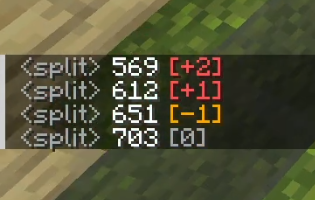 Split Text Shows split comparison in chat.
 -
 Runtick Counter Shows how many ticks passed since last jump
 -
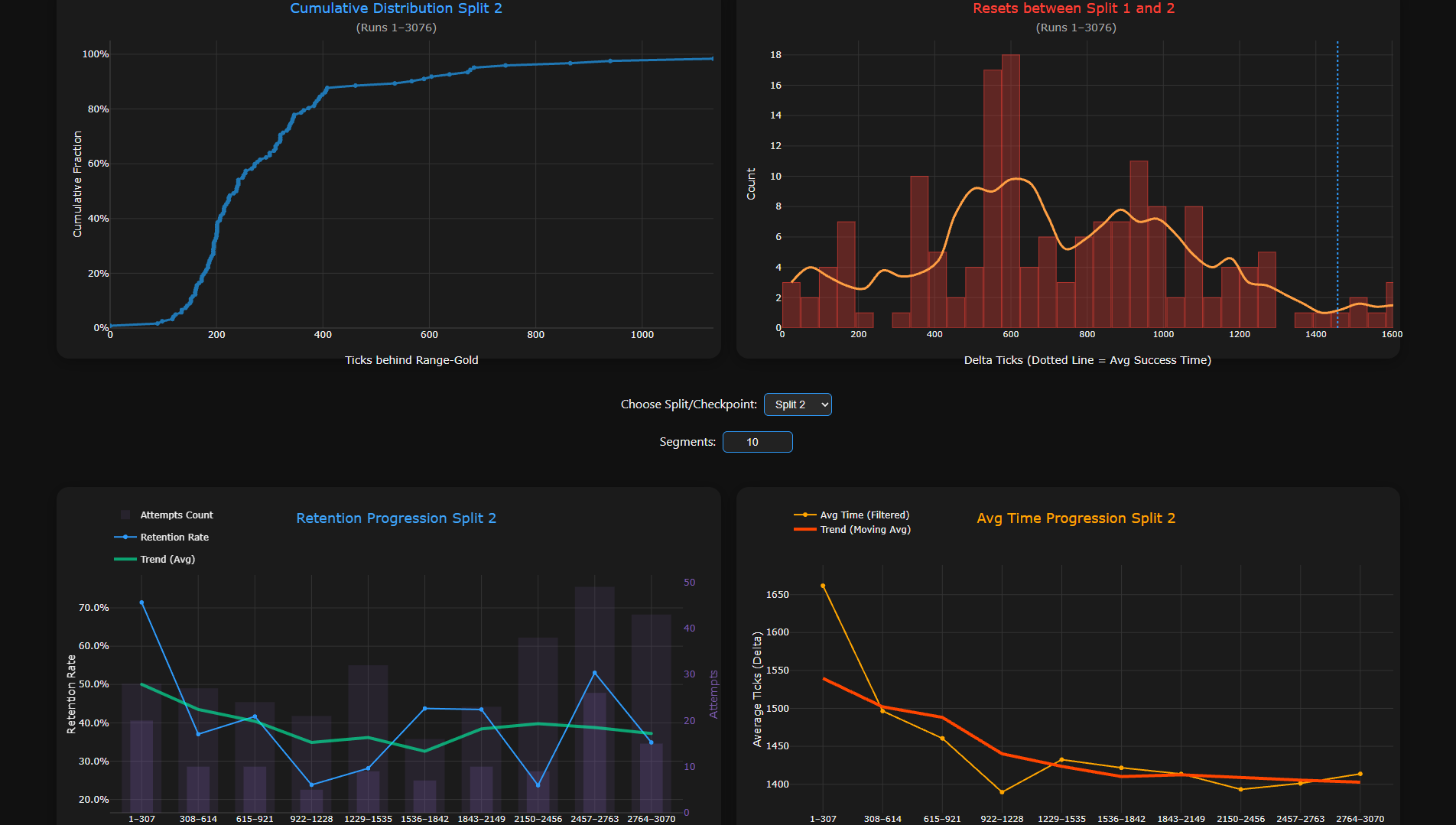 Speedrun stats visualization Website that tracks and visualizes your statistics
Versions
Files
Relations
Project Relations
More like this
Similar Mods
Suggestions use data such as tags, dependencies, dependents, descriptions, titles, and more to rank how much they overlap with this mod.
On ModDex
Community snapshot
By the numbers
Statistics

Want to reach Minecraft players?
We're looking for a server hosting partner to feature here and other parts of the site. Interested? Send us a message!
Get in touchGet it on
Available Platforms
On ModDex
Community snapshot
By the numbers
Statistics
Resources