Community listing page, reviews here may not be monitored by the author.
VanillaFactions

No reviews yet
VanillaFactions allows survival vanilla players an aesthetic way to make use of the /teams utility.

Community voices
Reviews
No reviews yet. Be the first to review this project!
Get it on
Available Platforms
About
Project Details
For authors
Embed Badge
If you're the author of this project, you can embed a live badge anywhere that supports HTML or Markdown. It updates automatically whenever ratings change.
Use HTML for any page that supports it, or Markdown for README files and Markdown-based descriptions.
Identifiers
Platform IDs
Resources
External Links
About
Description

VanillaFactions allows survival players to create, join, and edit teams without using the /team command (or any commands, for that matter). Features include:
- Choosing a custom team name.
- Choosing a team color from 16 options, with no restrictions on duplicate colors.
- Choosing a custom team prefix, which displays before player usernames in chat and nametags.
- Support for up to 32 teams in a server.
By default, teams prevent friendly fire between team members, and allows players to see their invisible team members.

Creating and Disbanding Factions
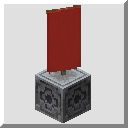
- Make a Banner.
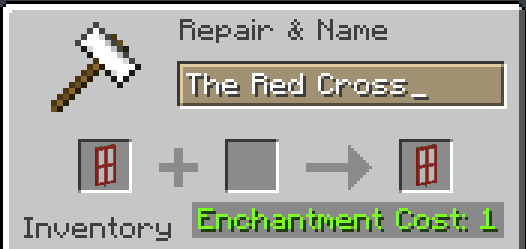
- Give the Banner a custom name in an anvil. This will be the name of your Faction.
- Place a Lodestone.
- Whilst standing directly on top of the Lodestone, look down and place your Banner on top of it.
A nametag should appear above the Banner stating your Faction's name. Additionally, a chat message will state that you have founded a Faction.

To disband a Faction, simply destroy the Banner and/or the Lodestone beneath it. A chat message will announce that your Faction has disbanded.

Joining and Leaving Factions
In order to join a Faction, simply attune a compass to the Lodestone beneath the Faction Banner. A message will be sent in chat to announce that you have joined the Faction.

In order to leave a Faction, you must drop Shears on the Faction Banner. This will also send a message in chat.

Customizing your Faction
To change the color of your Faction (affecting player usernames in chat and in nametags, as well as the color of the Glowing effect), drop a piece of Dye on the Faction Banner. A message will be sent to your team notifying them of the change.

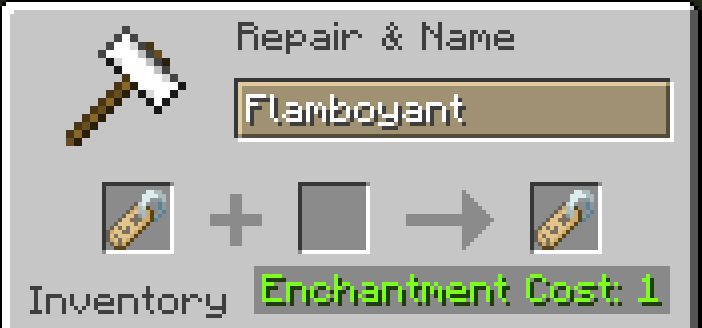
To change the player prefix for your Faction (which displays before usernames in chat and nametags), use an anvil to name a nametag your desired prefix. Then, drop the nametag on the Faction Banner. A message will be sent to your team notifying them of the change. Remember to include a space (or other delimiting character) after the prefix, or else there will be no separation between the prefix text and the username.

Screenshots
Gallery
-
 16 Teams A line of 16 different colored banners. Each displays a nametag above it that states which color team it represents. Every banner is placed atop a Lodestone.
Versions
Files
Relations
Project Relations
More like this
Similar Mods
Suggestions use data such as tags, dependencies, dependents, descriptions, titles, and more to rank how much they overlap with this mod.
On ModDex
Community snapshot
By the numbers
Statistics

 (opens in a new tab)
Get it on
Available Platforms
On ModDex
Community snapshot
By the numbers
Statistics
Resources