
Community listing page, reviews here may not be monitored by the author.
Vanilla Finest

No reviews yet
Perfect vanilla with Voxy, Atmospherics and shaders. Mac & PC.
Community voices
Reviews
No reviews yet. Be the first to review this project!
Get it on
Available Platforms
Compatibility
Supported Environments
Runs entirely on the client. Works on vanilla servers.
About
Project Details
For authors
Embed Badge
If you're the author of this project, you can embed a live badge anywhere that supports HTML or Markdown. It updates automatically whenever ratings change.
Use HTML for any page that supports it, or Markdown for README files and Markdown-based descriptions.
Identifiers
Platform IDs
Resources
External Links
About
Description
The aim of this modpack is to provide the best possible vanilla compatible experience for PC and Mac. Enjoy a beautiful, fully optimized Minecraft without spending months to set it up.
There are Survival and Creative editions. Please go to the Versions tab and select which one you prefer. Creative=Survival + Axiom, Litematica, Flashback, WorldEdit, Picture Mode, Tweakeroo, Head Browser, Armor Stands editor, Gamma utilities and Xaero's Maps
You can now create and Adventure focused new world with Dungeons & Taverns and Grim Kingdoms by selecting Adventure profile in the More/Data Packs menu during world creation! You can not switch to creative mode in this profile :-)
Key fetures:
- Opens and saves your existing Minecraft worlds from the original folder with the "1" button
- It is compatible with vanilla saves, you can keep playing in vanilla Minecraft after saving the world with this modpack
- Original vanilla experience with several quality of life improvements
- Runs well on both low- and high-end machines
- Beatiful graphics with and without shaders, see gallery
Bundled presets:
- Voxy with Atmosherics without shader, see gallery
- Complementary Shaders for Best Graphics
- Bliss for classic medieval feel
You can switch the shaders on/off by pressing F12 at any time, or choose shaders with Control+F12.
Everything is fully configured
Only minimal setup is required:
- Please allocate at least 6GB of memory. (In Modrinth app click the bottom-left gear icon ⚙️ and go to Default Game Options.) On high-end systems 16GB is recommended.
- Copy the following parameters into Java arguments field just below the memory alloacation:
-XX:+UseShenandoahGC -XX:ShenandoahGCMode=generational -XX:+UseCompactObjectHeaders -XX:+PerfDisableSharedMem
- Set your mouse sensitivity (Options/Controls/Mouse Settings)
- Choose your graphics preset in Options/Resource Packs
- Optionally set your screenshot and Litematica folders (see below)
You can easily access exising worlds in your original Minecraft folder by pressing the folder with a "1" on it next to the Single Player button.
Important instructions when creating a new world:
- I recommend opening the original Minecraft folder with the "1" button and create a new world there, so you will access it from the unmodded game.
- You can create a new world without any additional datapacks. However, I highly recommend using one the Vanilla Finest's selection, by clicking on the More tab and than Data Packs button during world creation. These packs will be automatically copied into the world save folder, so if you open the world in native Minecraft using the Microsoft Launcher, they will be still there and fully functional!
Keybinds:
- J: Autojump on/off toggle
- Y/Z: Crawl
- C: Zoom (need Spyglass)
- Control+Q: Drop items (will not drop just pressing Q for safety reason)
- H: Help, Wiki page
- Righ Control: Lock Hotbar Slot
- Alt + Mouse Wheel: set creative flight speed (only in Survival Edition, in Creative use Axiom)
- M: Xaero's World Map
- N: New Waypoint in Xaero's Minimap
- Keypad +: Quick Waypoint
- V: Enlarge Xaero's Minimap
Creative Edition keybinds:
- B: Litematica (Blueprint)
- K: Litematica execute Operation (Paste loaded schematics into the world)
- G: Toggle Fullbright
- R: Toggle replace mode
- Delete: Clear Worldedit selection
- Ins: Toggle Hotbar Randomizer (Useful when building with random textures)
- Scroll Lock: Toggle Aim Lock (Useful when taking screenshots)
- Shift+Caps Lock: Toggle Fake Sneaking (Do not fall down, useful while building)
Function keys:
- F4: Freecam
- F6,Control+F6: Toggle Accurate Block Placement, Reacharound on/off
- F7,Control+F7: Next Music Track, Toggle music on/off, Open Extreme Sound Muffler
- F8,Control+F8: Toggle Light Level Overlay, First Person Lighting on/off
- F9,Control+F9,Alt+F9: Toggle Jade, Own nametag, All nametags on/off
- F10, Control+F10: Minimap on/off, Atmospherics Menu
- F12, Control+F12: Shader on/off, Shader Selection Menu
In F5 3rd Person view:
- Arrow keys: Elytra Contrails on/off and twirls
- Alt+Mouse:reposition cursor
- Alt+Mouse Wheel: change camera distance
- Caps Lock: change shoulder
- X: targeting mode
How to set home folders:
- Open Mod Menu, ScreenShot Gallery settings, and set Custom Screenshot Directory. (My choice is the original Minecraft folder (Appdata/Roamin/.minecraft/screenshots) because this is where vanilla Minecraft saves it's screenshots.)
- Open Litematica with B, select Configuration Menu, search for customSchematicBaseDirectory (I usually just set my Documents/Minecraft folder, so I can open any schematics from there)
Thank you to Vanilla Tweaks for allowing the usage of their Resource Pack in Vanilla Finest! Credits: Vanilla Tweaks: https://vanillatweaks.net/
Screenshots
Gallery
-
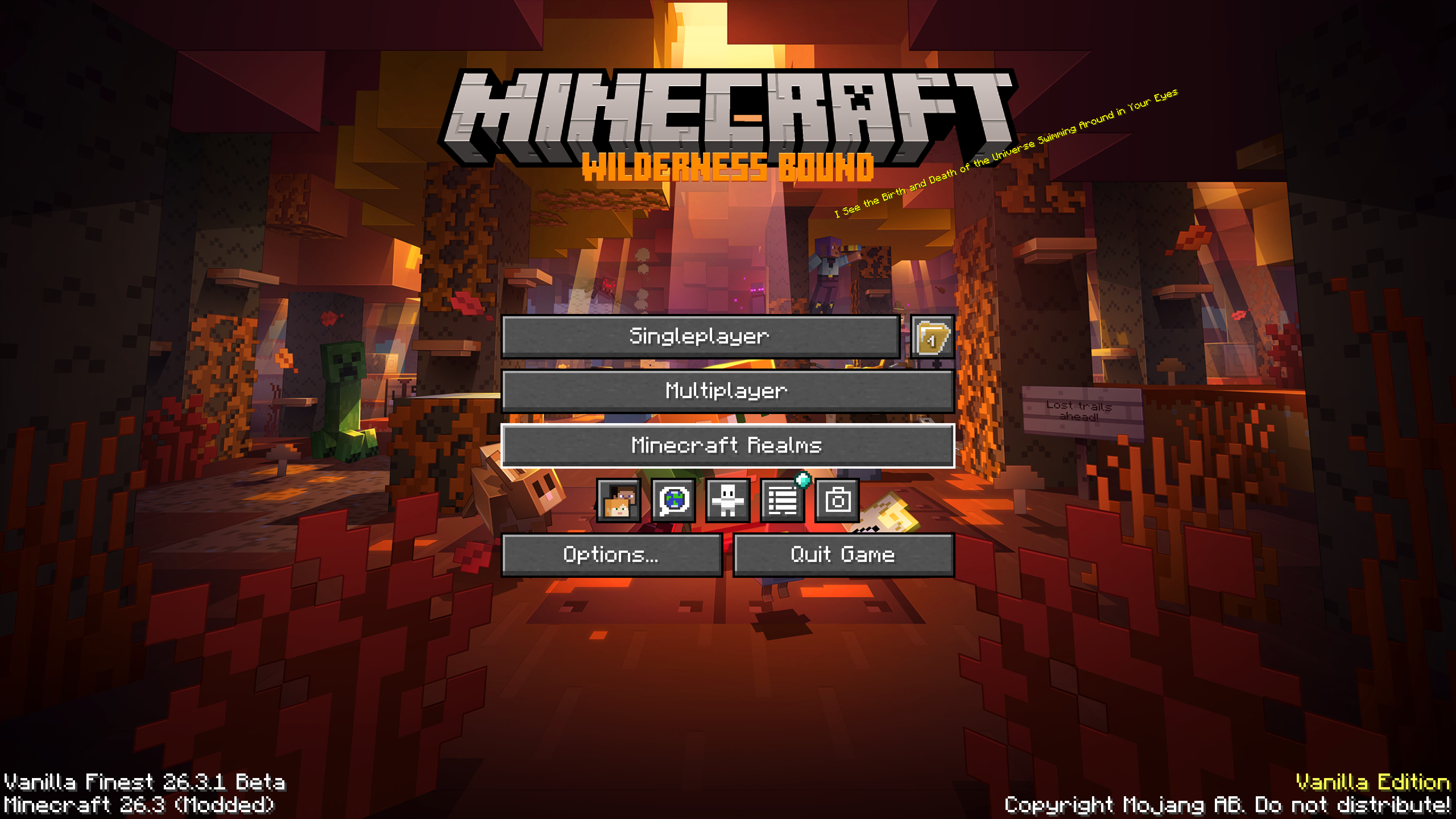 26.3 with Bare Bones preset
 -
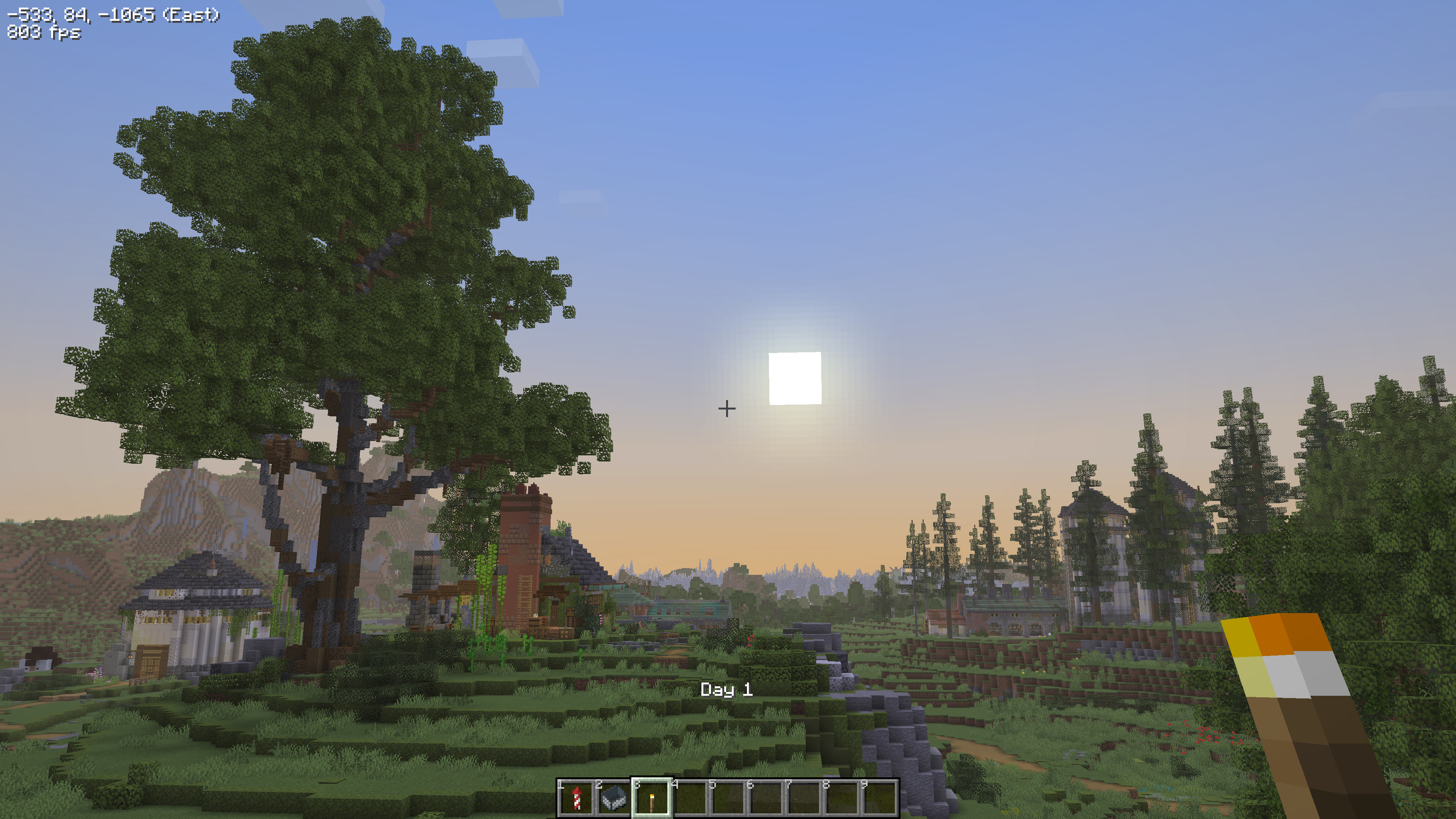 Setting: Vanilla (Atmosherics and resource packs off) World: Hermitcraft Season 10 Artist: BdoubleO100 Coords: -531 84 -1063 Download: https://hermitcraft.com/
 -
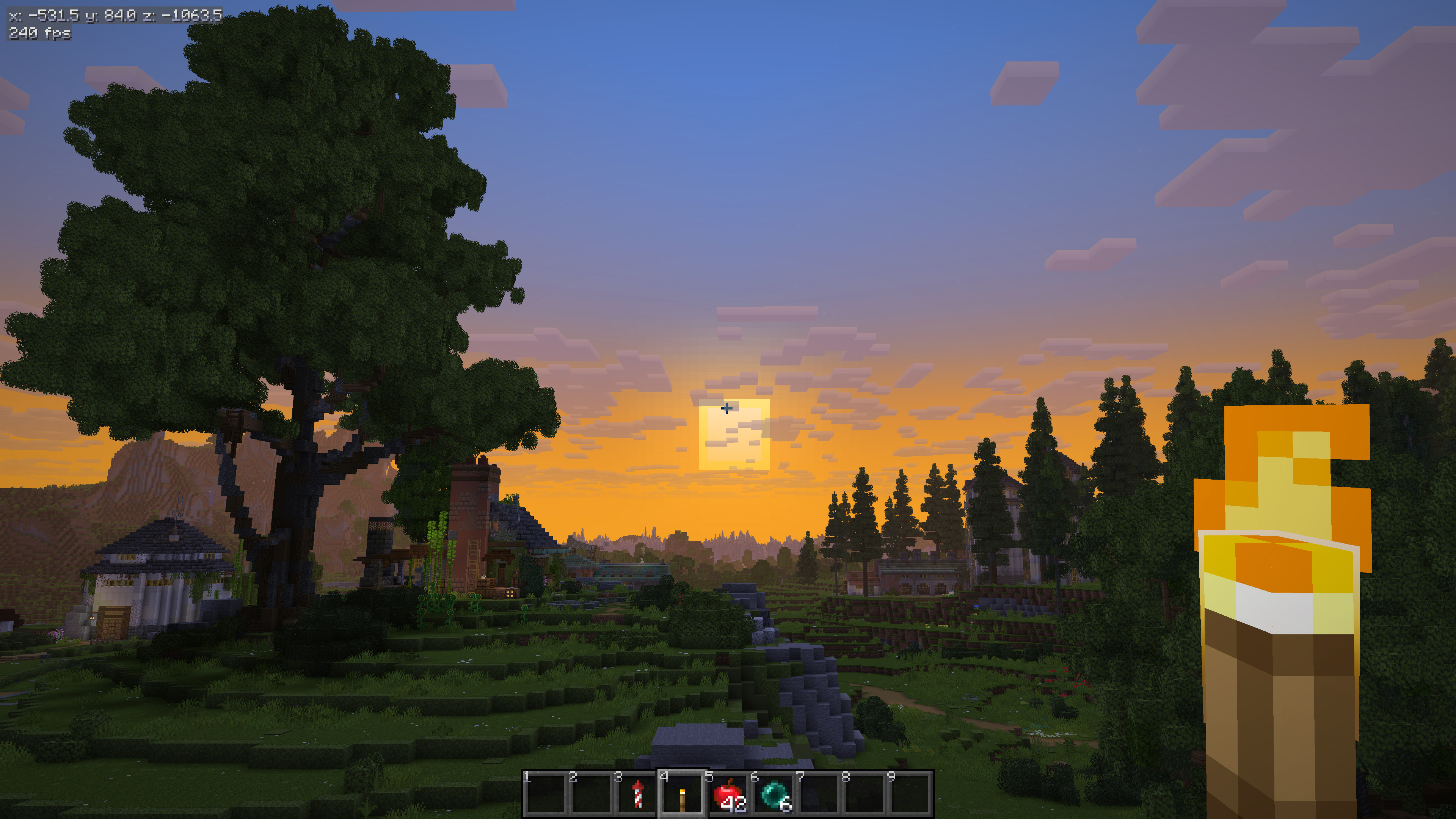 Setting: Vanilla+ resource pack preset, Atmosherics on, Iris shaders off
 -
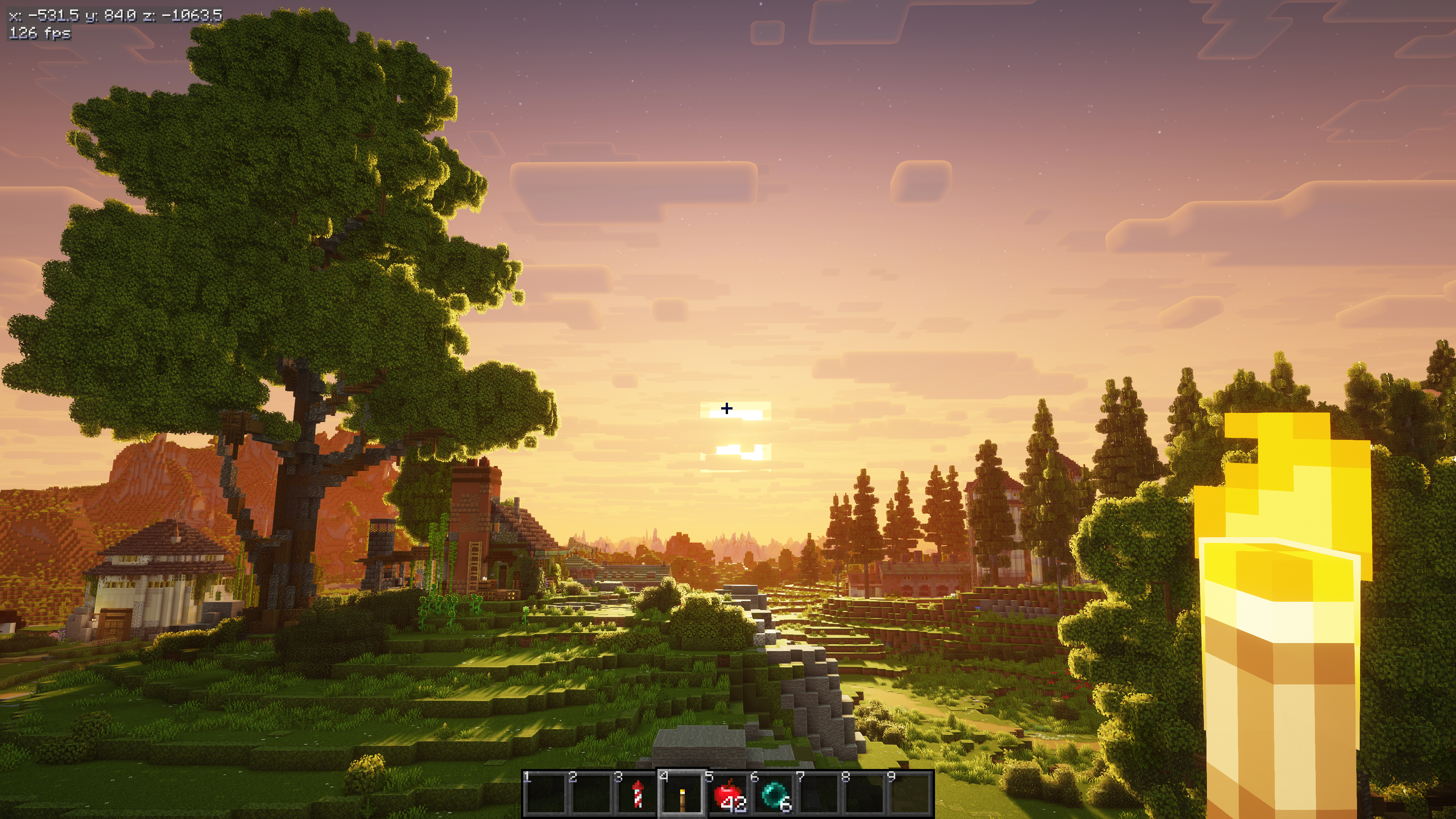 Setting: Vanilla+ resource pack preset, Atmosherics on, Iris shaders: Complementary Reimagined with Euphoria Patches
 -
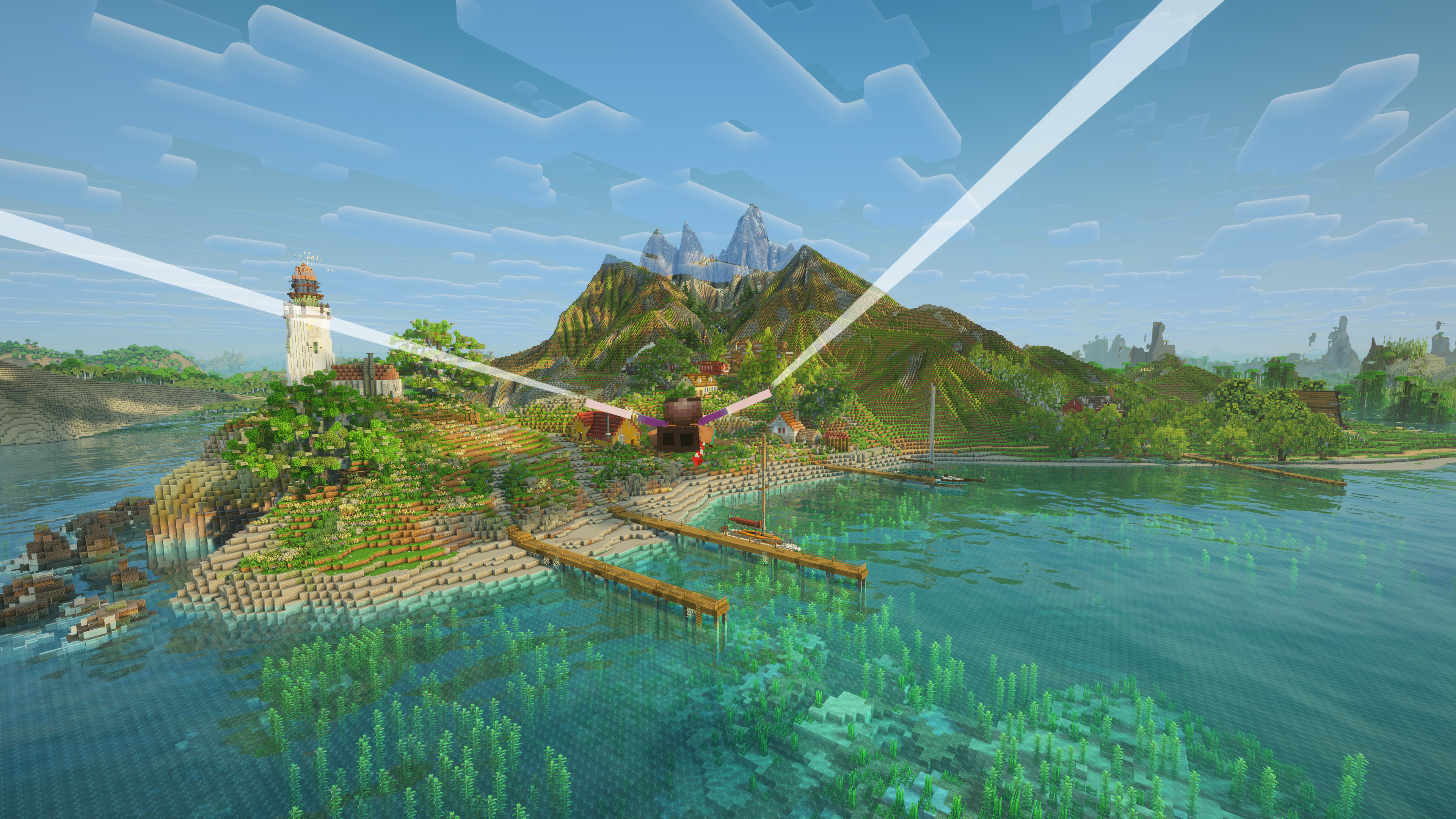 Setting: Vanilla+, Complementary Reimagined EP World: Beehns and Apples Download: https://www.patreon.com/c/BeehnsandApples/posts
 -
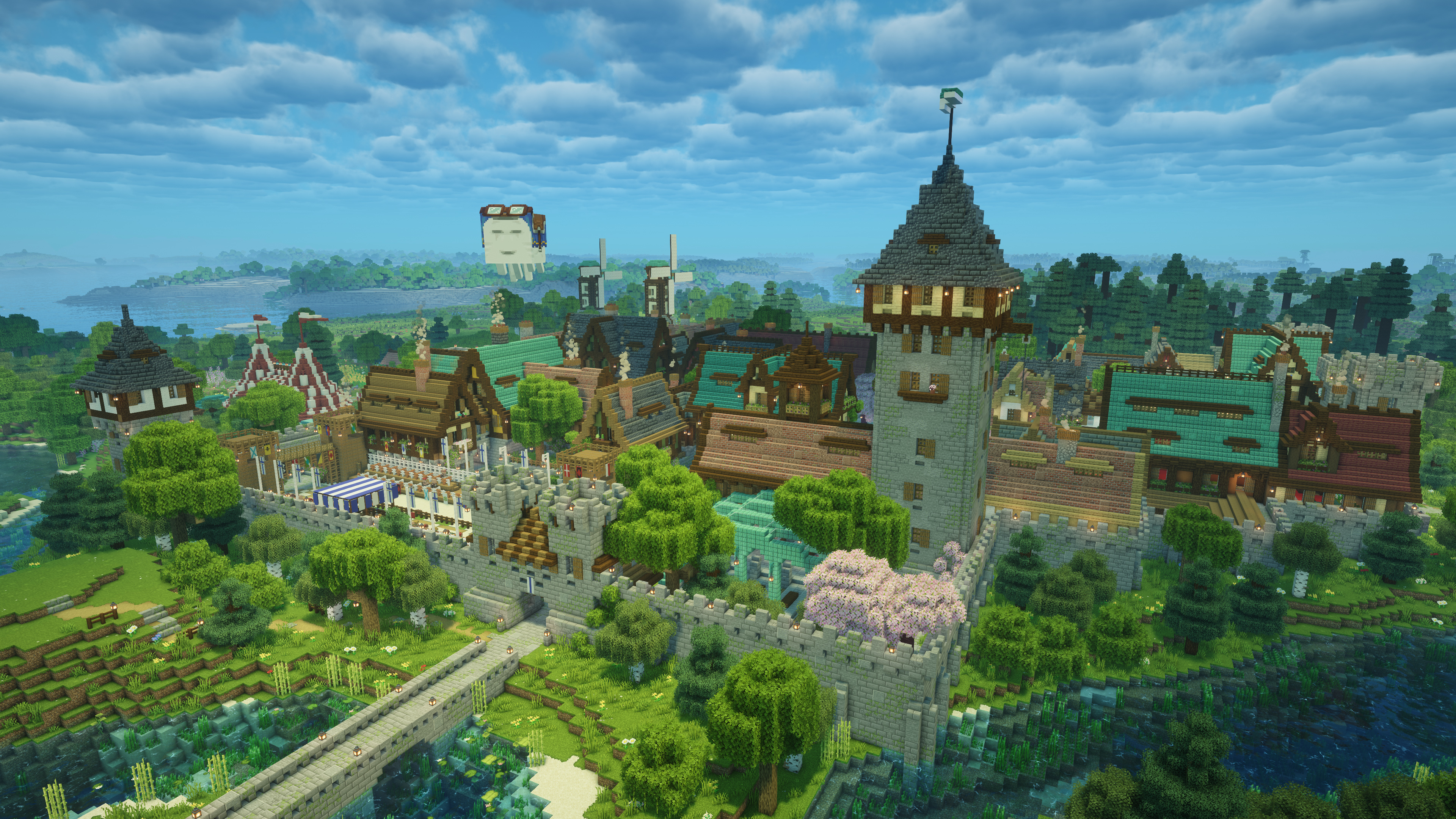 Setting: Unbound Vanilla+, Complementary Unbound EP World: Plains Creat Coords: -266 101 237 Download: https://www.patreon.com/cw/armun
 -
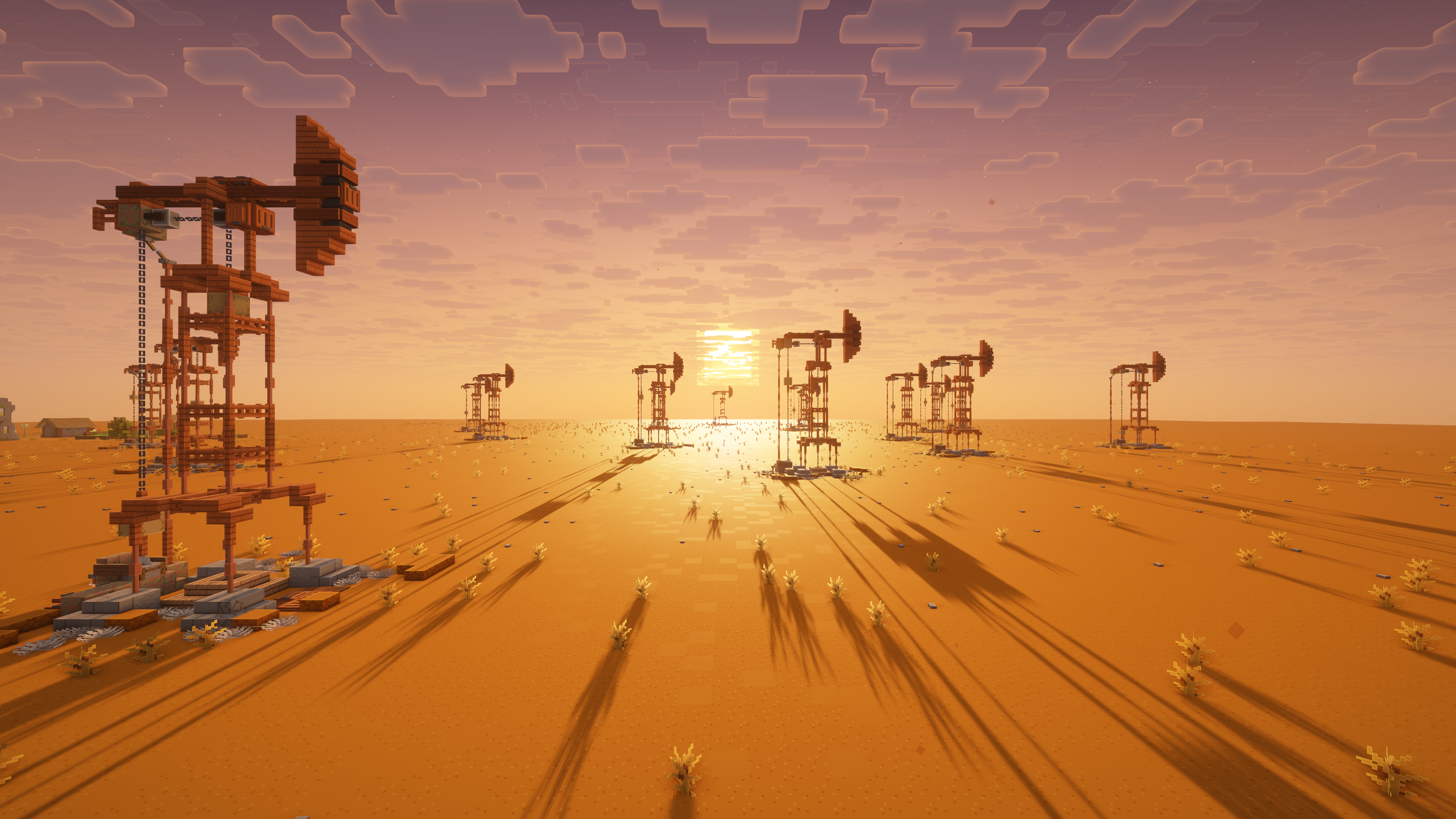 Setting: Bare Bones, Complementary Reimagined EP World: Oil Fields Download: https://www.patreon.com/cw/Jackyboymc
 -
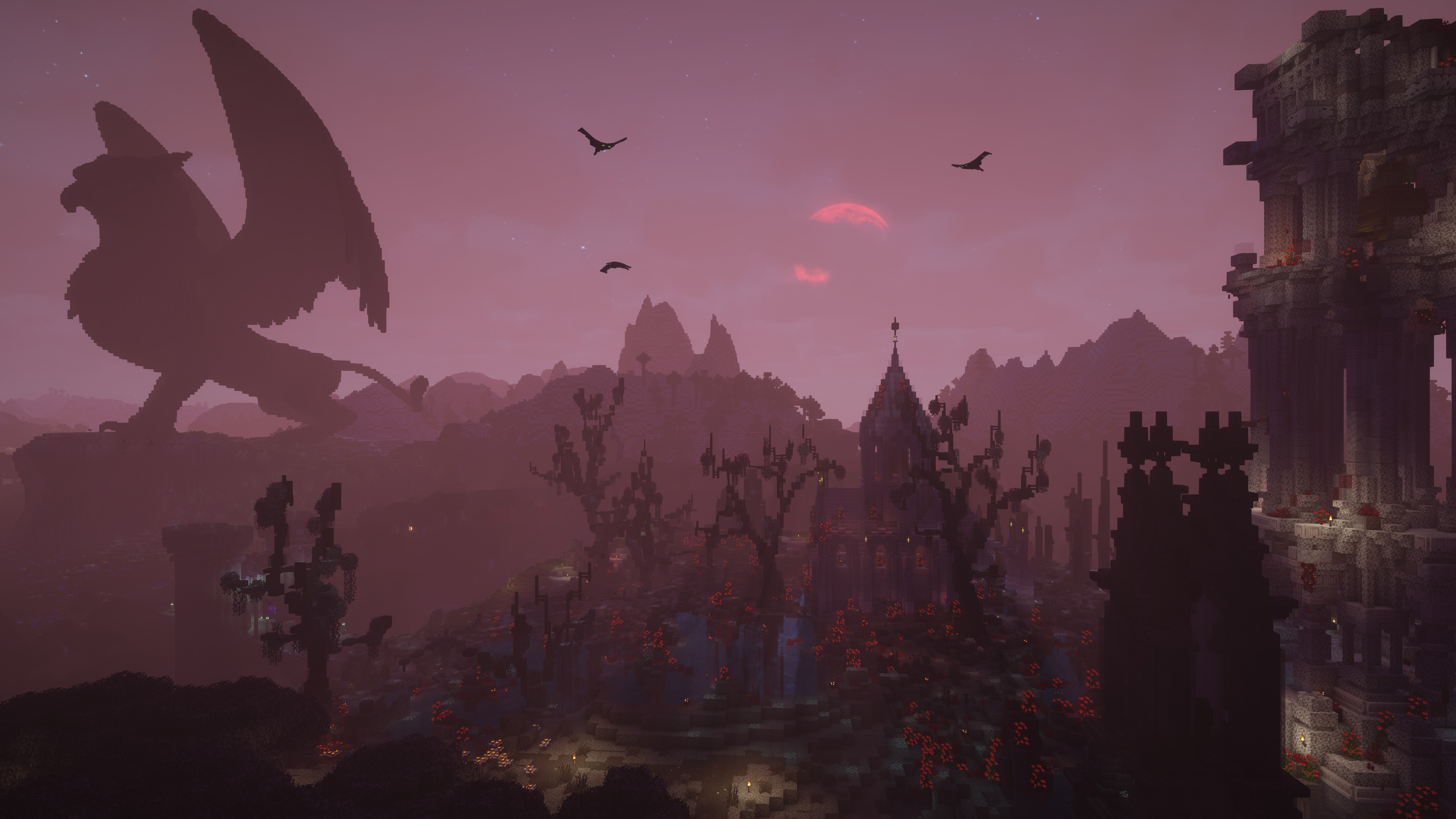 Setting: Unbound Vanilla+, Complementary Unbound EP World: Oneshot Season 10 Coords: 1225, 144, -1283 Download: https://www.bakery.builders/oneshot
 -
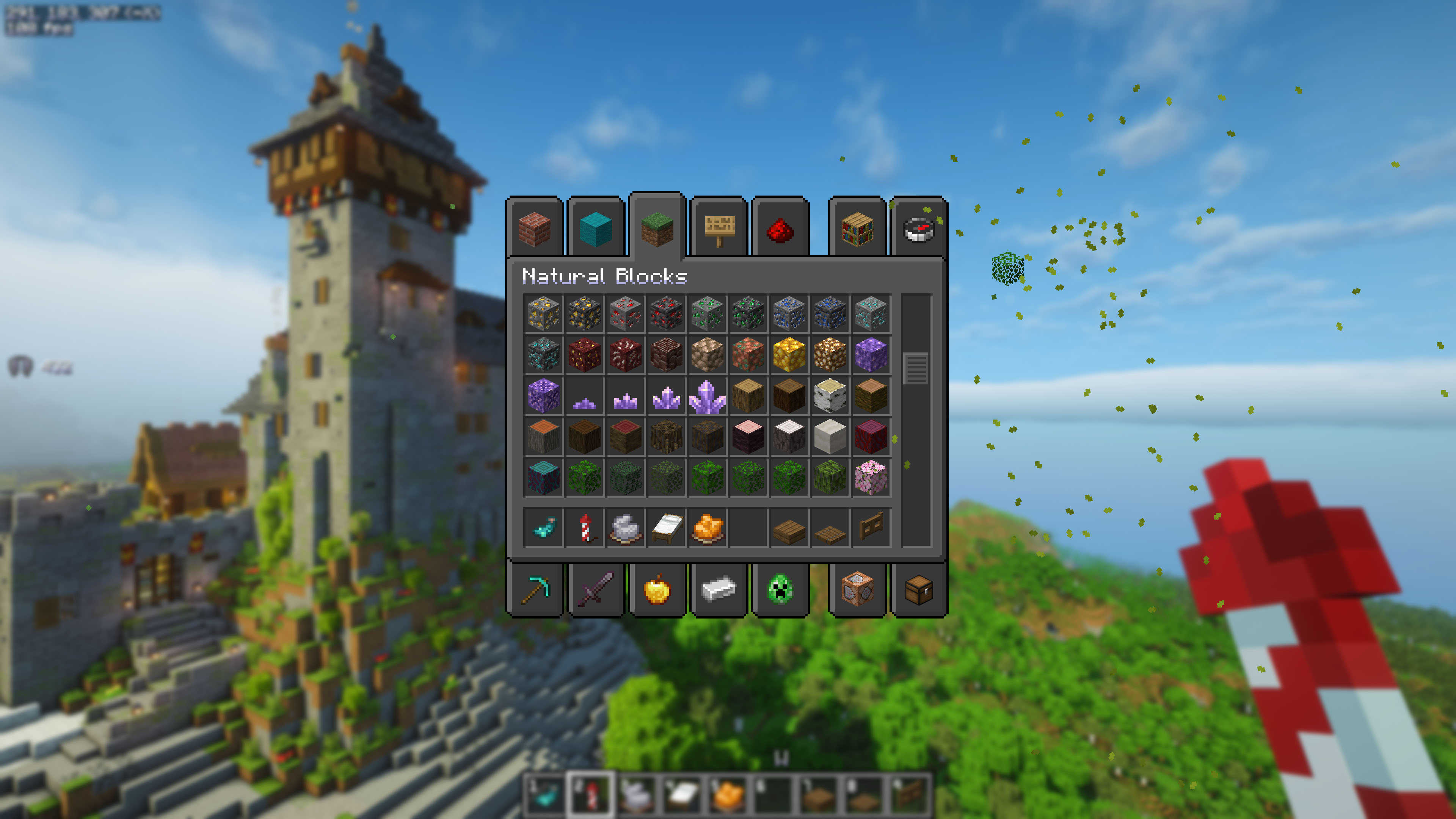 Background blur, darker menus, flying particles and you can move while in the menu.
Versions
Files
Relations
Project Relations
More like this
Similar Modpacks
Suggestions use data such as tags, dependencies, dependents, descriptions, titles, and more to rank how much they overlap with this modpack.
On ModDex
Community snapshot
By the numbers
Statistics

Want to reach Minecraft players?
We're looking for a server hosting partner to feature here and other parts of the site. Interested? Send us a message!
Get in touchGet it on
Available Platforms
On ModDex
Community snapshot
By the numbers
Statistics
Resources