
Community listing page, reviews here may not be monitored by the author.
Always Multiplayer


No reviews yet
Lightweight mod that automatically publishes singleplayer worlds for online play. Allows your friends to join without always having to remember to enable multiplayer first.
Community voices
Reviews
No reviews yet. Be the first to review this project!
Get it on
Available Platforms
Compatibility
Supported Environments
Works in singleplayer only; does not function in multiplayer.
About
Project Details
For authors
Embed Badge
If you're the author of this project, you can embed a live badge anywhere that supports HTML or Markdown. It updates automatically whenever ratings change.
Use HTML for any page that supports it, or Markdown for README files and Markdown-based descriptions.
Identifiers
Platform IDs
Resources
External Links
About
Description
Lightweight mod that automatically enables multiplayer/online play when loading into a singleplayer world. Allows your friends to join without always having to remember to enable multiplayer first. Also allows you to configure presets like the Port number (useful when port forwarding), and default options for joining players.
Key Features
- Publish singleplayer worlds automatically when loading the world.
- Restrict access to friends only.
- Use native server commands like /whitelist and /ban.
- Set default gamemode and commands for other players.
Config
Global settings can be added in config/alwaysmultiplayer.json. These settings can also be found under the Minecraft main menu Options... -> Online... -> Always Multiplayer Config...
| Setting | Default | Description |
|---|---|---|
multiplayer |
LAN |
Set to LAN to open all singleplayer worlds to LAN by default (or to the internet with port forwarding or other mods). Turn OFF to stay in singleplayer by default. |
access |
FRIENDS |
Who can join your multiplayer worlds. FRIENDS: allow Minecraft friends (and whitelisted players). WHITELIST: only allow whitelisted players. OPEN: allow all connections. |
gamemode |
null (Auto) |
The default game mode for other players that join your worlds. Set null to follow the world setting, or set to SURVIVAL, CREATIVE, ADVENTURE, or SPECTATOR to assign a global default. |
forceGamemode |
null (Auto) |
Whether or not all other players are forced to follow the world default game mode, or if they can be assigned another game mode. Set null to follow the world default, or set to true or false to assign a global default. |
commands |
null (Auto) |
The default commands for other players that join your worlds. Set null to follow the world setting, or set to true or false to assign a global default. |
port |
null (Auto) |
The default port number for LAN worlds only. Set null to auto assign a free port each time, or enter a number between 1024 and 65535. |
Commands
All the built in server commands are made available, including /ban /whitelist and /op. These commands create json files at the root of your profile folder (not specific to any world). I.e. the same location as your usercache.json. See example whitelist.json.
| Command | Description | Example | Op Level |
|---|---|---|---|
| /whitelist | White-list a player to allow them to join when the Access setting is FRIENDS or WHITELIST. | /whitelist add Player123 |
3 (Admin) |
| /ban | Ban a player from joining any of your worlds. Also includes /ban-ip and /banlist. | /ban Player123 |
3 (Admin) |
| /pardon | Unbans a player so they can join all of your worlds. | /pardon Player123 |
3 (Admin) |
| /op | Makes a player a level 2 Operator (the same permissions that enabling 'Commands' gives by default). | /op Player123 |
3 (Admin) |
| /deop | Removes a players Operator permissions (unless 'Commands' are enabled for other players by default). | /deop Player123 |
3 (Admin) |
| /perf | Starts the performance profiler. | /perf start |
4 (Owner) |
| /save-all | Saves the world. Also includes /save-off and /save-on. | /save-all |
4 (Owner) |
| /stop | Stops the server and disconnects all players (alternatively use /unpublish). | /stop |
4 (Owner) |
Opening LAN worlds to the internet
P2P has been removed from the 26.2 update (for now), and with it the 'Online' multiplayer option for singleplayer worlds. While this does make it harder to connect with friends, it's still possible using the 'LAN' multiplayer option and some additional setup.
- Create a port forwarding rule on your home router to forward a specific port to your computer, and get your friends to join using your public IP address + the port number, e.g.
10.1.1.1:5555. - Or, use mods like e4mc which assigns a unique public domain each time you open your world to LAN.
Make sure to use whitelist or access restrictions if you want to prevent unexpected connections.
Key Features
- Publish singleplayer worlds automatically when loading the world.
- Restrict access to friends only.
- Use native server commands like /whitelist and /ban.
- Set default gamemode and commands for other players.
Config
Global settings can be added in config/alwaysmultiplayer.json. These settings can also be found under the Minecraft main menu Options... -> Online... -> Always Multiplayer Config...
| Setting | Default | Description |
|---|---|---|
multiplayer |
LAN |
Set to LAN to open all singleplayer worlds to LAN by default (or to the internet with port forwarding or other mods). Turn OFF to stay in singleplayer by default. |
access |
FRIENDS |
Who can join your multiplayer worlds. FRIENDS: allow Minecraft friends (and whitelisted players). WHITELIST: only allow whitelisted players. OPEN: allow all connections. |
gamemode |
null (Auto) |
The default game mode for other players that join your worlds. Set null to follow the world setting, or set to SURVIVAL, CREATIVE, ADVENTURE, or SPECTATOR to assign a global default. |
forceGamemode |
null (Auto) |
Whether or not all other players are forced to follow the world default game mode, or if they can be assigned another game mode. Set null to follow the world default, or set to true or false to assign a global default. |
commands |
null (Auto) |
The default commands for other players that join your worlds. Set null to follow the world setting, or set to true or false to assign a global default. |
port |
null (Auto) |
The default port number for LAN worlds only. Set null to auto assign a free port each time, or enter a number between 1024 and 65535. |
Commands
All the built in server commands are made available, including /ban /whitelist and /op. These commands create json files at the root of your profile folder (not specific to any world). I.e. the same location as your usercache.json. See example whitelist.json.
| Command | Description | Example | Operator Level |
|---|---|---|---|
| /whitelist | White-list a player to allow them to join when the Access setting is FRIENDS or WHITELIST. | /whitelist add Player123 |
3 (Admin) |
| /ban | Ban a player from joining any of your worlds. Also includes /ban-ip and /banlist. | /ban Player123 |
3 (Admin) |
| /pardon | Unbans a player so they can join all of your worlds. | /pardon Player123 |
3 (Admin) |
| /op | Makes a player a level 2 Operator (the same permissions that enabling 'Commands' gives by default). | /op Player123 |
3 (Admin) |
| /deop | Removes a players Operator permissions (unless 'Commands' are enabled for other players by default). | /deop Player123 |
3 (Admin) |
| /perf | Starts the performance profiler. | /perf start |
4 (Owner) |
| /save-all | Saves the world. Also includes /save-off and /save-on. | /save-all |
4 (Owner) |
| /stop | Stops the server and disconnects all players (alternatively use /unpublish). | /stop |
4 (Owner) |
Opening LAN worlds to the internet
P2P has been removed from the 26.2 update (for now), and with it the 'Online' multiplayer option for singleplayer worlds. While this does make it harder to connect with friends, it's still possible using the 'LAN' multiplayer option and some additional setup.
- Create a port forwarding rule on your home router to forward a specific port to your computer, and get your friends to join using your public IP address + the port number, e.g.
10.1.1.1:5555. - Or, use mods like e4mc which assigns a unique public domain each time you open your world to LAN.
Make sure to use whitelist or access restrictions if you want to prevent unexpected connections.
Screenshots
Gallery
-
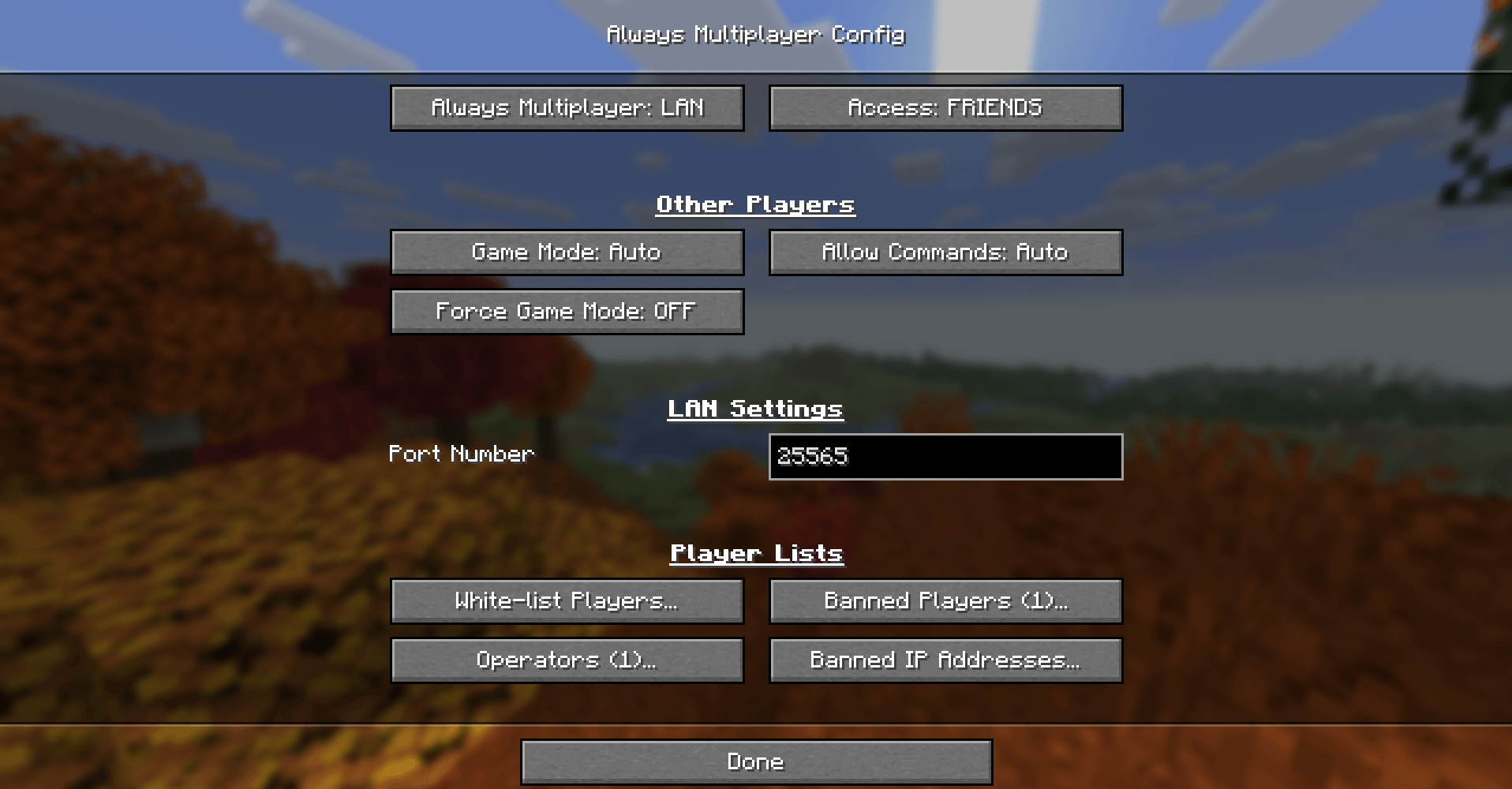 Always Multiplayer Settings Set defaults for opening worlds to multiplayer, and manage player lists.
 -
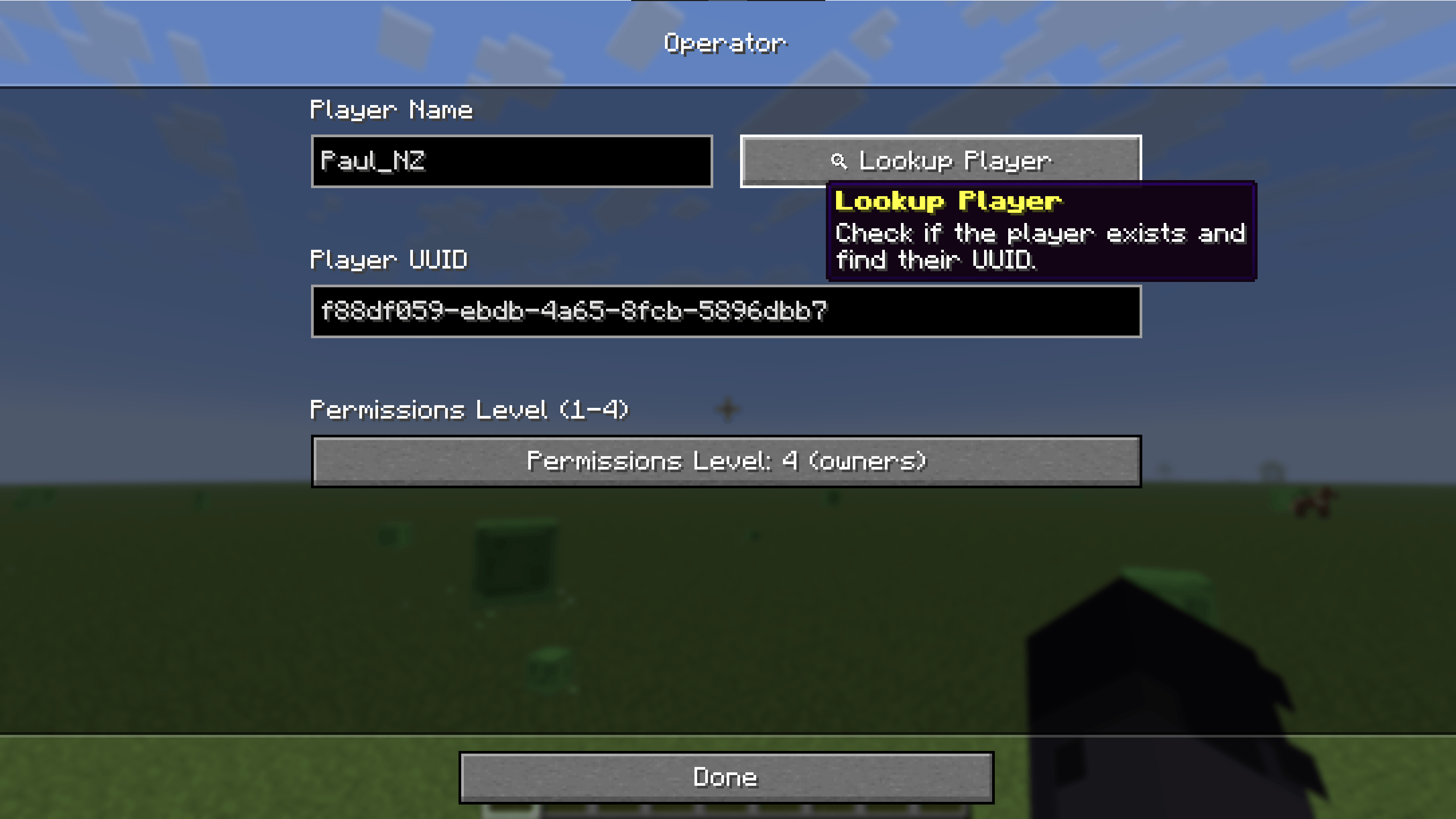 Lookup Player Manage whitelist players, banned players, banned IP addresses, and operators directly from the mod menu config.
 -
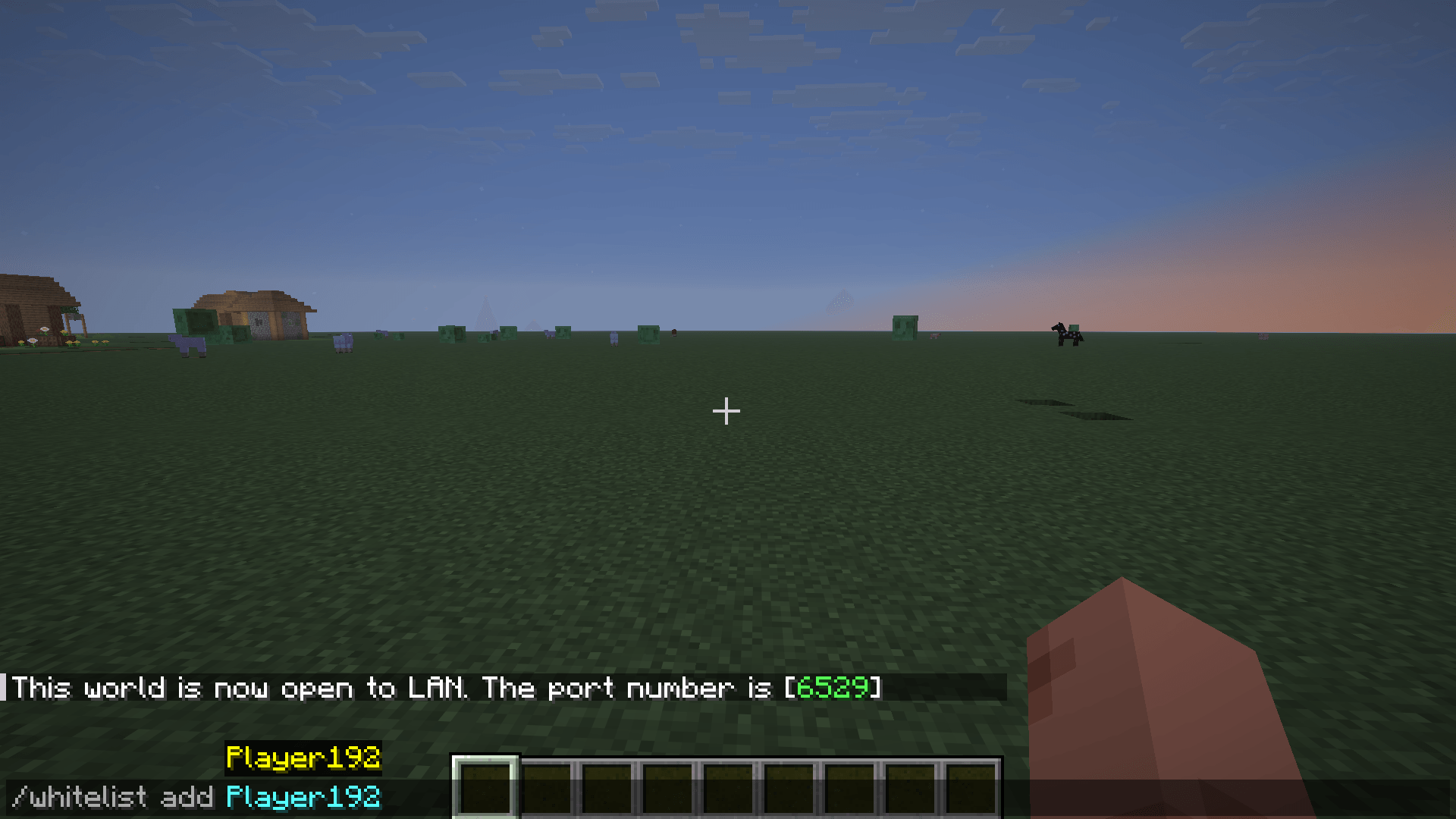 Whitelist Command Use /whitelist, /ban, and /op server commands in-game.
 -
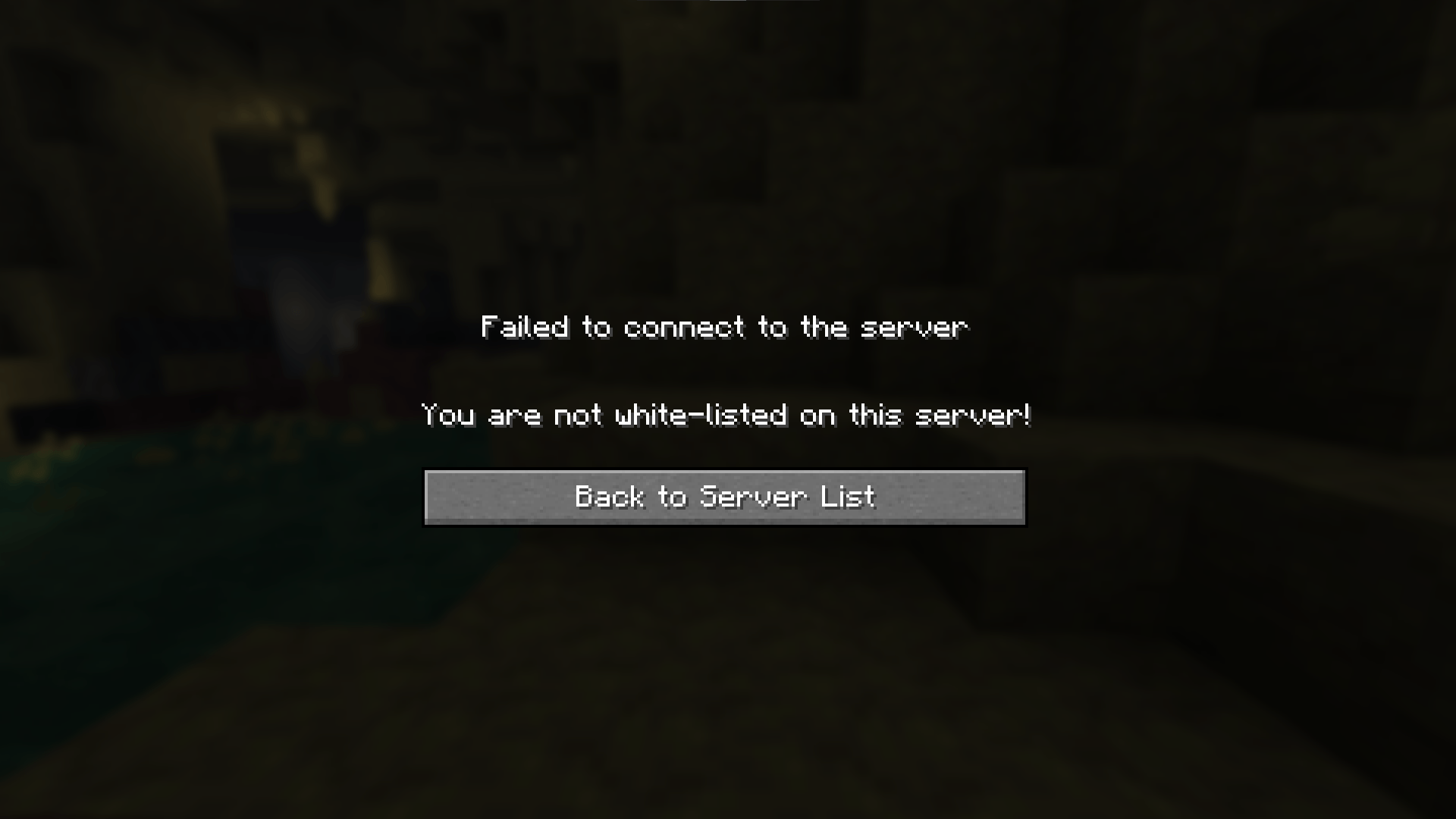 Not Whitelisted Message Default whitelist validation when other players join.
 -
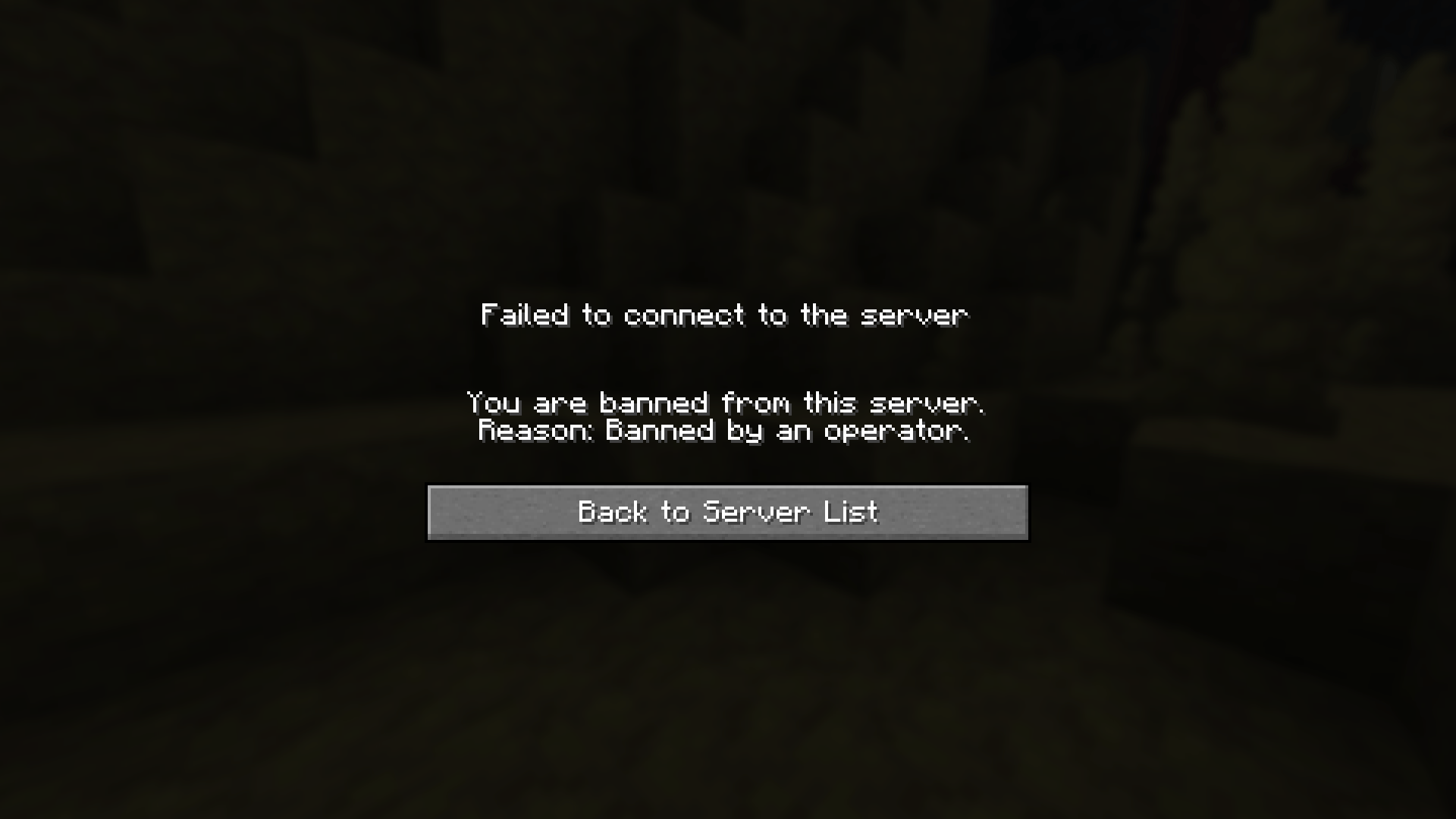 Banned Message Default ban validation when other players join.
-
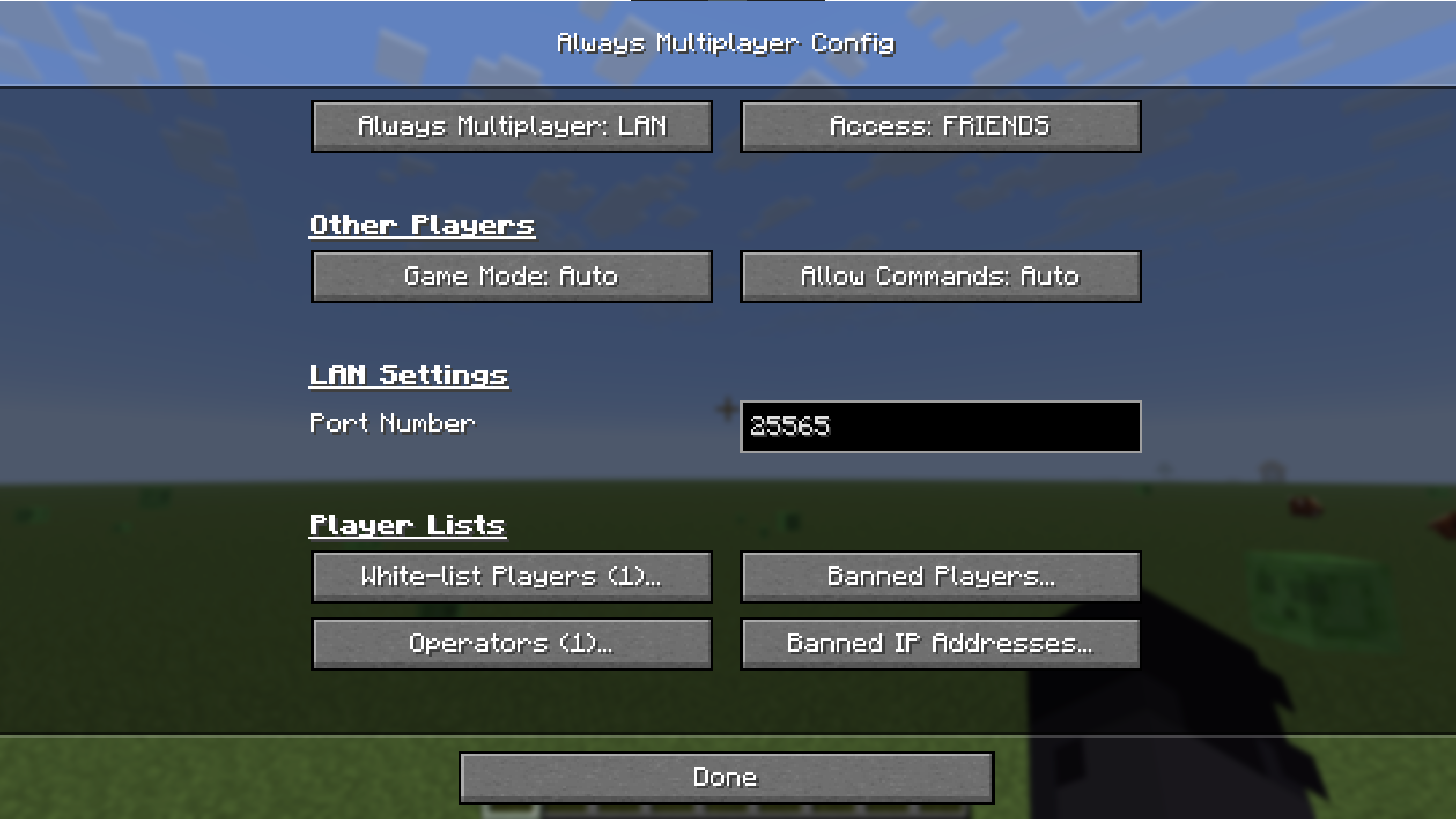 Always Multiplayer Settings Set defaults for opening worlds to multiplayer, and manage player lists.
 -
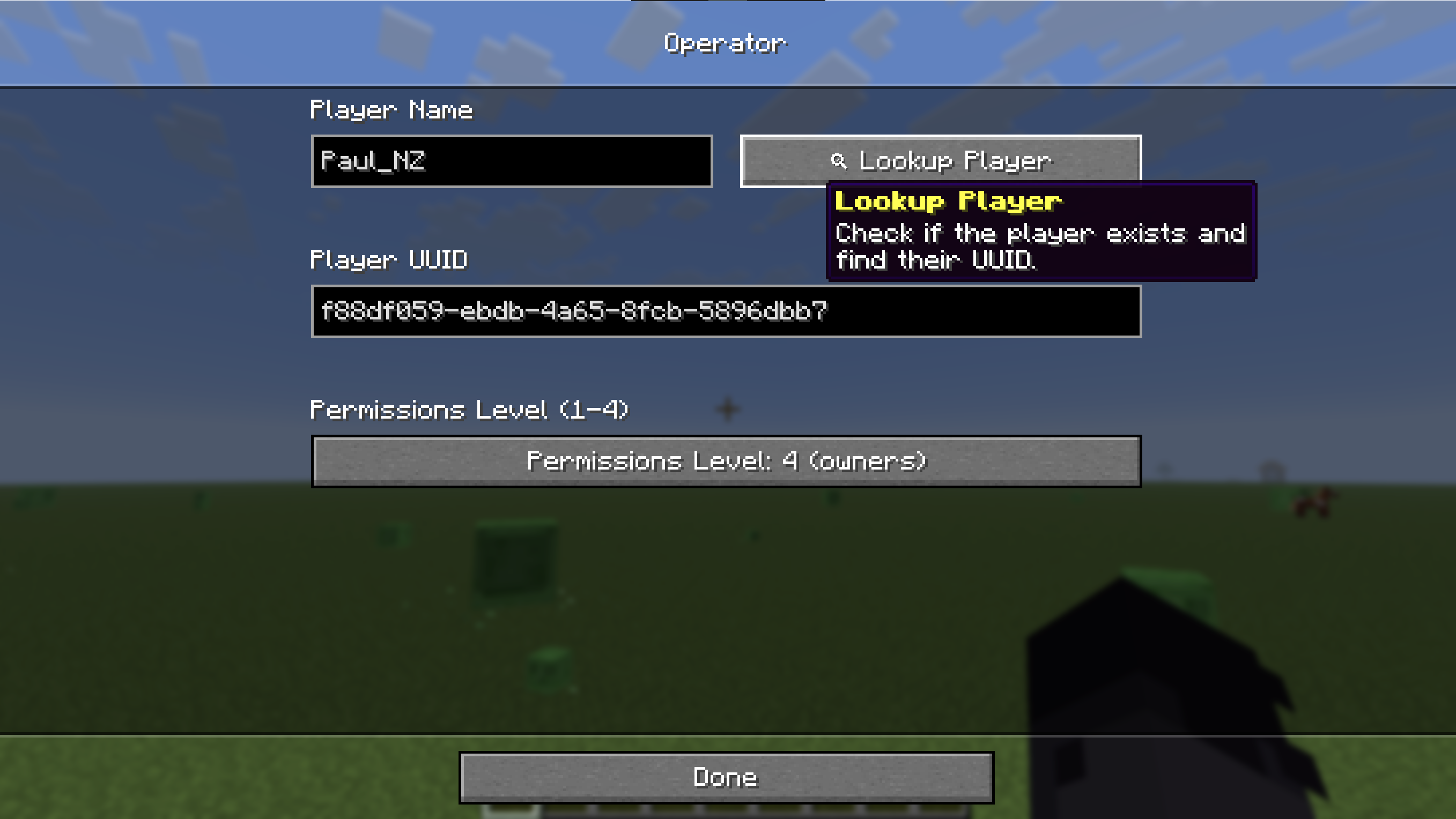 Lookup Player Manage whitelist players, banned players, banned IP addresses, and operators directly from the mod menu config.
 -
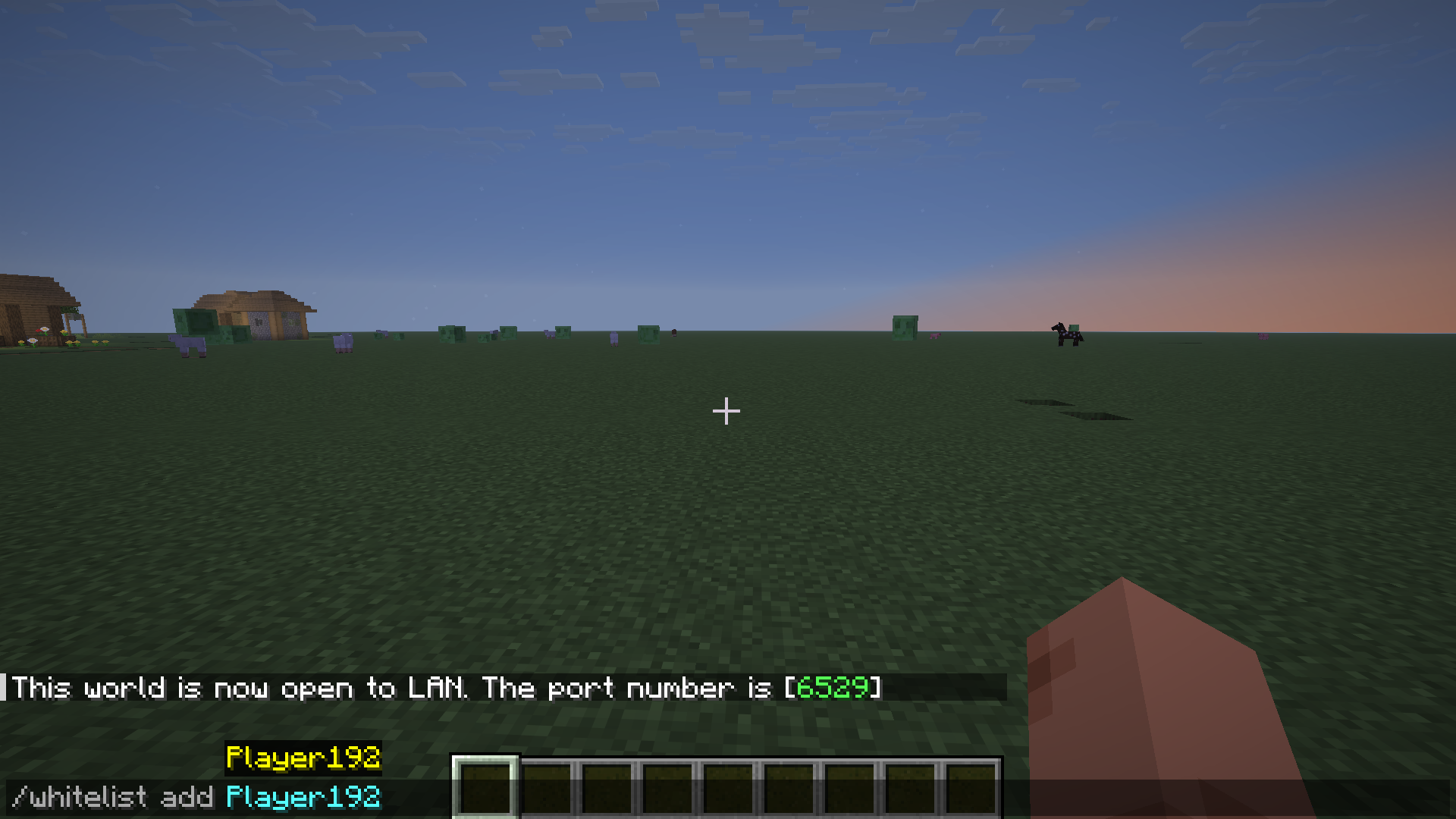 Whitelist Command Use /whitelist, /ban, and /op server commands in-game.
 -
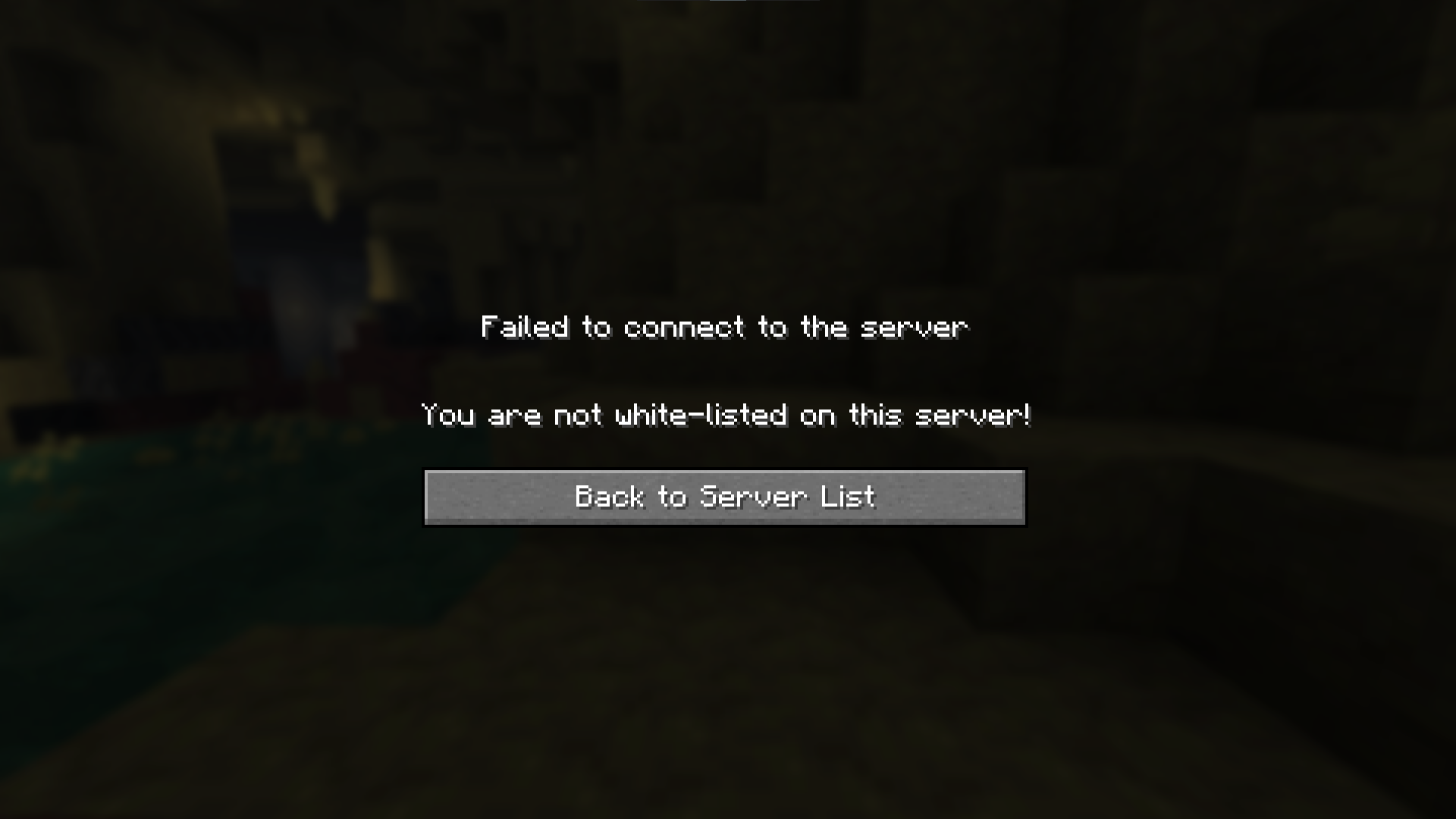 Not Whitelisted Message Default whitelist validation when other players join.
 -
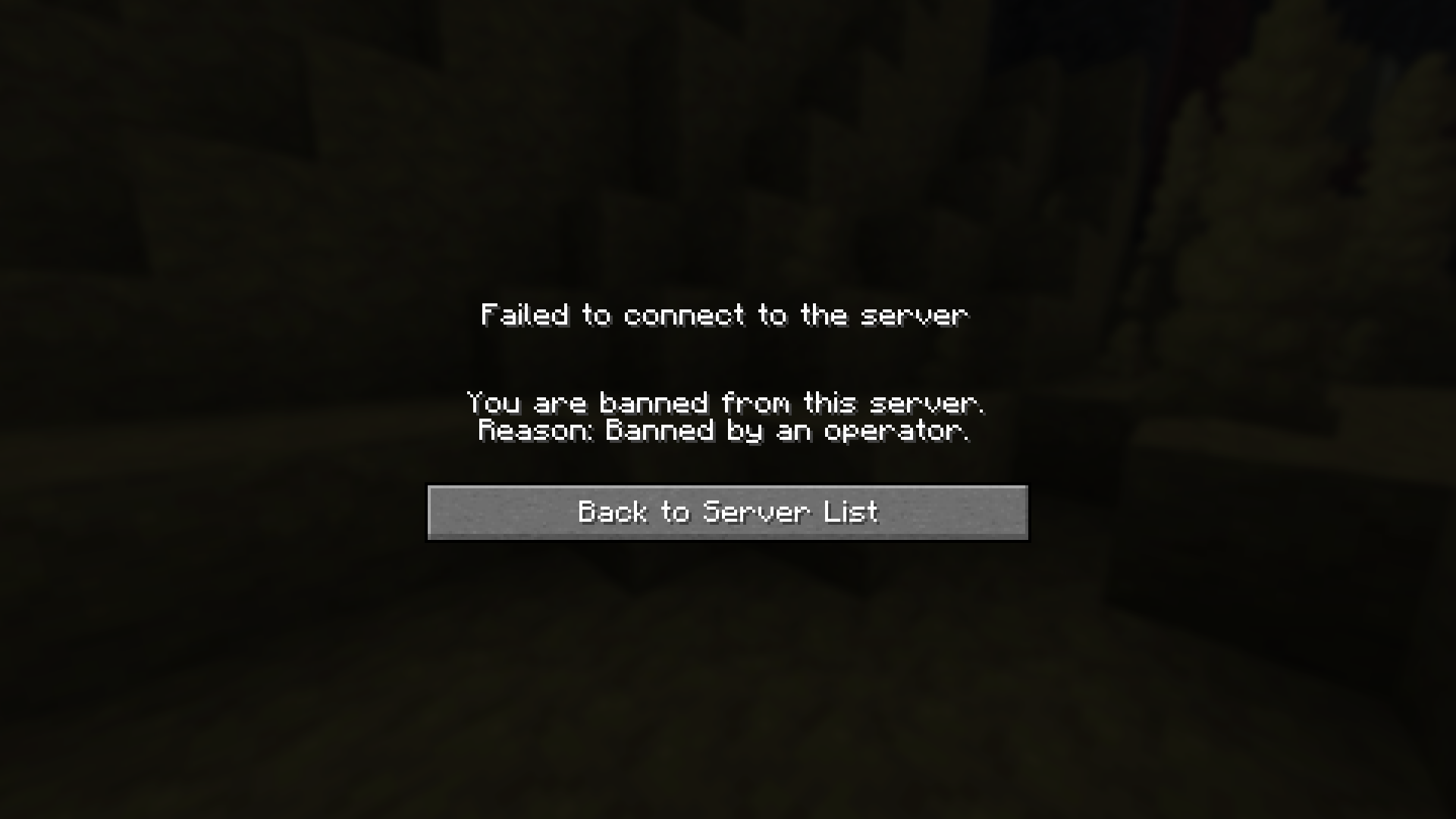 Banned Message Default ban validation when other players join.
Versions
Files
Relations
Project Relations
More like this
Similar Mods
Suggestions use data such as tags, dependencies, dependents, descriptions, titles, and more to rank how much they overlap with this mod.
On ModDex
Community snapshot
By the numbers
Statistics
Want to reach Minecraft players?
We're looking for a server hosting partner to feature here and other parts of the site. Interested? Send us a message!
Get in touchGet it on
Available Platforms
On ModDex
Community snapshot
By the numbers
Statistics
Resources