Community listing page, reviews may not be monitored by the author.
Ambience - Extras (Music Mod)

No reviews yet
Add your custom soundtracks to Minecraft with some extra features

Community voices
Reviews
No reviews yet. Be the first to review this project!
Get it on
Available Platforms
About
Project Details
For authors
Embed Badge
If you're the author of this project, you can embed a live badge anywhere that supports HTML or Markdown. It updates automatically whenever ratings change.
Use HTML for any page that supports it, or Markdown for README files and Markdown-based descriptions.
Identifiers
Platform IDs
About
Description

I have created this mod on top of the original Ambience mod from Vazkii because I really loved his mod but I felt that some things were missing in his mod and as he made the source code available on github I have added things to this mod just for fun and things that I found necessary for a mod that adds music to Minecraft, see below the extra blocks and the tool recipes and how to configure and use it.
Obs: This mod isn't an addon for the Ambience mod this is the entire Ambience mod with extra features, so you don't need to have the original Ambience mod in your game, and as this mod adds blocks and items to the game you have to install it in the CLIENT and SERVER sides!
This mod have all the events from original mod where you can read here and the new events below that you can add in the ambience.properties file:
- area.[areaname]
- area.[areaname].[redstonepower 0-15]
- event.attacked
- event.advancement
- event.bossEnderDragon
- event.bossWither
- event.falling
- event.flyingelytra
- event.lava
- event.gameover
- event.paused
- event.connecting
- event.disconnected
- event.oceanMonument
- event.loadingWorld
- event.ranch
- event.fortress
- event.stronghold
- event.mansion
- event.oceanmonument
- event.mineshaft
- event.deserttemple
- event.endcity
- event.igloo
- event.jungletemple
- event.oceanruin
- event.pillageroutpost
- event.shipwreck
- event.swamphut
- event.dripwaterincave (works when there is dripping water inside lake caves)
- event.riding.[entityname]
- effect.[potionname] (ex: effect.nightVision=visionbeyondreach)
- mob.[mobname] ( ex.: mob.wroughtnaut=Boss3)
Per dimension events:
- dimension.[DimensionID] ( set a music to play globally in a custom dimension )
- dimension.[DimensionID].[Event] ( ex.: dimension.-11325.sleeping=sleeping )
- effect.[potionname].[DimensionID] (ex: effect.nightVision.-1=visionbeyondreach)
Ok, Just give me the music pack:
(extract it in the root folder of you minecraft installation)
For the Configurations see the wiki
To add a sound to a selected area first you need the Soundnizer tool:
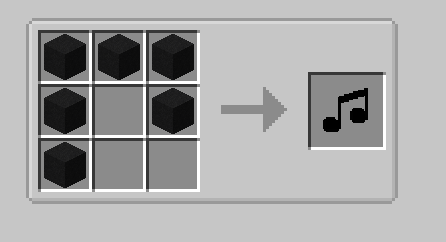
With the Soundnizer tool you can select an area by left-clicking with the tool in your and in a block and right-clicking in another block to form a rectangular shape:
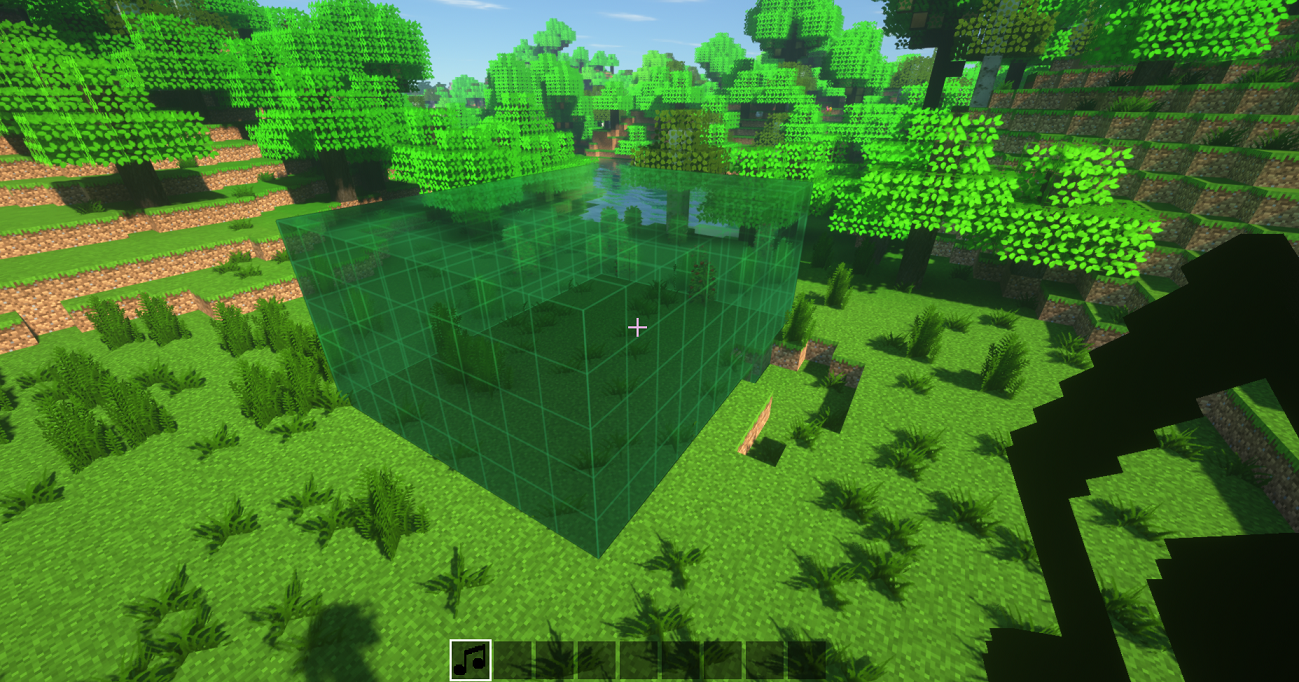
After that enter inside the area look to the sky or get away of all other blocks and right click again to open the Creation Gui:

The name of the created area must be equal the name of the area that you have created in the ambience.properties file
Example: if in the configs you created a area.Shop=shop the name in the GUI will be: Shop.
To edif an area you have to just right click in the air with the Soundnizer tool in your hand to open the GUI
To clear the selection press Shift+Right-click
There are six blocks:
The Song Switcher:

This block changes the song being played in a region depending on the redstone signal strength, to make it work it's simple, create an region with the Soundnizer tool put the song switch anywhere inside that region and put some redstone signal to it to power the region with energy for it to play the different songs, so you can setup up to 15 diferent songs to be played in the region by setting the area redstone signal in the config file like that:
area.Course.15=course
area.Course.14=race_start
area.Course.13=race_running
area.Course.12=race_over
obs.: it's perfect for creating mini-games with themed musics 😁
The Alarm:
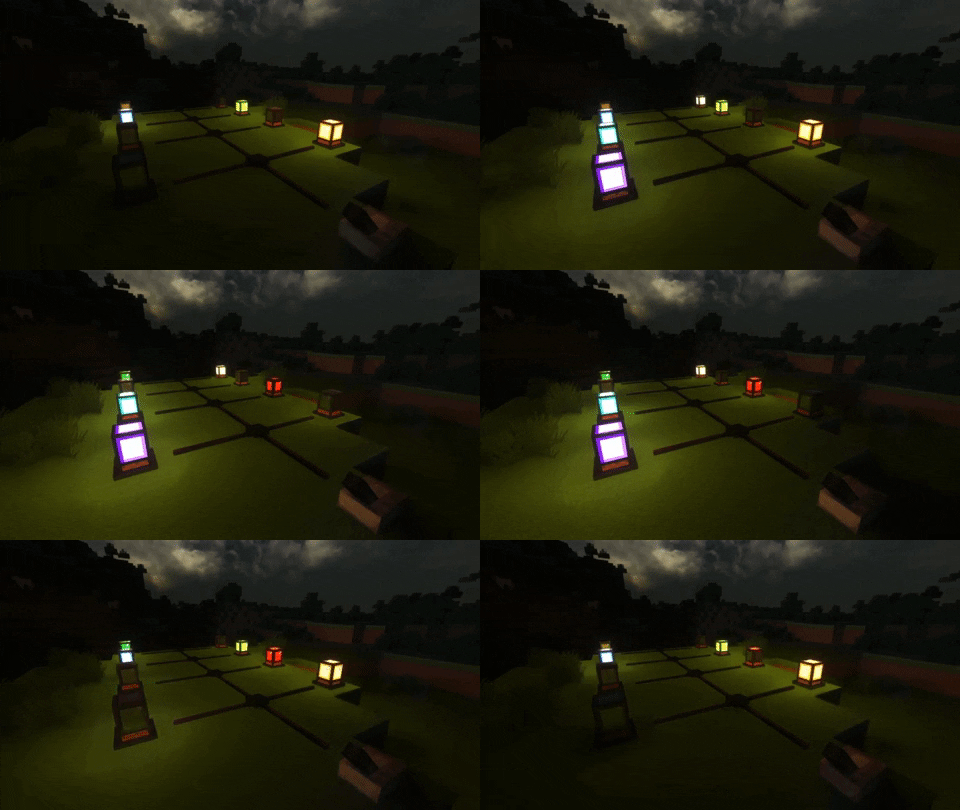
It's an Alarm that you can configure any sounds to be played on it and it blinks light when turned on, also it works with SEUS PTGI shader, you have only to edit the line of code bellow where it says "block.50=minecraft:torch" in the block.properties inside the shaderpack:
block.50=minecraft:torch ambience:alarm_lit_white ambience:alarm_lit_red ambience:alarm_lit_orange ambience:alarm_lit_yellow ambience:alarm_lit_lime ambience:alarm_lit_green ambience:alarm_lit_cyan ambience:alarm_lit_lightblue ambience:alarm_lit_blue ambience:alarm_lit_purple ambience:alarm_lit_magenta ambience:alarm_lit_pink ambience:alarm_lit_brown
The speaker
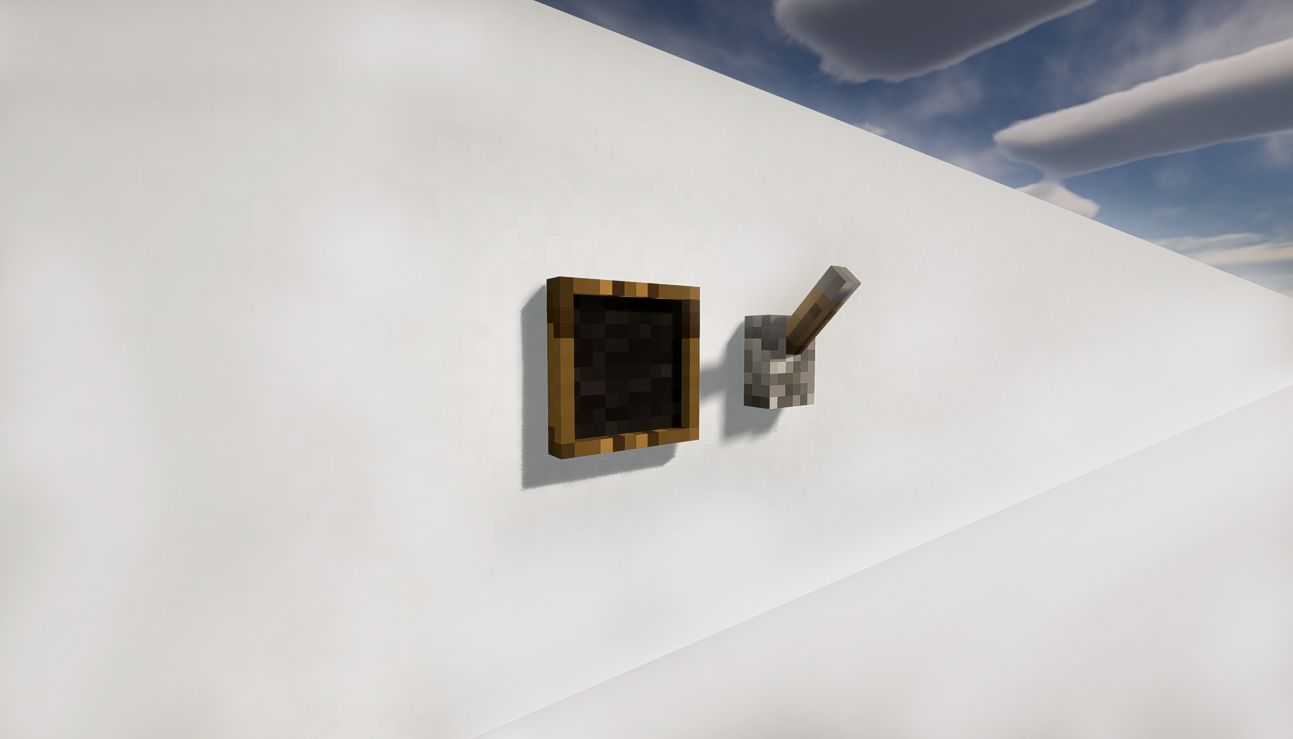
A block that plays a sound defined by you, to define a sound rightclick on it with the Soundnizer tool in your hand and to play it activate the speaker use a redstone signal.
How To add sounds to the Speaker:
You have to add the sounds as a resource pack in the minecraft folder, and edit the sounds.json to add your sound, and inside the game you have to go to ResourcePacks and add the AmbienceSounds as a resource as you would do with a normal texture pack
Here are the basic resource pack with a few sounds added as an example:
❗Note: You must extract it for it to work and is already included in the My personal music pack above)
The Ocarina

The legend says that this ocarina was left forgotten on this world by a great hero and if played correctly it do powerful things, it can't be crafted only found in chests.
There are 7 know songs that you can play (the buttons for playing the songs can be configurated in the ambience.properties:
ocarina.sunssong
ocarina.songofstorms
ocarina.bolerooffire
ocarina.horsesong
ocarina.serenadeofwater
ocarina.preludeoflight
ocarina.minuetofforest
The Horn from the Gods

The horn is a very powerful item that causes fear in the hearts of your enemies and encourages your allies in the battle field.
Cinematic Transitions
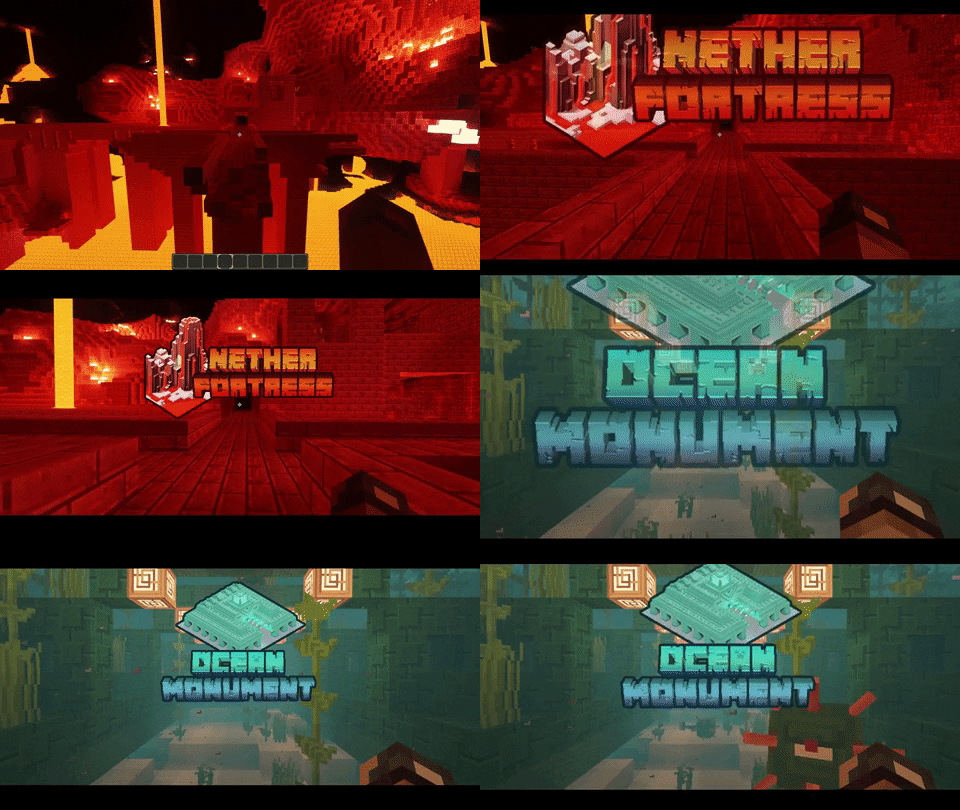
You can create images to show up when you enter a structure or a custom created region, to do so you must put an image inside the AmbienceSounds.zip resource pack inside the "assets\ambience\textures\transitions" and the file name must be the same name of the structure or the createdarea all in lowercase.

NOTE: This mod is incompatible with mineTunes, as they both use the same library that requires access to the audio system.
Original mod from Vazkii:
https://www.curseforge.com/minecraft/mc-mods/ambience-music-mod
Screenshots
Gallery
Versions
Files
Relations
Project Relations
More like this
Similar Mods
Suggestions use data such as tags, dependencies, dependents, descriptions, titles, and more to rank how much they overlap with this mod.
On ModDex
Community snapshot
By the numbers
Statistics

Get it on
Available Platforms
On ModDex
Community snapshot
By the numbers