Community listing page, reviews here may not be monitored by the author.
Batty's Coordinates Mod

No reviews yet
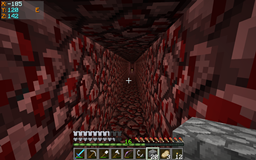
Batty's on-screen coordinates display
Community voices
Reviews
No reviews yet. Be the first to review this project!
Get it on
Available Platforms
About
Project Details
For authors
Embed Badge
If you're the author of this project, you can embed a live badge anywhere that supports HTML or Markdown. It updates automatically whenever ratings change.
Use HTML for any page that supports it, or Markdown for README files and Markdown-based descriptions.
Identifiers
Platform IDs

Resources
External Links
About
Description
Batty's Coordinates
Please Note: This Mod was discontinued, replaced by the Batty's Coordinates PLUS Mod. See here for the new Mod.
See your Location at a glance
The X, Y and Z coordinates that locate the player's position in the world are normally displayed on the F3 Debug screen.
This mod displays them discreetly in a corner of the main game screen, so you don't have to leave F3 open to see them.
It also indicates the direction that you are facing, in compass-direction terms.


Video Spotlight
A Mod Spotlight (covering all variations of my mods) by EddCase and OddyC of TheMobCave.
Forge
If you use Minecraft Forge, be sure to check out Batty's Coordinates Mod for Forge
Bigger? Better?
If you like this mod but would like a few more features, why not check out Batty's Coordinates Mod PLUS!? - Coordinates, an inbuilt Stopwatch Timer, Biome reminder, and an indicator of how your coordinates will change when you walk.
Controls
From version 1.7.2_2.4.0 the Controls have been completely revamped
All controls use keys from the NumPad (Be sure to have NumLock set on!)
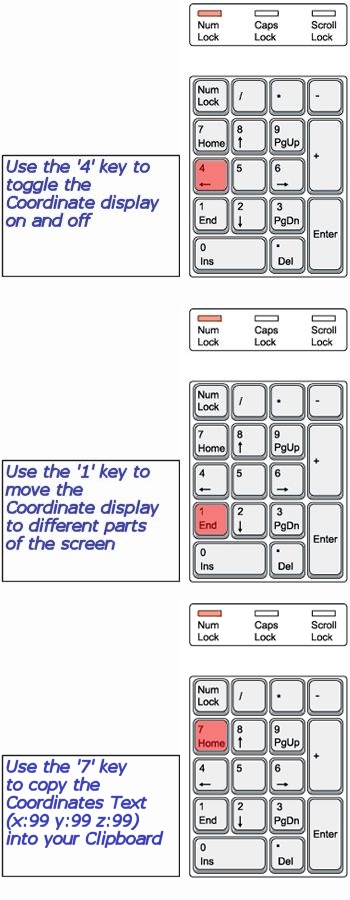
NOTE 1 Coordinates can appear:
- Top Left
- Top Right
- Bottom Right
NOTE 2 All of the Control Keys are fully reconfigurable via the Options Menu in-game
NOTE 3 Screen locations and display modes are remembered when you quit Minecraft
Custom Colours
You can customise the colours in which Batty's Coordinates appear on the screen.
This done by creating a small file called BatMod.properties in your .minecraft folder.
NOTE: Be very careful that the file is called BatMod.properties and not BatMod.properties.txt especially if using Notepad to create it!
If this file is not present, the Coordinates all appear in the default colours.
The following lines are permitted in the file:
- Coords.shade = <true or false>
- Coords.colours.TitleText = <colour from the list>
- Coords.colours.PosCoordText = <colour from the list>
- Coords.colours.NegCoordText = <colour from the list>
- Coords.colours.CoordText = <colour from the list>
- Coords.colours.CompassText = <colour from the list>
NOTE 1: PosCoordText and NegCoordText can be used to distinguish positive and negative coordinates from each other by giving them different colours
NOTE 2: You can still use CoordText, and this will override anything you put in PosCoordText and NegCoordText
The full list of recognised colours:

(*Note* that you must type all of the entries exactly as they appear here - capitals and lowercase - or they will be ignored and the default colours will be used by the game)
So, for example, if you like all-white lettering and no shaded panel, make this BatMod.properties file:

Compatibility
Batty's Coordinates mod makes changes to these Minecraft internal classes:
- GuiIngame.class
- Minecraft.class
It also adds its own class:
- BattyUI.class
It will conflict with any other mods that you install which modify the same classes.
Optifine does not touch these classes, and so should be completely compatible.
Installing
This is a very basic mod and is installed either by editing the appropriate Minecraft jar file or by using apps e.g. MagicLauncher, MultiMC
using MagicLauncher
- Add Batty's Coordinates as an external mod to a MagicLauncher profile
- Find the zip file that you downloaded.
- Run as normal.
editing Minecraft.jar(1.6 onwards)
- make a new folder in the %appdata%\.minecraft\versions\ folder
- in this example, assume you have called this "1.7.2-Coords" (Note Minecraft does not recognise names that contain spaces)
- copy the entire contents of the "1.7.2" folder into "1.7.2-Coords"
- rename the 1.7.2.jar to 1.7.2-Coords.jar and 1.7.2.json to 1.7.2-Coords.json
- open the 1.7.2-Coords.jar with an appropriate tool (e.g. WinRAR, 7-zip)
- delete the META-INF folder (this is VERY important)
- open the zip file that you downloaded containing my mod
- copy all of the zip file contents
- paste the zip file contents into the 1.7.2-Coords.jar, replacing the classes in the this jar with the equivalent classes from the zip file
- edit the 1.7.2-Coords.json file, changing the id to "1.7.2-Coords"
- set up a profile for this new jar using the new Minecraft Launcher
- run Minecraft from this new profile
I made a short tutorial video to describe this process:
Batty's Coordinates for Forge
Please Note: This Mod was discontinued, replaced by the Batty's Coordinates PLUS Mod for Forge. See here for the new Mod.
See your Location at a glance
The X, Y and Z coordinates that locate the player's position in the world are normally displayed on the F3 Debug screen.
This mod displays them discreetly in a corner of the main game screen, so you don't have to leave F3 open to see them.
It also indicates the direction that you are facing, in compass-direction terms.
Video Spotlight
A Mod Spotlight (covering all variations of my mods) by EddCase and OddyC of TheMobCave.
Bigger? Better?
If you like this mod but would like a few more features, why not check out Batty's Coordinates Mod PLUS! for Forge? - Coordinates, an inbuilt Stopwatch Timer, Biome reminder, and an indicator of how your coordinates will change when you walk.
Controls
From version 1.7.2_1.3.0 the Controls have been completely revamped
All controls use keys from the NumPad (Be sure to have NumLock set on!)
NOTE 1 Coordinates can appear:
- Top Left
- Top Right
- Bottom Right
NOTE 2 All of the Control Keys are fully reconfigurable via the Options Menu in-game
NOTE 3 Screen locations and display modes are remembered when you quit Minecraft
Custom Colours
You can customise the colours in which Batty's Coordinates appear on the screen.
This done by creating a small file called BatMod.properties in your .minecraft folder.
NOTE: Be very careful that the file is called BatMod.properties and not BatMod.properties.txt especially if using Notepad to create it!
If this file is not present, the Coordinates all appear in the default colours.
The following lines are permitted in the file:
- Coords.shade = <true or false>
- Coords.colours.TitleText = <colour from the list>
- Coords.colours.PosCoordText = <colour from the list>
- Coords.colours.NegCoordText = <colour from the list>
- Coords.colours.CoordText = <colour from the list>
- Coords.colours.CompassText = <colour from the list>
NOTE 1: PosCoordText and NegCoordText can be used to distinguish positive and negative coordinates from each other by giving them different colours
NOTE 2: You can still use CoordText, and this will override anything you put in PosCoordText and NegCoordText
The full list of recognised colours:
(*Note* that you must type all of the entries exactly as they appear here - capitals and lowercase - or they will be ignored and the default colours will be used by the game)
So, for example, if you like all-white lettering and no shaded panel, make this file:
BatMod.properties
Compatibility
Batty's Coordinates for Forge is designed to run under Minecraft Forge. It will therefore be compatible with other Forge mods that you load, within the rules structure of Forge.
Installing
Make sure you have Forge installed: download and run the latest recommended Forge installer.
Download Batty's Coordinates for Forge .jar file and place it in your /.minecraft/mods folder. (%appdata%/.minecraft/mods)
Create the /mods folder if it does not already exist.
Select the latest Forge profile in the Minecraft Launcher, or MagicLauncher.
Check that Batty's Coordinates for Forge has been recognised as an External Mod.
Run Minecraft from the Launcher.
Screenshots
Gallery
-
 Batty's Coordinates Mod v1.0 Screenshot A screenshot showing Batty's Coordinates Mod in use.
 -
 Batty's Coordinates Mod v2.2.0 Showing default colour-scheme of the new version
 -
 Batty's Coordinates Mod v2.2.0 Showing the default colour-scheme of the new release
 -
 Batty's Coordinates Mod v2.2.0 Showing an alternative colour-scheme available in this new release
-
Coords key controls described Control keys for Batty's Coordinates Mod described
-
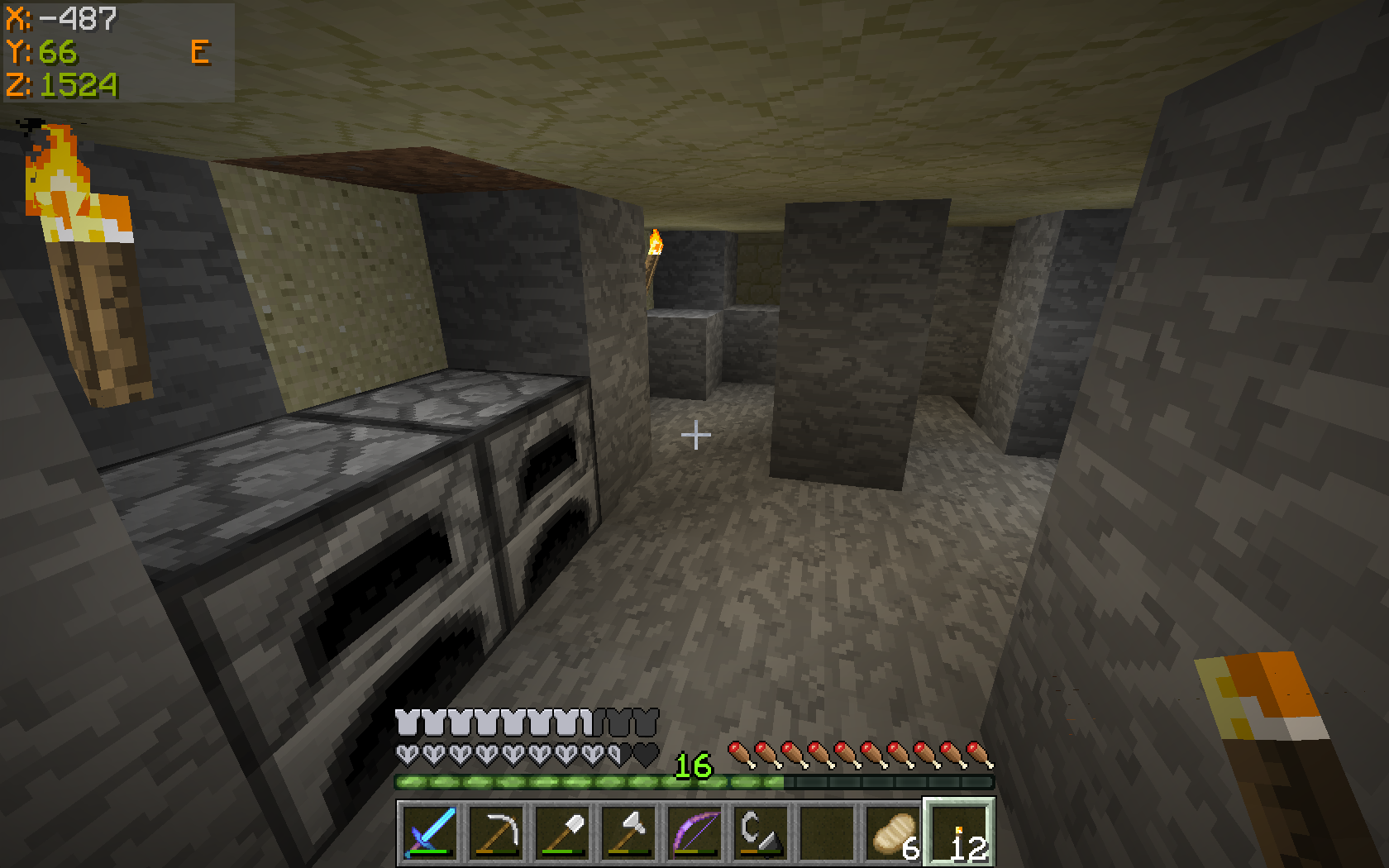 Batty's Coordinates for Forge v1.1.0 Shows a modified colour-scheme, with positive and negative coordinates in different colours
 -
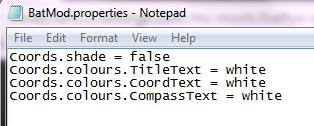 Batty's Coordinates Mod for Forge (1.7.2 v1.2.1) Example BatMod.properties file for a 'minimalist white' look
 -
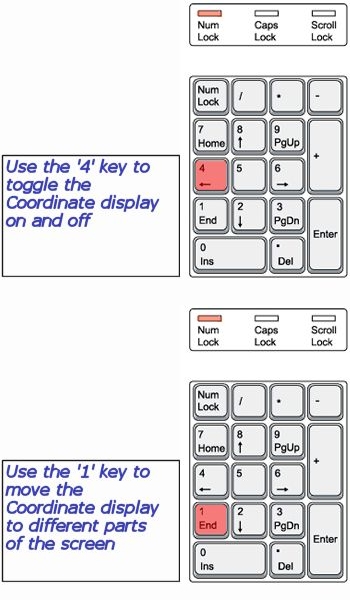 Key Controls Described Key controls have been completely revamped for version 1.7.2_1.3.0, using NumPad keys
Versions
Files
Relations
Project Relations
More like this
Similar Mods
Suggestions use data such as tags, dependencies, dependents, descriptions, titles, and more to rank how much they overlap with this mod.
On ModDex
Community snapshot
By the numbers
Statistics
Want to reach Minecraft players?
We're looking for a server hosting partner to feature here and other parts of the site. Interested? Send us a message!
Get in touchGet it on
Available Platforms
On ModDex
Community snapshot
By the numbers
Statistics
Resources