Community listing page, reviews here may not be monitored by the author.
Buying Chunks — FTB Chunks Addon

No reviews yet
A addon for FTB Chunks that adds a fully-featured chunk shop system to your server. Admins can put claimed chunks up for sale, and players can browse and purchase them directly from the FTB Chunks map GUI.
Community voices
Reviews
No reviews yet. Be the first to review this project!
Get it on
Available Platforms
About
Project Details
For authors
Embed Badge
If you're the author of this project, you can embed a live badge anywhere that supports HTML or Markdown. It updates automatically whenever ratings change.
Use HTML for any page that supports it, or Markdown for README files and Markdown-based descriptions.
Identifiers
Platform IDs
About
Description

🏪 Buying Chunks — FTB Chunks Addon

A NeoForge 1.21.1 addon for FTB Chunks that adds a fully-featured chunk shop & marketplace to your server. Admins can set up server-wide claim pricing and shop districts, players can buy and sell their own claimed chunks, and everything is managed through an in-game GUI — no more memorizing commands.
✨ Features
- FTB Shop GUI — a full in-game dashboard (
/ftbshop gui) with a Marketplace, Sell Chunk screen, My Listings, and a Quickbuy toggle - Admin Dashboard — manage Base Cost, Player Sell, Team Prices, Buy Limits, Player Income, Auto-Reclaim, and full Server Team Management, all from one screen (
/ftbshop admin) - Player Marketplace — players can list their own claimed chunks for sale at a custom price (if enabled by an admin), browse all listings, search by team name, sort by price or distance, and mark favorites
- In-World Buy Overlay — a HUD panel pops up automatically when you're near a for-sale chunk, showing the price, the seller's team, and a live inventory comparison, with a clickable Buy button
- Buy Hotkey — press a key (default
B) to instantly buy the chunk you're standing in - Visual Map Icons — for-sale chunks still appear as icons on the FTB Chunks map, now color-coded to the seller's team and with richer tooltips
- Particle Chunk Borders — nearby for-sale chunks are outlined with particles (configurable radius/density)
- Team Shop System — create server teams with a fixed price per chunk; any chunk claimed by that team is automatically listed for sale
- Base Cost — optionally require a universal item payment for any chunk claim on the server, separate from the marketplace/team shop
- Multi-Dimension Support — the marketplace, base cost, and listings now work in every dimension, not just the Overworld
- Quickbuy — optionally skip the purchase confirmation screen entirely
- Purchase Effects & Toasts — visual/sound feedback on purchase, plus toast notifications for buying and listing
- Welcome Message — configurable message shown to players on their first join
- Discord Webhook Integration — optionally post buy/sell/remove events to a Discord channel (or any webhook URL) as embeds
- Automatic Sync — all clients are updated in real-time when chunks are listed, bought, or removed
- Stale Listing Cleanup — listings for chunks that are no longer actually claimed are automatically removed
- Multilingual — fully translatable via https://crowdin.com/project/buying-chunks (more languages can be added)
📦 Dependencies
| Mod | Version |
|---|---|
| NeoForge | 21.1.224 |
| FTB Chunks (NeoForge) | 2101.1.14+ |
| FTB Teams (NeoForge) | 2101.1.9+ |
| FTB Library (NeoForge) | 2101.1.30+ |
| Architectury (NeoForge) | 13.0.8+ |
All dependencies must be installed on both the server and every client.
🚀 Installation
- Download
buyingchunks-1.2.0.jar - Place it in the
mods/folder of your server and all clients - Make sure all dependencies listed above are also installed
- Start the server — no additional configuration required (config files are generated automatically; see Configuration below)
🔔 Discord Webhook Integration
Buying Chunks can automatically post a message to a Discord channel (or any custom endpoint) every time a chunk changes hands on the marketplace — handy for a public #shop-log channel so players can see activity without being online.
What triggers a message
| Event | Fires when… | Embed color | Embed title |
|---|---|---|---|
| Purchase | a player buys a listed chunk (map, overlay, or Marketplace screen — any path) | green | ✅ Chunk Purchased |
| Listing | a player lists their own chunk via /ftbshop gui → Sell Chunk |
teal | 🧾 Chunk Listed for Sale |
| Removal | a player removes their own listing via My Listings → Remove | orange | 🗑️ Chunk Removed from Sale |
Note: this only fires for explicit player actions on the marketplace (buy / sell / remove). It does not fire when a server team auto-lists a chunk on claim (the Team Shop system) — only manual player listings and purchases are reported.
Payload format
Each message is a single Discord embed with these fields:
- Chunk —
[x, z] - Dimension — e.g.
minecraft:overworld - Buyer (purchase events) or Seller (listing/removal events) — the triggering player's name
- Team — the shop team name tied to the listing
- Price —
<count>x <item> - a timestamp (ISO-8601, shown by Discord in the user's local time)
The JSON is plain {"embeds":[{...}]} — standard Discord webhook format. Because it's just an HTTP POST to whatever URL you configure, it isn't actually limited to Discord: point apiUrl at your own bot/API endpoint and parse the same JSON yourself if you want custom handling instead.
Setup
This is the one part of the mod that isn't configured through /ftbshop admin — it lives in the server config file, not the in-game GUI:
- In Discord: Server Settings → Integrations → Webhooks → New Webhook, pick a channel, then Copy Webhook URL.
- On your server, open
config/buyingchunks-server.tomland set:
   [Webhook API]
       apiEnabled = true
apiUrl = "https://discord.com/api/webhooks/XXXXXXXXXX/XXXXXXXXXXXXXXXXXXXXXXXXXXXXXXXXXXXXXXXXXXXXXXXXXXXXXXXXXXXXXXXX"- Restart the server (or reload configs, if your setup supports it).
Both values default to off / empty — nothing is sent anywhere unless an admin opts in.
Behavior notes
- Requests are sent asynchronously and are fire-and-forget: a failed or slow webhook never blocks or delays the purchase/sale itself.
- Failures are only logged server-side (
WebhookSender: Failed to send to ...) — there's no retry and no in-game indication if delivery fails, so check your server log if messages stop showing up.
🛠️ Admin Setup Guide
Everything an admin needs — creating shop teams, setting prices, claiming chunks, configuring claim protections, all of it — is done through one single command:
/ftbshop admin(requires OP level 2 or higher). You should never need /ftbteams ... or /ftbchunks admin ... for day-to-day shop management anymore — the Admin Dashboard fully replaces them.
Setting Up a Shop District (Recommended) — 100% via GUI
/ftbshop admin→ Server Team Management → type a name (e.g.Shopping-District) into the Create New Server Team field → click Create.- Back in
/ftbshop admin→ Team Prices → type the team name into the search field (an autocomplete dropdown shows matching teams) → select it → pick an item with the 🔍 picker (or type its ID) → set the amount → Add. - Back in the Server Team Management list, find your new team and click ⌂ (or Manage → Open Chunk Map) — this opens the FTB Chunks claim map as that team, exactly like the old
/ftbchunks admin open_claim_gui_ascommand did, just one click away. Claim the chunks you want to sell here. - While you're in Server Team Management → Manage, you can also set the team's color and lock down its claim protections (PvP, explosions, mob griefing, fake players, etc.) — see below.
That's it — no other commands. Any chunk claimed by Shopping-District is now automatically listed for sale at the configured price.
Allowing Players to Sell Their Own Chunks
By default, only admin-managed team shops are listed. To let regular players list their own claimed chunks:
/ftbshop admin→ Player Sell → click Enable (the button flips to Disable once it's on).- Players can then stand in a chunk they own and use
/ftbshop gui→ Sell Chunk to list it. - Use Player Income (per team, in the Admin Dashboard) to decide whether sellers actually receive the payment, or whether it goes nowhere (e.g. for "sink" shop teams). Same flow as Team Prices: search the team, click Toggle.
The Three Pricing Systems
Buying Chunks supports three independent, stackable pricing mechanisms, all configured from /ftbshop admin:
| System | Where to set it | Applies to |
|---|---|---|
| Base Cost | Admin Dashboard → Base Cost | Every chunk claim on the server, regardless of team |
| Team Shop | Admin Dashboard → Team Prices | All chunks claimed by a specific (usually server-owned) team — auto-listed |
| Player Marketplace | The chunk's owner, via /ftbshop gui |
Any already-claimed chunk a player chooses to list, if Player Sell is enabled |
Buy Limits & Auto-Reclaim
- Buy Limits: cap how many chunks a given team is allowed to buy from a specific shop team (same search-team → pick item → set amount → Add flow as Team Prices).
- Auto-Reclaim: when enabled for a server team (search team → Toggle), a shop chunk that gets unclaimed is automatically reclaimed by that team so it stays sellable.
Server Team Management — Full Claim Settings, No Other Mod's GUI Needed
/ftbshop admin → Server Team Management lists every server team (color swatch + name) with, per row:
- Manage — opens the Team Detail screen (see below)
- ⌂ — opens the FTB Chunks claim map for that team directly (claim/unclaim chunks as that team)
- ✕ — deletes the team
At the bottom: a name field + Create button for new server teams.
Clicking Manage opens the Team Detail screen — a full reimplementation of FTB Teams' own claim-settings panel right inside Buying Chunks, so you never have to open FTB Teams or FTB Chunks separately to configure a shop team:
- Hex color (with Save)
- Five ON/OFF protection toggles: Allow Explosions, Allow Mob Griefing, Allow PvP, Allow All Fake Players, Allow Fake Players by ID
- Seven cyclable mode properties (click to cycle through Private / Allies / Public, depending on the property): Block Edit Mode, Block Interact Mode, Entity Interact Mode, Nonliving Entity Attack Mode, Claim Visibility, Location Mode, Block Edit & Interact Mode
- Delete This Team and Open Chunk Map buttons
🖥️ Full GUI Reference
A quick screen-by-screen breakdown of what's clickable where.
/ftbshop gui → Main Dashboard (4 rows)
| Row | What it shows | What it does |
|---|---|---|
| Marketplace | number of chunks currently for sale in your dimension | opens the Marketplace |
| Sell Chunk | the price if the chunk you're standing in is already listed, otherwise a prompt | opens Sell Chunk |
| My Listings | your active listing count + a preview of pending income, if any | opens My Listings |
| Quickbuy | Enabled / Disabled | toggles Quickbuy instantly (no screen change) |
Marketplace screen
- Search box — filters by shop/team name as you type
- ★ star (top-right) — show favorites only; ★ per row — toggle that listing as a favorite
- Three sort buttons — Price ↑, Price ↓, Distance (nearest first)
- Scrollable list (mouse wheel) across all dimensions at once, each row showing position, team name in team color, price, distance, and a Buy button
- Buying respects Quickbuy: instant purchase + sound if on, otherwise opens the confirmation screen
Sell Chunk screen
- Shows whether the chunk you're standing in is already listed (with price and team color) or not
- Item field (type an ID) or the 🔍 button to open a visual item picker
- Amount field (1–64)
- Sell button — lists/updates the chunk
My Listings screen
- Stats line: active listing count (the "Sold"/"Earned" counters are present in the UI but not yet wired up — they currently always show 0)
- Pending income preview (item icons + counts) — this is informational only; income is paid out automatically (handed to your inventory, or dropped if full) the moment you're online, or on your next login if you were offline at sale time, with a chat confirmation
- Per-row Remove button to cancel a listing
Buy confirmation screen (shown unless Quickbuy is on)
- Chunk position and price
- Your current inventory count of the price item, color-coded green/red
- Buy-limit progress (e.g. "3/5 bought from TeamX") if the shop team has a buy limit set
- ✔ Buy / ✖ Cancel
In-world Buy Overlay (toggle with the keybind, or it appears automatically near a listing)
- Shows the chunk position, seller team, price, and a hint with your current Buy keybind
- Buy button — turns into a disabled Can't Afford state if you don't have enough items
- ✕ close button
- Has a short click-cooldown to prevent accidental double-purchases
/ftbshop admin → Admin Dashboard (7 rows, each with a live summary on the right)
| Row | Live summary shown |
|---|---|
| Base Cost | current cost, or "Not set" |
| Player Sell | Enabled/Disabled |
| Team Prices | number of teams configured |
| Buy Limits | number of teams with a limit |
| Player Income | number of teams with income disabled |
| Auto-Reclaim | number of teams enabled |
| Server Team Management | — |
Admin → Base Cost: item field + 🔍 picker, amount field, Set and Remove buttons, shows the currently active cost.
Admin → Player Sell: description text + a single Enable/Disable toggle button.
Admin → Team Prices / Buy Limits / Player Income / Auto-Reclaim: one shared screen layout — a scrollable list of currently configured teams (each with an ⌂ "open that team's claim map" button and a ✕ remove button), a team search field with a live autocomplete dropdown (powered by FTB Teams), an item picker + amount field (Team Prices/Buy Limits only), and an Add/Update (Team Prices/Buy Limits) or Toggle (Player Income/Auto-Reclaim) button.
Admin → Server Team Management / Team Detail: see the "Server Team Management" section above.
🛒 Player Buying Guide
There are now three ways to buy a chunk:
- In-world overlay — walk near a for-sale chunk; a panel appears automatically with the price and a Buy button. Or just press the Buy hotkey (default
B) while standing in it. - FTB Chunks map — open the large map (default
M), find a shop-colored chunk icon, hover for the price/tooltip, and left-click to buy. - Marketplace GUI — open
/ftbshop gui→ Marketplace to search, sort (price or distance), favorite, and buy listings from anywhere.
Make sure you have the required items in your inventory! If Quickbuy is enabled (toggle it in /ftbshop gui), purchases skip the confirmation screen entirely.
You can't buy your own chunk or a chunk owned by your own team, and you can't buy at all while your character is part of a server team. The chunk is transferred to your team immediately upon purchase, and nearby players will see a purchase effect.
💰 Selling Your Own Chunks
If an admin has enabled Player Sell:
- Stand in a chunk your team owns.
- Open
/ftbshop gui→ Sell Chunk. - Pick an item and amount as the asking price (type the ID or use the 🔍 picker), then hit Sell.
- Track your active listings in My Listings, and remove a listing any time with its Remove button. Payment is handed to you automatically when the chunk sells (instantly if you're online, otherwise on your next login) — there's no manual "claim" step.
💬 Commands Reference
| Command | Description | Permission |
|---|---|---|
/ftbshop gui |
Open the shop dashboard (Marketplace, Sell, My Listings, Quickbuy) | Everyone |
/ftbshop admin |
Open the admin dashboard — every admin action lives here (Base Cost, Team Prices, Player Sell, Buy Limits, Player Income, Auto-Reclaim, Server Team Management incl. team creation/deletion, claim protections, and jumping into a team's chunk map) | OP 2+ |
All configuration that used to require typed
/claimshop ...commands (set, remove, info, teamprice, playersell, playerincome, basecost, autoreclaim, setting) — and even team-management tasks that used to require/ftbteams server createor/ftbchunks admin open_claim_gui_as— has moved into the/ftbshop adminGUI. In practice,/ftbshop adminis the only command you'll ever need to type.
⚙️ Configuration
Two config files are generated under config/:
- Client config — particle overlay settings: radius (chunks), particle spacing, and spawn interval.
- Server config:
welcomeEnabled/welcomeMessage— first-join welcome message (supports§color codes).apiEnabled/apiUrl— enable and set a Discord-style webhook URL to receive chunk purchase/listing/removal events as embeds.
🌍 Translations
The mod supports full translation. It can be translated even more here: https://crowdin.com/project/buying-chunks
⚙️ How It Works
- Shop data is saved server-side per dimension using Minecraft's
SavedDatasystem — it persists across restarts. - When a player joins (or data changes), all current shop listings, base cost, buy limits, and bought counts are synced to clients for every dimension.
- When a chunk is purchased, the old claim is removed and the chunk is re-claimed under the buyer's team; the base cost (if any) is skipped for shop purchases to avoid double-charging.
- Items are taken directly from the buyer's inventory.
- Listings for chunks that are no longer actually claimed are automatically cleaned up during sync.
🐛 Known Limitations
- Players must be in a non-server team to purchase chunks.
- The "Sold" and "Earned" counters on the My Listings screen are not yet wired up and currently always display
0— only the active listing count is accurate. - Large bulk claims (100+ chunks at once) may cause brief lag during sync.
- The Discord webhook integration is fire-and-forget (no retry on failure); check your server logs if events stop arriving.
📄 License
MIT License ©snoopypupser
Screenshots
Gallery
-
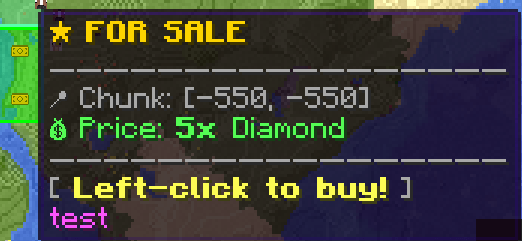 For Sale forsale.png
 -
 Message after buying chunkbuy.png
 -
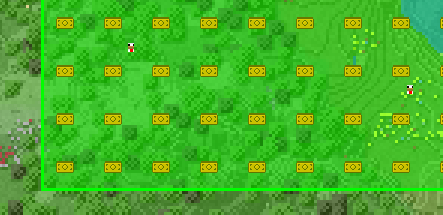 Icons on chunks chunkicons.png
Versions
Files
Relations
Project Relations
More like this
Similar Mods
Suggestions use data such as tags, dependencies, dependents, descriptions, titles, and more to rank how much they overlap with this mod.
On ModDex
Community snapshot
By the numbers
Statistics
Want to reach Minecraft players?
We're looking for a server hosting partner to feature here and other parts of the site. Interested? Send us a message!
Get in touchGet it on
Available Platforms
On ModDex
Community snapshot
By the numbers