
Community listing page, reviews here may not be monitored by the author.
ClipChat


No reviews yet
A clipboard manager that lives inside the Minecraft chat screen. Open chat, click an entry, and it is inserted at your cursor : no alt-tabbing to find that message, coordinate or command again.
Community voices
Reviews
No reviews yet. Be the first to review this project!
Get it on
Available Platforms
Compatibility
Supported Environments
Runs entirely on the client. Works on vanilla servers.
About
Project Details
For authors
Embed Badge
If you're the author of this project, you can embed a live badge anywhere that supports HTML or Markdown. It updates automatically whenever ratings change.
Use HTML for any page that supports it, or Markdown for README files and Markdown-based descriptions.
Identifiers
Platform IDs
About
Description
ClipChat
ClipChat is a client-side clipboard manager directly integrated into the Minecraft chat screen.
Anything you copy while playing can be quickly accessed from the chat. Simply open the chat, click an entry, and ClipChat inserts it directly at your cursor.
No more alt-tabbing to find a message, coordinate or command you copied earlier.

Features
- Clipboard history directly in the Minecraft chat
- Click an entry to insert it into your message
- Pin important entries so they always stay at the top
- Delete and manage entries directly from the panel
- Full keyboard controls
- Movable, resizable and collapsible interface
- 4 built-in themes with customizable colours
- Optional clipboard persistence between game sessions
- Optional Windows clipboard history integration
ClipChat is client-side only and does not need to be installed on the server.
Controls
The panel is displayed directly inside the chat screen.
Ctrl + Up / Down: Select an entryCtrl + Enter: Insert selected entryCtrl + P: Pin / unpinCtrl + Delete: DeleteCtrl + Left / Right: Switch clipboard tab
You can also use the mouse to insert, pin, delete, move or resize the panel.
Configuration
Open the settings using:
- the gear icon in the ClipChat panel
/clipchat- the ClipChat settings keybind
- Mod Menu, if installed

Windows Clipboard History
On Windows, ClipChat can optionally display the clipboard history provided by Windows directly inside Minecraft.
This feature is disabled by default and Windows clipboard history is only accessed when you enable and open the Windows tab.

Privacy
Clipboard history persistence and Windows clipboard history are disabled by default.
Windows clipboard history is read on demand and is never saved by ClipChat.
ClipChat
ClipChat is a client-side clipboard manager directly integrated into the Minecraft chat screen.
Anything you copy while playing can be quickly accessed from the chat. Simply open the chat, click an entry, and ClipChat inserts it directly at your cursor.
No more alt-tabbing to find a message, coordinate or command you copied earlier.
Features
- Clipboard history directly in the Minecraft chat
- Click an entry to insert it into your message
- Pin important entries so they always stay at the top
- Delete and manage entries directly from the panel
- Full keyboard controls
- Movable, resizable and collapsible interface
- 4 built-in themes with customizable colours
- Optional clipboard persistence between game sessions
- Optional Windows clipboard history integration
ClipChat is client-side only and does not need to be installed on the server.
Controls
The panel is displayed directly inside the chat screen.
Ctrl + Up / Down: Select an entryCtrl + Enter: Insert selected entryCtrl + P: Pin / unpinCtrl + Delete: DeleteCtrl + Left / Right: Switch clipboard tab
You can also use the mouse to insert, pin, delete, move or resize the panel.
Configuration
Open the settings using:
- the gear icon in the ClipChat panel
/clipchat- the ClipChat settings keybind
- Mod Menu, if installed
Windows Clipboard History
On Windows, ClipChat can optionally display the clipboard history provided by Windows directly inside Minecraft.
This feature is disabled by default and Windows clipboard history is only accessed when you enable and open the Windows tab.
Privacy
Clipboard history persistence and Windows clipboard history are disabled by default.
Windows clipboard history is read on demand and is never saved by ClipChat.
Screenshots
Gallery
-
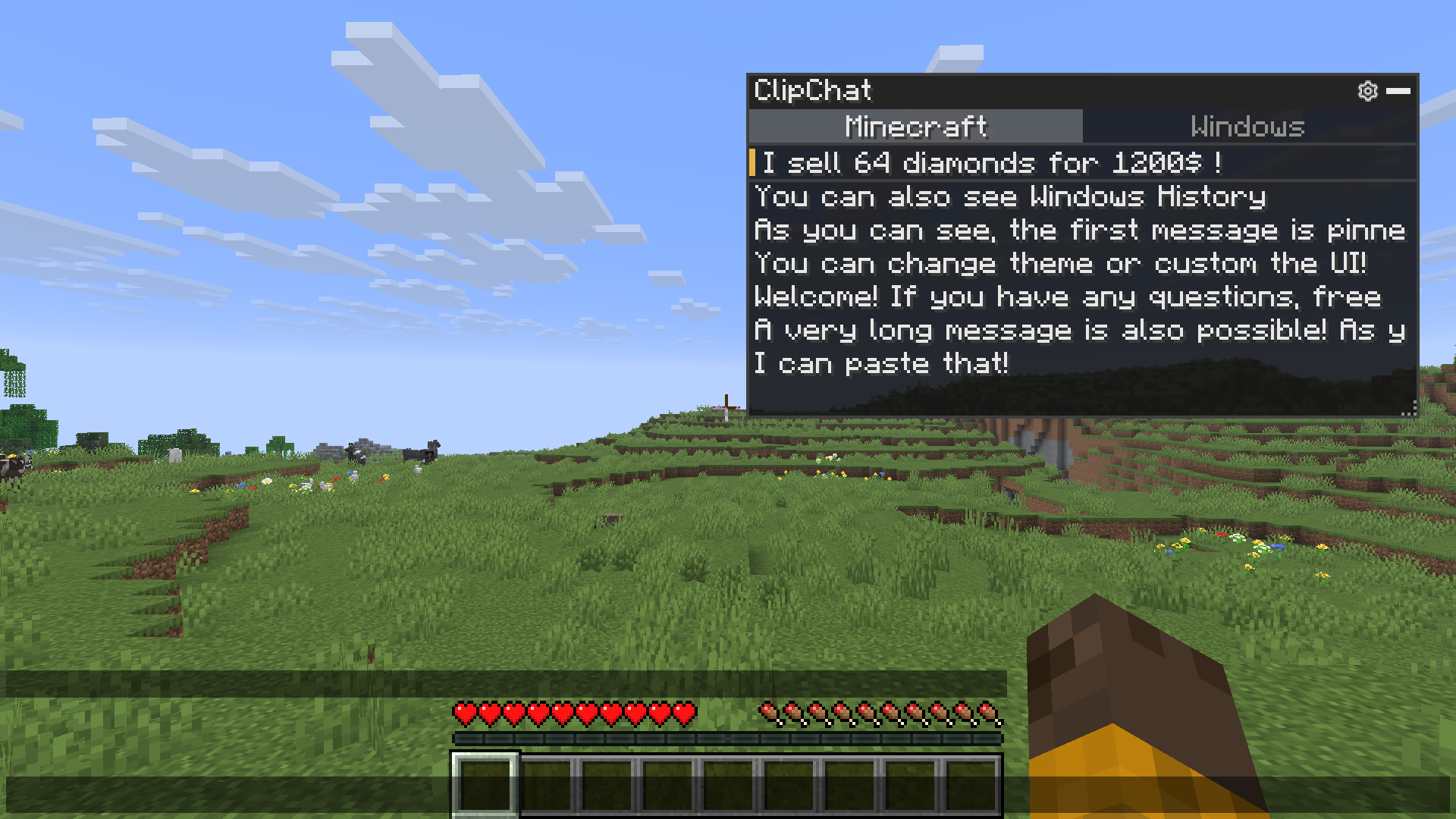 ClipChat Render
 -
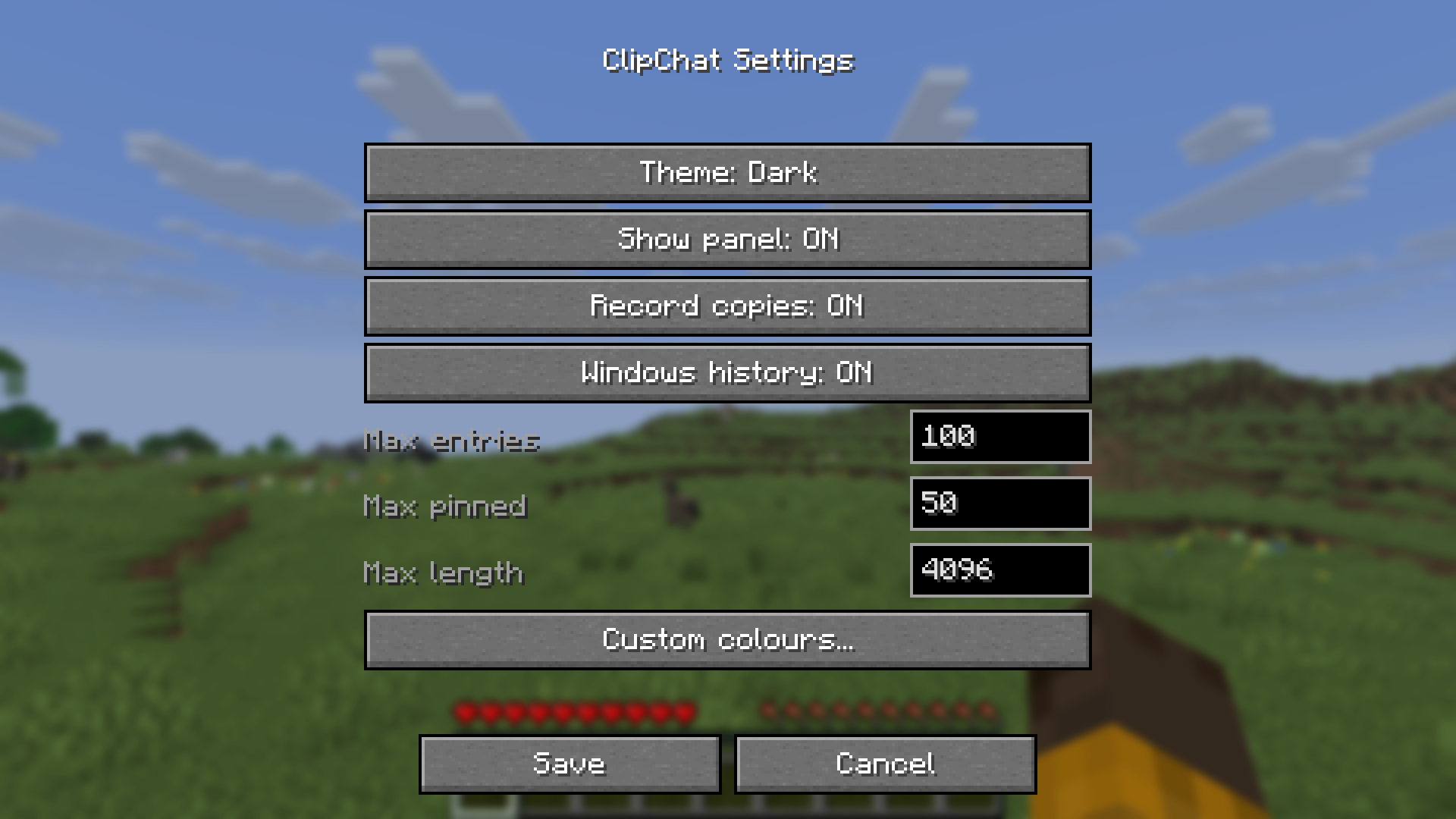 Settings Screen
 -
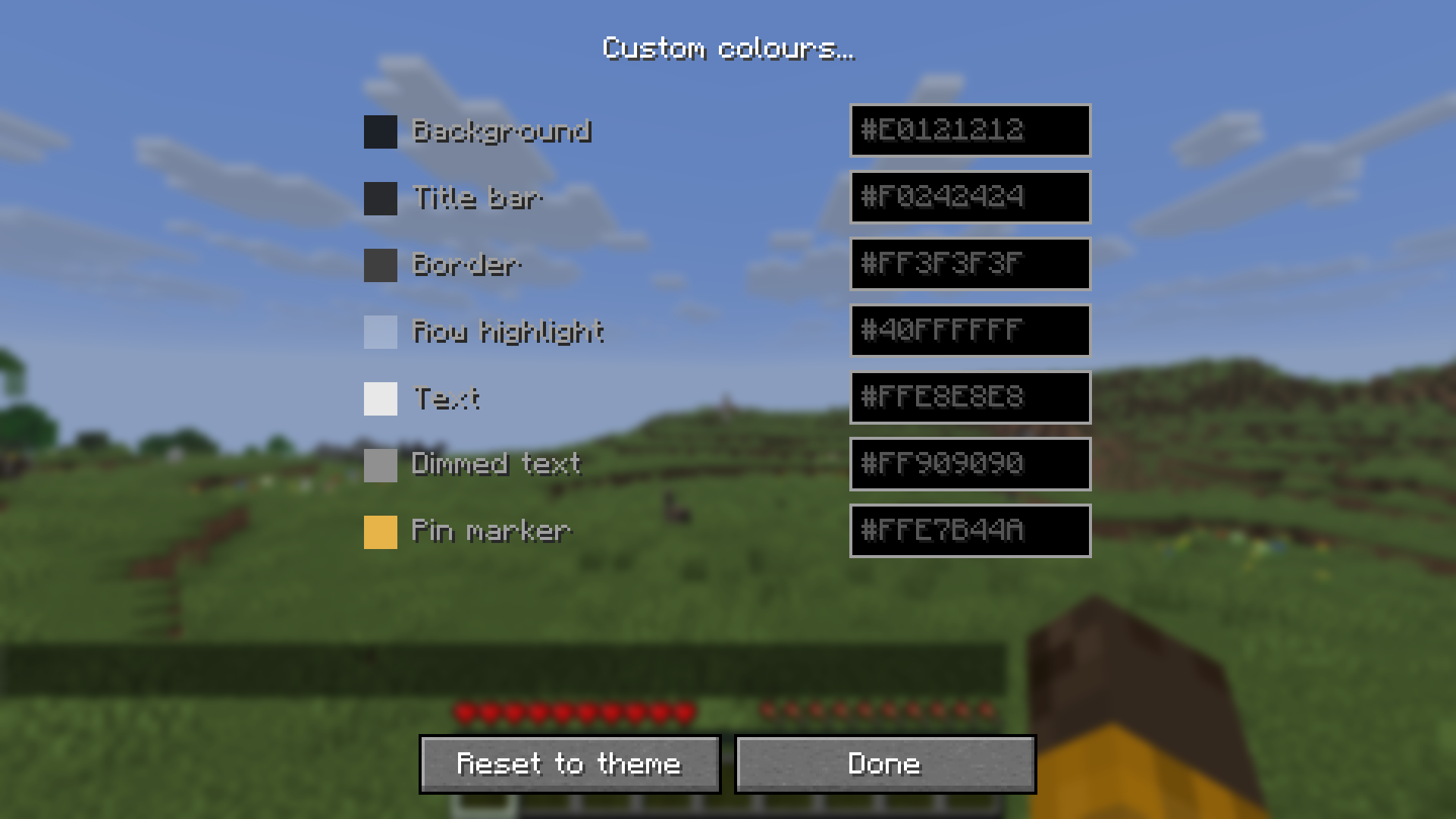 Colour Editor
 -
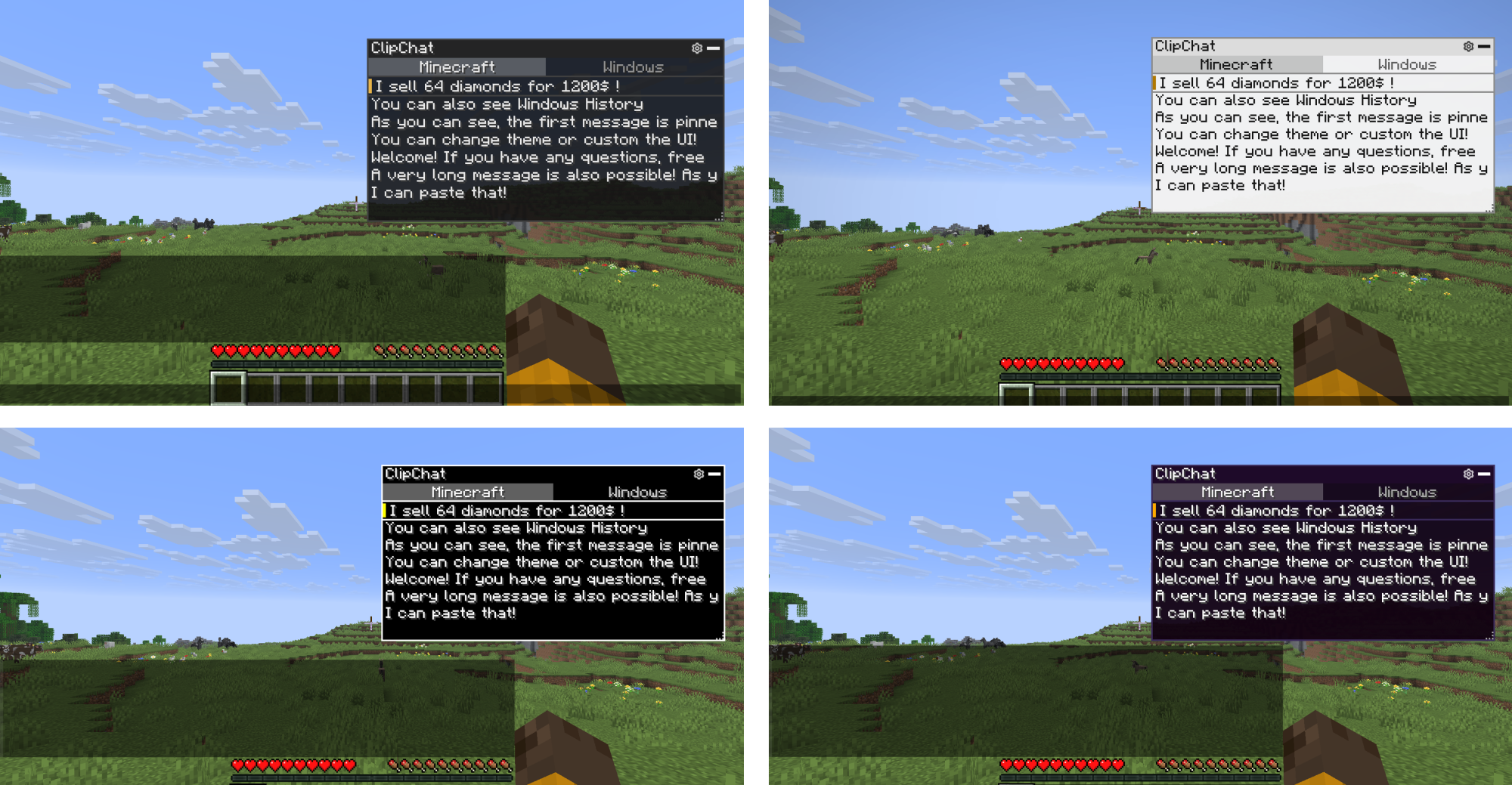 Themes Available
 -
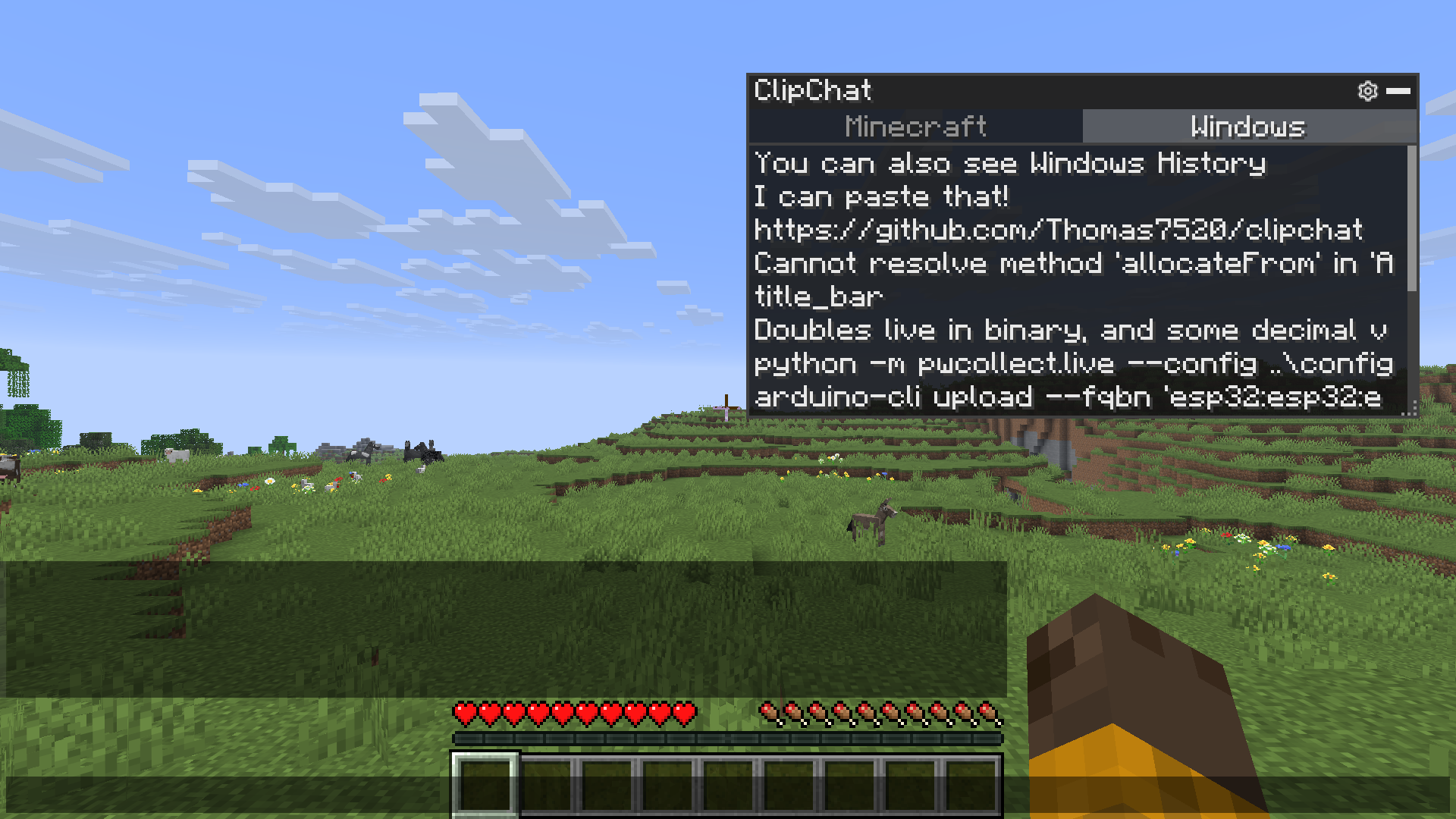 Windows ClipBoard
Versions
Files
Relations
Project Relations
More like this
Similar Mods
Suggestions use data such as tags, dependencies, dependents, descriptions, titles, and more to rank how much they overlap with this mod.
On ModDex
Community snapshot
By the numbers
Statistics
Want to reach Minecraft players?
We're looking for a server hosting partner to feature here and other parts of the site. Interested? Send us a message!
Get in touchGet it on
Available Platforms
On ModDex
Community snapshot
By the numbers