Community listing page, reviews may not be monitored by the author.
Custom LAN


No reviews yet
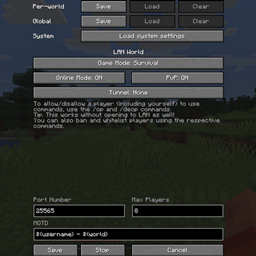
Gives you more control over your integrated server through the Open to LAN menu.

Community voices
Reviews
No reviews yet. Be the first to review this project!
Get it on
Available Platforms
Compatibility
Supported Environments
Works in singleplayer only; does not function in multiplayer.
About
Project Details
For authors
Embed Badge
If you're the author of this project, you can embed a live badge anywhere that supports HTML or Markdown. It updates automatically whenever ratings change.
Use HTML for any page that supports it, or Markdown for README files and Markdown-based descriptions.
Identifiers
Platform IDs
About
Description

A Fabric mod that allows you to:
- Customize more of your integrated server (Online Mode, PvP, Max Players, MOTD)
- Use ampersands (
&) for formatting codes instead of section signs (§) and variables (e.g.${username},${world}) in the MOTD - Change the settings mid-game (including the port) and stop the server without quitting the world
- Save the settings globally or per-world (they are loaded automatically with per-world settings taking priority over the global ones, which take priority over the system defaults)
- Change who can use cheats individually using the
/opand/deopcommands and cheat in singleplayer without opening to LAN (replaces the Allow Cheats button) - Manage bans with
/ban,/ban-ip,/banlist,/pardonand/pardon-ip, and whitelist players with/whitelist(use/whitelist on/offto enable/disable) - Expose your server outside of your LAN without port forwarding using tunnels (currently only ngrok is supported)
It also allows you to start the LAN world by pressing Enter, doesn't force the gamemode (e.g. anyone who left in Creative mode will still be in Creative when they join even if the world is set to Survival), and extends the /publish command, which can now change settings mid-game as well (use a port of -1 to randomize it):
/publish [<port>] [<onlineMode>] [<pvpEnabled>] [<maxPlayers>] [<defaultGameMode>] [<tunnel>] [<motd>]
/publish [perworld|global|system] [<port>] [<onlineMode>] [<pvpEnabled>] [<maxPlayers>] [<defaultGameMode>] [<tunnel>] [<motd>]
/publish stop
It requires Fabric Loader and Cloth Config API, but Fabric API is not required.
It has been backported to all Minecraft versions supported by Fabric (except the snapshots)! I'm not planning on porting it to Forge myself for now, but you're more than welcome to send me a pull request.
Explanation of MOTD formatting codes and variables
In the MOTD, ampersands (&) are replaced with section signs (§) to allow you to enter formatting codes (e.g. &9Hello, &a&lworld! makes Hello, blue and world! green and bold). You can use two ampersands in a row (&&) to get an actual ampersand (&).
The following variables will be expanded using Apache Commons Text's StringSubstitutor:
${username}– the host's username (e.g. “DimiDimit”)${world}– the world's name (e.g. “New World”)
Explanation of saved settings
The settings can be saved per-world or globally. When the Open to LAN screen is opened, the settings are loaded automatically in that order, and they can also be loaded manually using the Load buttons.
Using the /publish command without specifying which saved settings to use (perworld, global or system) uses the same order if the world hasn't been opened to LAN, or the current values instead of any saved settings if it has. Specifying the saved settings uses those particular settings or the system defaults if they haven't been saved, without checking any others, even if the world has been opened to LAN (e.g. if perworld is specified and no per-world settings are saved, the system defaults will be used even if there are saved global settings). The settings specified as arguments will override the saved settings or current values (e.g. /publish perworld 12345 false will use the per-world settings, except that the port will be 12345 and online mode will be disabled).
The global settings are stored in .minecraft/config/customlan.toml, while the per-world ones are stored in data/customlan.dat in the respective world's directory.
Explanation of /op and /deop
/op and /deop work like in dedicated servers. You can also use them on yourself, the host. Doing this will add/remove the “Cheats” label on the world (as if you've NBT edited the allowCommands field), and you can use these commands without opening to LAN as well, replacing the Vanilla method of opening to LAN, cheating, quitting the world and entering it again.
Operators are persisted per-world in an ops.json file inside that world's directory. To allow operators to assign and remove other operators, as well as ban and whitelist players, change their level in the ops.json file to 3 or higher (the default is 2, while level 4 allows them to use /publish). You, as the host, can always assign and remove operators, even if you're not an operator yourself.
Explanation of bans and whitelists
These commands also work like in dedicated servers, though you cannot ban or whitelist the host. Enabling the whitelist does not kick all non-whitelisted players (i.e. enforce-whitelist is always false).
The files used are also per-world and the same as on dedicated servers—banned-players.json, banned-ips.json, whitelist.json—though whether the whitelist is enabled is stored in data/customlan.dat.
A Fabric mod that allows you to:
- Customize more of your integrated server (Online Mode, PvP, Max Players, MOTD)
- Use ampersands (
&) for formatting codes instead of section signs (§) and variables (e.g.${username},${world}) in the MOTD - Change the settings mid-game (including the port) and stop the server without quitting the world
- Save the settings globally or per-world (they are loaded automatically with per-world settings taking priority over the global ones, which take priority over the system defaults)
- Change who can use cheats individually using the
/opand/deopcommands and cheat in singleplayer without opening to LAN (replaces the Allow Cheats button) - Manage bans with
/ban,/ban-ip,/banlist,/pardonand/pardon-ip, and whitelist players with/whitelist(use/whitelist on/offto enable/disable) - Expose your server outside of your LAN without port forwarding using tunnels (currently only ngrok is supported)
It also allows you to start the LAN world by pressing Enter, doesn't force the gamemode (e.g. anyone who left in Creative mode will still be in Creative when they join even if the world is set to Survival), and extends the /publish command, which can now change settings mid-game as well (use a port of -1 to randomize it):
/publish [<port>] [<onlineMode>] [<pvpEnabled>] [<maxPlayers>] [<defaultGameMode>] [<tunnel>] [<motd>]
/publish [perworld|global|system] [<port>] [<onlineMode>] [<pvpEnabled>] [<maxPlayers>] [<defaultGameMode>] [<tunnel>] [<motd>]
/publish stop
It requires Fabric Loader and Cloth Config API, but Fabric API is not required.
It has been backported to all Minecraft versions supported by Fabric (except the snapshots)! I'm not planning on porting it to Forge myself for now, but you're more than welcome to send me a pull request.
Explanation of MOTD formatting codes and variables
In the MOTD, ampersands (&) are replaced with section signs (§) to allow you to enter formatting codes (e.g. &9Hello, &a&lworld! makes Hello, blue and world! green and bold).
You can use two ampersands in a row (&&) to get an actual ampersand (&).
The following variables will be expanded using Apache Commons Text's StringSubstitutor:
${username}– the host's username (e.g. “DimiDimit”)${world}– the world's name (e.g. “New World”)
Explanation of saved settings
The settings can be saved per-world or globally. When the Open to LAN screen is opened, the settings are loaded automatically in that order, and they can also be loaded manually using the Load buttons.
Using the /publish command without specifying which saved settings to use (perworld, global or system) uses the same order if the world hasn't been opened to LAN, or the current values instead of any saved settings if it has.
Specifying the saved settings uses those particular settings or the system defaults if they haven't been saved, without checking any others, even if the world has been opened to LAN (e.g. if perworld is specified and no per-world settings are saved, the system defaults will be used even if there are saved global settings).
The settings specified as arguments will override the saved settings or current values (e.g. /publish perworld 12345 false will use the per-world settings, except that the port will be 12345 and online mode will be disabled).
The global settings are stored in .minecraft/config/customlan.toml, while the per-world ones are stored in data/customlan.dat in the respective world's directory.
Explanation of /op and /deop
/op and /deop work like in dedicated servers.
You can also use them on yourself, the host. Doing this will add/remove the “Cheats” label on the world (as if you've NBT edited the allowCommands field), and you can use these commands without opening to LAN as well, replacing the Vanilla method of opening to LAN, cheating, quitting the world and entering it again.
Operators are persisted per-world in an ops.json file inside that world's directory. To allow operators to assign and remove other operators, as well as ban and whitelist players, change their level in the ops.json file to 3 or higher (the default is 2, while level 4 allows them to use /publish). You, as the host, can always assign and remove operators, even if you're not an operator yourself.
Explanation of bans and whitelists
These commands also work like in dedicated servers, though you cannot ban or whitelist the host.
Enabling the whitelist does not kick all non-whitelisted players (i.e. enforce-whitelist is always false).
The files used are also per-world and the same as on dedicated servers—banned-players.json, banned-ips.json, whitelist.json—though whether the whitelist is enabled is stored in data/customlan.dat.
Screenshots
Gallery
Versions
Files
Relations
Project Relations
More like this
Similar Mods
Suggestions use data such as tags, dependencies, dependents, descriptions, titles, and more to rank how much they overlap with this mod.
On ModDex
Community snapshot
By the numbers
Statistics

Get it on
Available Platforms
On ModDex
Community snapshot
By the numbers