
Community listing page, reviews may not be monitored by the author.
Daniel's Storage

No reviews yet
Daniel's Storage is a vanilla-style sorting system for Minecraft. It uses regular vanilla items and blocks, is affordable to build early on, and can be expanded easily over time.

Community voices
Reviews
No reviews yet. Be the first to review this project!
Get it on
Available Platforms
About
Project Details
For authors
Embed Badge
If you're the author of this project, you can embed a live badge anywhere that supports HTML or Markdown. It updates automatically whenever ratings change.
Use HTML for any page that supports it, or Markdown for README files and Markdown-based descriptions.
Identifiers
Platform IDs
Resources
External Links
About
Description
Daniel's Storage

Daniel's Storage is a vanilla-style sorting system for Minecraft. It lets you easily build automatic storage setups using regular vanilla items and blocks, without relying on custom modded storage blocks.
(Only tested in Singleplayer and LAN multiplayer.)
About This Mod
This mod was largely AI-assisted, with the final concept and direction shaped by me. I created it so my girlfriend and I could keep a vanilla-style gameplay experience while still enjoying the convenience of an automatic sorting system in a LAN world without any permission plugins. The goal was to avoid the usual problems of many other mods: no dependency on custom mod-only blocks, and no risk of our storage setup breaking just because a mod stops being updated or gets removed one day.
🚀 Quick Start Guide
- Place a
Copper Chest. - Put the correct support block under the chest. A single chest needs 1 block. A double chest needs 2 matching blocks, one under each half.
- Hold a
Brushin your hand. - Sneak and
hold right click for 10 secondson the Copper Chest. It will become yourMain Chest. - Place additional chests or barrels within the main chest range.
- Sneak and
hold right click for 3 secondswith the brush on the Main Chest. This activates edit mode. - Sneak and
right clickchests or barrels with the brush to link them. Right click again to remove the link. - Place a
Buttondirectly next to the Main Chest. - Put items into the Main Chest and press the button. The system will sort the items into linked containers.
Optional:
Left clickthe Main Chest with the brush to start or stop lookup mode.- Commands can be used if they are enabled in the config.
🤖 Overview
📦 What the mod does
This mod lets you mark a Copper Chest as a main chest. When sorting is triggered, items from the main chest are moved into linked chests and barrels.
Important:
- Items are only sorted into linked containers inside range.
- Items are only sorted into containers that already contain that item type.
🧱 Creating a Main Chest
The main chest must be a Copper Chest.
The block below the chest defines by default:
- the range
- the maximum number of linked chests/barrels
Rules:
- Single chest: 1 support block below the chest
- Double chest: 2 matching support blocks, one below each half
All Single Main Chest Variations: 
All Double Main Chests Variations: 
Setting Main Chest: 
📏 Default values
Format: Range / max connections
Single:
COAL_BLOCK:3 / 5COPPER_BLOCK:5 / 7IRON_BLOCK:8 / 15GOLD_BLOCK:12 / 25DIAMOND_BLOCK:30 / 50EMERALD_BLOCK:50 / 100
Double:
COAL_BLOCK:5 / 7COPPER_BLOCK:7 / 12IRON_BLOCK:10 / 20GOLD_BLOCK:15 / 30DIAMOND_BLOCK:50 / 75EMERALD_BLOCK:80 / 150
🖌️ Brush Controls
With a brush in hand while sneaking:
Hold right click for 10son a valid Copper Chest: set the main chestHold right click for 3son an existing main chest: start brush edit modeLeft clickon an existing main chest: start/stop lookup mode
While in brush edit mode:
Sneak + right clickon a chest or barrel: toggle connection on/offLeft clickthe main chest: start/stop lookup to highlight linked containers
Edit mode stays active as long as the brush remains in your hand.
Initiating Brush Mode 
Range Border: 

Selecting Chests in Brush Mode: 
🔘 Sorting
A button placed directly next to the main chest triggers sorting.
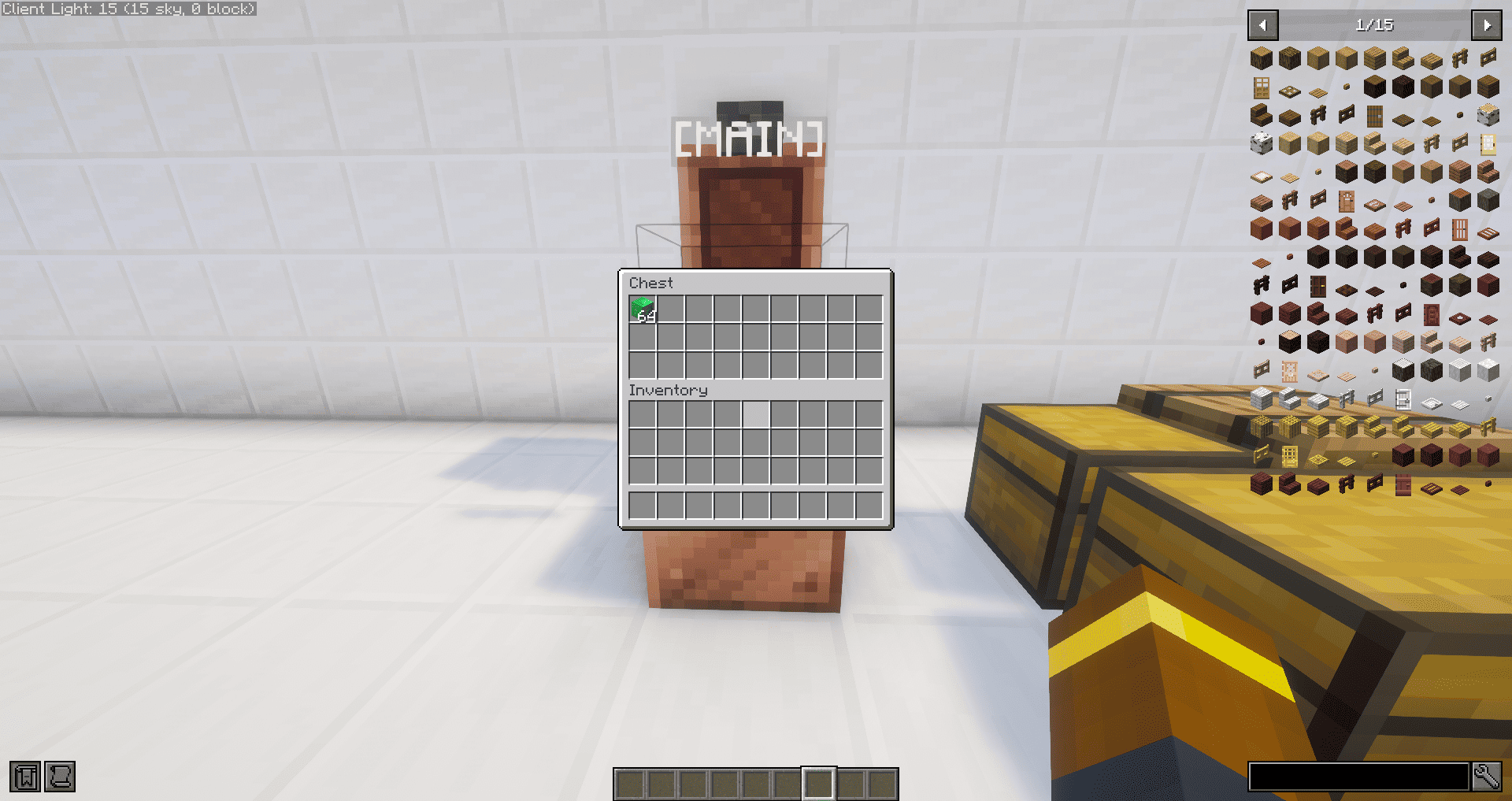
This is a Showcase Target Chest: 
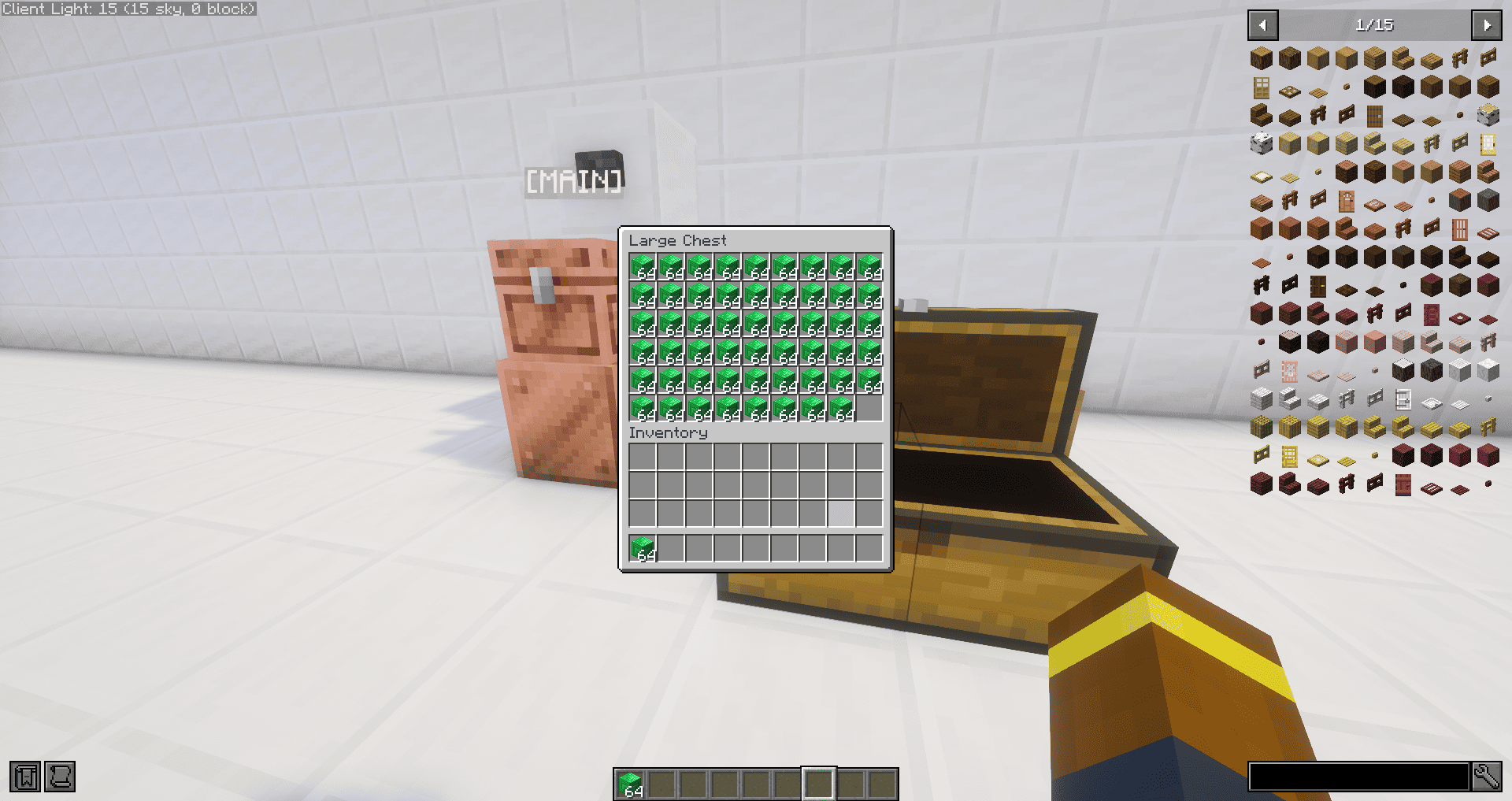
Placing Items that should be sorted into Main Chest: 
Initiating Sorting: 
Sorted :) : 
Lookup mode: 
💬 Commands
Commands are optional and can be disabled in the config.
Available commands:
/ds main- Right click to select a Main Chest (Copper)/ds add- Right click to add a Chest to the system (Barrel, Copper, Normal)/ds modify- Right click to remove a Chest from the system/ds lookup start- Right click a Main Chest to highlight connected Chests/ds lookup stop- Stop highlighting connected Chests/ds remove- Right click to remove a Main Chest
⚙️ Config
In config/daniels-storage.json you can change:
ALLOW_COMMANDSLANGUAGEMAX_STORAGE_SYSTEMS_PER_PLAYERRANGEMAX_CONNECTIONSCUSTOM_RADIUS_MAX
LANGUAGE options are available in /config/languages and can be customized.
MAX_STORAGE_SYSTEMS_PER_PLAYER: 0 means unlimited.
Daniels Storage Mod
Daniels Storage ist ein Vanilla-nahes Sortiersystem fuer Minecraft. Damit kannst du einfach automatische Lagersysteme mit ganz normalen Vanilla-Items und Bloecken bauen, ohne auf mod-eigene Spezialbloecke angewiesen zu sein.
(Nur Einzelspieler und LAN-Mehrspieler getestet.)
About This Mod
Dieser Mod wurde größtenteils mit KI-Unterstützung erstellt, die Idee, das Konzept und die Richtung dahinter kommen aber von mir. Ich habe ihn entwickelt, damit meine Freundin und ich in einer LAN-Welt ein vanilla-nahes Spielerlebnis behalten können und trotzdem den Komfort eines automatischen Sortiersystems haben, ganz ohne Permission-Plugins. Gleichzeitig wollte ich die typischen Probleme vieler anderer Mods vermeiden: keine Abhängigkeit von mod-eigenen Blöcken und kein Risiko, dass unser Lagersystem kaputtgeht, falls die Mod irgendwann nicht mehr aktualisiert oder entfernt wird.
🚀 Quick Start Guide
- Stelle eine
Copper Chestauf. - Platziere den passenden Support-Block unter der Truhe. Bei einer Einzeltruhe braucht es 1 Block. Bei einer Doppeltruhe braucht es 2 gleiche Blöcke, je einen unter jeder Hälfte.
- Nimm einen
Brushin die Hand. - Sneake und halte
10 Sekunden Rechtsklickauf die Copper Chest. Danach ist sie alsMain Chestgesetzt. - Platziere weitere Truhen oder Barrels in der Range der Main Chest.
- Sneake und halte
3 Sekunden Rechtsklickmit dem Brush auf die Main Chest. Dadurch aktivierst du den Bearbeitungsmodus. - Sneake und mache
Rechtsklickmit dem Brush auf Truhen oder Barrels, um sie zu verbinden. Ein weiterer Rechtsklick entfernt die Verbindung wieder. - Platziere einen
Buttondirekt neben der Main Chest. - Lege Items in die Main Chest und drücke den Button. Das System sortiert die Items in verbundene Container ein.
Optional:
Linksklickmit dem Brush auf die Main Chest startet oder stoppt den Lookup-Modus.- Commands koennen verwendet werden, wenn sie in der Config aktiviert sind.
🤖 Overview
📦 Was der Mod macht
Mit diesem Mod kannst du eine Copper Chest als Main Chest markieren. Beim Sortieren werden Items aus der Main Chest in verbundene Truhen und Barrels einsortiert.
Wichtig:
- Es wird nur in verbundene Container innerhalb der Range sortiert.
- Es wird nur in Container einsortiert, die den jeweiligen Itemtyp bereits enthalten.
🧱 Main Chest erstellen
Die Main Chest muss eine Copper Chest sein.
Der Block unter der Kiste bestimmt standardmaessig:
- die Range
- die maximale Anzahl verbundener Truhen/Barrels
Regeln:
- Einzeltruhe: 1 Support-Block unter der Truhe
- Doppeltruhe: 2 gleiche Support-Bloecke, je einer unter jeder Haelfte
📏 Standardwerte
Format: Radius / max. Verbindungen
Single:
COAL_BLOCK:3 / 5COPPER_BLOCK:5 / 7IRON_BLOCK:8 / 15GOLD_BLOCK:12 / 25DIAMOND_BLOCK:30 / 50EMERALD_BLOCK:50 / 100
Double:
COAL_BLOCK:5 / 7COPPER_BLOCK:7 / 12IRON_BLOCK:10 / 20GOLD_BLOCK:15 / 30DIAMOND_BLOCK:50 / 75EMERALD_BLOCK:80 / 150
🖌️ Brush-Steuerung
Mit Brush in der Hand und waehrend du sneakst:
10s Rechtsklickauf eine passende Copper Chest: Main Chest setzen3s Rechtsklickauf eine vorhandene Main Chest: Brush-Bearbeitungsmodus starten
Im Brush-Bearbeitungsmodus:
Sneak + Rechtsklickauf Truhe oder Barrel: Verbindung an/ausLinksklickauf die Main Chest: Lookup starten/stoppen, um verbundene Container sichtbar zu machen
Der Bearbeitungsmodus bleibt aktiv, solange der Brush in der Hand bleibt.
🔘 Sortieren
Ein Button direkt neben der Main Chest startet die Sortierung.
💬 Commands
Commands sind optional und koennen in der Config deaktiviert werden.
Verfuegbare Commands:
/ds main– Rechtsklick, um eine Hauptkiste festzulegen (Kupferkiste)/ds add– Rechtsklick, um dem System eine Kiste hinzuzufügen (Fass, Kupferkiste, normale Kiste)/ds modify– Rechtsklick, um eine Kiste aus dem System zu entfernen/ds lookup start– Rechtsklick auf eine Hauptkiste, um verbundene Kisten hervorzuheben/ds lookup stop– Hebt die Markierung der verbundenen Kisten auf/ds remove– Rechtsklick, um eine Hauptkiste zu entfernen
⚙️ Config
In config/daniels-storage.json kannst du unter anderem anpassen:
ALLOW_COMMANDSLANGUAGEMAX_STORAGE_SYSTEMS_PER_PLAYERRANGEMAX_CONNECTIONSCUSTOM_RADIUS_MAX
LANGUAGE Optionen können in config/languages eingesehen oder eingegeben werden.
MAX_STORAGE_SYSTEMS_PER_PLAYER: 0 bedeutet unbegrenzt.
Screenshots
Gallery
-
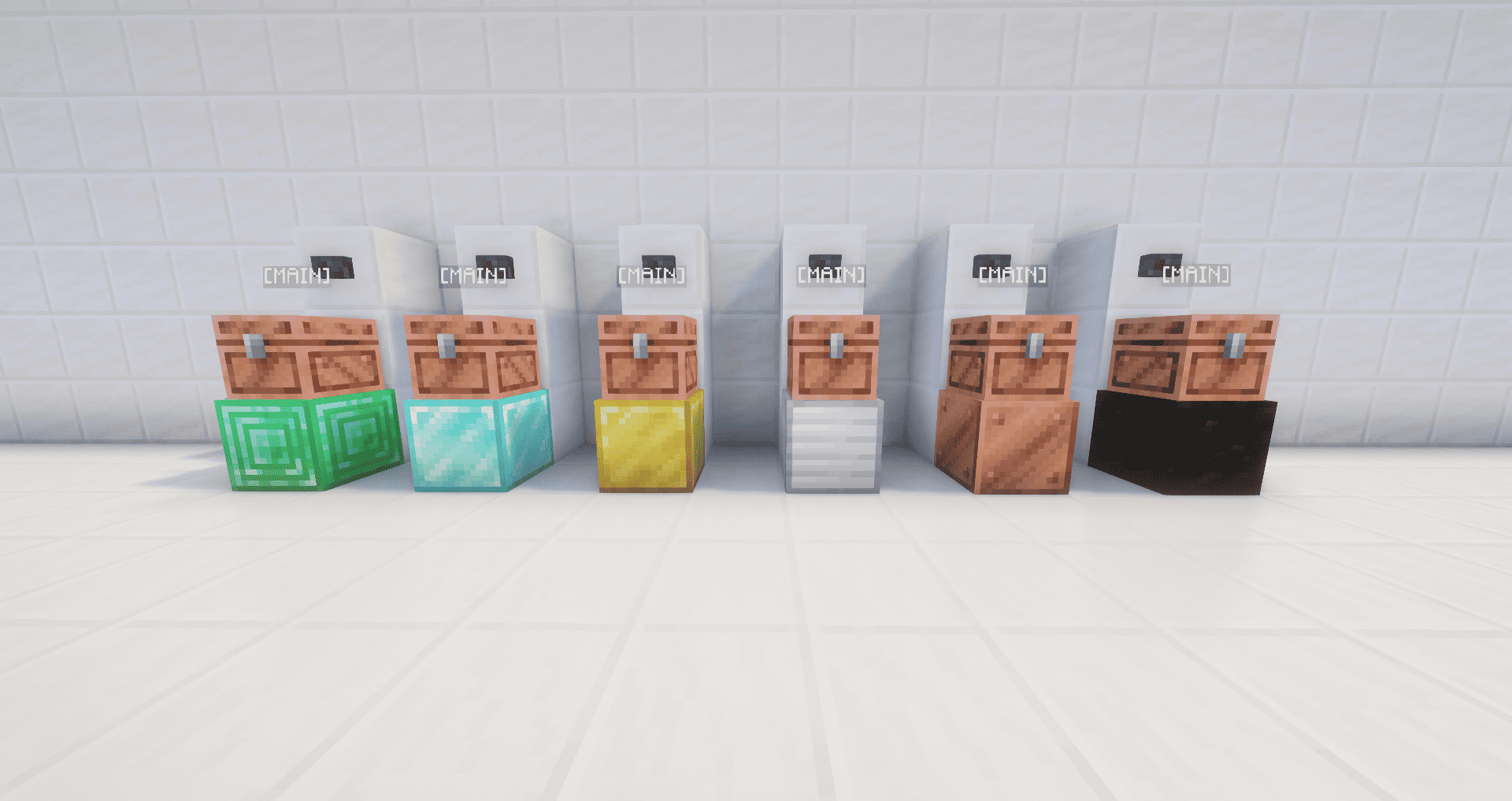 Single Main Chests Overview
 -
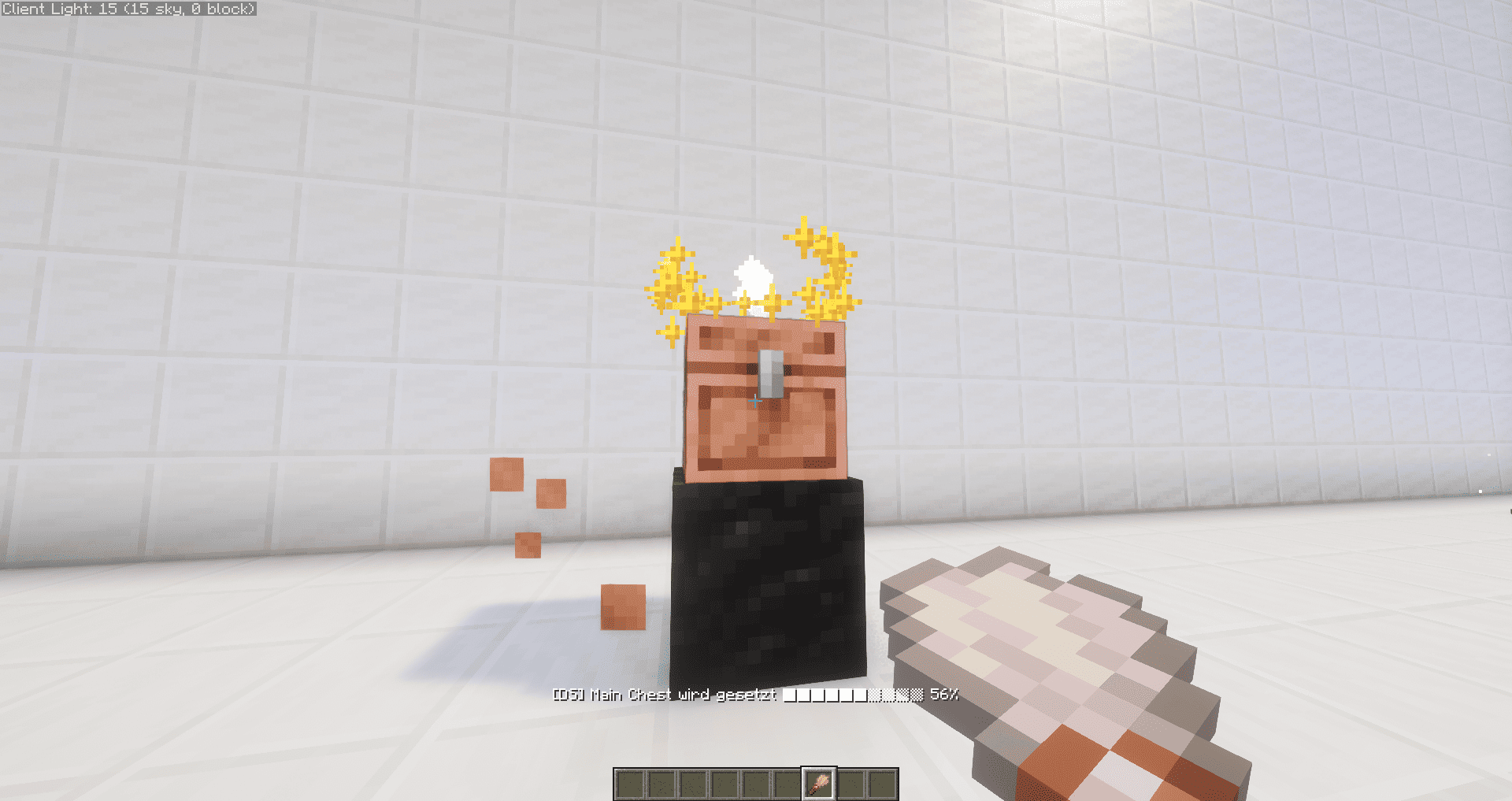 Setting up a Main Chest
 -
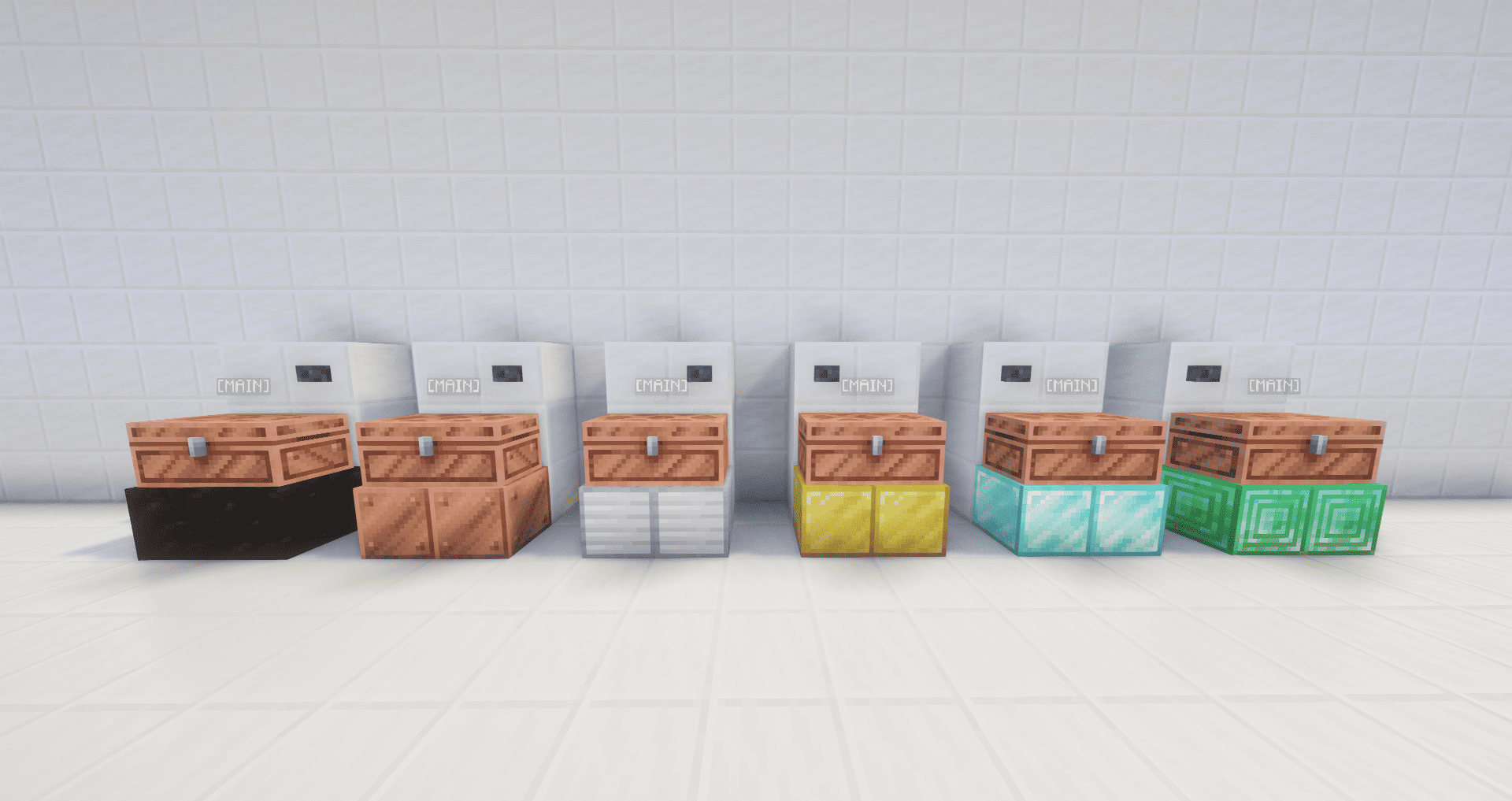 Single Main Chests Overview
 -
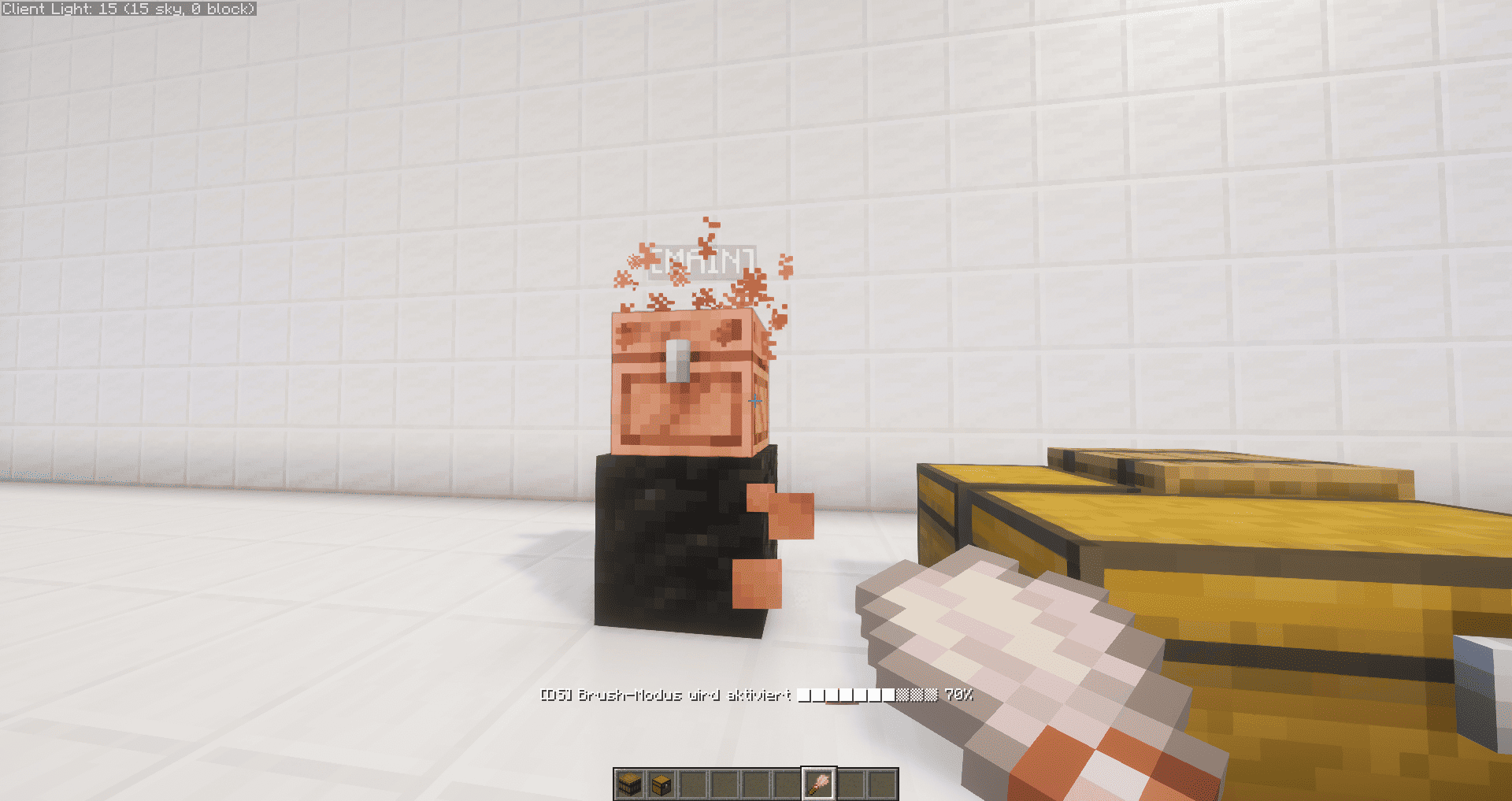 Initiating Brush Mode
 -
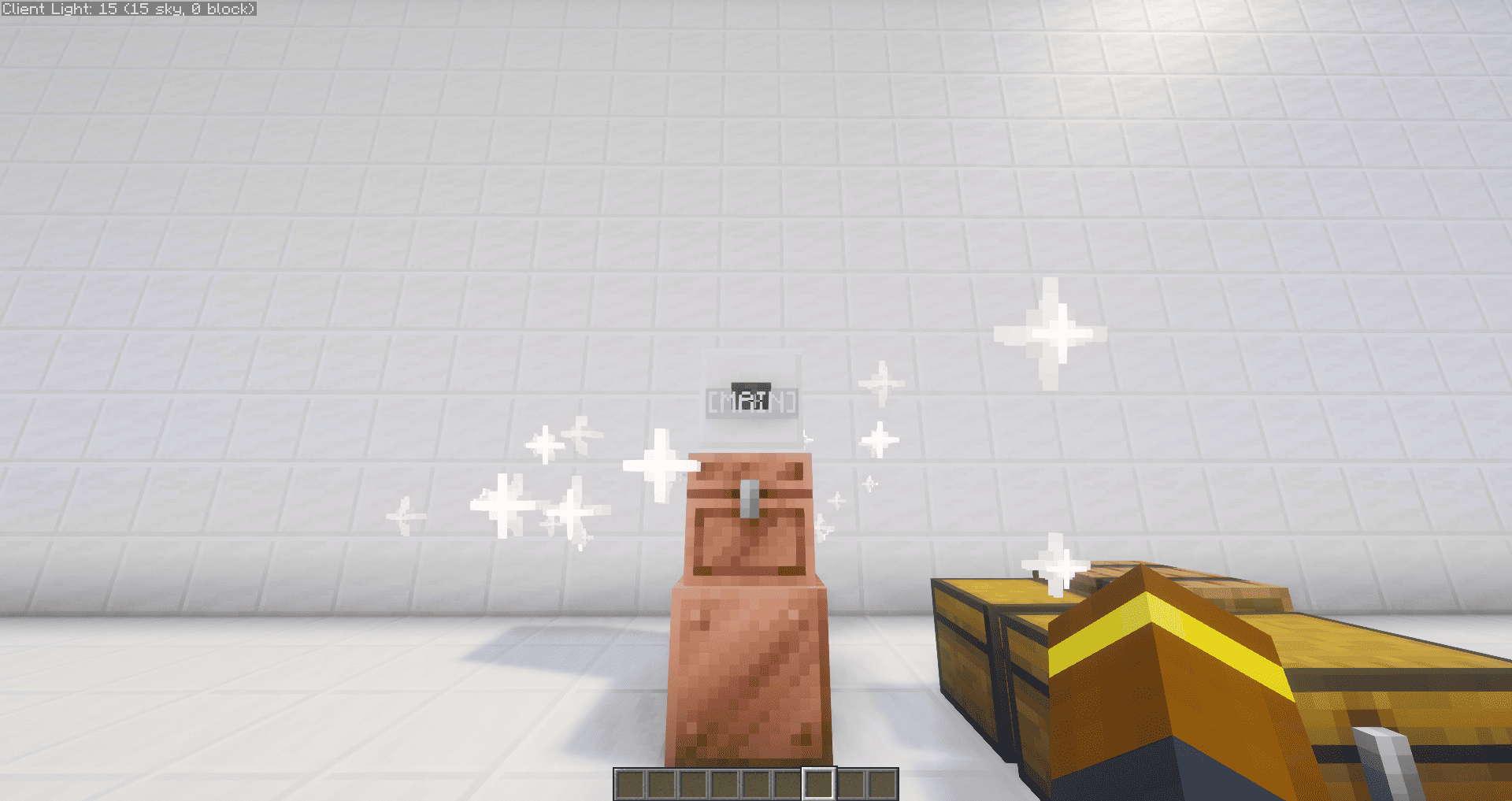 Initiating Sorting Now the magic happens :)
 -
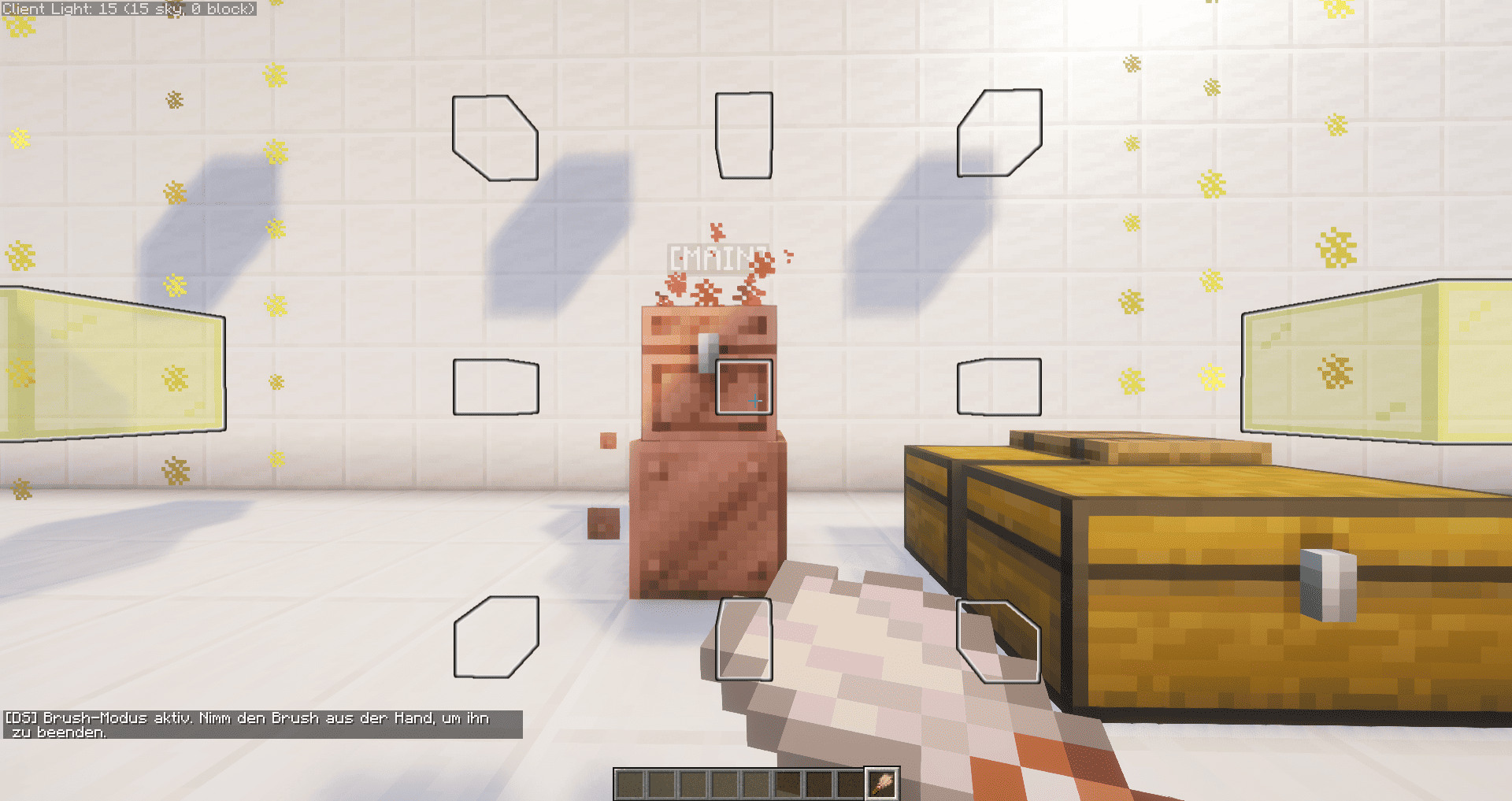 Range Borders shown in Brush Mode
 -
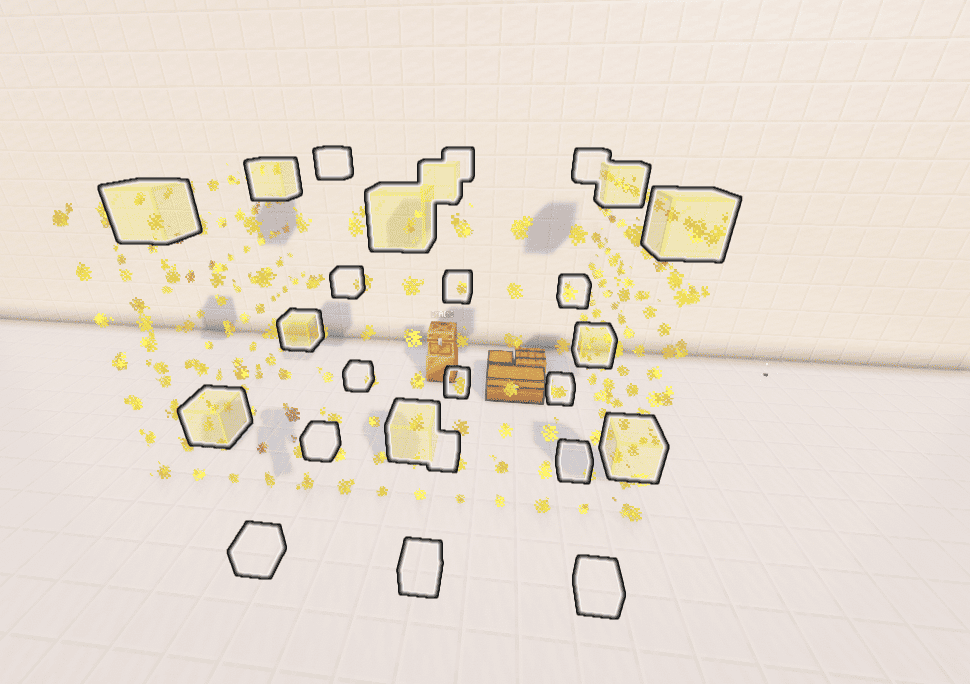 Range borders shown in Brush Mode (2)
 -
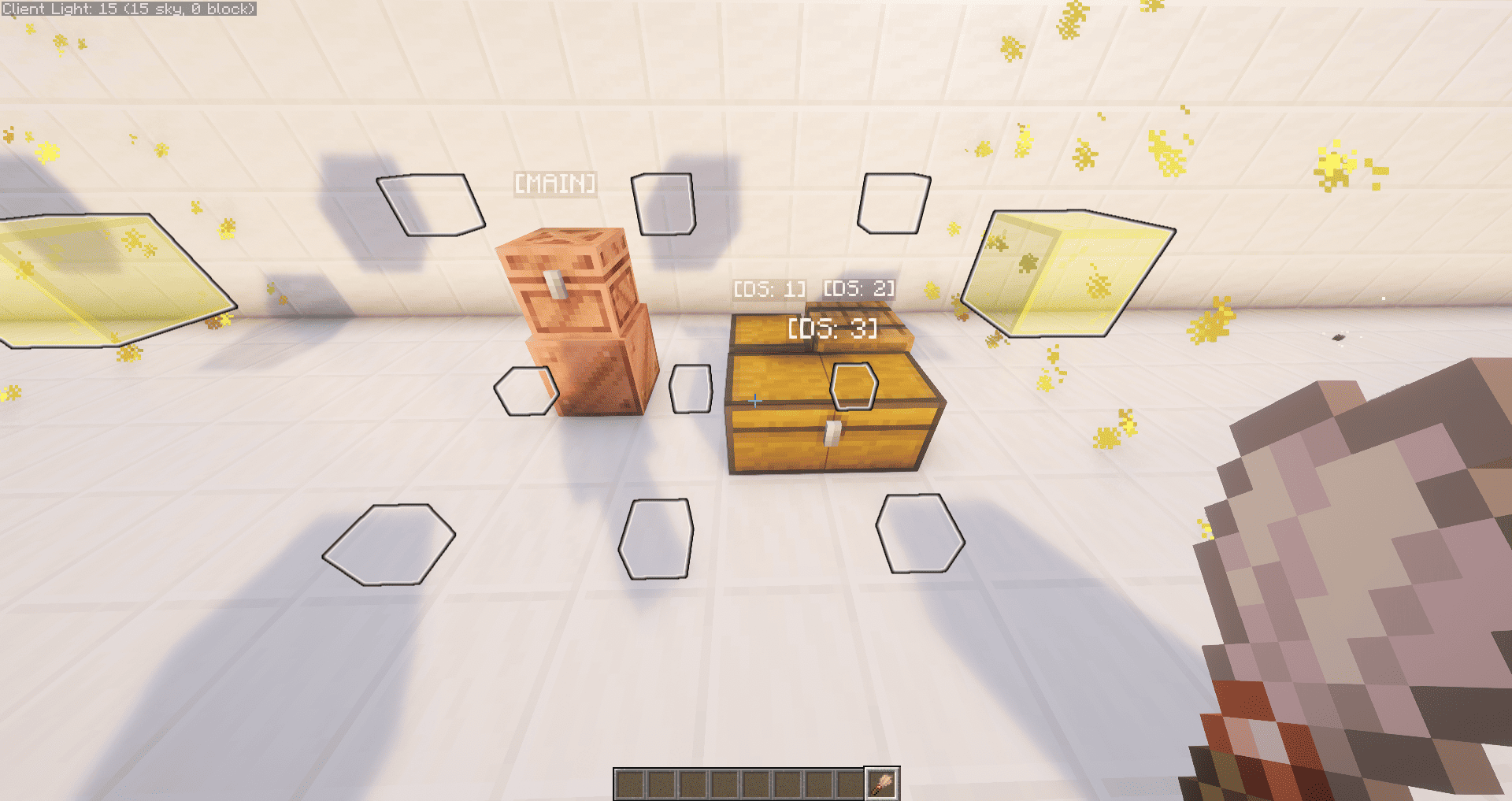 Selecting Chests in Brush Mode
 -
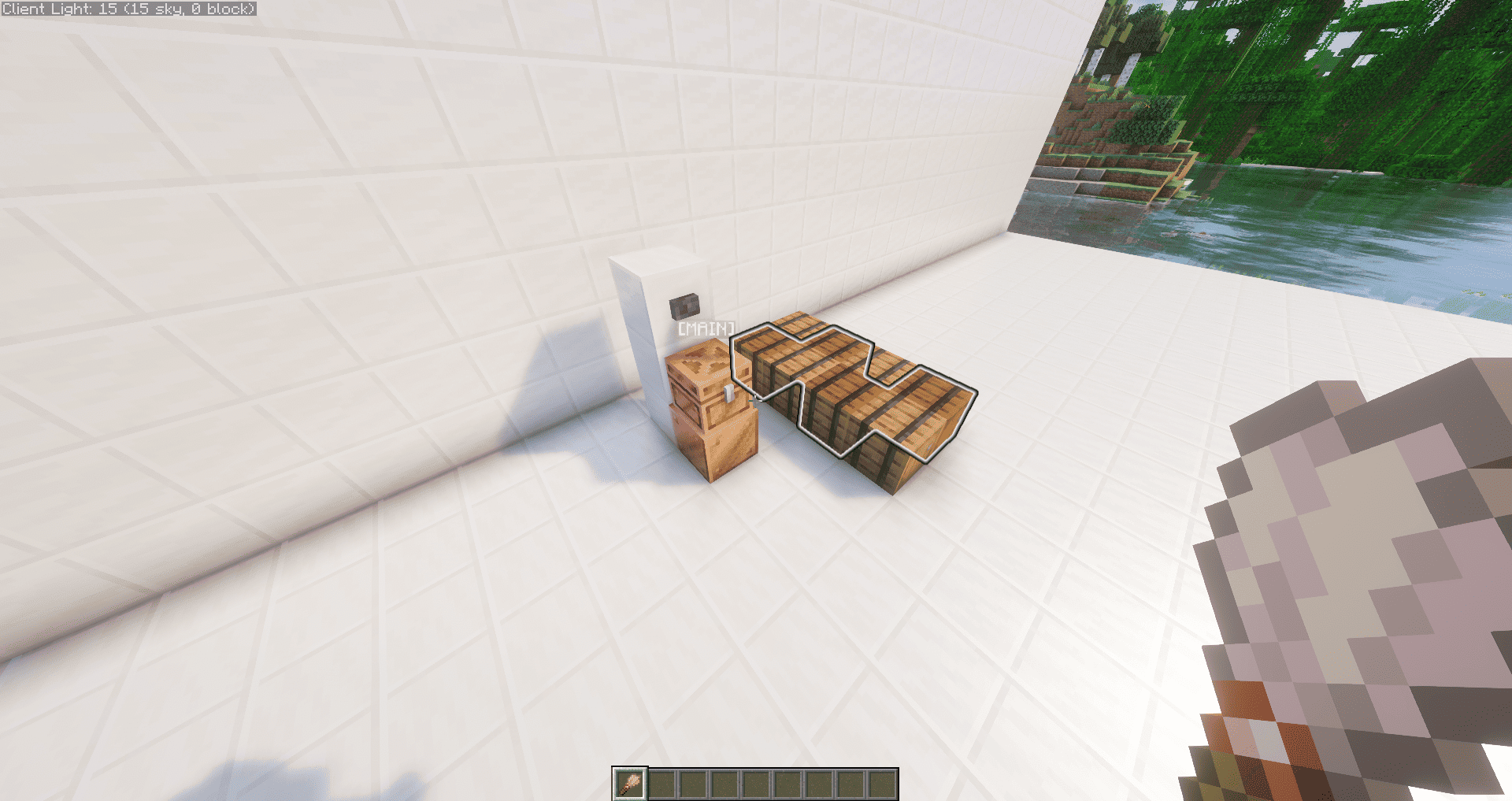 Lookup Mode Highlights all connected chests
 -
 Target Showcase This is the Chest I want to sort my Blocks into
 -
 Main Chest Showcase I put my Blocks into Main Chest
 -
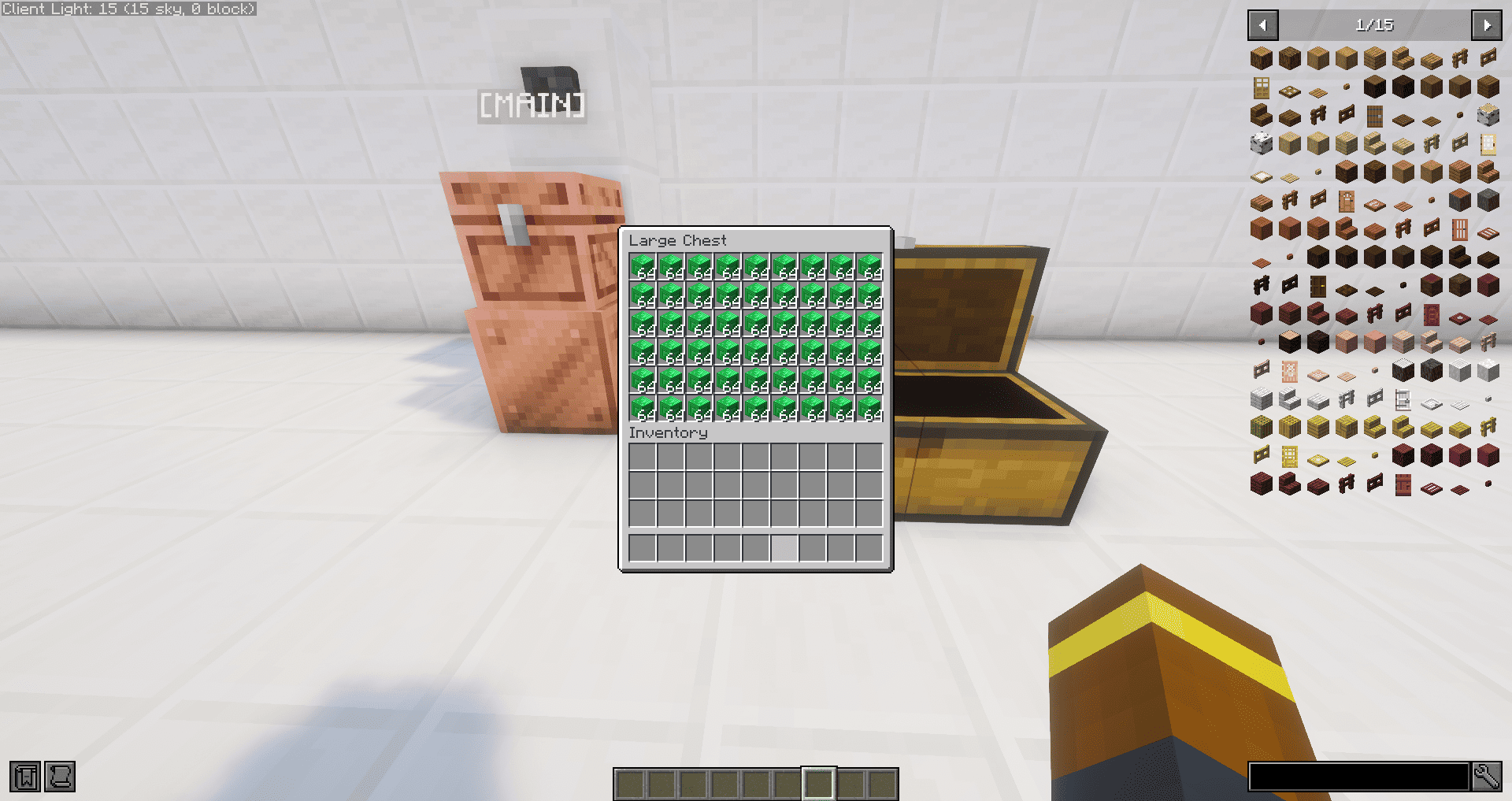 Sorted And the Blocks are sorted in :)
Versions
Files
Relations
Project Relations
More like this
Similar Mods
Suggestions use data such as tags, dependencies, dependents, descriptions, titles, and more to rank how much they overlap with this mod.
On ModDex
Community snapshot
By the numbers
Statistics

Get it on
Available Platforms
On ModDex
Community snapshot
By the numbers
Statistics
Resources