
Community listing page, reviews here may not be monitored by the author.
InOr

No reviews yet
Automatically sort your inventory with one button. Define custom slot rules by item category, type, or specific items, and never manually organize again.
Community voices
Reviews
No reviews yet. Be the first to review this project!
Get it on
Available Platforms
Compatibility
Supported Environments
Runs entirely on the client. Works on vanilla servers.
Required on the client. Installing it on the server adds functionality.
Varies by version.
About
Project Details
For authors
Embed Badge
If you're the author of this project, you can embed a live badge anywhere that supports HTML or Markdown. It updates automatically whenever ratings change.
Use HTML for any page that supports it, or Markdown for README files and Markdown-based descriptions.
Identifiers
Platform IDs
About
Description
Inventory Organizer — Full description A Fabric mod for organising your inventory and your storage with one click, plus a server‑aware multi‑chest "warehouse" system, a set of optional automations, and remote crafting. Runs on Minecraft 26.1 / 26.1.1 / 26.1.2. environment: "*" — it's a client‑side mod (required on the client) with optional server‑side support that unlocks the shared multiplayer features.
Part 1 — Every feature Sorting OI (Organize Inventory): one click sorts your whole inventory — identical items merge into full stacks, the same types group together. OST (Organize STorage): does the same to the chest you have open. Sort keybind: OST when a chest is open, otherwise OI. A Sort action setting picks the behaviour: Smart (default), OI‑only, OST‑only, or Both. Stack consolidation: scattered partial stacks of one item are merged back into full stacks. The Slot Config editor The central screen (the S button or a keybind). Tabs across the top: Inv, Storage, Groups.
Inv tab: a live picture of your inventory. Pick a rule from the right‑hand palette, then left‑click a slot to assign it; right‑click resets a slot to any. Rules: any (accepts anything), empty (kept empty), Groups (Weapons, Tools, Armor, Blocks, Food, Valuables, Potions, Splash, Arrows, Utility, Misc), Sub‑groups (Logs, Boats, …), or a specific item. A search box filters 1600+ items. Armor + offhand: rules for helmet / chestplate / leggings / boots and the shield/offhand slot. Auto‑refill marker: middle‑click a hotbar slot to flag it with a green R (see Automations). Bottom row: Save, Clear, Kits, Names, Ranks (Tier Order), Back, and Warehouse when available. Help: a Guide button (full manual) and a ? quick‑tip overlay (click outside to close). Per‑chest profiles Each chest can remember its own sort layout. Open a chest → New profile? → Yes. Identity is resolved by, in order: anvil custom name → exact block coordinates (both halves of a double chest) → adjacent‑sign text. A sign next to a chest also names its profile. Carrying mode: a profile becomes "active" only while its chest is open; the Pr button re‑binds a carried profile to the open chest. Nothing marks a chest as non‑storage (hidden from the map). Profiles are private and local — never shared. Groups & Tier Order (Ranks) Groups tab / editor: edit the built‑in item groups or create custom groups so rules match exactly what you mean. Tier Order (Ranks): within a type, set the priority order so sorting is deterministic (e.g. netherite above diamond). Double‑click a slot to jump straight into it. Kits Save a whole slot‑config layout as a named Kit and load it later. A Cycle slot preset keybind flips between saved Kits on the fly. Warehouses (linked chests) The Warehouse map (Wh button / keybind) is a top‑down view of your chests. Link 2+ nearby chests (within range, connected) into one warehouse; OST at any member — or Sort on the map — organises the whole group together. Unlink breaks it up. On servers, links are private by default; a foreign link is revealed to another player only after they open one of its chests (then the whole warehouse shows on their map). Permissions & anti‑theft (servers) Per‑player OST permission: select your own link → OST button → a picker of known players, each toggled on/off. Default off — a revealed link is visible but not sortable until granted. Anti‑theft (server‑enforced): you can't link a chest that's in someone else's warehouse, can't remote‑withdraw from a foreign link, and can't sort a link without permission. Automations (Free mode) Auto‑refill (green R): a marked hotbar slot refills itself from your inventory when it empties, using the slot's rule or the last item that was there. Chest refill (Rf): top up every marked hotbar slot from the open chest in one press. Deposit‑all (Dep): send back every inventory stack whose item is already in the chest. Scroll: plain‑scroll a slot to quick‑move it; Shift+scroll sorts one item per notch. Trash / Void (under Storage): a rule grid; matching items are dropped on pickup. A Trash mode toggle switches Drop‑all vs Keep‑1‑stack. Remote crafting A materials panel by the inventory and crafting table lists the combined contents of nearby chests (icon + name + count) with search and a quantity box; click to pull items to your inventory. Range: 60 blocks at a table in single‑player, 15 elsewhere. Server‑friendliness & safety Quick switch (master mode): one button flips everything between Server‑Friendly and Free. Free gating: automations only run in private/whitelisted environments (single‑player, LAN, Realms, Aternos, whitelisted servers); off on normal public servers. Whitelist (opt‑in): add a trusted server (behind a confirmation) to enable Free features there. Fight mode: real PvP forces Server‑Friendly for ~20s (with a small HUD timer); kept on at all times on public servers, so the mod never gives a combat edge. Death auto‑sort: optionally re‑sorts after you recover your gear. Keybinds (Controls → Inventory Organizer) All unbound by default: Sort, Open Kits, Open Settings, Open Warehouse map, Chest refill, Cycle slot preset. A Keybind mode setting (Inventory‑only / Free / Off) controls where they're allowed to fire.
Help & languages A full, word‑wrapped in‑game Guide (auto‑opens on first settings entry) and a per‑screen ? quick help. 9 languages: English, Magyar, Deutsch, Español, Français, 中文, 日本語, Русский, Português, with button labels sized so translations don't overflow. Part 2 — How it's built (architecture) Sides & entry points Environment "*" — loads on both sides. The main entrypoint registers the networking payload types (common) and the server‑side receivers; the client entrypoint registers keybinds, screen hooks (Fabric ScreenEvents), the HUD element, and the client tick. Core split: the client owns all UI/sorting/config; the server owns only the shared warehouse link store + sort engine + remote‑craft aggregation. Configuration (client, local) OrganizerConfig — a JSON config holding slot rules, storage presets, custom groups, warehouse groups (local links), known chests, Kits, keybind/sort settings, whitelist, trash rules, etc. StoragePreset — one chest's layout (slot rules, size, identity: name/positions/sign). SlotRule, WarehouseGroup — supporting data. Sorting InventorySorter / SortLogic — inventory sort + rule matching + stack consolidation. StorageSorter — chest sort using the active StoragePreset. ChestIdentifier (client) — resolves which local profile is active for the open chest (name → coordinates → sign), and whether the chest belongs to a foreign link (sort‑only). Warehouse subsystem WarehouseClient — client‑side state: the handshake flag, the visible‑links cache (own + revealed foreign), the remote‑craft stock, the OST‑roster cache, and all the send helpers. WarehouseNet — registers payloads and the server receivers; the server thread does all the work. WarehouseLinks — server‑side store of links (owner, dimension, positions, the owner's per‑chest rules, OST allow‑list) + a joined‑player roster; persisted to inventory-organizer-warehouse-links.json. WarehouseEngine — the sort engine: pulls all items from a group into a pool, then re‑places each stack into the chest whose rule matches best (double‑chest aware, distance‑guarded). RemoteStock — server‑side remote‑craft: aggregates nearby chest contents and withdraws items (skips foreign‑link chests). WarehouseMapScreen, OstPermScreen — the map UI and the OST permission picker. Networking (handshake‑gated) On join the server sends WarehouseHelloPayload; the client sets an available flag. Until then the client sends nothing, so on a vanilla server the mod is completely silent. Client→server: warehouse map query, upload/delete link, sort link, sort group, request OST roster, set OST permission, craft stock query, craft withdraw. Server→client: hello, link map data, OST roster, craft stock. Every server action re‑validates distance and ownership/permission and never trusts the client; anti‑spam cooldowns guard sorting and withdrawing. Client integration & robustness Mixins: CreativeInventoryScreenMixin (buttons in the creative inventory), InventoryScreenMixin, ContainerScreenAccessor (leftPos/topPos/hovered slot), ContainerScrollMixin (scroll on container screens). FightModeTracker (tamper‑resistant PvP detection + HUD), ServerEnvironment (Free‑mode gating), DeathSortTracker. UI is resize‑safe: layout is rebuilt in init() (re‑run on resize); a universal guard forces a re‑init when the screen's cached size differs from the window, and a leftPos watcher re‑lays‑out the in‑game overlays when the recipe book shifts the GUI. Build & releases Single Java source base; per‑version projects (26.1 / 26.1.1 / 26.1.2) share the same code with version‑specific Fabric metadata. Distributed as one jar per Minecraft version.
Screenshots
Gallery
-
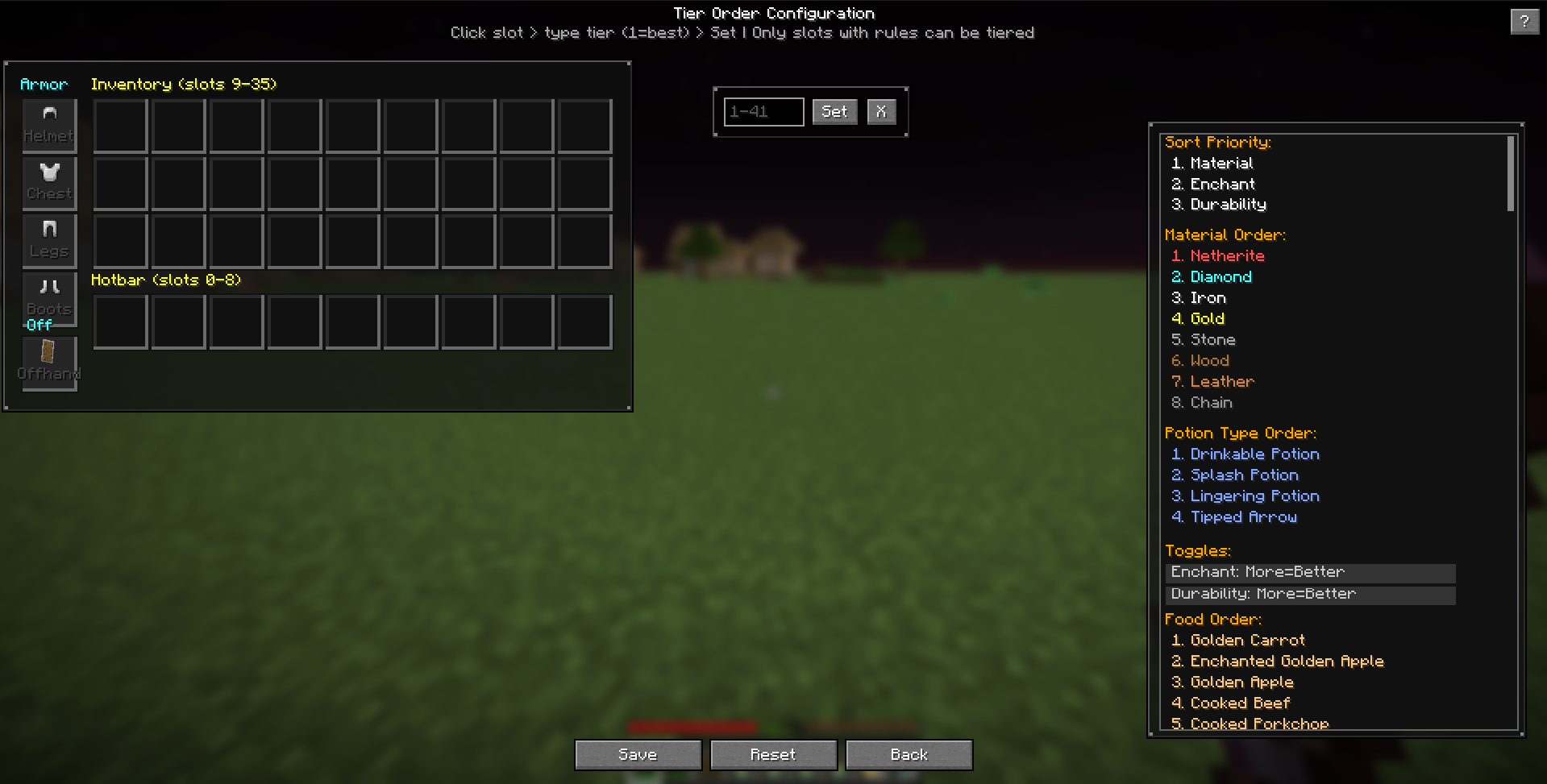 Tier Order Sorting Order / Tier Prioritization Within each item category, Inventory Organizer sorts items by tier — a priority order you define. For example, in the Weapons category, you might want Diamond swords to appear before Iron swords, and Iron before Stone. The Sorting Order Config screen lets you drag tiers up and down within each category pool to customize this ranking. When you press the OI button, all items are sorted according to your tier preferences, so your best tools always end up in the same slots, in the same order, every time. You can set different tier orders for Weapons, Tools, Armor, Blocks, Food, Valuables, Utility, and Potions independently.
 -
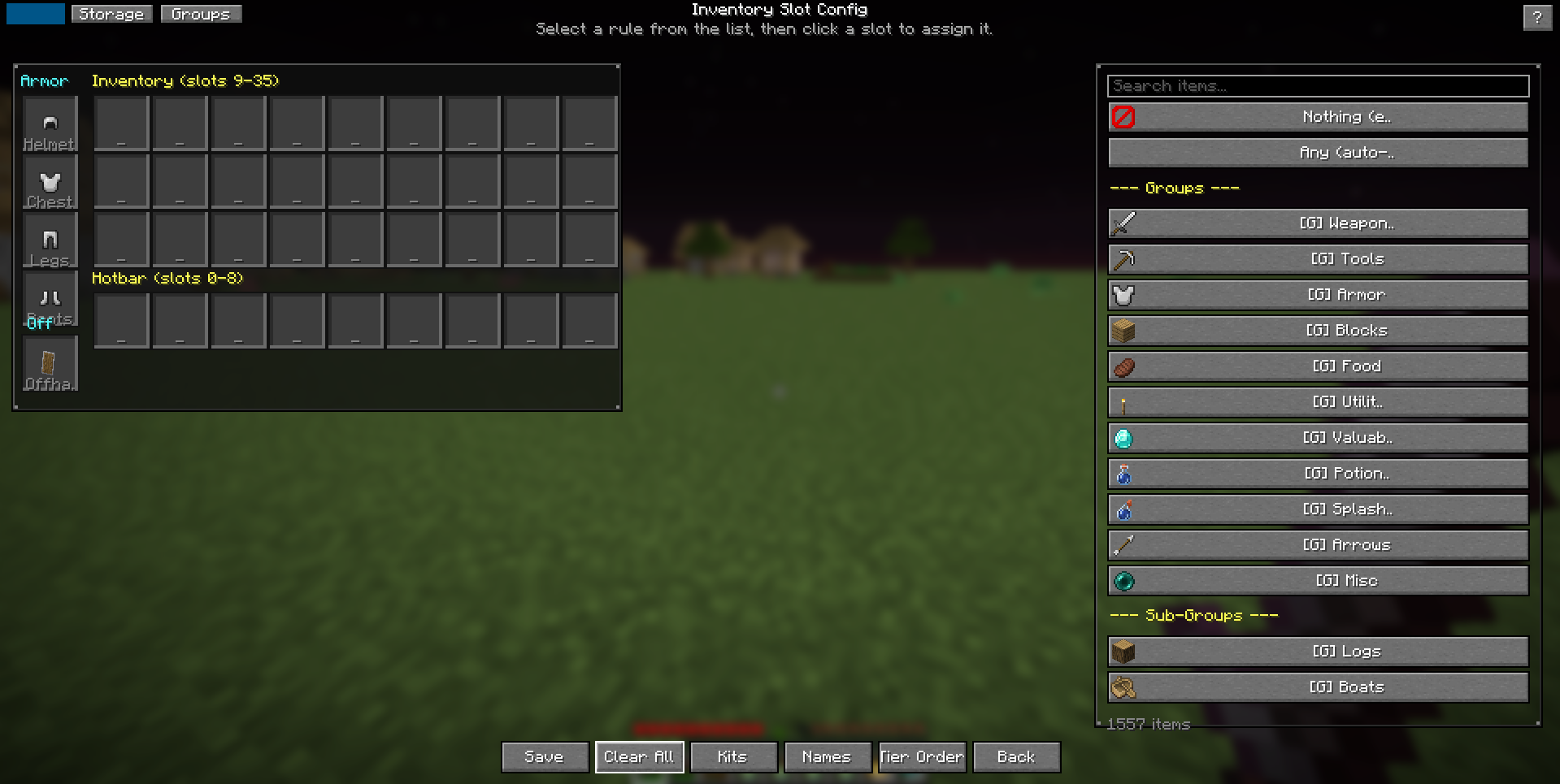 Slot Config Visual Inventory Config / Slot Configuration The Visual Inventory Config screen shows a live preview of your entire player inventory and hotbar. Click on any of the 36 slots to assign it a rule — this rule determines what items can go there when you press OI. You can set a slot to accept any item (filler), a specific category (like "weapons" or "food"), a specific item type (like "sword" or "pickaxe"), an exact item (like "minecraft:diamond_sword"), a custom group you defined, or keep it empty-locked so nothing ever goes there. Every slot can have its own rule, or you can leave slots as "any" to let unclaimed items flow into them. Your slot layout is saved automatically, so your inventory always sorts the same way.
Versions
Files
Relations
Project Relations
More like this
Similar Mods
Suggestions use data such as tags, dependencies, dependents, descriptions, titles, and more to rank how much they overlap with this mod.
On ModDex
Community snapshot
By the numbers
Statistics

Want to reach Minecraft players?
We're looking for a server hosting partner to feature here and other parts of the site. Interested? Send us a message!
Get in touchGet it on
Available Platforms
On ModDex
Community snapshot
By the numbers