
Community listing page, reviews may not be monitored by the author.
Item Filter Stop picking up junk

No reviews yet
Tired of your inventory filling with junk? Item Filter lets you choose what you never pick up — 17 tabs, instant search, one-click presets. Press F8 and take control.

Community voices
Reviews
No reviews yet. Be the first to review this project!
Get it on
Available Platforms
About
Project Details
For authors
Embed Badge
If you're the author of this project, you can embed a live badge anywhere that supports HTML or Markdown. It updates automatically whenever ratings change.
Use HTML for any page that supports it, or Markdown for README files and Markdown-based descriptions.
Identifiers
Platform IDs
Resources
External Links
About
Description
══════════════════════ Item Filter Stop picking up junk ══════════════════════
Let me guess.
You go mining for ten minutes and come back with 400 stone, 200 dirt, and 3 diamonds. Or you're fighting a mob and your inventory fills up with feathers, string, and rotten flesh while the loot you actually wanted slips past you.
Item Filter fixes that in one step: you choose what you never want to pick up, and the mod makes sure it never enters your inventory. Everything else works exactly like normal.
No commands. No config files. No complicated rules. Press F8, click the things you hate, and get back to playing.
▍ Why this mod, and not another inventory mod? Because it does one job properly.
It blocks the pickup before it happens. It doesn't delete your items, it doesn't teleport them, and it doesn't touch anyone else's game. A blocked item simply stays on the ground where it was, with its normal physics and its normal despawn timer, and anyone else can still pick it up.
Your settings are yours alone. Every player has their own filter, so your list never gets forced on your friends.
And it just works with modded items. Anything registered in the game shows up in the menu automatically — no whitelists to update, no compatibility patches, no "works with 30 mods" asterisks.
Plus, it looks good. That shouldn't be a feature, but here we are.
▍ How to use it in 30 seconds
- Press F8.
- Pick a tab, or type in the search box.
- Click an item. Red means "never pick this up."
- Close the menu. Done.
That's the whole mod. Everything below is just extra control for when you want it.
▍ What you get • 17 tabs, sorted automatically from the game's own item list. • Instant search across every item, by name or ID. • "Block all" and "Allow all" for entire categories. • A master switch that stops every pickup at once. • Ready-made presets: Mining, Combat, Building. • Your own saved presets, applied with one click. • Live counters showing how much you've blocked. • Small confirmation pop-ups for every action. • Per-player settings that save automatically. • Arabic and English interface, switchable in-game. • Full support for modded items, automatically. • No deleting, no lag, no weird side effects.
▍ Opening and closing Press F8 while playing. The menu opens over the game and doesn't pause it, so in singleplayer the world keeps running behind you.
Close it with F8 again, with Escape, or with the X button.
If F8 is already taken by another mod, you can rebind it in the game's Controls menu under "Open Item Filter".
▍ The top bar • The hopper icon and "Item Filter" title. Nothing to click, just a nice hat. • The subtitle reminds you what the mod does: "Choose what never enters your inventory." • AR/EN: switches the interface language instantly. This changes the menu language only, not your game language. • "Filter on / Filter off": turns the whole filter off temporarily without deleting your list. Great for one trip where you want to grab everything, then switch back on. • X: closes the menu. It turns red when you hover it, because closing menus is serious business.
▍ "Never pick up anything" The big red card under the top bar. Flip it on and you stop picking up everything. Every filter below is ignored while it's on.
Don't worry — your list isn't deleted. Turn it off and your previous filter comes right back.
You can click anywhere on the card, not just the switch.
▍ The tabs on the left Every tab has an icon, a name, and a red badge showing how many items you've blocked in that category. No badge means nothing is blocked there.
The tab list scrolls with the mouse wheel. The selected tab gets a coloured stripe and a subtle outline, so you always know where you are.
▍ Search The search box is above the item list, and it's the fastest way to find one specific item.
• It searches every item in the game, not just the open tab. • It matches names in English or Arabic, plus technical IDs like minecraft:stone. • It ignores capital letters, so "Diamond" and "diamond" are the same thing. • The small X clears your search in one click. • While you're searching, the first Escape clears the search. The second closes the menu. • If nothing matches, it tells you: "No items match."
You don't need to know which tab an item lives in. Type it, block it, move on.
▍ The category header Above the item list you'll see the category name and a counter like 5/32 — five blocked out of thirty-two items.
On the right are two buttons: • "Block all": blocks every item in the current category with one click. The button lights up in the category's colour when the whole category is blocked. • "Allow all": unblocks every item in the current category with one click.
Careful with "Block all" inside the "All items" tab — that blocks every item in the game. If you want a full block, use the red "Never pick up anything" card instead. It's cleaner, and it doesn't fill your list with a thousand entries.
▍ The item rows Each row shows the item's icon, its name, and a small switch on the right.
• Click anywhere on the row to toggle it. You don't have to hit the switch. • Blocked rows turn soft red with a red stripe on the left. • Allowed rows stay neutral, because they're innocent. • Hover an item to see its name, its technical ID, and "Click to toggle." • Wide windows show two columns. Narrow windows show one, with scrolling.
▍ The bottom bar This is where your presets live.
• Mining, Combat, Building: three ready-made presets. Click one to apply it instantly. • Your saved presets show up next to them, and light up when they match your current filter exactly. • "+": saves your current filter as a new preset, named "Preset 1", "Preset 2", and so on. • Right-click a custom preset to delete it. Built-in presets can't be deleted, which is fair. • "Clear all": removes every blocked item and turns off the master block, but keeps your saved presets. • "Reset": the nuclear option. Clears your filter, turns the master block off, re-enables the filter, and deletes all your custom presets. • "Blocked: N": the total number of items you're blocking, sitting quietly on the right.
The bar shows up to four custom presets at a time. Any extras stay saved in the config, but the bar only has room for four.
▍ The pop-ups Every action gives you a little confirmation in the bottom right corner. It slides in, shows an icon and a coloured stripe, then fades after a couple of seconds.
Blue means something was allowed or enabled. Red means something was blocked. Violet means a preset happened.
Up to four can stack at once. They're small on purpose.
▍ The 17 tabs
- All items — every item in the game. The full list, not a category.
- Wood — logs, wood, stems, hyphae, planks, bamboo blocks.
- Stone — stone, granite, deepslate, tuff, obsidian, netherrack, sandstone, prismarine, purpur, quartz, and friends.
- Dirt & Sand — dirt, grass blocks, podzol, mycelium, mud, clay, gravel, sand, farmland, dirt paths.
- Crops & Plants — seeds, saplings, leaves, flowers, crops, mushrooms, vines, coral, grass, moss, berries, kelp.
- Mob Drops — rotten flesh, bones, string, gunpowder, ender pearls, blaze rods, feathers, leather, wool, mob heads.
- Resources — ingots, nuggets, raw ores, any ore, coal, diamonds, emeralds, lapis, redstone, netherite, ancient debris.
- Tools — pickaxes, shovels, axes, hoes, flint and steel, shears, fishing rods, buckets, minecarts, boats.
- Swords — every sword, plus the trident and the mace.
- Armor — helmets, chestplates, leggings, boots, horse armor, elytra, shields, turtle helmets.
- Food — anything you can eat.
- Potions — potions, glass bottles, experience bottles, dragon's breath.
- Ranged — bows, crossbows, arrows, snowballs, eggs, tridents, fireworks.
- Gems & Decor — mineral blocks, amethyst, paintings, item frames, torches, lanterns, candles, banners, glass.
- Building Blocks — anything placeable that isn't wood, stone, dirt, or a plant. Tables, furnaces, chests, stairs, fences.
- Rare Drops — nether stars, totems, elytra, dragon eggs, hearts of the sea, enchanted books, music discs.
- Other & Modded — anything that didn't fit anywhere else. This tab makes sure no item is ever unreachable.
Some items appear in more than one tab. That's intentional — glass can be both a building block and decoration. You're not seeing double, the mod is just being helpful.
▍ The presets • Mining blocks Stone, Dirt & Sand, and Crops & Plants. You leave the cave with ores, not a mountain. • Combat blocks Building Blocks, Wood, Stone, Dirt & Sand, and Crops & Plants. Loot only. • Building blocks Mob Drops, Rare Drops, and Potions. A clean building session.
These presets are built from the live categories, so modded items in those categories are included automatically. Applying a preset replaces your current list, but your other saved presets are safe.
▍ Languages The AR/EN button switches the menu between Arabic and English instantly. By default, the menu follows your game language.
The Arabic version isn't a lazy translation. Letters connect properly, Arabic and English text mix in the right order, and ligatures and diacritics are handled correctly. If your font doesn't support Arabic letter forms, the mod detects that and turns shaping off instead of showing you empty boxes.
Item names still follow your game language, so set the game to Arabic if you want fully Arabic item names.
▍ Saving and multiplayer Everything saves automatically. Your filter is stored per player, so it's waiting for you next time you open the game.
In singleplayer, it works immediately.
On a multiplayer server, the mod needs to be installed on the server too. Your client sends your filter to the server, and the server applies it to you and only you. On a vanilla server, the filter can't be enforced — no mod can do that — so nothing happens and nothing breaks.
▍ What happens to a blocked item? It stays on the ground. It doesn't disappear, it doesn't get deleted, and it doesn't teleport into a shadow dimension. It keeps its normal physics and its normal despawn timer, and other players can still pick it up.
You just don't.
▍ Requirements • Minecraft 1.20.1 • Fabric Loader 0.15.0 or newer • Fabric API • Java 17 or newer
▍ Installation
- Install Fabric Loader for 1.20.1.
- Put Fabric API in your mods folder.
- Put Item Filter in your mods folder. On a server, put it there too if you want filtering enforced.
- Launch the game.
- Press F8.
▍ Quick answers Does it delete items? No. They stay on the ground. Does it work with modded items? Yes, automatically. Does it affect other players? No, everyone has their own filter. Does it work on a vanilla server? No. The server needs the mod. Can I block everything? Yes, with the red card. Can I change F8? Yes, in Controls. Do I need to edit files? No. Everything is in the menu. Does the menu pause the game? No.
▍ Okay, now let's talk about it properly Most quality-of-life mods add a settings screen and call it a day. Item Filter was built like it's the only mod on your list.
The interface isn't a grid of grey buttons with a search bar bolted on. It's a proper dark glass panel with rounded corners, soft animations, colour-coded tabs, live counters, and pop-ups that confirm what you just did. It was designed, not assembled.
The Arabic support isn't Google Translate with a font. The mod shapes Arabic letters, orders mixed Arabic and English text correctly, and handles the little details most mods ignore. If you play in Arabic, you'll notice immediately.
The performance isn't an afterthought. Blocking an item is a constant-time lookup, categories are cached, and saving is batched so the menu never freezes. You won't feel this mod in your frame rate.
And the behaviour is honest. It doesn't delete your loot, it doesn't hide items from other players, and it doesn't pretend to work on servers that don't have it. It blocks the pickup, leaves the item on the ground, and gets out of your way.
One job. Done properly. That's the whole pitch.
If Item Filter saves you ten minutes of inventory management, drop a rating and a favourite. Small mods live and die by that, and it costs you two clicks.
Screenshots
Gallery
-
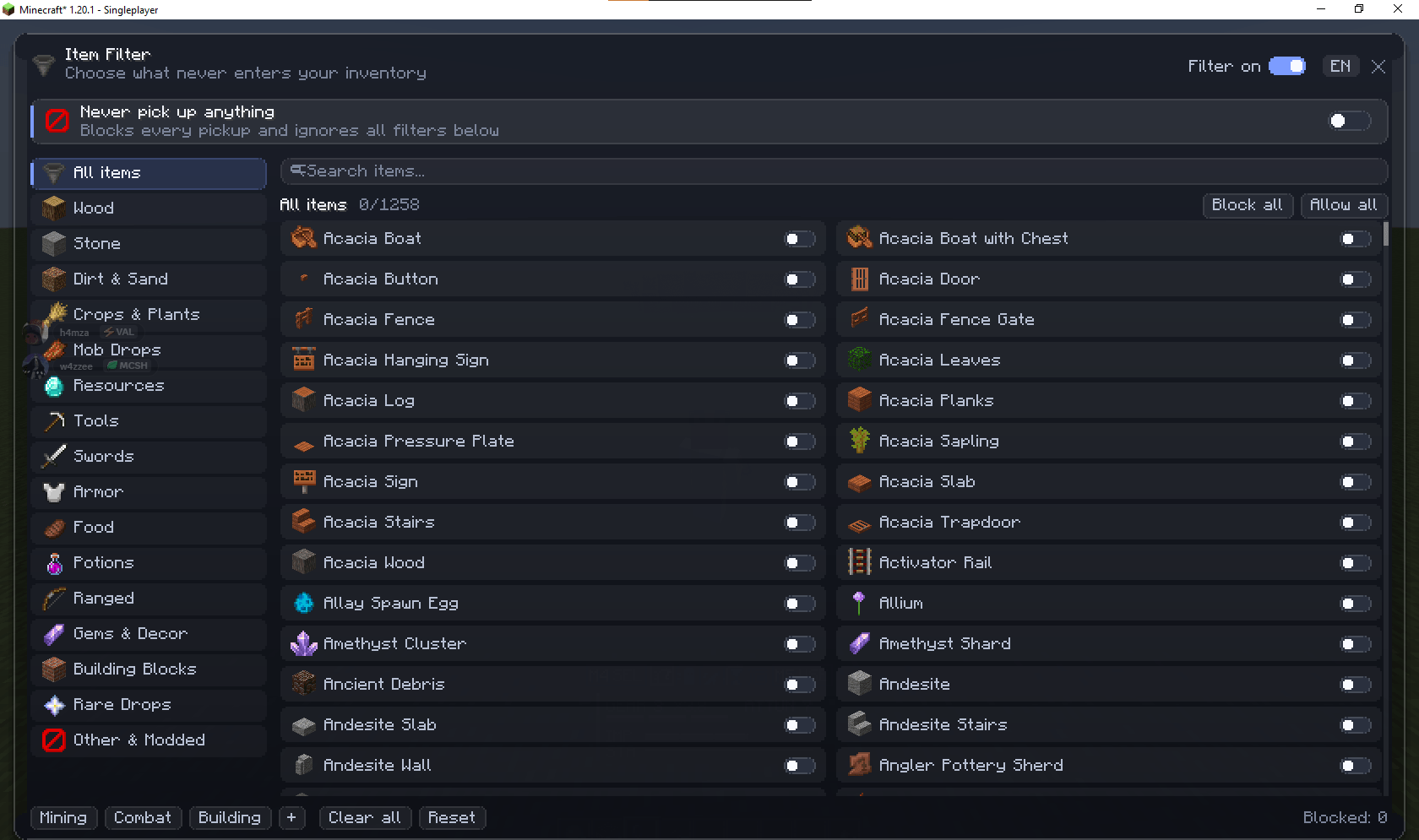 Screenshot 2026-11-07 190148.png Screenshot 2026-11-07 190148.png
-
 Screenshot 2026-11-07 190214.png Screenshot 2026-11-07 190214.png
-
 Screenshot 2026-11-07 190232.png Screenshot 2026-11-07 190232.png
-
 Screenshot 2026-11-07 190250.png Screenshot 2026-11-07 190250.png
-
 Screenshot 2026-11-07 190311.png Screenshot 2026-11-07 190311.png
Versions
Files
Relations
Project Relations
More like this
Similar Mods
Suggestions use data such as tags, dependencies, dependents, descriptions, titles, and more to rank how much they overlap with this mod.
On ModDex
Community snapshot
By the numbers
Statistics

Get it on
Available Platforms
On ModDex
Community snapshot
By the numbers
Statistics
Resources