
Community listing page, reviews may not be monitored by the author.
Kinora Replay

No reviews yet
Record your gameplay, then film it again like a director: fly a keyframed cinematic camera through the replay and render smooth, frame-exact video.

Community voices
Reviews
No reviews yet. Be the first to review this project!
Get it on
Available Platforms
About
Project Details
For authors
Embed Badge
If you're the author of this project, you can embed a live badge anywhere that supports HTML or Markdown. It updates automatically whenever ratings change.
Use HTML for any page that supports it, or Markdown for README files and Markdown-based descriptions.
Identifiers
Platform IDs
About
Description
Kinora Replay records what you play and lets you film it again like a movie director. Open a recording later, fly a camera through it, place a few camera points, and Kinora renders a smooth, perfectly timed video with no lag and no dropped frames, even if your game stutters.
⚠️ Read this first: making videos needs one free extra program, FFmpeg.
Kinora does not include it. Without it you can still record, watch, edit and save image sequences, but not MP4 videos. Setting it up takes about 2 minutes: jump to the FFmpeg setup.
How it works
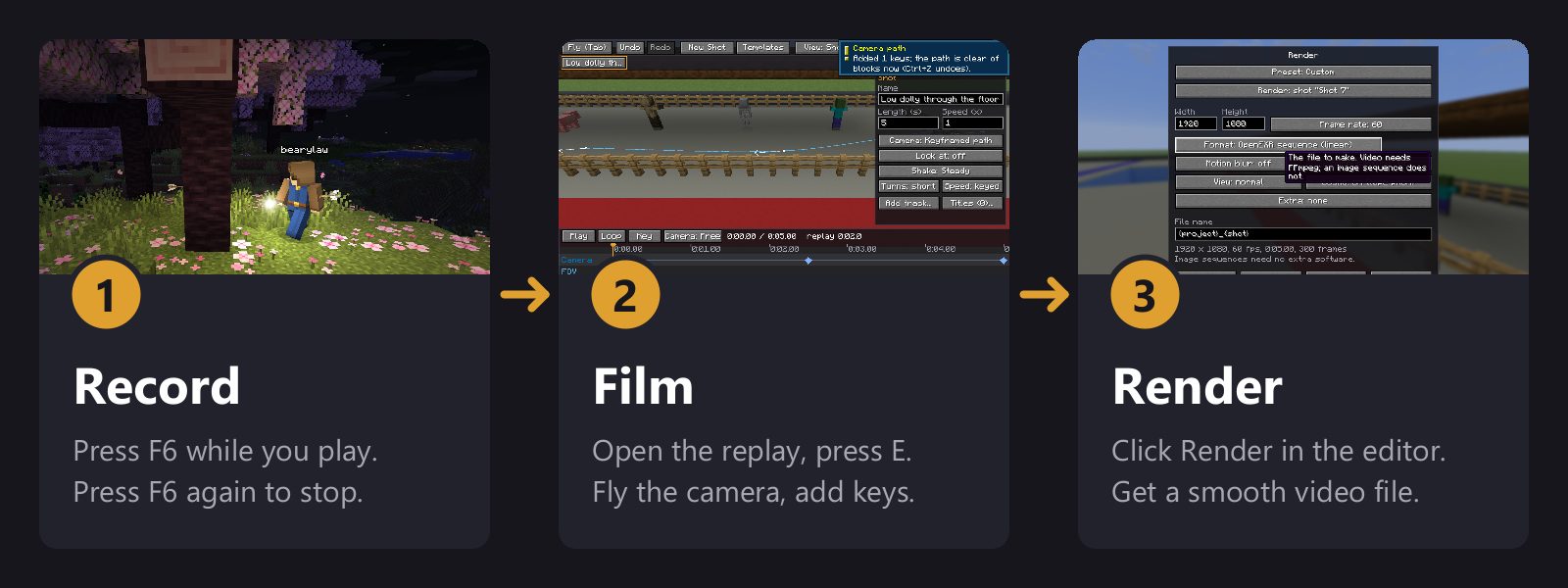
- Record. Press F6 while you play. Press F6 again to stop.
- Film. On the title screen, click Replays (the film icon) and open your recording. Press E to open the camera editor, fly to a good spot and press I to place a camera point. Move, place another one, and the camera glides between them.
- Render. Click Render, choose a size and format, and click Render now. The video is saved in your Minecraft folder under
kinora/renders.
Installation
- Minecraft 26.2 with NeoForge 26.2.0.88 or newer. The CurseForge app sets this up for you.
- Kinora Replay. Install it like any other mod. It is client only: servers do not need it.
- FFmpeg, for video. See the next section.
Setting up FFmpeg (for video)
FFmpeg is a free program that turns Kinora's frames into a video file. You only do this once per Minecraft profile.
Windows
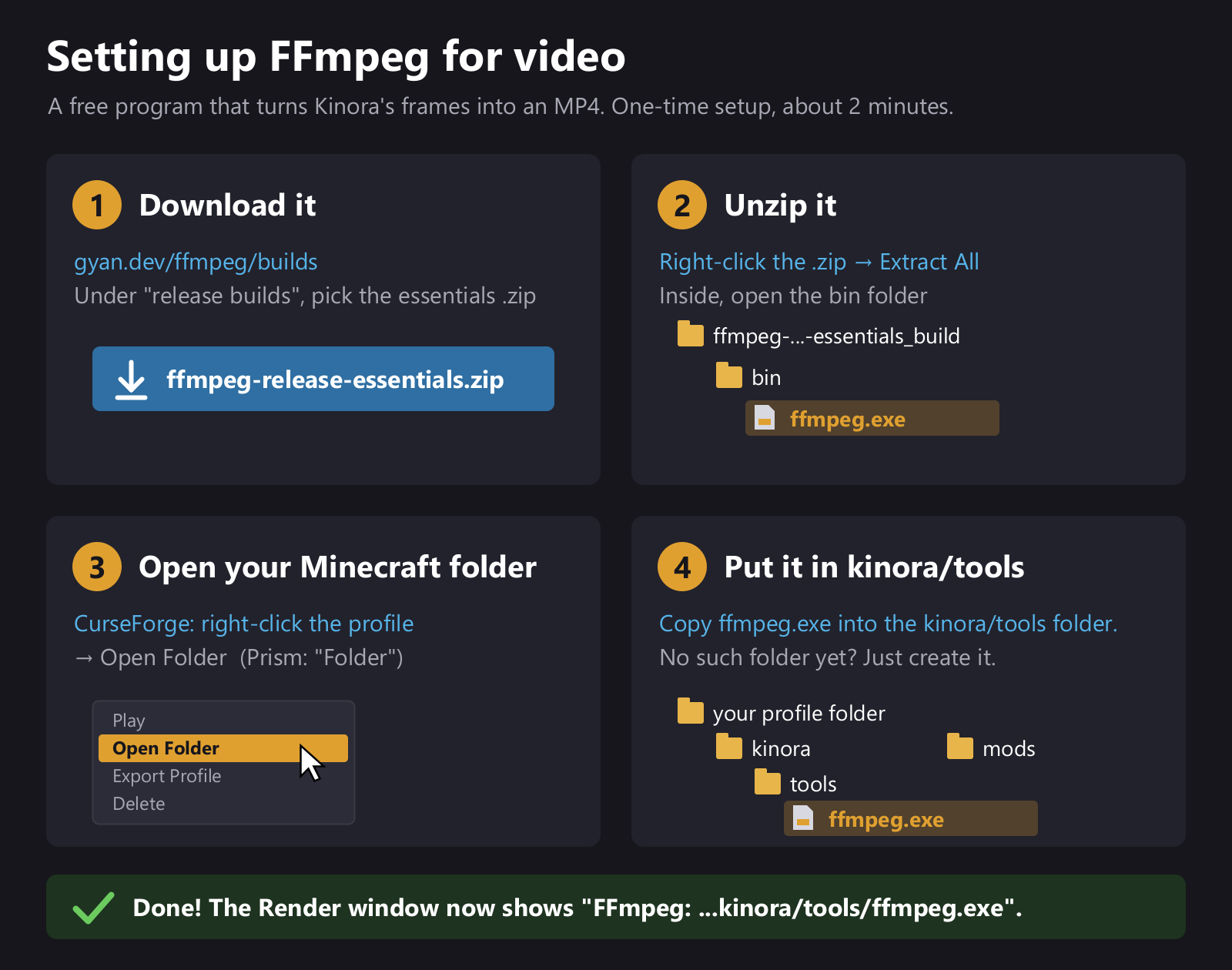
Download. Go to gyan.dev/ffmpeg/builds. Under release builds, click ffmpeg-release-essentials.zip.
Unzip. Right-click the downloaded
.zipand choose Extract All. Inside, open theffmpeg-…-essentials_buildfolder, then thebinfolder. You only needffmpeg.exe.Open your Minecraft folder. Start Minecraft with Kinora installed once, then close it.
- CurseForge app: right-click your profile → Open Folder.
- Prism Launcher: right-click the instance → Folder.
- Official launcher: Installations → hover your installation → the folder icon.
Copy
ffmpeg.exeintokinora/tools. In that folder, openkinora, thentools, and putffmpeg.exethere. If there is notoolsfolder yet, just create it. It should end up like this:<your profile folder> ├─ mods └─ kinora └─ tools └─ ffmpeg.exeCheck. In the game, open a replay, press E, click Render. The window now says FFmpeg: …kinora/tools/ffmpeg.exe, and the video formats (MP4 and others) can be picked.
macOS and Linux
Install FFmpeg with your package manager (brew install ffmpeg on macOS, sudo apt install ffmpeg on Ubuntu / Debian). Kinora finds it on its own.
Other ways
- Already have FFmpeg somewhere else? Set its path under Kinora's settings → FFmpeg path (or
ffmpegPathinconfig/kinora-client.toml). - An FFmpeg that is on your system PATH is found automatically too.
- Copying the whole
binfolder intokinora/tools(so you getkinora/tools/bin/ffmpeg.exe) also works.
Using Kinora
Recording
- F6: start / stop recording
- F7: add a marker at an important moment
- F8: save the last few minutes (the replay buffer, turn it on in the settings)
Kinora also adds markers by itself for deaths, kills, explosions, advancements and more, so you can jump straight to the action.
Watching a replay
A replay opens paused, with the camera behind you.
- K: play / pause, J / L: back / forward 5 seconds
- [ / ]: slower / faster
- N / M: previous / next marker
- F: free camera (fly with WASD, Space and Shift)
- G: follow the player or mob you are looking at, O: orbit around it
- B: take a 4K photo
- E: open the camera editor, Esc: replay menu
All replay keys can be changed under Esc → Replay keys.
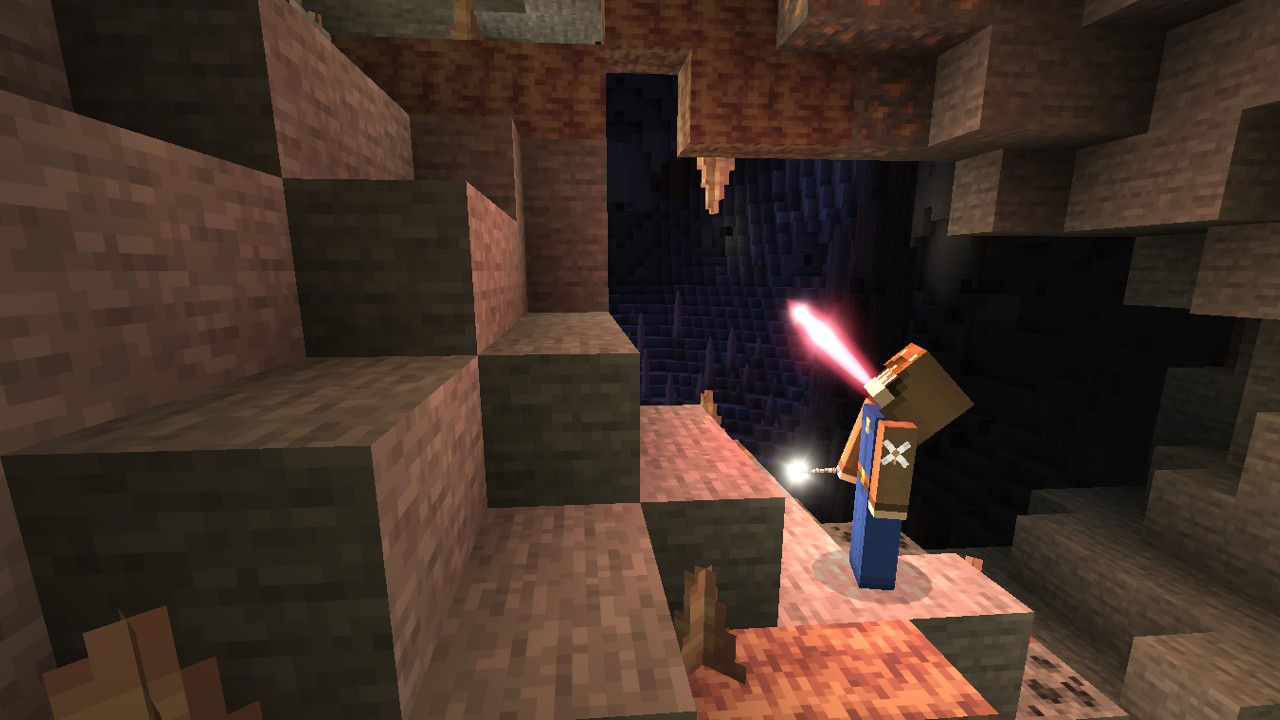
The camera editor
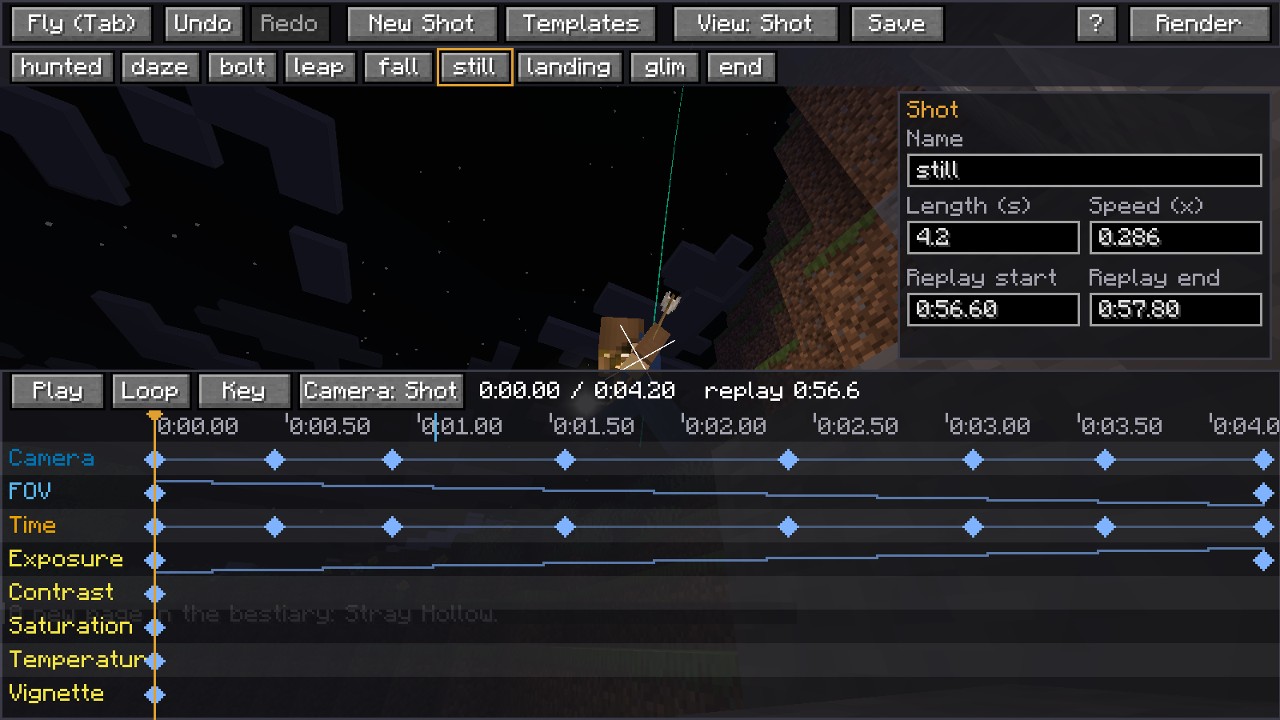
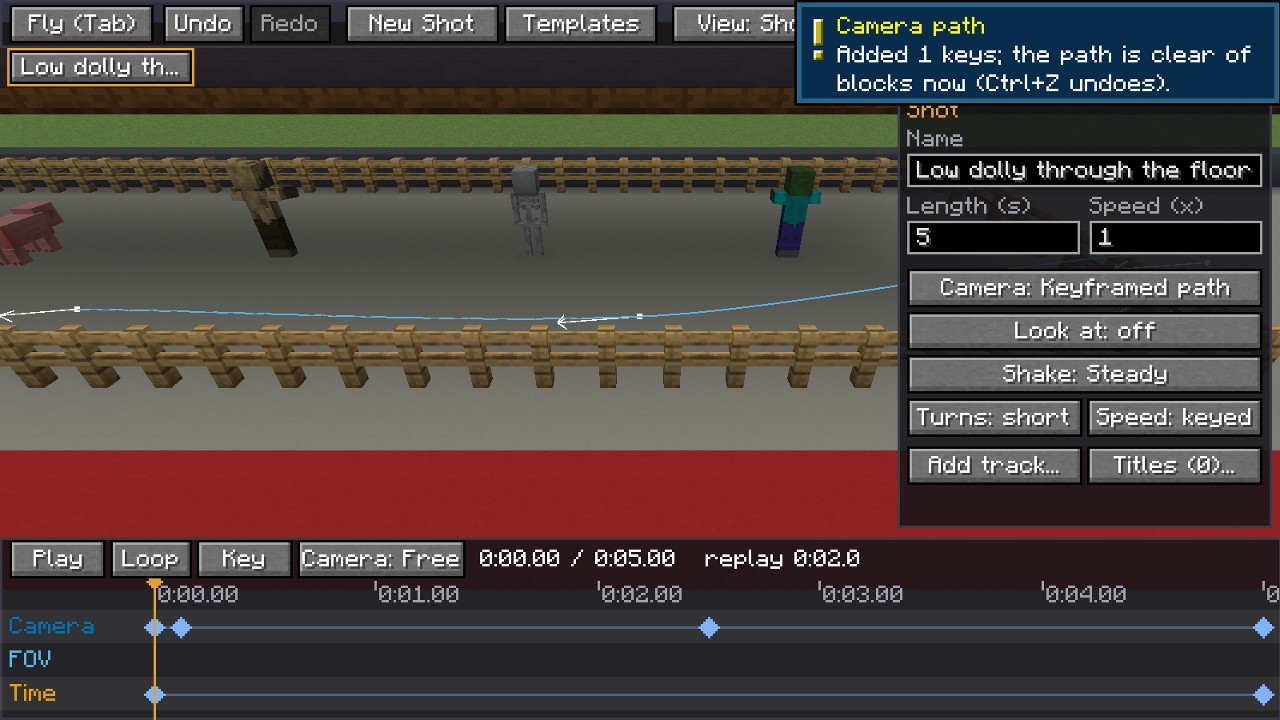
The first time you open it, a short guide explains everything (the ? button shows it again).
- New Shot starts a 5-second shot at the current moment.
- Hold the right mouse button and use WASD to fly. Press I to place a camera point.
- Space plays the shot. The camera's path is drawn in the world as a blue line.
- Templates add ready-made moves: orbit, dolly zoom, crane up, fly-through, reveal and more.
- Ctrl+K finds any action by name. Ctrl+Z undoes. Your project saves itself.
Rendering
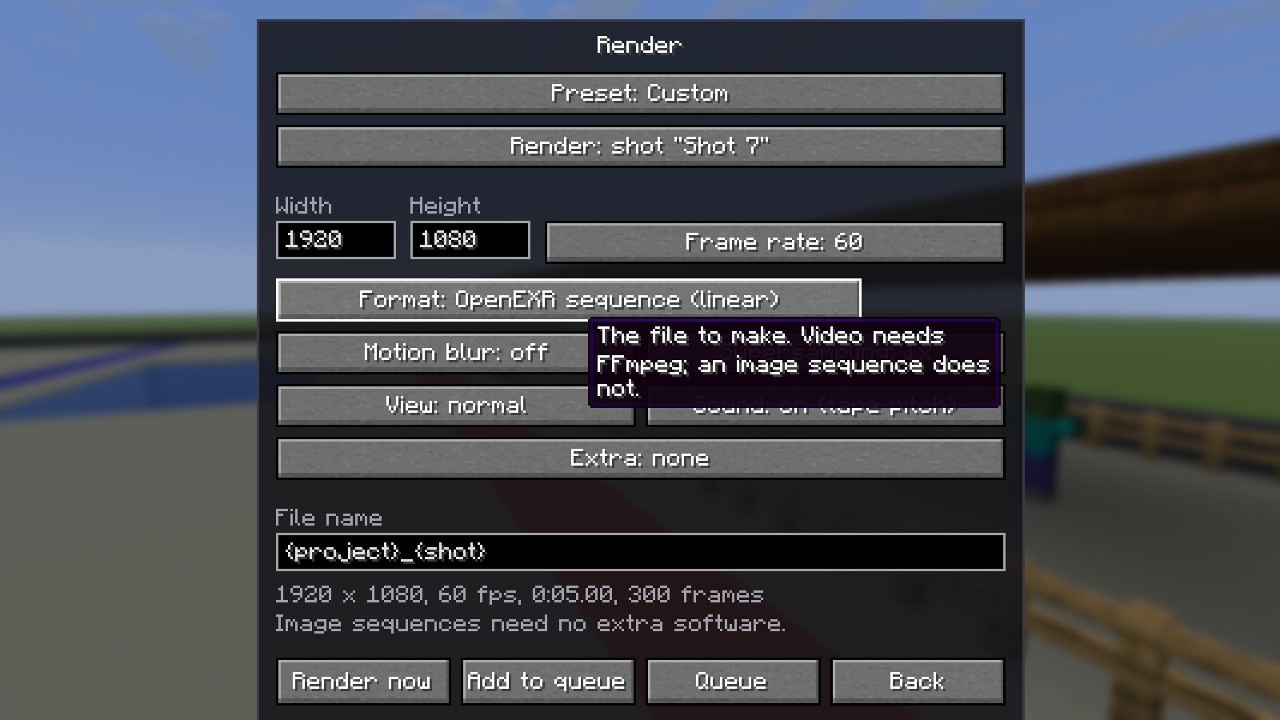
Click Render in the editor. Pick the size (up to 4K and beyond), frame rate (up to 120 fps) and format, then Render now, or Add to queue to render later. Esc stops a render; you can resume it from the queue.
Features
- 🎬 Cinematic camera: keyframed paths, orbits, follow cams, look-at, camera shake, speed ramps, slow motion, freeze frames and reverse
- 🎞️ Perfect renders: every frame is rendered at its exact time, so videos are smooth no matter how fast your PC is; the same project gives the same frames every time
- 🎨 Looks: color grading, exposure, vignette, film grain, bloom, letterbox, depth of field with autofocus, motion blur
- 🌅 World control: change the time of day and weather in your shots
- 🔊 Sound: renders include the game sounds as the camera hears them, plus optional music
- 🌐 360° and 3D video, ready for YouTube
- ✂️ Live cut: switch between up to nine cameras while the replay plays, like a live TV director
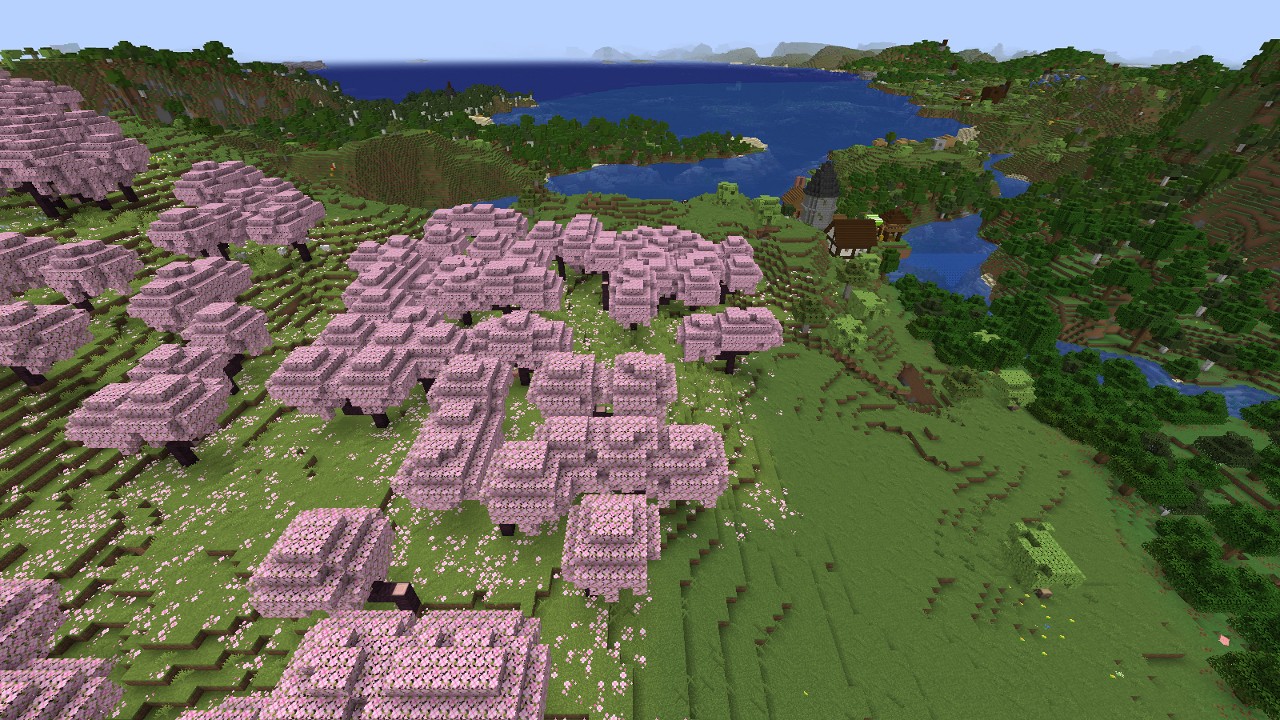
- 📷 Photo mode: 4K, 8K or 16K stills from any moment
- 📦 Share: pack a replay and its project into one file for a friend
- 🎥 Pro formats: MP4 (H.264, H.265, AV1), GPU encoding (NVIDIA / AMD / Intel), ProRes, WebM, PNG and OpenEXR sequences, depth pass, transparent sky
Compatibility
- Sodium and Iris (shader packs): supported, no setup needed
- Distant Horizons: far terrain shows up in replays
- Multiplayer: record on any server; servers do not need Kinora
- Vulkan: works; set
earlyWindowControl = falseinconfig/fml.toml
FAQ
The render window says "FFmpeg not found". ffmpeg.exe is not in the right place. It must be directly in kinora/tools inside your profile folder (the one that also has mods in it), not in the zip's folder. See the FFmpeg setup.
Some formats are greyed out. Your FFmpeg does not support them. The "essentials" build has everything except AV1.
Do I need FFmpeg for screenshots or PNG sequences? No. Photos and PNG / OpenEXR image sequences work without it.
Where are my recordings and videos? In your profile folder: recordings in kinora/replays, videos in kinora/renders.
Can I use Kinora in my modpack? Yes, as long as the pack downloads it from this CurseForge page (do not put the file itself in your pack).
Can I use it for videos I make money with? Yes. What you make with Kinora is yours.
Links
- Source code and bug reports: GitHub (report a bug)
- License: free to use and to make videos with, including monetised ones. Please don't re-upload the mod; see the license.
Kinora Replay is not an official Minecraft product and is not approved by or associated with Mojang or Microsoft.
Screenshots
Gallery
Versions
Files
Relations
Project Relations
More like this
Similar Mods
Suggestions use data such as tags, dependencies, dependents, descriptions, titles, and more to rank how much they overlap with this mod.
On ModDex
Community snapshot
By the numbers
Statistics

Get it on
Available Platforms
On ModDex
Community snapshot
By the numbers