
Community listing page, reviews here may not be monitored by the author.
Last Played Logger


No reviews yet
Logs the last date a player was online to a Google spreadsheet.
Community voices
Reviews
No reviews yet. Be the first to review this project!
Get it on
Available Platforms
Compatibility
Supported Environments
Runs on a dedicated server only; does not work in singleplayer.
About
Project Details
For authors
Embed Badge
If you're the author of this project, you can embed a live badge anywhere that supports HTML or Markdown. It updates automatically whenever ratings change.
Use HTML for any page that supports it, or Markdown for README files and Markdown-based descriptions.
Identifiers
Platform IDs
About
Description
Version 3.X.X
For older versions of the mod, check the wiki.
This mod logs the last date a player was online/logged in into a Google spreadsheet.
It's a utility mod to help you moderate your whitelist.
It only works on the server side and won't work on the client side.
You need a server to play with friends? You don't know how to set up one? Just rent an already configured server!

Click on the picture above, select a plan (with recommended at least 6 GB),
use my code agent to get 25% off your first month and enjoy playing with your friends!
Support
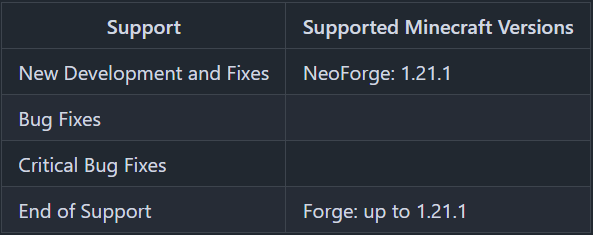
Minecraft versions, for which the mod is not released, are not supported.
You can find a text version here.
Server Config
The config file can be found in the "serverconfig" folder in the "world" folder and is named "last_played_logger-server.toml". The name of the world folder is set for servers in the "server.properties" file.
- active
Shall the mod be active or not? - spreadsheetID
ID of the Spreadsheet. - tab_name
Name of the spreadsheet tab.
Wonder how do you get these data? Read the "How to configure the mod".
How to configure the mod
Enable the Google Sheets API
First, you have to enable the "Google Sheets API" on https://developers.google.com/sheets/api/quickstart/java#enable_the_api and click onto the "Enable the API" button.
Create a folder named "last_played_logger" next to the "config" folder.
Next you have to go to https://developers.google.com/sheets/api/quickstart/java#authorize_credentials_for_a_desktop_application and follow the steps to create credentials, that the "Last Played Logger" uses to change the Google Spreadsheet.
Save the credentials.json in the "last_played_logger" folder.
How to set up the spreadsheet
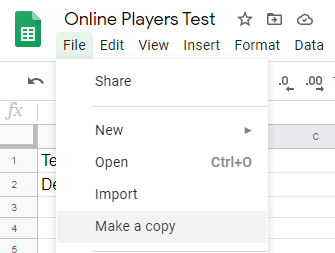
You can copy this Example Spreadsheet to use it with the "Last Played Logger".
For that, you have to click "File" > "Make a copy".
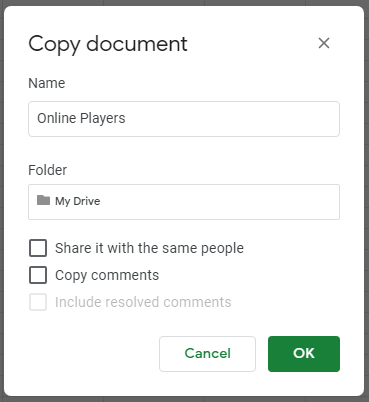
In the copy window, you give it a name and click "OK".
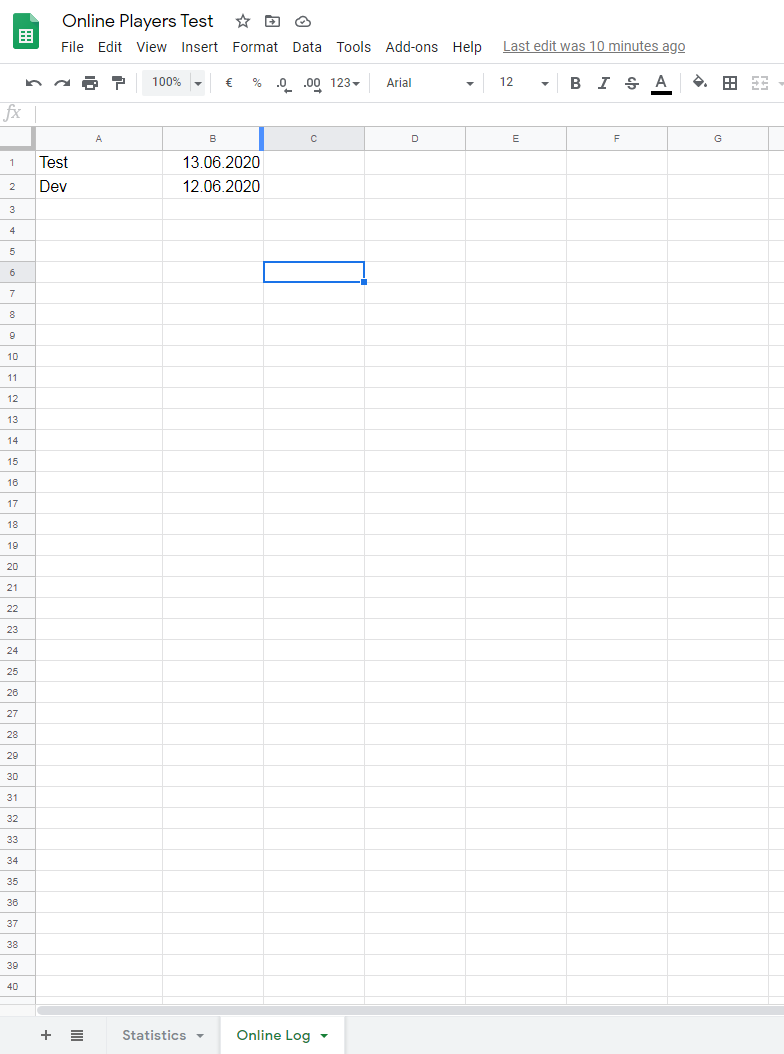
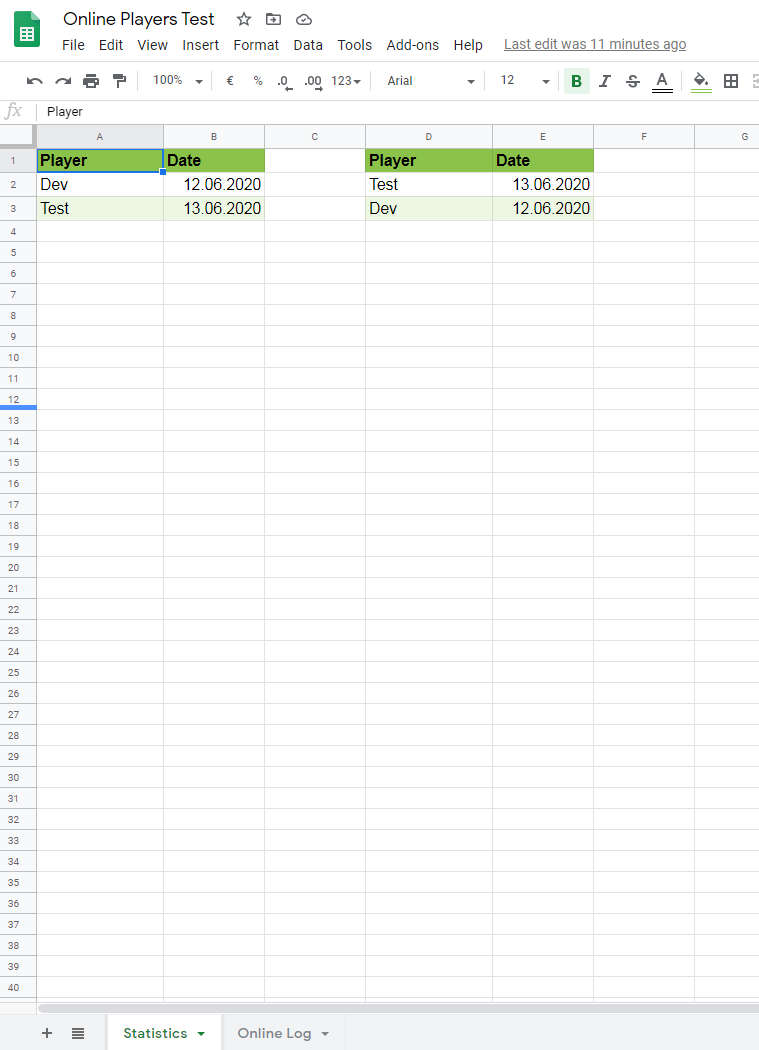
This "Example Spreadsheet" has two tabs.
In the "Online Log" tab, the "Last Played Logger" adds lines for every player joining the server. For players already joint the server, only the date will be updated.
In the "Statistics" tab, you have two lists. The left list shows all players sorted by name and the right list shows all players sorted by the date. The player last online is the first player in this list.
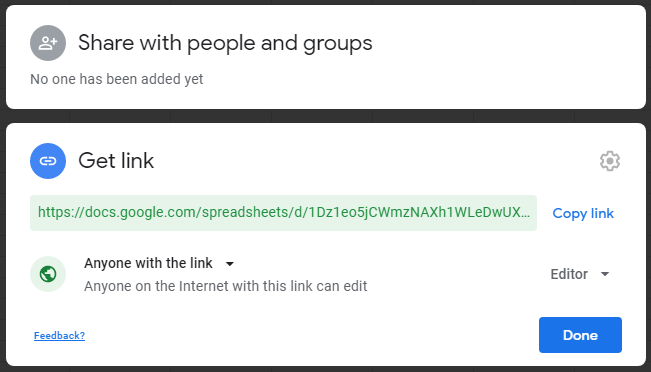
For the mod it's needed, that the spreadsheet is shared. For that you have to click onto the "Share" button.
In the Share window you have to select "Get Link" and on the right side of "Anyone with the link" you have to select "Editor".
In the config, you now have to set "active" to "true" and set the "tab_name". In this example the "tab_name" has to be "Online Log".
From the URL, you have to extract the spreadsheet ID. In this example, the spreadsheet ID is "1dcoWy1ZOCEzf9wSqpsd731MKr8rBsazUVuUYafF4nzA".

What is to do on the first launch
When you have finished the config and done all previous steps, it gets to the first launch and the authentication of the server/mod.
Important: The first launch of the server has to be on your local desktop pc. During the following steps don't stop the server.
After you launched the server and a player joined, you find in the log a link with the following lines:
Please open the following address in your browser:
*https://accounts.google.com/o/oauth2/auth?access_type=offline&client_id=…*
*Attempting to open that address in the default browser now…*
Maybe the link is opened by your default browser automatically. If not, copy the link to your browser and open it.
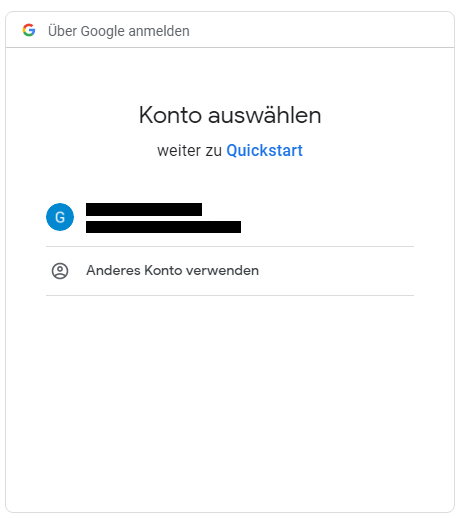
It opens a website where you have to choose the Google account, from the owner of the spreadsheet.
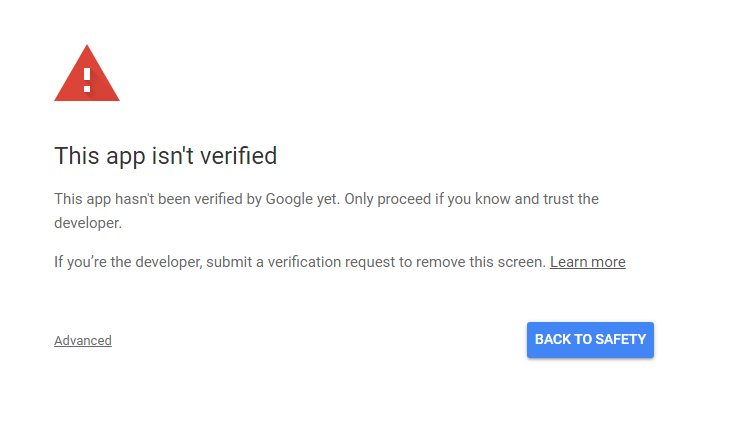
Next, there opens a warning because your project on which the application is running is not verified. You can ignore the warning and click "Advanced".
Next, you click on "Go to Quickstart"
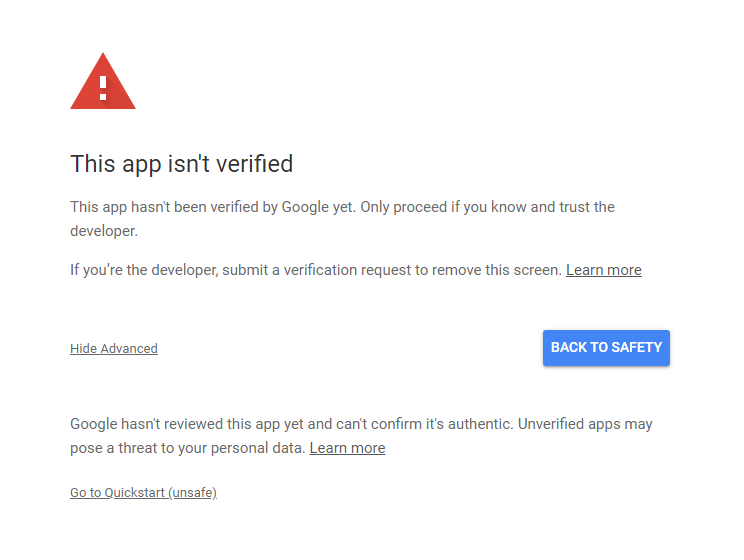
After that, a permission request is showing up, that wants to access your spreadsheets. "Allow" clicking will grant this permission.
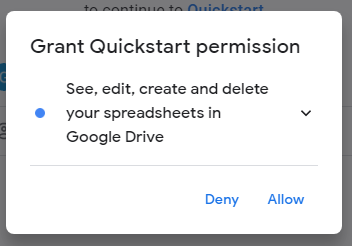
This permission request has to be confirmed.
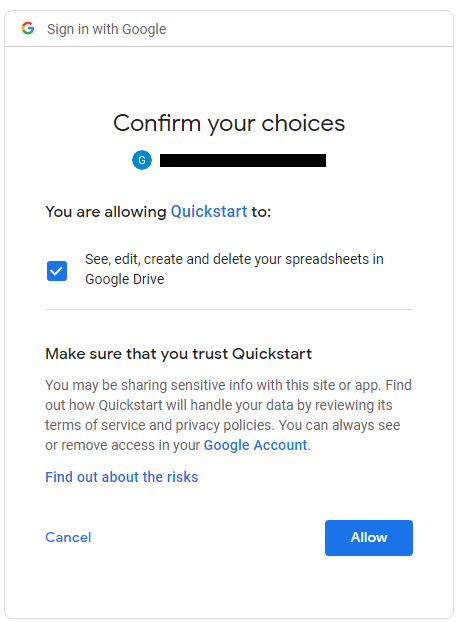
If you grant the permission and confirmed it, the "Last Played Logger" will work and add players to your spreadsheet.
If you want to enlarge the formatted area, here is a tutorial: https://spreadsheetpoint.com/color-alternate-rows-google-sheets/
Thanks for the logo to Muse31.
You can use this mod in non-commercial modpacks without asking.
You can find more mods from me on CurseForge and Modrinth.

Version 3.X.X
For older versions of the mod, check the wiki.
This mod logs the last date a player was online/logged in into a Google spreadsheet.
It's a utility mod to help you moderate your whitelist.
It only works on the server side and won't work on the client side.
You need a server to play with friends? You don't know how to set up one? Just rent an already configured server!
Click on the picture above, select a plan (with recommended at least 6 GB),
use my code agent to get 25% off your first month and enjoy playing with your friends!
Support
Minecraft versions, for which the mod is not released, are not supported.
You can find a text version here.
Server Config
The config file can be found in the "serverconfig" folder in the "world" folder and is named "last_played_logger-server.toml". The name of the world folder is set for servers in the "server.properties" file.
- active
Shall the mod be active or not? - spreadsheetID
ID of the Spreadsheet. - tab_name
Name of the spreadsheet tab.
Wonder how do you get these data? Read the "How to configure the mod".
How to configure the mod
Enable the Google Sheets API
First, you have to enable the "Google Sheets API" on https://developers.google.com/sheets/api/quickstart/java#enable_the_api and click onto the "Enable the API" button.
Create a folder named "last_played_logger" next to the "config" folder.
Next you have to go to https://developers.google.com/sheets/api/quickstart/java#authorize_credentials_for_a_desktop_application and follow the steps to create credentials, that the "Last Played Logger" uses to change the Google Spreadsheet.
Save the credentials.json in the "last_played_logger" folder.
How to set up the spreadsheet
You can copy this Example Spreadsheet to use it with the "Last Played Logger".
For that, you have to click "File" > "Make a copy".
In the copy window, you give it a name and click "OK".
This "Example Spreadsheet" has two tabs.
In the "Online Log" tab, the "Last Played Logger" adds lines for every player joining the server. For players already joint the server, only the date will be updated.
In the "Statistics" tab, you have two lists. The left list shows all players sorted by name and the right list shows all players sorted by the date. The player last online is the first player in this list.
For the mod it's needed, that the spreadsheet is shared. For that you have to click onto the "Share" button.
In the Share window you have to select "Get Link" and on the right side of "Anyone with the link" you have to select "Editor".
In the config, you now have to set "active" to "true" and set the "tab_name". In this example the "tab_name" has to be "Online Log".
From the URL, you have to extract the spreadsheet ID. In this example, the spreadsheet ID is "1dcoWy1ZOCEzf9wSqpsd731MKr8rBsazUVuUYafF4nzA".
What is to do on the first launch
When you have finished the config and done all previous steps, it gets to the first launch and the authentication of the server/mod.
Important: The first launch of the server has to be on your local desktop pc. During the following steps don't stop the server.
After you launched the server and a player joined, you find in the log a link with the following lines:
Please open the following address in your browser:
https://accounts.google.com/o/oauth2/auth?access_type=offline&client_id=...
Attempting to open that address in the default browser now…
Maybe the link is opened by your default browser automatically. If not, copy the link to your browser and open it.
It opens a website where you have to choose the Google account, from the owner of the spreadsheet.
Next, there opens a warning because your project on which the application is running is not verified. You can ignore the warning and click "Advanced".
Next, you click on "Go to Quickstart"
After that, a permission request is showing up, that wants to access your spreadsheets. "Allow" clicking will grant this permission.
This permission request has to be confirmed.
If you grant the permission and confirmed it, the "Last Played Logger" will work and add players to your spreadsheet.
If you want to enlarge the formatted area, here is a tutorial: https://spreadsheetpoint.com/color-alternate-rows-google-sheets/
Thanks for the logo to Muse31.
You can use this mod in non-commercial modpacks without asking.
You can find more mods from me on CurseForge and Modrinth.
Screenshots
Gallery
-
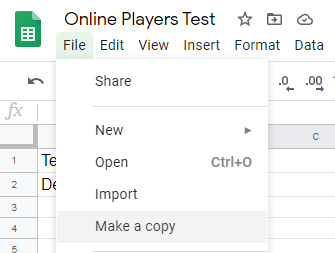 Click "File" >"Make a copy" to make a copy of the spreadsheet
 -
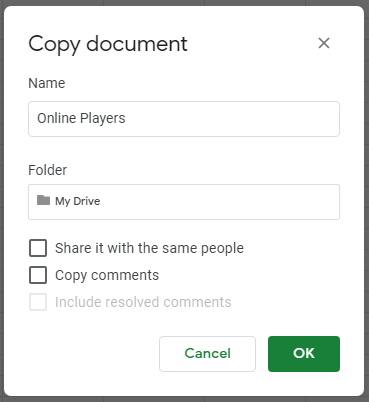 Copy Window
 -
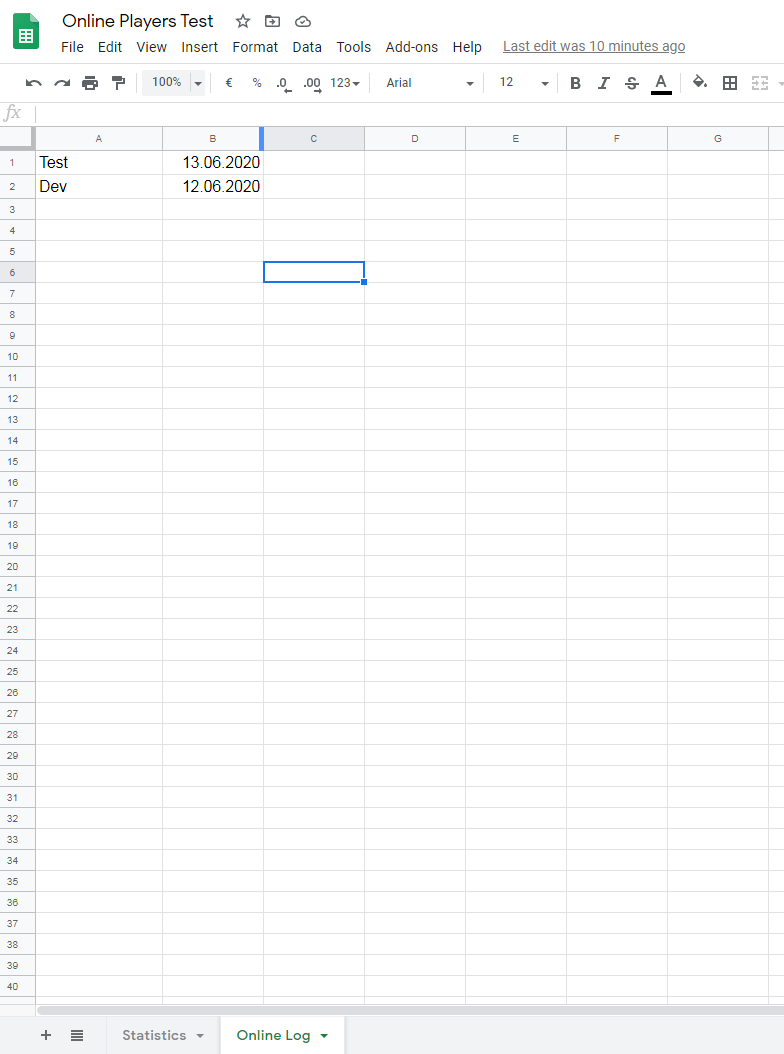 Online Log tab
 -
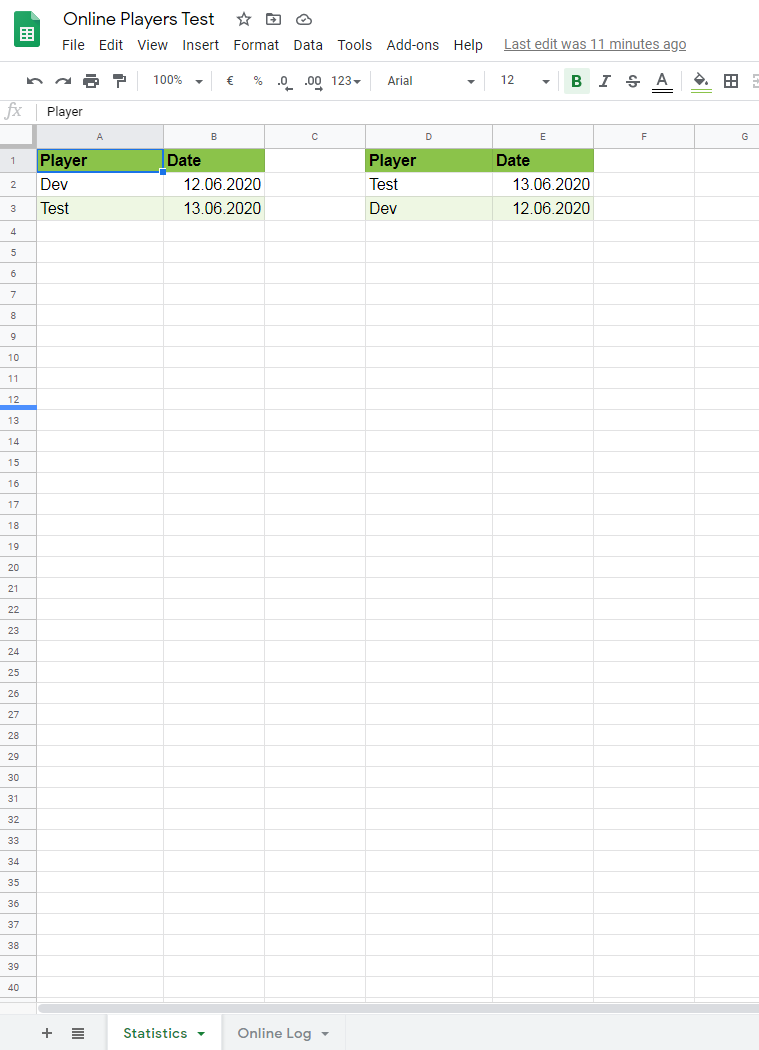 Statistics tab
 -
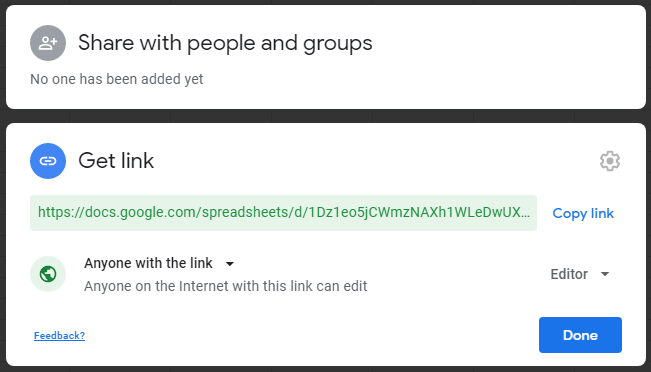 Share Spreadsheet window
 -
 Spreadsheet URL
 -
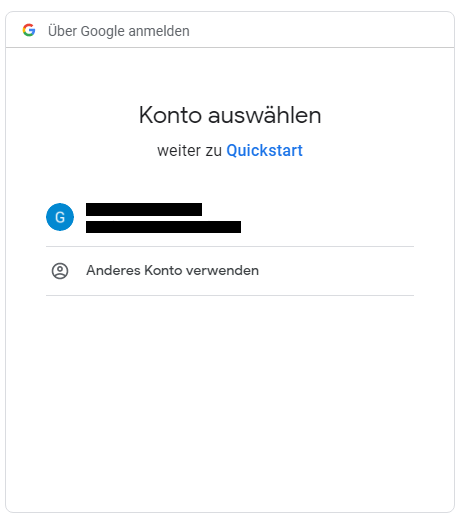 Choose the account of the spreadsheet user
 -
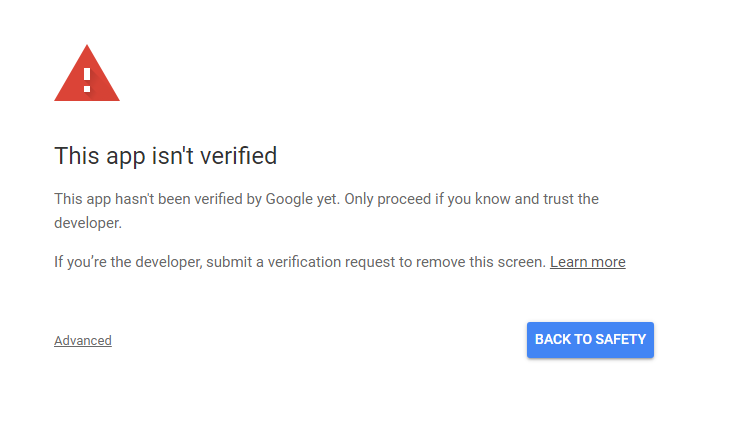 App isn't verified Next there opens a warning because your project on which the application is running is not verified. You can ignore the warning and click "Advanced".
 -
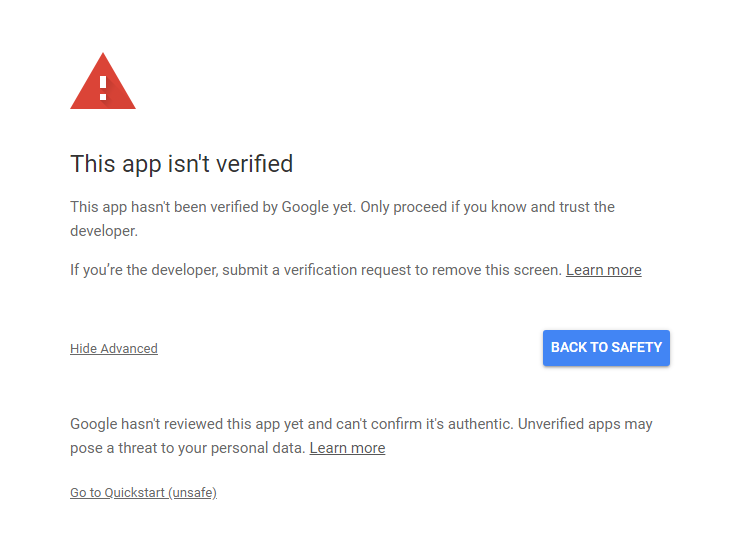 App isn't verified 2 Click on "Go to Quickstart"
 -
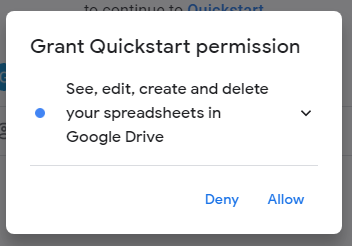 Click "Allow" to grant the permission
 -
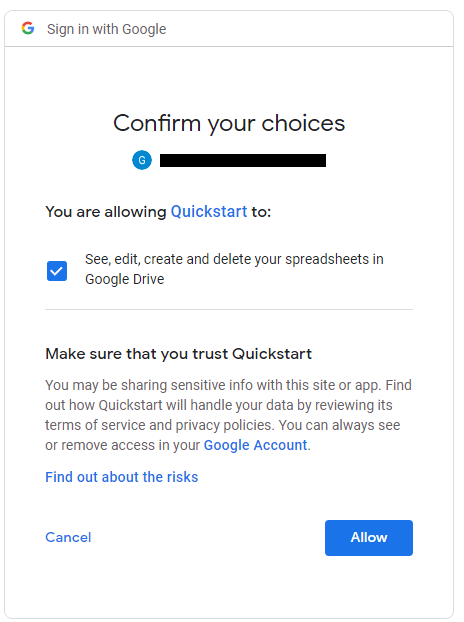 Click "Allow" to confirm the permission grant
-
Click "File" >"Make a copy" to make a copy of the spreadsheet
-
Copy Window
-
Online Log tab
-
Statistics tab
-
Share Spreadsheet window
-
Spreadsheet URL
-
Choose the account of the spreadsheet user
-
App isn't verified Next there opens a warning because your project on which the application is running is not verified. You can ignore the warning and click "Advanced".
-
App isn't verified 2 Click on "Go to Quickstart"
-
Click "Allow" to grant the permission
-
Click "Allow" to confirm the permission grant
Versions
Files
Relations
Project Relations
More like this
Similar Mods
Suggestions use data such as tags, dependencies, dependents, descriptions, titles, and more to rank how much they overlap with this mod.
On ModDex
Community snapshot
By the numbers
Statistics
Want to reach Minecraft players?
We're looking for a server hosting partner to feature here and other parts of the site. Interested? Send us a message!
Get in touchGet it on
Available Platforms
On ModDex
Community snapshot
By the numbers