Community listing page, reviews here may not be monitored by the author.
Lia's Media player


No reviews yet
Adds image and gif preview in chat and a video player via links in chat
Community voices
Reviews
No reviews yet. Be the first to review this project!
Get it on
Available Platforms
Compatibility
Supported Environments
Runs entirely on the client. Works on vanilla servers.
About
Project Details
For authors
Embed Badge
If you're the author of this project, you can embed a live badge anywhere that supports HTML or Markdown. It updates automatically whenever ratings change.
Use HTML for any page that supports it, or Markdown for README files and Markdown-based descriptions.
Identifiers
Platform IDs
Resources
External Links
About
Description
Lia's Media player
For Minecraft 1.21.1 - 26.2 · NeoForge · Client-side only
Lia's Media player is a companion mod that can display medias that you can interact — right inside Minecraft, without ever leaving the game.
What it does at a glance
When a link to an image or video appears in chat, the mod quietly replaces the raw URL with a short, colored label:
- A gold [picture] for images
- A gold [gif] for Tenor GIFs
- An aqua, underlined video label for videos, YouTube links, YouTube playlists, and Twitch streams
- A green, underlined [audio] label for audio files
Pictures and GIFs
Hover to preview. Open your chat and move the mouse over any [picture] label. A preview of the image pops up right above your cursor — no clicking, no browser, no tabbing out. The image is downloaded the first time you hover and then kept ready, so it appears instantly after that. Animated GIFs play in the preview.
Supported images. Standard picture files work out of the box: PNG, JPG/JPEG, GIF, and BMP.
Tenor GIFs. The mod figures out the real animated GIF behind the tenor page automatically and shows it for you — these appear as a [gif] label.
Pin it on screen. Want to keep a picture up while you keep playing or chatting? Click to pin it as its own little window. Pinned images can be:
- Dragged anywhere on screen
- Resized by dragging the bottom-right corner, or by holding Ctrl and scrolling the mouse wheel to zoom
- Hidden or closed with the small corner buttons
Previews and pinned windows are automatically scaled down to fit comfortably on your screen, never blown up past their real size.
Videos
Click a video label and the mod opens a real, working video player inside Minecraft — with sound. Hovering over a video label provides a handy tooltip reminder of your options.
- Alt-Click a video link to play it as audio-only in the compact audio bar.
What it can play:
- Direct video files shared in chat: MP4, WEBM, MOV, MKV, M4V, AVI, FLV, OGV, and TS
- Live/adaptive streams: HLS (
.m3u8) and DASH (.mpd) manifests - YouTube links: normal
watchlinks,youtu.beshort links, and Shorts - YouTube playlists: a
youtube.com/playlist?list=...page — clicking it queues the whole list - Twitch streams: channel and VOD links
The player window gives you full controls:
- Play / pause
- A seek bar with elapsed and total time, so you can scrub to any point
- A speaker toggle and a pop-up volume slider
- A next button when more than one video is lined up
- A loop button that cycles through off → loop the queue → loop this video
- A shuffle button (while a queue exists) that mixes up what is coming
- Move, resize, and zoom the window exactly like a pinned image
A built-in queue. Instead of cluttering your screen with a new window for every link, extra videos are added to the current player's queue. When one finishes (or you press next), the window automatically swaps to the next video in place. The queue panel shows each entry's thumbnail and its real video name (the actual YouTube title, or the file name), so you can tell what's coming up at a glance.
Whole YouTube playlists. Click a [youtube playlist] label and the mod reads the playlist (it takes a moment) and queues every video in it, in order — alt-click to listen to it as audio only. Turn on loop and it plays forever; turn on shuffle as well and each new round is reshuffled, so you never get the same order twice.
In-Game Playlists GUI (/liasmediaplayer playlists)
- Create, manage, and rename multiple personal playlists.
- Reorder tracks effortlessly (click the up/down arrows or use the swap buttons next to tracks).
- One-click shuffle play, and a loop toggle for endless playback.
- Import playlists directly from your clipboard (lines of URLs) and export playlists to your clipboard for easy sharing.
Keeps playing in the background. Hide a player, and it keeps running — audio and all — so you can listen while you play. Close it with the × button when you're done. While no menu or chat screen is open, visible video windows stay drawn on your HUD so a clip keeps showing during normal gameplay.
Everything just works. Video playback relies on two small helper tools: ffmpeg (to decode video and sound) and yt-dlp (to play YouTube links). If you don't already have them, the mod quietly downloads the official copies into its own folder when the game starts — so you don't have to set anything up. If you do have them installed, the mod finds them automatically in the usual places.
Audio
Click an [audio] label and the mod opens a small audio bar — just the track name and a row of controls — so you can listen without a big window in the way. Hovering over an audio label will provide a tooltip reminder to click it.
What it can play:
- Direct audio files shared in chat: MP3, WAV, OGG/OGA, FLAC, M4A, AAC, OPUS, WEBA, WMA and AIFF
The bar gives you:
- Play / pause, previous and next
- A loop button that cycles through off → loop the whole queue → loop this track
- A shuffle button — with loop on, every round is reshuffled instead of repeating the same order
- A seek bar with elapsed and total time
- A speaker toggle, plus scroll the mouse wheel over the bar to change the volume
A built-in queue, just like videos. Click more audio links, and they line up behind the current one; the bar plays them one after another and the time read-out shows how many are waiting (a little +N). The volume is shared with the video player, so one setting controls everything.
Keeps playing in the background. Hide the bar and the music keeps going; while no menu is open it stays on your HUD showing the track name. The same top-left button that brings hidden videos back works for hidden audio bars too.
Playlists
Open the Playlists button in the top-left of your chat (or bind a key for it — see below) to manage saved playlists.
- Create a playlist and give it a name.
- Add tracks by pasting a link — a direct audio file or a YouTube video (only the sound is played).
- Import a whole YouTube playlist by pasting its
playlist?list=...link into the same box: every video in it is added as a track. Pasting one on the clipboard In button creates a new playlist named after the YouTube one. - Rename, reorder tracks (with the up/down arrows), remove tracks, or delete a playlist.
- Play it in order, or Shuffle it for a random order.
- Toggle Loop before pressing Play or Shuffle to start the playlist looping — with Shuffle, each round comes back in a new random order. The loop and shuffle buttons on the player itself change this while it plays.
Your playlists are saved to disk, so they're still there next time you play.
Mod Options
The mod now features a configurable options menu where you can tailor its behavior to your liking.
- You can access it by clicking the Options button in the Playlists menu, or via the Config button in the game's Mods list.
- Default Window Position: Choose where new windows appear by default. Options include
Center,Top Left,Top Right,Bottom Left, andBottom Right. The default isCenter, which keeps the classic cascading behavior. - Video Resolution: Choose the maximum resolution for video playback (from 144p up to 720p).
- Resource Limits: Adjust the maximum number of pinned images, video players, audio players, cached entries, and GIF frames to optimize memory usage based on your computer's capabilities.
- Advanced Limits: You can also configure the video frame queue capacity, max image cache in megabytes, and yt-dlp timeout. Watch out for red tooltips indicating sensitive settings!
- All options are saved automatically and persist between sessions.
Keybinds
The mod adds keys you can set in Options → Controls → "Lia's Media Player" to drive the players without opening chat:
- Play / Pause, Next track and Previous track: these apply to the active audio track, or if none is playing, the active video player.
- Open playlists
They're unbound by default so they never clash with your existing keys — just assign whatever you like.
Chat Commands
You can also start playing media directly via chat commands without receiving a link first:
/show <type> <url> [newPlayer]type: Eitherimage,video, oraudio(with auto-completion). Note: A video URL can be played asvideooraudio, but you cannot play an audio URL as a video.url: The link to the media.newPlayer(optional): Whentrue, opens the media in a brand-new player window instead of adding it to the queue of an existing player. Defaults tofalse.
Why you'll like it
- No alt-tabbing. Images and videos play where the conversation is happening.
- Zero setup for most things. Hover an image, and it just appears; click a video, and it just plays.
- Stays out of your way. Nothing shows up until media is actually shared, labels are compact, and everything is downloaded in the background so the game never stutters waiting on a link.
- You're in control. Drag, resize, pin, hide, queue, mute — arrange your media however you like, then close it all when you're done.
Lia's Media Player is a client-side convenience mod. It only affects how shared image, video, and audio links appear in your own chat — it does not modify gameplay, the world, or other players.
Lia's Media player
For Minecraft 1.21.1 - 26.2 · NeoForge & Fabric · Client-side only · Works on Windows and Linux
(On Fabric you also need Fabric API.)
Lia's Media player is a companion mod that can display medias that you can interact — right inside Minecraft, without ever leaving the game.
The mod also has an API you can use, see API Documentation
What it does at a glance
When a link to an image or video appears in chat, the mod quietly replaces the raw URL with a short, colored label:
- A gold [picture] for images
- A gold [gif] for Tenor and Giphy GIFs
- An aqua, underlined video label for videos, YouTube links, YouTube playlists, Twitch streams, Vimeo, Streamable and Reddit videos
- A green, underlined audio label for audio files, SoundCloud tracks and Bandcamp releases
Pictures and GIFs
Hover to preview. Open your chat and move the mouse over any [picture] label. A preview of the image pops up right above your cursor — no clicking, no browser, no tabbing out. The image is downloaded the first time you hover and then kept ready, so it appears instantly after that. Animated GIFs play in the preview.
Supported images. Standard picture files work out of the box: PNG, JPG/JPEG, GIF, and BMP.
Tenor GIFs. The mod figures out the real animated GIF behind the tenor page automatically and shows it for you — these appear as a [gif] label.
Pin it on screen. Want to keep a picture up while you keep playing or chatting? Click to pin it as its own little window. Pinned images can be:
- Dragged anywhere on screen
- Resized by dragging the bottom-right corner, or by holding Ctrl and scrolling the mouse wheel to zoom
- Hidden or closed with the small corner buttons
Previews and pinned windows are automatically scaled down to fit comfortably on your screen, never blown up past their real size.
Videos
Click a video label and the mod opens a real, working video player inside Minecraft — with sound. Hovering over a video label provides a handy tooltip reminder of your options.
- Alt-Click a video link to play it as audio-only in the compact audio bar.
What it can play:
- Direct video files shared in chat: MP4, WEBM, MOV, MKV, M4V, AVI, FLV, OGV, and TS
- Live/adaptive streams: HLS (
.m3u8) and DASH (.mpd) manifests - YouTube links: normal
watchlinks,youtu.beshort links, and Shorts - YouTube playlists: a
youtube.com/playlist?list=...page — clicking it queues the whole list - Twitch streams: channel and VOD links
- Vimeo: a
vimeo.com/<id>page or an embed link - Streamable: a
streamable.com/<id>clip - Reddit videos: a
v.redd.itlink, or the comment page a video was posted on
The player window gives you full controls:
- A title bar naming what is playing — the real YouTube title, or the file name — with the window buttons on it instead of sitting on top of the picture
- Play / pause, and a pair of -10s / +10s buttons for the jump you actually want most of the time. They grey out for a live stream, which has no position to jump within
- A seek bar with elapsed and total time, so you can scrub to any point. It grows and shows its handle when you point at it, so you can tell a bar you can drag from one that is only reporting progress. Seeking (and resuming after a pause) restarts the decoder, which takes about a second — the bar stays where you put it and a spinner says the player is loading, so a held picture never looks like a frozen one
- A speaker toggle and a pop-up volume slider
- A next button when more than one video is lined up
- A loop button that cycles through off → loop the queue → loop this video
- A shuffle button (while a queue exists) that mixes up what is coming
- Move, resize, and zoom the window exactly like a pinned image
A built-in queue. Instead of cluttering your screen with a new window for every link, extra videos are added to the current player's queue. When one finishes (or you press next), the window automatically swaps to the next video in place. The queue panel shows each entry's thumbnail and its real video name (the actual YouTube title, or the file name), so you can tell what's coming up at a glance. Click a row to jump straight to it, use the arrows to reorder, or the cross to drop one.
Whole YouTube playlists. Click a [youtube playlist] label and the mod reads the playlist (it takes a moment) and queues every video in it, in order — alt-click to listen to it as audio only. Turn on loop and it plays forever; turn on shuffle as well and each new round is reshuffled, so you never get the same order twice.
In-Game Playlists GUI — open it with the Playlists button at the top of the chat screen, or bind the Open playlists key (see Keybinds).
- Create, manage, and rename multiple personal playlists.
- Reorder tracks by dragging them, or with the up/down arrows next to each one.
- One-click shuffle play, and a loop toggle for endless playback.
- Import playlists directly from your clipboard (lines of URLs) and export playlists to your clipboard for easy sharing.
You can see which window you are talking to. Windows have softened corners and a thin edge that lights up on the front one — the one your next click will reach. They grow into place when they open and leave a fading outline behind when they close, and a click leaves a brief mark where it landed, so you can tell a button that responded from one you missed.
Windows line themselves up. While you drag one, its edges and its centre snap to the edges and centre of the screen and of every other window, so two players end up flush rather than three pixels out. Hold Shift while dragging to place it exactly where you like instead.
Send the moment back to chat. Every window has a copy button beside the browser one. On its own it copies the
link; hold Shift and it copies the link at the moment you are watching — ...&t=137s — so "have a look at this
bit" is one click instead of a stopwatch. Works for YouTube, Twitch, Vimeo and SoundCloud; on anything else the button
simply copies the link.
Theatre mode. Double-click the picture (or press Ctrl+F) and the window fills the screen; the controls fade away after a couple of seconds of not moving the mouse and come straight back when you move it. Double-click again — or Ctrl+F again — and the window returns to exactly the size and place it was.
It remembers. Where you put a player, how big you made it, whether its queue panel was open, and its loop and shuffle settings are all saved and used again next time — for each kind of window separately, so your video player, your audio bar and your pinned images each keep their own spot.
Keeps playing in the background. Hide a player, and it keeps running — audio and all — so you can listen while you play. When a hidden player moves on to the next track, a small now playing banner names it at the top of the screen, whether or not the chat is open. Close it with the × button when you're done. While no menu or chat screen is open, visible video windows stay drawn on your HUD so a clip keeps showing during normal gameplay.
Everything just works. Video playback relies on two small helper tools: ffmpeg (to decode video and sound) and
yt-dlp (to play YouTube links). If you don't already have them, the mod quietly downloads the official copies into its
own folder when the game starts — so you don't have to set anything up. If you do have them installed, the mod finds
them automatically in the usual places. It also keeps yt-dlp fresh: YouTube breaks older versions every few weeks, so
one that is more than a month old is replaced at launch (or reported, if you would rather do it yourself).
When something won't play, it says why. A failed player no longer shows a wall of ffmpeg output: it names the
reason — video unavailable, private video, blocked in your country, yt-dlp is out of date, access refused, … —
tells you what to do about it, and gives you a Retry button. When the fix is a newer helper tool, an Update the
tools button sits right next to it. The raw message is still there underneath, greyed out, for when you want to report
a bug. The audio bar does the same in one line: the reason where the track name goes, the advice on hover, and its play
button turns into a retry button.
Audio
Click an [audio] label and the mod opens a small audio bar — just the track name and a row of controls — so you can listen without a big window in the way. Hovering over an audio label will provide a tooltip reminder to click it.
What it can play:
- Direct audio files shared in chat: MP3, WAV, OGG/OGA, FLAC, M4A, AAC, OPUS, WEBA, WMA and AIFF
- SoundCloud tracks and Bandcamp releases — no video on either, so they open the bar rather than a player
The bar gives you:
- Play / pause, previous, -10s / +10s and next
- A loop button that cycles through off → loop the whole queue → loop this track
- A shuffle button — with loop on, every round is reshuffled instead of repeating the same order
- A seek bar with elapsed and total time
- A speaker toggle, plus scroll the mouse wheel over the bar to change the volume
A built-in queue, just like videos. Click more audio links, and they line up behind the current one; the bar plays
them one after another and the time read-out shows how many are waiting (a little +N). A queue button opens the
same panel the video player has, listing the tracks by name — click one to jump to it, reorder them, or drop one. The
volume is shared with the video player, so one setting controls everything.
Keeps playing in the background. Hide the bar and the music keeps going; while no menu is open it stays on your HUD showing the track name. The same top-left button that brings hidden videos back works for hidden audio bars too.
Playlists
Open the Playlists button in the top-left of your chat (or bind a key for it — see below) to manage saved playlists.
- Create a playlist and give it a name.
- Add tracks by pasting a link — a direct audio file or a YouTube video (only the sound is played).
- Import a whole YouTube playlist by pasting its
playlist?list=...link into the same box: every video in it is added as a track. Pasting one on the clipboard In button creates a new playlist named after the YouTube one. - Rename, reorder tracks, remove tracks, or delete a playlist. Move a track one place with the up/down arrows, or drag it by its grip straight to where you want it — a line shows where it will land, and the list scrolls when you hold the drag against the top or bottom edge.
- Every track shows its picture, the same thumbnail the player's queue uses, so a long playlist can be read at a glance instead of line by line.
- Search the playlist with the box above the list to find one track among a hundred, by name or by link. (Reordering is paused while a search is filtering the list — clear the box and it comes back.)
- Play it in order, or Shuffle it for a random order.
- Toggle Loop before pressing Play or Shuffle to start the playlist looping — with Shuffle, each round comes back in a new random order. The loop and shuffle buttons on the player itself change this while it plays.
Your playlists are saved to disk, so they're still there next time you play.
History and favourites
Every picture, video and track the mod plays is remembered, so a link that has scrolled out of chat is still one click away. Press History at the bottom of the Playlists screen to open the library.
- The list shows what you played, most recent first, with the real name of each entry. Click one to play it again — same behaviour as clicking the link in chat, modifiers included.
- The heart keeps an entry. There is one on every media window too, next to the browser button, so you can keep something while it is playing.
- Favourites are never forgotten. The ordinary history is capped and the oldest entries fall off the end, but a favourite does not count against that cap, is never evicted, and survives the Clear button.
- Add to a playlist without retyping the link: pick a playlist on the left, then press + on any entry.
- A search box filters by name or URL, and a toggle narrows the list to favourites only.
Mod Options
The mod now features a configurable options menu where you can tailor its behavior to your liking.
- You can access it from the Media Player Settings button in the pause menu, or via the Config button in the game's Mods list (the wrench in ModMenu, on Fabric).
- Groups are listed down the left and their options sit right beside them, so switching between them never changes screen. A search box above the options filters them by name as you type.
- Every option explains itself: hover it for a description, and use the ⟲ button beside it to put it back to its default. The button is greyed out while the option is already at its default.
- Theme: Choose the palette every window, panel and list is drawn with —
Dark(the default),High contrastorMinecraft(vanilla's own tones, if the default look feels too much like a desktop application). It applies straight away, everywhere. - Default Window Position: Choose where new windows appear by default. Options include
Center,Top Left,Top Right,Bottom Left, andBottom Right. The default isCenter, which keeps the classic cascading behavior. - Video Resolution: Choose the maximum resolution for video playback (from 144p up to 720p).
- Resource Limits: Adjust the maximum number of pinned images, video players, audio players, cached entries, and GIF frames to optimize memory usage based on your computer's capabilities.
- Advanced Limits: You can also configure the video frame queue capacity, max image cache in megabytes, and yt-dlp timeout. Watch out for red tooltips indicating sensitive settings!
- Link filter: Decide whose links become playable. Set it to
BLOCKLISTand list the domains you never want to open, or toALLOWLISTand list the only ones you do — sub-domains are covered either way. There is also a blocked senders list for players whose links you would rather the mod ignored entirely. All of it is local: the message still shows exactly what was written, it just stops being something the mod will play. - Update yt-dlp automatically: On by default. Replaces
yt-dlpat launch when the installed copy is more than 30 days old — the usual reason YouTube links suddenly stop playing. Turn it off and you get a toast instead. - An Update the tools button sits beside Done, with the installed
yt-dlpversion above it, for when you want to force a refresh yourself. - All options are saved automatically and persist between sessions.
Keybinds
The mod adds keys you can set in Options → Controls → "Lia's Media Player" to drive the players without opening chat:
- Play / Pause, Next track and Previous track: these apply to the active audio track, or if none is playing, the active video player.
- Volume up, Volume down and Mute / unmute.
- Hide / show all windows — get the media out of the way with one key, and bring it all back with the same one.
- Close all windows.
- Open the media controls — a screen that is nothing but your media windows, where you can pause, seek, drag and resize them without opening the chat to get at them. Escape closes it, and the world keeps running behind it.
- Open playlists and Open mod options.
- Play the link on the clipboard — copy a link from anywhere, press the key, and it plays. No one has to have shared it in chat first. Hold Alt for sound only or Shift for a window of its own, exactly as when clicking a link.
They're unbound by default so they never clash with your existing keys — just assign whatever you like.
While the chat (or the controls screen) is open
A second set of shortcuts needs no setting up. They work whenever the chat screen — or the media controls screen above — is open, on whichever player is in front:
| Key | What it does |
|---|---|
| Space | play / pause |
| ← / → | jump back / forward 5 seconds |
| Shift + ← / → | jump back / forward 30 seconds |
| ↑ / ↓ | volume up / down |
| Ctrl + M | mute |
| Ctrl + L | loop: off → the whole queue → this track |
| Ctrl + S | shuffle |
| Ctrl + N / Ctrl + P | next / previous track |
| Ctrl + F | theatre mode |
They stay out of the way of typing. Space and the arrow keys only act while the chat box is empty — the moment you start writing a message they belong to your message again. The rest sit behind Ctrl, so they keep working even half-way through a sentence. Escape always closes the chat, as it should. (On macOS, Cmd stands in for Ctrl.)
Chat Commands
You can also start playing media directly via chat commands without receiving a link first:
/show <type> <url> [newPlayer]type: Eitherimage,video, oraudio(with auto-completion). Note: A video URL can be played asvideooraudio, but you cannot play an audio URL as a video.url: The link to the media.newPlayer(optional): Whentrue, opens the media in a brand-new player window instead of adding it to the queue of an existing player. Defaults tofalse.
Why you'll like it
- No alt-tabbing. Images and videos play where the conversation is happening.
- Zero setup for most things. Hover an image, and it just appears; click a video, and it just plays.
- Stays out of your way. Nothing shows up until media is actually shared, labels are compact, and everything is downloaded in the background so the game never stutters waiting on a link.
- You're in control. Drag, resize, pin, hide, queue, mute — arrange your media however you like, then close it all when you're done.
Lia's Media Player is a client-side convenience mod. It only affects how shared image, video, and audio links appear in your own chat — it does not modify gameplay, the world, or other players.
Screenshots
Gallery
-
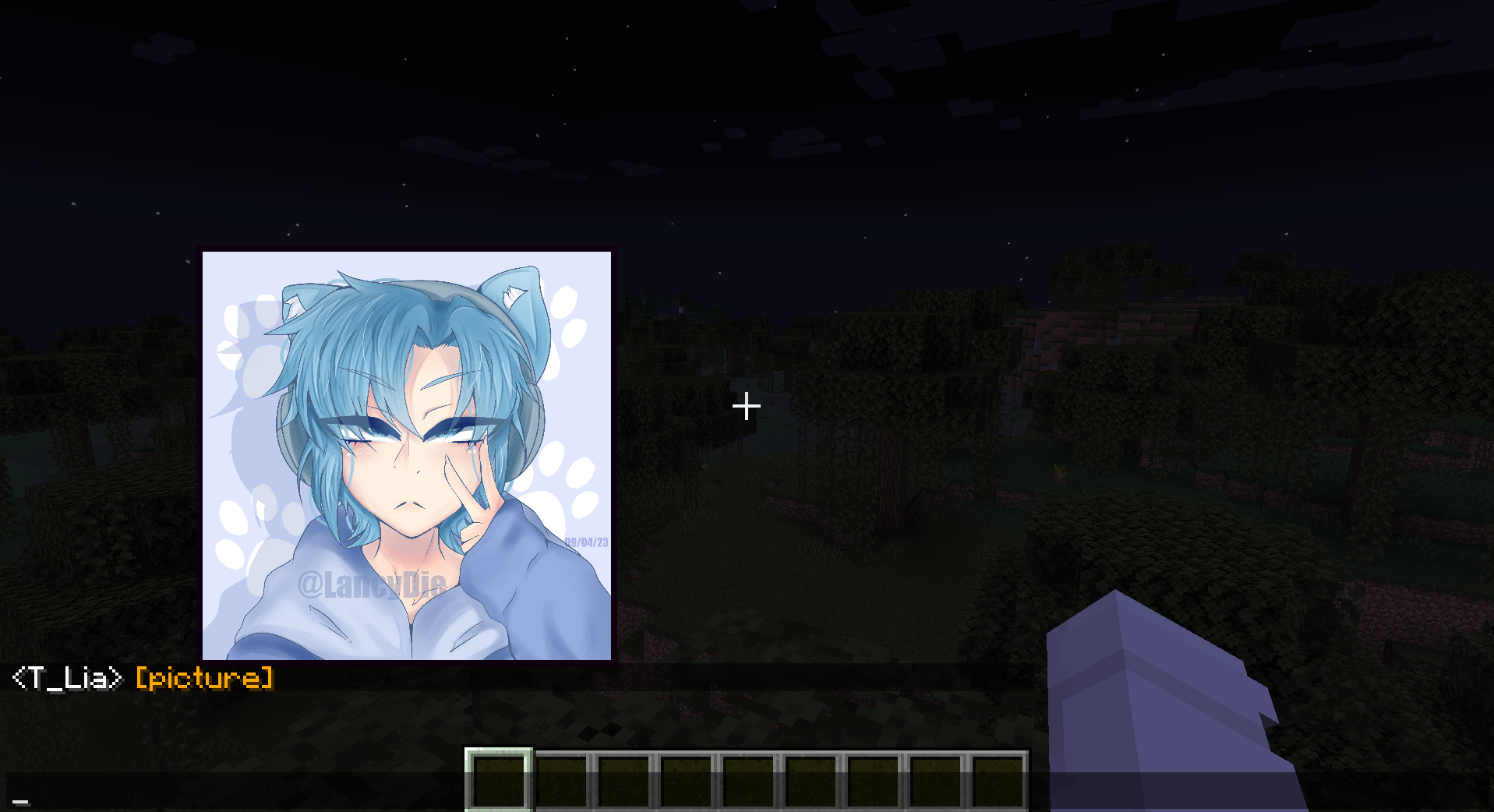 Image preview
 -
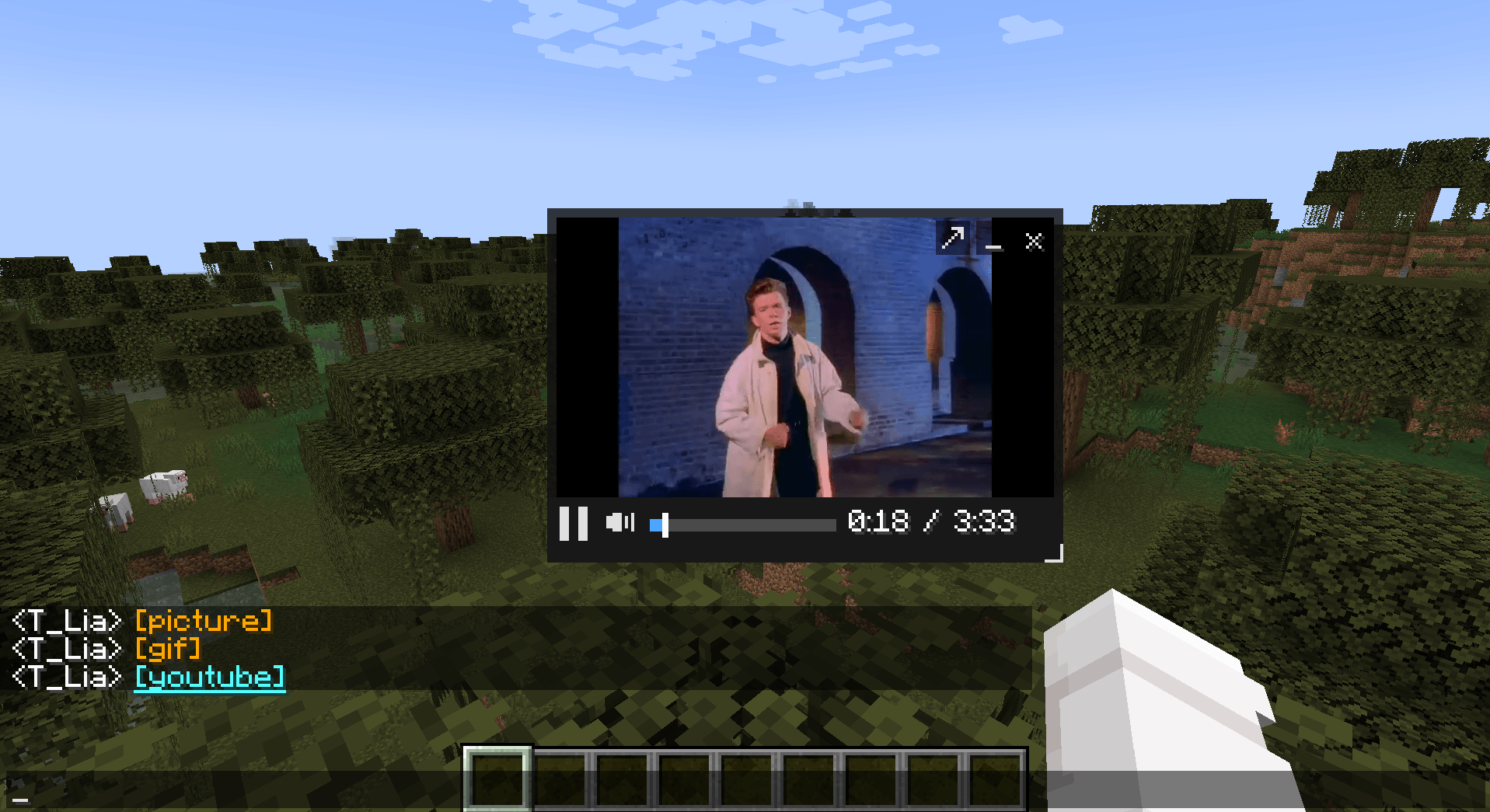 Video player
 -
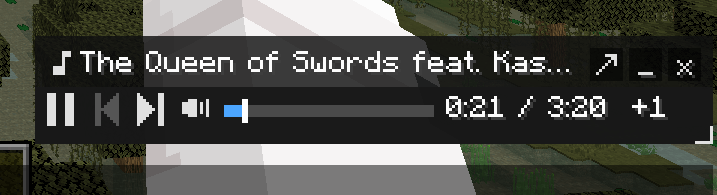 Audio player
 -
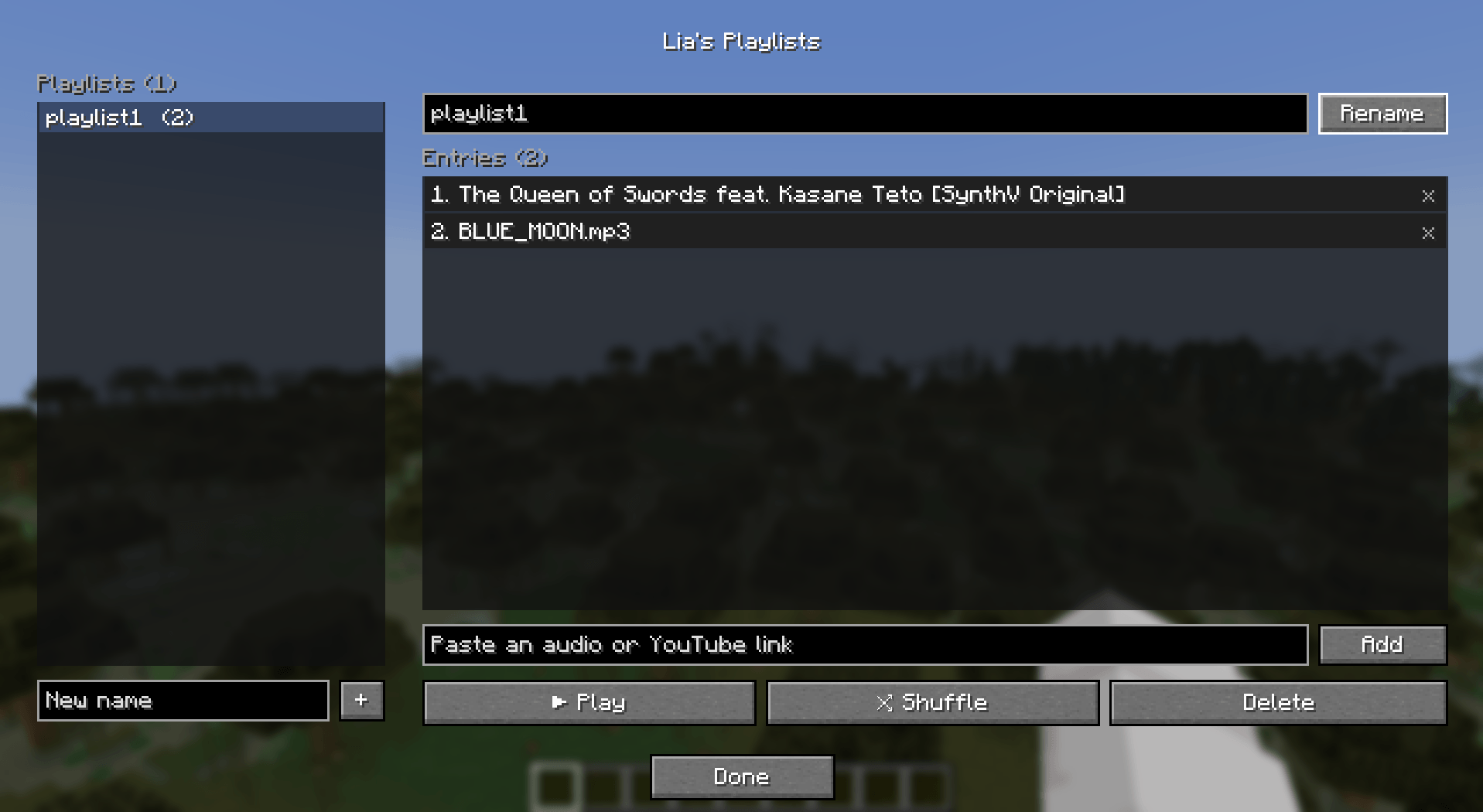 Playlist menu
-
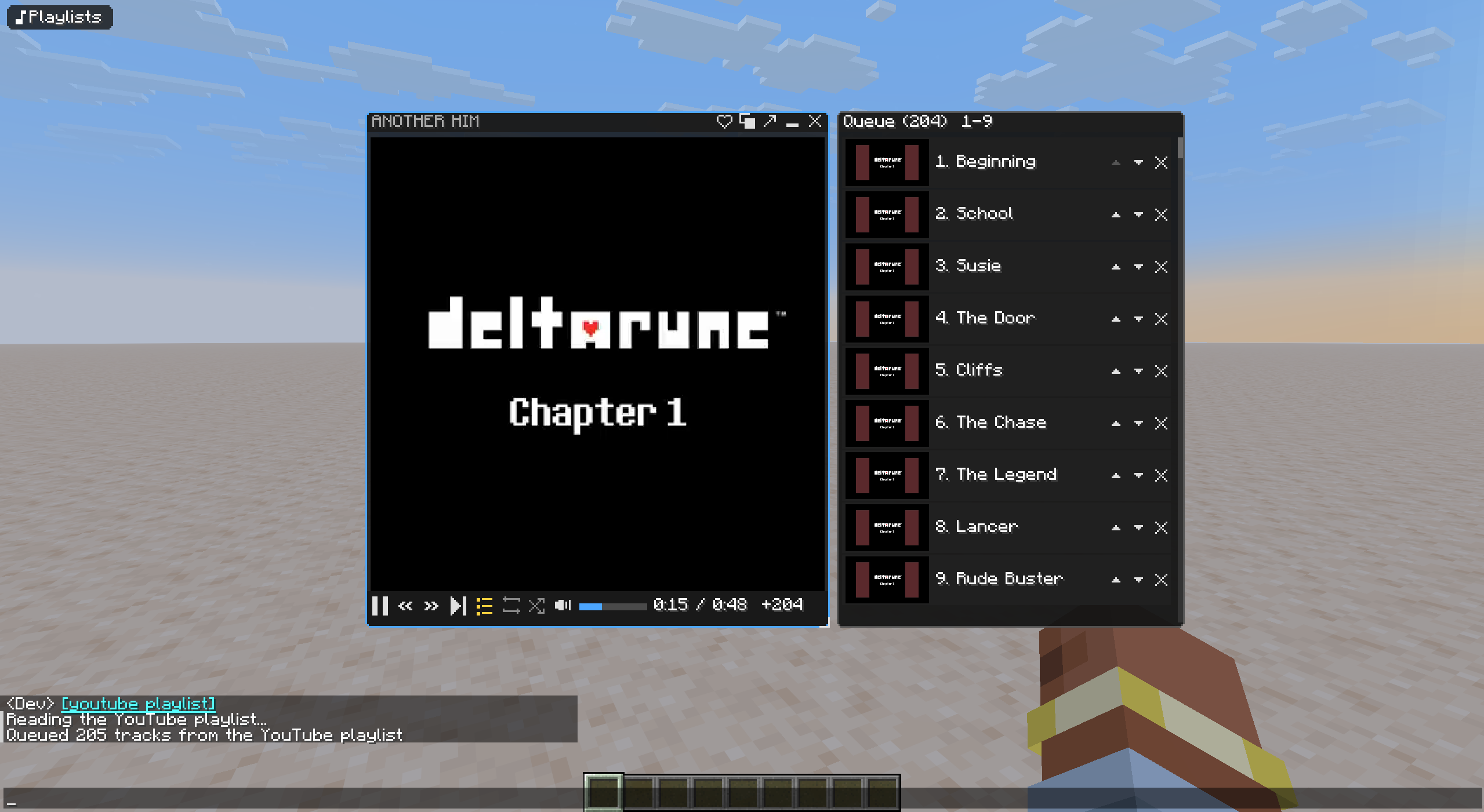 Video player
 -
 Audio player
 -
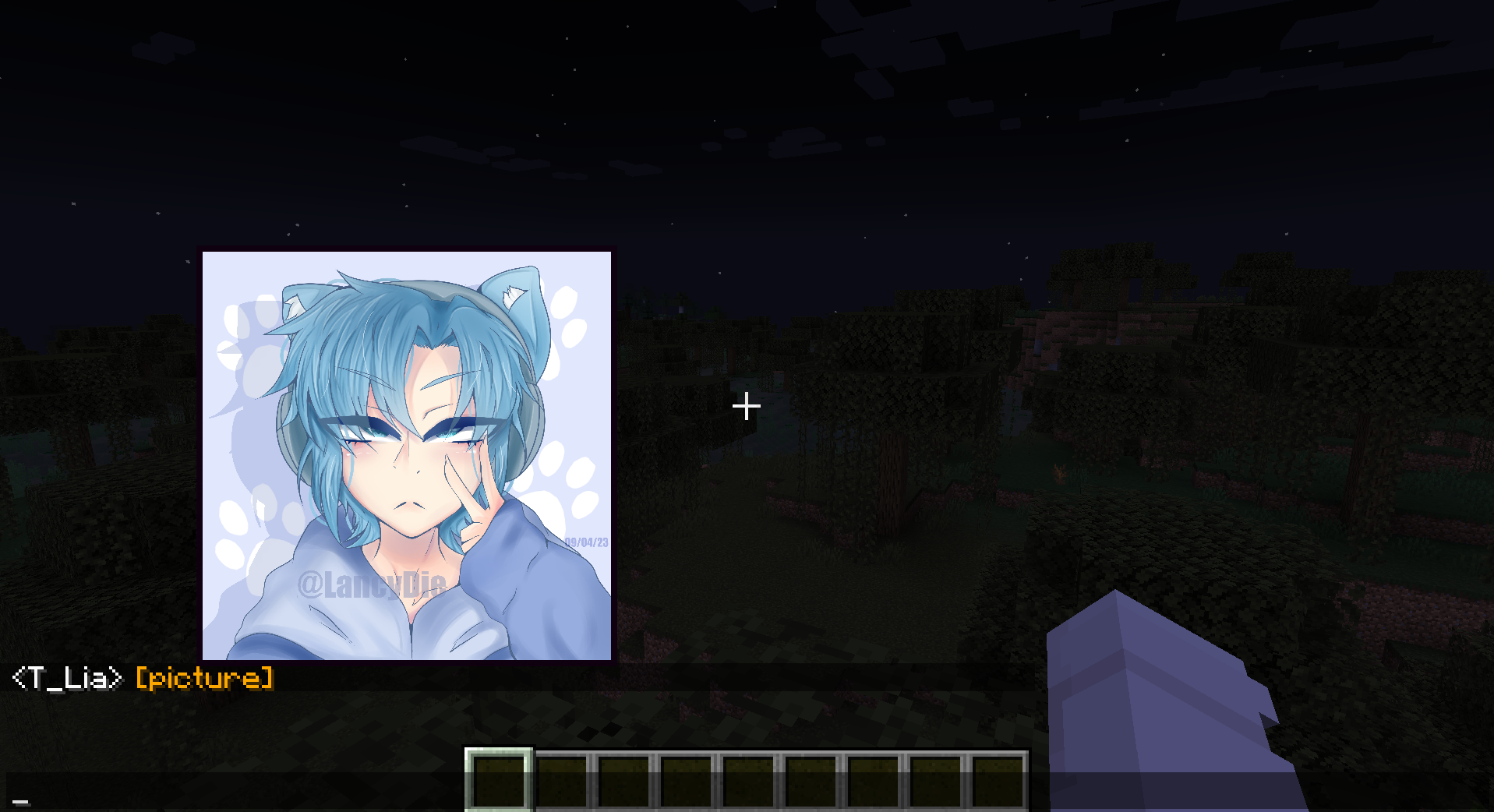 Image preview
 -
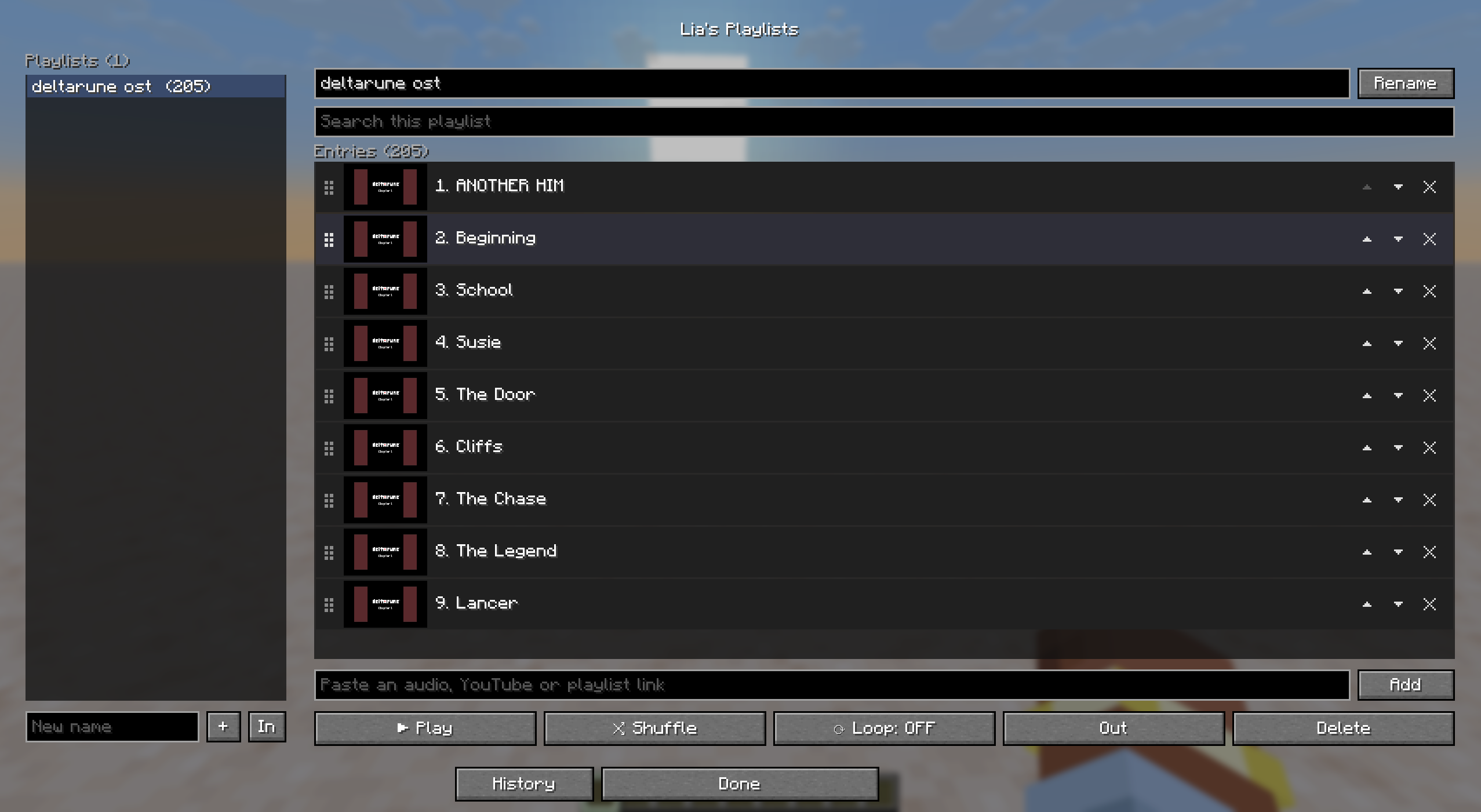 Playlist menu
Versions
Files
Relations
Project Relations
More like this
Similar Mods
Suggestions use data such as tags, dependencies, dependents, descriptions, titles, and more to rank how much they overlap with this mod.
On ModDex
Community snapshot
By the numbers
Statistics
Want to reach Minecraft players?
We're looking for a server hosting partner to feature here and other parts of the site. Interested? Send us a message!
Get in touchGet it on
Available Platforms
On ModDex
Community snapshot
By the numbers
Statistics
Resources