Community listing page, reviews may not be monitored by the author.
Logistics Network - Advanced IO View

No reviews yet
Per-node live and recorded flow monitor for Logistics Networks: see what every node sends and receives, with charts, history and resource breakdowns.

Community voices
Reviews
No reviews yet. Be the first to review this project!
Get it on
Available Platforms
About
Project Details
For authors
Embed Badge
If you're the author of this project, you can embed a live badge anywhere that supports HTML or Markdown. It updates automatically whenever ratings change.
Use HTML for any page that supports it, or Markdown for README files and Markdown-based descriptions.
Identifiers
Platform IDs
Resources
External Links
About
Description
Advanced IO View
An unofficial add-on for Logistics Networks that shows what each node of a network is doing: who sends, who receives, how much, and of what. Live, and over the last 12 hours.
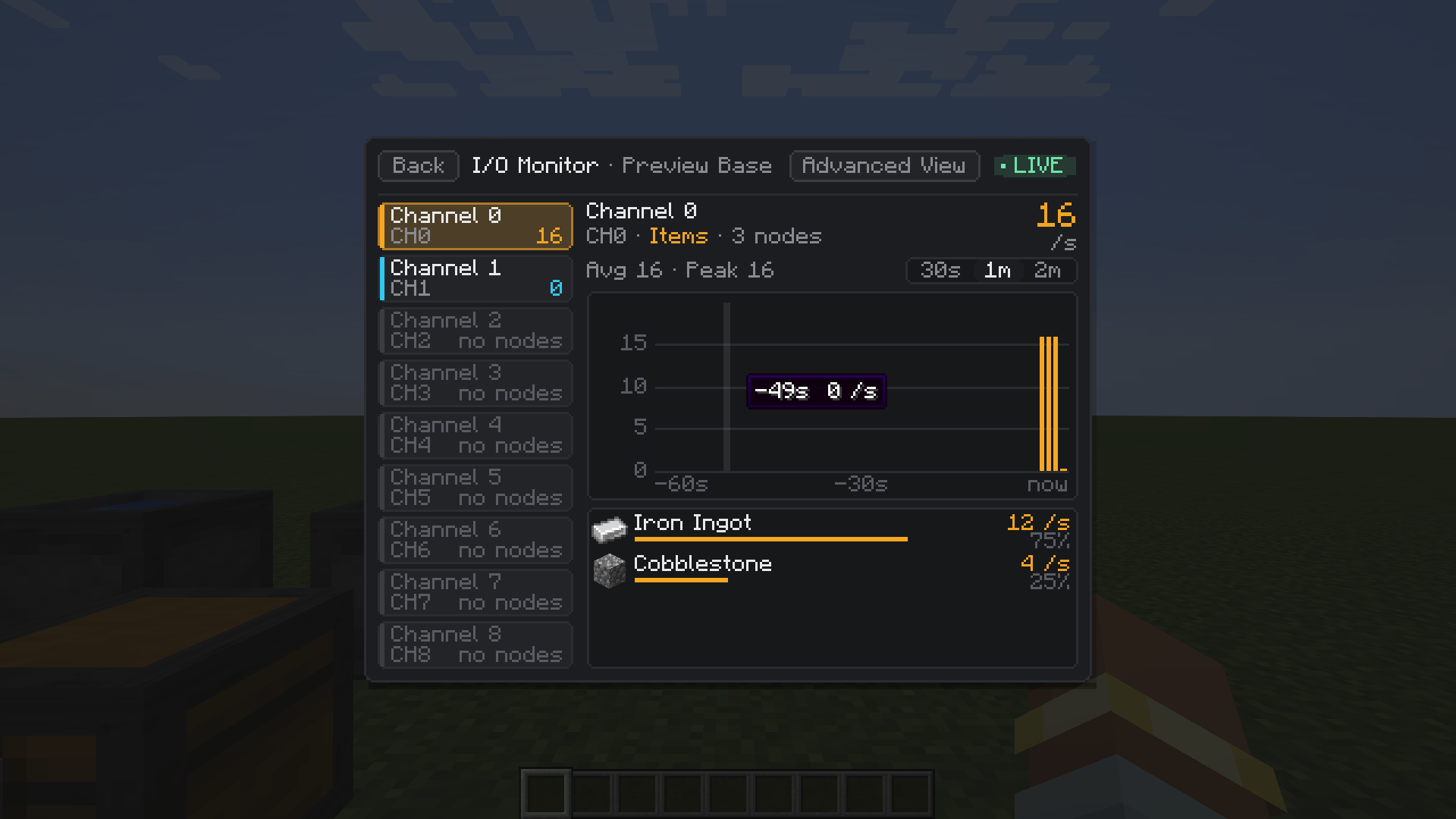
The I/O Monitor tells you what a channel moves across the whole network. Advanced View breaks that down node by node, so you can find the machine that is starving, the export that stopped, or the storage that receives everything.
Requirements
| Minecraft | 1.21.1 |
| Loader | NeoForge |
| Logistics Networks | 1.17.x |
| Side | Client and server |
If the server does not have the add-on, you can still join; the Advanced View button simply does not appear.
How to open it
- Open a Computer from Logistics Networks.
- Go to the I/O Monitor page.
- Click Advanced View in the title bar.
You see the same networks the Computer lets you see. Access follows the network's own permissions.
The network graph
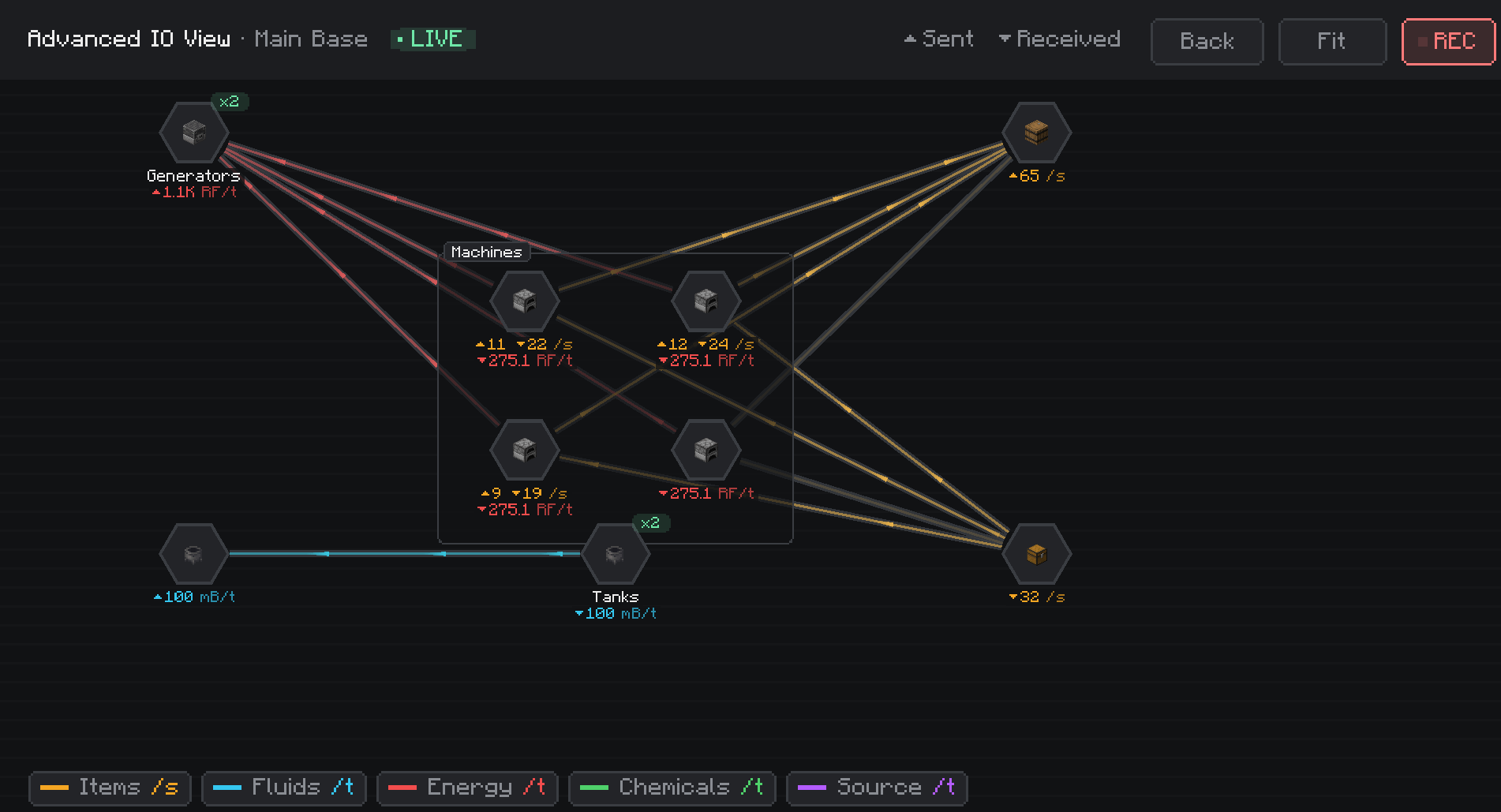
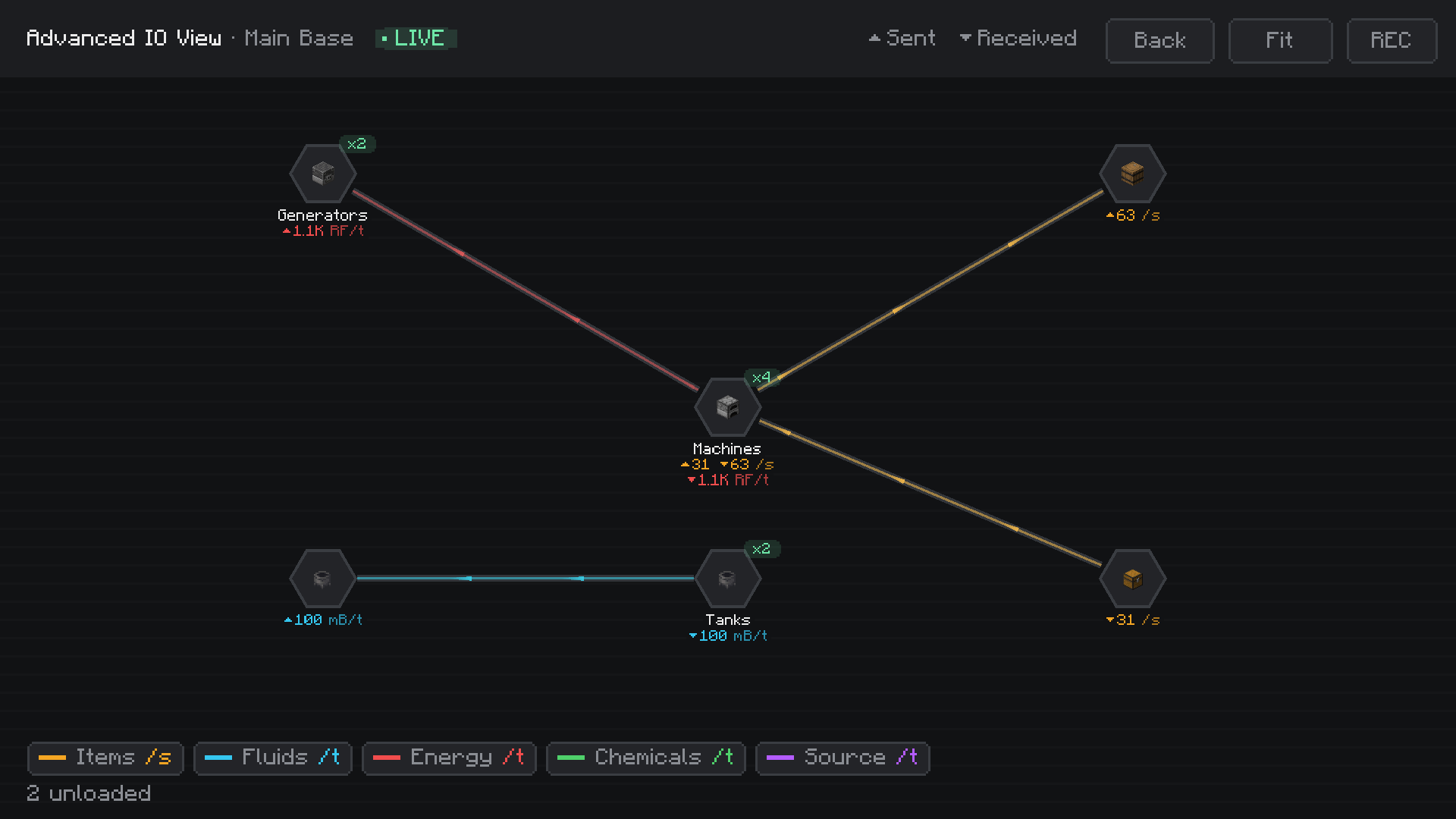
- Every node and label of the network, laid out like the Graph Editor. It shares the Graph Editor's positions, so both stay in sync.
- Each node shows what it sends (▲) and receives (▼) right now, per resource type.
- Cables light up and animate in the resource's colour while something flows through them.
- Labels are grouped into one node. Right-click a label to expand it into a box with its members, right-click again to group it back.
- Drag nodes to rearrange the graph, scroll to zoom, Fit to see everything.
- The legend at the bottom shows and hides resource types. Right-click a type to switch it between per tick and per second.
- Unloaded nodes are counted at the bottom of the screen.
The side panel
Click a node or a label to open its panel.
Channels
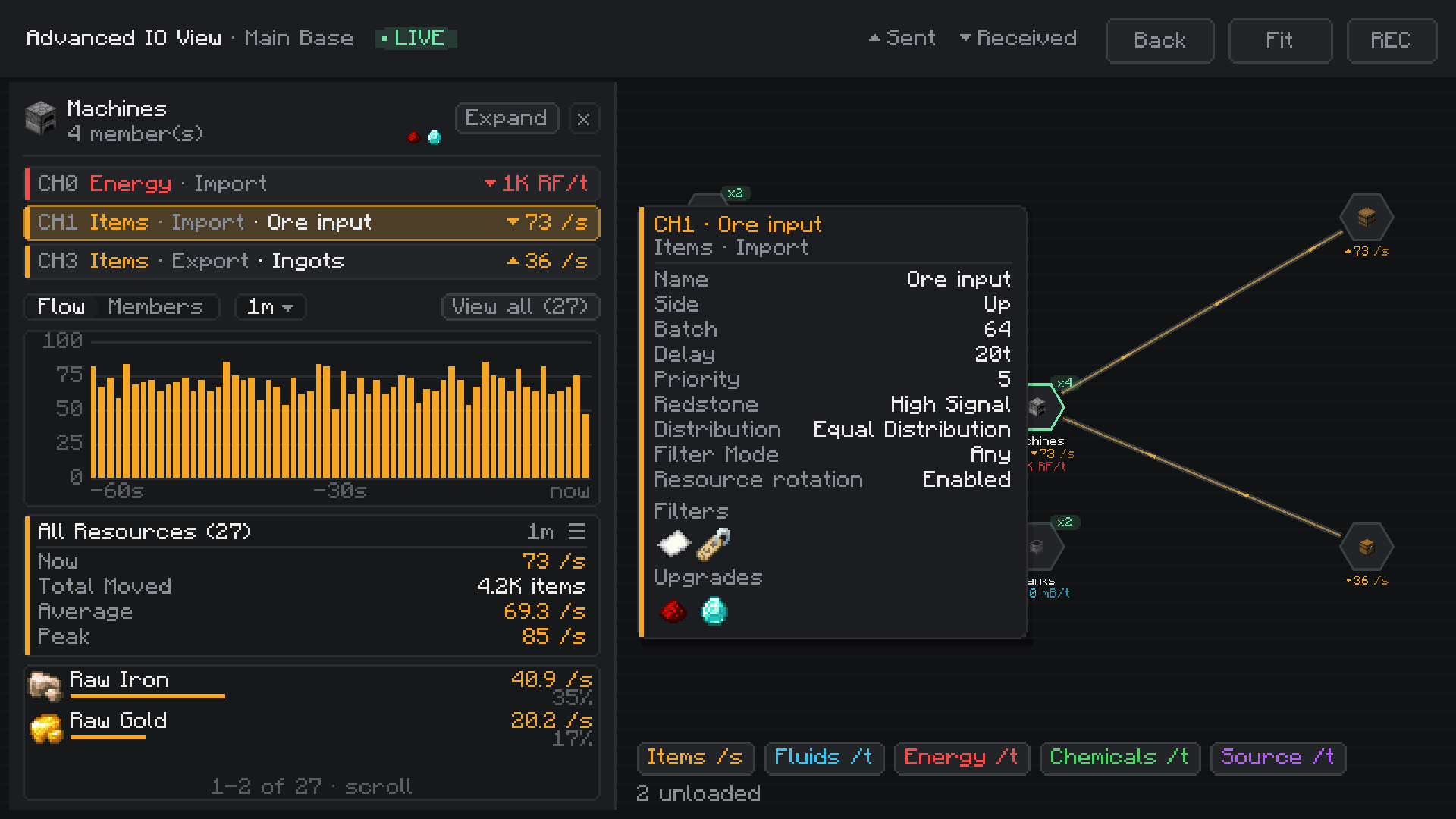
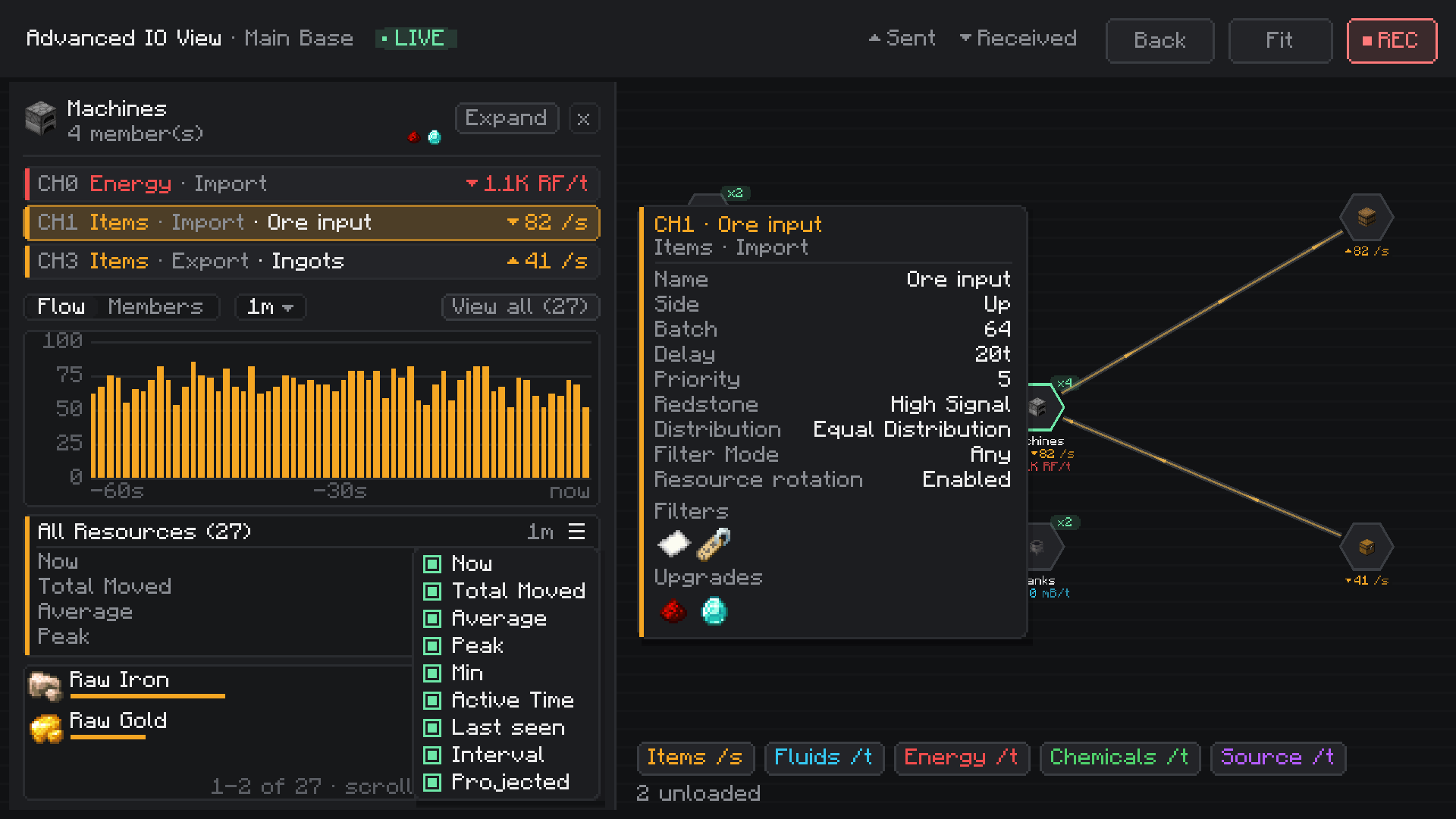
- Every configured channel with its number, type, mode (Import or Export), name and current rate.
- The node's upgrades are shown as small icons in the header.
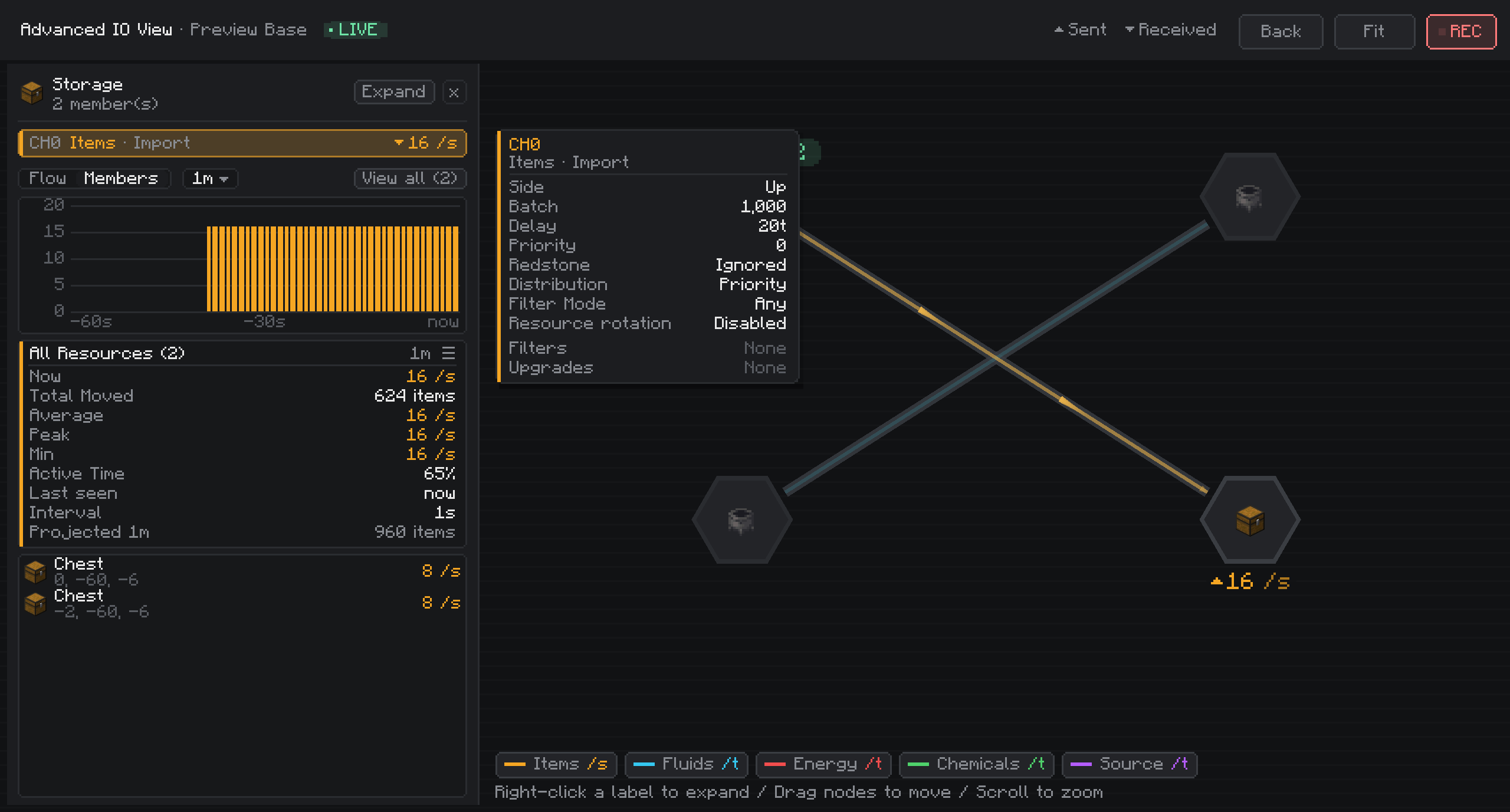
- Right-click a channel to see its settings, read-only: side, batch, delay, priority, redstone mode, distribution, filter mode, resource rotation, filters and upgrades. Hover an icon for its tooltip.
Chart
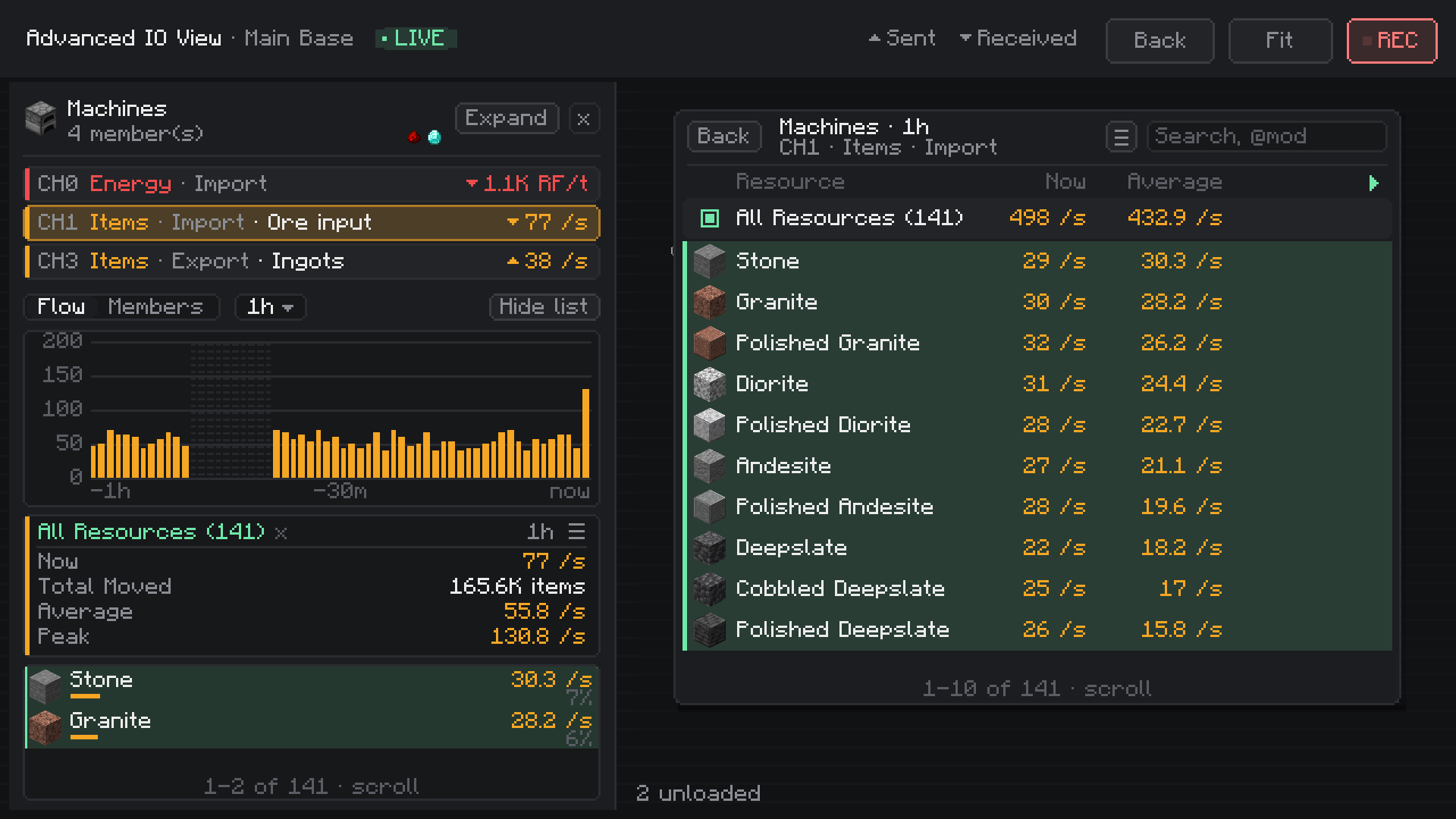
- Throughput of the selected channel over the chosen period: Now, 1m, 2m, 5m, 10m, 30m, 1h, 6h, 12h.
- Hover a bar to see its time, rate and how much was moved in it.
- Periods that were not recorded are drawn striped.
Summary
A table for the selected channel and period:
| Field | Meaning |
|---|---|
| Now | What is moving at this moment |
| Total Moved | Everything moved during the period |
| Average | Total moved divided by the time measured |
| Peak / Min | Highest and lowest rate in a single sample |
| Active Time | Part of the period in which something moved |
| Last seen | How long ago something last moved |
| Interval | Average time between samples with movement |
| Projected | Estimate for the whole period, while it is not fully measured yet |
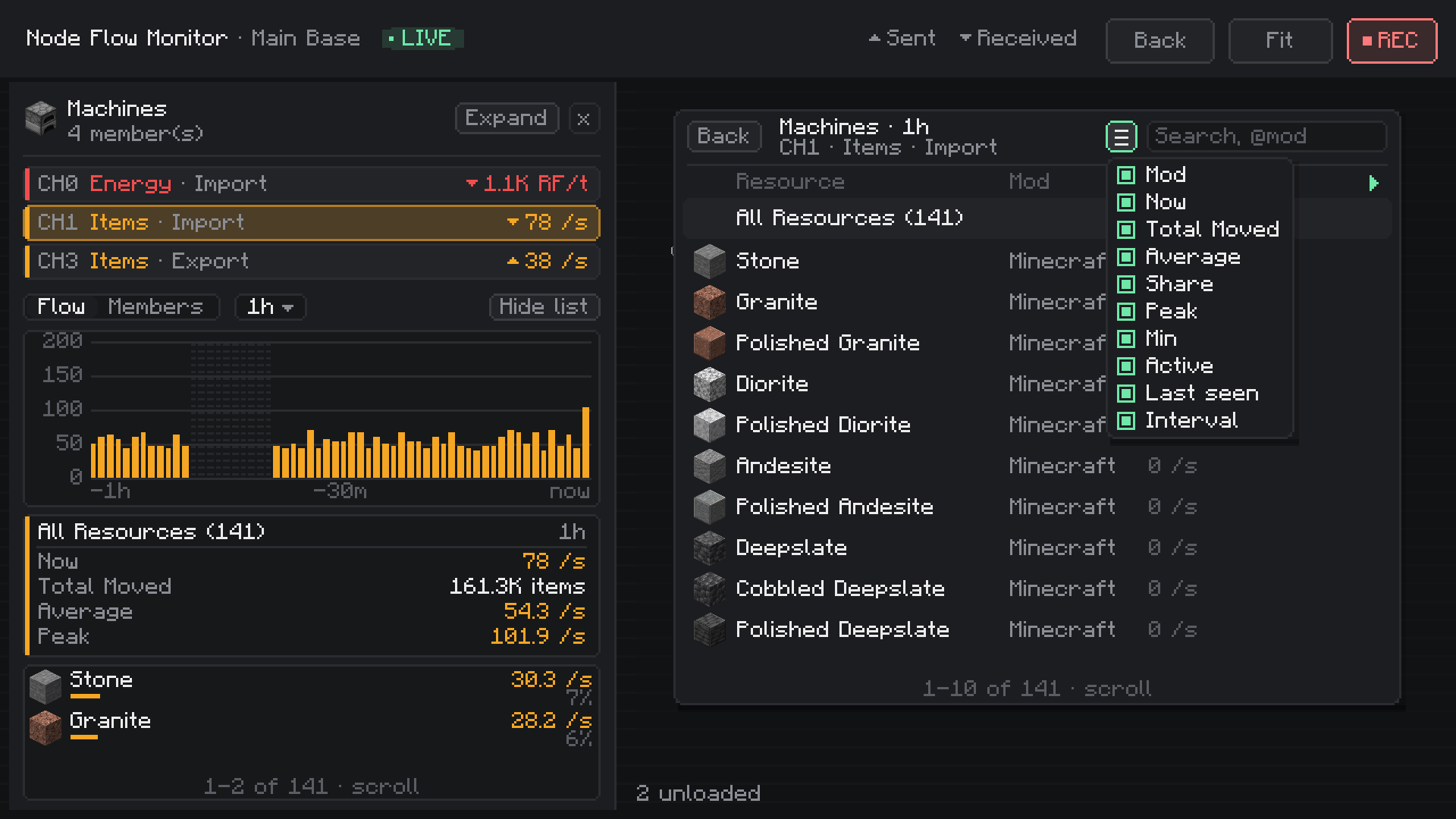
Choose which fields to show from the ☰ button. Rest the mouse on any field for a short explanation.
Resources and members
- Flow tab: the items, fluids or chemicals that moved, with rate and share.
- Members tab (labels): every member of the label with what it moved. Right-click a member to open it on its own.
Filtering
- Click resources to limit the chart and the summary to them. Pick several to add them up.
- Click members of a label to limit everything to those nodes, for example 3 of the 5 machines of a label.
- Resource and member filters combine. The summary's title shows what you are looking at (for example Raw Iron · 2 of 5 Members); click its × to go back to everything.
Full resource table
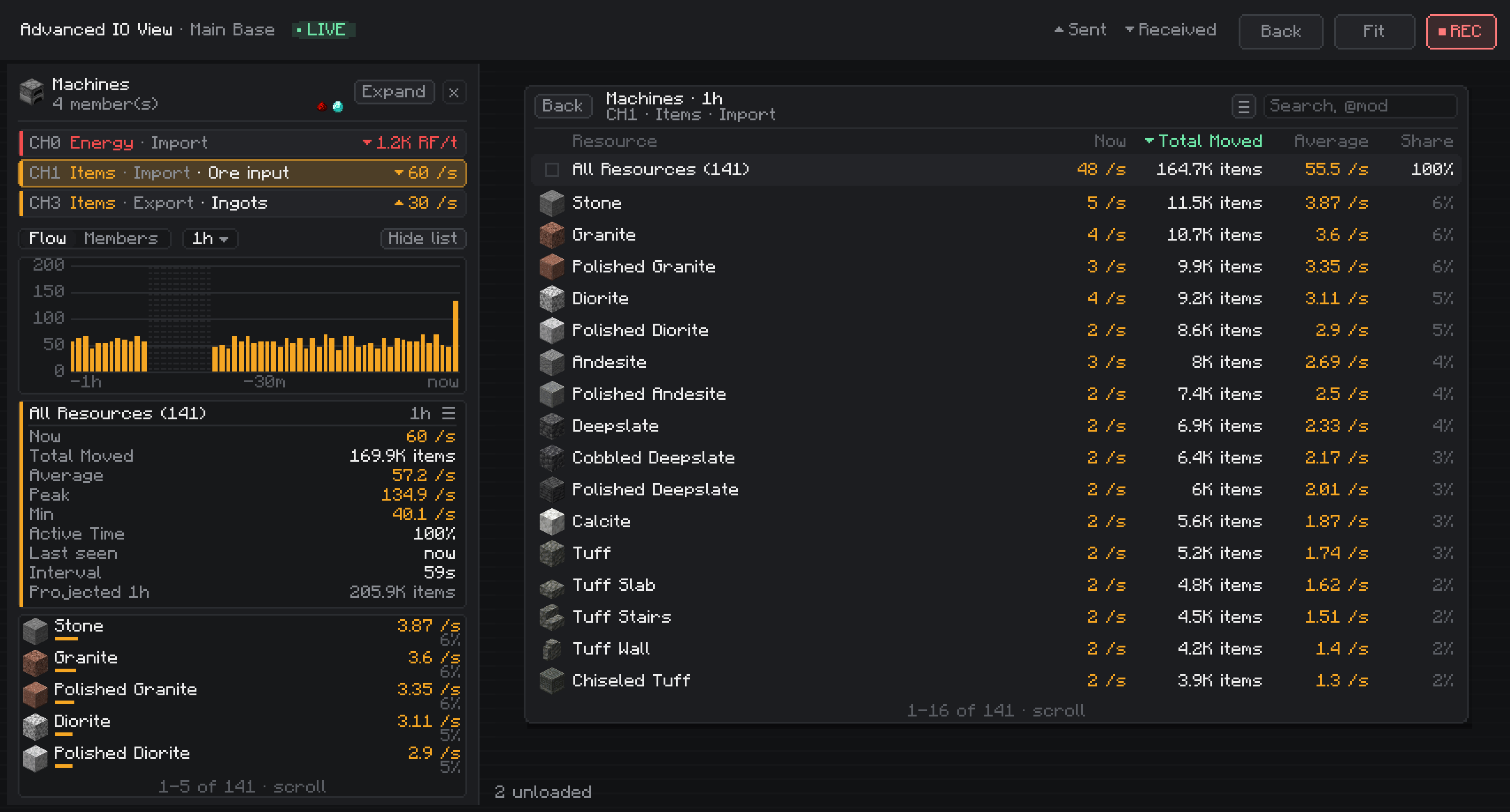
View all opens a table with every resource that moved through the selected node and channel:
- Columns: Mod, Now, Total Moved, Average, Share, Peak, Min, Active Time, Last seen, Interval.
- Sort by clicking a column title, show or hide columns from the ☰ menu, and reorder them by dragging their titles.
- When the columns do not fit, the icon and name stay put and the rest scroll sideways (arrows, or Shift + wheel).
- Search by name, or by mod with
@modname(for example@mekanism). - Select rows to filter the chart, or use the box on the All Resources row to select everything listed.
History and recording (REC)
- Live periods (Now to 2m) work as soon as you open the screen.
- Turn on REC for a network to keep counting it while the screen is closed. Its history is then available for 5m to 12h and survives restarts.
- Time is counted in game time: a paused or lagging server does not create gaps.
- History is kept in memory for a few minutes and written with the world save, in small files under
<world>/data/advancedioview. Old data is pruned automatically, with a size cap.
Performance
- Counting happens where Logistics Networks already moves things. Nothing scans inventories or ticks extra blocks.
- A network is only counted while someone is looking at it, or while REC is on for it.
- In my stress test with 68,000 deliveries operations per tick, live viewing added about 3% on top of Logistics Networks' own time, and REC about 12%. In a typical scenario in my ATM10 base the difference could not be measured.
Configuration
config/advancedioview-common.toml (server)
- Resource types tracked per channel (default 1000; the rest are grouped as Other)
- Minutes kept in memory before writing to disk (default 10)
- Retention (default 12 hours) and maximum disk use (default 256 MB)
- How many networks can record at the same time (default 8)
config/advancedioview-client.toml
- Per-tick or per-second units for each resource type
- Visible columns and their order, summary fields
Most of these can also be changed from the screen itself.
Removing it
Safe to remove at any time. The add-on never changes your networks, nodes, settings or items. Recorded history lives in <world>/data/advancedioview and can be deleted.
FAQ
A part of my network shows nothing while I am away, even though the chunk is force-loaded. Check that the chunk holding the nodes and their machines is force-loaded itself, not only its neighbour. A chunk next to a force-loaded one stays loaded but does not run, so its machines and nodes stand still.
Does it work with other mods' storage and machines? It counts whatever Logistics Networks moves: items, fluids, energy, Mekanism chemicals and Ars Nouveau source.
Advanced IO View is an unofficial add-on. It is not affiliated with or endorsed by the author of Logistics Networks.
Screenshots
Gallery
-
 1_overview.png 1_overview.png
 -
1_overview_expanded.png 1_overview_expanded.png
-
2_channel_settings.png 2_channel_settings.png
-
3_history_and_resources.png 3_history_and_resources.png
-
 3_history_and_resources_filtered.png 3_history_and_resources_filtered.png
 -
 3_history_and_resources_columns.png 3_history_and_resources_columns.png
 -
4_summary_fields.png 4_summary_fields.png
-
5_advanced_view_button.png 5_advanced_view_button.png
-
6_label_members.png 6_label_members.png
-
 logo.png logo.png
Versions
Files
Relations
Project Relations
More like this
Similar Mods
Suggestions use data such as tags, dependencies, dependents, descriptions, titles, and more to rank how much they overlap with this mod.
On ModDex
Community snapshot
By the numbers
Statistics

Get it on
Available Platforms
On ModDex
Community snapshot
By the numbers
Statistics
Resources