![Not Enough Armor Stand Arms [NEASA]](https://cdn.modrinth.com/data/B369jirh/87d135c6db5585a1eb88f1a07b3121d0cd234f96_96.webp)
Community listing page, reviews here may not be monitored by the author.
Not Enough Armor Stand Arms [NEASA]

No reviews yet
Make arms to your Armor Stands!
Community voices
Reviews
No reviews yet. Be the first to review this project!
Get it on
Available Platforms
About
Project Details
For authors
Embed Badge
If you're the author of this project, you can embed a live badge anywhere that supports HTML or Markdown. It updates automatically whenever ratings change.
Use HTML for any page that supports it, or Markdown for README files and Markdown-based descriptions.
Identifiers
Platform IDs
About
Description
This project is making the Armor Stand has arms, so now after downloading and installing the data pack, you will be able to put your sword on the Armor Stand.
✨ Features
- Resemblance between Editions: The data pack makes Armor Stand has arms like Minecraft: Bedrock Edition.
- Low file size: The data pack size is less than 64 KiB making it easy and fast to download for very weak internets.
- Open Source: You can see the source code of the project to know how the project works.
- Wide Compatibility: Supports Minecraft Java Edition from version 1.13.x up to the latest snapshots.
🗒️ News & Updates
See the latest news about my projects:
📂 Source Code & Issues
GitLab (Source Code)
GitLab (Issues)
📥 Installation
Linux
Data Pack
World that already exists:
- Go to this location "~/.minecraft/saves/" (Make sure you are showing the hidden folders and files by pressing Left Ctrl + H).
- Choose the world folder you want to put the Data Pack into it.
- Open datapacks folder, then put the data pack.zip in the datapacks folder.
- Reload the world by /reload command or by Quit the world and rejoin it.
New World:
- Open Minecraft, then click on "Singleplayer".
- Click on "Create New World", then click "More World Options...".
- Click on "Data Packs" button, then drag the data pack file into Minecraft.
- Click "Done" and "Create New World".
MacOS
Data Pack
World that already exists:
- Go to this location "~/Library/Application Support/minecraft/saves/".
- Choose the world folder you want to put the Data Pack into it.
- Open datapacks folder, then put the data pack.zip in the datapacks folder.
- Reload the world by /reload command or by Quit the world and rejoin it.
New World:
- Open Minecraft, then click on "Singleplayer".
- Click on "Create New World", then click "More World Options...".
- Click on "Data Packs" button, then drag the data pack file into Minecraft.
- Click "Done" and "Create New World".
Windows
Data Pack
World that already exists:
- Press Win + R, then type %appdata%, then press Enter.
- Open "Roaming" folder, then ".minecraft" folder, then open "saves" (Make sure you are showing the hidden folders and files by pressing Left Ctrl + Left Shift + period).
- Choose the world folder you want to put the Data Pack into it.
- Open datapacks folder, then put the data pack.zip in the datapacks folder.
- Reload the world by /reload command or by Quit the world and rejoin it.
New World:
- Open Minecraft, then click on "Singleplayer".
- Click on "Create New World", then click "More World Options...".
- Click on "Data Packs" button, then drag the data pack file into Minecraft.
- Click "Done" and "Create New World".
🛑 Deletion
Linux
Data Pack
- Go to this location "~/.minecraft/saves/" (Make sure you are showing the hidden folders and files by pressing Left Ctrl + H).
- Find the world folder that you put the Data Pack into it.
- Open datapacks folder, then remove the data pack.zip in the datapacks folder.
- Reload the world by /reload command or by quit the world and rejoin it.
MacOS
Data Pack
- Go to this location "~/Library/Application Support/minecraft/saves/".
- Find the world folder that you put the Data Pack into it.
- Open datapacks folder, then remove the data pack.zip in the datapacks folder.
- Reload the world by /reload command or by quit the world and rejoin it.
Windows
Data Pack
- Press Win + R, then type %appdata%, then press Enter.
- Open "Roaming" folder, then ".minecraft" folder, then open "saves" (Make sure you are showing the hidden folders and files by pressing Left Ctrl + Left Shift + period).
- Find the world folder that you put the Data Pack into it.
- Open datapacks folder, then remove the data pack.zip in the datapacks folder.
- Reload the world by /reload command or by Quit the world and rejoin it.
Enjoy.
Important Thing!
I know this is a Minecraft Project and this project has Minecraft things but because my project is an open source, I will talk about this.
Starting 2027, a silent update, nonconsensually pushed by Google, will block every Android app whose developer hasn't registered with Google, signed their contract, paid up, and handed over government ID. For more information: https://keepandroidopen.org/.
Screenshots
Gallery
-
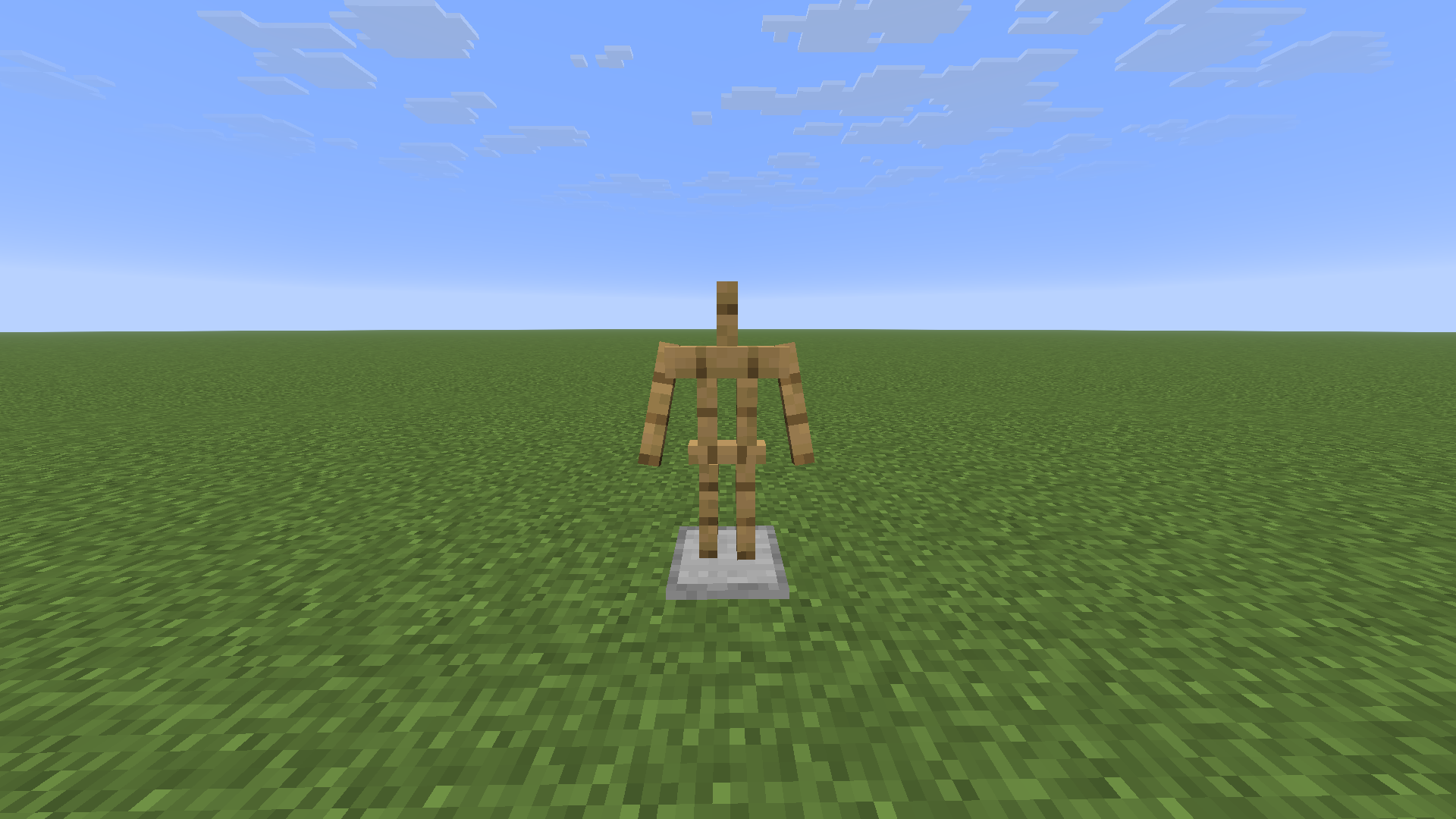 Armor Stand with arms
Versions
Files
Relations
Project Relations
More like this
Similar Mods
Suggestions use data such as tags, dependencies, dependents, descriptions, titles, and more to rank how much they overlap with this mod.
On ModDex
Community snapshot
By the numbers
Statistics

Want to reach Minecraft players?
We're looking for a server hosting partner to feature here and other parts of the site. Interested? Send us a message!
Get in touchGet it on
Available Platforms
On ModDex
Community snapshot
By the numbers