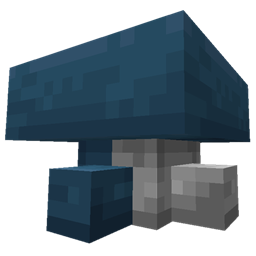
Community listing page, reviews here may not be monitored by the author.
Philter


No reviews yet
An item-filtering hopper
Community voices
Reviews
No reviews yet. Be the first to review this project!
Get it on
Available Platforms
Compatibility
Supported Environments
Must be installed on both the client and the server.
About
Project Details
For authors
Embed Badge
If you're the author of this project, you can embed a live badge anywhere that supports HTML or Markdown. It updates automatically whenever ratings change.
Use HTML for any page that supports it, or Markdown for README files and Markdown-based descriptions.
Identifiers
Platform IDs
About
Description
The Philter mod gives you a filter super-hopper that works with vanilla Minecraft or any mod. Any kind of items can be diverted into a different output container. Otherwise, it just passes them along like any other hopper.
Here's what it looks like in action:
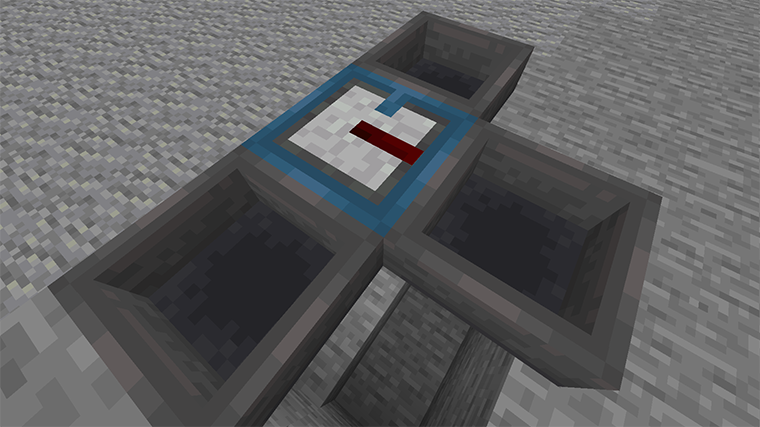
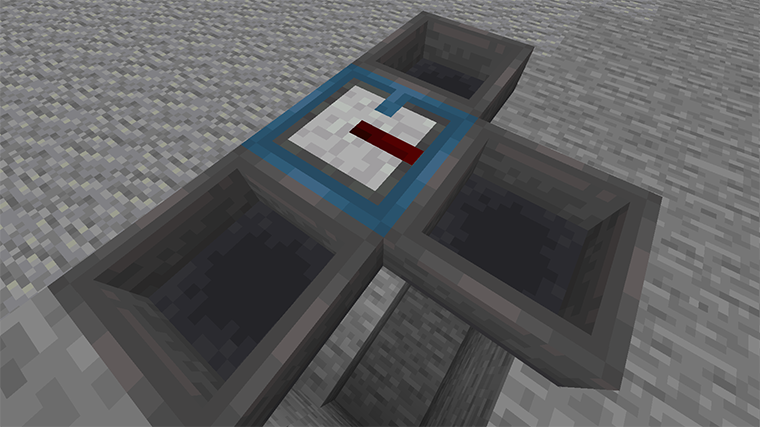
Overall the filter is a steel-blue hopper, and it has a redstone insert that does the filtering. The blue tab on the filter's top shows where normal items are directed. The redstone stripe flashes when an item is instead filtered to the hopper on the right.
The filter does not "pull" from the block above. This means you can run filters horizontally or vertically as you please without worrying about the filter pulling items down from the philter (or hopper or chest) above it. Which makes it very simple to create a sorter without using redstone to block that pulling.
Here's an image of how you can use it to build an item sorter:
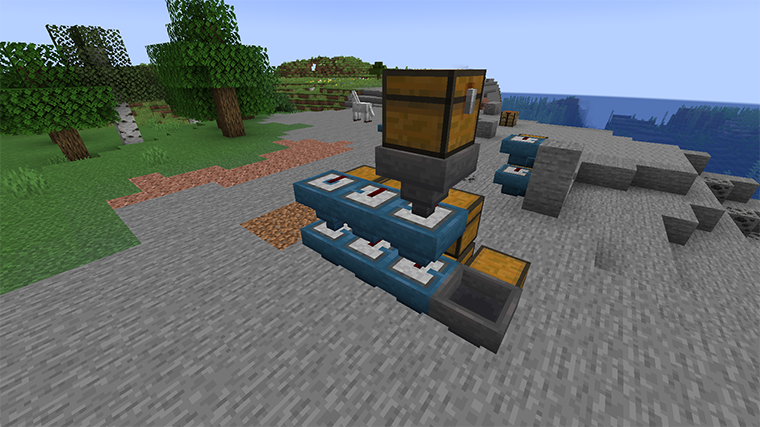
The input is the topmost chest. The filters all point into the chests, and they face to the next filter (that is, the hopper part of the filter points to the next filter). The last filter faces down to put items into the row of filters below. There is an overflow for unfiltered items into the chest on the lower right.
So items from the chest will get sorted into the six chests, with unsorted items ending in the seventh chest. Note that lack of extra redstone mechanism, it is all done with the filter.
You can set up the filter using its UI:

The area in the upper left is the basic hopper UI, and works just the same. On the right is the filter configuration. Here it is in "Same As" mode, which means it will only put items into the filter that match examples. These examples can be set by putting objects in the filter itself. Or the items already in the object container can be used as the examples instead. So if the filter has planks of every type, or if it has nothing and the target container has them, then planks will be diverted, and other items will continue onward.
The "Exact" button is off, so modifications will be ignored. If the examples included iron chestplate, this would allow damaged or enchanted iron chestplates to also be put in the target. If "Exact" were on, only chestplate that had the same damage and enchantment would be diverted.
The other primary mode is "Match", where you specify tags and regular expressions to tell the filter what to do:
 filter UI in 'Only Same' mode
Here we've told the filter to match blocks that are covered by the tag #wool (all kinds of wool) plus anything that has dirt in the name. "Any of" can be switched to "All of", which would mean the item would have to both match #wool and have dirt in the name (which nothing does, so ...).
In "Match" mode, "Exact" means that NBT value will be included when string matching. So you could match any item that was enchanted with the pattern Enchantments because that string appears in the NBT of enchanted items.
The list of standard tags will probably be helpful. As for regular expressions, there are many tutorials on the web. Generally, text matches the same text except for special symbols. The most important are:
. matches any single character, so d.rt matches both dirt and dart.
* means "zero or more repetitions", so .* means "zero or more of any characters".
^ matches the start of the text, so you could say "anything whose name starts with blue" with the pattern ^blue.*, which would not match light blue things.
$ matches the end of the text.
The filter finds a match anywhere in the string unless you anchor it to the start and/or end of the text. It also ignores the case of the text, so "enchantments" would match both "enchantments" and "Enchantments".
Finally, the mode "None" just turns off the filtering entirely.
The third part of the UI, the part below your inventory, allows you to change the direction of the filter. Like a hopper, a filter can point in any direction but up, but also it cannot point in the same direction as the regular hopper output. When you place a filter, the filtered output is defined by how you're facing, but you can change it afterwards using this part of the UI.
The Philter mod gives you a filter super-hopper that works with vanilla Minecraft or any mod. Any kind of items can be diverted into a different output container. Otherwise, it just passes them along like any other hopper.
Here's what it looks like in action:

Overall the filter is a steel-blue hopper, and it has a redstone insert that does the filtering. The blue tab on the filter's top shows where normal items are directed. The redstone stripe flashes when an item is instead filtered to the hopper on the right.
You can set up the filter using its UI:

The area in the upper left is the basic hopper UI, and works just the same. On the right is the filter configuration. Here it is in "Same As" mode, which means it will only put items into the filter that match examples. These examples can be set by putting objects in the filter itself. Or the items already in the object container can be used as the examples instead. So if the filter has planks of every type, or if it has nothing and the target container has them, then planks will be diverted, and other items will continue onward.
The "Exact" button is off, so modifications will be ignored. If the examples included iron chestplate, this would allow damaged or enchanted iron chestplates to also be put in the target. If "Exact" were on, only chestplate that had the same damage and enchantment would be diverted.
The other primary mode is "Match", where you specify tags and regular expressions to tell the
filter what to do:

Here we've told the filter to match blocks that are covered by the tag "#wool" (all kinds of wool) plus anything that has "dirt" in the name. "Any of" can be switched to "All of", which would mean the item would have to both match "#wool" and have "dirt" in the name (which nothing does, so ...).
In "Match" mode, "Exact" means that NBT value will be included when string matching. So you could match any item that was enchanted with the pattern ".*Enchantments.*" because that string appears in the NBT of enchanted items.
The list of standard tags will probably be helpful. As for regular expressions, there are many tutorials on the web. Generally, text matches the same text except for special symbols. The most important are:
.matches any single character, so "d.rt" matches both "dirt" and "dart".*means "zero or more repetitions", so ".*" means "zero or more of any characters".^matches the start of the text, so you could say "anything whose name starts with blue" with the pattern "^blue.*", which would not match light blue things.$matches the end of the text.
The filter finds a match anywhere in the string unless you anchor it to the start and/or end of the text. It also ignores the case of the text, so "enchantments" would match both "enchantments" and "Enchantments".
Finally, the mode "None" just turns off the filtering entirely.
The third part of the UI, the part below your inventory, allows you to change the direction of the filter. Like a hopper, a filter can point in any direction but up, but also it cannot point in the same direction as the regular hopper output. When you place a filter, the filtered output is defined by how you're pointing, but you can change it afterwards using this part of the UI.
Screenshots
Gallery
-
 How it looks
 -
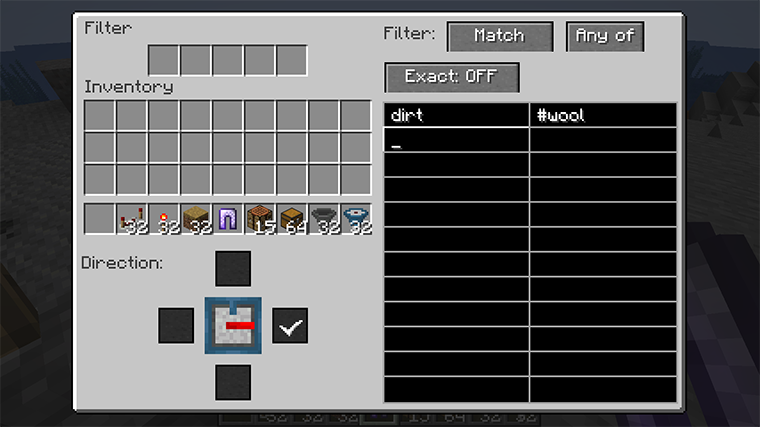 "Match" mode
 -
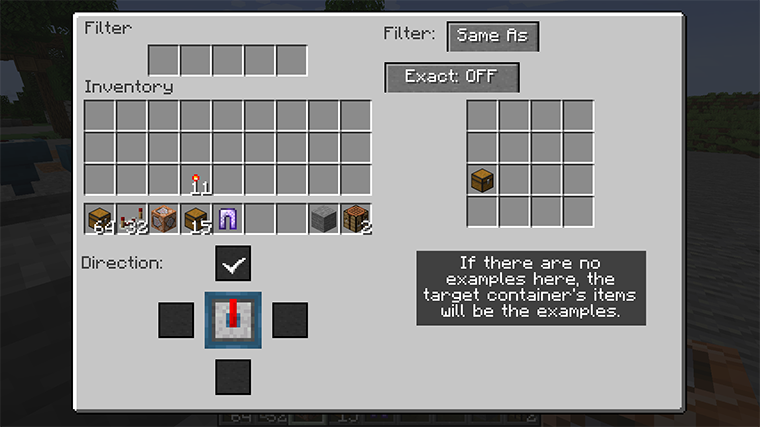 "Same As" Mode Filters items that are the same those in the filter block or its target
-
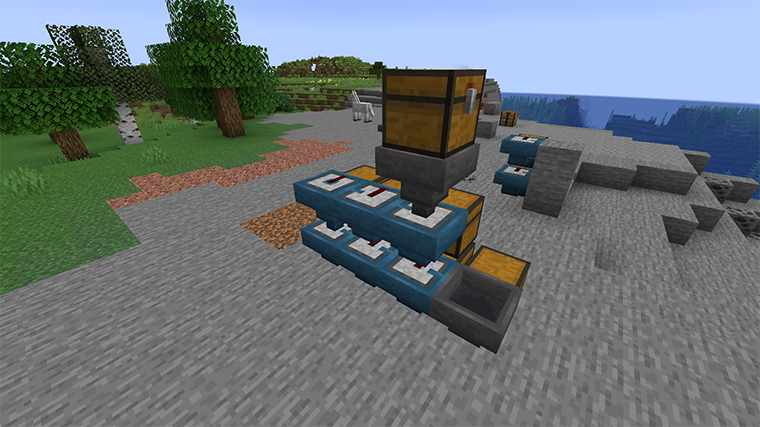 Sorter built with filters This is a complete (small) sorter. Items in the upper chest run through the six filters, each of which has a target chest. Unmatched items end up in the chest on the lower right.
 -
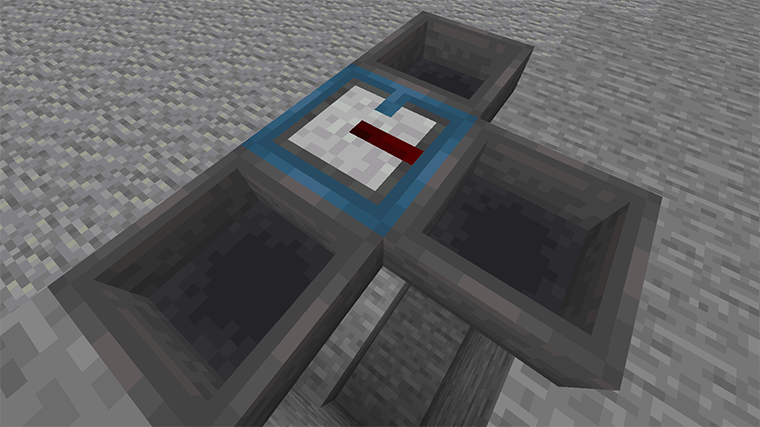 How it looks The steel blue filter super-hopper show a blue tab in the direction things normally go, and a redstone indicator towards where the filtered items go.
 -
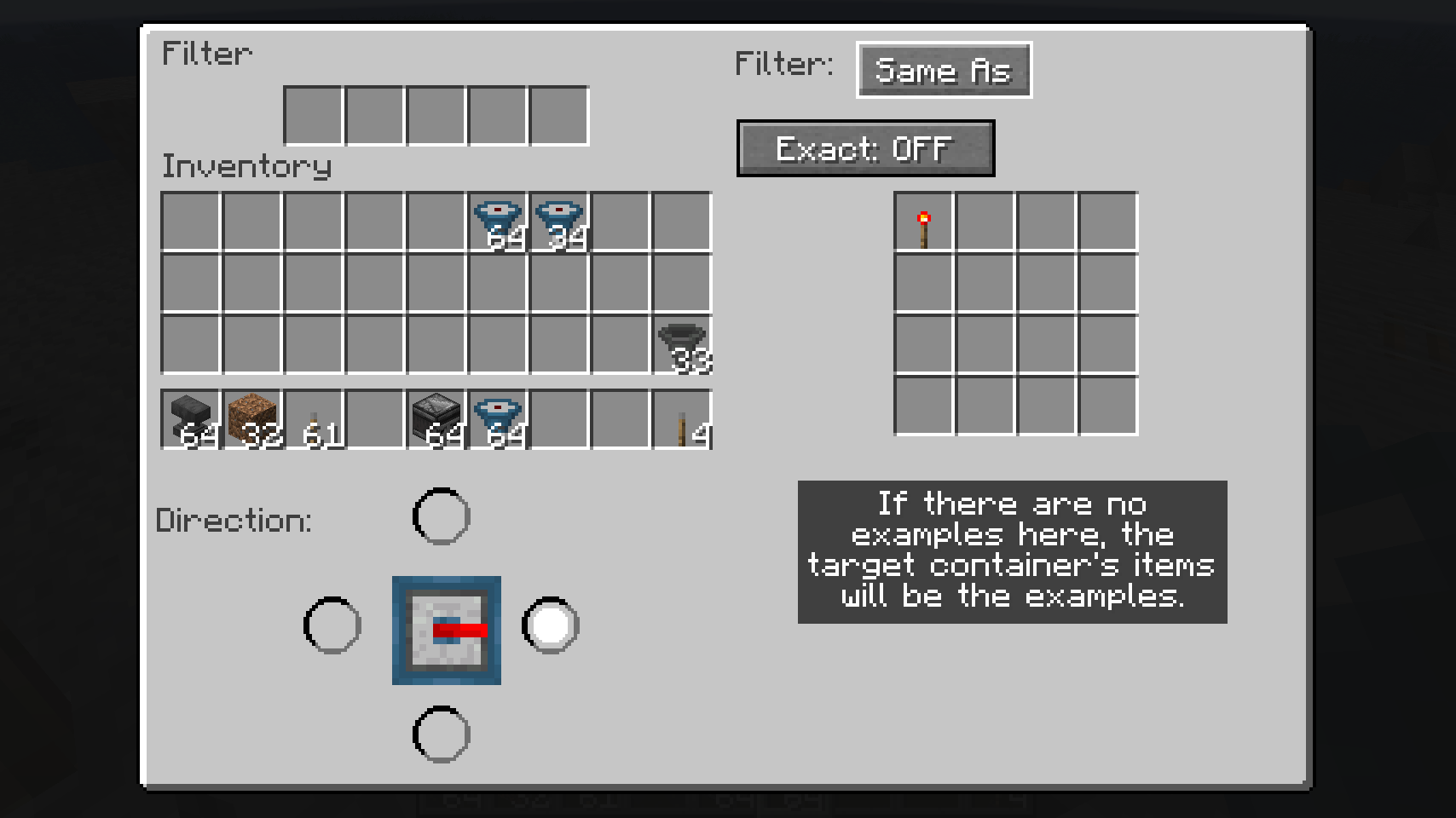 "Same As" mode In this mode, the target will receive the same kinds of items in the filter area, or the target container if there are no examples.
 -
 "Matches" mode In this mode, you can type tags or text to define what gets filtered. Here it will match any blocks with the tag "wool", or that has "dirt" in its name
Versions
Files
Relations
Project Relations
More like this
Similar Mods
Suggestions use data such as tags, dependencies, dependents, descriptions, titles, and more to rank how much they overlap with this mod.
On ModDex
Community snapshot
By the numbers
Statistics
Want to reach Minecraft players?
We're looking for a server hosting partner to feature here and other parts of the site. Interested? Send us a message!
Get in touchGet it on
Available Platforms
On ModDex
Community snapshot
By the numbers