
Community listing page, reviews may not be monitored by the author.
Replay Mod Cinematics: Camera Paths for ReForgedPlay

No reviews yet
Cinematic camera paths for Replay Mod on Forge (ReForgedPlay): smooth spline paths, orbits and entity-follow shots with no hand keyframes.

Community voices
Reviews
No reviews yet. Be the first to review this project!
Get it on
Available Platforms
About
Project Details
For authors
Embed Badge
If you're the author of this project, you can embed a live badge anywhere that supports HTML or Markdown. It updates automatically whenever ratings change.
Use HTML for any page that supports it, or Markdown for README files and Markdown-based descriptions.
Identifiers
Platform IDs
Resources
External Links
About
Description
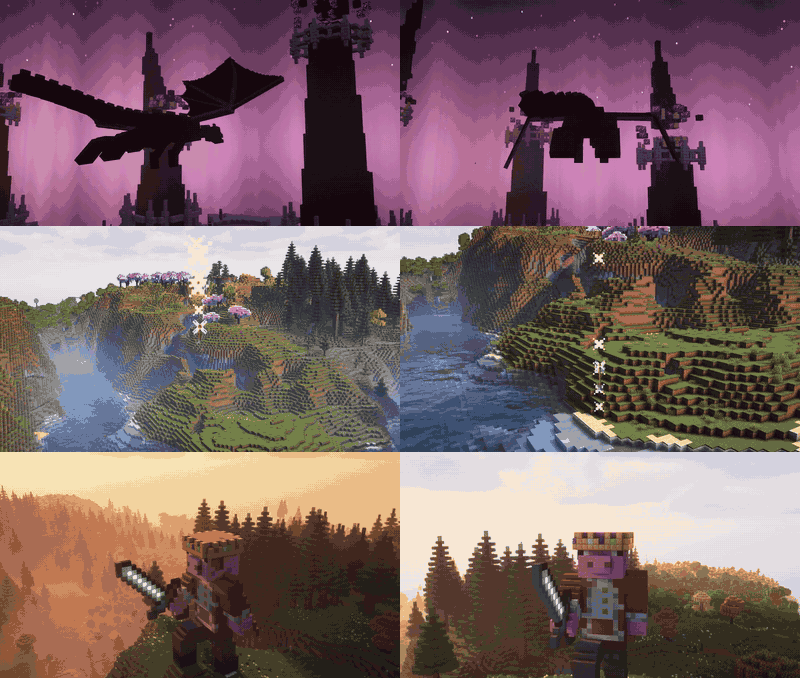
What's new in 0.2.0: The Cinematics Update
ReplayModCinematics 0.2.0 is a major update packed with new camera tools for ReForgedPlay:
- Smarter follow shots: smooth follow, arrow and projectile chase along true arcs, the Ender Dragon and big mobs, and a long-range picker with a Nearby list.
- Faster shot building: ten one-click presets, chained shots that keep the world playing in real time, per-point holds, speed and easing, point editing and a live in-world preview.
- Save & share: a Shot Library, share codes, and auto-saved drafts for every replay.
- Polish: one Ctrl+Z per shot, a config file, in-game help and clearer messages.
Requires Minecraft 1.20.1 with Forge 47.x and ReForgedPlay 0.3.1 or a later 0.3.x release, or Minecraft 1.21.1 with NeoForge 21.1.x and ReForgedPlay 0.3 for 1.21.1. Forge/NeoForge builds still need ReForgedPlay. Fabric (1.20.1 and 1.21.1): Fabric Loader 0.15.11 or newer, Fabric API, and the original Replay Mod (from replaymod.com; it is not on CurseForge). Not ReForgedPlay. Java 17 for 1.20.1, Java 21 for 1.21.1. Client side only.
Download ReplayModCinematics on CurseForge
▶ Watch the tutorial
ReplayModCinematics 0.2.0: User Guide and Cinematographer's Handbook
Download ReplayModCinematics 0.2.0 on CurseForge: https://www.curseforge.com/minecraft/mc-mods/replaymodcinematics Requires Minecraft 1.20.1 with Forge 47.x and ReForgedPlay 0.3.1 or a later 0.3.x release, or Minecraft 1.21.1 with NeoForge 21.1.x and ReForgedPlay 0.3 for 1.21.1. Forge/NeoForge builds still need ReForgedPlay. Fabric (1.20.1 and 1.21.1): Fabric Loader 0.15.11 or newer, Fabric API, and the original Replay Mod (from replaymod.com; it is not on CurseForge). Not ReForgedPlay. Java 17 for 1.20.1, Java 21 for 1.21.1.
ReplayModCinematics is a client-side camera-path add-on for ReForgedPlay on Minecraft 1.20.1 (Forge). It builds smooth, repeatable camera moves (manual spline paths, procedural orbits, one-click presets and entity-follow rigs), lets you review each shot, and places it on ReplayMod's timeline as a single undoable step.
This guide has three parts:
- Instructions and quick start: installing, the controls, and every feature step by step.
- Reference: what each screen, field and setting does.
- Cinematographer's handbook: shot recipes and techniques that use the 0.2.0 features in depth.
Labels in bold are the exact button and field names you will see in game.
Part 1: Instructions and quick start
1. Requirements
| Item | Version |
|---|---|
| Minecraft | 1.20.1 |
| Minecraft Forge | 47.x |
| Java | 17 |
| ReForgedPlay | 0.3.1 or a later 0.3.x release |
ReplayModCinematics is client-side only. It does not need to be installed on a server.
2. Installing or updating
- Install Minecraft Forge 47.x for 1.20.1 and ReForgedPlay 0.3.1 (or a later 0.3.x).
- Close Minecraft.
- Open your
modsfolder. If you have ReplayModCinematics 0.1.0, deletereplaymodcinematics-0.1.0.jarfirst. Two versions of the same mod in one folder stop Forge from loading. - Copy
replaymodcinematics-0.2.0.jarintomods, next to the ReForgedPlay jar. - Start Minecraft. On first launch the add-on creates
config/replaymodcinematics-client.toml(settings) and, once you use it,config/replaymodcinematics/(saved shots and drafts).
3. Controls
| Key | Normal use | While capturing points in the world |
|---|---|---|
F7 |
Open the Cinematics Editor | Finish capturing and return to the editor |
F8 |
Prepare the active shot and open Review Camera Path | Add a point at the current camera pose |
Shift+F8 |
(nothing) | Switch between camera points and focus points |
Ctrl+F8 |
(nothing) | Remove the last point of the current type |
F7andF8only work while a replay is open, in the replay world, on ReplayMod's mouse-visible overlay, or on this add-on's screens. They are ignored while you are typing in a text field.- You can rebind them in Minecraft's Controls menu under ReplayModCinematics: Open Cinematics Editor and Generate Camera Path.
- ReplayMod's own keys keep working; for example ReplayMod's path-preview toggle (
Hby default) shows placed keyframes.
4. Two ReplayMod ideas you need
ReplayMod's editor timeline has two paths that matter here:
- POSITION path: where the camera is and where it looks. This add-on writes its camera keyframes here.
- TIME path: which moment of the recording is shown at each point of the timeline. With no TIME keyframes the world is frozen when you render. The add-on can create these for you (Time Keyframes: Auto, section 12).
The timeline cursor is where a new shot starts (unless you use Start: After Last, section 13). A shot needs an empty stretch of POSITION path for its whole duration.
5. Your first shot in two minutes
- Open a replay in ReForgedPlay and scrub to the action you want.
- Fly the camera to a good starting view and look at your subject.
- Press
F7, choose Shot Presets, then Orbit 360. The status line confirms the preset is now the active shot. - Press Review & Place (or close the screens and press
F8). - Check the summary: path type, Timeline, Duration, Keyframes and Replay time. Leave Time Keyframes: Auto and Start: Cursor as they are.
- Press Place Path. Play the timeline in ReplayMod to watch the shot.
- Not happy? Press
F8again and choose Undo Placement, or use ReplayMod's own undo (Ctrl+Z). The whole shot disappears in one step.
6. The Cinematics Editor (F7)
The hub shows the active shot at the top (for example "Active shot: manual, 4 points, Captured", where the last word is the orientation) and these buttons:
| Button | What it opens or does |
|---|---|
| Manual Path | Build a path from camera points you capture, then edit points, timing and easing |
| Procedural Orbit | Circles, ellipses, helices and spirals around a center |
| Focus & Tracking | Orientation, focus targets, entity picking and the entity follow rig |
| Shot Presets | One-click shots built around the current camera |
| Shot Library | Save, load, delete and share shots |
| Preview: On / Off | Draw the active shot in the world |
| Review & Place | Prepare the active shot and open the review (same as F8) |
| Done | Close the editor |
Hover any button for a tooltip. The active shot is whatever you saved or applied last: a manual path, an orbit, or an entity follow shot. F8 always works on the active shot.
7. Manual paths
A manual path is a smooth curve (Catmull-Rom spline) through camera points you place. Each point remembers position, yaw, pitch and roll.
Capture points
F7> Manual Path.- Set Duration (two boxes: seconds and milliseconds), Keyframe Count and Easing (click to cycle).
- Click Capture Points In-World. The screen closes and an overlay shows the controls.
- Fly to the first pose and press
F8. Move to the next pose and pressF8again. You need at least 2 points; up to 100. Ctrl+F8removes the last point if you made a mistake.- Press
F7to return to the editor, then click Use as Active Shot.
Edit individual points
The Control Points row shows how many points there are; < and > select a point ("Point 2 of 5 at 3.250 s").
| Button | Effect |
|---|---|
| Go To | Move the replay camera to the selected point |
| Set to Camera | Replace the point with the current camera position and rotation |
| Insert | Insert the current camera as a new point after the selected one |
| Delete | Remove the selected point |
| Earlier / Later | Move the point one place earlier or later in the path |
| Start at Last End | Insert the end pose of the last placed path as point 1, for seamless continuations |
| Clear | Remove all points (click twice: "Really clear?") |
Point edits are kept immediately; Use as Active Shot makes the manual path the active shot.
Holds, speed and easing
- Hold (ms): how long the camera waits at the selected point (0 to 600000). Holds work on the first and last point too.
- Speed (x): how fast the camera travels from this point to the next (0.1 to 10; 1 = normal). Faster segments take time from slower ones; the shot length stays the same.
- Click Apply Timing to store both values for the selected point. Holds: shows the total hold time.
- If holds fill the whole duration, the review blocks the shot ("Holds take up the whole duration"). Shorten them or lengthen the shot.
- Easing shapes the moving parts: Linear, Quad In, Quad Out, Quad In/Out, Sine In, Sine Out, Sine In/Out, Cubic In, Cubic Out, Cubic In/Out, Quint In/Out, Smootherstep.
Where the camera looks
Set the orientation in Focus & Tracking (section 10): Captured (use each point's rotation), Face Target, Tangent (look along the path) or Track Entity.
8. Procedural orbits
F7> Procedural Orbit.- Enter Center X/Y/Z, or set a focus target first and click Use Focus Target to load target 1.
- Start radius X/Z and End radius X/Z (blocks): equal X and Z give a circle, different values an ellipse, different start and end values a spiral.
- Start height and End height (relative to the center): different values give a helix.
- Angle (deg) is where on the circle the camera starts. Revolutions may be fractional (0.5 = half turn). CW / CCW sets the direction.
- Duration (s / ms), Keyframes and Easing.
- Face: Center aims at the center (or pans through your focus targets when there are two or three); Face: Tangent looks along the direction of travel.
- Click Use as Active Shot.
An orbit stays an orbit: the entity follow rig never replaces it.
9. Shot presets
F7 > Shot Presets builds a shot around the current camera in one click. The focus point is focus target 1 if you have one, otherwise whatever is under the crosshair (within 128 blocks), otherwise a point 10 blocks ahead.
| Preset | What it creates | Tweak it in |
|---|---|---|
| Orbit 360 | One full level circle around the focus point, at the camera's distance and height, linear speed | Procedural Orbit |
| Reveal Orbit | Half a turn that closes in (to about 65% of the distance) and rises, Sine In/Out | Procedural Orbit |
| Dolly In | Moves 8 blocks straight ahead, Sine In/Out | Manual Path |
| Dolly Out | Pulls back 8 blocks, Sine In/Out | Manual Path |
| Crane Up | Rises 8 blocks while tilting down to keep the subject in frame | Manual Path |
| Fly-by | Sweeps past the focus point from one side to the other while facing it (sets Face Target and replaces your focus targets with that point) | Manual Path / Focus & Tracking |
| Chase Cam | Follows the picked entity from behind, slightly above (12 degrees), aimed at the body | Focus & Tracking |
| Side Track | Tracks the picked entity from its right side at 1.25x the default distance | Focus & Tracking |
| Top-Down | Looks straight down on the entity from twice the default distance, aimed at the feet | Focus & Tracking |
| Lead Shot | Moves ahead of the entity looking back at its face, rising from 5 to 20 degrees | Focus & Tracking |
- The four entity presets are greyed out until you pick an entity in Focus & Tracking. They start from the follow defaults in the config (distance, duration, keyframes, smoothing).
- Durations and keyframe counts come from the config defaults (9 s; 24 keyframes for manual presets, 48 for orbits).
- A preset replaces the active shot. Nothing touches the timeline until Review & Place.
- The ? button explains where to tweak each preset. Scroll the help (mouse wheel or arrow keys) if it does not fit.
10. Focus & Tracking
Orientation (click to cycle) controls where a manual path looks:
| Orientation | Behaviour |
|---|---|
| Captured | Uses the rotation saved with each camera point |
| Face Target | Aims at one to three focus targets; with two or three the aim pans from one to the next over the shot |
| Track Entity | Keeps your manual path and turns every keyframe toward the picked entity, or (with Follow: On) builds a whole follow shot |
| Tangent | Looks along the path, keeping captured roll |
Focus targets (up to three): Target 1 of 2 selects which one you edit, Add and Remove manage them, and the X, Y, Z boxes hold the coordinates. Capture Focus Points In-World lets you add them in the world instead: fly the camera to the spot you want to look at and press F8 (the focus point is the camera's own position). Shift+F8 switches point type while capturing.
Picking an entity
- Aim at it and click Pick Under Crosshair (reaches 96 blocks by default; blocks stop it unless the config says otherwise).
- Or click Nearby to cycle through entities near the camera, closest first.
- Clear removes the selection. "Selected: name" shows the current one.
Click Apply to save the orientation, targets and follow settings.
11. Entity follow shots
F7> Focus & Tracking, cycle Orientation to Track Entity, pick the entity.- Turn Follow: On.
- Choose View: Front / Back / Left / Right / Bird's Eye and Focus: Feet / Body / Head.
- Set Start angle (degrees) and End angle (degrees) (-70 to 70; negative = below looking up, positive = above looking down), Distance (blocks), Roll (degrees), Smoothing (ms) (0 to 10000), Duration (s / ms) and Keyframes.
- Click Apply, then
F8, review and Place Path.
Notes:
- Defaults for new follow shots: 8 blocks, 37 keyframes, 500 ms smoothing.
- Smoothing (ms) evens out the entity's turns over that window, so small wiggles do not shake the camera. 0 follows every turn exactly.
- Distances under 4 blocks show a warning ("Close follow distances may reduce tracking accuracy"); you can still place the shot.
- The rig may move the camera farther than requested so the whole entity stays in frame at your current FOV.
- Follow and tracking shots need replay time for the whole shot. Leave Time Keyframes: Auto on.
- The rig follows the direction the entity is heading: players use their body facing; mobs and boats their facing (flipped when they are clearly moving backwards); arrows, tridents and other projectiles their direction of flight; the Ender Dragon its true heading (its recorded facing points backwards); minecarts, items and other non-living entities their direction of motion, or their facing while still. So View: Back is behind an arrow in flight.
- Picking any part of a multipart mob (the Ender Dragon, modded bosses built from parts) selects the whole mob, and Nearby lists it once.
- For a big mob the camera stays at least about 0.75 x its width + 0.5 blocks away (about 12.5 blocks for the Ender Dragon); the review says so when that is more than your Distance. With Follow: Off, Track Entity aims at the body of mobs 3 or more blocks tall instead of their feet.
- If the entity exists for only part of the shot (an arrow that lands, a mob that despawns), the camera holds its first or last known position for the rest, and the review shows when it was recorded and a Duration that stays inside. If it was not recorded at all during the shot, you get a message with the replay time it was recorded, or that it has no recorded positions.
- Between recorded positions the subject moves along a smooth curve, not straight lines, so the camera has no corners where the recording does.
Following arrows and other projectiles
The replay keeps only about one arrow position per second. For arrows, spectral arrows, tridents, snowballs, eggs, ender pearls, potions, bottles o' enchanting and llama spit, the add-on rebuilds the flight in between with the game's own projectile physics (gravity, and air or water drag), so the camera follows the same arc the game draws. Fireballs, rockets and modded projectiles with their own physics follow the smooth curve instead.
- Keyframes: a projectile follow shot gets one camera keyframe per game tick (20 per second, at least your Keyframes), so a fast arrow stays in frame.
- Framing: while Distance is the default (8 blocks) the camera follows a projectile from 5 blocks, and while both angles are 0 it sits 10 degrees above it, so the arrow is not seen end-on. Set your own Distance or angles to override this. The review says "Projectile framing: …".
- Fit to the flight: if the timeline has no time keyframes yet, a projectile follow shot is fitted to its flight. It starts at the launch and ends one second after the landing, whatever Duration says. If existing time keyframes set where the shot starts, only its length is set, so it ends with the flight. The review says "Fitted to the flight of …". Set
fitProjectileFlight = falsein the config to keep your Duration. - Before the launch (a shot that starts earlier than the arrow exists), the camera waits at the launch point, looking along the launch direction, then follows it. It does not jump.
- Aim: the camera looks straight at the projectile. ReplayMod's camera sees from its eye, 1.62 blocks above the keyframe position, so the keyframes of a follow shot sit that much below the view.
- Landing: when the projectile sticks in a block or lies still, the camera holds on that point for the rest of the shot. The review says when ("Arrow lands at replay …"). An arrow that goes into water is followed down to where it stops (within a second), with the camera kept above the water; one that keeps sinking is held where it went in.
- Water: a follow camera is never put underwater while its subject is above the water, and a projectile shot never goes underwater; it is raised above the surface instead.
- Crit trail: a fully drawn bow shoots a critical arrow that leaves a trail of small cream star particles. Seen from behind they look like a column of extra arrows. They are vanilla particles, not copies of the arrow. Set Video Settings > Particles: Minimal before rendering to hide most of them.
- Limits: an arrow that hits a mob is removed up to a second after its last recorded position, so the shot ends there. During playback the game draws a projectile up to half a game tick away from where the camera expects it (about 1.5 blocks at full bow speed), which is why the camera stays a few blocks back.
12. Review & Place and Time Keyframes: Auto
F8 (or Review & Place) prepares the active shot and opens Review Camera Path:
- Path, Timeline (start to end), Duration, Keyframes
- Replay time: X to Y (N new time keyframes), or Replay time: X to Y (extends existing time section) for a chained shot: which part of the recording the shot shows
- Warnings in yellow, or a red blocking reason when placement is not possible
Buttons:
| Button | Effect |
|---|---|
| Time Keyframes: Auto / Off | Whether the add-on creates TIME keyframes (see below) |
| Start: Cursor / After Last | Start at the timeline cursor, or right after the last camera keyframe (section 13) |
| Place Path | Add the shot to the timeline as one step |
| Back | Return without placing |
| Undo Placement / Redo Placement | Step through placements (section 17) |
| ? | Help on these options; scroll if it does not fit |
Changing a toggle prepares the shot again immediately.
What Auto does. Auto makes sure the world plays during the shot. It never deletes TIME keyframes you already have; it adds what is missing, and for a chained shot it extends the section it continues:
| Situation on the TIME path | What Auto does |
|---|---|
| Existing TIME keyframes already cover the whole shot | Reuses them; adds nothing |
| No TIME keyframes at all | Adds two: starting at the current replay time, playing in real time |
| TIME keyframes end inside the shot | Adds one at the shot's end, continuing in real time |
| TIME keyframes start inside the shot | Adds one at the shot's start, running in real time up to them |
| TIME keyframes only inside the shot (for example a slow-motion stretch) | Adds the start and end; the inner timing is kept |
| TIME keyframes end where the shot starts (a chained shot, for example Start: After Last) and the last section plays in real time | Extends that section: its last TIME keyframe moves to the end of the new shot, so replay time carries on with no jump and the chain stays one section. The review shows "extends existing time section"; undo puts the keyframe back |
| Same, but the last section is not real time (for example slow motion) | Keeps that section as it is and adds one TIME keyframe at the end of the shot, continuing in real time (the review explains this) |
| TIME keyframes only before the shot, with a gap | Continues from the last one in real time, so there is no jump |
| TIME keyframes only after the shot | Runs in real time up to the first one |
A shot counts as chained when the TIME path ends at the shot start or at most 100 ms before it (or the Start: After Last gap, if that is larger). Safety rules: replay time never runs backwards. If real time would go below zero or run past a later TIME keyframe, that part plays at a different speed and the review warns you. If the recording ends before the shot does, replay time holds at the end (warning). If replay time is already at the end of the recording, nothing is added.
Off adds nothing. Use it when you build the TIME path yourself (slow motion, time-lapse, freezes). If existing TIME keyframes only cover part of the shot, the review warns you; with no TIME keyframes at all it warns that the world will be frozen.
13. Chaining shots with Start: After Last
- Place your first shot as usual.
- Build the next shot (any type).
- In the review, switch to Start: After Last. The shot now begins right after the last camera keyframe (1 ms later by default).
- With Time Keyframes: Auto, replay time carries on exactly from the previous shot's end. The review shows Replay time: X to Y (extends existing time section): instead of adding a new pair of TIME keyframes per shot, Auto moves the section's end keyframe to the end of the new shot. After three chained shots the TIME path is still one section, with its original start keyframe and a single end keyframe after shot 3.
- Place Path. Repeat for a whole sequence.
- Each shot is still one undo step: undoing shot 3 moves the end keyframe back to where shot 2 ended.
For a continuous camera move across shots, also use Start at Last End in Manual Path: it makes the new path start at the exact pose where the previous one ended. Both toggles remember their last setting.
14. In-world preview
With Preview: On the active shot is drawn in the replay world while you edit: the curve, a box at each control point (the selected point is highlighted), short ticks showing where the camera looks, and your focus targets. Follow shots appear after F8 prepares them. Nothing is drawn while ReplayMod renders a video. Colours, sample count and tick spacing are in the config.
15. Shot Library and share codes
F7 > Shot Library:
- Type a Name and click Save Current to store the active shot (saving under an existing name updates it).
- Select a shot in the list (use < / > for more pages) and click Load to make it the active shot, or Delete (click twice: "Really delete?").
- Copy Code puts the active shot on the clipboard as a share code starting with
RMC1:. Paste Code loads a share code (or plain shot JSON) from the clipboard. - Open Folder opens
config/replaymodcinematics/shots, where each shot is a JSON file.
A shot from another replay keeps its tracked entity's identity, and the status line reminds you where it came from. It works if the same entity (for example the same player) is loaded in this replay; otherwise pick the entity again in Focus & Tracking.
Drafts. The working shot of every replay is saved automatically and comes back when you reopen that replay (stored in config/replaymodcinematics/drafts).
16. Configuration
config/replaymodcinematics-client.toml (also editable through Forge's config tools):
| Section | Key | Default | Meaning |
|---|---|---|---|
| placement | addTimeKeyframes |
true | Starting value of Time Keyframes (true = Auto); the toggle saves here |
| placement | appendMode |
false | Starting value of Start (true = After Last); the toggle saves here |
| placement | appendGapMillis |
1 | Gap after the previous shot with Start: After Last (1 to 60000) |
| placement | largePathWarning |
300 | Warn when a shot has more keyframes than this |
| placement | undoHistorySize |
20 | How many placements Undo Placement can step back (after restart) |
| defaults | shotDurationMillis |
9000 | Default duration of new shots and presets |
| defaults | manualKeyframes |
24 | Default Keyframe Count for manual paths and manual presets |
| defaults | orbitKeyframes |
48 | Default keyframes for orbits and orbit presets |
| follow | distance |
8.0 | Default follow distance (blocks) |
| follow | keyframes |
37 | Default follow keyframes |
| follow | smoothingMillis |
500 | Default smoothing (0 to 10000) |
| follow | warningDistance |
4.0 | Warn below this follow distance |
| follow | projectileDistance |
5.0 | Follow distance for projectiles while Distance is the default |
| follow | projectileElevation |
10.0 | Angle above projectiles while both angles are 0 (-70 to 70) |
| follow | fitProjectileFlight |
true | Fit projectile follow shots to the flight (launch to landing) |
| picker | range |
96.0 | How far Pick Under Crosshair and Nearby reach (4 to 512) |
| picker | throughBlocks |
false | Let the picker see through blocks |
| preview | enabled |
true | Preview: On / Off (the button saves here) |
| preview | samples |
200 | Curve samples (16 to 600) |
| preview | directionTickEvery |
10 | A look-direction tick every N samples |
| preview | pathColor, pointColor, selectedColor, targetColor, directionColor |
#FFD54F, #4FC3F7, #FFFFFF, #FF7043, #AED581 | Preview colours (#RRGGBB) |
17. Undo and redo
- Each placed shot, including its TIME keyframes, is one ReplayMod undo step: ReplayMod's Ctrl+Z removes it whole.
- Undo Placement / Redo Placement in the review screen step through this add-on's placements (20 by default). They refuse to touch a shot whose keyframes you have edited since, to protect manual work. Redo needs the original range to be empty again.
- Placement is all-or-nothing: if anything fails part-way, everything already added is removed again.
- To retime a placed shot: undo it, change the shot, and place it again.
Part 2: Reference
Detailed behaviour of each camera system, with film vocabulary. Part 1 covers the step-by-step use.
Camera systems
Manual Path: freeform dolly, crane, and aerial movement
A manual path is a smooth Catmull-Rom spline passing through camera control points. Each point captures position, yaw, pitch, and roll. Use it whenever the camera must follow art-directed blocking rather than mathematical orbit geometry.
- Press
F7, open Manual Path, and set Duration, Keyframe Count, and Easing. - Select Capture Points In-World. The editor closes so the replay camera can move freely.
- Place the camera at the first pose and press
F8. - Move to each successive pose and press
F8again. At least two camera points are required. - Use
Ctrl+F8to remove a mistaken camera point. UseShift+F8only when you also want to capture focus points. - Press
F7to finish capture, then select Use as Active Shot. - Choose the orientation behavior in Focus & Tracking before placement.
Refine individual points afterwards: < / > select a point, Go To jumps the camera to it, Set to Camera re-captures it, Insert adds the current camera after it, Delete removes it, and Earlier / Later reorder it. Start at Last End inserts the end pose of the last placed path as point 1, so a new shot can continue exactly where the previous one stopped.
Holds and speed ramps
Each control point has a Hold (ms) and a Speed (x); set them and select Apply Timing. A hold parks the camera on that point, which is how you build a move-stop-move shot or a lingering beat inside one path. Speed scales how quickly the camera travels from that point to the next: 2 covers the segment in half the time, 0.5 in double. The total shot duration stays the same, so speeding one segment slows the others.
The path passes through the captured positions, but Catmull-Rom interpolation can bow between them. Give obstacles clearance and preview for clipping. Widely separated control points produce broad curves; closer points exert tighter local control.
Procedural Orbit: mathematically repeatable moves
The orbit generator uses a center, independent X/Z radii, start/end height, start angle, revolution count, direction, duration, keyframe count, easing, and orientation.
- Press
F7and open Procedural Orbit. - Enter Center X/Y/Z, or create a focus target first and select Use Focus Target.
- Set Start radius X/Z and End radius X/Z in blocks.
- Set Start height and End height relative to the center Y coordinate.
- Set the starting Angle, number of Revolutions, and
CWorCCWdirection. - Set duration, keyframes, easing, and Face: Center or Face: Tangent.
- Select Use as Active Shot. A saved orbit always stays an orbit; the entity follow rig only replaces manual paths.
With Face: Center, one saved focus target produces a continuous look-at. If Focus & Tracking contains two or three focus targets, the orbit pans through that target sequence over its duration while its geometry continues to use the entered center coordinates. Use Focus Target loads target 1 into those center-coordinate fields; it does not remove the other saved targets. Face: Tangent ignores the target sequence and looks along the direction of travel.
| Geometry | Settings | Film-language result |
|---|---|---|
| Circle | X and Z radii equal; start and end radii equal; heights equal | Circular arc, wraparound, 360-degree orbit |
| Ellipse | X and Z radii differ; start/end radii otherwise unchanged | Elliptical arc with changing apparent subject distance |
| Helix | Start and end heights differ | Rising or descending orbit, spiral crane move |
| Spiral | Start and end radii differ | Spiral-in or spiral-out orbit |
| Conical helix | Both radii and height change | Simultaneous orbit, push/pull, and rise/fall |
| Partial orbit | Fractional revolution, such as 0.25 or 0.5 |
90-degree or 180-degree arc shot |
| Extended orbit | More than one revolution | Multi-wrap reveal or stylized continuous move |
All orbit radii and revolution counts must be positive. Direction is controlled with the CW/CCW button, not a negative revolution value. Orbit shots generate zero roll.
Focus and orientation modes
The orientation mode determines what the camera looks at while its position follows a saved manual path.
| Mode | Operation | Best use |
|---|---|---|
| Captured | Interpolates the yaw, pitch, and roll captured at every camera point | Authored pans/tilts, whip-like reframes, Dutch transitions, lock-offs |
| Face Target | Continuously aims at one to three world-space focus points | Tracking, arc, reveal, rack-attention, and parallax shots |
| Tangent | Faces in the direction the spline travels and preserves captured roll | POV flight, vehicle-like travel, fly-throughs |
| Track Entity | Leaves the manual camera path unchanged but aims at a selected moving entity | Character tracking combined with a freeform dolly or crane move |
For Face Target, enter target coordinates or select Capture Focus Points In-World. One target produces a continuous look-at. Two targets create a progressive focus handoff. Three targets move from target 1 to target 2 by the shot midpoint, then to target 3 by the end. This is a spatial pan/tilt transition, not optical rack focus or depth-of-field animation.
For Track Entity, aim the crosshair at a visible, spectatable entity and select Pick Under Crosshair, then Apply. Selection belongs to the current replay and is cleared when the replay changes or another orientation mode is applied.
Entity Follow: actor-mounted tracking rigs
Entity Follow creates a complete camera path from recorded actor motion. It does not require manual camera points.
- Ensure the TIME path covers the complete intended shot and advances through recorded time.
- Press
F7, open Focus & Tracking, and cycle orientation to Track Entity. - Aim at the actor and select Pick Under Crosshair (it reaches 96 blocks by default), or select Nearby to cycle through entities near the camera, closest first.
- Turn Follow: On.
- Choose Front, Back, Left, Right, or Bird's Eye.
- Choose Feet, Body, or Head as the focal point.
- Set start/end elevation, distance in blocks, roll in degrees, Smoothing (ms), duration, and keyframe count; then select Apply.
- Place the timeline cursor, press
F8, review, and place the path.
The rig follows the entity's heading, not merely a fixed world axis: body facing for players, facing for mobs, direction of flight along the rebuilt ballistic arc for projectiles, the corrected heading for the Ender Dragon, and direction of motion for other non-living entities (see section 11). Feet aims at the entity base, Body at 40% of its bounding height, and Head at 80% of its recorded eye height. The Body and Head anchors are intentionally 20% lower than their anatomical landmarks so close follow shots do not feel too high. Start/end elevations use a signed -70 to +70 degree scale: negative is below the focal point looking up, zero is level, and positive is above looking down. Elevation changes linearly across the generated keyframes while the camera maintains a constant radius. Bird's Eye remains directly overhead and ignores the arc angles.
The generator uses the selected entity's height, chosen focal point, elevation arc, and current FOV to enforce enough distance to keep the whole entity vertically framed with padding. It applies one safe radius to the entire shot, so a requested close-up may move farther away without warping the arc, especially with a narrow FOV or Feet/Head focus.
Smoothing (ms) acts like a fluid head on the rig: the camera's heading follows a centred average of the actor's facing over that window, so small wiggles and head turns no longer shake the shot, without the lag of a delayed follow. 0 follows every turn exactly; 300 to 1000 ms suits walking characters. New follow shots start at 8 blocks, 37 keyframes and 500 ms of smoothing.
The editor warns when the requested follow distance is under 4 blocks (configurable) because very close recorded-entity tracking can be less accurate. This is a warning rather than a placement block; preview the result carefully, especially with fast movement, narrow FOV, or low keyframe counts.
| Follow view | Camera relationship | Typical result |
|---|---|---|
| Front | Ahead of the actor, looking back | Frontal tracking or retreating lead shot |
| Back | Behind the actor, looking forward | Follow shot, chase cam, over-the-back travel |
| Left | Actor's left side | Lateral profile tracking |
| Right | Actor's right side | Reverse-side profile tracking |
| Bird's Eye | Directly above | Top shot or plan-view tracking |
Follow distance and roll remain constant for one generated shot; elevation follows the configured start-to-end arc. For a changing distance or roll, disable Follow and use a manual path with Track Entity orientation.
Shot-size vocabulary
The add-on does not contain buttons named for shot sizes (the Shot Presets are movements, not sizes). You create them by choosing camera distance, elevation, and Minecraft FOV. Every size below is achievable, subject to Minecraft geometry and the follow rig's full-body framing safeguard.
| Shot size | Composition | Recommended method |
|---|---|---|
| Extreme wide / extreme long shot (EWS/ELS) | Environment dominates; figures establish scale | Distant manual path, large-radius orbit, or high aerial path |
| Wide / long shot (WS/LS) | Full setting and complete subject action | Manual Face Target or medium/large orbit |
| Full shot (FS) | Entire character fills most of the frame | Static/manual target shot; entity follow naturally protects full-body framing |
| Cowboy / American shot | Approximately mid-thigh upward | Manual Track Entity with a suitable FOV and offset |
| Medium wide / medium long (MWS/MLS) | Approximately knees upward | Manual target/tracking path |
| Medium shot (MS) | Approximately waist upward | Manual target/tracking path with closer distance or narrower FOV |
| Medium close-up (MCU) | Chest/shoulders upward | Manual target/tracking path; verify skin and headroom |
| Close-up (CU) | Face or critical object dominates | Manual path and precise focus target; avoid entity-follow auto-distance |
| Big close-up (BCU) | Face fills frame | Very close manual path, usually with restrained movement |
| Extreme close-up / insert (ECU) | Eyes, hands, item, switch, or texture detail | Manual path with a focus point on the detail |
| Two-shot / three-shot / group shot | Multiple subjects share composition | Manual path with a focus point between actors; use a wide enough FOV |
| Over-the-shoulder (OTS) | Foreground shoulder frames the speaking subject | Manual camera position plus focus point on the opposing actor |
| Point-of-view (POV) | Camera approximates a character's sightline | Manual Captured or Tangent path at eye height |
| Establishing shot | Geography and relationships are introduced | EWS, aerial crane, large orbit, or slow push-in |
| Insert / cutaway / reaction shot | Isolated narrative detail or response | Short manual paths placed as separate timeline shots |
Because the entity-follow rig centers and fully contains the actor, manual Track Entity is the better tool for deliberate headroom, lead room, close-ups, OTS framing, or off-center rule-of-thirds composition.
Angle types
Every conventional angle can be authored with manual camera points; several have direct entity-follow presets.
| Angle | How to produce it |
|---|---|
| Eye level | Place the camera near the subject's eye line and use Face Target or Track Entity |
| High angle | Position above the subject and tilt down |
| Low angle | Position below the subject and tilt up; check terrain and near-plane clipping |
| Bird's-eye / top shot | Use Bird's Eye follow or a manual camera directly overhead |
| Worm's-eye / ground-level | Place a manual point near ground level and aim upward |
| Overhead oblique | Use a high manual path or elevated orbit rather than a vertical top shot |
| Frontal | Use Front follow or place a manual camera on the subject's forward axis |
| Rear | Use Back follow or a manual rear position |
| Profile | Use Left or Right follow, or place a manual camera at 90 degrees to the action |
| Three-quarter | Use a manual position between frontal and profile axes |
| Dutch / canted angle | Capture non-zero roll in Captured mode, or enter roll in Entity Follow |
| Neutral horizon | Capture zero roll; procedural orbits also use zero roll |
Minecraft's camera can occupy impossible physical positions, so "handheld," "Steadicam," "drone," "crane," and "vehicle mount" describe the visual grammar rather than a simulated rig.
Camera movements and shot recipes
Shot Presets gives one-click starting points built from the current camera: Orbit 360, Reveal Orbit, Dolly In, Dolly Out, Crane Up and Fly-by aim at the focus point (focus target 1, else the block or entity under the crosshair within 128 blocks, else a point 10 blocks ahead); Chase Cam, Side Track, Top-Down and Lead Shot use the picked entity. Each preset replaces the active shot and can then be refined in its editor: the orbits in Procedural Orbit, Dolly/Crane/Fly-by in Manual Path (points, Duration, Easing, per-point Hold (ms) and Speed (x)), and the entity presets in Focus & Tracking (view, distance, angles, duration, smoothing). The ? button on the Shot Presets and review screens summarises this in game.
| Movement or shot | Recipe in ReplayModCinematics |
|---|---|
| Lock-off / static shot | Use two manual points at the same position with captured orientation; keep framing unchanged |
| Move, stop, move | One manual path with a Hold (ms) on the middle point |
| Speed ramp | Raise Speed (x) on the fast segment, lower it on the slow one |
| Pan | Use stationary manual points with different yaw in Captured mode |
| Tilt | Use stationary manual points with different pitch in Captured mode |
| Roll | Use stationary or moving manual points with different roll in Captured mode |
| Dolly in / push-in | Dolly In preset, or capture points moving toward the subject; use Face Target or Track Entity |
| Dolly out / pull-back | Dolly Out preset, or capture points moving away from the subject while maintaining focus |
| Truck / lateral track | Capture a sideways path; track a subject or static focus point |
| Pedestal up/down | Capture a vertical path without changing horizontal position |
| Crane / jib | Crane Up preset, or combine vertical and horizontal manual points with Face Target |
| Arc shot | Reveal Orbit preset, or a fractional center-facing orbit |
| 360-degree wraparound | Orbit 360 preset, or a one-revolution center-facing circular orbit |
| Fly-by / pass-by | Fly-by preset |
| Elliptical arc | Use unequal X/Z orbit radii for variable apparent distance and parallax |
| Spiral in/out | Change start/end radii; use Face: Center for a tightening or expanding wrap |
| Helical rise/fall | Change start/end heights during an orbit |
| Fly-through | Build a manual path through architecture and use Tangent orientation |
| Tracking shot | Use a manual path with Track Entity |
| Follow / chase shot | Chase Cam preset, or Entity Follow Back |
| Lead / retreating shot | Lead Shot preset, or Entity Follow Front |
| Side tracking shot | Side Track preset, or Entity Follow Left or Right |
| Overhead tracking shot | Top-Down preset, or Entity Follow Bird's Eye |
| Reveal | Begin occluded or tightly framed, then crane/truck/dolly into an open composition |
| Parallax reveal | Move laterally with a foreground object near camera and a focus target deeper in frame |
| Focus handoff / attention shift | Use two or three Face Target points; the camera pans/tilts between them |
| POV travel | Use an eye-height manual path with Tangent or authored Captured orientation |
| Orbit-to-escape move | Use a spiral with increasing radius, optional height change, and Face: Center |
| Approach-to-orbit move | Create a manual push-in, then an orbit with Start: After Last so it begins right after the push-in |
| Continuous multi-shot move | Start at Last End in Manual Path plus Start: After Last in review |
| Whip pan | Use closely timed stationary captured poses with a large yaw change; preview for interpolation character |
| Vertigo / dolly zoom | Not generated directly; coordinate a manual dolly with separately animated Replay Mod FOV if available |
| Handheld | Not procedurally simulated; author subtle position/rotation variation manually or add it in post |
Timing, easing, and keyframe density
| Easing | Screen effect | Editorial use |
|---|---|---|
| Linear | Consistent distance-based speed along a manual curve; constant progression for an orbit | Architectural moves, continuous tracking, shots that cut while already moving |
| Sine In, Quad In, Cubic In | Starts slowly and accelerates (gentlest to strongest) | Departures, growing urgency, accelerating reveals |
| Sine Out, Quad Out, Cubic Out | Starts quickly and settles (gentlest to strongest) | Arrivals, landings, emphasis on the final composition |
| Sine In/Out, Quad In/Out, Cubic In/Out, Quint In/Out | Accelerates, then decelerates (gentlest to strongest) | Self-contained moves with composed heads and tails |
| Smootherstep | Very soft in/out with no sudden change in acceleration | Slow, elegant moves where any jolt would read |
Easing shapes the moving parts of a manual path; holds stay still and per-point speeds change how the moving time is shared between segments.
Duration controls screen time; keyframe count controls sampling resolution. Use enough keyframes to represent curves and fast actor motion without excessive timeline weight. Increase density for tight curves, fast pans, quick entities, close foreground passes, or long multi-revolution orbits. Reduce it for slow, broad movement.
- Minimum: 2 keyframes.
- Maximum: 600 generated keyframes.
- Above 300 (config
largePathWarning): the review screen warns that many keyframes can make the ReplayMod timeline slow. - Duration must be positive and long enough to give generated keyframes distinct millisecond timestamps.
At 24 fps, a 6-second shot contains 144 rendered frames, but it does not necessarily need 144 camera keyframes; Replay Mod interpolates between them. Judge density by preview smoothness and tracking accuracy rather than matching one keyframe per output frame.
Cinematic staging guidance
- Block actors and world events first. Build the TIME path, then design the camera against the recorded action.
- Choose a motivated focus target. For characters, a target near eye or chest level usually reads more naturally than feet-level coordinates.
- Preserve screen direction across cuts. Choose orbit direction and entity-follow side deliberately to avoid crossing the line of action unintentionally.
- Use foreground, midground, and background separation. Lateral movement and elliptical orbits create stronger parallax than movement directly toward a flat subject.
- Leave handle length at the start and end of a shot for editorial transitions. A short Hold (ms) on the first and last point gives clean handles without extra paths.
- Avoid constant easing on every shot. Linear motion cuts cleanly; ease-in/out advertises the move beginning and ending.
- Preview at delivery FOV and aspect ratio. Framing, apparent speed, headroom, and follow distance all change with FOV.
- Keep paths clear of blocks, foliage, glass, and terrain. The spline and orbit generators do not perform collision avoidance.
- Inspect fast yaw changes across the full shot. The add-on unwraps angles around the
-180/180boundary to avoid unwanted full rotations, but composition still needs review. - Use roll sparingly unless a canted frame is narratively motivated. Constant roll in follow mode creates a sustained Dutch angle; captured roll can transition over time.
Preview, library, and sharing
- Preview: On draws the active shot in the world: the curve, a box for every control point (the selected one is highlighted), ticks showing where the camera looks, and the focus targets. Follow shots appear after
F8prepares them. Nothing is drawn while a video renders. - Shot Library stores named shots on disk. Copy Code puts the active shot on the clipboard as an
RMC1:share code, and Paste Code loads one, so a collaborator can recreate your exact move in their copy of the replay. A shot from another replay keeps its tracked entity, which works while the same entity (for example the same player) is loaded; otherwise pick it again. - The working shot of each replay is saved automatically and restored when the replay is reopened.
Review, safety, and troubleshooting
Placement is blocked when:
- No replay or active Replay Mod timeline is open.
- Holds leave no time for the camera to move.
- A manual path has fewer than two camera points.
- The required focus target or tracked entity is missing.
- Any POSITION keyframe already occupies the destination range.
- The generated path exceeds 600 keyframes.
- The replay or timeline changes after review.
- Entity samples are unavailable at a required replay time.
- The TIME path does not cover the complete shot (and Time Keyframes is Off), maps to negative or out-of-replay time, or remains frozen for the entire shot.
If Place Path is disabled, read the blocking reason in Review Camera Path. Move the timeline cursor to an empty range (or use Start: After Last), correct the named issue, and press F8 again.
Placement is all-or-nothing: if anything fails part-way, every keyframe already added is removed again. Undo removes only the latest unchanged placement made by this add-on, together with its TIME keyframes. If any of its keyframes were edited or removed afterward, undo is refused to protect manual work. Redo requires the original range to be empty. Changing replay or timeline clears placement history.
Entity sampling reads recorded replay data without moving the timeline cursor, camera, playback position, or spectated entity. The first dense tracking shot may take longer while entity positions are loaded.
Capability summary
ReplayModCinematics can produce static compositions; pans, tilts, and rolls; dolly, truck, pedestal, crane, arc, orbit, spiral, helix, aerial, fly-through, POV, reveal, parallax, tracking, follow, chase, lead, side-profile, overhead, and multi-target attention-shift shots. These can be combined with every conventional shot size and camera angle through placement, distance, focus target, FOV, and roll.
Its strongest use is repeatable spatial camera choreography. Lens animation, optical focus effects, collision avoidance, handheld noise, cuts, sound, color, and final rendering remain separate creative stages.
Part 3: Cinematographer's handbook
Practical recipes built from the 0.2.0 tools. Numbers are starting points; preview with Preview: On, place, watch, and adjust. Every recipe can be undone in one step.
3.1 Before you shoot
- Decide how time runs first. For normal-speed action leave Time Keyframes: Auto on and let each shot create or extend TIME keyframes. For slow motion or freezes, build those TIME keyframes in ReplayMod before placing the camera (recipe 3.10).
- Scrub to the moment. With no TIME keyframes yet, Auto starts the shot at the current replay time, so park the replay where the action begins.
- Set your delivery FOV and window shape. Framing, apparent speed and the follow rig's safe distance all depend on Minecraft's FOV. For vertical video, see 3.12.
- Turn the preview on. It shows the curve, where the camera looks, and your focus targets, so you can spot a path clipping through a wall before you place it.
3.2 Establishing shot: the reveal orbit
Goal: open on a location or build, moving around it as it comes into view.
- Fly to a three-quarter view of the subject, a little above it, at the distance you want to start.
- Aim the crosshair at the centre of the build (or set focus target 1 there in Focus & Tracking: more precise).
- Shot Presets > Reveal Orbit: half a turn that closes to about 65% of the distance and rises, easing in and out.
- In Procedural Orbit, tune it:
- Duration (s / ms): 8 to 12 s reads as calm and grand; 5 s as energetic.
- Revolutions 0.25 to 0.5 for a reveal; a full turn starts to feel like a showcase.
- Raise End height for a crane-style finish that shows the layout; lower it to end at eye level.
- Easing: keep Sine In/Out, or Smootherstep for an even softer landing.
- Use as Active Shot >
F8> Place Path.
Variation: for a "planet" establishing move, use Orbit 360 with a large radius and a slow 15 to 20 s duration, Linear easing so it can be cut at any point.
3.3 Following players and mobs: chase, lead and side track
Pick the subject in Focus & Tracking (Pick Under Crosshair, or Nearby for small or distant mobs), then:
| Shot | Preset | What it says | Good for |
|---|---|---|---|
| Chase | Chase Cam | "We are with them" | Running, parkour, riding, pursuit |
| Lead | Lead Shot | "Something is coming", shows the face and intent | Walk-and-talk, determined approach, a mob closing in |
| Side track | Side Track | Speed and the landscape sliding past | Sprinting, horse and boat travel, races |
| Top-down | Top-Down | Geography and patterns | Maze runs, crowds of mobs, base tours |
Tuning in Focus & Tracking after applying a preset:
- Distance (blocks): 6 to 10 for players; 3 to 5 for small mobs (expect the "close distance" warning; preview carefully); 12 to 20 for large mobs, horses and boats.
- Start angle (degrees) / End angle (degrees): a rising angle (for example 5 to 25) on a lead shot slowly reveals what is ahead; a falling angle (25 to 5) brings the audience down to the subject's level.
- Focus: Head for dialogue and reactions, Body for action, Feet for top-down and footwork.
- Roll (degrees): a constant 5 to 10 degrees gives a tense Dutch angle for chases; keep 0 for neutral coverage.
- View: Left vs Right: keep the same side across consecutive shots so screen direction stays consistent (the subject keeps moving the same way on screen).
The rig keeps the whole entity in frame and may sit farther back than requested, especially with a narrow FOV or Focus: Feet / Head. For tight close-ups or off-centre framing, use a manual path with Track Entity instead (recipe 3.5 variation).
3.4 Smoothing values for different subjects
Smoothing (ms) averages the subject's facing over a window centred on each moment. Small values follow every twitch; large values glide through turns but cut corners on sharp ones. Starting points:
| Subject | Smoothing (ms) | Why |
|---|---|---|
| Precise or slow, deliberate movement (a builder at work) | 0 to 200 | You want every turn |
| Walking player | 400 to 700 | Hides mouse-look wiggle |
| Sprinting player, parkour | 300 to 500 | Keeps up with direction changes |
| Elytra flight | 250 to 400 | Banked turns are fast; too much smoothing swings wide |
| Horse, boat, minecart | 500 to 900 | Vehicles turn smoothly; the camera should too |
| Twitchy mobs (chickens, zombies milling about) | 800 to 1500 | Their heads snap constantly |
| Bird's-eye top-down | 600 to 1200 | Rotation is very visible from above |
If the camera still jitters, add keyframes (the follow Keyframes field) before adding more smoothing. If it swings wide on a sharp turn, lower smoothing or split the shot at the turn.
3.5 Dolly in for drama
A slow push toward a subject builds tension or marks a realisation.
- Frame a medium-wide view of the subject, crosshair on their face or the key object.
- Shot Presets > Dolly In (8 blocks straight ahead, Sine In/Out).
- In Manual Path: select point 2 with >, fly to where the push should stop, and press Set to Camera to shorten or redirect it.
- Pacing: 6 to 10 s for a slow-burn push; Easing: Cubic Out starts with energy and settles on the final frame; Sine In/Out feels neutral.
- Add Hold (ms) 800 to 1500 on the last point so the final composition breathes before the cut.
Variation, push-in on a moving actor: capture two or three points approaching the actor, set Orientation: Track Entity with Follow: Off. The camera keeps your path but never loses the actor, and you control the framing exactly.
Reverse: Dolly Out for an ending or a "they are alone" pull-back. Pair it with Easing: Quad In so it starts gently and accelerates away.
3.6 Crane reveals
- Start low, behind a foreground element (a wall, a tree line, a hill crest), facing the subject.
- Shot Presets > Crane Up: rises 8 blocks while tilting down to hold the subject.
- Increase the rise by moving point 2 higher and pressing Set to Camera; add a middle point with Insert for a crane that also travels forward.
- Use Hold (ms) on the first point (500 to 1000) so the shot opens on the obstruction, then rises over it.
- For a crane that drifts around the subject, use Reveal Orbit and raise End height instead.
3.7 Fly-bys
- Put focus target 1 on the subject (or aim the crosshair at it).
- Shot Presets > Fly-by: a three-point sweep across the front of the subject at camera height, always facing it.
- Speed: 3 to 5 s feels like a jet pass; 8 s like a drone sweep. Use Linear for constant speed, or add a short Hold (ms) (300 to 600) on the middle point to pause at the closest moment.
- For a low, dramatic pass, select each point, lower the camera and Set to Camera (re-check Face Target still aims at the subject in the preview).
3.8 Chaining a multi-shot sequence
Example sequence: establishing reveal > chase > lead > top-down finale.
- Place shot 1 (Reveal Orbit) with Start: Cursor at the start of the action.
- Build shot 2 (Chase Cam). In the review switch to Start: After Last. With Time Keyframes: Auto the replay time continues from shot 1's end (the time section is extended, not duplicated), so the action runs on without a jump while the camera cuts to a new angle.
- Repeat for shots 3 and 4. The toggles remember their settings.
- Play the timeline. If one shot is wrong, undo back to it (each shot is one Ctrl+Z), fix it, and place again with Start: After Last.
Seamless continuous move instead of cuts: build the next shot as a Manual Path, click Start at Last End so its first point is exactly where the previous shot ended, then place with Start: After Last.
Tip: deliberately overlapping action (show the same moment from two angles, a classic action-film beat) is a job for your own TIME keyframes: build them first, then place each shot over them; Auto reuses existing coverage.
3.9 Rhythm with holds, speed and easing
- Beats: a Hold (ms) is a pause in the move. Holds of 300 to 800 ms on a few points turn one path into "move, settle, move" coverage that cuts nicely on music.
- Handles: a 500 ms hold on the first and last points gives editors clean frames to cut on.
- Speed ramps: Speed (x) 2 on a segment whips through it; 0.5 lingers. Because the total duration is fixed, ramping one segment changes the others; preview after each Apply Timing.
- Easing as punctuation: Linear for shots that cut mid-move; Out curves (Sine Out, Cubic Out) to land on a composition; In curves to launch into action; In/Out curves and Smootherstep for self-contained hero moves.
- Match the cut: if the next shot starts moving immediately, end this one with Linear or a short hold rather than a long ease-out, so the energy carries across the cut.
3.10 Slow motion with TIME keyframes
The camera shot length and the replay time it covers are independent. To get slow motion:
- Scrub the replay to where the slow-motion moment starts. In ReplayMod's editor, place the timeline cursor at the shot start and add a TIME keyframe (it records the current replay time).
- Move the timeline cursor forward by the screen length you want (say 8 s), scrub the replay forward by only the real length (say 2 s), and add a second TIME keyframe. That stretch now plays at quarter speed.
- Build your camera shot and place it over that range with Time Keyframes: Auto. Because TIME keyframes already cover the shot, Auto reuses them and adds nothing.
If the camera shot is longer than your slow-motion stretch, Auto extends it: real time runs into and out of the slow section, and your slow-motion keyframes are kept untouched. A freeze frame is the same idea with two TIME keyframes showing the same replay time. Time-lapse is the reverse (a short timeline span covering a long replay span). If you want full manual control, set Time Keyframes: Off.
3.11 Building a reusable shot library
- Name by intent, not by place: "Chase low 8b 500ms", "Reveal orbit slow", "Dolly-in drama 8s". Shots from other replays rebuild around the same coordinates or entity, so generic moves travel best when built from presets and tweaked.
- Save before experimenting: Save Current under a working name, then try variations; Load returns to it instantly.
- Share codes: Copy Code produces an
RMC1:code you can paste in a chat or a document; your collaborator uses Paste Code in their copy of the same replay to get the exact same move. - Entity shots across replays: a follow shot remembers the entity's identity. A player's shots work in another recording where the same player is loaded; for mobs, pick the new entity in Focus & Tracking after loading.
- Back up: Open Folder shows the JSON files; copy the folder to keep or move your library.
3.12 Vertical video (Shorts, Reels, TikTok)
- Render at a vertical resolution in ReplayMod's render settings (for example 1080x1920). To preview the framing, resize the Minecraft window to a tall shape while you work.
- Minecraft's FOV is vertical, so a tall frame shows much less to the sides. Favour moves along the vertical axis or toward the camera: Crane Up, Dolly In, Lead Shot, Top-Down.
- Side Track and wide Fly-by shots lose the subject quickly in portrait; increase Distance (blocks) or switch to Chase Cam.
- Keep the subject in the middle third: the top and bottom of the frame are often covered by app captions and buttons.
- Short formats want energy: 3 to 6 s shots, Cubic Out arrivals, holds of 200 to 400 ms, and chained shots with Start: After Last to keep the action continuous across cuts.
3.13 Common mistakes and fixes
| Symptom | Cause | Fix |
|---|---|---|
| The world is frozen in the render | No TIME keyframes cover the shot | Turn Time Keyframes: Auto on and place again, or add TIME keyframes yourself |
| "Camera keyframes already exist in this time range" | The cursor range overlaps another shot | Move the cursor, use Start: After Last, or undo the earlier path |
| A chained shot jumps in time | It was placed with Time Keyframes: Off, or at the cursor instead of after the last shot | Undo it and place again with Start: After Last and Auto |
| "Tracking needs replay time keyframes covering the whole shot" | Follow/track shots need replay time | Turn on Time Keyframes: Auto |
| The review warns about a different speed | Real time would collide with a later TIME keyframe | Move the shot, or accept it; Auto never moves a TIME keyframe that comes after the shot |
| A chained shot added a second time section | The previous section is not real time (slow motion), so Auto kept it | Intended: your slow motion stays. To stretch it instead, edit the TIME keyframes yourself |
| Follow camera jitters | Too few keyframes or no smoothing | Raise the follow Keyframes first, then Smoothing (ms) |
| Follow camera swings wide on turns | Smoothing too high for a fast subject | Lower Smoothing (ms) or split the shot at the turn |
| The subject is smaller than requested | The rig keeps the whole entity in frame | Use a manual path with Track Entity for tight framing |
| The path goes through walls | Splines do not avoid blocks | Add or move points (Insert, Set to Camera) and check the preview |
| "Holds take up the whole duration" | Holds leave no time to move | Shorten holds or lengthen Duration |
| Undo Placement refuses | You edited that shot's keyframes afterwards | Use ReplayMod's own undo (it also undoes your later edits), or remove the keyframes by hand |
| "…was only recorded from … to …" | The entity exists for only part of the shot | Accept the held start/end, or set Duration to the suggested value and place the shot inside that range |
| "…has no recorded positions in this replay" | Client-only entity, or a modded entity the recording did not track | Pick another entity, or use a manual path with focus targets |
| "Fitted to the flight of …" | Projectile follow shots fit the flight by default | Intended. For your own length set fitProjectileFlight = false |
| A column of cream "X" shapes behind the arrow | The crit particle trail of a fully drawn bow (vanilla) | Set Particles: Minimal before rendering |
| An arrow shot holds still or follows straight lines | The arrow was picked with an older build, so its physics is unknown | Pick the arrow again (pause mid-flight, Pick Under Crosshair or Nearby) |
| Camera is farther from a dragon or boss than requested | The rig keeps clear of big hitboxes | Intended; for a closer shot use a manual path with Track Entity |
| A shared shot does not find its entity | It came from another replay | Pick the entity again in Focus & Tracking |
F7 / F8 do nothing |
No replay open, or a text field has focus | Open a replay; click outside the text field |
| Help text is cut off | Large GUI scale | Scroll the ? help with the mouse wheel or arrow keys |
Credits
ReplayMod was created by the ReplayMod project and its contributors. ReForgedPlay is the unofficial Forge port maintained by Ferri_Arnus. ReplayModCinematics is original add-on work by zVibes and is not endorsed or officially supported by ReplayMod, ReForgedPlay, or their maintainers. ReplayModCinematics is licensed under GPL-3.0-only.
Get ReplayModCinematics
Download the latest version, follow updates and leave feedback on CurseForge: https://www.curseforge.com/minecraft/mc-mods/replaymodcinematics
Made by zVibes · GPL-3.0-only · CurseForge page · YouTube tutorial · YouTube channel
☕ Replay Mod Cinematics is free, always. If it saved you time, you can support development on Ko-fi: https://ko-fi.com/anotherdistraction
Supporters:
Screenshots
Gallery
-
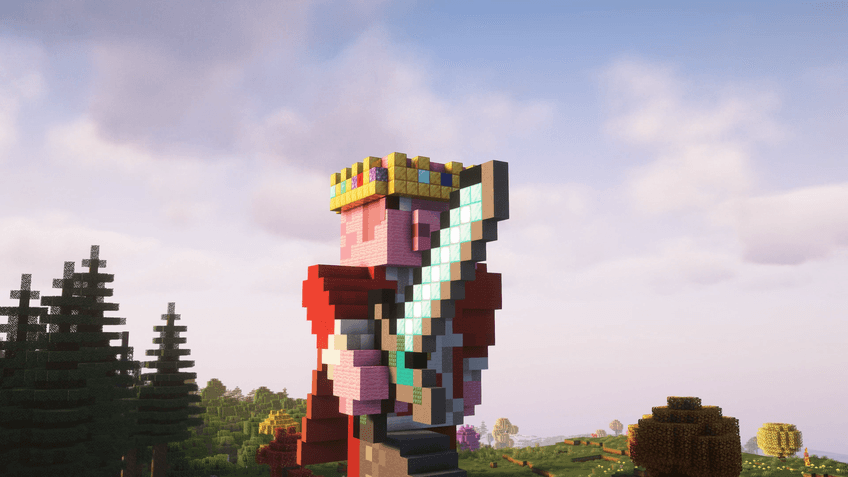 Orbit Around a Player A low-angle orbit shot circling a player against an open sky.
 -
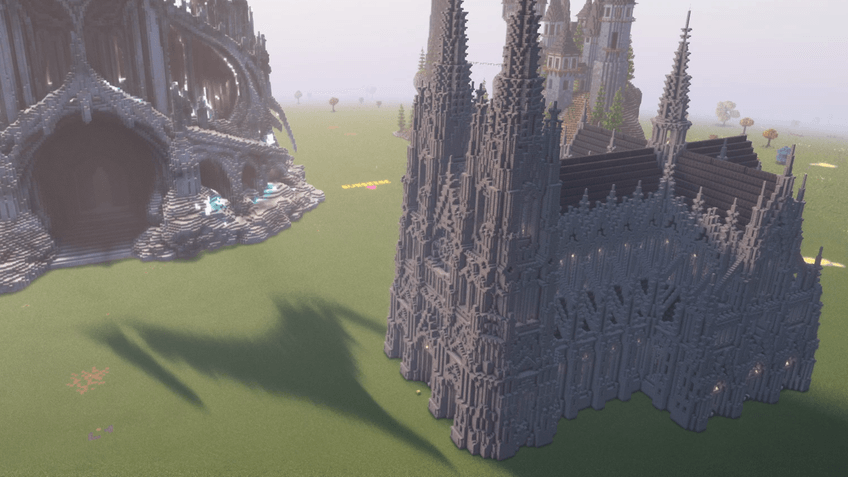 Manual Path: Cathedral Reveal A manual camera path swoops down past the spires to a wide shot of the cathedral.
 -
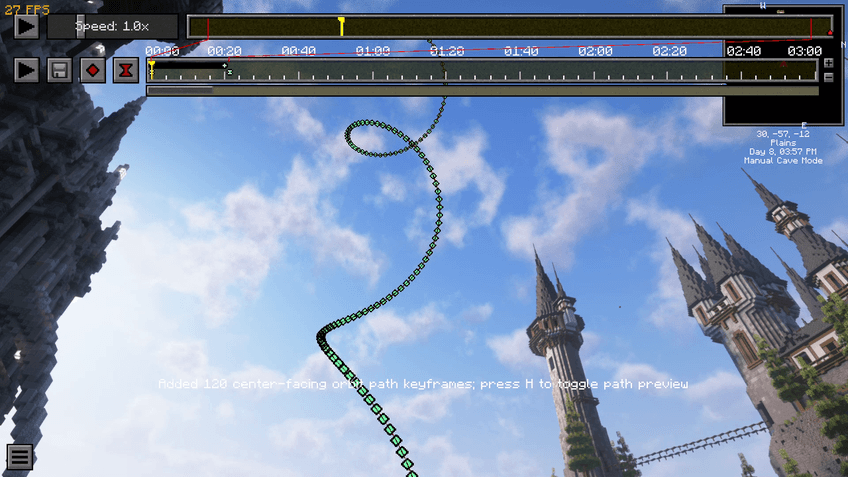 Descending Helix Path Preview A procedural orbit drawn in-world as a helix spiralling down beside the castle towers.
 -
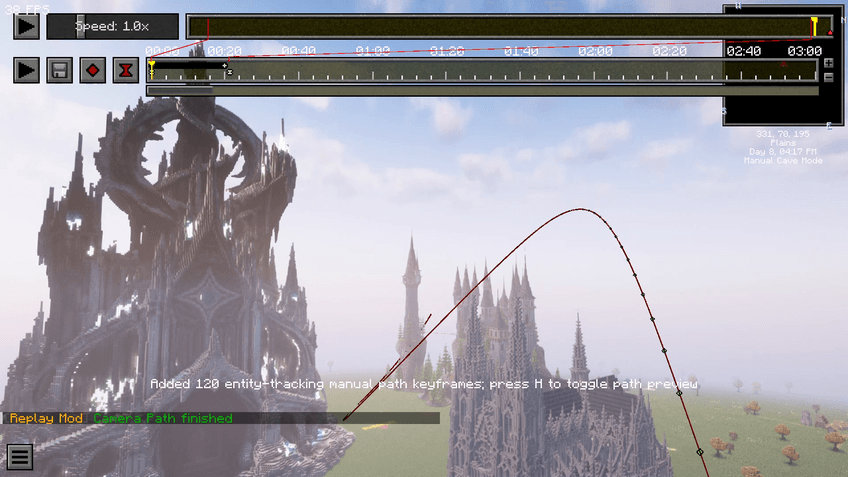 Path on the ReForgedPlay Timeline A 120-keyframe entity-tracking manual path, shown as a curve in the world and placed on the ReForgedPlay timeline.
 -
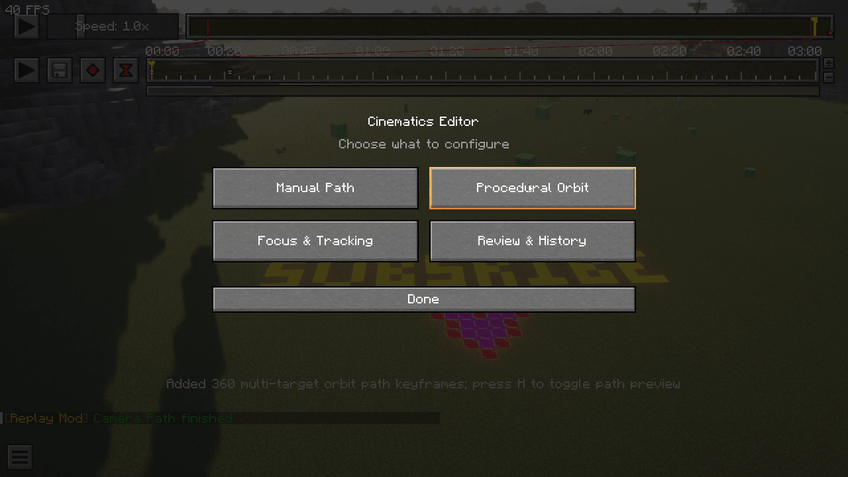 Cinematics Editor (F7) One menu for Manual Path, Procedural Orbit, Focus & Tracking and Review & History.
 -
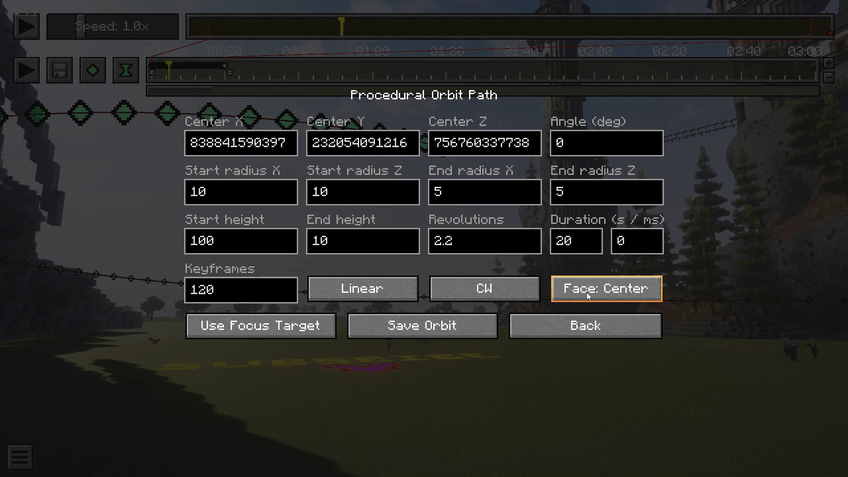 Procedural Orbit Settings Set start/end radius and height, revolutions, duration, keyframes, easing, direction and facing.
 -
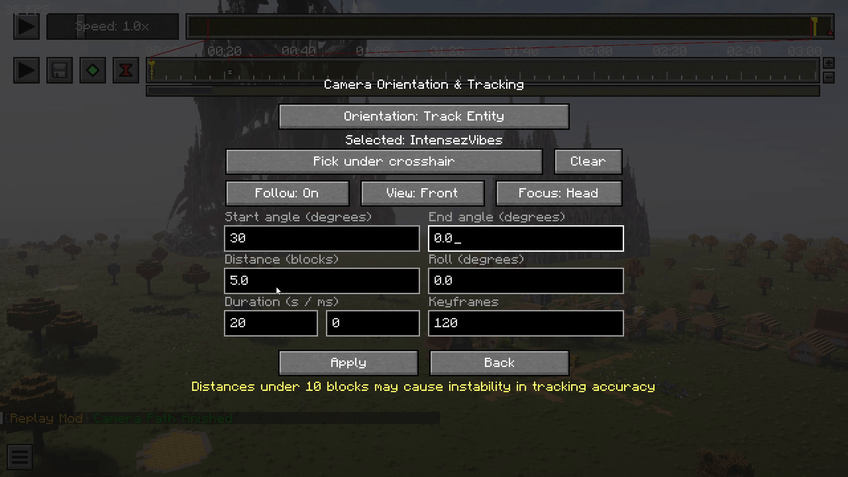 Entity Follow & Tracking Pick a player under the crosshair, then follow from the front with set angles, distance and head focus.
 -
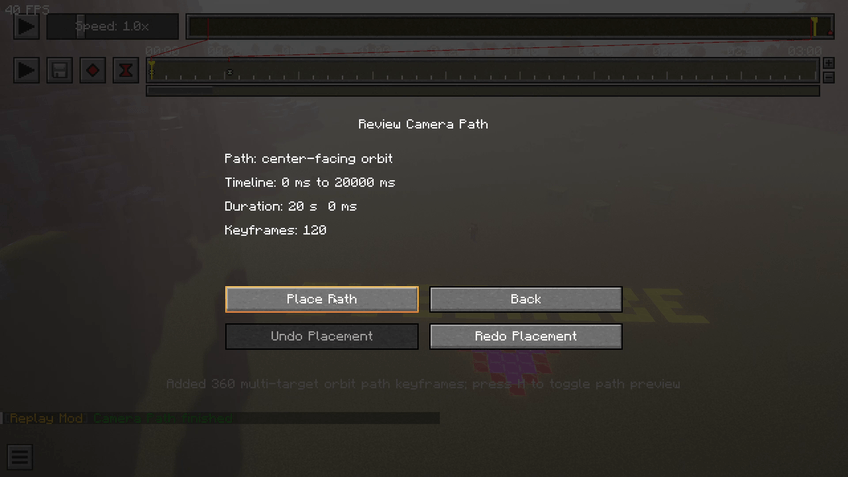 Review & Place Check the path type, timeline range, duration and keyframe count, then place it, with undo and redo.
 -
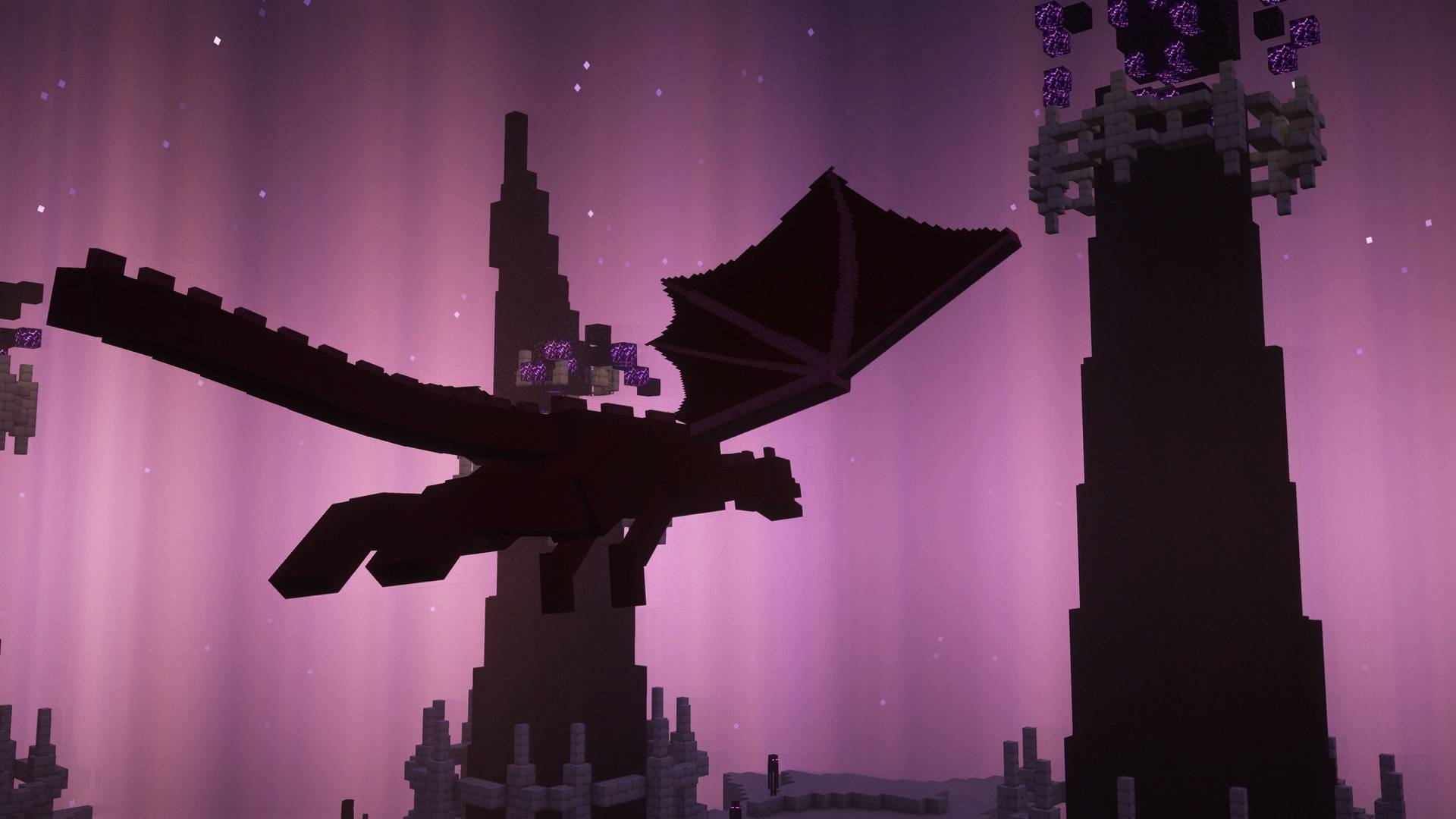 Ender Dragon Follow Pick the dragon once and the camera follows it between the End pillars as one multipart mob, with no hand keyframes.
 -
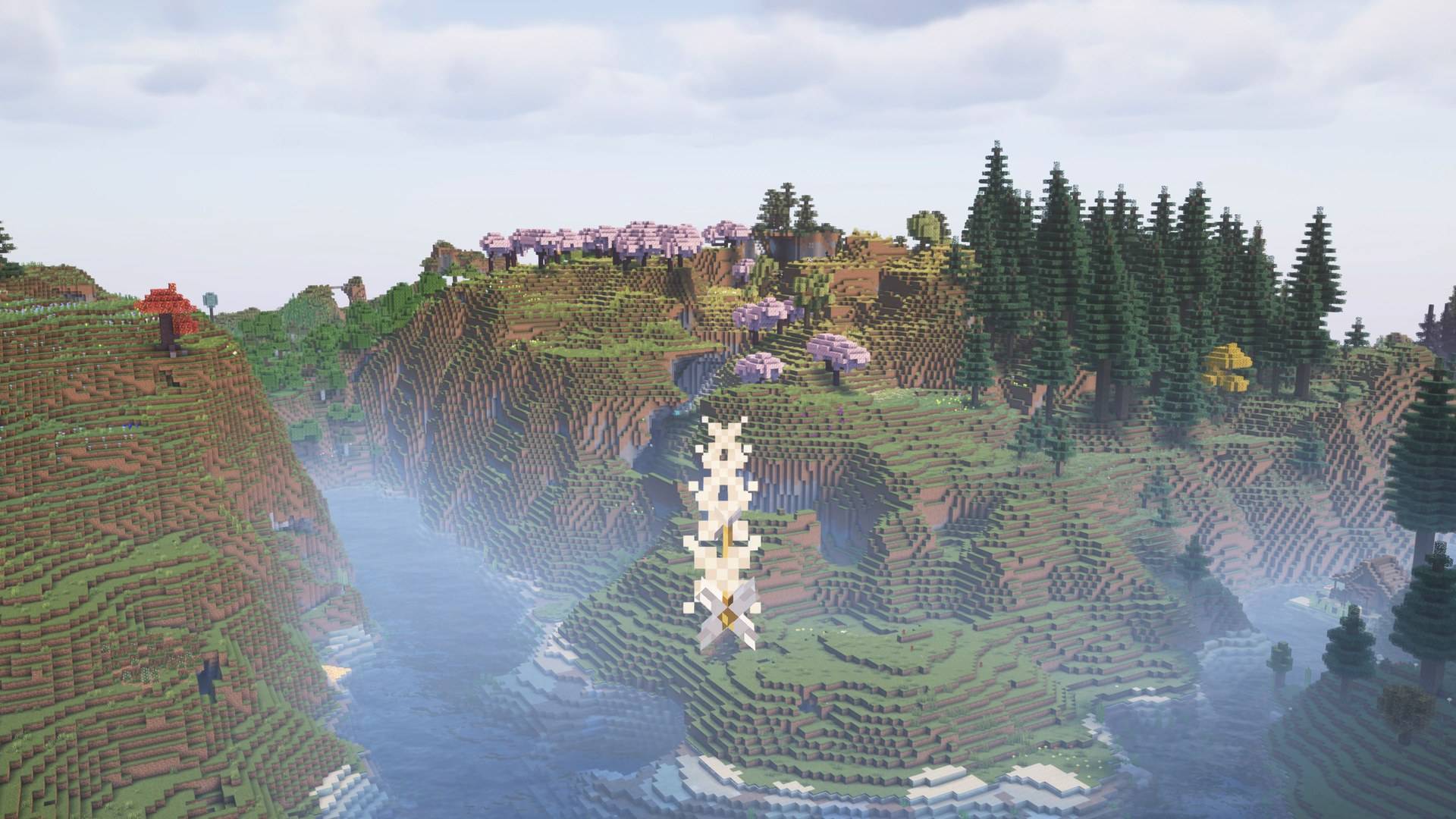 Arrow Chase Cam The camera rides behind a fired arrow over the valley, following its real flight from the bow to where it lands.
 -
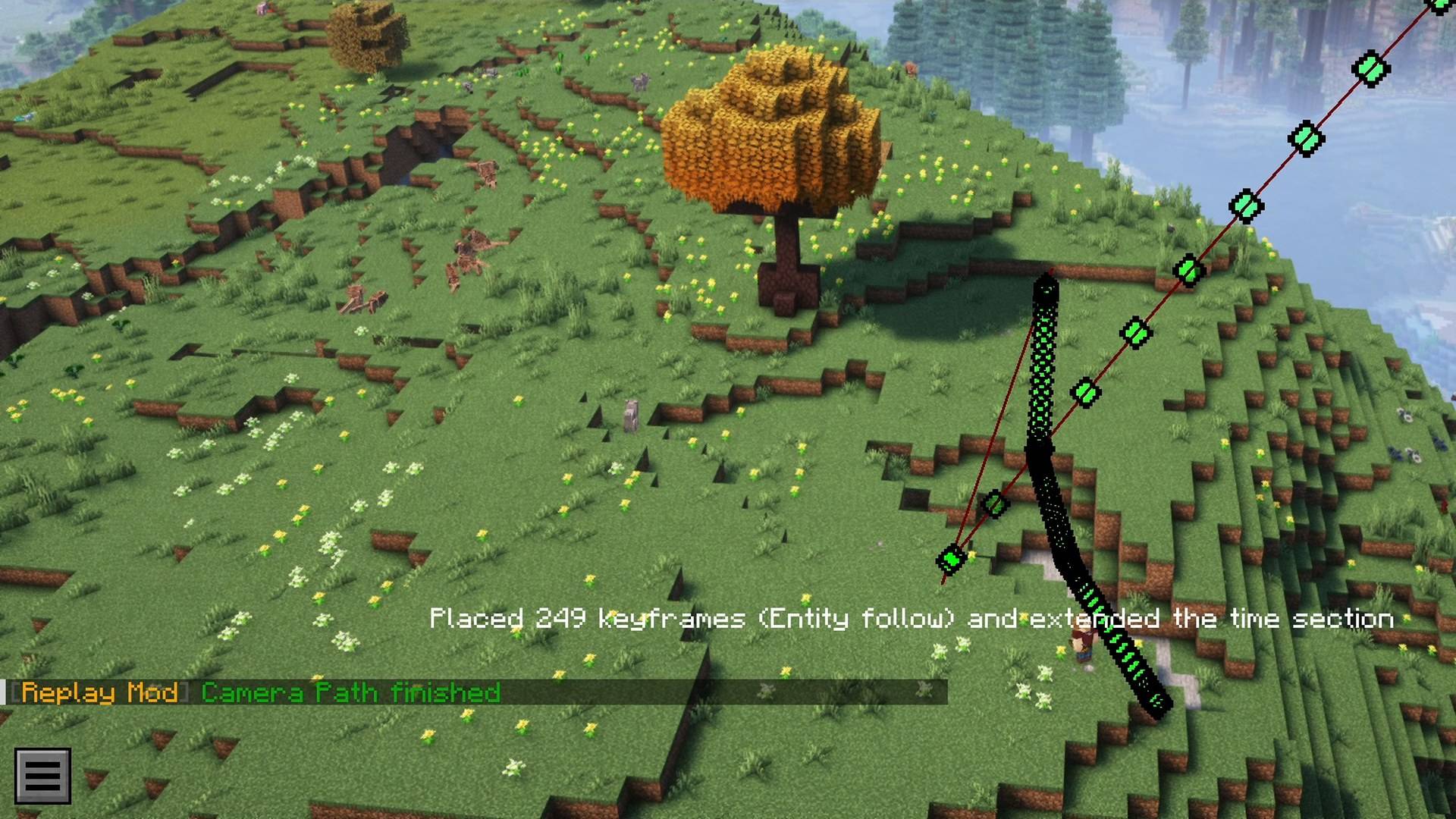 Arrow Arc, Fitted to the Real Flight An entity follow on an arrow places 249 keyframes along its true arc and extends the time section automatically.
 -
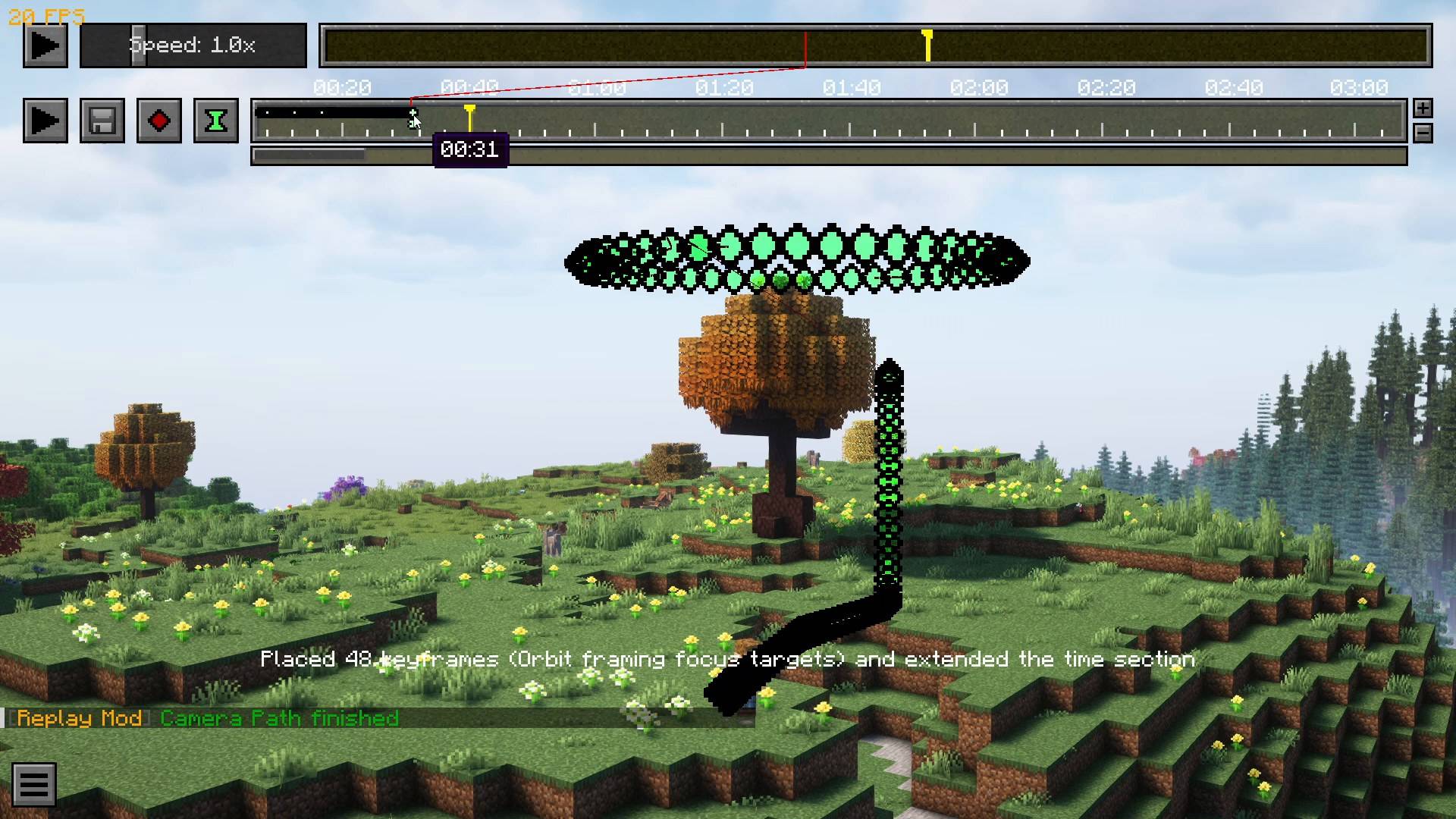 In-World Path Preview See the camera path drawn in the world before you render, here an orbit ring framing the tree.
 -
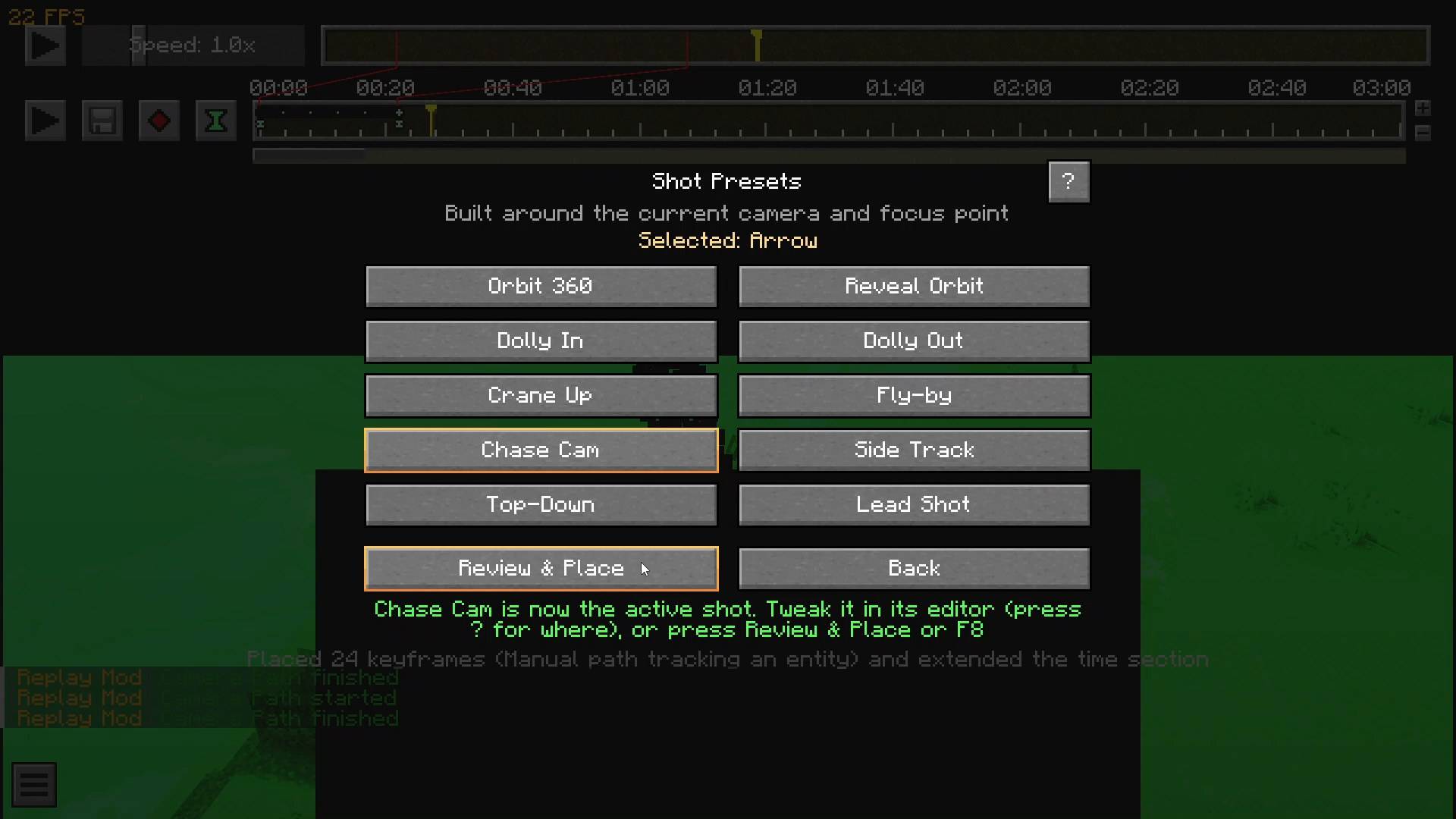 One-Click Shot Presets Ten presets (Orbit 360, Reveal Orbit, Dolly In/Out, Crane Up, Fly-by, Chase Cam, Side Track, Top-Down, Lead Shot) built around the selected target.
 -
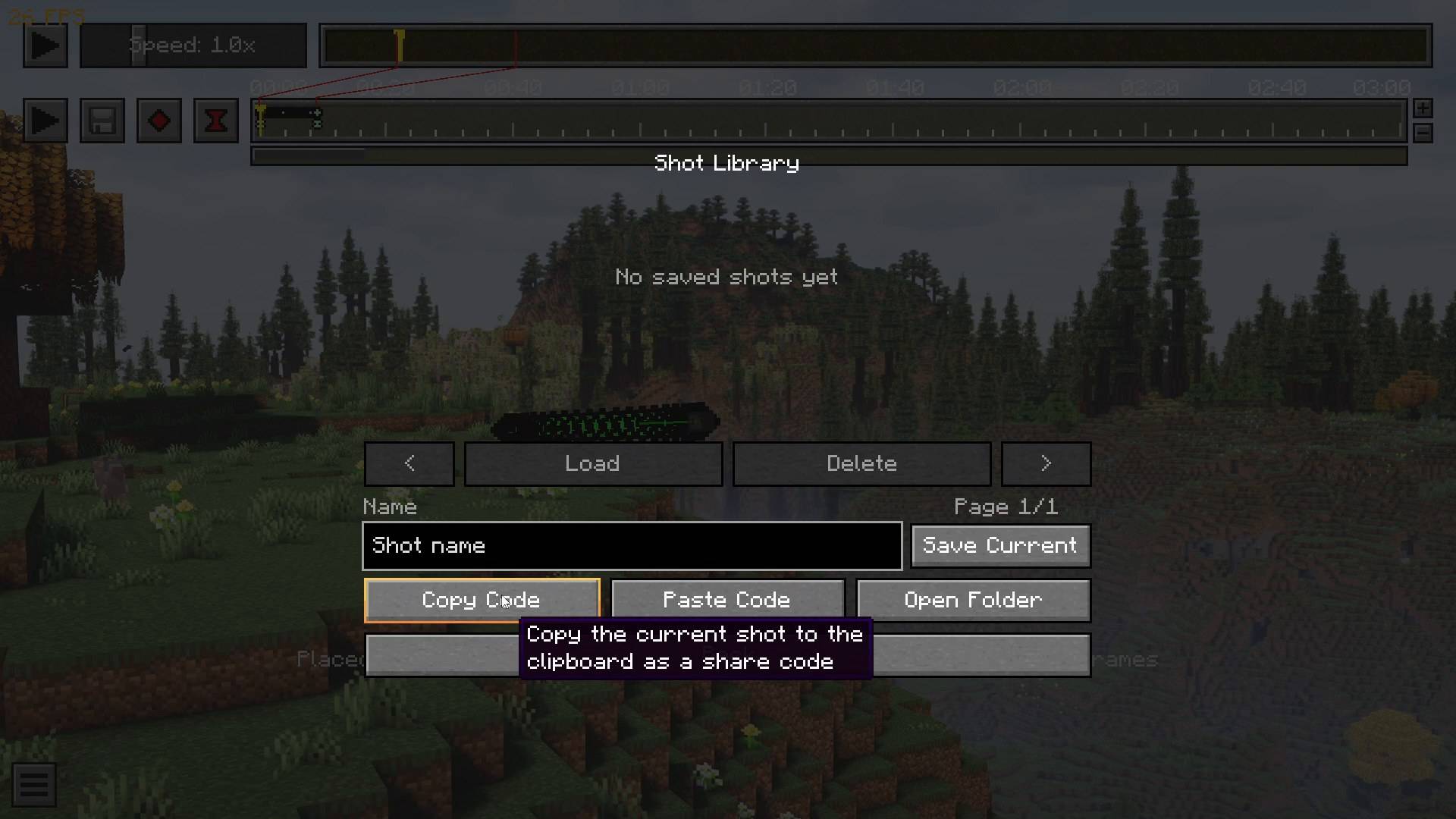 Shot Library and Share Codes Save shots by name, load them later, or copy a shot as a share code to send to a friend.
 -
Replay Mod Cinematics 0.2.0 demo
Versions
Files
Relations
Project Relations
More like this
Similar Mods
Suggestions use data such as tags, dependencies, dependents, descriptions, titles, and more to rank how much they overlap with this mod.
On ModDex
Community snapshot
By the numbers
Statistics

Get it on
Available Platforms
On ModDex
Community snapshot
By the numbers
Statistics
Resources