
Community listing page, reviews may not be monitored by the author.
RootApp Menu

No reviews yet
A RootApp-style interface for Minecraft: server sidebar with live status, singleplayer, multiplayer, mods, options, pause menu, loading screen, notifications and a messenger-style chat with avatars. Client-side only. NeoForge 26.2.

Community voices
Reviews
No reviews yet. Be the first to review this project!
Get it on
Available Platforms
About
Project Details
For authors
Embed Badge
If you're the author of this project, you can embed a live badge anywhere that supports HTML or Markdown. It updates automatically whenever ratings change.
Use HTML for any page that supports it, or Markdown for README files and Markdown-based descriptions.
Identifiers
Platform IDs
Resources
External Links
About
Description
RootApp Menu
A complete chat-app style interface for Minecraft. Dark, rounded, fast, and it works without any other mod. Server list in the sidebar, big cards for everything else, notifications in the bottom right corner and a chat that looks like a modern messenger.
Client side only · NeoForge 26.2 · no dependencies
Features
Main menu
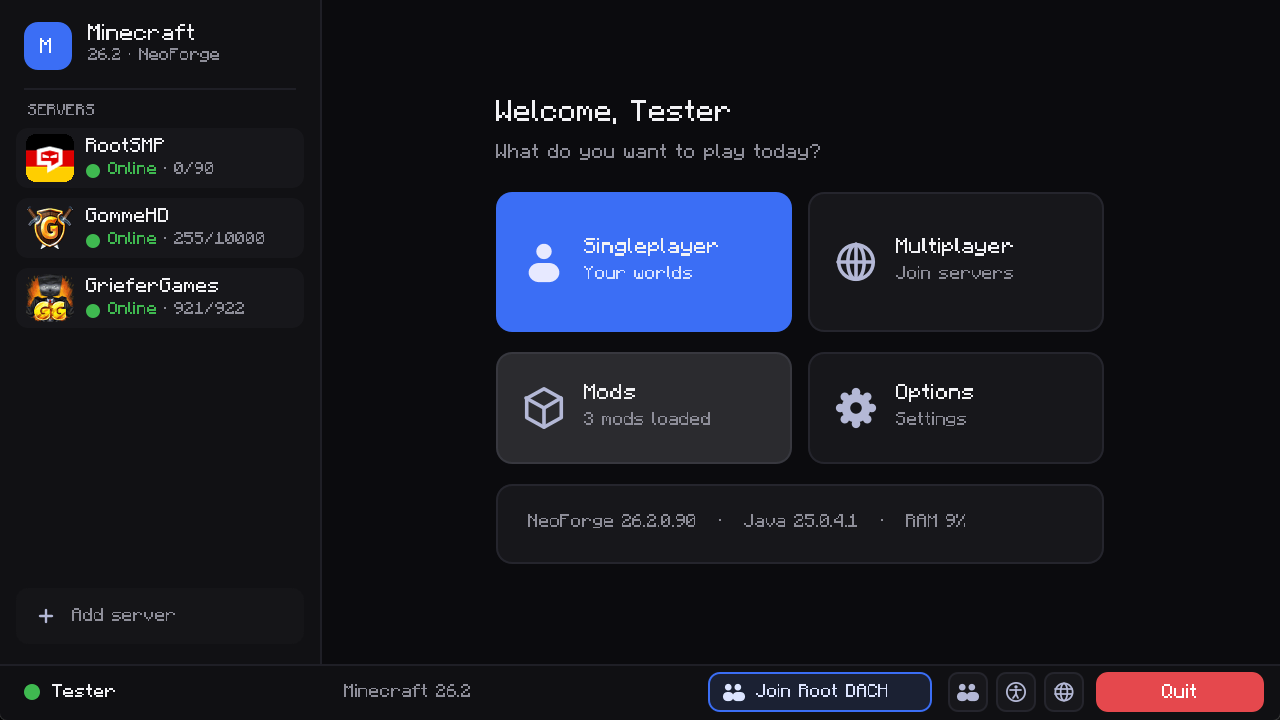
- Your saved servers in a sidebar, with live status (online, players, offline). One click joins.
- Big cards for Singleplayer, Multiplayer, Mods and Options.
- A Continue card with your last played world or server: one click and you are back in.
- Quick buttons for Friends, Language and Accessibility.
- Join Root DACH button in the bottom bar (opens an invite link after a confirmation).
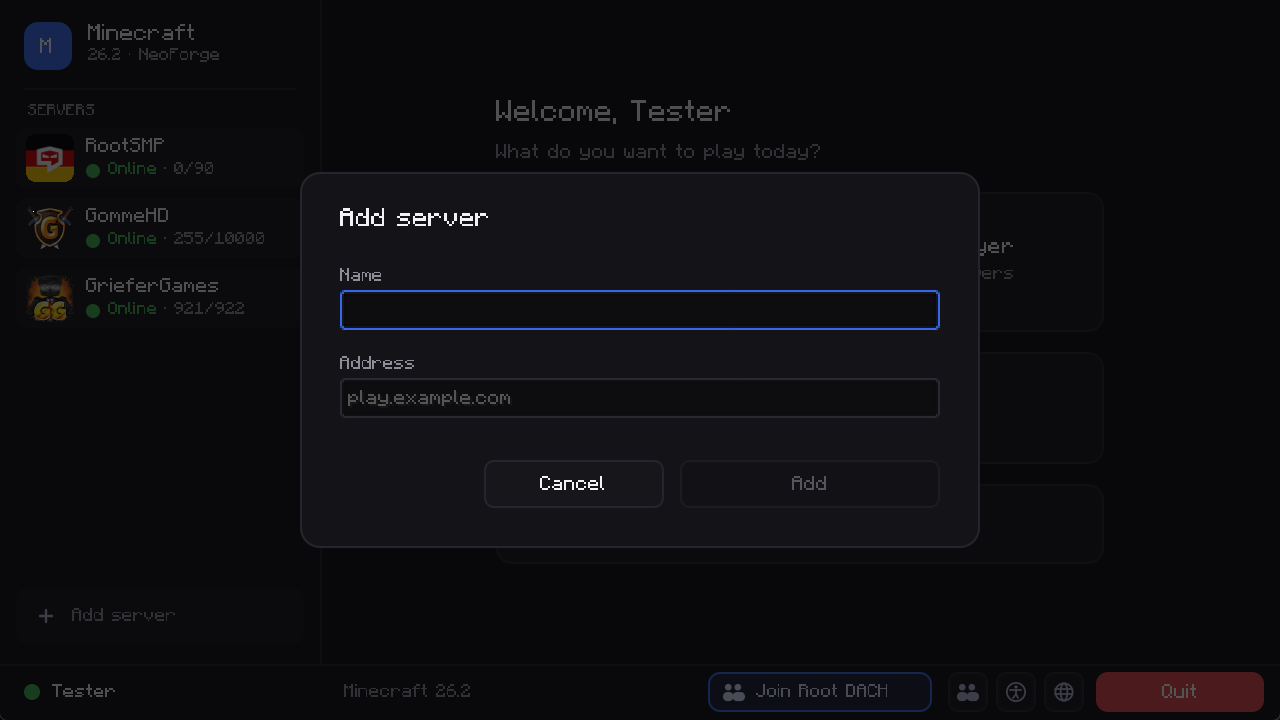
- Add a server straight from the main menu.
Singleplayer
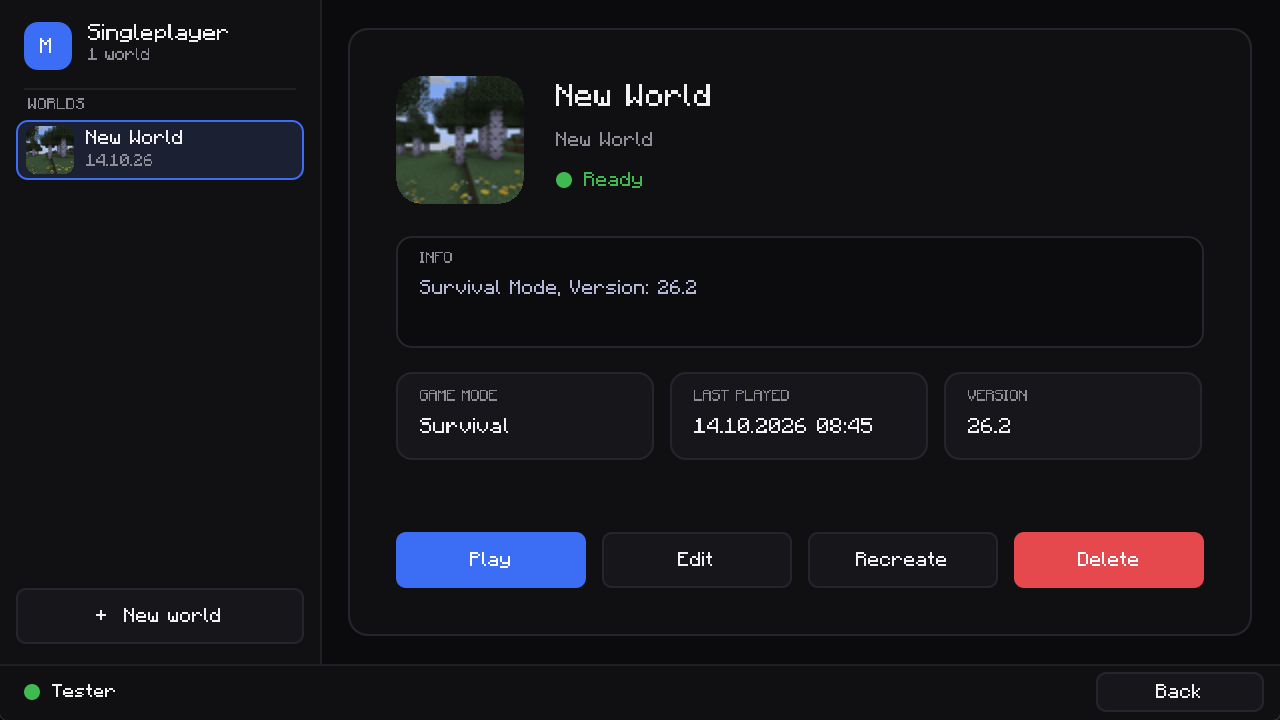
- All worlds in a list with icon and last played date.
- Details, game mode and version on the right. Play, Edit, Recreate and Delete with Minecraft's original safety dialogs (backups, conversion, …).
- Creating and editing a world opens inside the same window.
Multiplayer
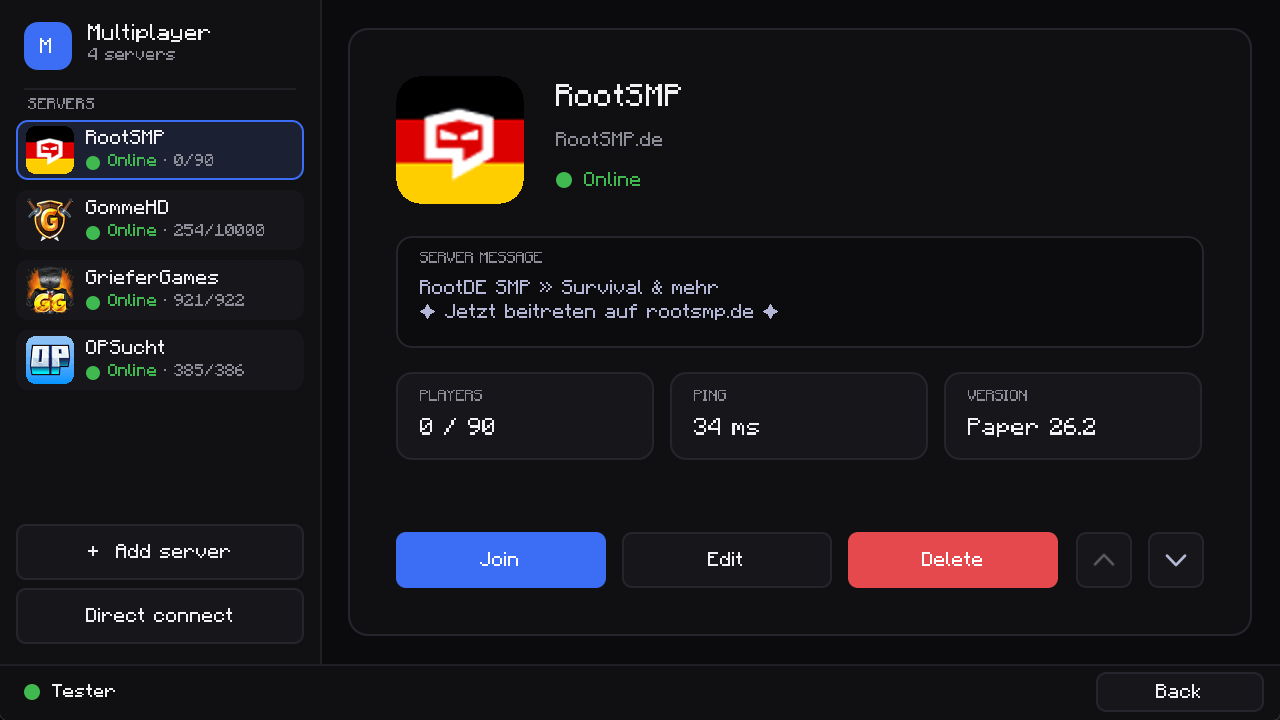
- All servers in the sidebar with ping, player count, version and the server message.
- Add, edit, delete and re-order servers. Direct connect.
- Favourites are pinned to the top, with a search box and sorting by name or player count.
- The server message keeps its colours (colour codes, bold, gradients), just like in the vanilla server list.
- Hover a server to see the ping history of this session as a graph, the players the server reports and its version, with a warning when it does not match your game.
- LAN worlds are found automatically, also on setups where Minecraft's own LAN search fails.
Options
- Categories on the left, the original settings pages on the right. That means pages added by other mods (for example Sodium and Iris) still work.
- Sub pages such as key binds stay inside the window. Done saves your settings.
Mods
- Searchable mod list with logos, version, author, license and description, plus buttons for the mod's configuration and website.
Worlds
- Every world shows a preview (the latest screenshot you took in it), its size, play time and the date of the last backup.
- Backup saves the world as a ZIP in the
backupsfolder with one click.
In game: HUD and inventory
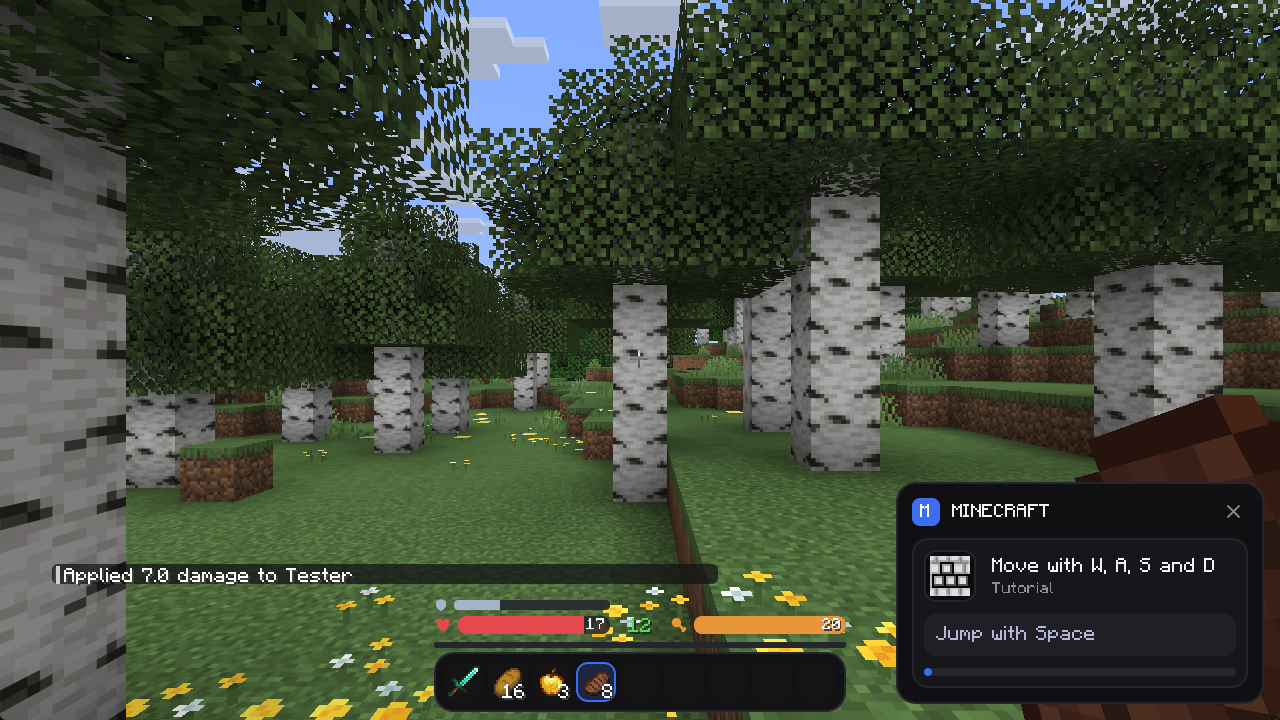
- The hotbar is a rounded card, the selected slot has the accent colour. Health, armour, food, air and experience are slim bars with numbers. Poison, wither and freezing change the colour of the health bar. Held food shows what it would restore, the thin line under the food bar is the saturation (this replaces the AppleSkin overlay).
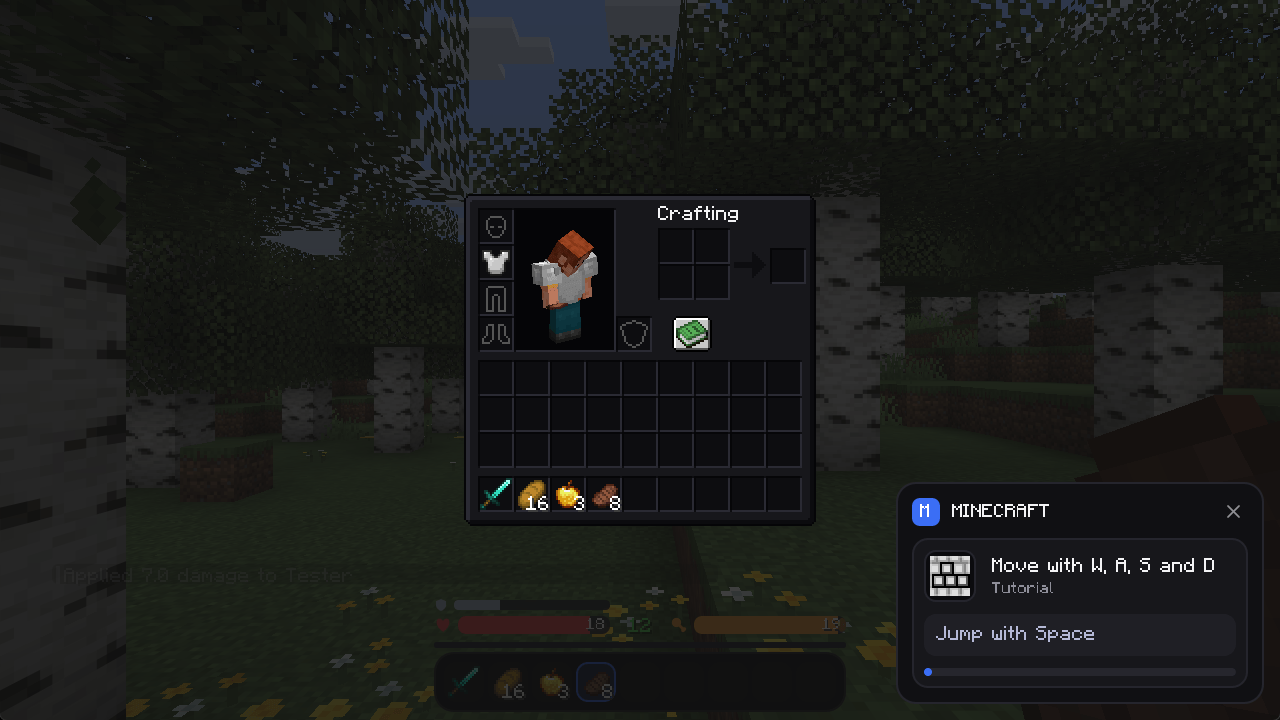
- The inventory, creative inventory, chests, crafting table, furnaces, dispenser, hopper, shulker box, brewing stand, enchanting table and more get dark panels. Anvil, beacon and villager trading keep the vanilla look.
- Both can be switched off in the settings. With the RootApp HUD on, Minecraft's locator bar and jump bar stay vanilla and move above the hotbar, the chat moves up.
Advancements
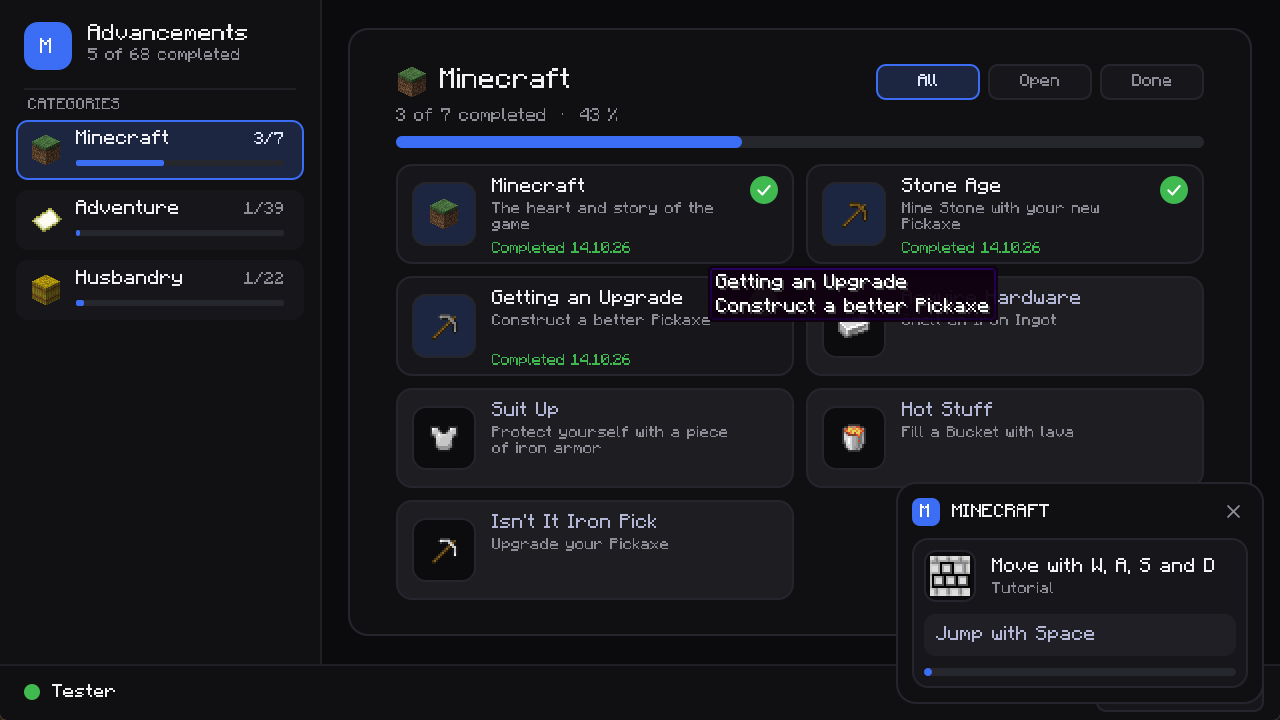
- The categories (Minecraft, Nether, End, Adventure, Husbandry, and those of other mods) with their progress sit in the sidebar, the advancements of the chosen category are cards with icon, description, progress and the date you got them. A filter shows all, open or completed ones.
Pause menu, loading and dialogs
- The pause menu lists all of Minecraft's (and other mods') buttons and shows world, game mode, difficulty, position and ping.
- A new loading screen with progress while a world loads, and a RootApp start screen instead of the Mojang logo when the game loads its resources (the first NeoForge loading window before it is not part of the mod).
- Connecting, disconnected, confirm and message screens as clean cards.
Notifications
- Advancements, recipes, tutorial hints, friend messages and system messages appear as cards in the bottom right corner with a close button. Up to two at once, the rest waits in a queue. The same notification arriving again and again (many recipes, download progress) is shown as one card with a counter.
Chat
- Every message is a card with the player's head, coloured name and the time ("Today at 09:38").
- Fully compatible with Minecraft's chat: wrapping, links, hover texts, commands and suggestions work as before.
- Mentions: messages that contain your name get a highlighted card and a short sound.
- Emojis from your system:
:smile::heart:<3:fire::thumbsup:and about 50 more codes (and real emoji characters) are shown with the emoji font of your operating system (colour Segoe UI Emoji on Windows). - Emoji menu: a button at the end of the chat input opens a panel with your most used emojis on top and all others below. A click inserts the emoji.
- Commands and system messages use a slim, compact style.
- Settings: switch the RootApp style off to get the original chat layout back, and set the background opacity of the message cards.
Screenshot gallery
- Button in the bottom bar of the main menu and the pause menu opens all screenshots of your game as thumbnails, newest first, with a filter for today, last 7 days and older.
- Click one for the large view: previous/next (arrow keys or mouse wheel), open in your image viewer, delete (with confirmation) and open the screenshots folder.
- Copy puts the picture on your clipboard (Windows, macOS, Linux with wl-copy/xclip), Select (or Ctrl+click) marks several pictures to delete them at once.
- The Source tab groups screenshots by the world or server they were taken in (the mod remembers that from now on).
- Images are loaded in the background, so even hundreds of screenshots open without a hitch.
Settings profiles
- Save your current settings (video, sound, controls, language, resource packs and the look of this mod) as a profile and switch between setups with one click, for example Survival, PvP or Streaming.
- Before you apply a profile you see which settings will change. One click on Undo switch takes the last change back.
- Auto-switch: pick servers for a profile (for example PvP for your PvP server) and it is applied as soon as you join one of them.
- Share profiles: export a profile as a
.rootprofilefile, import one with the Import button or by dragging the file onto the window. - Profiles are plain folders in
rootappmenu_profilesinside your game folder.
Notification history
- Missed a notification? Press N in game or use the bell button in the main menu to read the latest ones again.
- The music hint ("Now playing") also uses the card style.
Colours
- Choose an accent colour (blue, green, violet, orange, pink, red) and a design (dark, graphite, black).
Language
English, German, French, Spanish, Polish, Italian, Portuguese (Brazil), Dutch and Russian are included and follow your game language.
Settings
Options → RootApp Menu (or Mods → RootApp Menu → Configuration):
| Setting | Description |
|---|---|
| RootApp chat style | On: messages as cards with avatars. Off: the original Minecraft chat. Applies to new messages. |
| Highlight mentions / Mention sound | Coloured card and a sound when your name is mentioned. |
| Emojis | Show :smile: codes and emoji characters with the system emoji font. |
| Chat background opacity | How solid the message cards are. |
| Accent colour / Design | Colours of all RootApp screens. Applied with "Done". |
| RootApp HUD | Hotbar and bars for health, armour, food, air and experience. |
| RootApp inventory | Dark inventory, chest, crafting and furnace panels. Applied with "Done" (the resources reload). |
| RootApp start screen | Replace the Mojang logo with the RootApp loading screen. Applies at the next start. |
| Check for updates | Tell me when a newer release is on CurseForge (only the project id is sent). |
The music volume starts at 0 the first time (only while it still has Minecraft's default value); change it in the sound settings.
Settings are stored in config/rootappmenu-client.toml.
Compatibility
- NeoForge 26.2 (Minecraft 26.2), client side only. Do not install it on a server.
- Tested together with 27 mods (including Sodium, Iris, JEI, Xaero's maps, Simple Voice Chat): start-up, main menu, options and mod list.
- The chat styling switches itself off automatically if another mod changes Minecraft's chat in an incompatible way, and the normal chat appears. The same goes for the settings screens of other mods: they are shown as they are, inside the window.
Links
- Join Root DACH: https://rootapp.gg/ADHbBMTjhgqbtLId54dNMQ
- Website: https://rootapp.gg/just-gaming
Credits
Made by TitanEcho / BSoftware. MIT license. Minecraft is a trademark of Mojang Studios. This is a fan made interface mod.
Screenshots
Gallery
-
 01_main_menu.png 01_main_menu.png
 -
 02_singleplayer.png 02_singleplayer.png
 -
 03_multiplayer.png 03_multiplayer.png
 -
 04_add_server.png 04_add_server.png
 -
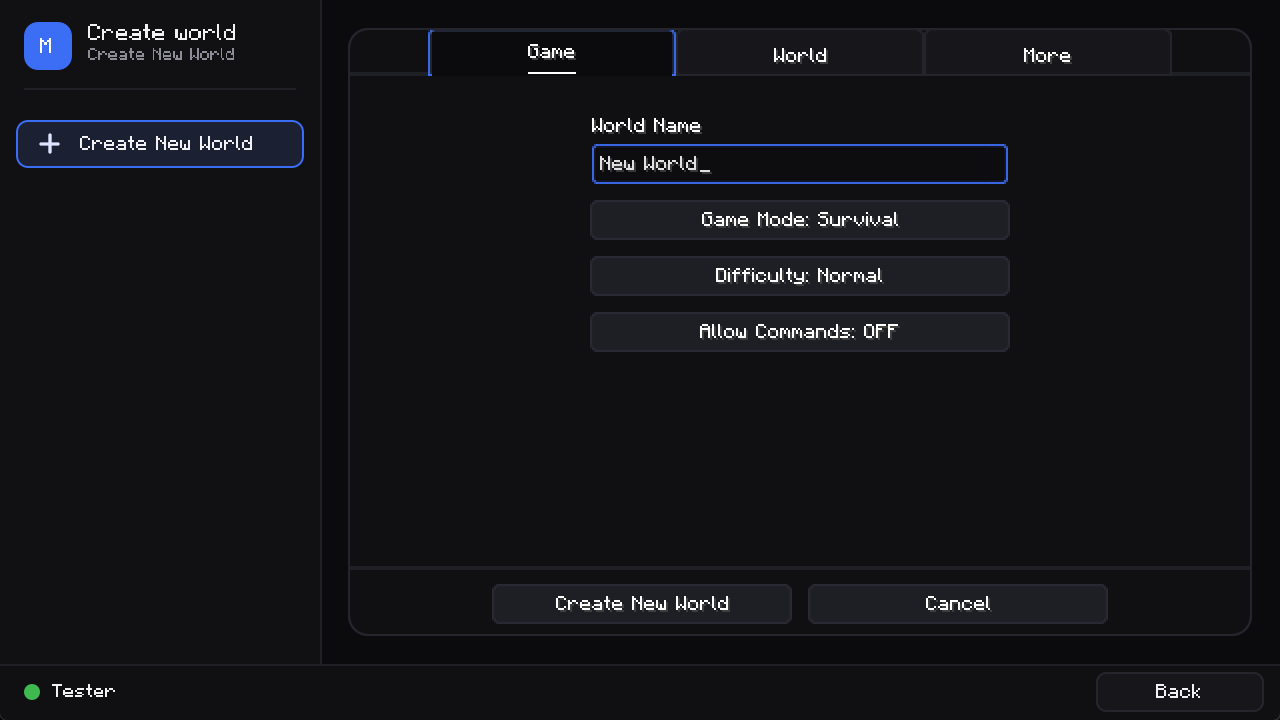 05_create_world.png 05_create_world.png
 -
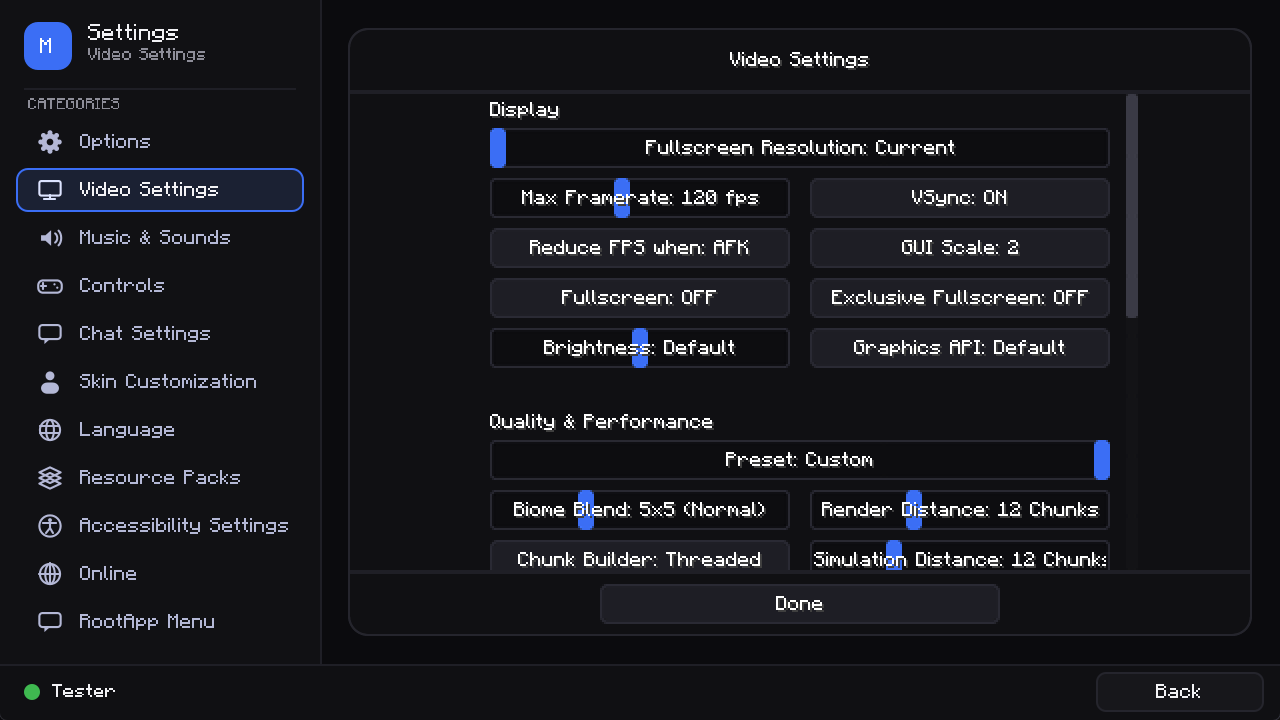 06_options.png 06_options.png
 -
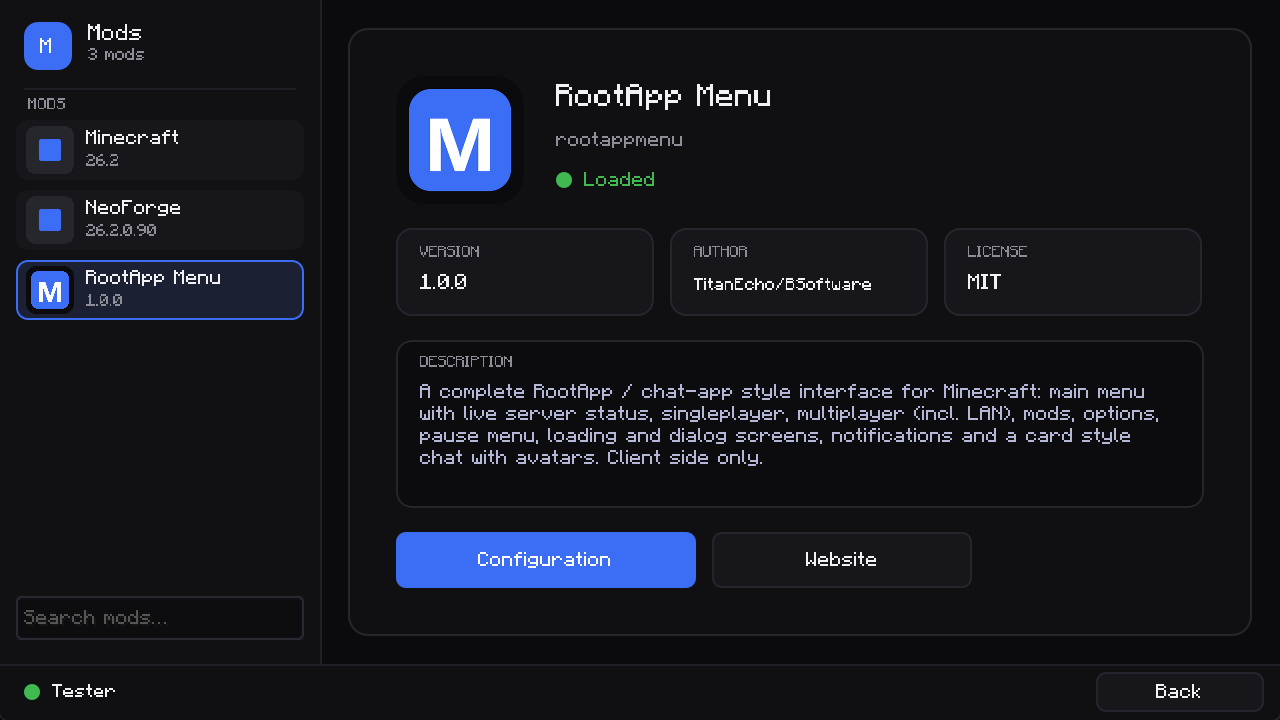 07_mods.png 07_mods.png
 -
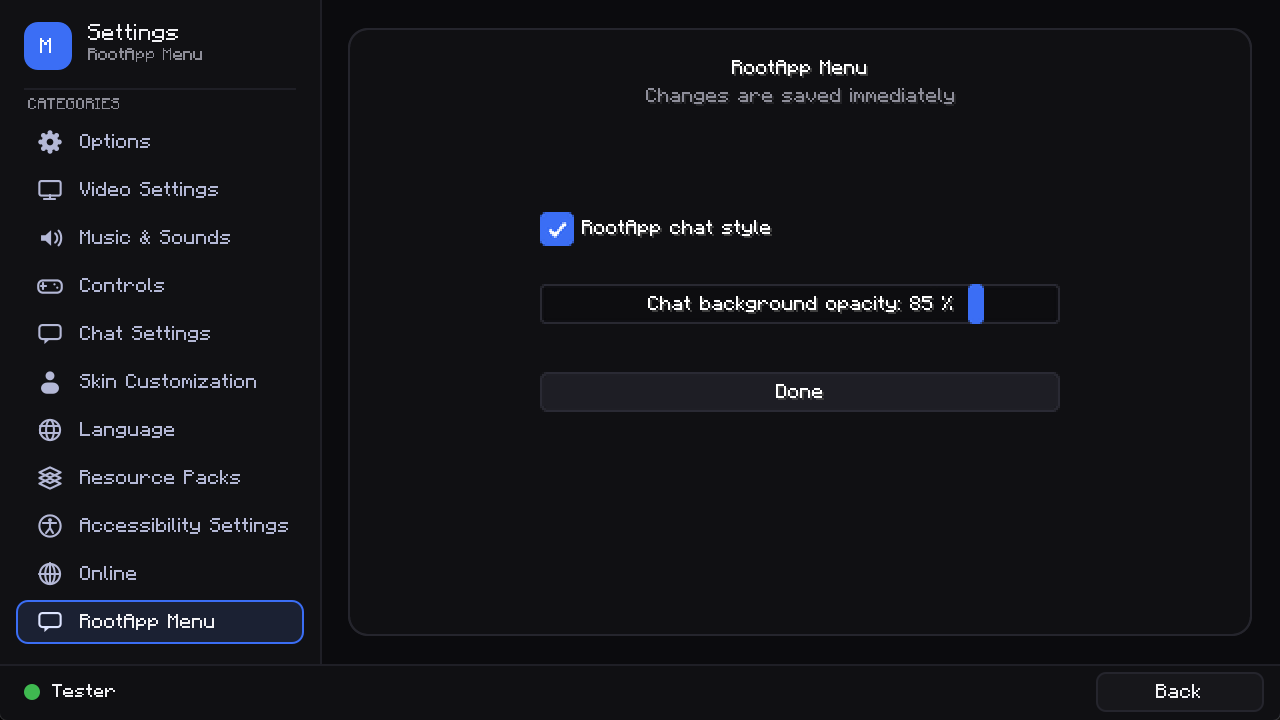 08_settings.png 08_settings.png
 -
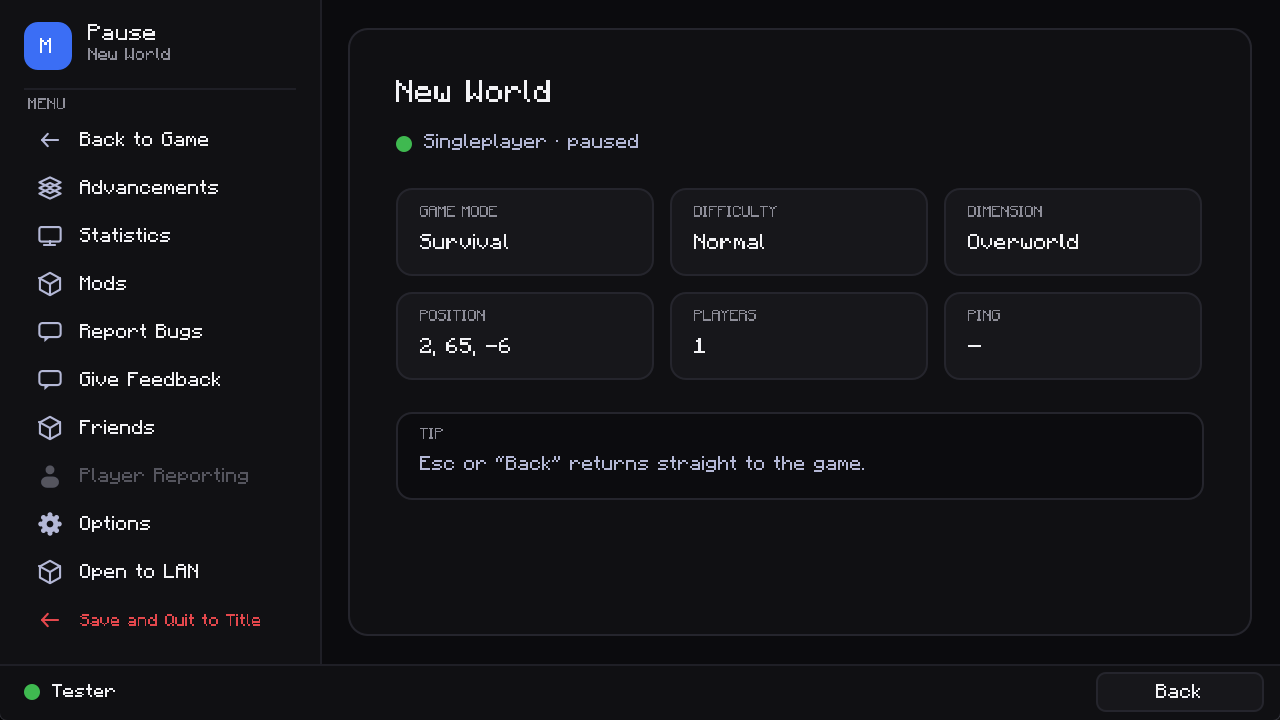 09_pause_menu.png 09_pause_menu.png
 -
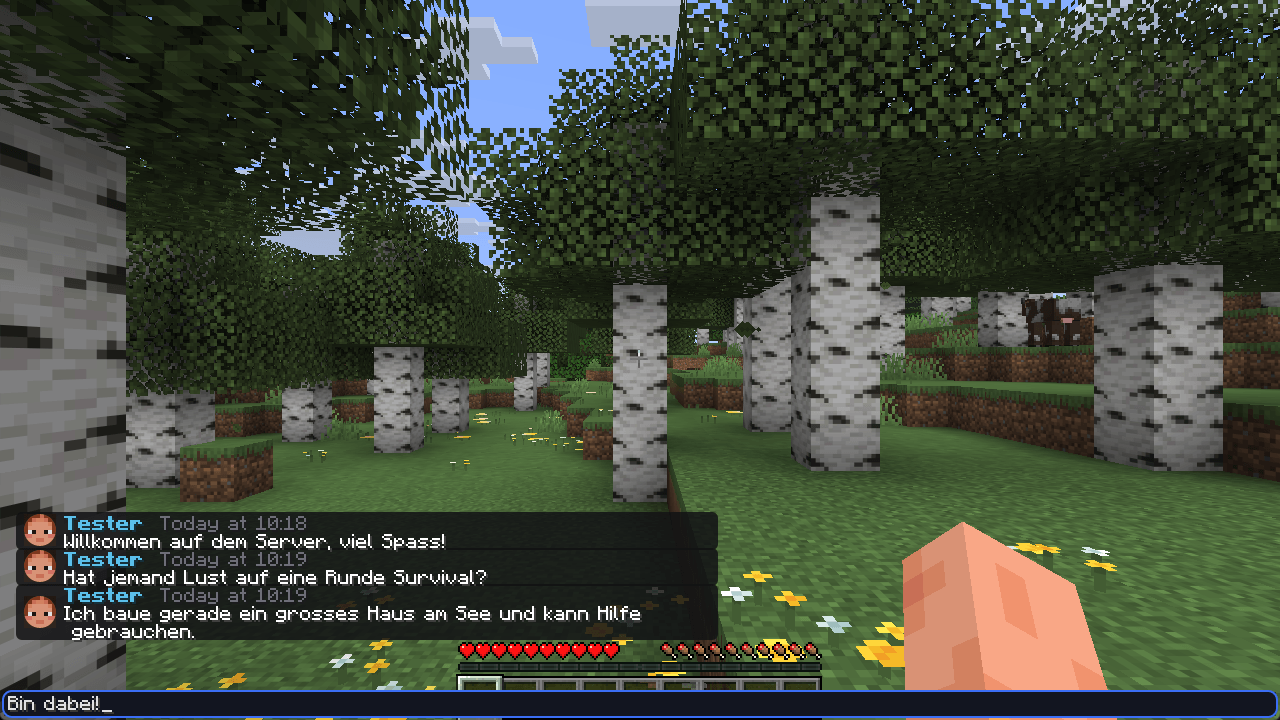 10_chat.png 10_chat.png
 -
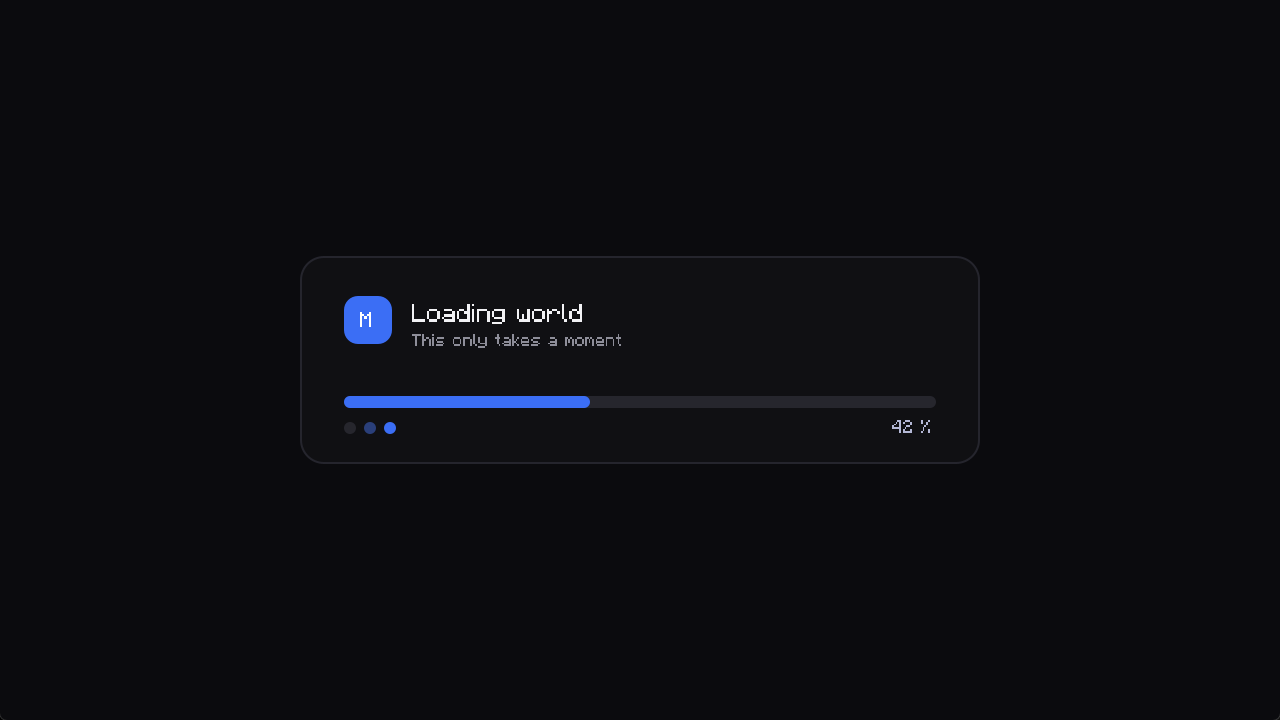 11_loading_screen.png 11_loading_screen.png
 -
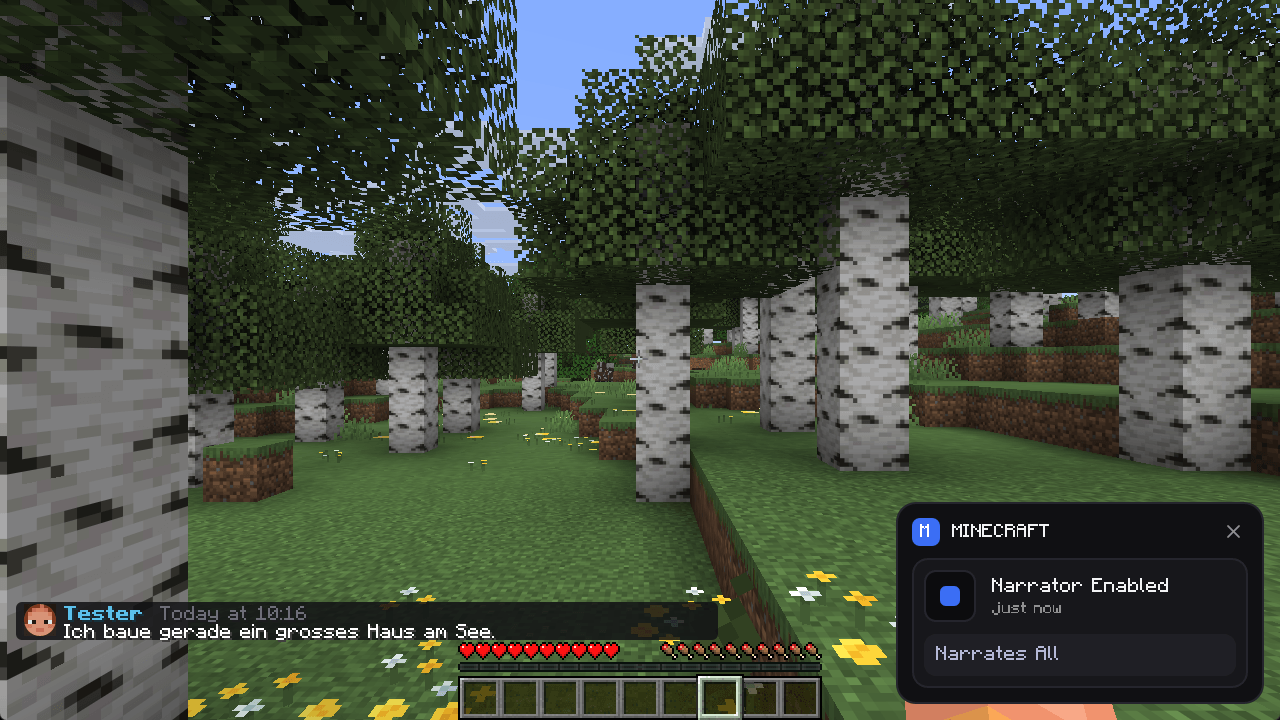 12_notification.png 12_notification.png
 -
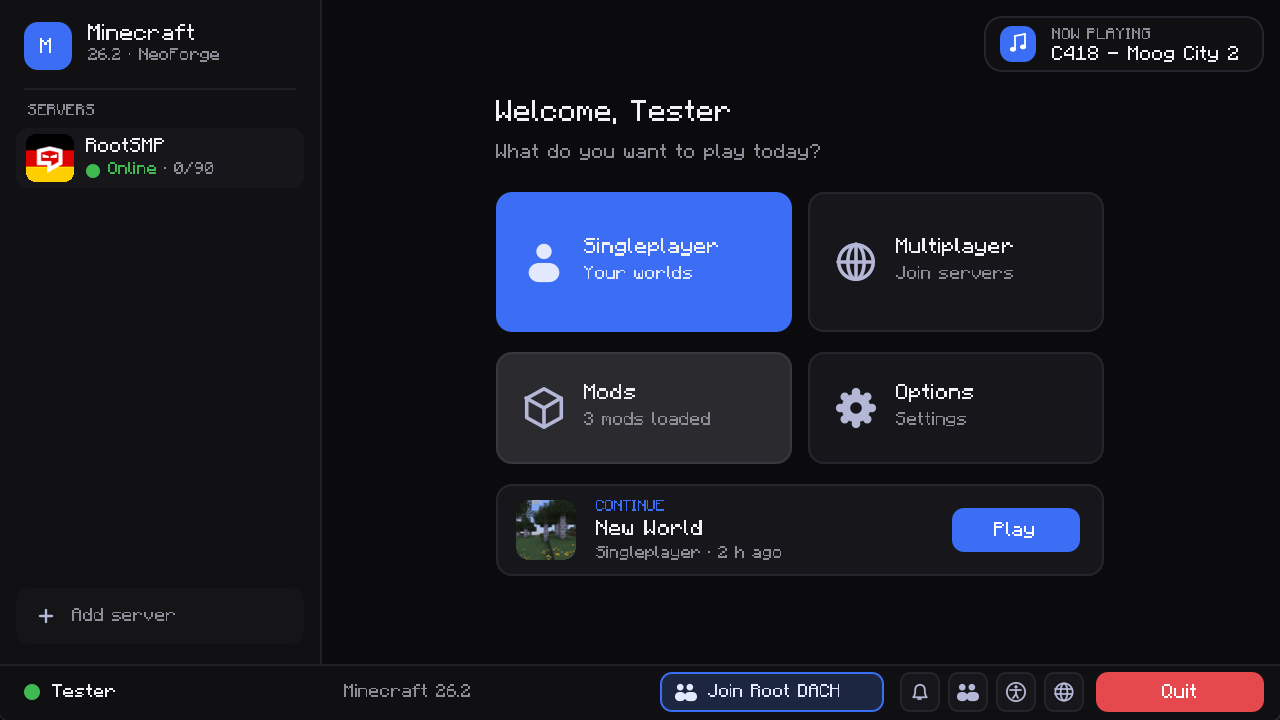 14_now_playing.png 14_now_playing.png
 -
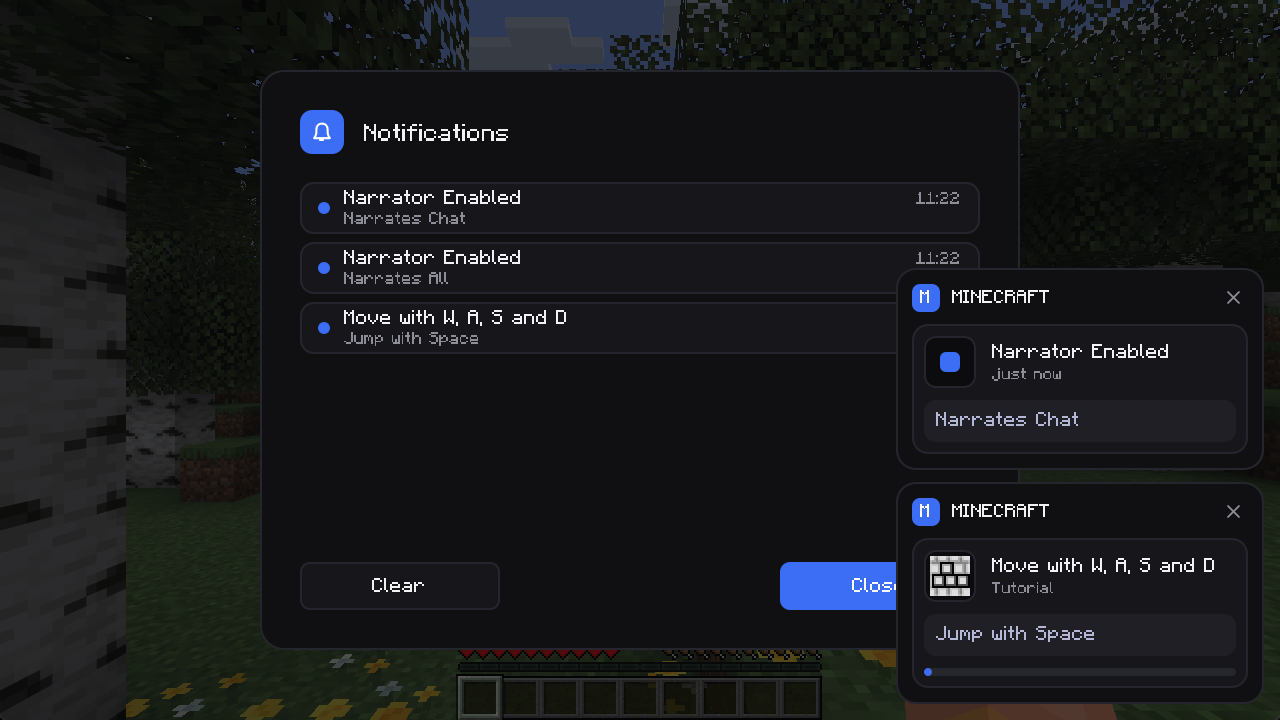 image-attachment_7334e235-9499-482e-bb1f-7176dcda23bb.png
 -
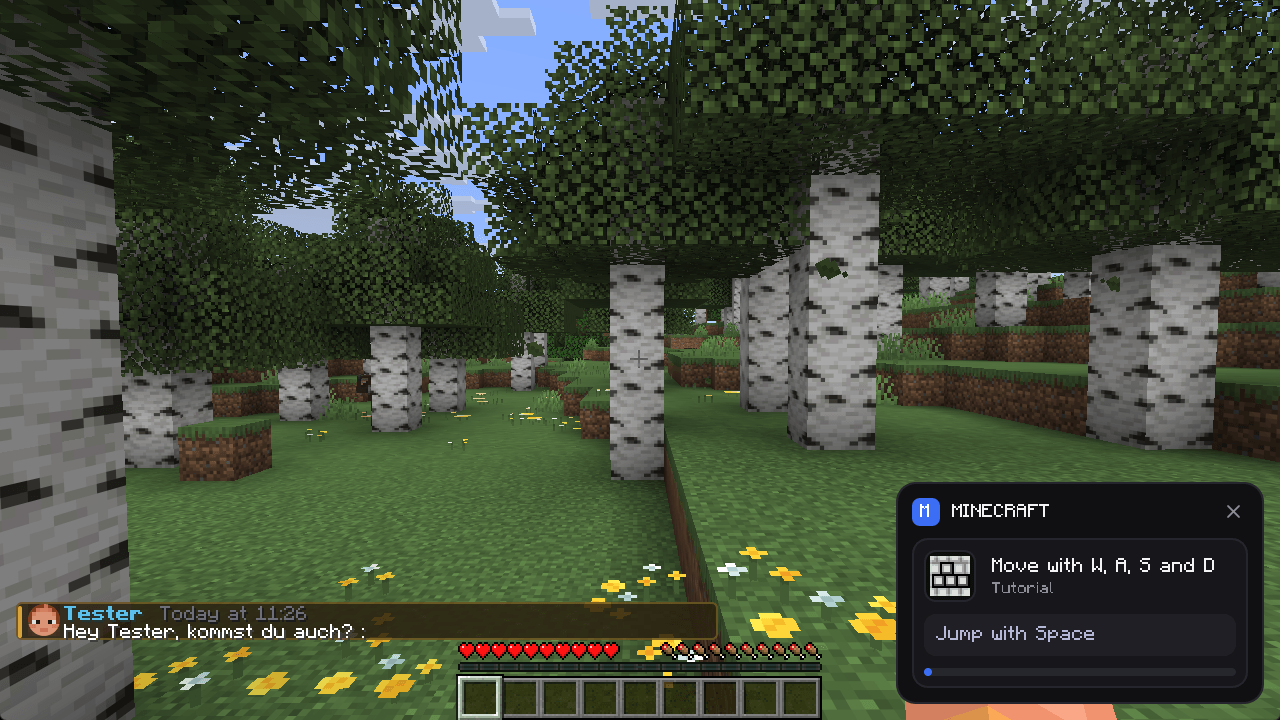 16_mention_highlight.png 16_mention_highlight.png
 -
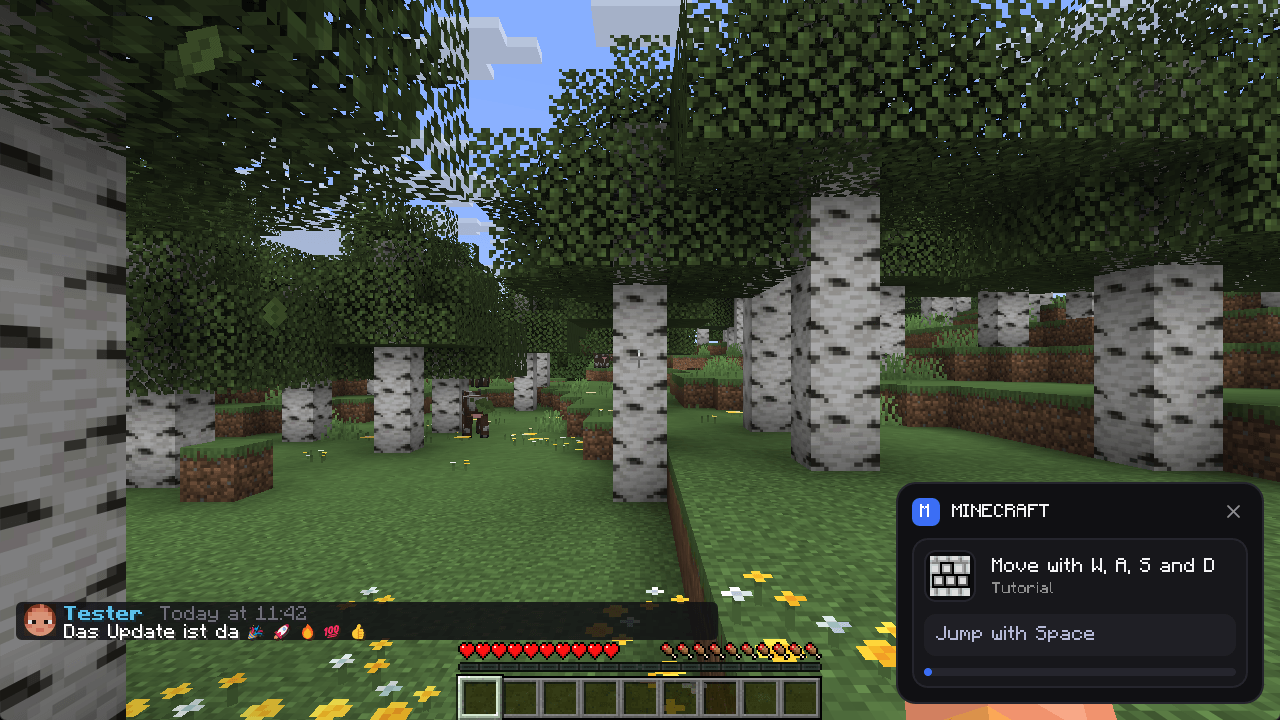 17_emojis.png 17_emojis.png
 -
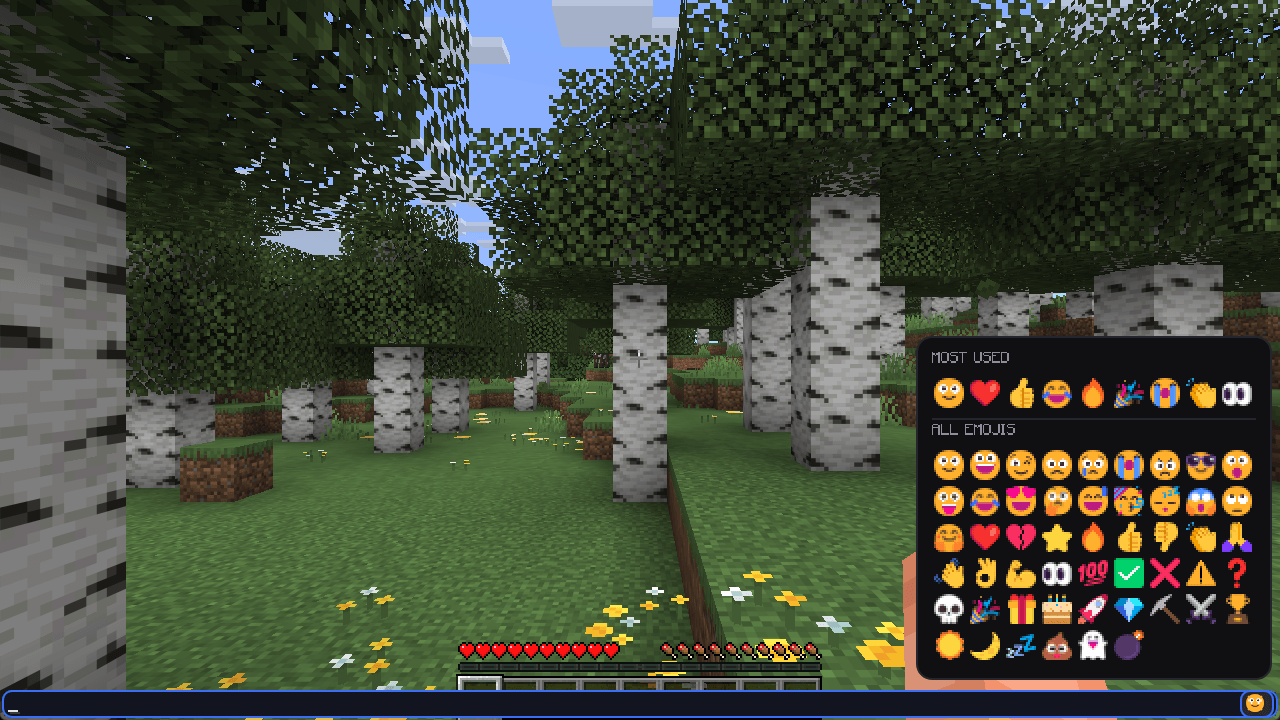 image-attachment_657b6be1-a121-4847-a4d7-0d1a8d108a35.png
 -
 27_advancements.png 27_advancements.png
 -
 24_hud.png 24_hud.png
 -
 25_inventory.png 25_inventory.png
Versions
Files
Relations
Project Relations
More like this
Similar Mods
Suggestions use data such as tags, dependencies, dependents, descriptions, titles, and more to rank how much they overlap with this mod.
On ModDex
Community snapshot
By the numbers
Statistics

Get it on
Available Platforms
On ModDex
Community snapshot
By the numbers
Statistics
Resources