
Community listing page, reviews may not be monitored by the author.
Saved Commands


No reviews yet
This mod lets you save commands and chat messages for easier access later using keyboard shortcuts and the saved commands menu.

Community voices
Reviews
No reviews yet. Be the first to review this project!
Get it on
Available Platforms
Compatibility
Supported Environments
Runs entirely on the client. Works on vanilla servers.
About
Project Details
For authors
Embed Badge
If you're the author of this project, you can embed a live badge anywhere that supports HTML or Markdown. It updates automatically whenever ratings change.
Use HTML for any page that supports it, or Markdown for README files and Markdown-based descriptions.
Identifiers
Platform IDs
About
Description
Saved Commands
Saved Commands is a client Minecraft mod for Fabric that lets you save commands and chat messages for easier access later using keyboard shortcuts and the saved commands menu.
Installation
This mod is only supported by the Fabric mod loader. For installation guides regarding please use the official Fabric player guides.
You can download the mod on either Modrinth or on GitHub under releases. This mod has the following dependencies:
- Required: Fabric API
- Optional: Mod Manu
Using the mod
To use the mod, open the Saved Commands screen by pressing the keybind (defaults to Y on QWERTY and Z on QWERTZ keyboards).
On the Saved Commands screen, you can:
- Add a new command by clicking the "+"-button
- Edit saved commands by clicking on the pen icon on the right. In the appearing popup, you can edit the command, insert variables, add or edit a name and add or edit the keybind combination (shortcut).
- Delete saved commands by clicking on the trash can icon on the right.
- Send and run commands by clicking on them
- Search for commands by entering the query into the top bar.
- Share saved commands with other players on the server using this mod.
- Change global and world settings by clicking on the sliders icon in the top right corner.
Variables can be used to insert player data, like the position and item id of the held item. You can also select a data type like string, integer and float, for you to input before sending. If you don't know these types, use string because it is the least "strict" one.
Custom categories can be enabled in the settings. Turning the related setting on, makes it possible to create and select categories with custom names from within the edit popup.
Commands can be shared with players on the same server using the mod, which also shares all command properties like the name, keybind combination and variables, but not custom categories. When you receive one or more commands, you will get a notification within the game in the top right corner, saying to press your keybind for opening the saved commands screen to view or save the commands. There you can pick commands to save separately or bulk save them. Please note, that commands are being sent unencrypted! This means, that server admins, your ISP or other involved parties could see the commands you sent or received. The ability to receive commands can be disabled in the settings.
We accept no liability for any damages caused by using this mod. Use at your own risk!
Screenshots
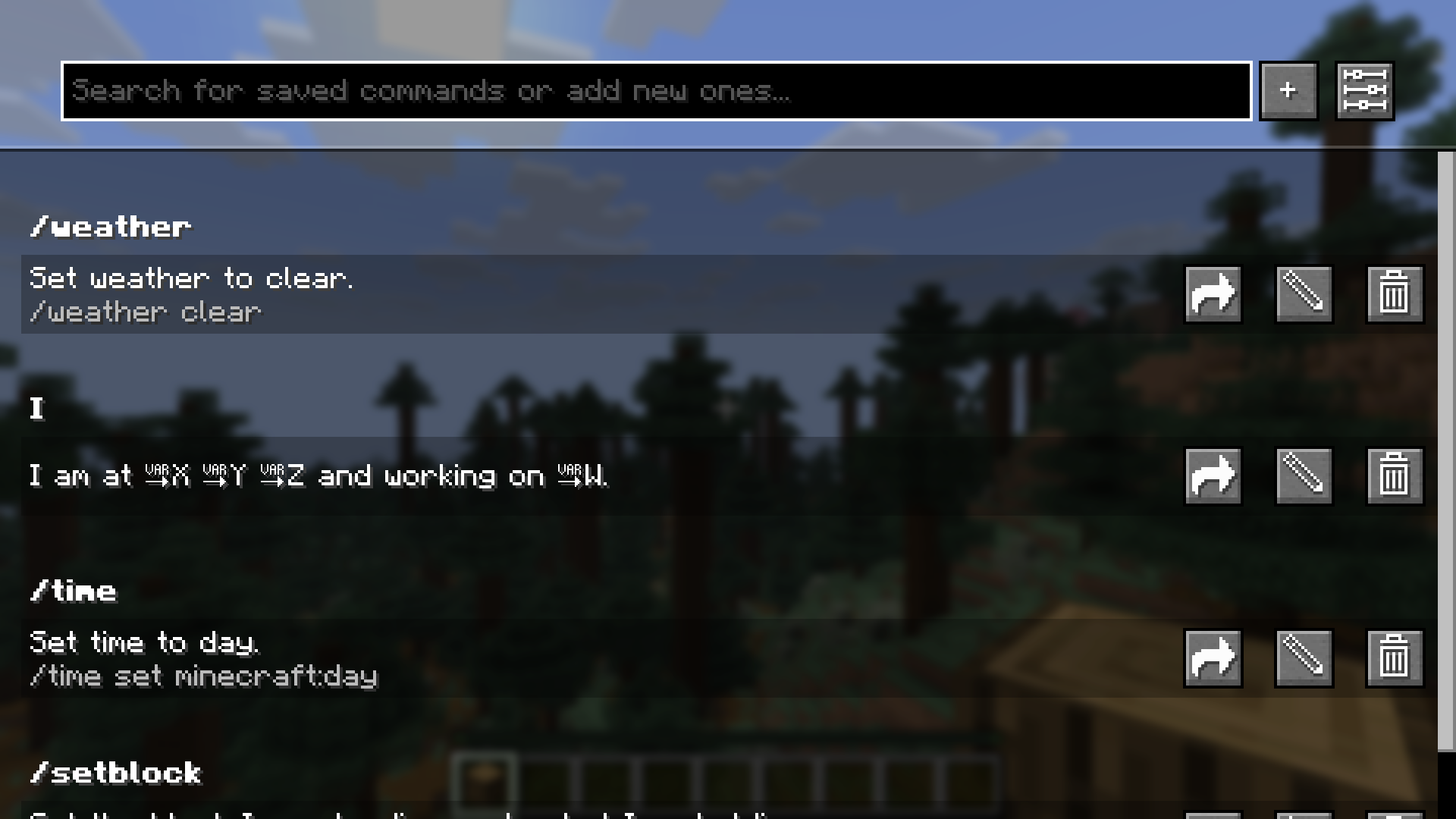 The Saved Commands screen with some example commands.
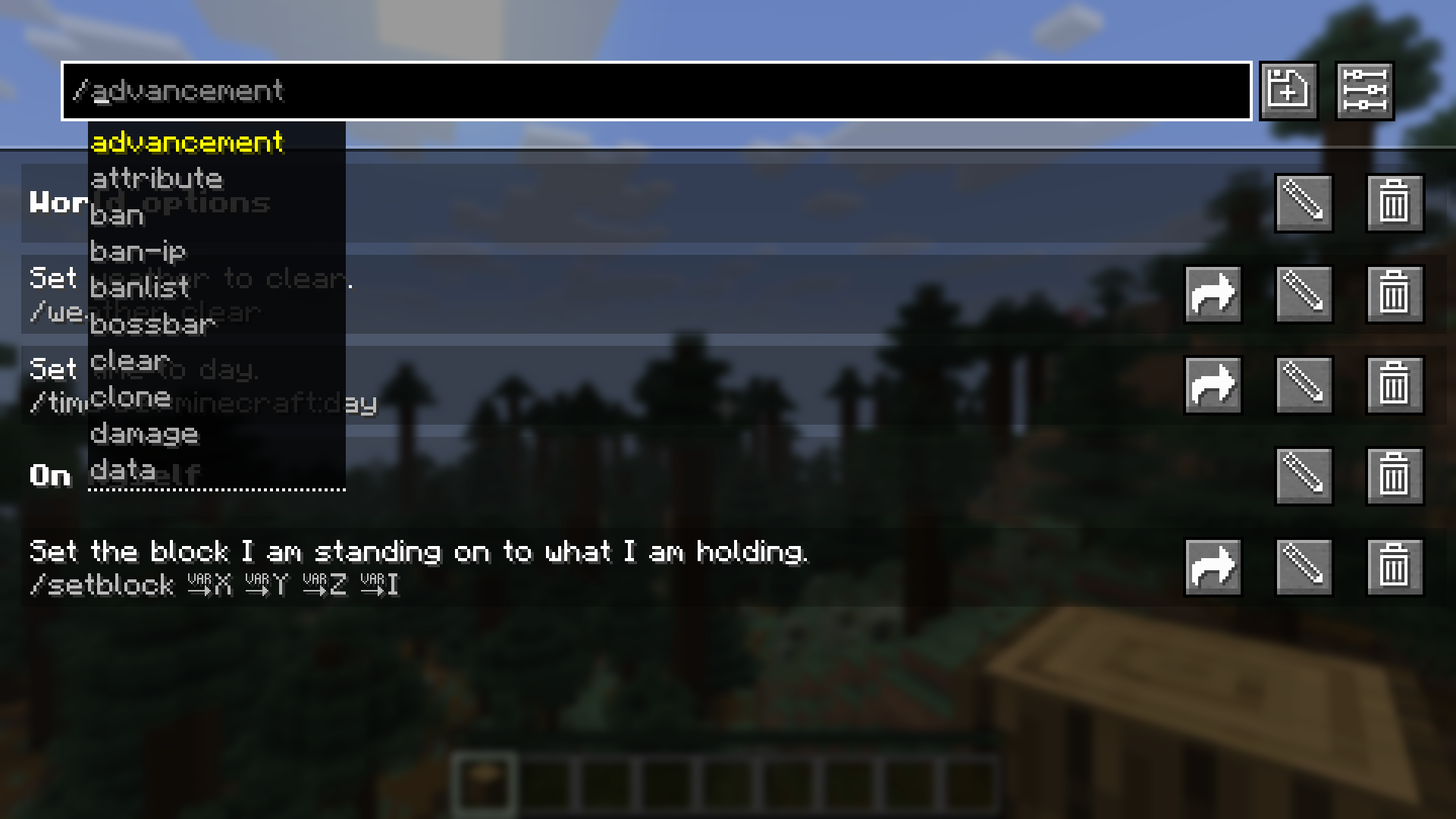 In the top bar you can get command recommendations like in the chat. In this screenshot, custom categories are
enabled.
In the top bar you can get command recommendations like in the chat. In this screenshot, custom categories are
enabled.
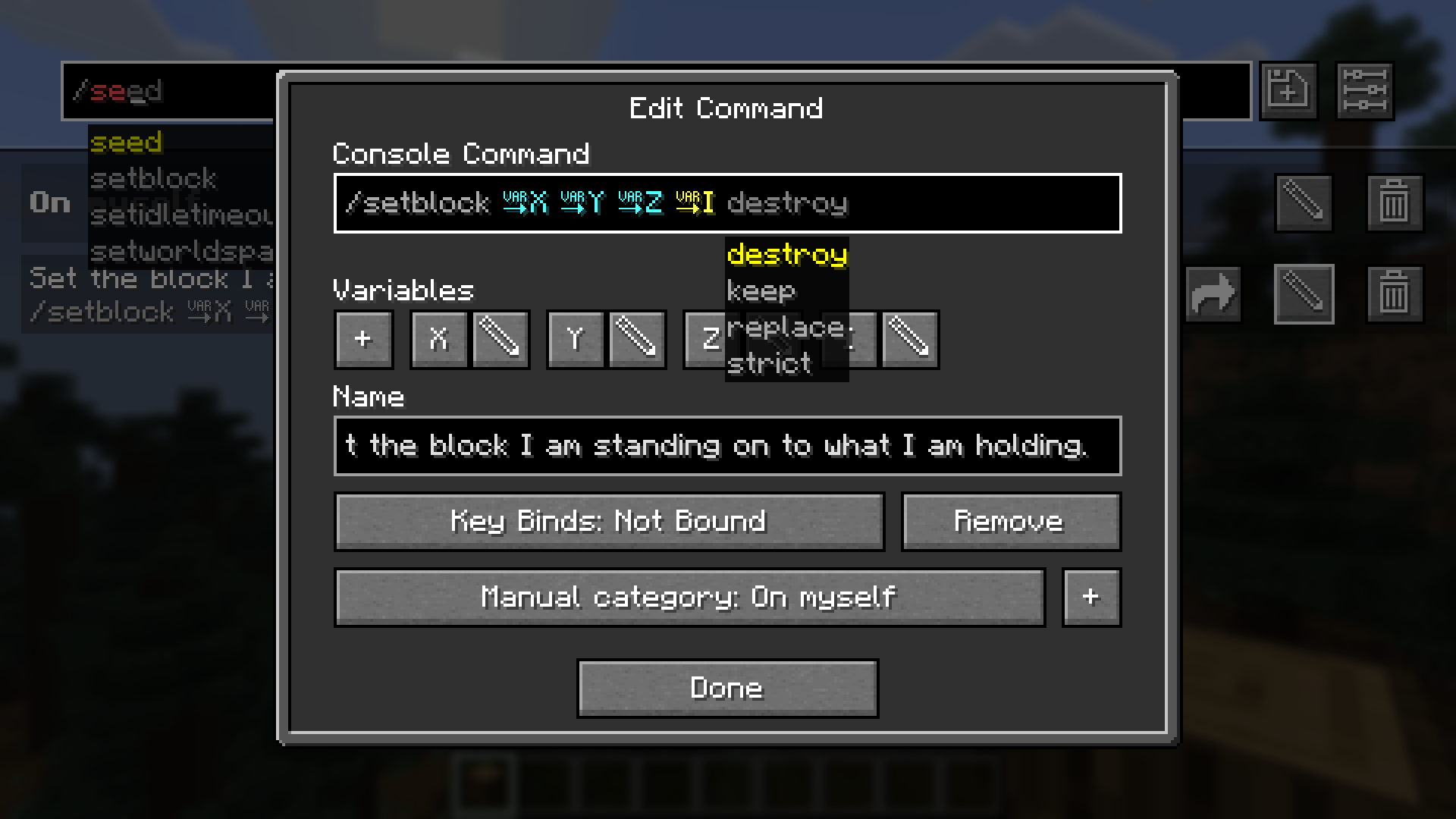 In the edit command screen you can edit the name, command and keybind combination.
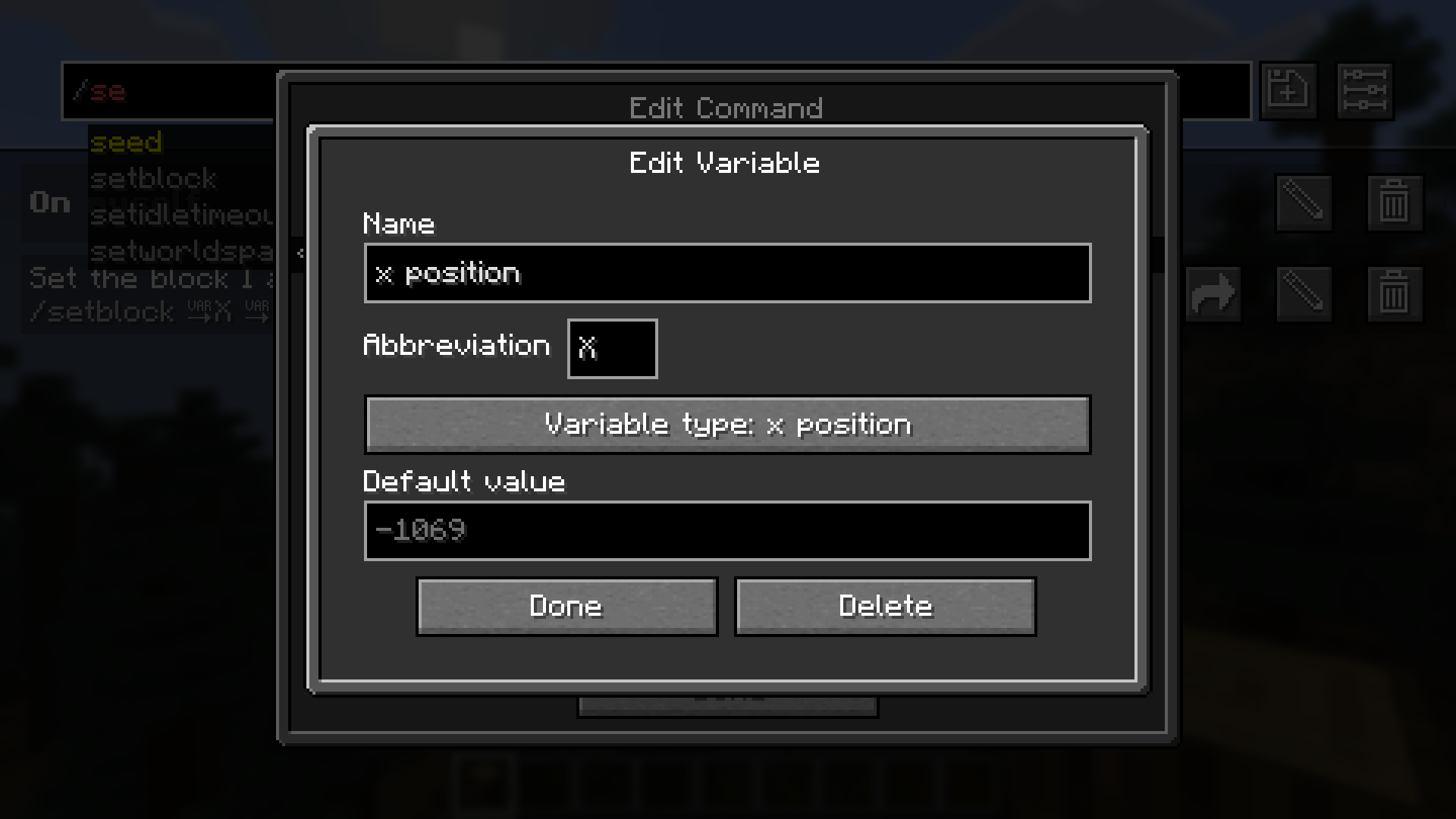 In the edit variable screen you can edit the name, abbreviation, variable type and defult value.
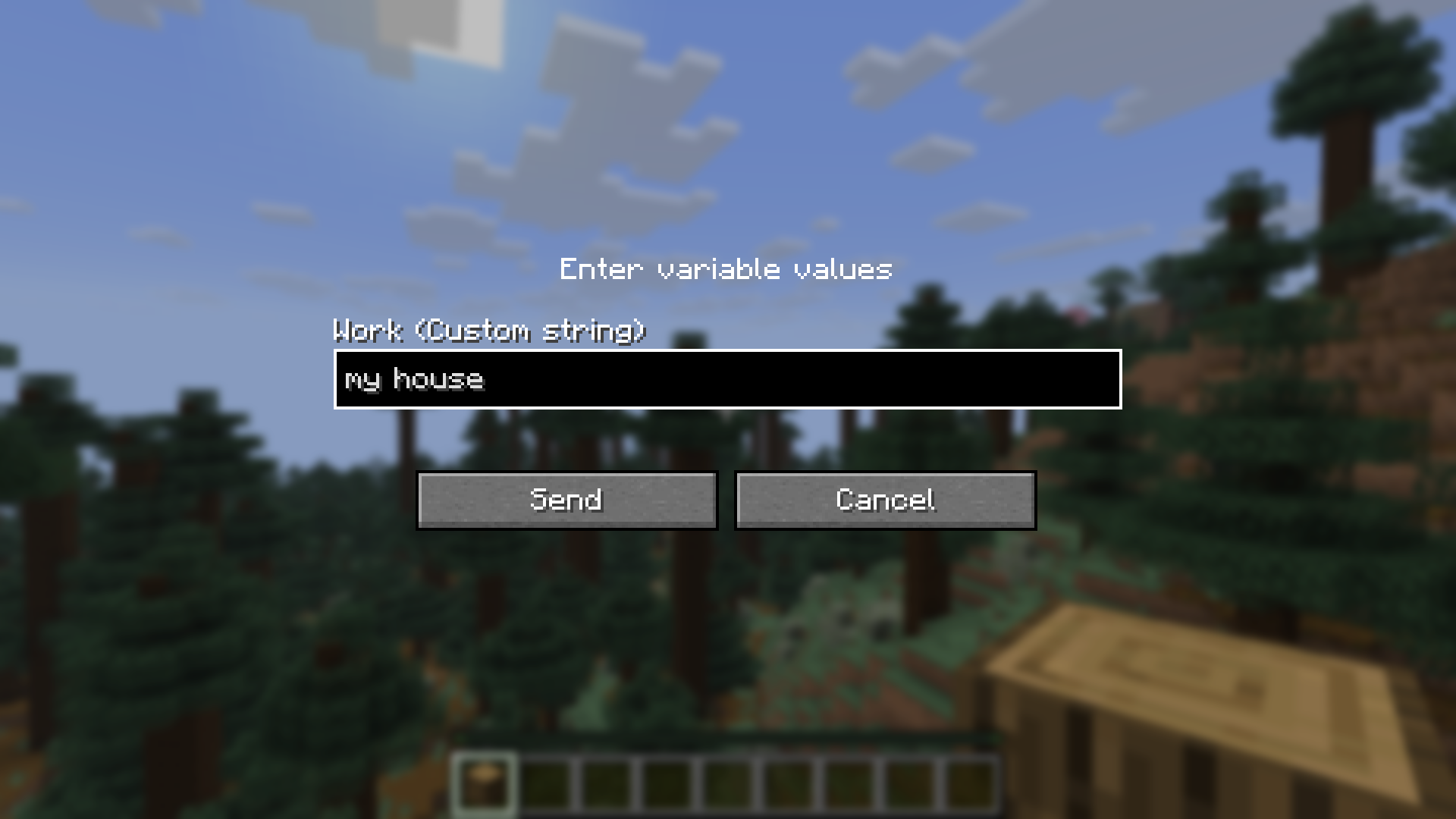 Before sending a command or text containing a custom variable, you are prompted to input the values.
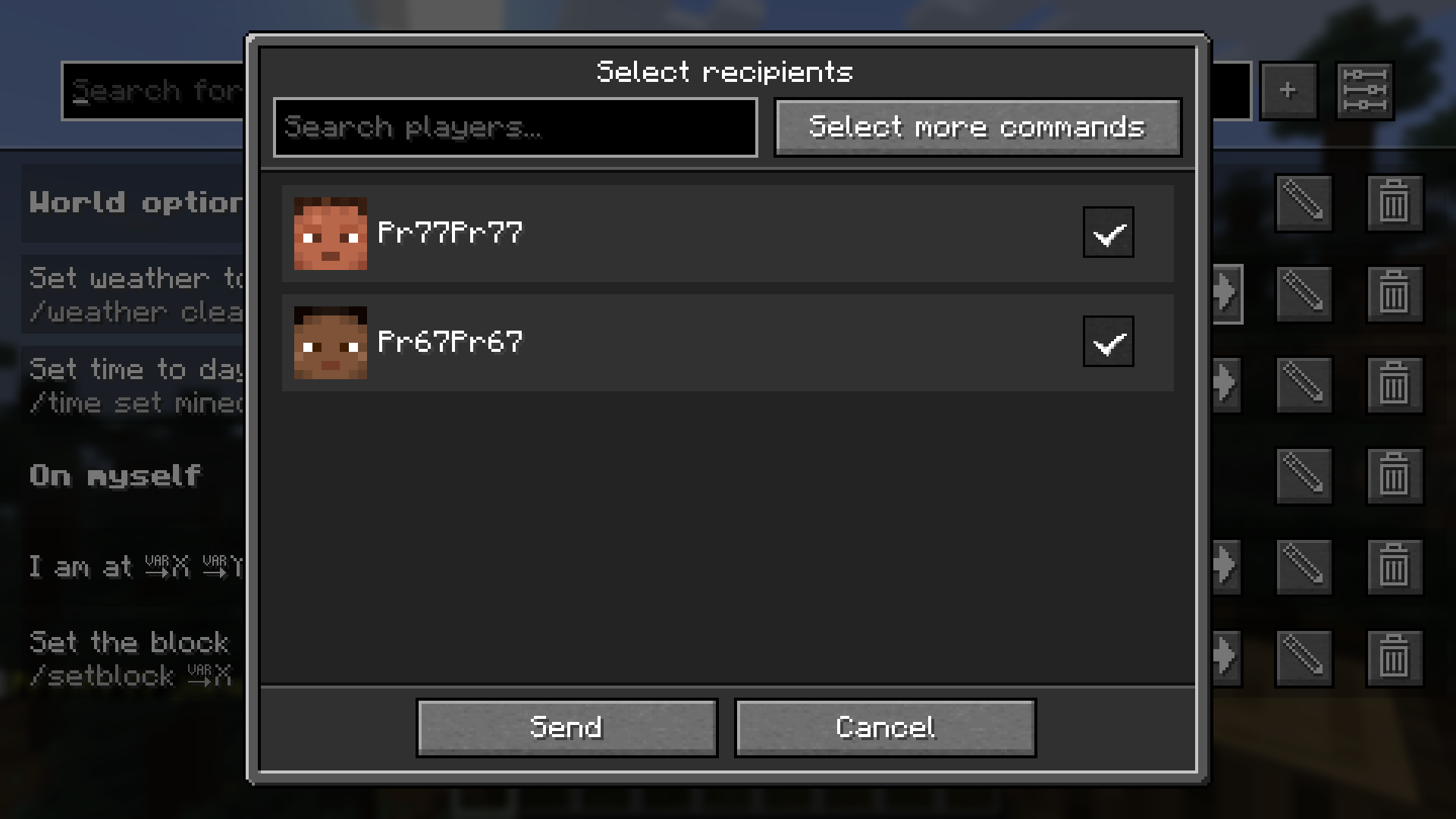 After clicking share, this screen to select the recipients opens.
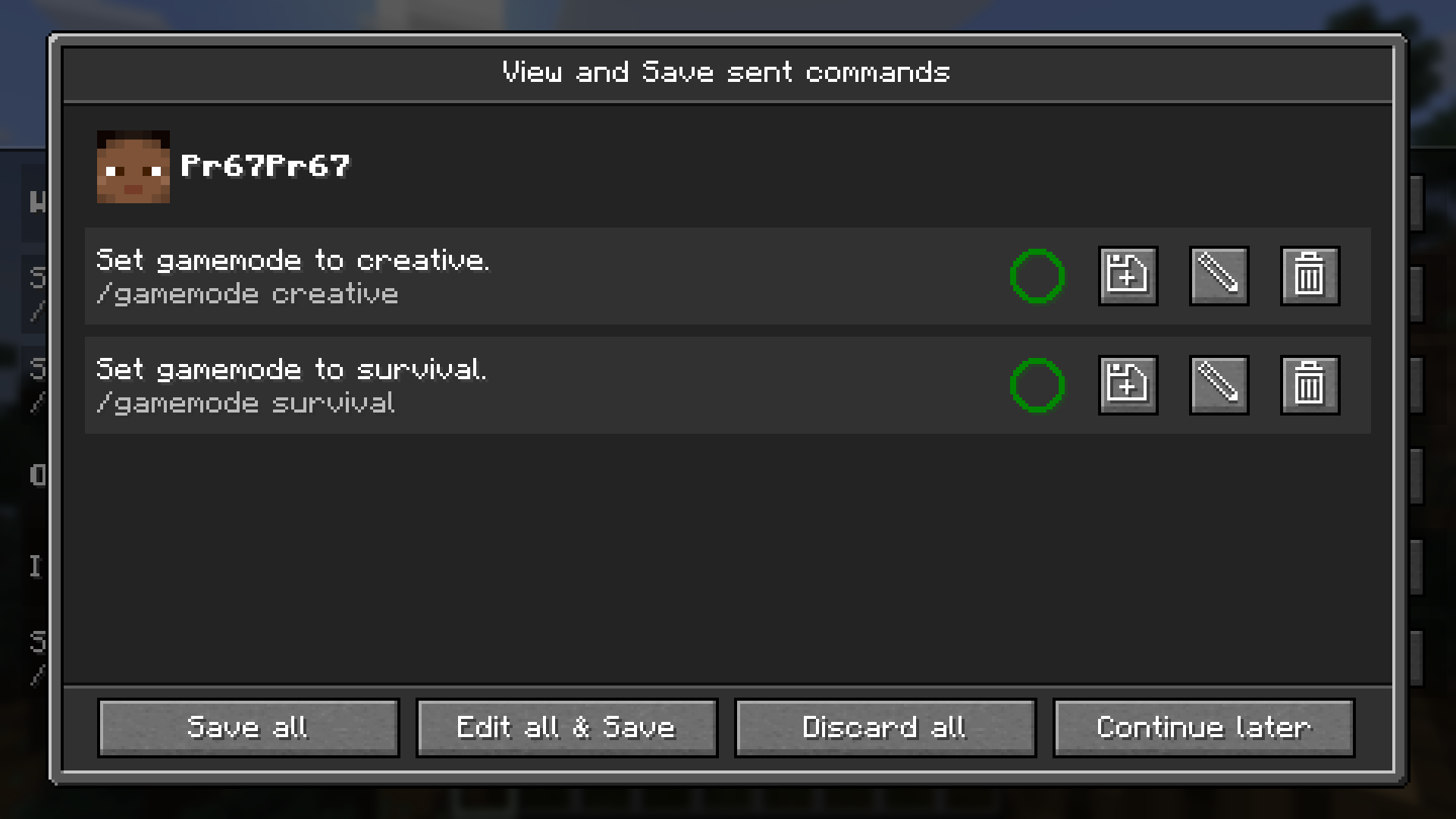 This screen lets you view, save and edit received commands. The circle shows, if you already have the command saved.
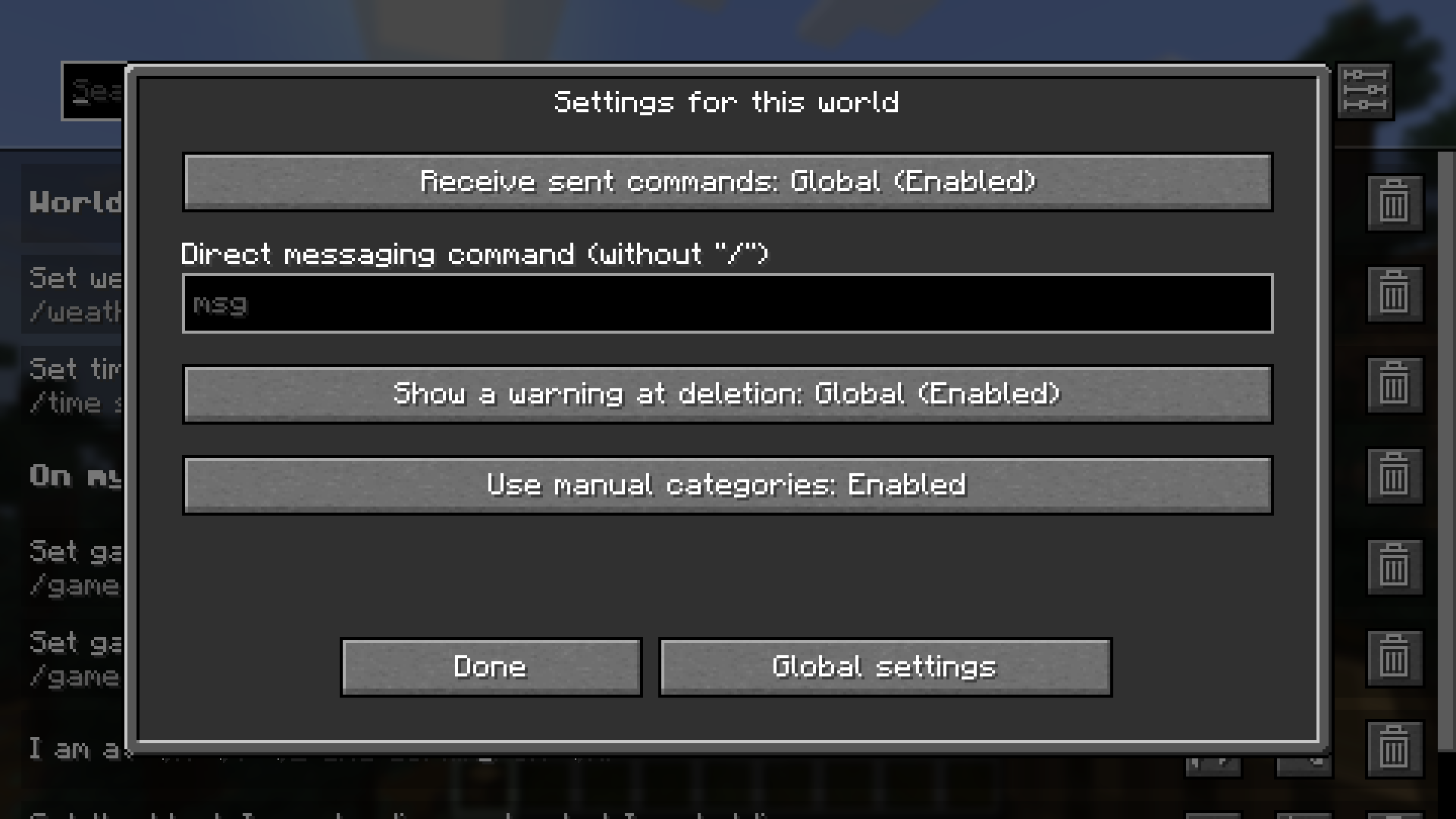 There are settings which can be changed per world, as seen in the screenshot, or changed for the whole installation.
Working principles
The following things regarding the mod might be counterintuitive:
- The mod separates every world and server from each other. This means, that you might have to set the same command up multiple times.
- If you set a keybind to one that already exists in the Minecraft keybinds, it will block the Minecraft keybind. This only applies to the first key of a combination or if the next key of the combination is pressed (e.g. Alt + W: Alt is never triggered, W is triggered, if Alt is not pressed)
- If you set two command keybinds to the same key or key combination, the one added first will be executed.
Reporting issues, getting help and suggesting features
If you have trouble using the mod, if you stumble upon a bug, if you want to suggest a feature to be implemented or if you would like to have a backport of the mod, please don't hesitate to post an issue on GitHub or open a ticket on the Discord server. I will try to respond as soon as possible and maybe ask follow-up questions.
Saved Commands
Saved Commands is a client Minecraft mod for Fabric that lets you save commands and chat messages for easier access later using keyboard shortcuts and the saved commands menu.
Installation
This mod is only supported by the Fabric mod loader. For installation guides regarding please use the official Fabric player guides.
You can download the mod on either Modrinth or on GitHub under releases. This mod has the following dependencies:
- Required: Fabric API
- Optional: Mod Manu
Using the mod
To use the mod, open the Saved Commands screen by pressing the keybind (defaults to Y on QWERTY and Z on QWERTZ keyboards).
On the Saved Commands screen, you can:
- Add a new command by clicking the "+"-button
- Edit saved commands by clicking on the pen icon on the right. In the appearing popup, you can edit the command, insert variables, add or edit a name and add or edit the keybind combination (shortcut).
- Delete saved commands by clicking on the trash can icon on the right.
- Send and run commands by clicking on them
- Search for commands by entering the query into the top bar.
- Share saved commands with other players on the server using this mod.
- Change global and world settings by clicking on the sliders icon in the top right corner.
Variables can be used to insert player data, like the position and item id of the held item. You can also select a data type like string, integer and float, for you to input before sending. If you don't know these types, use string because it is the least "strict" one.
Custom categories can be enabled in the settings. Turning the related setting on, makes it possible to create and select categories with custom names from within the edit popup.
Commands can be shared with players on the same server using the mod, which also shares all command properties like the name, keybind combination and variables, but not custom categories. When you receive one or more commands, you will get a notification within the game in the top right corner, saying to press your keybind for opening the saved commands screen to view or save the commands. There you can pick commands to save separately or bulk save them. Please note, that commands are being sent unencrypted! This means, that server admins, your ISP or other involved parties could see the commands you sent or received. The ability to receive commands can be disabled in the settings.
We accept no liability for any damages caused by using this mod. Use at your own risk!
Screenshots
The Saved Commands screen with some example commands.
In the top bar you can get command recommendations like in the chat. In this screenshot, custom categories are
enabled.
In the edit command screen you can edit the name, command and keybind combination.
In the edit variable screen you can edit the name, abbreviation, variable type and defult value.
Before sending a command or text containing a custom variable, you are prompted to input the values.
After clicking share, this screen to select the recipients opens.
This screen lets you view, save and edit received commands. The circle shows, if you already have the command saved.
There are settings which can be changed per world, as seen in the screenshot, or changed for the whole installation.
Working principles
The following things regarding the mod might be counterintuitive:
- The mod separates every world and server from each other. This means, that you might have to set the same command up multiple times.
- If you set a keybind to one that already exists in the Minecraft keybinds, it will block the Minecraft keybind. This only applies to the first key of a combination or if the next key of the combination is pressed (e.g. Alt + W: Alt is never triggered, W is triggered, if Alt is not pressed)
- If you set two command keybinds to the same key or key combination, the one added first will be executed.
Reporting issues, getting help and suggesting features
If you have trouble using the mod, if you stumble upon a bug, if you want to suggest a feature to be implemented or if you would like to have a backport of the mod, please don't hesitate to post an issue on GitHub or open a ticket on the Discord server. I will try to respond as soon as possible and maybe ask follow-up questions.
Screenshots
Gallery
-
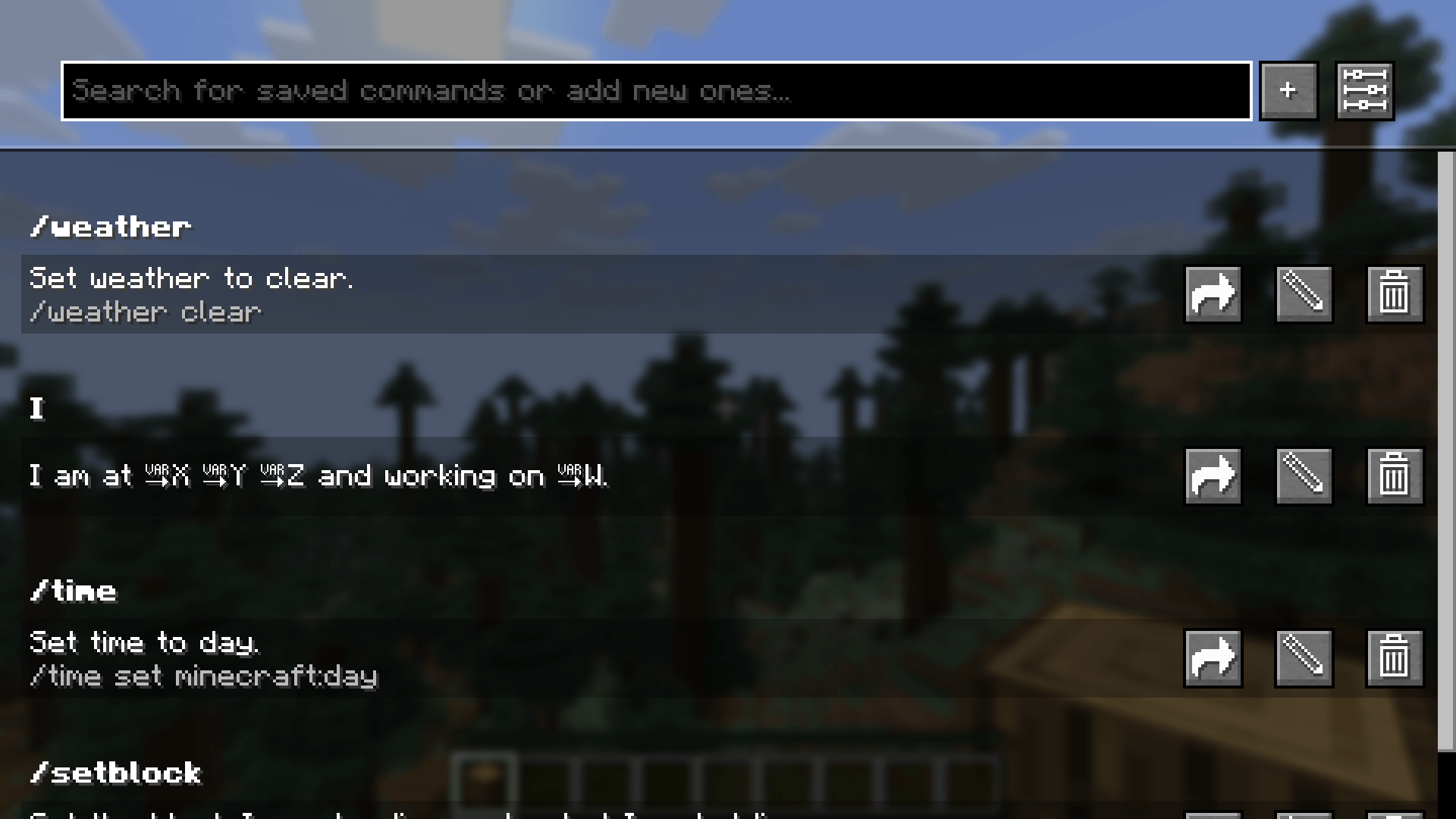 Saved Commands screen The Saved Commands screen with some example commands.
 -
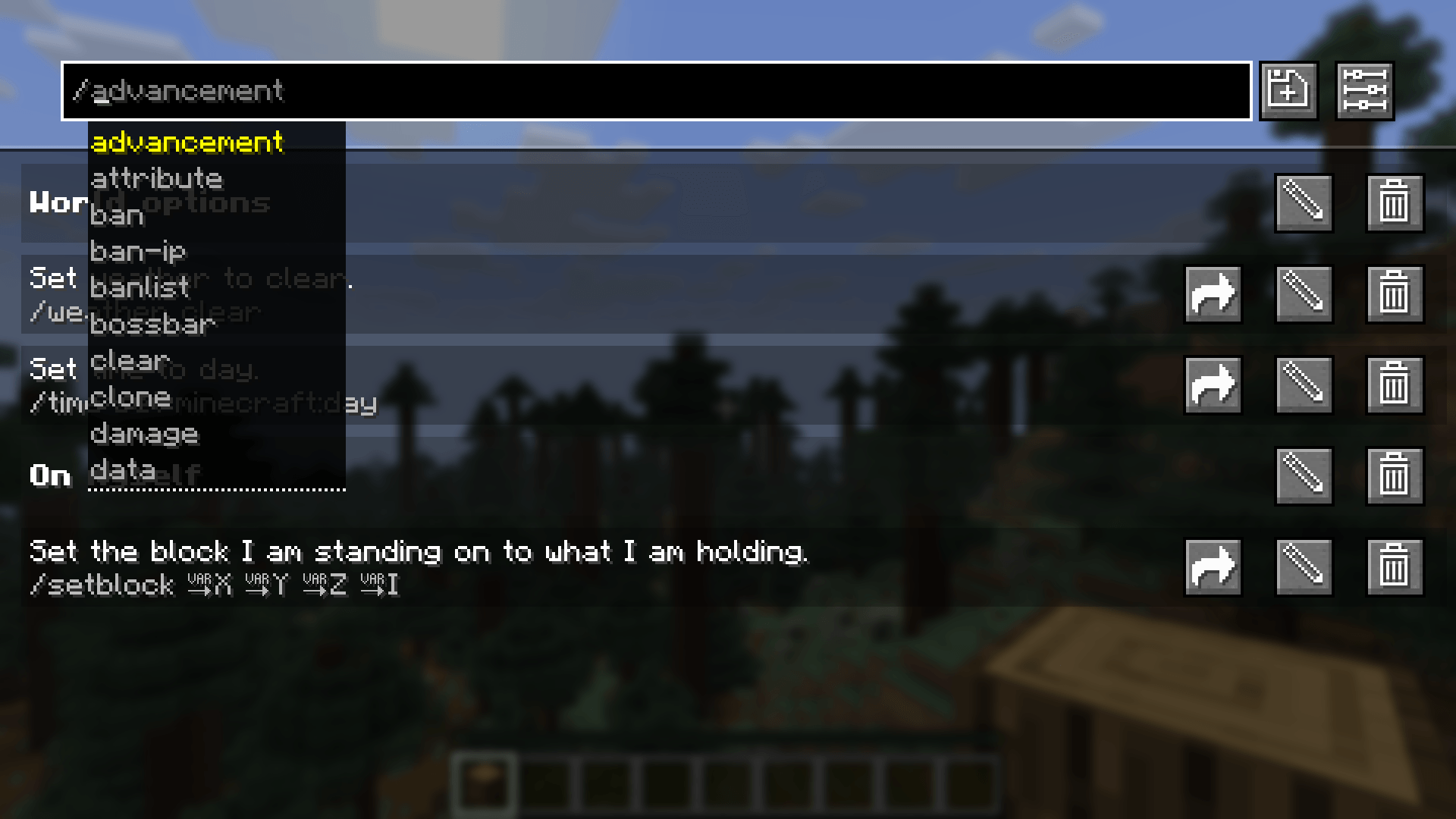 Search suggestion In the top bar you can get command recommendations like in the chat. In this screenshot, custom categories are enabled.
 -
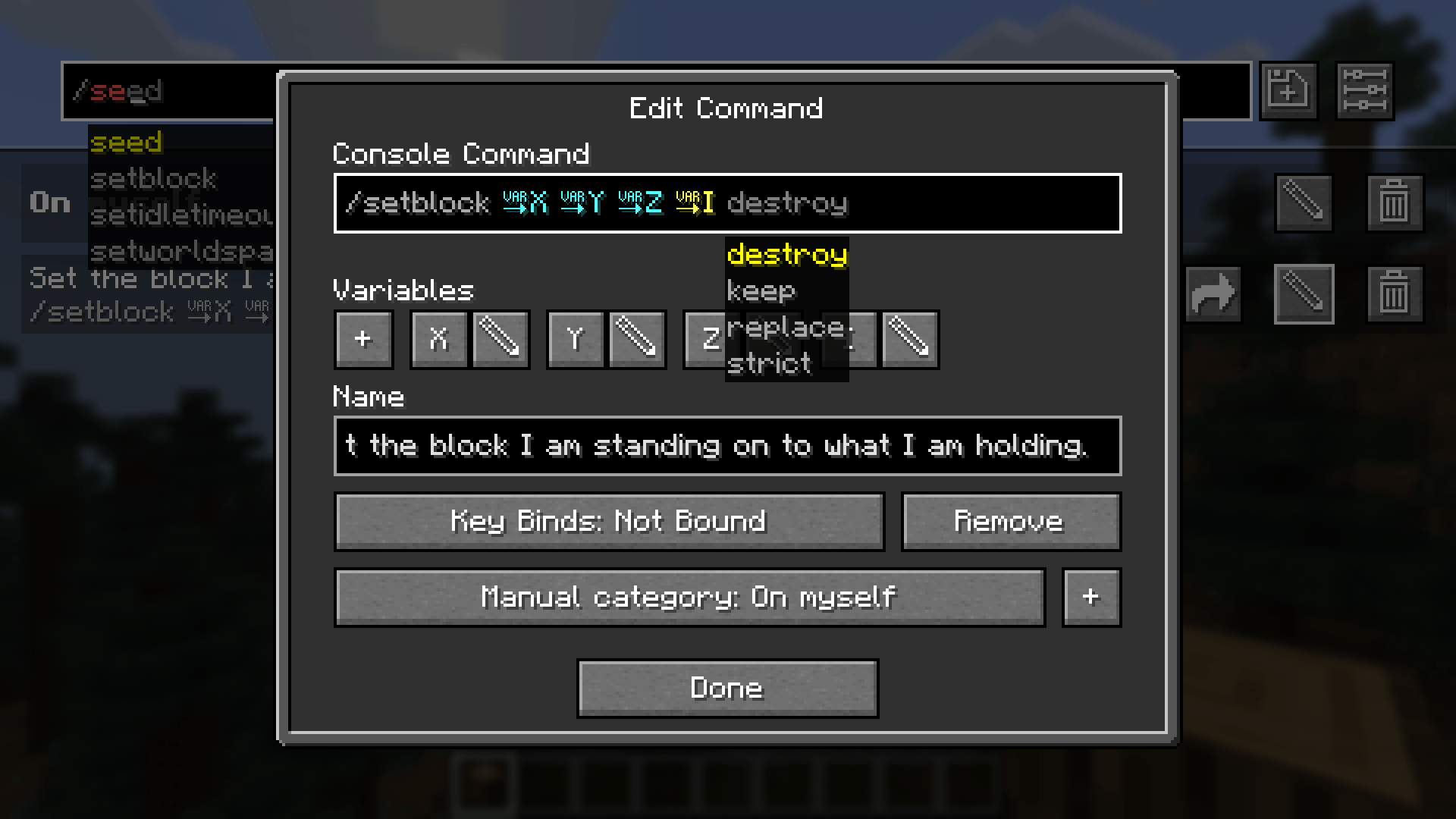 Edit command screen In the edit command screen you can edit the name, command and keybind combination.
 -
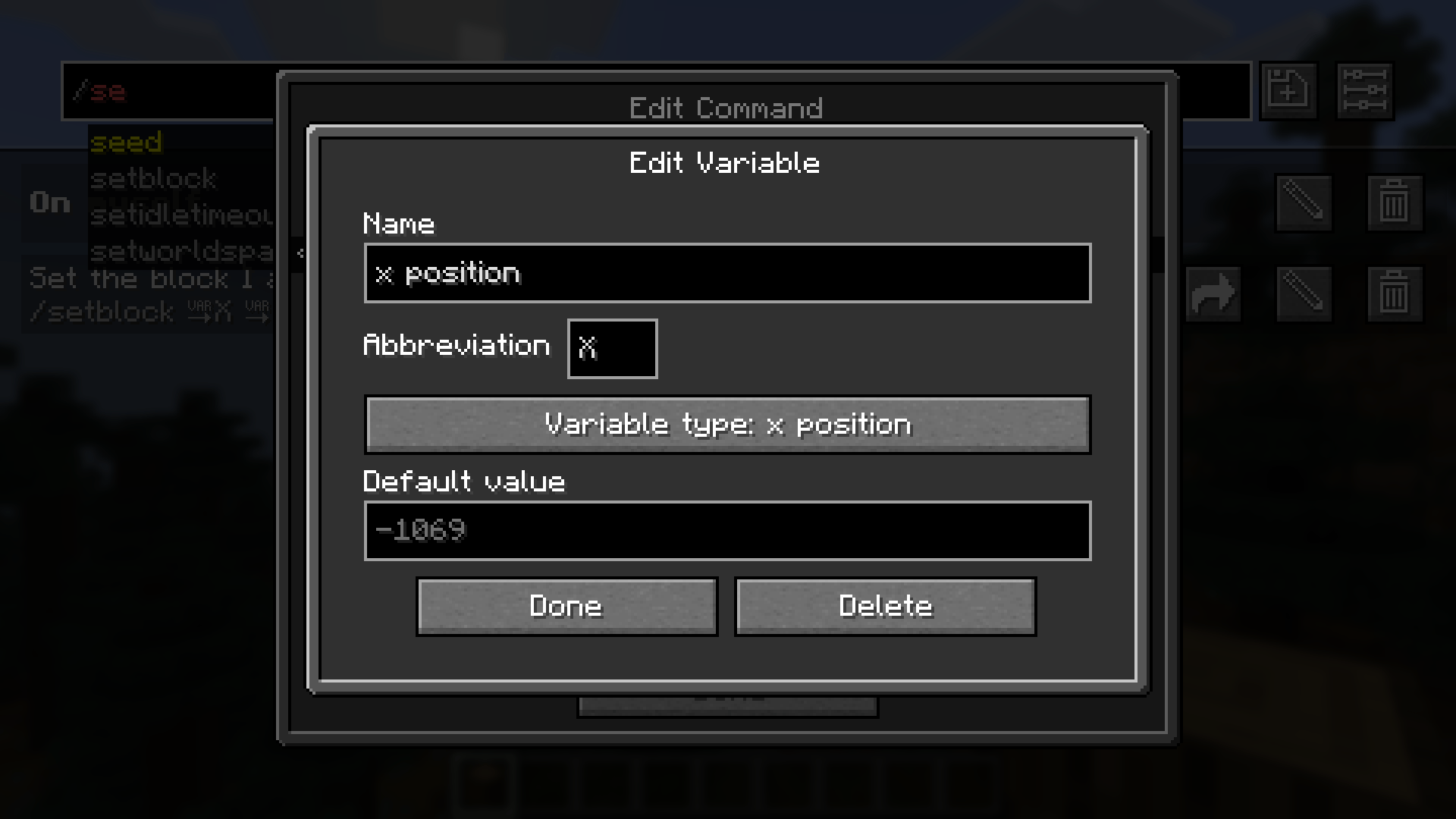 Edit variable screen In the edit variable screen you can edit the name, abbreviation, variable type and defult value.
 -
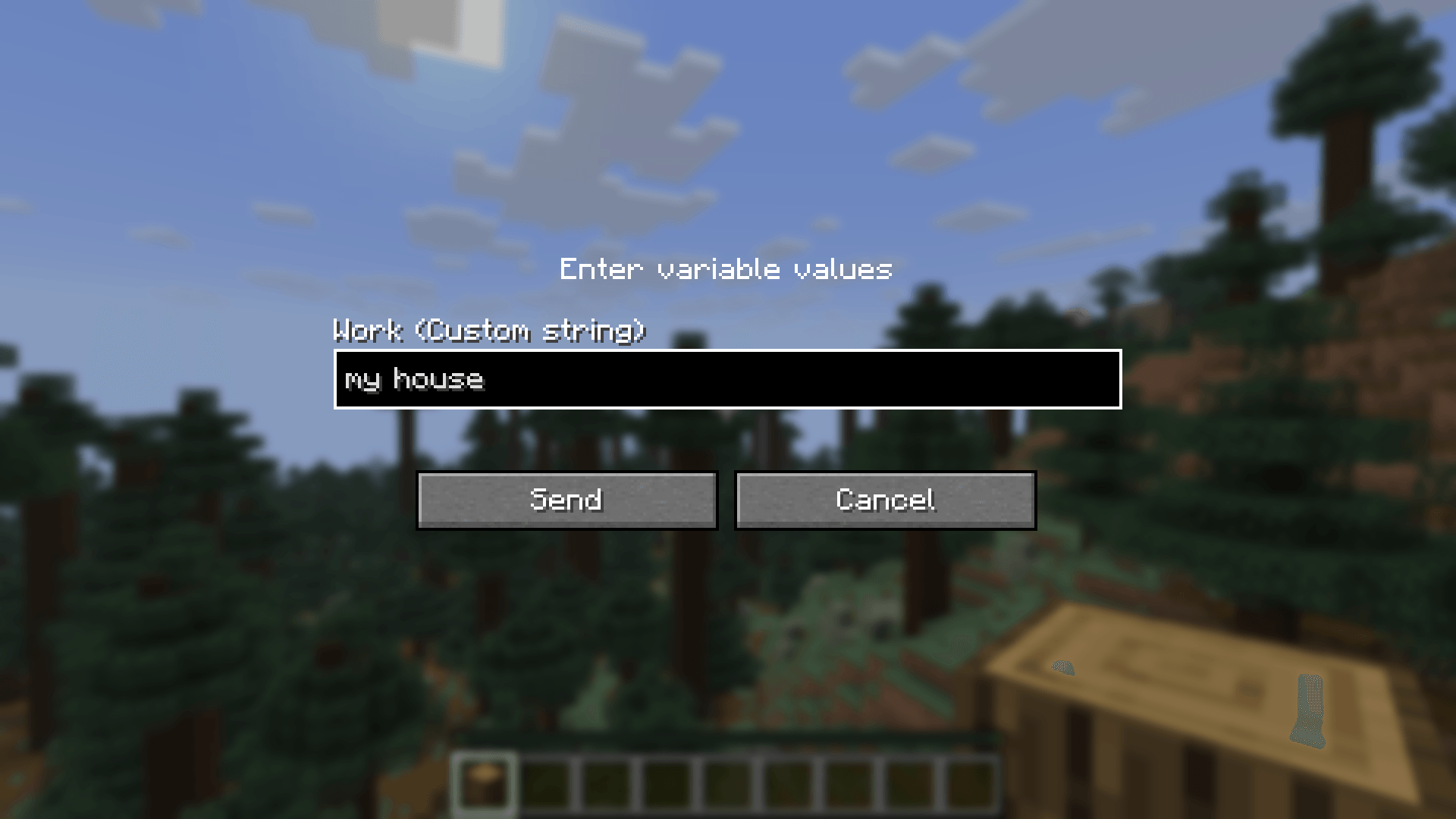 Input variable screen Before sending a command or text containing a custom variable, you are prompted to input the values.
 -
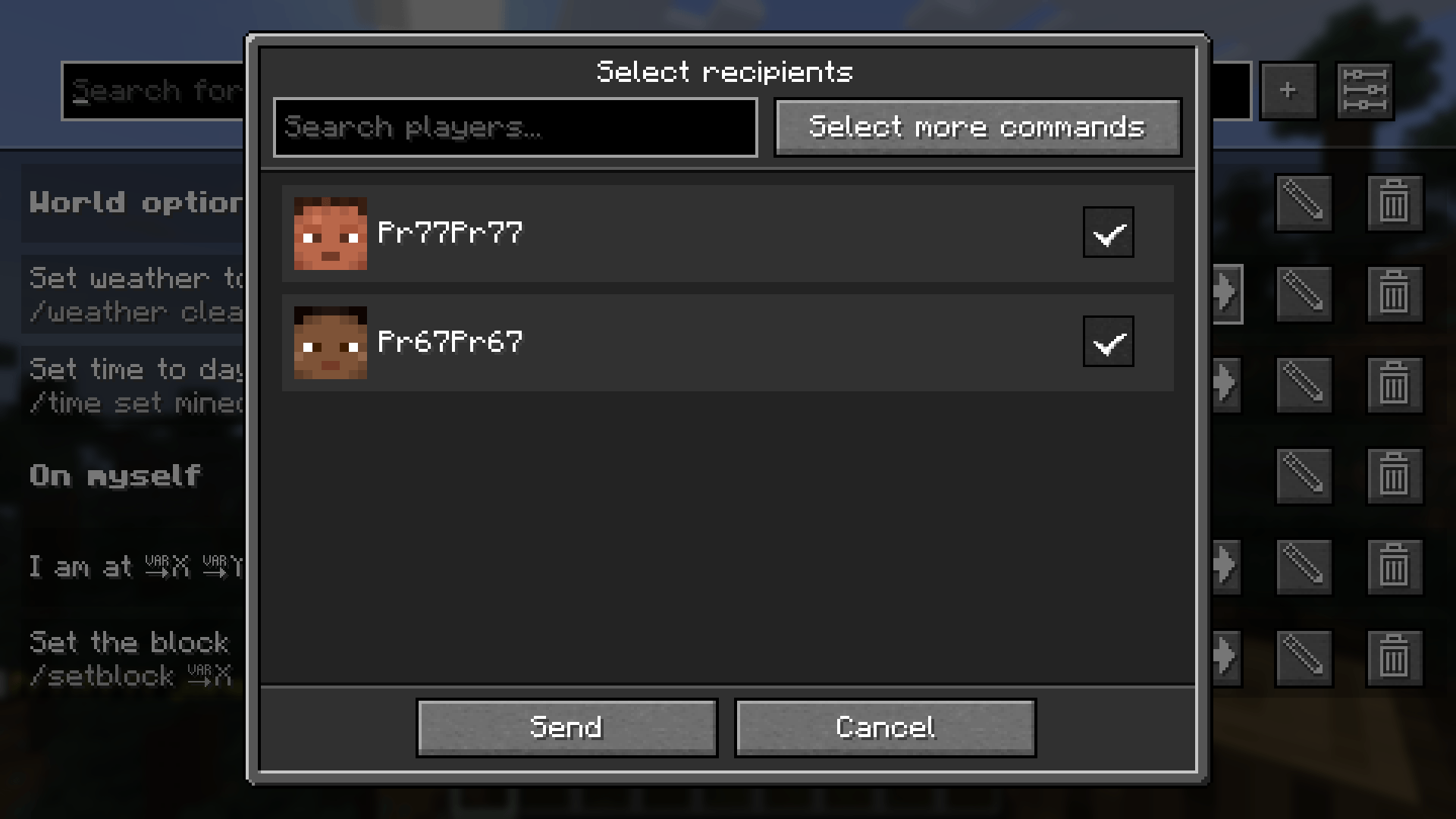 Share select recepients screen After clicking share, this screen to select the recipients opens.
 -
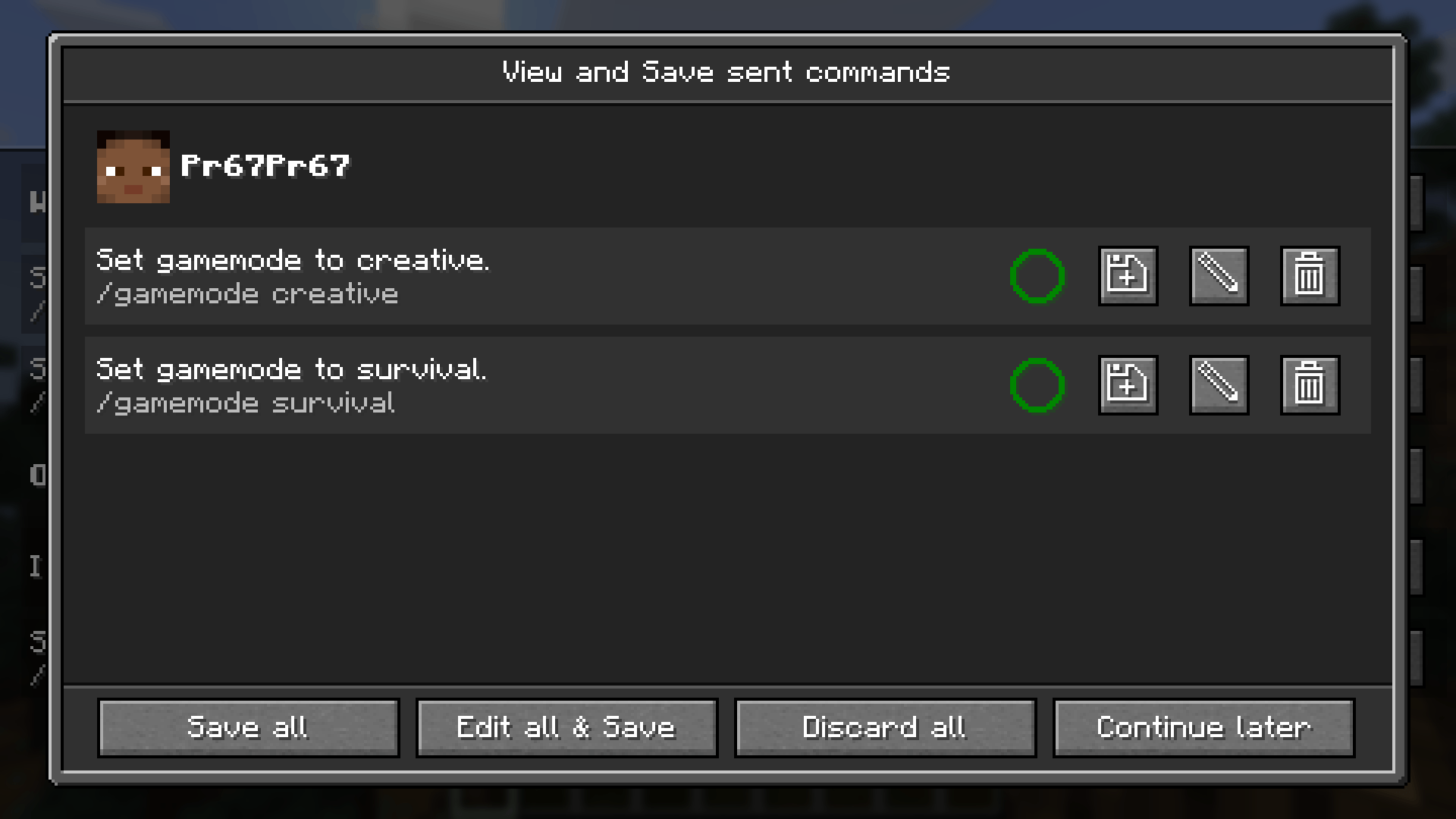 Share view and save screen This screen lets you view, save and edit received commands. The circle shows, if you already have the command saved.
 -
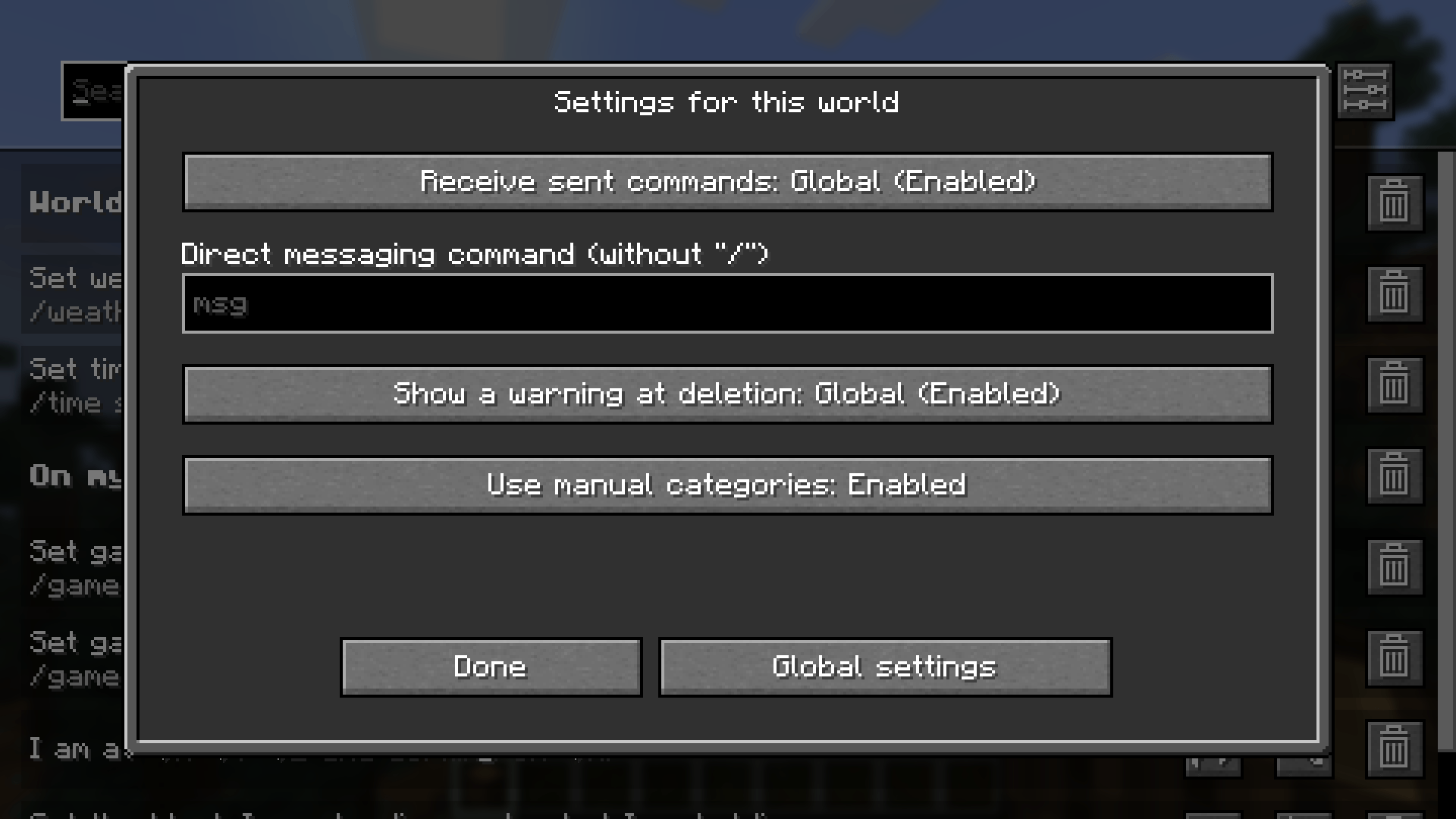 Per world settings There are settings which can be changed per world, as seen in the screenshot, or changed for the whole installation.
-
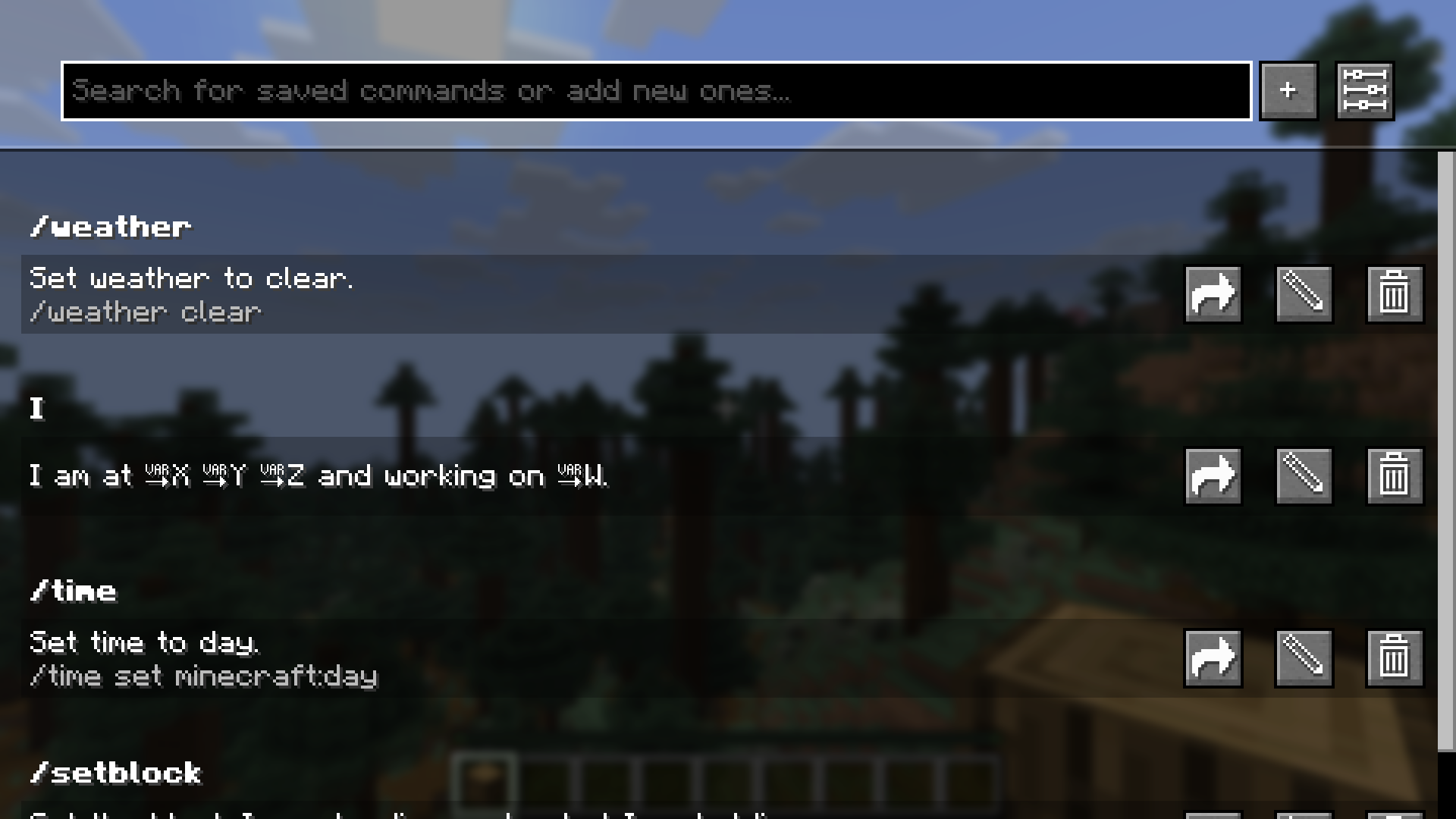 Saved Commands screen The Saved Commands screen with some example commands.
 -
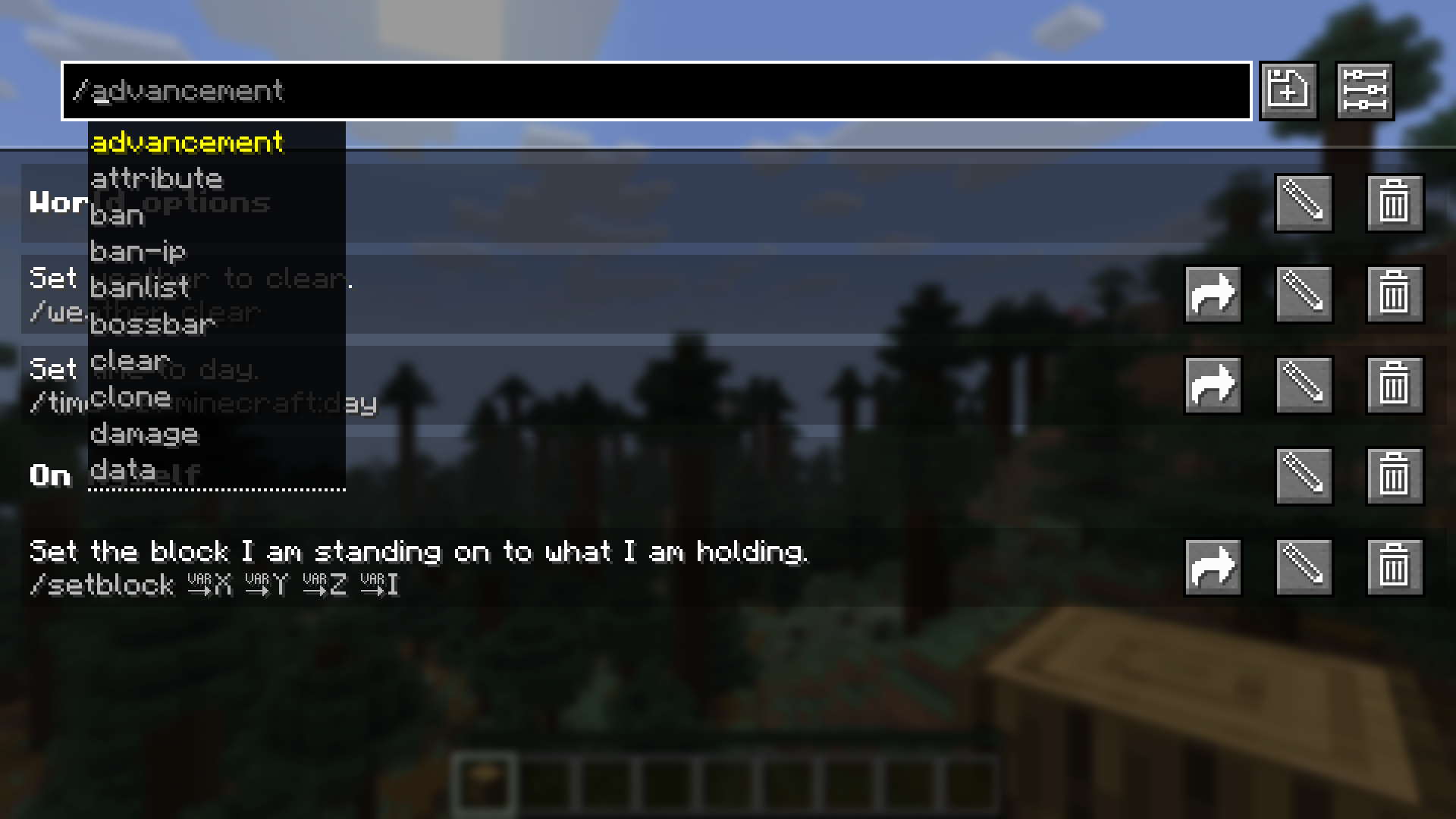 Search suggestion In the top bar you can get command recommendations like in the chat. In this screenshot, custom categories are enabled.
 -
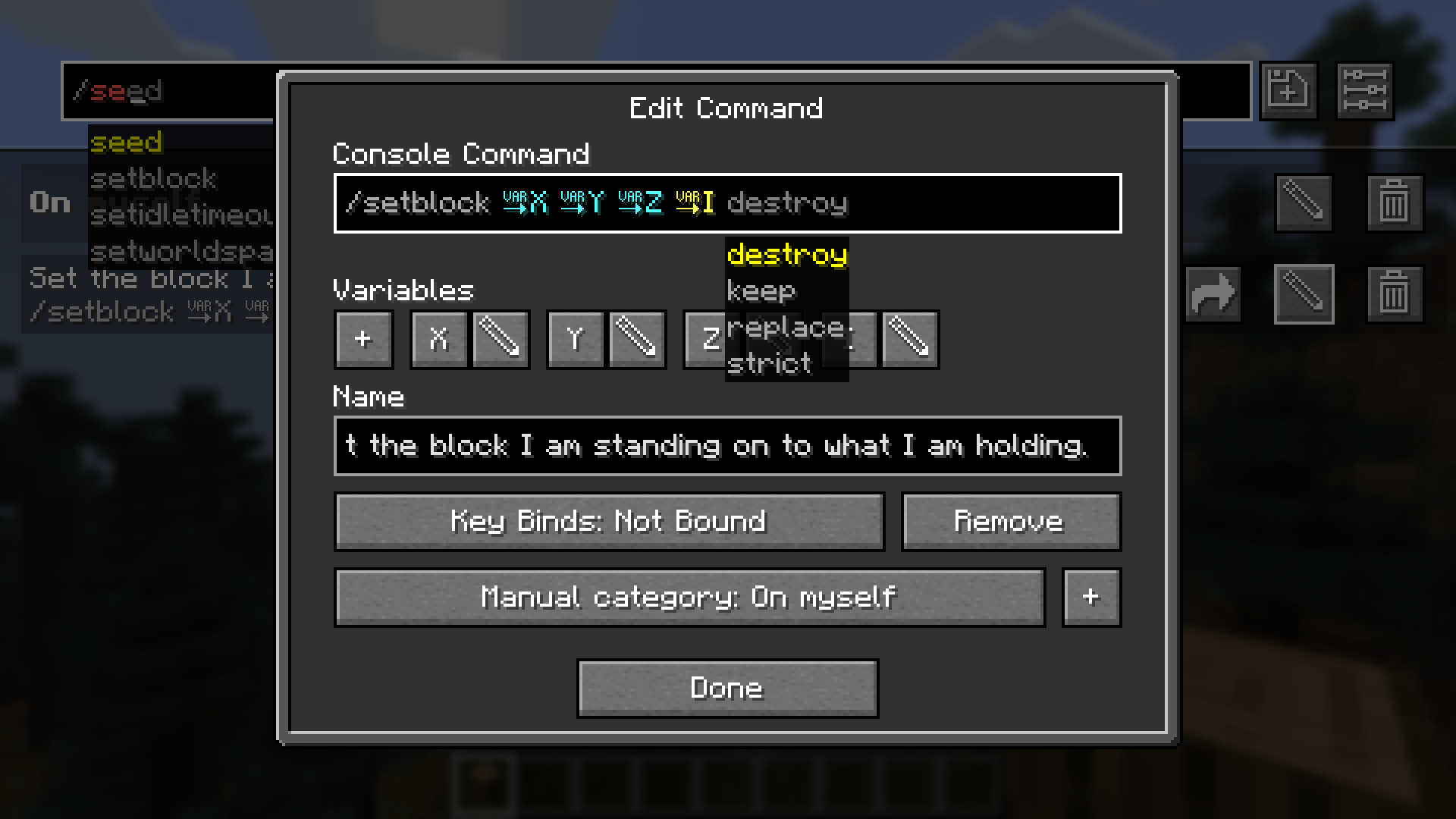 Edit command screen In the edit command screen you can edit the name, command and keybind combination.
 -
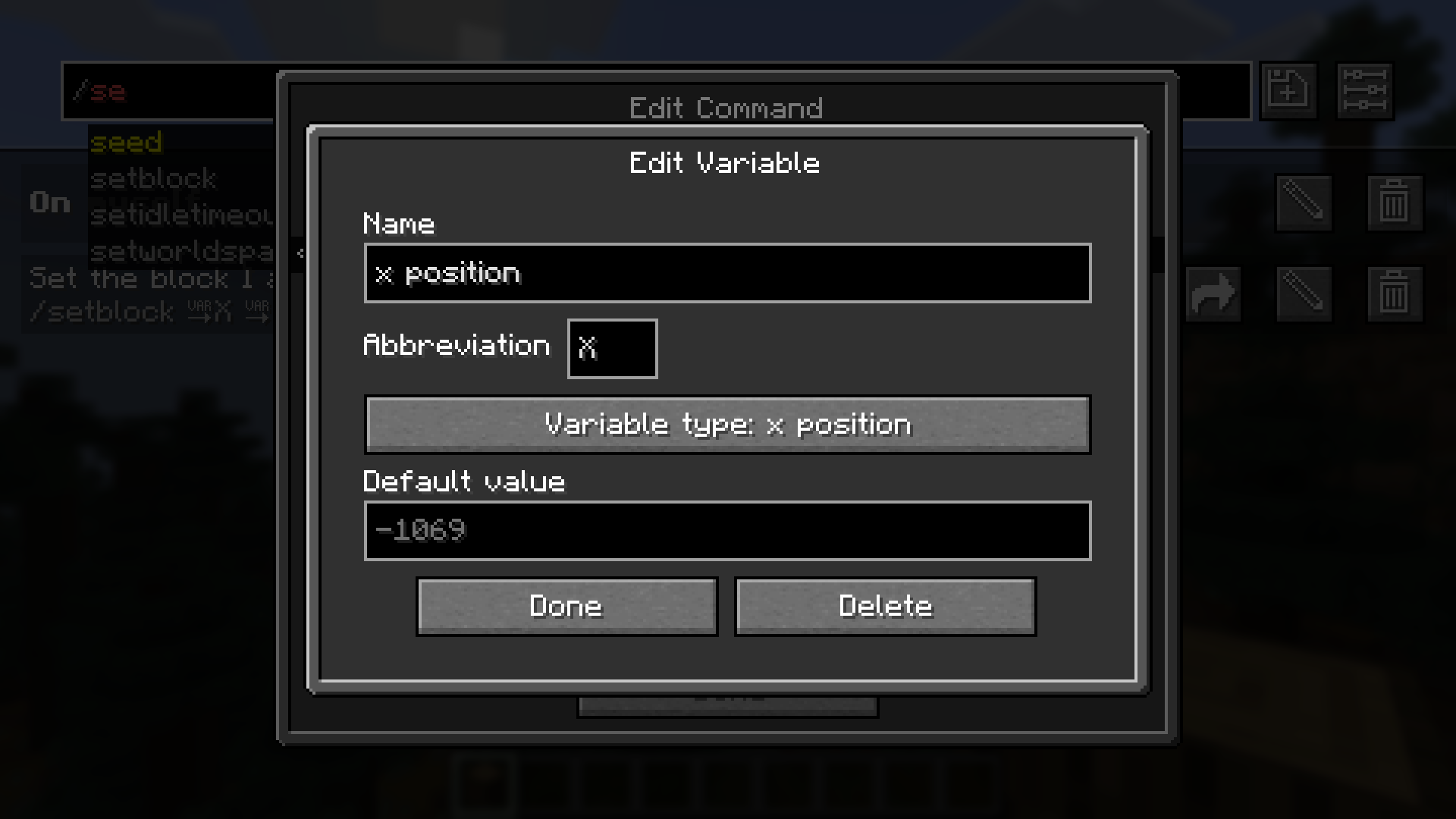 Edit variable screen In the edit variable screen you can edit the name, abbreviation, variable type and defult value.
 -
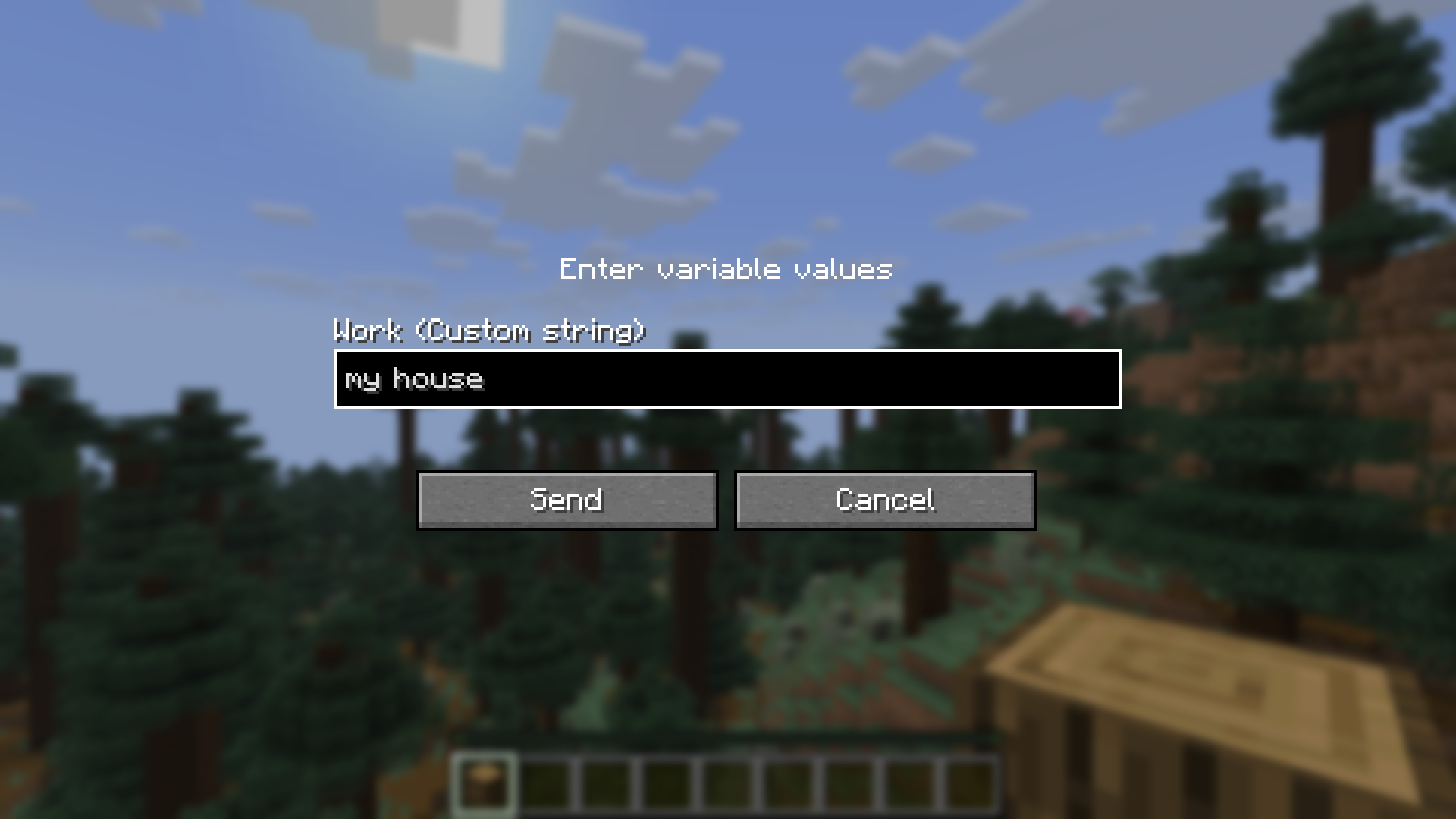 Input variable screen Before sending a command or text containing a custom variable, you are prompted to input the values.
 -
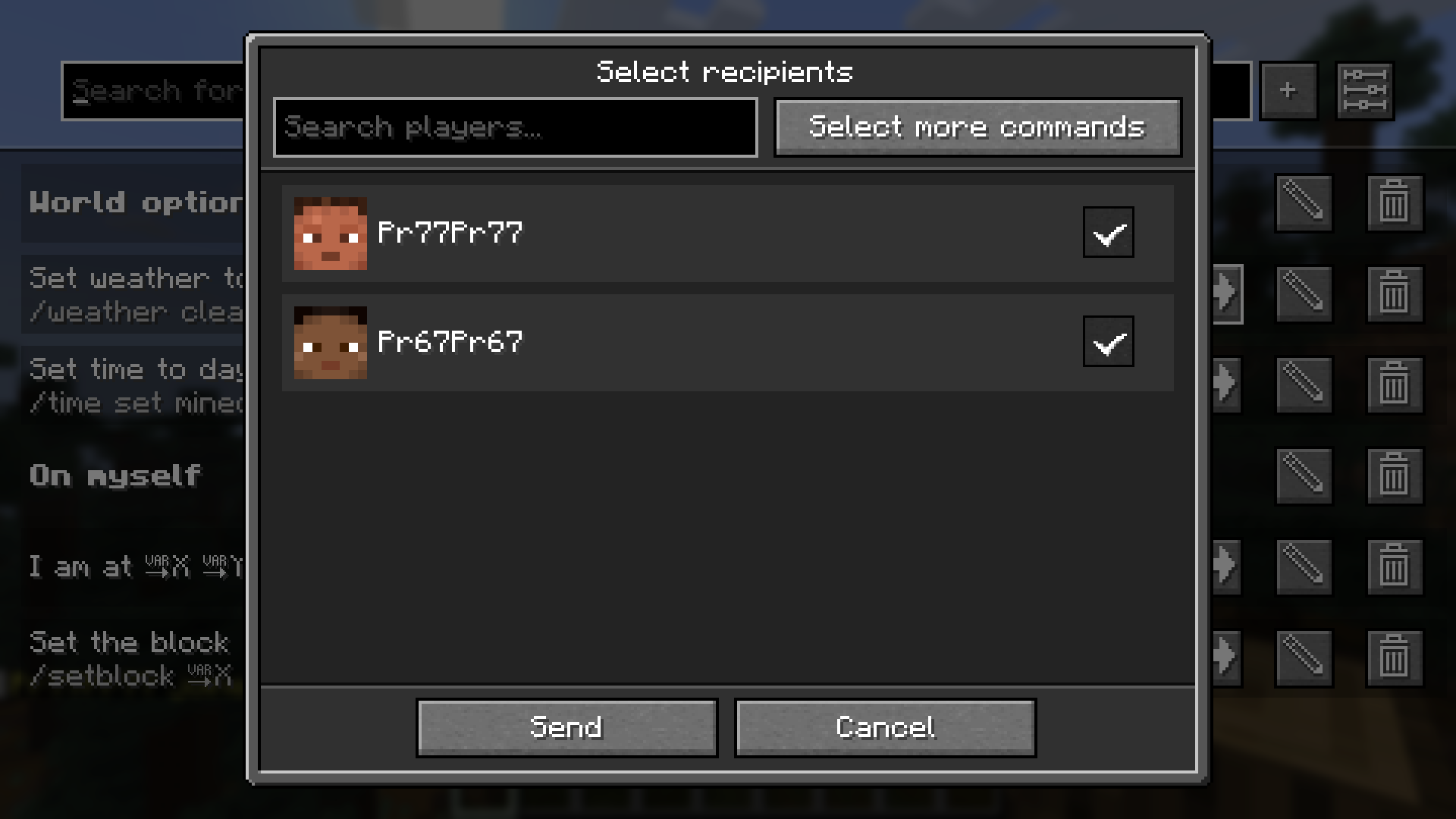 Share select recepients screen After clicking share, this screen to select the recipients opens.
 -
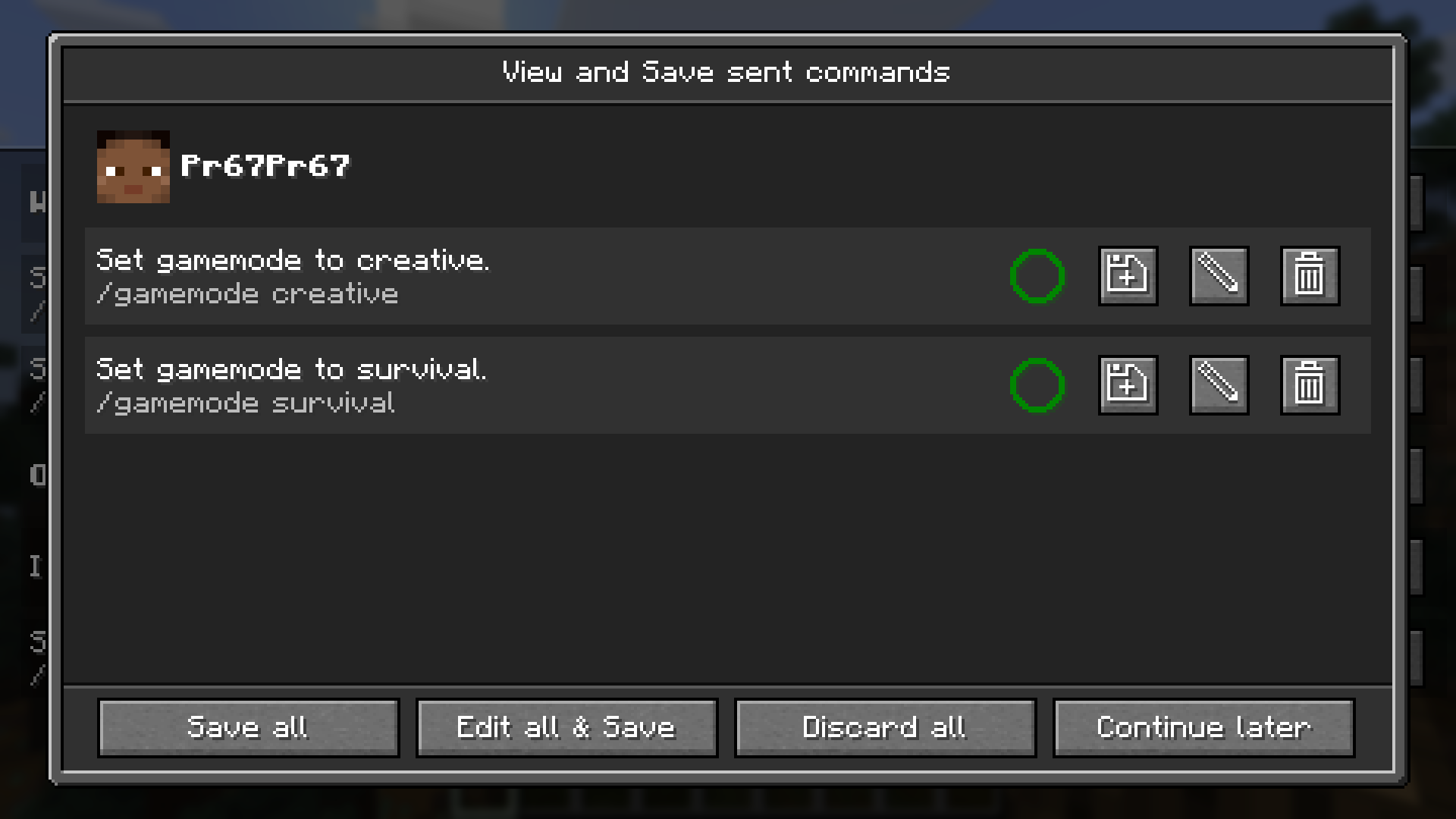 Share view and save screen This screen lets you view, save and edit received commands. The circle shows, if you already have the command saved.
 -
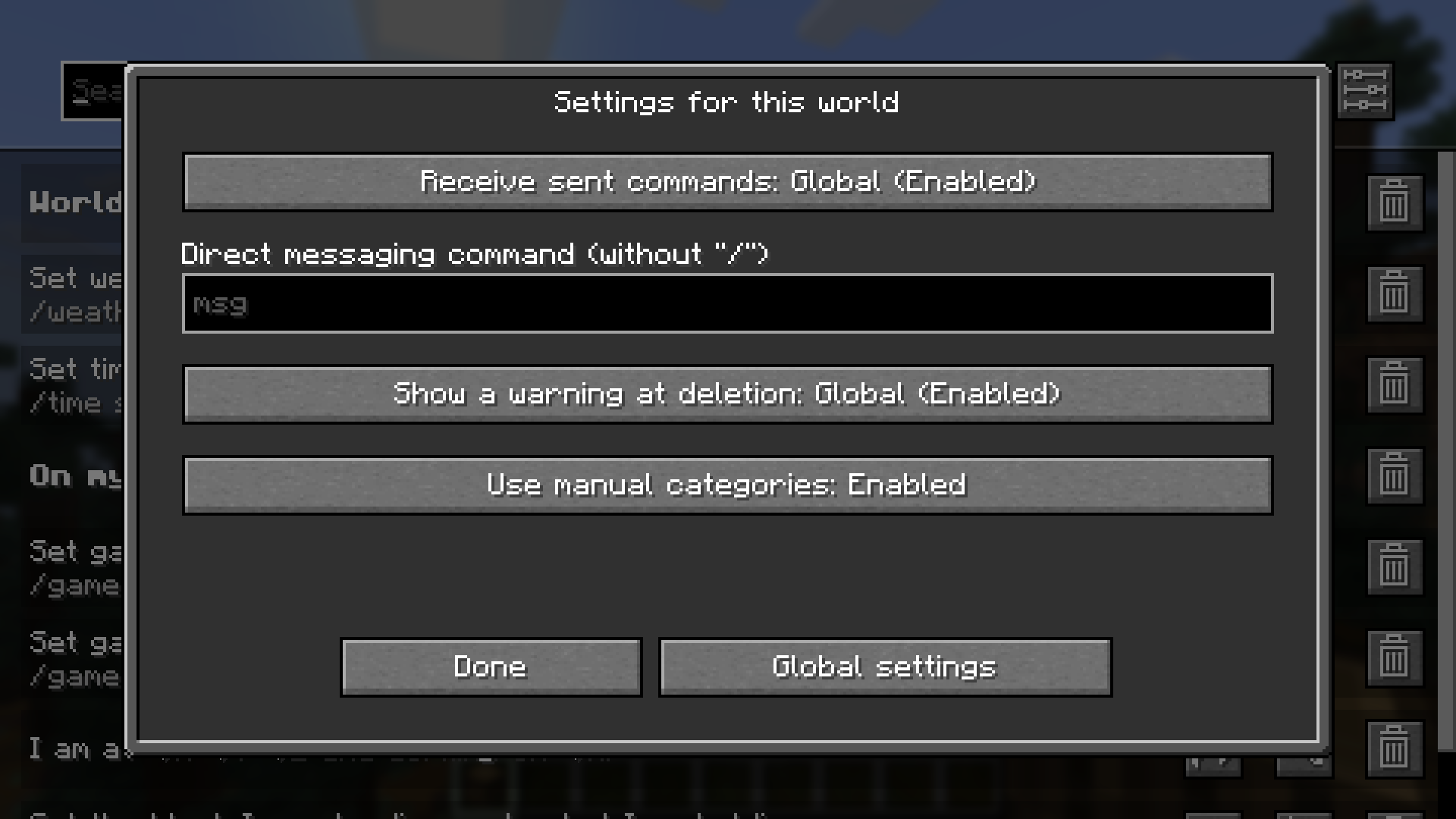 Per world settings There are settings which can be changed per world, as seen in the screenshot, or changed for the whole installation.
Versions
Files
Relations
Project Relations
More like this
Similar Mods
Suggestions use data such as tags, dependencies, dependents, descriptions, titles, and more to rank how much they overlap with this mod.
On ModDex
Community snapshot
By the numbers
Statistics

Get it on
Available Platforms
On ModDex
Community snapshot
By the numbers