Community listing page, reviews here may not be monitored by the author.
Server Enhancements

No reviews yet
World protection, command-trigger regions, exact spawns, player homes, and an organized two-tab chat window.
Community voices
Reviews
No reviews yet. Be the first to review this project!
Get it on
Available Platforms
About
Project Details
For authors
Embed Badge
If you're the author of this project, you can embed a live badge anywhere that supports HTML or Markdown. It updates automatically whenever ratings change.
Use HTML for any page that supports it, or Markdown for README files and Markdown-based descriptions.
Identifiers
Platform IDs
Resources
External Links
About
Description
Join the Vanilla Enhancements official Minecraft Server!
mc.FireCrafting.net
Join the Discord to report issues, become part of the community, and receive updates about new and existing mods!
Welcome to Server Enhancements!
Server Enhancements brings server administration, player convenience, and automatic server mod profiles together in one universal Fabric and Velocity JAR.
Protect worlds and regions, run commands when players enter an area, configure exact world-entry spawns, save personal homes, organize chat, and switch between servers with different mod requirements.
World Protection
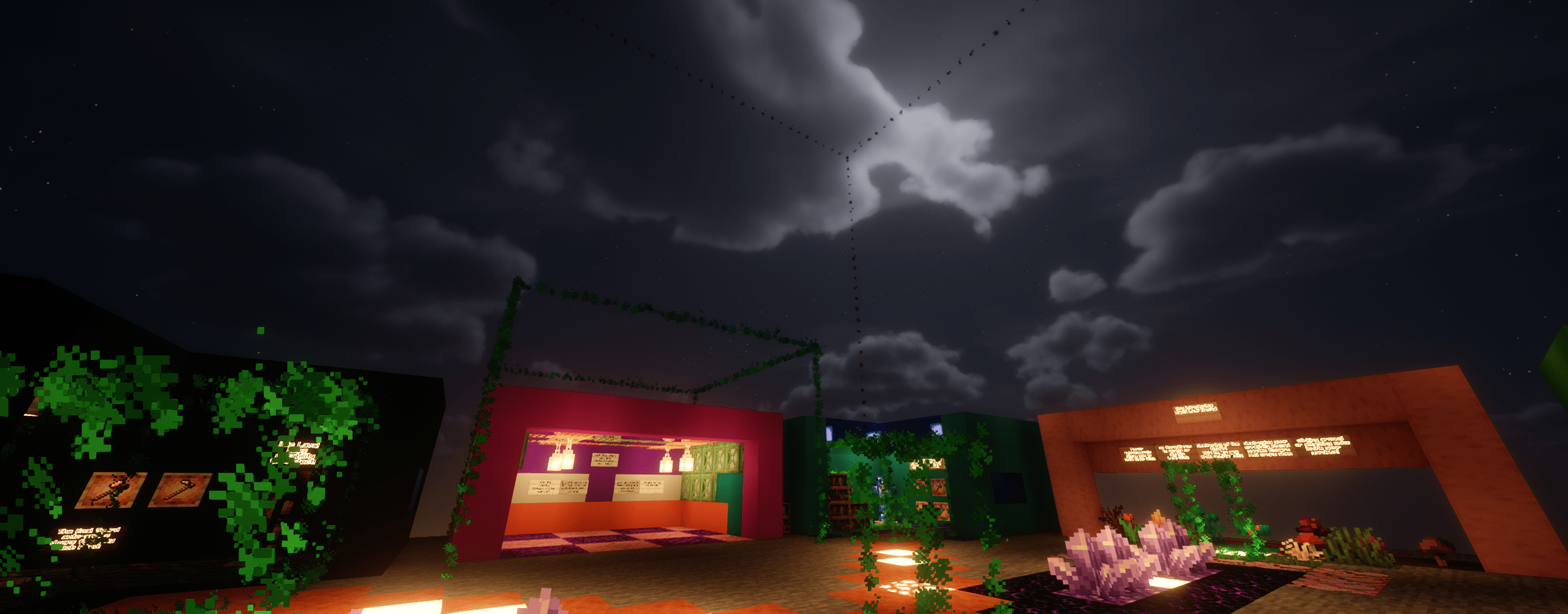
World Protection allows operators to protect an entire dimension or create precisely sized protected and unprotected regions.
Protected players cannot:
- Break or place blocks
- Attack or interact with most entities, or perform restricted world interactions
- Pick up or drop items
- Remove items from protected storage containers
Players can still use buttons, pressure plates, menus, crafting and processing stations, and permitted container interactions, including Inventory Enhancements sorting.
Protection can apply to everyone or specific players. Individual players can also be included in or excluded from a region, including players who are currently offline.
Regions are edited directly in the world using visible block-edge borders and corners. Operators can grab an edge or corner, move it with their position, and right-click again to save it.
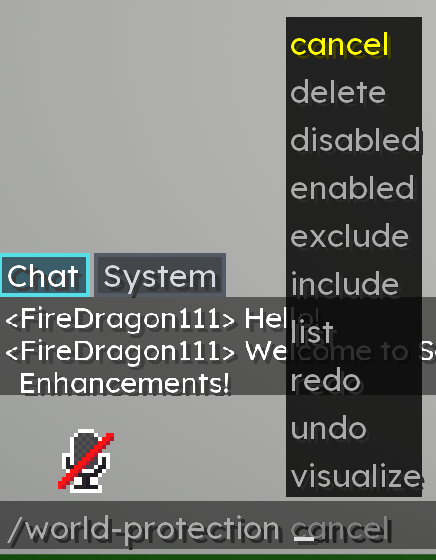
Additional tools include personal and forced visualization, temporary join previews, clickable region lists, deletion confirmation, and undo and redo history.
World Protection Commands
| Command | Purpose |
|---|---|
/world-protection visualize |
Toggles saved protection-region borders for yourself |
| Operator-Only | Requires operator permissions |
/world-protection enabled |
Enables protection throughout the current dimension |
/world-protection disabled |
Disables protection throughout the current dimension |
/world-protection enabled <player> |
Enables dimension-wide protection specifically for that player |
/world-protection disabled <player> |
Disables dimension-wide protection specifically for that player |
/world-protection enabled r=[number] |
Creates a protected region using the selected starting radius |
/world-protection disabled r=[number] |
Creates an unprotected region using the selected starting radius |
/world-protection enabled <player> r=[number] |
Creates a protected region for one player |
/world-protection disabled <player> r=[number] |
Creates an unprotected region for one player |
/world-protection include <player> |
Includes a player in the selected region's normal protection behavior |
/world-protection exclude <player> |
Gives a player the inverse of the selected region's protection behavior |
/world-protection visualize force on |
Forces region borders to remain visible for everyone in the dimension |
/world-protection visualize force off |
Disables forced visualization |
/world-protection visualize join on |
Briefly displays region borders when players join |
/world-protection visualize join off |
Disables the join preview |
/world-protection list |
Lists every saved region in the current dimension with clickable coordinates |
/world-protection delete |
Begins or confirms deletion of the selected region |
/world-protection cancel |
Cancels the current edit without changing the saved region |
/world-protection undo |
Undoes the latest saved protection change |
/world-protection redo |
Restores the latest undone change |
Command Regions
Command Regions are invisible areas that activate when a player enters them.
A region can:
- Run a server command
- Send a formatted chat message
- Transfer the player to another Velocity server
- Limit how many times each player can activate it
- Exclude selected players from activating it
Commands run with server authority while keeping @s connected to the player who entered the region. Messages support standard & formatting codes, hexadecimal colors such as 7FF55, and \n line breaks.
Regions can be created using a starting radius or by selecting individual block positions and combining their outer edges into one precise area. A /server <name> action also uses Managed Server Profiles when configured, including consent and any necessary profile change.
Only operators can see and edit Command Region borders:
| Border Color | Meaning |
|---|---|
| Blue | No command has been assigned |
| Green | The region is configured |
| Purple | The region is currently being resized |
| Yellow | The region is awaiting deletion confirmation |
Per-Player Use Limits
The u=[number] setting controls how many times each individual player may ever activate a Command Region.
The limit is tracked separately for every player and persists across logouts and server restarts. Once a player reaches the limit, entering that region again will no longer run its command or message for them.
Use this to give new players a starter kit once, display first-join instructions, offer one-time rewards, or teleport a player through an introductory route only once or twice.
| Setting | Behavior |
|---|---|
u=[1] |
Each player may activate the region once |
u=[2] |
Each player may activate it twice |
u=[5] |
Each player may activate it five times |
u=[0] |
Unlimited—the region triggers every time an eligible player enters |
The limit applies per player, not collectively to the server. With u=[1], every player receives their own single activation.
Command Region Commands
| Command | Purpose |
|---|---|
| Operator-Only | All Command Region commands require operator permissions |
/command-region create r=[number] |
Creates a region using a starting radius |
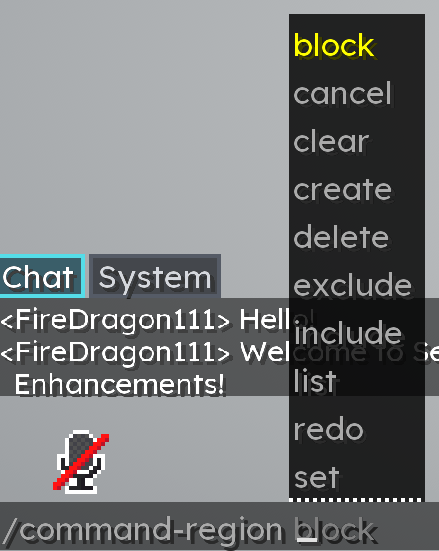
/command-region block create |
Starts precise block-selection mode |
/command-region block finish |
Combines the selected positions into one saved region |
/command-region block cancel |
Discards the unsaved block selections |
/command-region set command |
Captures the next entered command or selected command block |
/command-region set message |
Captures the next normal chat message |
/command-region set u=[number] |
Sets each player's lifetime activation limit for the region |
/command-region set u=[0] |
Unlimited—the region triggers every time an eligible player enters |
/command-region clear command |
Removes the assigned command |
/command-region clear message |
Removes the assigned message |
/command-region exclude <player> |
Prevents a player from activating the selected region |
/command-region include <player> |
Removes that player's exclusion |
/command-region visualize |
Toggles personal Command Region visualization |
/command-region visualize force on |
Forces operators to see Command Region borders |
/command-region visualize force off |
Disables forced visualization |
/command-region visualize join on |
Briefly shows operators the regions when they join |
/command-region visualize join off |
Disables the join preview |
/command-region list |
Lists every region in the current dimension with clickable coordinates |
/command-region delete |
Begins or confirms deletion of the selected region |
/command-region cancel |
Cancels the current edit |
/command-region undo |
Undoes the latest saved Command Region change |
/command-region redo |
Restores the latest undone change |
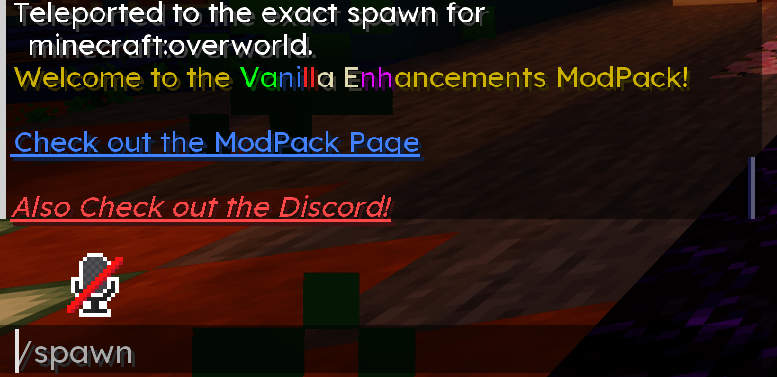
Exact World Spawns
Operators can configure an exact entry spawn for each dimension, including the player's position, facing direction, and camera angle.
An entry spawn can be applied every time a player enters the dimension or only for each player's first selected number of entries. The limited-entry setting also uses u=[number], but applies to dimension entries instead of Command Region activations.
u=[1]sends each player to the exact spawn on their first entry.u=[2]sends each player there for their first two entries.u=[0]disables automatic entry-spawn teleporting.- Forced mode sends players to the spawn every time, regardless of prior entries.
The /spawn command remains available for manual teleportation and does not consume a limited automatic entry use.
When no exact entry-spawn policy applies, saved safe positions outside Command Regions help prevent players who disconnect inside a trigger from repeatedly activating it when they return.
World Spawn Commands
| Command | Purpose |
|---|---|
/spawn |
Manually teleports you to the current dimension's configured exact spawn |
| Operator-Only | Requires operator permissions |
/world-spawn set |
Saves your exact location, facing direction, and camera angle as the current dimension's spawn |
/world-spawn set u=[number] |
Automatically teleports each player to the spawn for their first selected number of dimension entries |
/world-spawn set u=[0] |
Never automatic—disables automatic entry-spawn teleporting |
/world-spawn force on |
Always automatic—teleports players to the spawn every time they enter the dimension |
/world-spawn force off |
Stops forced every-entry teleporting and returns to the configured limited-use policy |
/world-spawn info |
Displays the current dimension's exact spawn and entry policy |
/world-spawn clear |
Removes the current dimension's configured spawn and its usage counters |
Command Region u=[0] means unlimited activations. World Spawn u=[0] disables automatic teleporting; use /world-spawn force on for every-entry teleporting.
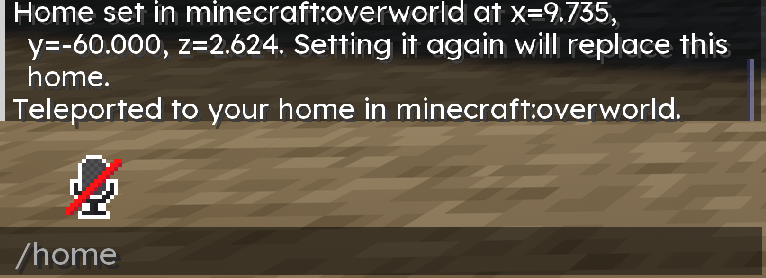
Player Homes
Every player can save one personal home across the entire world save.
A home includes its dimension, exact position, facing direction, and camera angle. Setting a new home replaces the previous one, even when it is located in another dimension.
Players can also request that someone else teleport to their home. The receiving player must manually accept the request, and both players receive clear status messages.
Homes are owned by UUID, so changing a username does not disconnect a player from their saved home. Previous names continue to resolve to the same player, and operators can manage homes belonging to offline players.
Home Commands
| Command | Purpose |
|---|---|
/home set |
Saves or replaces your home using your current location |
/home |
Teleports you to your home, including across dimensions |
/home delete |
Deletes your saved home |
/home bring <player> |
Requests that an online player teleport to your home |
/home jump |
Accepts your latest pending home-jump request |
| Operator-Only | Requires operator permissions |
/home <player> |
Teleports you to another player's saved home |
/home set <player> |
Sets that player's home to your current location and dimension |
/home delete <player> |
Deletes that player's saved home |
Operator commands support saved offline players. Known online, network-wide, and saved offline names are included in command suggestions where available.
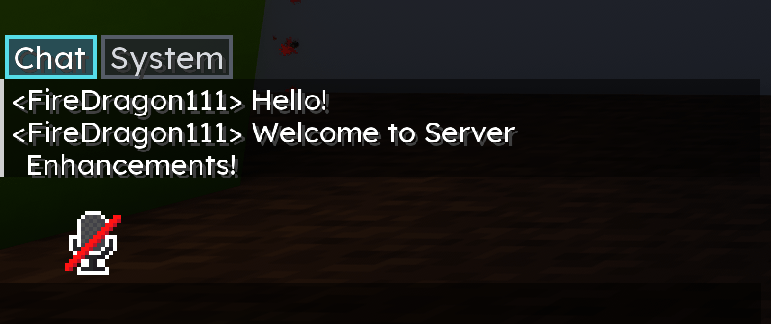
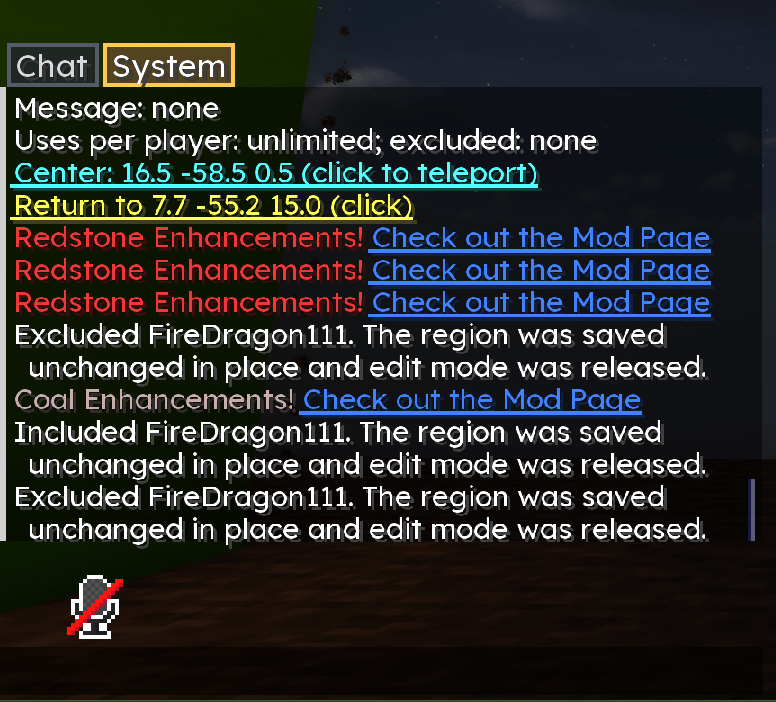
Improved Chat Window
When Server Enhancements is installed on the client, the chat window is divided into two tabs:
- Chat for messages from other players
- System for command output and server-sent messages
Submitting a command automatically switches to the System tab.
When a message arrives in the inactive tab, a small red notification dot appears. A brief italic notification also appears alongside the composer so players know whether they received a new Chat or Server message.
The chat interface uses a compact layout and the readable Lexend font throughout its messages, input field, command suggestions, and tabs. Profile consent, loading, and error screens use the same visual style.
Managed Server Profiles
Want to have different mods on different servers, without making your players switch modpacks every time? This allows them to do exactly that!
For example, you could have one server running your usual survival mods and another with an extra mod that adds new tools, blocks, and recipes. When a player switches between them, Server Enhancements prepares the correct mods for the server they are joining.
Here's how it works:
- The server provides the actual JAR files it uses, so players receive the matching versions directly from that server.
- Players review the mod list and choose whether to accept before anything is downloaded.
- If their active mods already match, they can join without restarting!
- If the mods are different, Server Enhancements creates a separate temporary profile and handles the Minecraft restart and connection for them. A loading screen stays visible while the next instance prepares.
- Their usual Minecraft profile and any mods they installed themselves are left alone.
This also works when a Command Region sends a player to another server using /server!
Choosing Which Mods to Accept
Before joining, players can see the full list of mods for that server, including the ones they already have. The differences are highlighted so they are easy to spot:
| Status | What it means |
|---|---|
| Add — Yellow background | This mod will be added for the server you are joining |
| Remove — Red background and strikethrough | This mod is active now, but will not be used on the next server |
| Keep — No highlight | You already have this exact mod active |
Each mod can also have clickable CurseForge and/or Modrinth links beside its name, along with its verification status.
Players are asked each time by default, even if no restart is needed. They can check “Do not show again unless this profile changes” if they prefer. If that server's mods or linked pages change, they will be asked again.
Pressing Decline cancels the switch and leaves the player on their current server when they are still connected. If they were joining for the first time, it returns them to the menu.
Checking the Mod Files
A link to a mod page alone doesn't prove that the server is providing that mod's real file. Server Enhancements checks the offered files against the linked project's published files, and the player's own client performs its own checks before the download is accepted.
After downloading, the client checks the files again before using them. These checks are repeated on each request.
| Status | What it means |
|---|---|
| Published match | The file matches a published release on the linked project using supported strong verification |
| Unverified | The mod could not confirm a published match; the player must acknowledge this before continuing |
| Mismatch | The file or linked project does not match; continuing is blocked |
An unpublished mod can still be used, but it will show as Unverified. CurseForge-only links may also remain unverified because of the information available for comparison. Modrinth supports the stronger matching used for a published match.
If the server's results and the player's checks disagree, or the results change after the player accepts, another warning appears before continuing—even if they checked “Do not show again.”
Please only accept mods from servers you trust! A published match confirms that the file matches the mod page; it does not guarantee that the mod is safe.
Keeping Your Settings and Shaders
You shouldn't have to set up your shaders and preferences every time you change servers!
- Personal configs stored in supported locations, Minecraft options, shader packs, and shader settings carry between profiles and mod updates.
- Configs provided specifically by a server stay separate from your personal settings.
- Temporary installed mods are cleaned up after you exit the managed session. Your personal settings and shaders are kept for next time.
- Downloaded files may be kept in a separate cache to save downloading them again, but they are still checked before reuse.
Some mods save their settings in unusual places and may need additional support.
Installation and Compatibility
Server Enhancements uses one universal JAR for Minecraft 26.2, Fabric, and Velocity.
| Destination | Installation |
|---|---|
| Fabric backend servers | Place the JAR in every participating backend server's mods folder |
| Velocity proxy | When using Velocity, place the same JAR in its plugins folder |
| Minecraft client | Install the JAR with Fabric Loader for Managed Server Profiles, the improved chat window, and client region-editing support |
The JAR includes its required Fabric API support; players do not need a separate profile manager or installer.
Server administrators must configure the advertised profile and its file source on each participating backend and on Velocity when used. Profiles can use the server's actual mod directory as their source. Exclude server-only JARs and private server configuration from anything offered to players. Installing the JAR alone does not configure a complete server profile.
Velocity enables cross-server Command Regions, network-wide player-name suggestions, and coordinated profile switching between its backends.
Saved regions, world spawns, protection settings, and player homes are stored with the main world save and included in full-world backups.
Screenshots
Gallery
-
 Server Enhancements - Command and World Zones Server Enhancements - Command and World Zones
 -
 Server Enhancements - World Protection Server Enhancements - World Protection
 -
 Server Enhancements - Command Region Server Enhancements - Command Region
 -
 Server Enhancements - Spawn Server Enhancements - Spawn
 -
 Server Enhancements - Home Server Enhancements - Home
 -
 Server Enhancements - Chat 1 Server Enhancements - Chat 1
 -
 Server Enhancements - Chat 2 Server Enhancements - Chat 2
Versions
Files
Relations
Project Relations
More like this
Similar Mods
Suggestions use data such as tags, dependencies, dependents, descriptions, titles, and more to rank how much they overlap with this mod.
On ModDex
Community snapshot
By the numbers
Statistics
Want to reach Minecraft players?
We're looking for a server hosting partner to feature here and other parts of the site. Interested? Send us a message!
Get in touchGet it on
Available Platforms
On ModDex
Community snapshot
By the numbers
Statistics
Resources