Community listing page, reviews here may not be monitored by the author.
Sound6


No reviews yet
A simple in-game soundboard
Community voices
Reviews
No reviews yet. Be the first to review this project!
Get it on
Available Platforms
Compatibility
Supported Environments
Required on the server. Installing it on the client adds functionality.
About
Project Details
For authors
Embed Badge
If you're the author of this project, you can embed a live badge anywhere that supports HTML or Markdown. It updates automatically whenever ratings change.
Use HTML for any page that supports it, or Markdown for README files and Markdown-based descriptions.
Identifiers
Platform IDs
Resources
External Links
About
Description
Sound6
An in-game sound board.
Sound6 adds a simple-to-use menu to play sounds from Minecraft with the intended use of roleplay.

(Above) A vanilla client connected to a host with Sound6 installed
How to use
Keybinds
Pressing v will open the menu. From there pressing the number keys 1-6 will activate the equivilent button, going clockwise from the top. Pressing 7-9 will change volume between 0.5-1.5.
Menu
Hovering on the six buttons in the circle will display the ID of the sound it will play. (e.g. minecraft:entity.cat.ambient) Clicking on one of them will play that sound and close the menu. Below the six buttons is another three. These are volume buttons. Hovering over these will display the level they'll set the volume to. (e.g. 1.0) Clicking on one of them will update your volume to that level and close the menu.
Config
To customise the menu launch with the mod once and a file named sound6.json will appear in the config folder. From here you can edit this file and changes will be reflect in game without needing to relaunch.
Under the category soundButtons there are six matching blocks. Each has a number assigned and inside contain four values. The number can be ignored, though do not change it. The four values inside each block customise the appearance and functionality of each button. itemID is the ID of the item displayed on the button, soundID is the ID of the sound played when the button is clicked, xOffset how far right from the centre of the screen the button is placed, and yOffset is how far down from the centre of the screen the button is placed.
"1": {
"itemID": "minecraft:cat_spawn_egg",
"soundID": "minecraft:entity.cat.ambient",
"xOffset": 0,
"yOffset": -80
}
Under the category volumeButtons there are three matching blocks. Similar to soundButtons each block contains four values and is assigned a number which should not be changed. The three values identical to soundButtons act the same as before, with the only difference being the volume value. This value controls what your volume will be set to when pressed. This is a float with the range 0.0-2.0.
"1": {
itemID": "gunpowder",
"volume": 0.5,
"xOffset": -40,
"yOffset": 110
}
Below the two categories are a handful of other options. volume is your current volume and has a range of 0.0-2.0, buttonSize controls the height and width of the menu's buttons, closeMenuOnClick controls whether the menu closes automatically when a button or keybind is pressed, sendMessages controls whether a message is sent when a button is pressed (e.g. Volume changed to 1.5. or Played sound minecraft:entity.cat.ambient.), and sendInChat controls whether the send message appears in chat (visible only to you) or above your hotbar, given of course sendMessages is set to true.
"volume": 1.0,
"buttonSize": 20,
"closeMenuOnClick": true,
"sendMessages": true,
"sendInChat": false,
Sound6
An in-game sound board.
Sound6 adds a simple-to-use menu to play sounds from Minecraft with the intended use of roleplay.
(Above) A vanilla client connected to a host with Sound6 installed
How to use
Keybinds
Pressing v will open the menu. From there pressing the number keys 1-6 will activate the equivilent button, going clockwise from the top. Pressing 7-9 will change volume between 0.5-1.5.
Menu
Hovering on the six buttons in the circle will display the ID of the sound it will play. (e.g. minecraft:entity.cat.ambient) Clicking on one of them will play that sound and close the menu. Below the six buttons is another three. These are volume buttons. Hovering over these will display the level they'll set the volume to. (e.g. 1.0) Clicking on one of them will update your volume to that level and close the menu.
Config
To customise the menu launch with the mod once and a file named sound6.json will appear in the config folder. From here you can edit this file and changes will be reflect in game without needing to relaunch.
Under the category soundButtons there are six matching blocks. Each has a number assigned and inside contain four values. The number can be ignored, though do not change it. The four values inside each block customise the appearance and functionality of each button. itemID is the ID of the item displayed on the button, soundID is the ID of the sound played when the button is clicked, xOffset how far right from the centre of the screen the button is placed, and yOffset is how far down from the centre of the screen the button is placed.
"1": {
      "itemID": "minecraft:cat_spawn_egg",
      "soundID": "minecraft:entity.cat.ambient",
      "xOffset": 0,
      "yOffset": -80
    }
Under the category volumeButtons there are three matching blocks. Similar to soundButtons each block contains four values and is assigned a number which should not be changed. The three values identical to soundButtons act the same as before, with the only difference being the volume value. This value controls what your volume will be set to when pressed. This is a float with the range 0.0-2.0.
"1": {
      "itemID": "gunpowder",
      "volume": 0.5,
      "xOffset": -40,
      "yOffset": 110
    }
Below the two categories are a handful of other options. volume is your current volume and has a range of 0.0-2.0, buttonSize controls the height and width of the menu's buttons, closeMenuOnClick controls whether the menu closes automatically when a button or keybind is pressed, sendMessages controls whether a message is sent when a button is pressed (e.g. Volume changed to 1.5. or Played sound minecraft:entity.cat.ambient.), and sendInChat controls whether the send message appears in chat (visible only to you) or above your hotbar, given of course sendMessages is set to true.
"volume": 1.0,
"buttonSize": 20,
"closeMenuOnClick": true,
"sendMessages": true,
"sendInChat": false,
Screenshots
Gallery
-
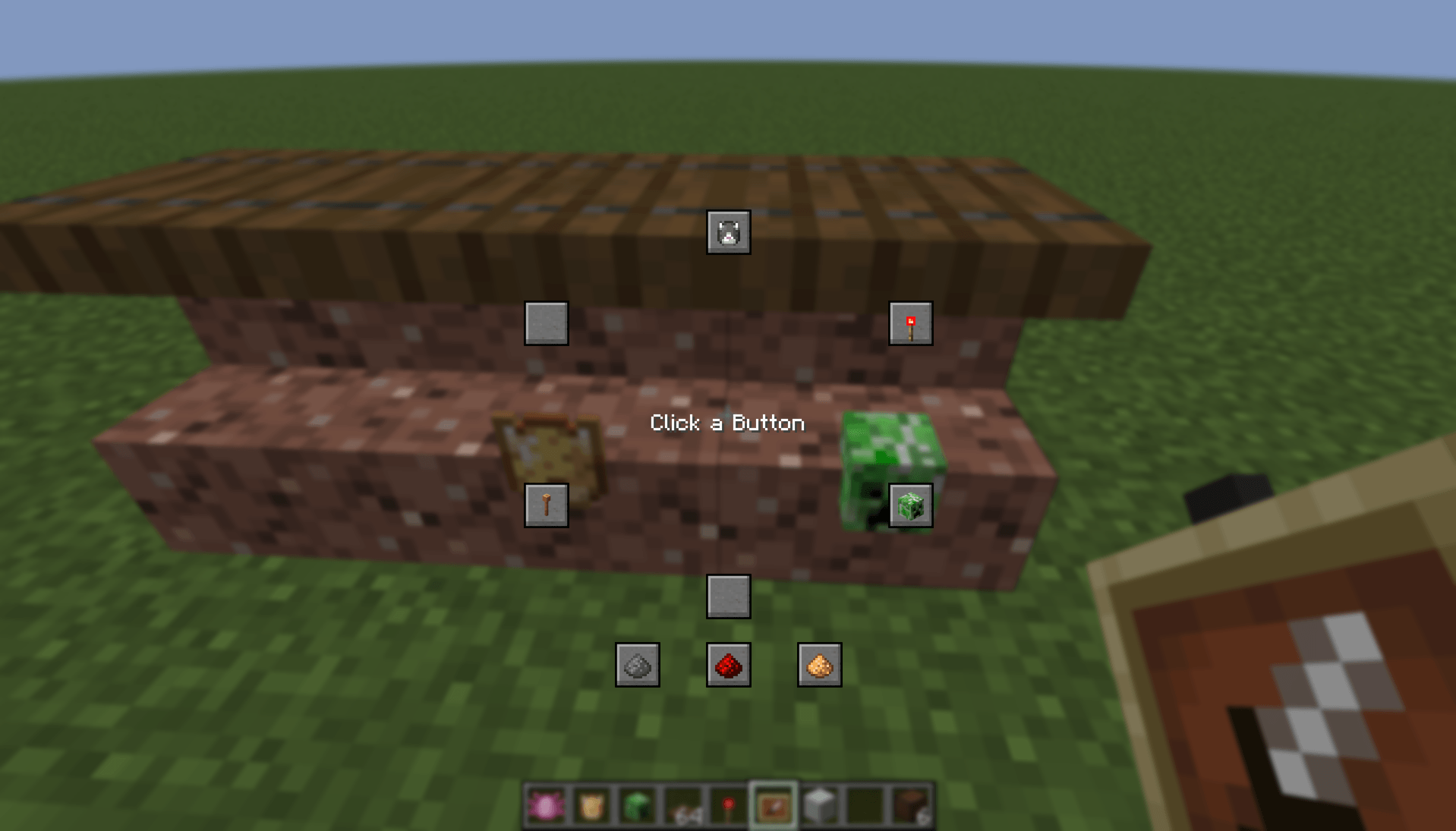 Customised Menu Example of a mildly customised menu
 -
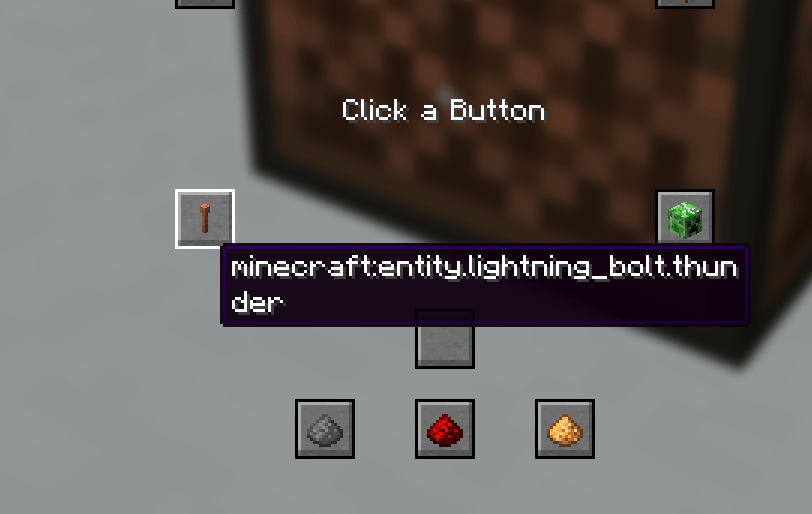 Button Hover Hovering over a button that will play a lightning sound
 -
 (Video) Modded & Vanilla Client A vanilla client hearing the sound played by a modded client
-
(Video) Modded & Vanilla Client A vanilla client hearing the sound played by a modded client
-
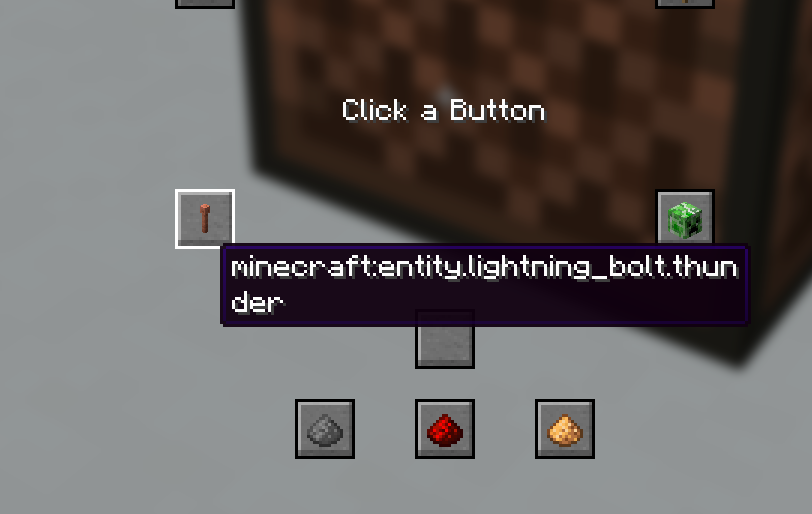 Button Hover Hovering over a button that will play a lightning sound
 -
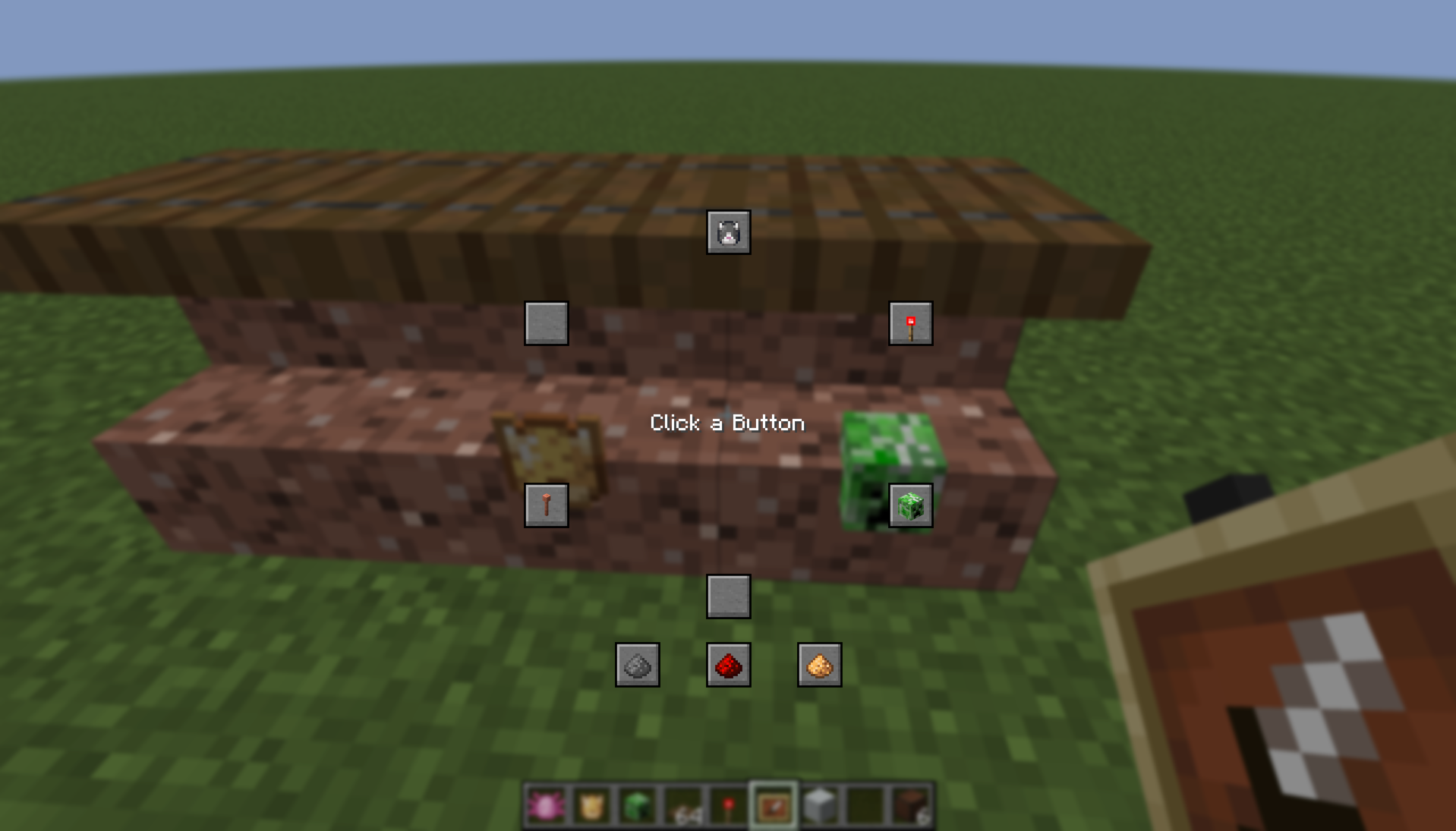 Customised Menu Example of a mildly customised menu
Versions
Files
Relations
Project Relations
More like this
Similar Mods
Suggestions use data such as tags, dependencies, dependents, descriptions, titles, and more to rank how much they overlap with this mod.
On ModDex
Community snapshot
By the numbers
Statistics
Want to reach Minecraft players?
We're looking for a server hosting partner to feature here and other parts of the site. Interested? Send us a message!
Get in touchGet it on
Available Platforms
On ModDex
Community snapshot
By the numbers
Statistics
Resources