Community listing page, reviews here may not be monitored by the author.
Streamer.craft


No reviews yet
Trigger Streamer.bot Actions from in-game!
Community voices
Reviews
No reviews yet. Be the first to review this project!
Get it on
Available Platforms
Compatibility
Supported Environments
Works on the client or the server alone, but does more when on both.
About
Project Details
For authors
Embed Badge
If you're the author of this project, you can embed a live badge anywhere that supports HTML or Markdown. It updates automatically whenever ratings change.
Use HTML for any page that supports it, or Markdown for README files and Markdown-based descriptions.
Identifiers
Platform IDs
About
Description
Streamer.craft
Trigger Streamer.bot Actions from inside Minecraft! Streamer.bot is a powerful stream automation tool, and this mod allows you to trigger those automations using the in-game chat!
Some examples to provide inspiration:
- Change scenes in OBS when triggering a trap
- Send a message in chat when you hit a target block
- Start a poll when it gets dark at night.
Setup guide
Video setup guide:
https://www.youtube.com/watch?v=-GzuuOlfyGE
Step 1: Install the mod
There are versions of this mod available for NeoForge and Fabric. You can download the latest version of the mod from here.
Step 2: Set up Streamer.bot
This mod is designed to work with the stream automation tool Streamer.bot. Download the program and unzip it.
The settings needed to connect Streamer.bot to the mod are as follows:
- Under the "Servers/Clients" tab, click "HTTP Server" and check Start Server (I'd also recommend checking "Auto Start" so the server starts automatically with Streamer.bot)
Take note of the IP and port listed in that menu, if those are changed from the defaults you'll need to update the mod's config file.
To connect to a Twitch or YouTube chat, sign in to your account in the Platforms tab.
To connect to OBS, follow these steps to enable OBS's websocket server and add it to Streamer.bot
Step 3: Make sure it is all working
Once you have Streamer.bot set up, start the program and make sure the HTTP server is running. Then, start Minecraft with the mod installed.
You'll also want to create at least one Action in Streamer.bot.
Load a world and type /streamercraft list in the chat. If everything works, you should see a list of Streamer.bot Actions in the chat.
Try pressing the "Click to manually trigger" button to make sure you can trigger actions as well.
All Commands
/streamercraft list- List all available actions/streamercraft list <filter>- List all available actions that contain the filter/streamercraft do <action-id>- Trigger a specific action/streamercraft refresh- Refresh the list of actions
Streamer.craft
Trigger Streamer.bot Actions from inside Minecraft! Streamer.bot is a powerful stream automation tool, and this mod allows you to trigger those automations using the in-game chat!
Some examples to provide inspiration:
- Change scenes in OBS when triggering a trap
- Send a message in chat when you hit a target block
- Start a poll when it gets dark at night.
Setup guide
Video setup guide:
https://www.youtube.com/watch?v=-GzuuOlfyGE
Step 1: Install the mod
There are versions of this mod available for NeoForge and Fabric. You can download the latest version of the mod from the versions page
Step 2: Set up Streamer.bot
This mod is designed to work with the stream automation tool Streamer.bot. Download the program and unzip it.
The settings needed to connect Streamer.bot to the mod are as follows:
- Under the "Servers/Clients" tab, click "HTTP Server" and check Start Server (I'd also recommend checking "Auto Start" so the server starts automatically with Streamer.bot)
Take note of the IP and port listed in that menu, if those are changed from the defaults you'll need to update the mod's config file.
To connect to a Twitch or YouTube chat, sign in to your account in the Platforms tab.
To connect to OBS, follow these steps to enable OBS's websocket server and add it to Streamer.bot
Step 3: Make sure it is all working
Once you have Streamer.bot set up, start the program and make sure the HTTP server is running. Then, start Minecraft with the mod installed.
You'll also want to create at least one Action in Streamer.bot.
Load a world and type /streamercraft list in the chat. If everything works, you should see a list of Streamer.bot Actions in the chat.
Try pressing the "Click to manually trigger" button to make sure you can trigger actions as well.
All Commands
/streamercraft list- List all available actions/streamercraft list <filter>- List all available actions that contain the filter/streamercraft do <action-id>- Trigger a specific action/streamercraft refresh- Refresh the list of actions
Screenshots
Gallery
-
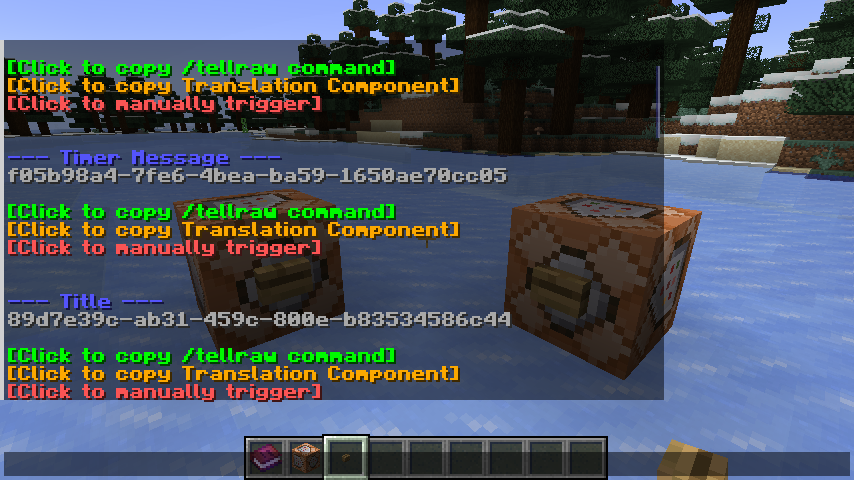 streamercraft list command output The output from running the /streamercraft list command. Each action is written in blue with the Streamer.bot action id written in grey below. Each action has three buttons in chat, the green one copies a command that is ready for a command block.
Versions
Files
Relations
Project Relations
More like this
Similar Mods
Suggestions use data such as tags, dependencies, dependents, descriptions, titles, and more to rank how much they overlap with this mod.
On ModDex
Community snapshot
By the numbers
Statistics
Want to reach Minecraft players?
We're looking for a server hosting partner to feature here and other parts of the site. Interested? Send us a message!
Get in touchGet it on
Available Platforms
On ModDex
Community snapshot
By the numbers