Community listing page, reviews here may not be monitored by the author.
Tepox Survival Map

No reviews yet
A mod designed to provide a functional and balanced world map and minimap for Survival Mode. It also includes several configuration options, allowing you to customize the experience to your liking.
Community voices
Reviews
No reviews yet. Be the first to review this project!
Get it on
Available Platforms
About
Project Details
For authors
Embed Badge
If you're the author of this project, you can embed a live badge anywhere that supports HTML or Markdown. It updates automatically whenever ratings change.
Use HTML for any page that supports it, or Markdown for README files and Markdown-based descriptions.
Identifiers
Platform IDs
Resources
External Links
About
Description
Tepox Survival Map/Mapamundi
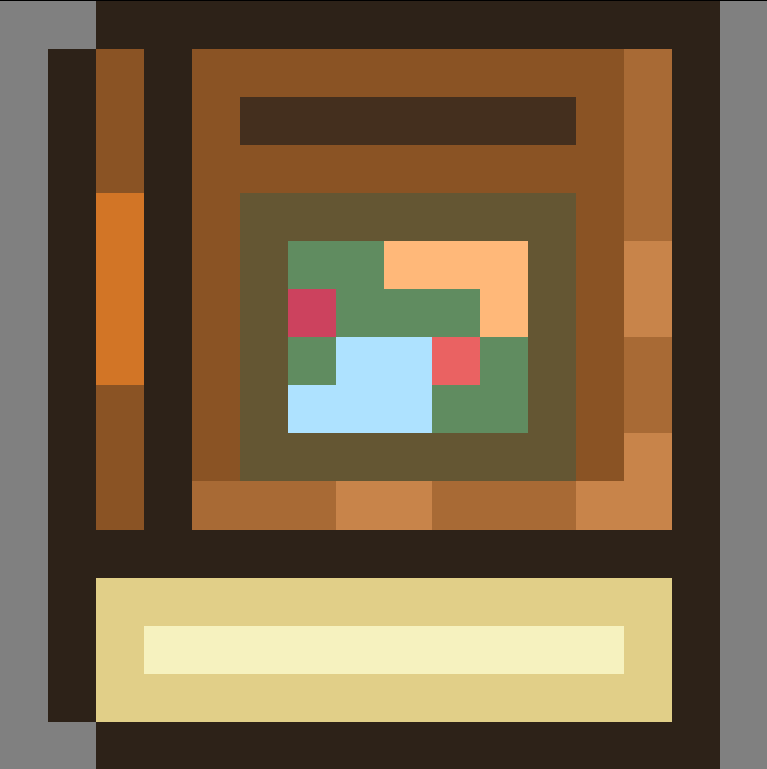
This mod is designed to be a world map and minimap option for players who are looking for this feature in Minecraft, while at the same time being as “Survival Friendly” as possible. This mod adds a new craftable item called the “World Map,” which will function as our world map for the world (a world map and minimap integrated into a single item).
The map will initially work only as a record of the terrain in the Overworld. However, it can be upgraded with different modules that will add features to the map. This is done through a new table called the “World Map Table” (“Mesa de Mapamundi” en español).
Supported Languages/Idiomas Soportados
- Español
- English
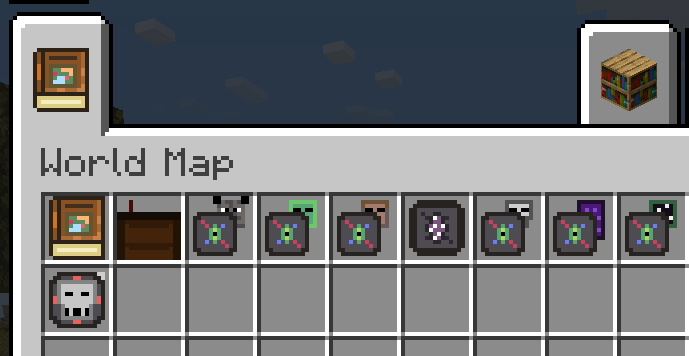
World Map/Mapamundi
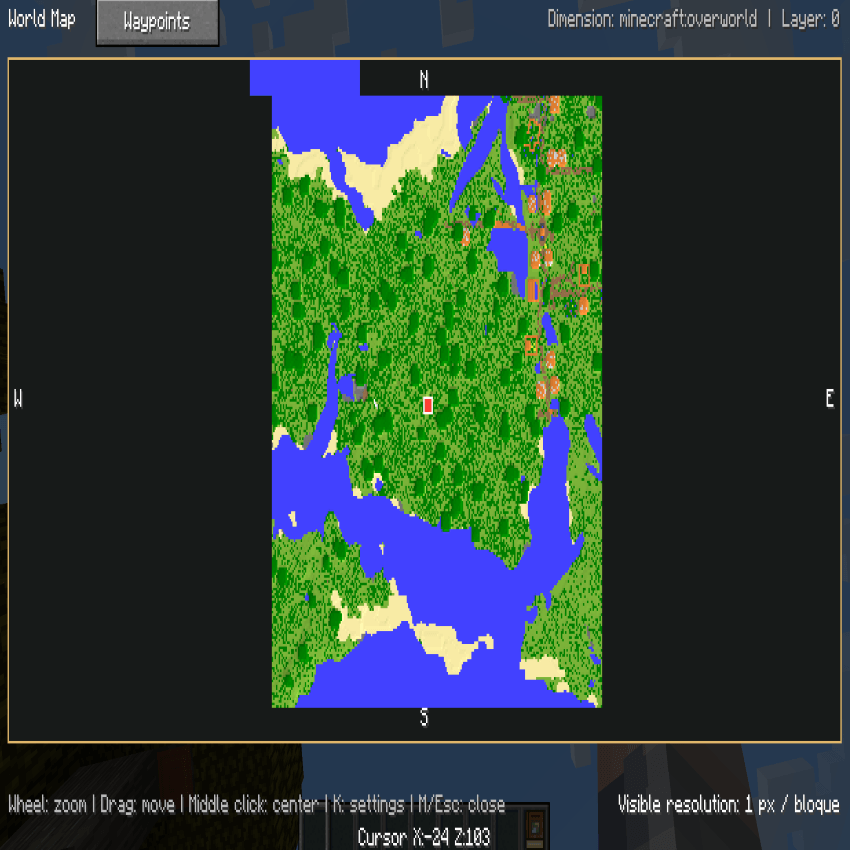
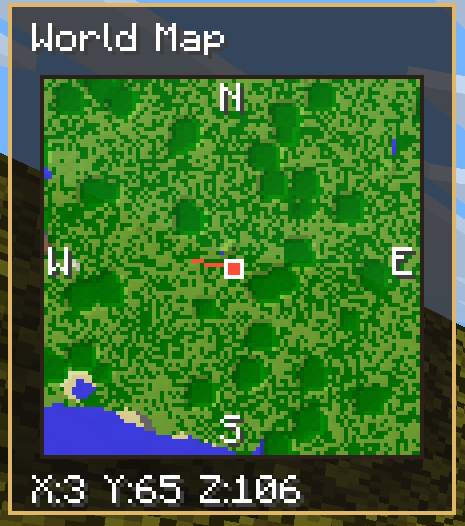
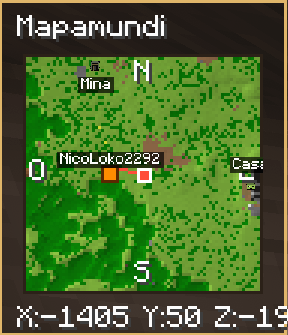
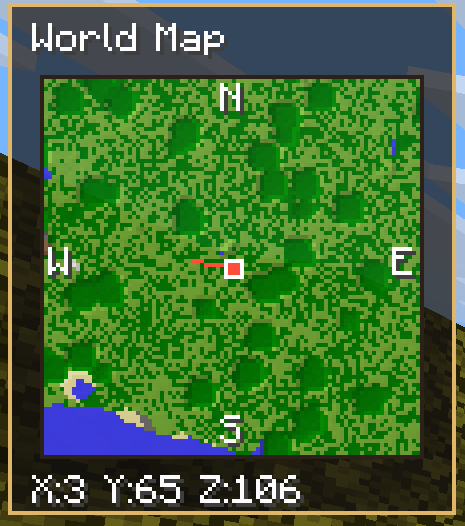
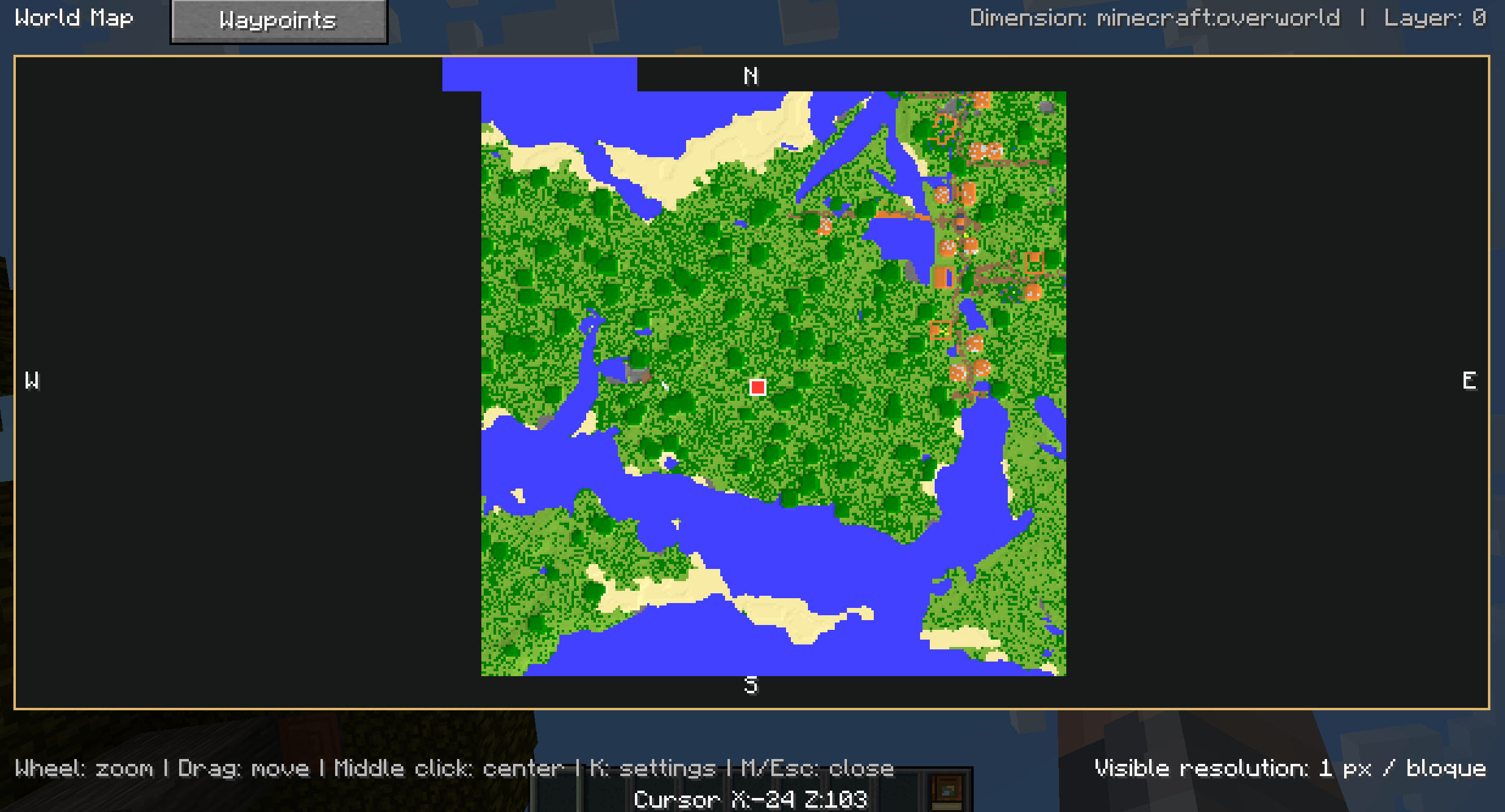
This map will be the base of the mod, as it is the item that will add the World Map and Minimap functionality. When it is in the hotbar, the minimap will be displayed in the upper-left corner along with the player’s coordinates (this can be configured in-game by opening the menu with the “K” key). Also, while the map is in the hotbar, pressing “M,” or interacting with the map while holding it in your hand, will open the World Map along with a list of controls and actions.
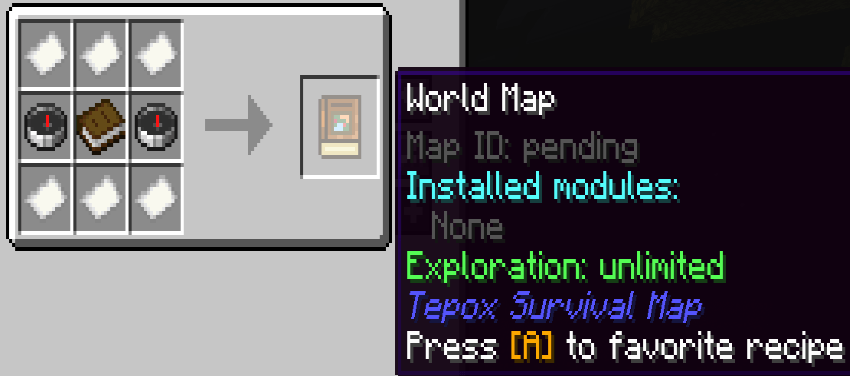
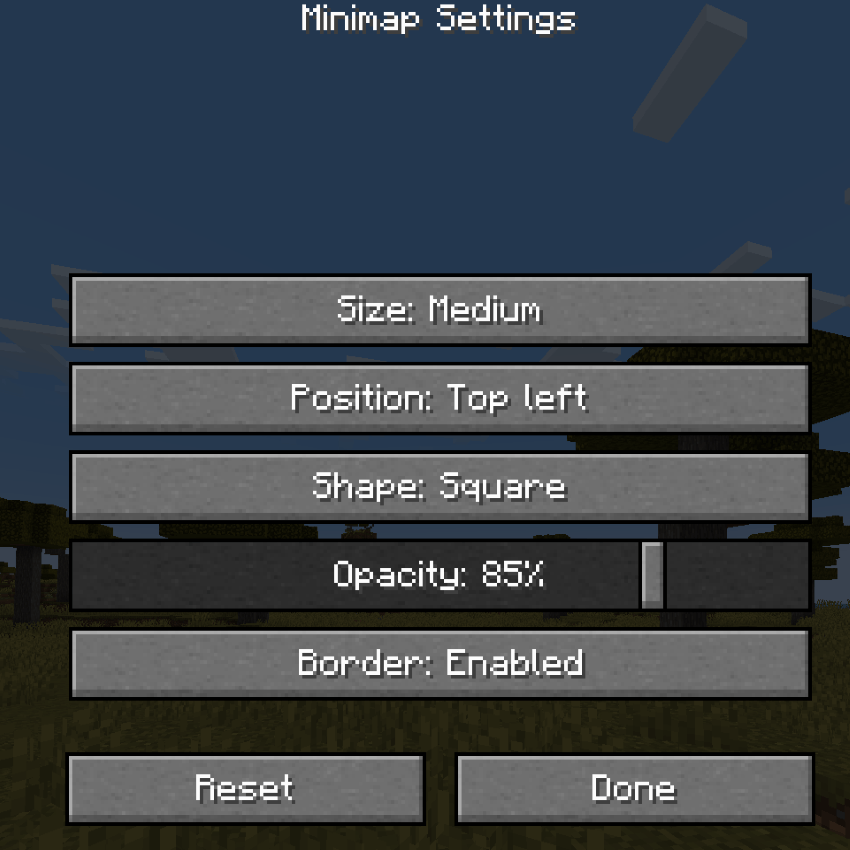
By pressing the K key, we will open an options menu for the Minimap. Here, we will be able to configure the minimap’s size, position, opacity, and borders.
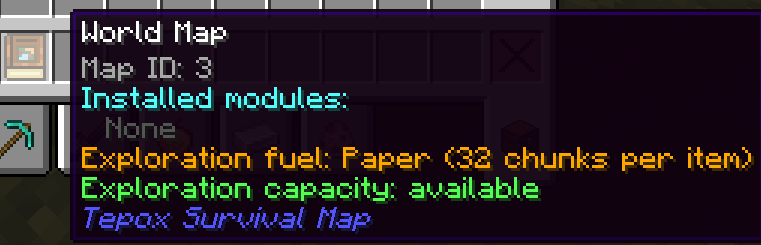
When hovering the mouse over the World Map in our inventory, its tooltip will display:
- Map ID
- Available exploration capacity
- Installed upgrades
- Whether the map still has exploration capacity or not
After 1.1.2
The new borderless minimap design is now the default, offering a cleaner and more compact view with more space dedicated to the map itself. Players who prefer the previous bordered appearance can restore it at any time by opening the minimap settings menu with K and changing Minimap Display to With Borders.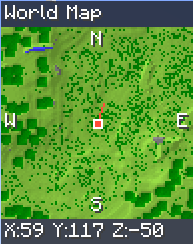
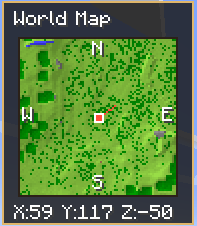
New old
World Map Table
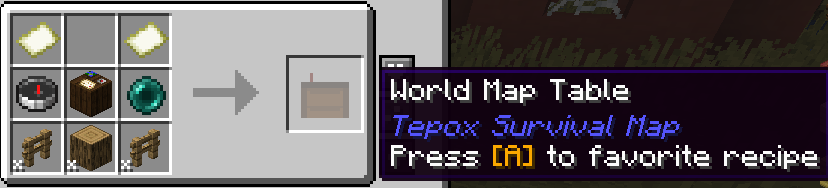
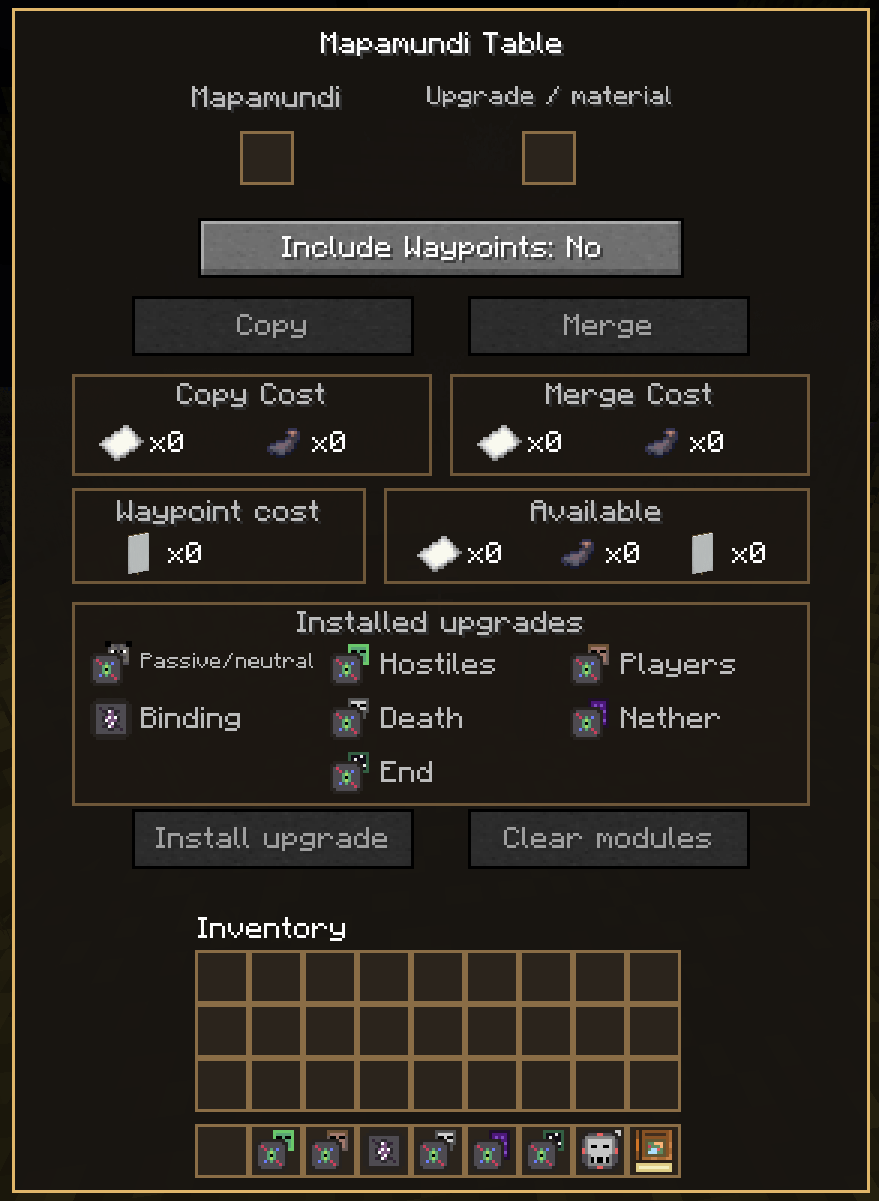
The World Map Table will allow us to perform various actions with World Maps, so we will be able to:
- Merge 2 World Maps: This is done by adding 2 World Maps to the table. When pressing “Merge,” they will be combined into a new World Map containing the explored information from both. The 2 original World Maps will be consumed. We can also merge the waypoints from both World Maps.
- Copy a World Map: This is done by adding 2 World Maps to the table. When pressing “Copy,” the information from the first one will be copied to the second, making it a copy of the areas explored by the first World Map. We can also copy the waypoints from the first one to the second.
- Install upgrade modules: This is done by adding our World Map to the first slot and the module we want to add to the second. Then, we can click “Install Module,” and it will be added to our World Map. (When clearing the modules from a World Map, they are lost.)
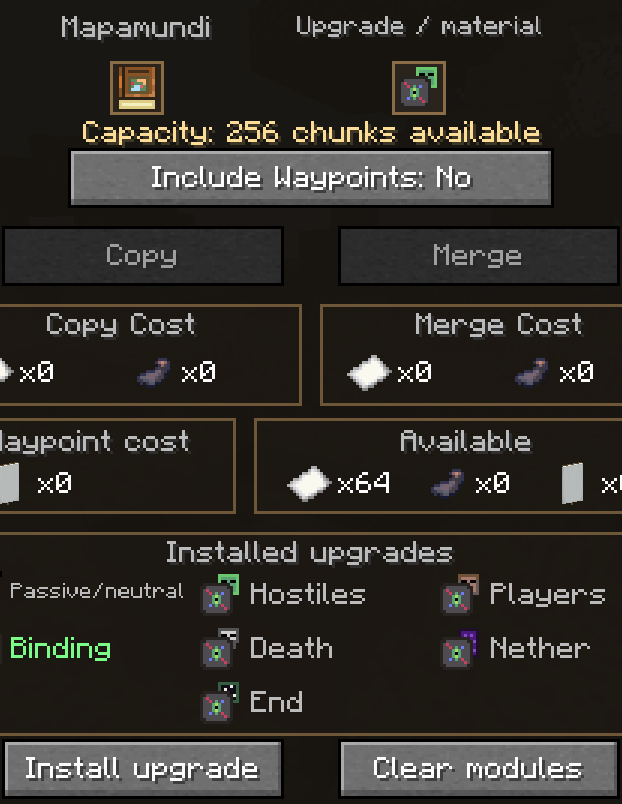
- Recharge a World Map: Here, we will be able to enable the filling of our World Map in case we configure it so that it is not infinite. This is done by adding the World Map to the first slot of the table and the additional material to the second slot. After that, a button to add the material will appear, and our World Map will be able to store or save more chunks.
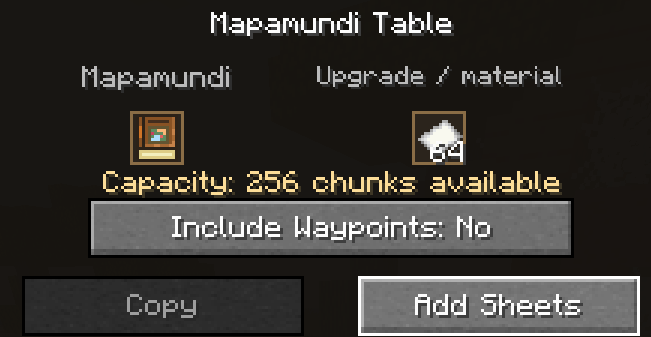
Merging, copying, and copying waypoints will have a cost in paper and ink sacs. This cost will appear in the table interface and will increase depending on the size of the maps and, in the case of waypoints, the number of waypoints.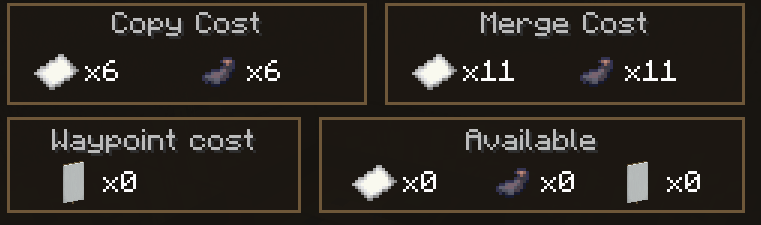
Also, when placing the map in the table slot, its installed upgrades and capacity will be displayed (if it has limited capacity).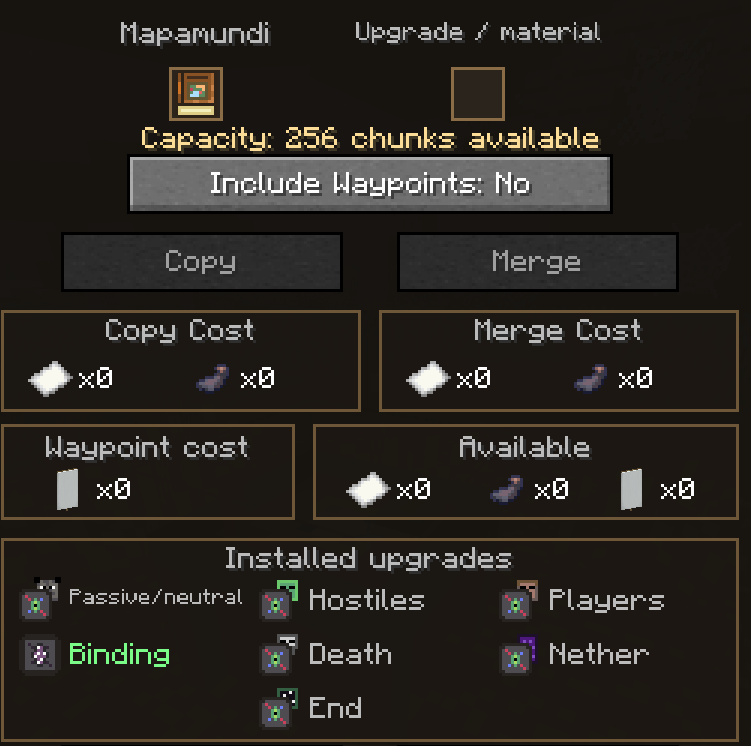
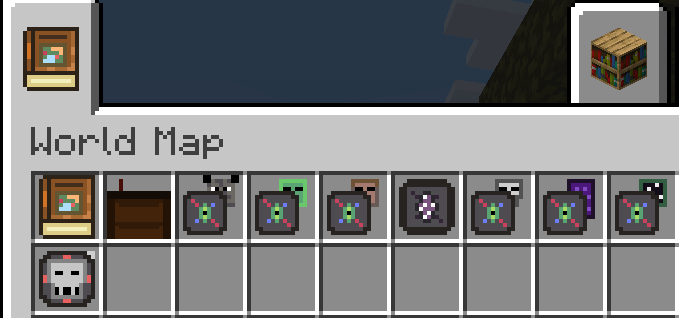
Upgrade Modules for the Map
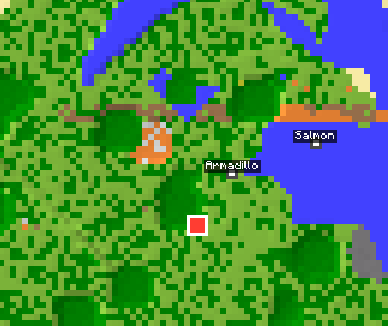
- Passive/Neutral Radar Module: This module will integrate a radar for passive and neutral mobs into the minimap and World Map, displaying passive/neutral mobs near the player with a dot and their name.
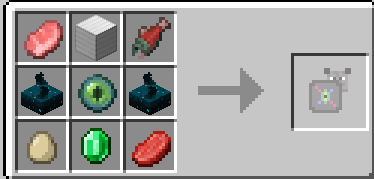
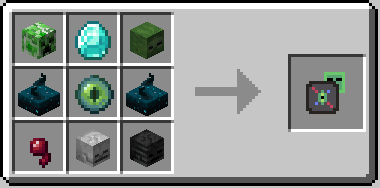
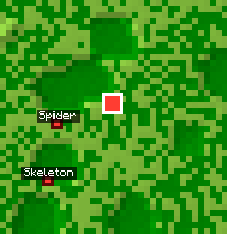
- Hostiles Radar Module: This module will be the same as the previous one, except that it will work as a radar for hostile mobs, displaying them as a dot with the mob’s name on the minimap and World Map.
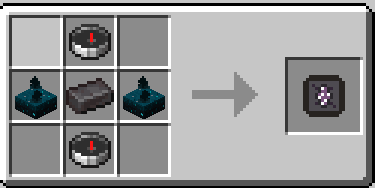
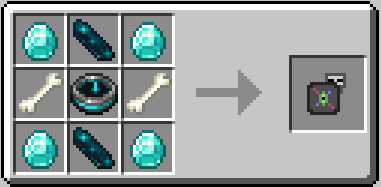
- Binding Module: This module will be used to bind the World Map to us, so that when we die, it will appear in our inventory once we respawn, making it impossible to lose the map.
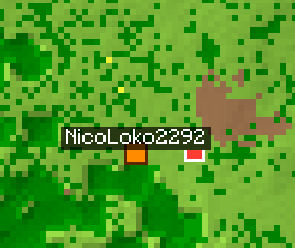
- Player Radar Module: This module will allow us to see nearby players on the World Map and Minimap. Players will appear as a dot with the player’s name above it. If players crouch, they will not appear on the map.
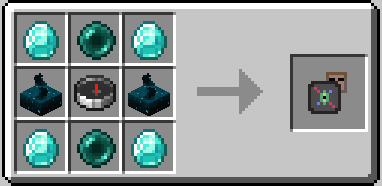
- Nether and End Module: I grouped these 2 together since they are used for similar things. These 2 modules allow the World Map to work and record terrain within the End and the Nether, respectively.
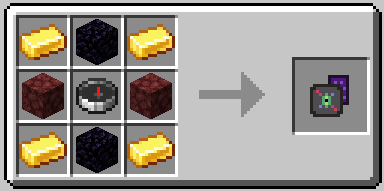
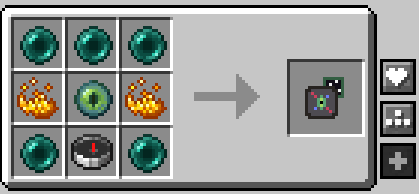
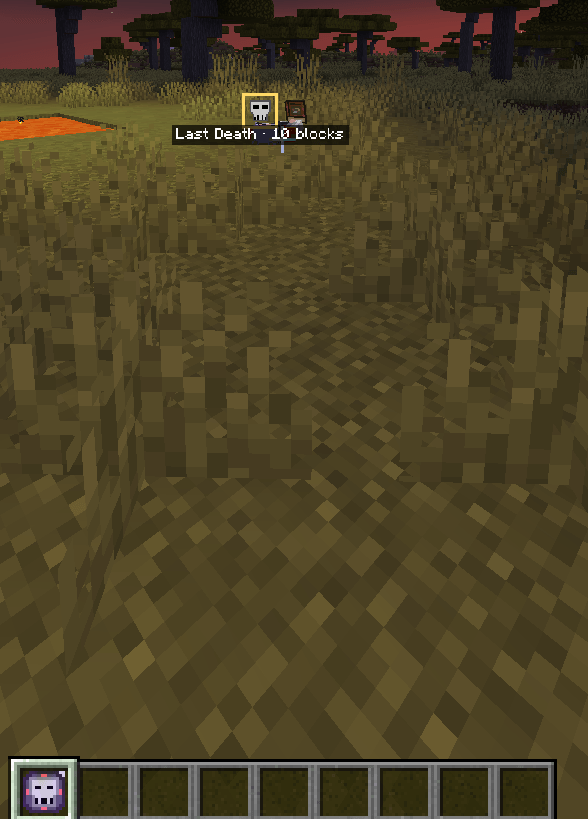
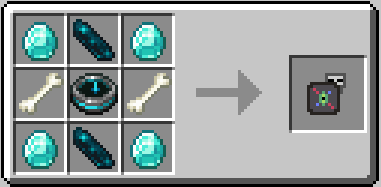
- Death Radar Module: This module will generate a waypoint at the position where you died. If you have a World Map with the “Binding Module” installed, the waypoint will be generated on the equipped World Map. Otherwise, when you respawn, you will receive a new item called the “Death Radar.” When this item is in your hotbar, the position of your last death will be marked as a fixed destination so that you can travel there. Once you get within 3 blocks of it, the item will automatically be removed from your inventory.

Waypoints
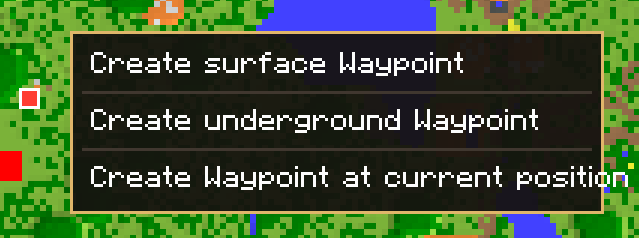
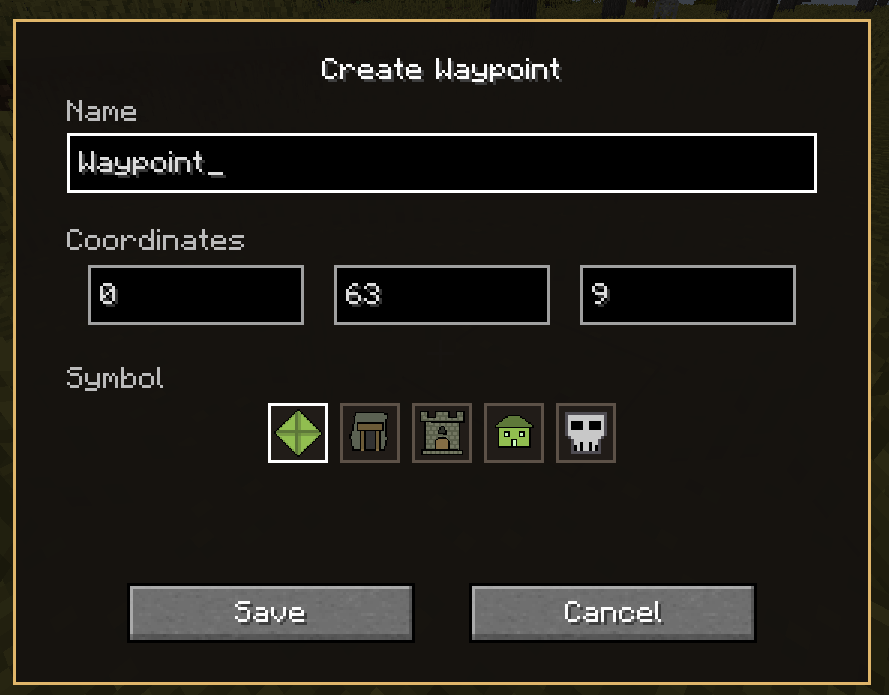
When opening the World Map with the M key or by using it while holding it in our hand, we will be able to create waypoints by right-clicking. We will be able to create waypoints at the player’s current position, at a position on the surface, or create an underground waypoint by pointing at where we want the waypoint to be. When creating it, we will be asked for the Y coordinate where we want the waypoint.
When creating a waypoint, we will be able to select an icon for it and its name.
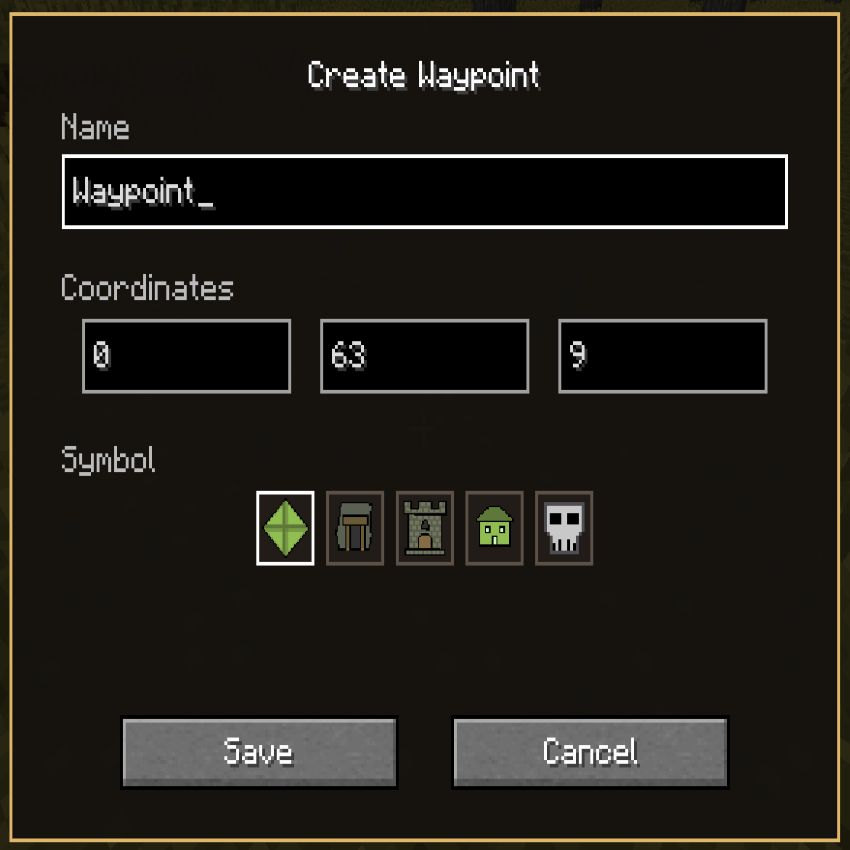
Pings (mod version 1.1.0)
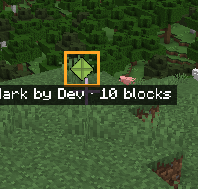
Pings are a system used to mark locations on the map that can be seen by us and other players. They will work similarly to pings in other games, serving as temporary markers that last for 5 seconds and allowing us to communicate locations on the map to our friends. These locations will be visible to them even if they do not have a World Map, although generating these pings will require having the World Map in the hotbar.
Each player can have a maximum of one ping. If another one is created, the previous one will be removed. Its name will be “Mark by [Player Name].”
Configurations
The mod will include configuration options so that each player can adjust it to their own experience. These options can be found in the Mods menu.
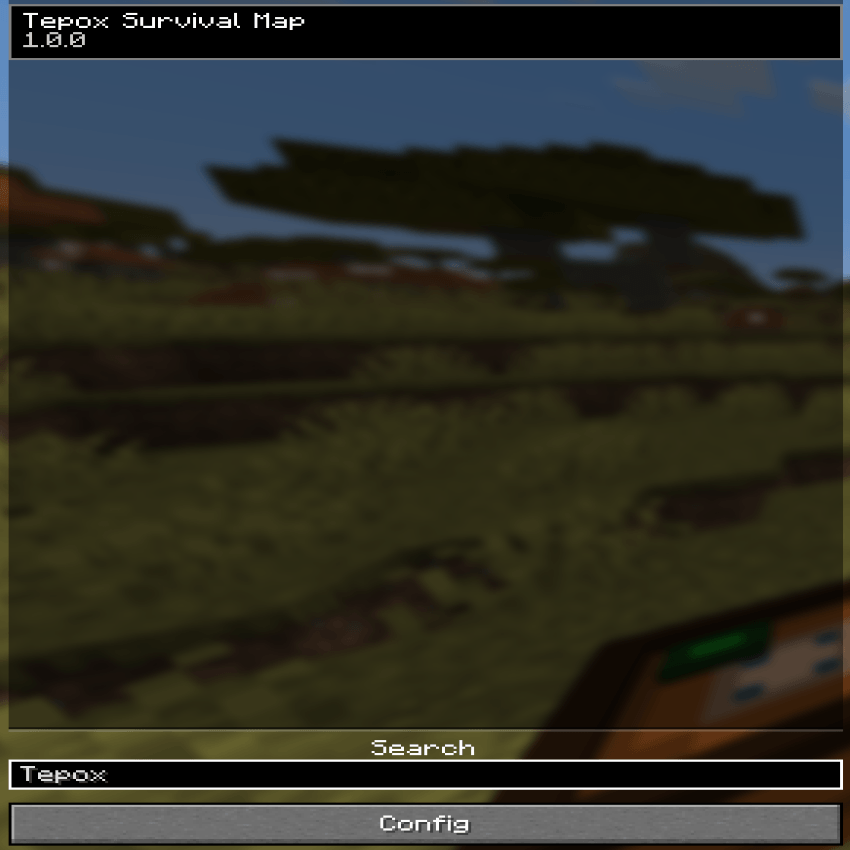
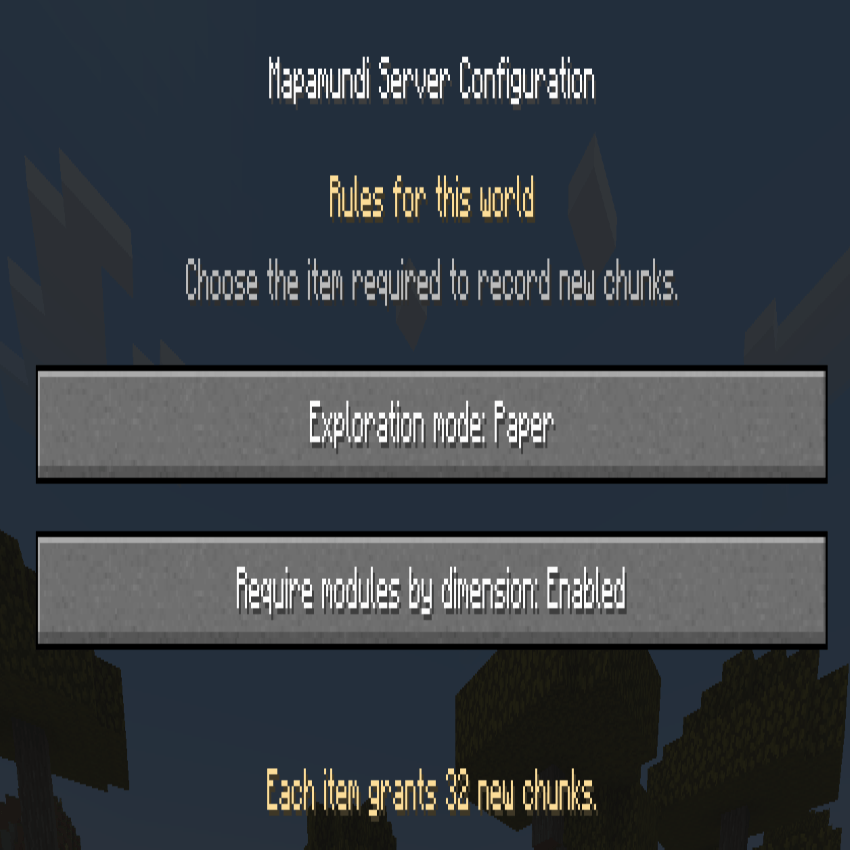 Exploration mode: This configuration will define whether we want to add the mechanic of using materials to increase the map’s storage capacity. The options will be:
- Unlimited: This option disables the mechanic, giving us infinite World Maps without the need to add materials to them.
- Paper, Blank Maps: This option enables the map recharging mechanic, requiring us to add paper or empty maps, respectively, depending on the option we have selected.
- Custom Item: This option enables the map recharging mechanic while allowing us to choose which item we want to use as the map’s storage material.
Required Modules by dimension: This option enables or disables the need to add the Nether and End modules to the map for it to work in those dimensions. This means that simply crafting the map will be enough for it to work in any vanilla dimension. Default = Enabled.
Temporaly pings: This option is used to enable or disable the mod’s ping system. It will be set to Enabled by default.
Visibility: This configuration is used to specify who will be able to see other players’ pings. The 2 options will be:
- Same team Only: As its name suggests, this means that only players who are on the same team will be able to see each other’s pings.
- All nearby players: This option removes the restriction, allowing all nearby players to see each other’s pings.
Ping sharing range: This defines the chunk range within which players must be for their pings to be shared.

With the 1.1.1 Configure All Update, every Mapamundi module can now be configured individually from the new Configure All screen. Each module can be set to require installation, remain completely disabled, or work automatically without needing to be installed. A separate General Configuration section is still available and contains the rest of the server and gameplay settings that are not directly related to module behavior.
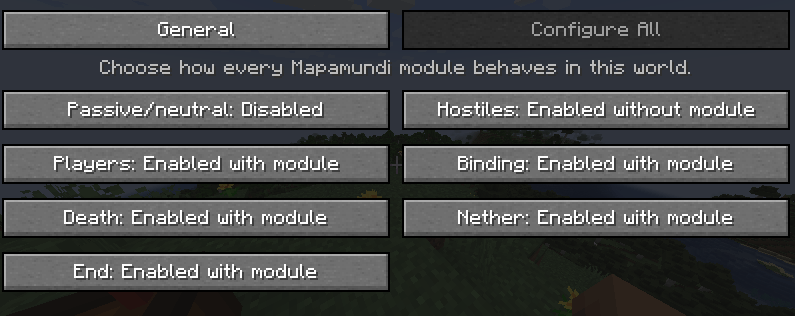
- Enabled — Module Required: The feature works normally, but players must craft and install the corresponding module in the Mapamundi Table.
The module recipe remains available. - Disabled: The feature is completely disabled, even when the Mapamundi already contains the corresponding module.
The module recipe is removed to prevent confusion.
Installed modules are not deleted and will work again if the setting is changed later. - Enabled — No Module Required: The feature is enabled by default for every Mapamundi without requiring players to craft or install its module.
The module recipe is removed because the module is no longer necessary.
Feel free to use this mod in your modpacks. Credits are appreciated, but not required. Any bugs or incompatibilities can be reported in the comments.
I hope you enjoy the mod and find it useful.
Screenshots
Gallery
-
 TepoxWorldMap.png World Map
 -
 ModItems.png Captura de pantalla 2026-07-21 031602.png
 -
 WorldMapTable.png World Map Table
 -
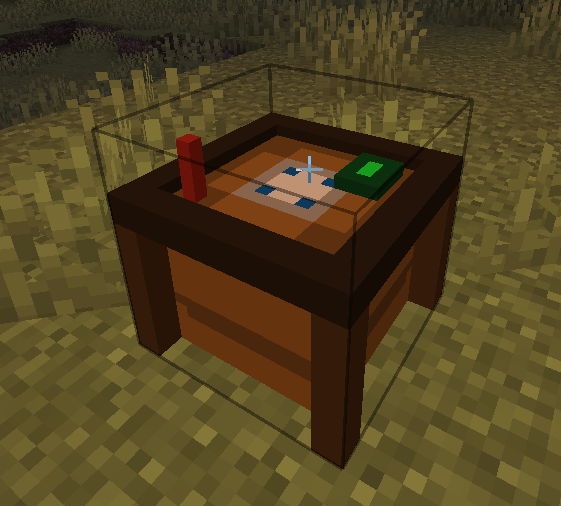 WorldMapTableBlock.png World Map Table Block
 -
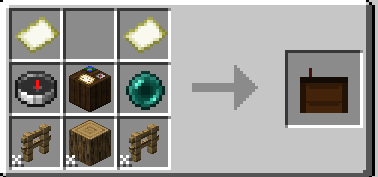 WorldMapTableRecipe.png World Map Table Recipe
 -
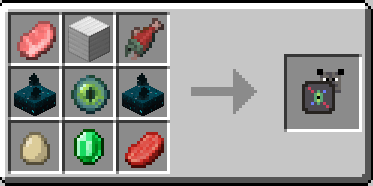 PassiveNeutralMobsRadar.png PassiveNeutralMobsRadar
 -
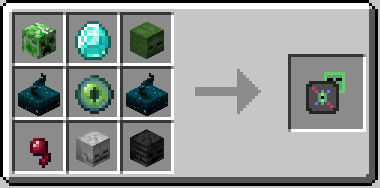 HostileMobsRadar.png Hostile Mobs Radar
 -
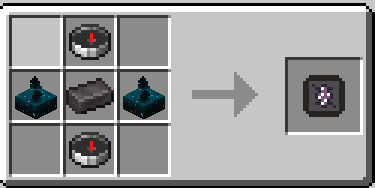 BindingModule.png Binding Module
 -
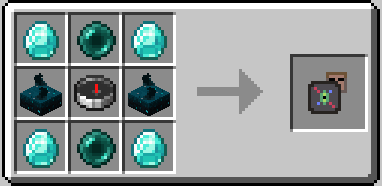 PlayersRadar.png Players Radar
 -
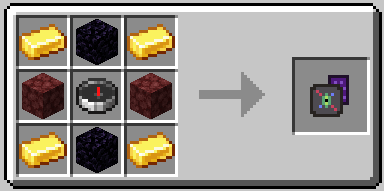 NetherModule.png Nether Module
 -
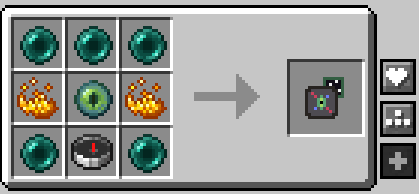 EndModule.png End Module
 -
 DeathRadar.png Death Radar
 -
 Create Waypoint Menu.png Create Waypoint Menu
 -
 MiniMap.png MiniMap
 -
 WordMap.png Word Map
Versions
Files
Relations
Project Relations
More like this
Similar Mods
Suggestions use data such as tags, dependencies, dependents, descriptions, titles, and more to rank how much they overlap with this mod.
On ModDex
Community snapshot
By the numbers
Statistics
Want to reach Minecraft players?
We're looking for a server hosting partner to feature here and other parts of the site. Interested? Send us a message!
Get in touchGet it on
Available Platforms
On ModDex
Community snapshot
By the numbers
Statistics
Resources