
Community listing page, reviews may not be monitored by the author.
WorldMates

No reviews yet
Add friends by a unique code, see who's online, and jump straight into their world with one click

Community voices
Reviews
No reviews yet. Be the first to review this project!
Get it on
Available Platforms
About
Project Details
For authors
Embed Badge
If you're the author of this project, you can embed a live badge anywhere that supports HTML or Markdown. It updates automatically whenever ratings change.
Use HTML for any page that supports it, or Markdown for README files and Markdown-based descriptions.
Identifiers
Platform IDs
Resources
External Links
About
Description
Add friends by a unique code, see who's online, and jump straight into their world — no more sharing IPs by hand every time you want to play together.
Features
- Add friends with a unique Name#Code, no need to exchange Discord tags or remember IPs.
- See who's online at a glance, right from an in-game friends panel.
- Get notified instantly when a friend invites you to their world or sends you a friend request, with a toast popup in the corner of your screen.
- Join with one click straight from the notification — no manual IP typing.
- Share your world easily, whether over your local network or over the internet using a Playit tunnel, without needing to configure port forwarding on your router.
- Copy your IP or port with one click when sharing your world, so you can send it to a friend in seconds.
Requirements
- Have a Playit .gg account
- have the playit.gg application installed
How to play over the internet with Playit
- Create a free account at playit.gg and download the Playit app for your computer.
- Open the Playit app so it's running, then on the playit.gg website go to Tunnels and click New Tunnel.
- Give it any name you like and click Next.

- Select Minecraft Java, then click Next twice.
- Under Assign to Agent, select your agent (something like
from-key-1c9c) — this only shows up if the Playit app from step 1 is installed and running.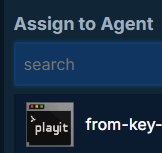
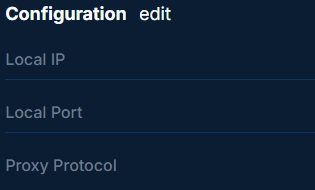
- Click Next. On the following screen (Local IP, Local Port, Proxy Protocol) don't change anything — just click Next, then Create Tunnel. Your tunnel is now ready.
- Copy the address shown under Your Tunnel and paste it into WorldMates' "Playit tunnel" box, then in Minecraft click Open to LAN.
- Minecraft will give you a port number.
- Go back to your tunnel on playit.gg, scroll down to Configuration, click Edit, clear the Local Port field, and enter the exact port Minecraft just gave you. Click Save.
- All set: invite your friend and enjoy!
¡Remember to keep the PlayIt.gg program open; if you close it, you won't be able to play with your friends!.
You only need to set up the tunnel once. For the same world, WorldMates remembers the address and you won't have to repeat anything. If you start a new world, you'll just need to repeat steps 8-9 (get the new port from Minecraft and update it in your existing tunnel) — no need to create a whole new tunnel.
Notes
- The internet-sharing option needs a Playit account with the Playit app running on your computer. WorldMates does not create the tunnel for you — you create it in Playit, then paste the address Playit gives you into WorldMates' "Playit tunnel" box when sharing your world. If you only want to play over your local network (LAN), you don't need Playit at all.
- This project is all rights reserved — please don't redistribute or modify it without permission.
Please mention any errors or questions
Screenshots
Gallery
Versions
Files
Relations
Project Relations
More like this
Similar Mods
Suggestions use data such as tags, dependencies, dependents, descriptions, titles, and more to rank how much they overlap with this mod.
On ModDex
Community snapshot
By the numbers
Statistics

Get it on
Available Platforms
On ModDex
Community snapshot
By the numbers
Statistics
Resources