
Community listing page, reviews here may not be monitored by the author.
Animated Frames


No reviews yet
Display GIFs PNGs & JPG in Minecraft
Community voices
Reviews
No reviews yet. Be the first to review this project!
Get it on
Available Platforms
Compatibility
Supported Environments
Required on the client. Installing it on the server adds functionality.
Must be installed on both the client and the server.
Varies by version.
About
Project Details
For authors
Embed Badge
If you're the author of this project, you can embed a live badge anywhere that supports HTML or Markdown. It updates automatically whenever ratings change.
Use HTML for any page that supports it, or Markdown for README files and Markdown-based descriptions.
Identifiers
Platform IDs
About
Description

📺 AnimatedFrames — v1.6
Display GIFs, PNGs, JPGs, JPEGs and MP4 videos on screen!
AnimatedFrames allows you to display GIFs, PNGs, JPGs, JPEGs and MP4 videos within Minecraft using commands.
Wiki --- Discord Support
Requirements
- Loader support: Fabric • NeoForge • purpur • spigot • etc
- Dependency: Watermedia 2.1.37
📝 Commands
Client-side commands (/mediac) — only you see them
/mediac show <name> [duration] [position] [scale] [volume]Display media locally from your files. Example:/mediac show sunny.gif 10 center 1.0 80/mediac stopStop the current media./mediac listList files in your local folder./mediac lang <en|es>Change the language (English or Spanish).
Server-side commands (/medias) — requires OP
/medias show <player|@a> <name> [duration] [position] [scale] [volume]Send media to the selected players. Example:/medias show @a example.gif 15 topleft 2.0 80/medias stop <player|@a>Stop media for selected players.
Important: The media file must exist in each player's own client folder. Players without the mod or without the file will not see anything.
⚠️ File Location
Folder (client only): .minecraft/config/animatedframes/media/
- Place your
.gif,.png,.jpg,.jpeg,.mp4files here - Folder is created automatically on first use
- No server folder — each player needs the file in their own client
🔌 Plugin Support
AnimatedFrames also has a Bukkit/Spigot/Paper plugin version for server-side control. With the plugin, server admins can trigger media on players' screens without needing the mod on the server.
Players still need the client mod and the media files on their own
.minecraftfolder.
GIF, PNG, JPG or JPEG displayed locally (client):
.gif)
GIF, PNG, JPG or JPEG sent to players (server):
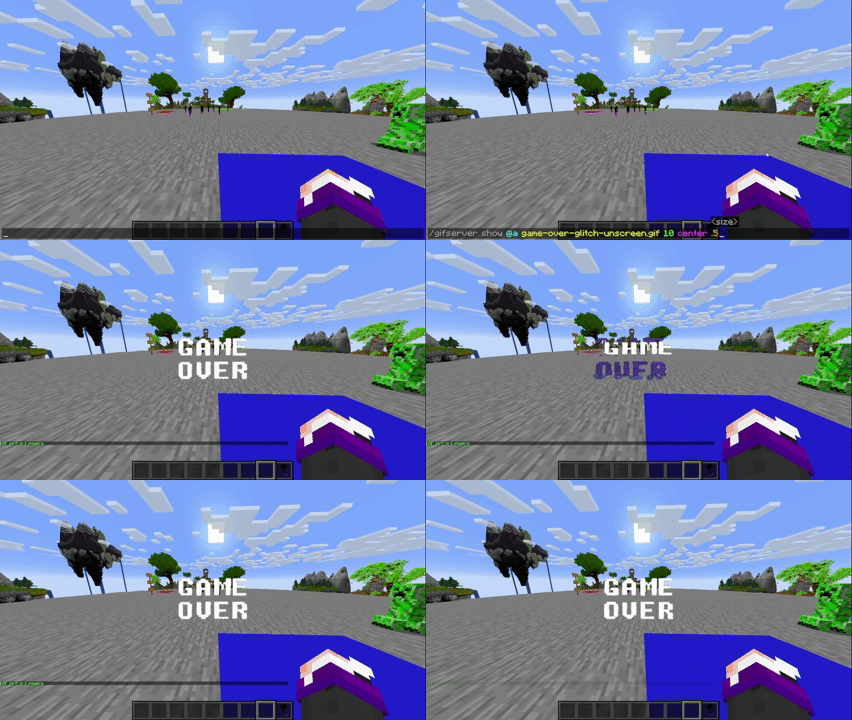
# GIF, PNG, JPG or JPEG sent to players (plugin):
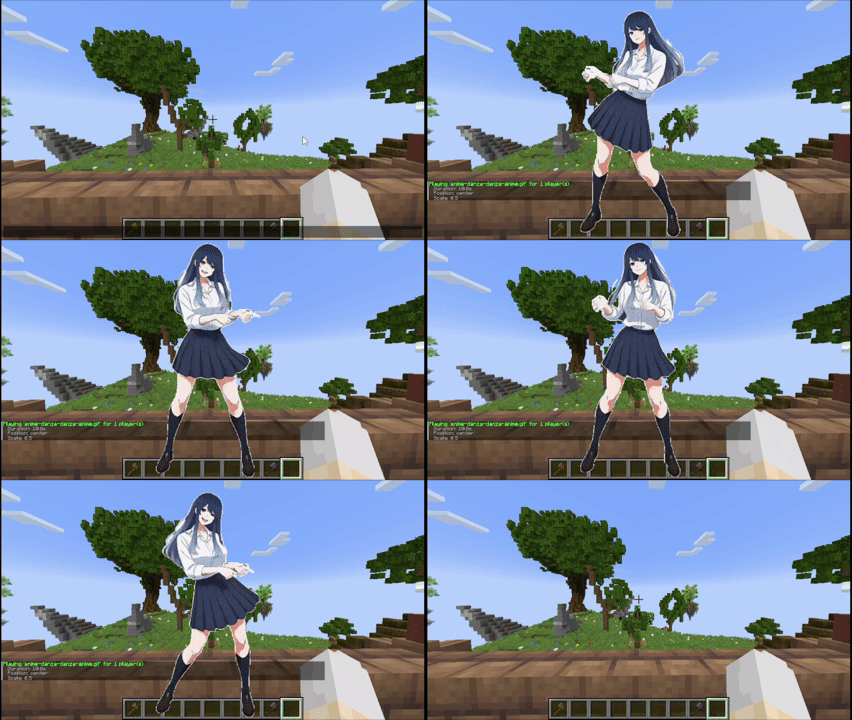
Tutorial
Placing files (Client only)
Folder Location: .minecraft/config/animatedframes/media/
Steps:
- Copy your GIF, PNG, JPG, JPEG or MP4 file into the media folder.
- Make sure the file has the correct extension (
.gif,.png,.jpg,.jpeg,.mp4). - Display it in-game:
- Local (only you):
/mediac show sunny.gif 10 center 1.0 80 - Send to others:
/medias show @a sunny.gif 15 center 1.0 80
- Local (only you):
Notes:
/mediac show→ only visible to you/medias show→ sends to other players — they must have the mod AND the file in their own client folder- No need to upload anything to the server
- Large files (>1MB) may cause slight delays
- Invalid files show an error in chat
- Use
/mediac listto see your available files - Volume range: 0–100 (default: 80)
- Media stops automatically when you disconnect
Available positions (10 options)
center topleft topright bottomleft bottomright topcenter bottomcenter leftcenter rightcenter fullscreen
fullscreen — fills the entire screen maintaining the aspect ratio of the media
Credits
- Created by @SunnyAim_
- 🎬 Mp4 Integration made possible with the help of @SoyKatto1
- Support: Contact @SunnyAim_ for help or questions.
📺 AnimatedFrames — v1.7
Display GIFs, PNGs, JPGs, JPEGs and MP4 videos on screen!
AnimatedFrames allows you to display GIFs, PNGs, JPGs, JPEGs and MP4 videos within Minecraft using commands.
Requirements
- Loader support: Forge • Fabric • NeoForge • Purpur • Spigot • & forks
- Dependency: WaterMedia
Wiki --- Discord Support
📝 Commands
Client-side commands (/mediac) — only you see them
-
/mediac show <name> [duration] [position] [scale] [volume]Display media locally from your files. Example:/mediac show sunny.gif 10 center 1.0 80 -
/mediac stopStop all active media on your screen. -
/mediac listList files in your local folder. -
/mediac lang <en|es>Change the language (English or Spanish).
Server-side commands (/medias) — requires OP or admin permission
-
/medias show <player|@a> <name> [duration] [position] [scale] [volume]Send a file from the server to the selected players and play it. Players do not need to have the file beforehand. Example:/medias show @a example.gif 15 topleft 2.0 80 -
/medias showlocal <player|@a> <name> [duration] [position] [scale] [volume]Play a file already stored in each selected player's local media folder. This preserves the previous behavior of/medias show. Example:/medias showlocal @a example.gif 15 topleft 2.0 80 -
/medias stop <player|@a>Stop media for selected players. -
/medias listList files in the server's media folder. -
/medias helpDisplay command help.
Important: Players always need the client mod and WaterMedia. With /medias show, the file comes from the server. With /medias showlocal, the file must already exist in each player's own client folder.
⚠️ File Location
Client folder: .minecraft/config/animatedframes/media/
Server folder with the mod: config/animatedframes/media/
Server folder with the plugin: plugins/AnimatedFramesPL/media/
- Supported files:
.gif,.png,.jpg,.jpeg,.mp4 - Media folders are created automatically during initialization
/mediac showand/medias showlocaluse the player's client folder/medias showuses the server's media folder and transfers the file to the selected players- Received files are stored automatically in a separate client cache
- For launchers with separate instances, use the corresponding instance's folder
🔌 Plugin Support
AnimatedFrames also has a Bukkit/Spigot/Paper/Purpur plugin version for server-side control. With the plugin, server admins can trigger media on players' screens without needing the mod on the server.
Place server files in plugins/AnimatedFramesPL/media/ and use /medias show to send them to players.
The plugin uses the animatedframes.admin permission, granted to OPs by default. Use /medias lang <en|es> to change the plugin's language.
Players still need the client mod and WaterMedia. They only need the media files installed beforehand when using
/medias showlocal.
-
GIF, PNG, JPG or JPEG displayed locally (client):
-
GIF, PNG, JPG or JPEG sent to players (server):
-
GIF, PNG, JPG or JPEG sent to players (plugin):
Tutorial
Placing files (Client and server)
Client folder: .minecraft/config/animatedframes/media/
Server folder with the mod: config/animatedframes/media/
Server folder with the plugin: plugins/AnimatedFramesPL/media/
Steps:
- Copy your GIF, PNG, JPG, JPEG or MP4 file into the appropriate media folder:
- Client folder for
/mediac showor/medias showlocal. - Server folder for
/medias show.
- Client folder for
- Make sure the file has the correct extension (
.gif,.png,.jpg,.jpeg,.mp4). - Display it in-game:
- Local (only you):
/mediac show sunny.gif 10 center 1.0 80 - Send a server file to others:
/medias show @a sunny.gif 15 center 1.0 80 - Play files already installed on players' clients:
/medias showlocal @a sunny.gif 15 center 1.0 80
- Local (only you):
Notes:
/mediac show→ only visible to you/medias show→ transfers a server file to selected players — they need the mod and WaterMedia, but not the file beforehand/medias showlocal→ uses each player's local file — they need the mod, WaterMedia and the file in their client folder- Updating from 1.6.2: replace
/medias showwith/medias showlocalif you want to keep using files already installed on players' computers - Filenames with spaces must use double quotes:
/medias show @a "welcome video.mp4" 10 center 1.0 80 - Large files may take some time to transfer before playback begins
- Check chat or logs if a file fails to load
- Use
/mediac listto see your local files and/medias listto see server files - Duration is measured in seconds;
0means no command-imposed time limit. Videos still stop when they reach the end - Scale range:
0.05–10(default:1.0) - Volume range:
0–100(default:80) - Media stops automatically when you disconnect
Available positions (10 options)
center topleft topright bottomleft bottomright topcenter bottomcenter leftcenter rightcenter fullscreen
fullscreen — fills the entire screen for videos while maintaining their aspect ratio, cropping the edges when necessary. Omit the scale and enter the volume directly after
fullscreen. Example:/medias show @a intro.mp4 0 fullscreen 80
Credits
- Created by @SunnyAim_
- 🎬 MP4 integration made possible with the help of @SoyKatto1
- Support: Contact @SunnyAim_ for help or questions.
Screenshots
Gallery
-
 AnimatedFrames Baner.png AnimatedFrames Baner.png
-
 Oficial Banner
Versions
Files
Relations
Project Relations
More like this
Similar Mods
Suggestions use data such as tags, dependencies, dependents, descriptions, titles, and more to rank how much they overlap with this mod.
On ModDex
Community snapshot
By the numbers
Statistics
Want to reach Minecraft players?
We're looking for a server hosting partner to feature here and other parts of the site. Interested? Send us a message!
Get in touchGet it on
Available Platforms
On ModDex
Community snapshot
By the numbers