Community listing page, reviews here may not be monitored by the author.
Build Better


No reviews yet
Preview, adjust, and place things how you want, where you want.
Community voices
Reviews
No reviews yet. Be the first to review this project!
Get it on
Available Platforms
Compatibility
Supported Environments
Required on the client. Installing it on the server adds functionality.
Must be installed on both the client and the server.
Varies by version.
About
Project Details
For authors
Embed Badge
If you're the author of this project, you can embed a live badge anywhere that supports HTML or Markdown. It updates automatically whenever ratings change.
Use HTML for any page that supports it, or Markdown for README files and Markdown-based descriptions.
Identifiers
Platform IDs
About
Description
Build Better
Build Better lets you focus on how you want to build things, not fiddling with minecrafts default build UI. Client Side, Build Better gives you more control over block placement and let's you see where and how blocks will be placed before you place them. Preview, adjust orientation, and nudge position precisely with free placement mode.
Create Issues: On Github
Inspired by:
- Effortless Building …no updates for a while ::sad face::
- Tweakeroo … and literally everything Masa makes.
- Satisfactory They know how to make a game playable.
Features
Placement Preview
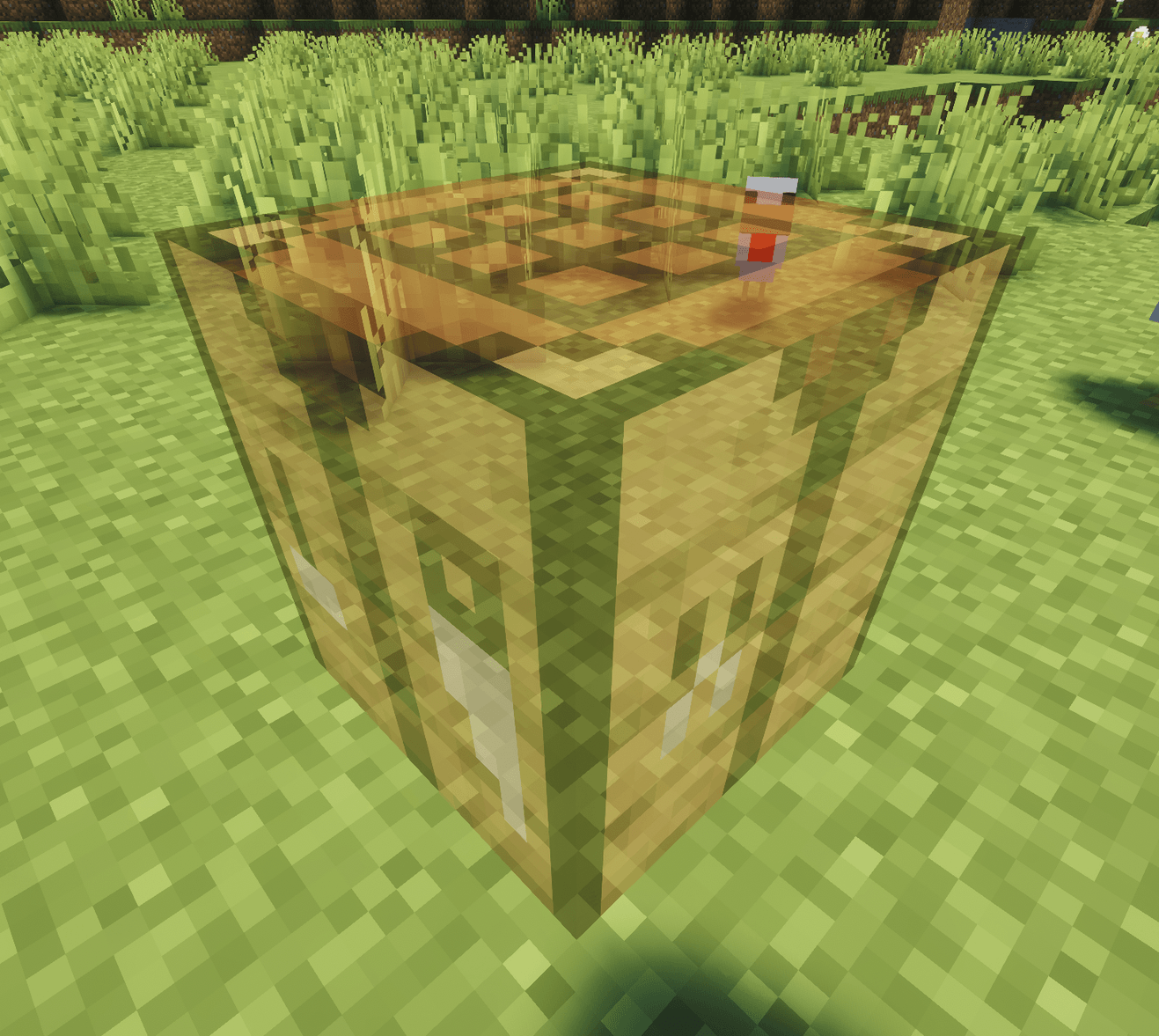
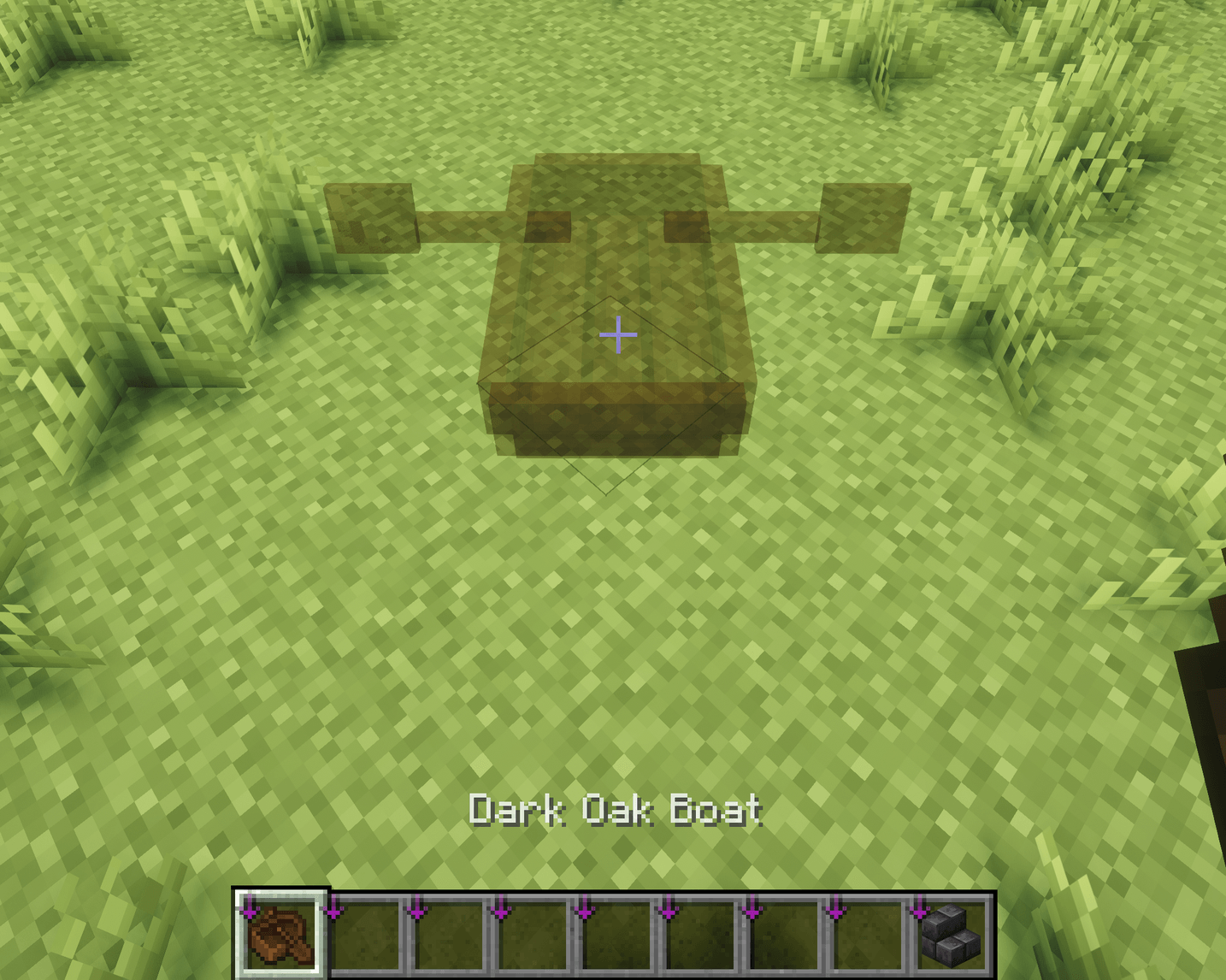
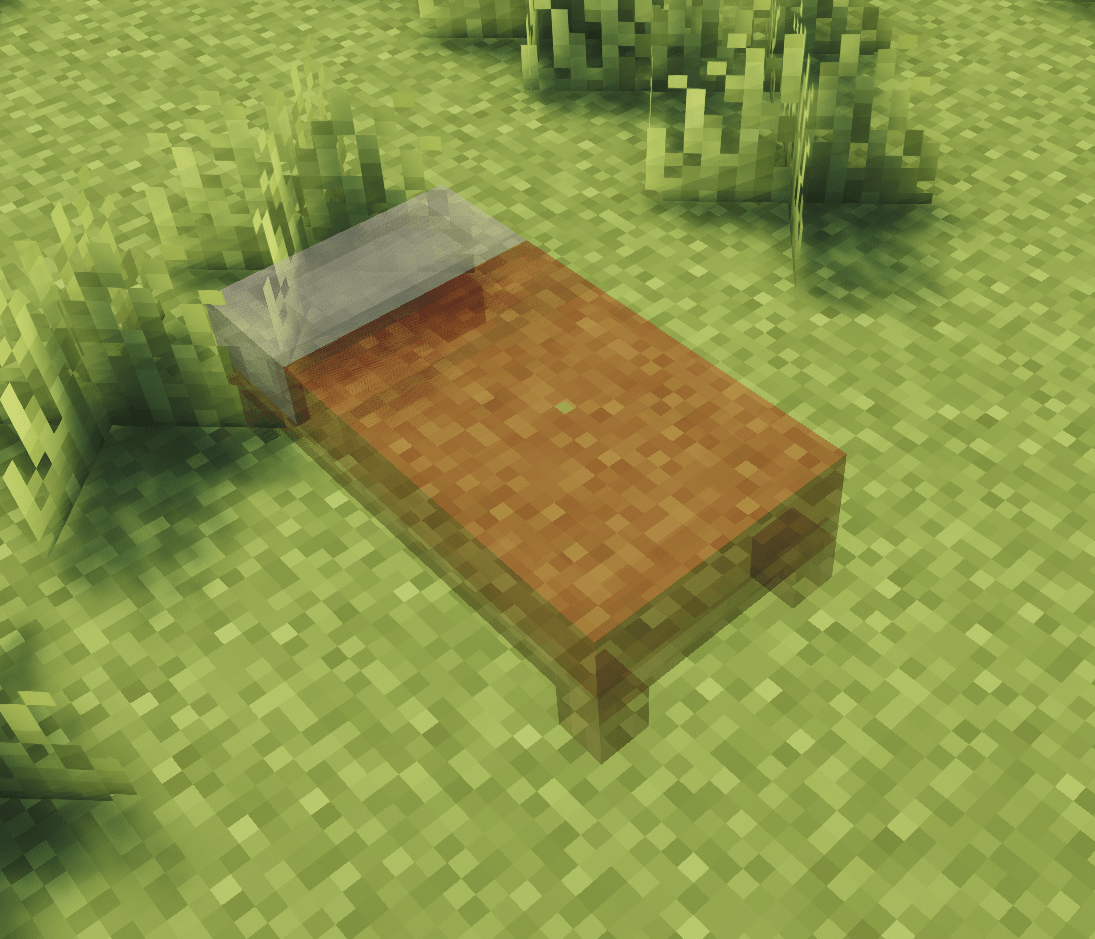
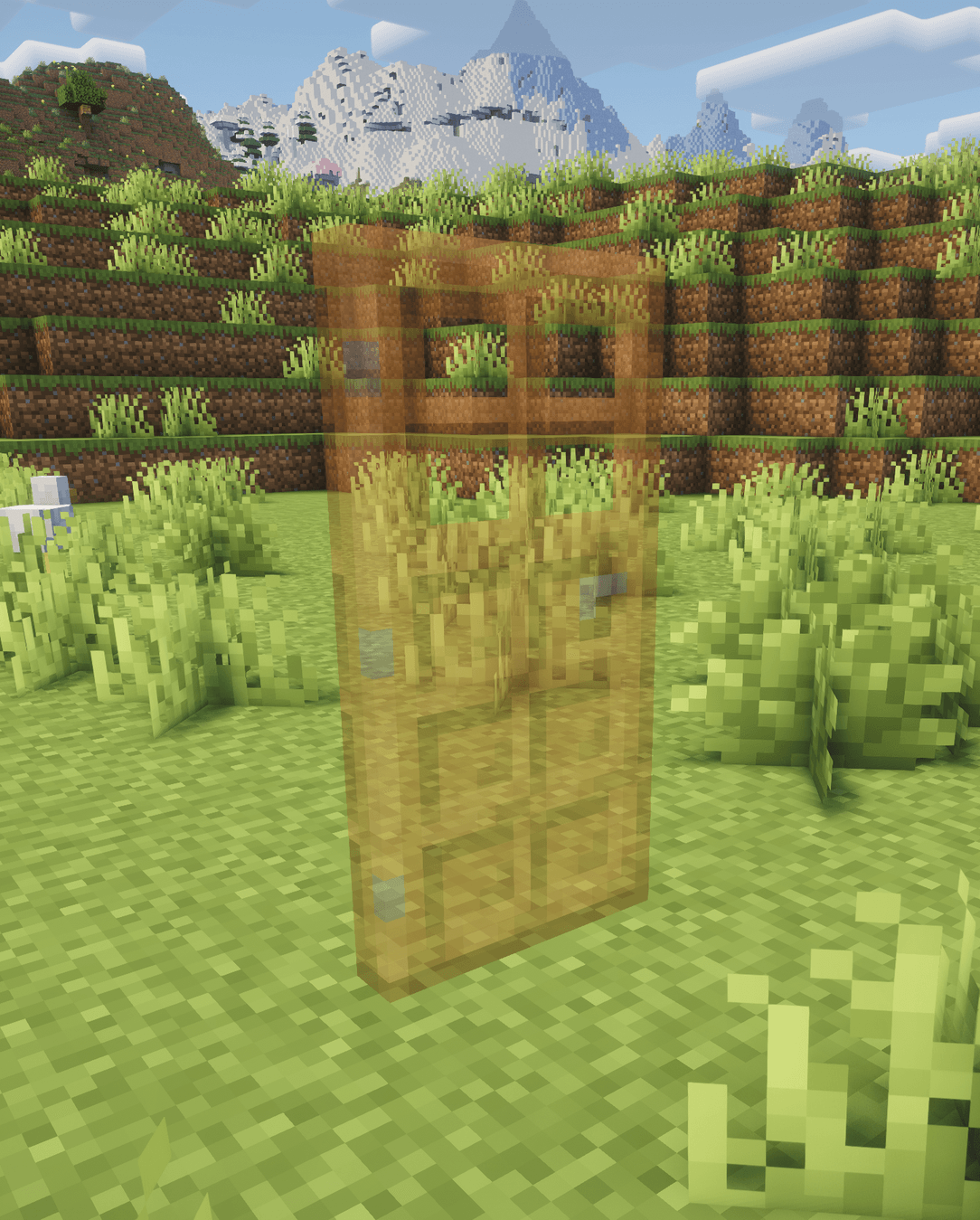
- Shows a "ghost block" where you're pointing so you know where you're about to place it.
- Block-specific placement rules for stair variants, fences, hopper direction… basically everything. so you can see what you'll get when you place it.
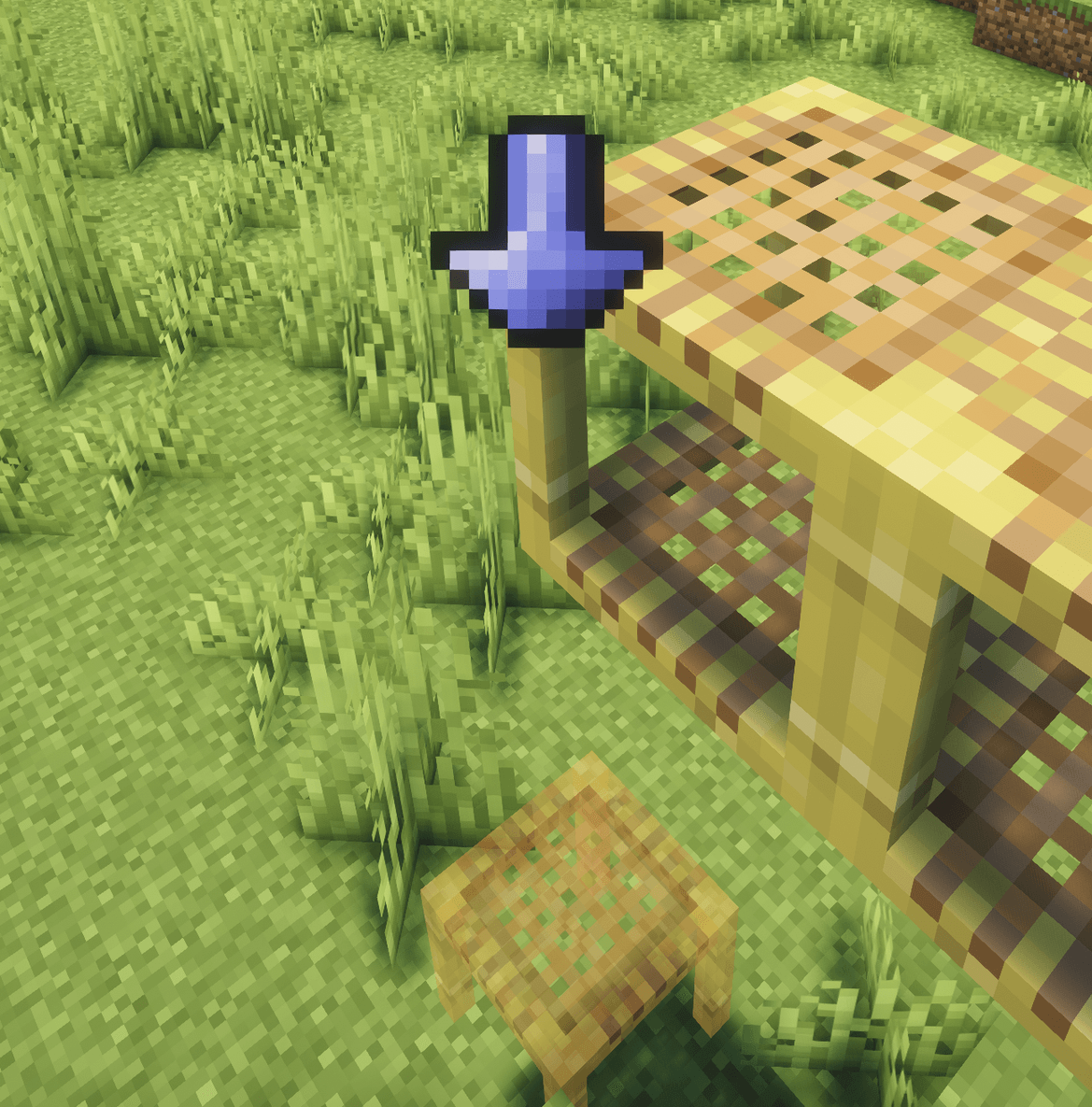
- Falling blocks like sand show where they'll actually land--even scaffolding.
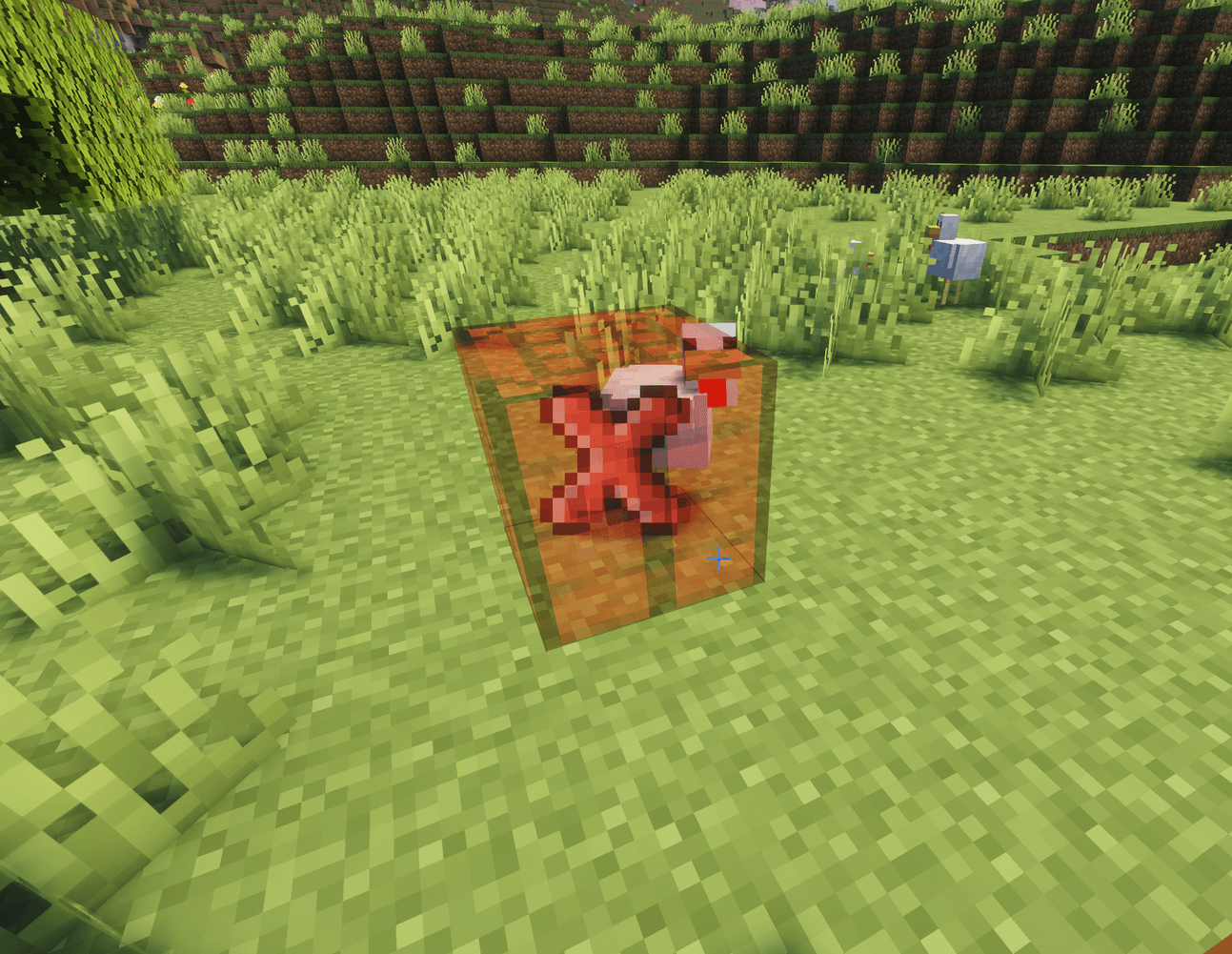
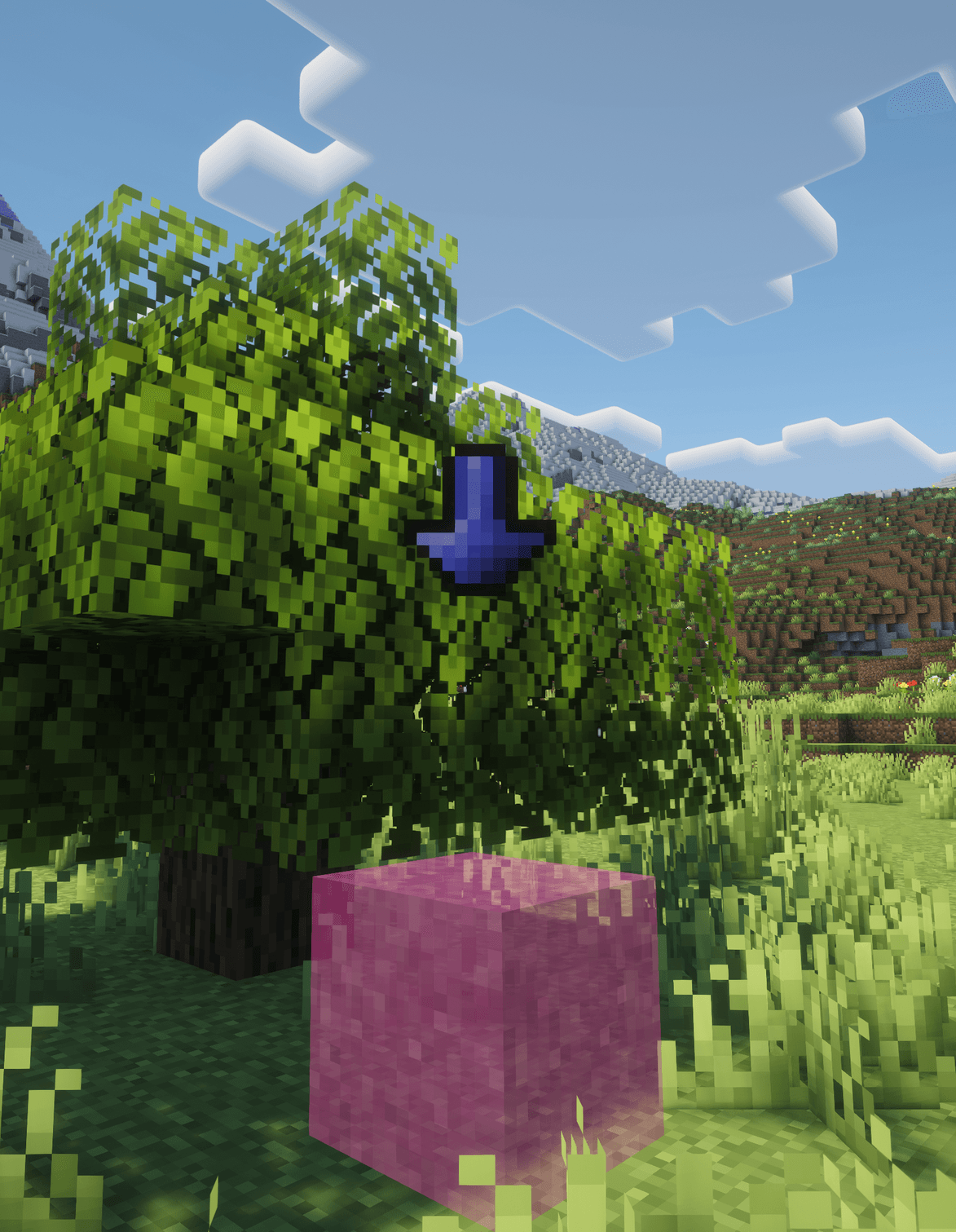
- If you cannot place the block, the preview turns red and shows a warning icon.
Four Placement Modes
Press B to cycle between modes, or hold B to open a selection screen.
- Vanilla — No preview, standard Minecraft placement.
- Preview — Always-on ghost block preview. The mod default mode.
- Hold to Preview — Preview appears while holding right-click. Release to place.
- Click and Release — First click shows the preview, second click confirms placement.
Control Orientation
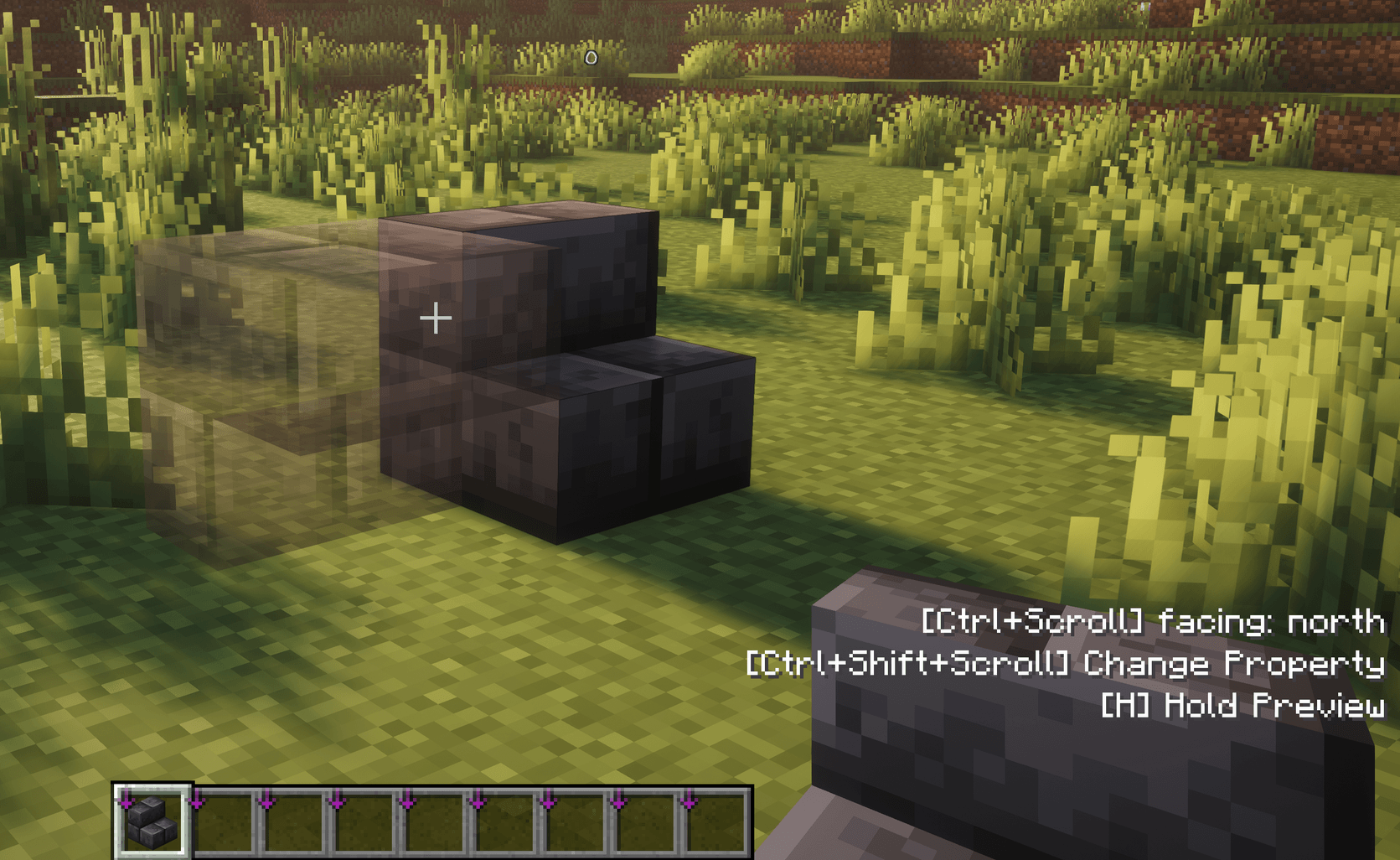
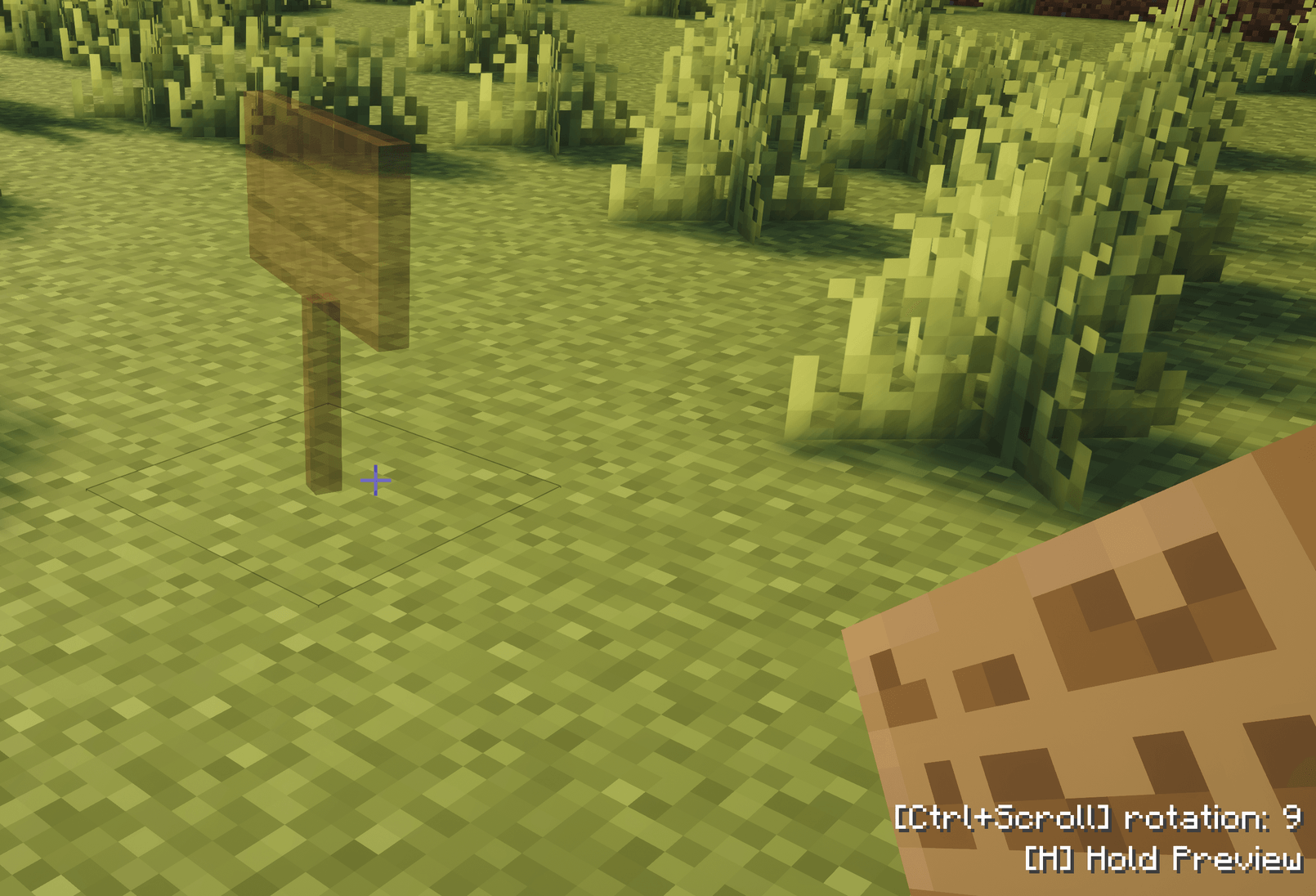
Ctrl+Scroll cycles through valid property values for the block you're holding — stair facing, slab half, log axis, glazed terracotta direction, and more. The preview updates in real-time so you can see the result before placing.
For blocks with multiple properties, Ctrl+Shift+Scroll switches which property you're cycling. Only build related properties are shown.
Hold Modes
Press H to activate the current hold mode, or hold H to open a hold mode selection screen. Three modes are available:
- Nudge — Lock the preview in place and nudge it with arrow keys and Page Up/Page Down. Movement is camera-relative. Right-click to place at the held position. Works across all placement modes. In creative mode, free placement has unlimited range. In survival, placement is limited to your normal block interaction range.
- Shapes (Creative only) — Select two corners to define a volume, then generate a shape. 10 shape types are available:
- Cubish — Box with Keep, Replace, Hollow, and Frame fill modes.
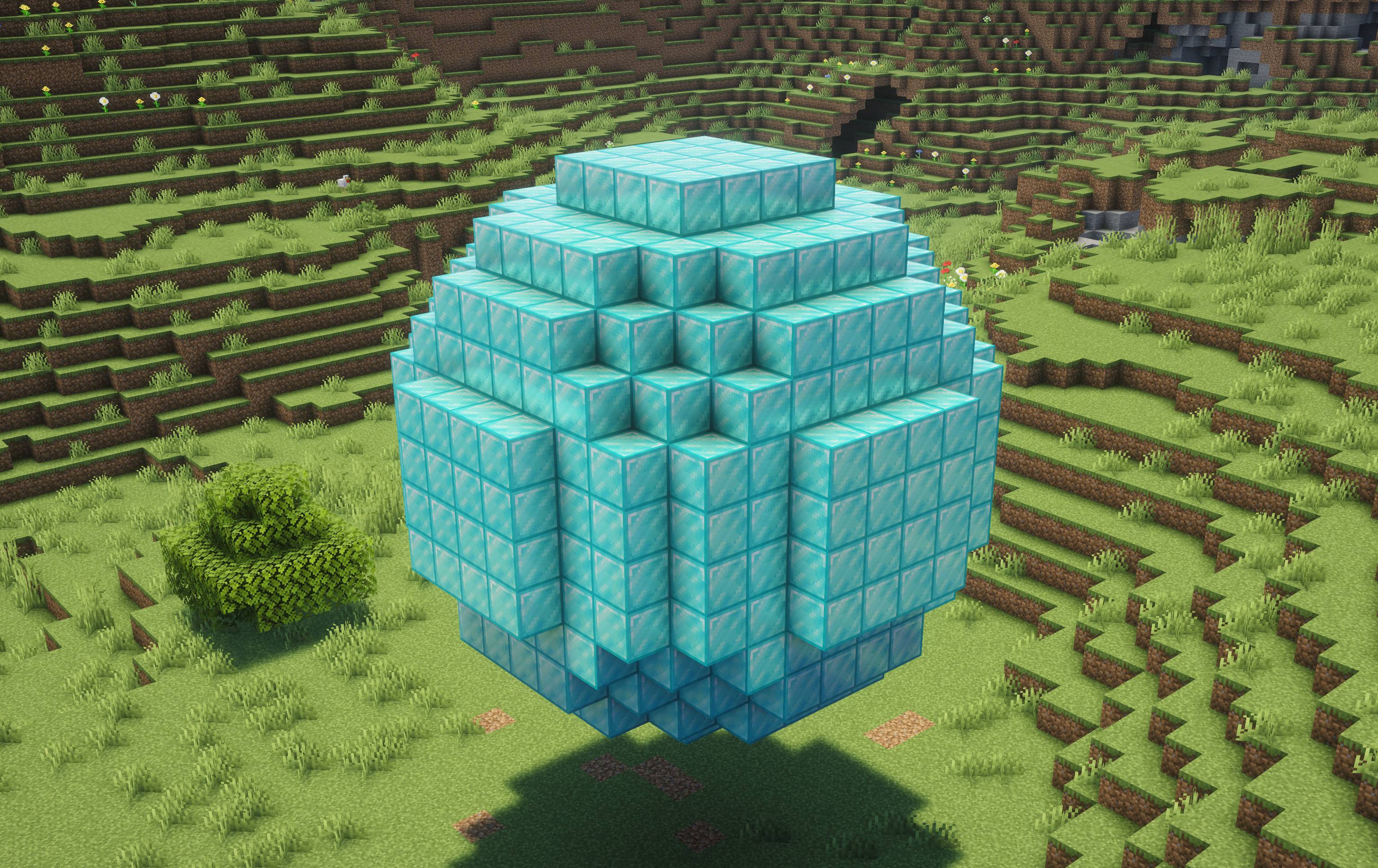
- Sphereish — Ellipsoid with Keep, Replace, and Hollow fill modes.
- Cylinderish — Cylinder/elliptic cylinder with Keep, Replace, Hollow, and Tube fill modes. Configurable axis.
- Cone — Cone with Keep, Replace, Hollow, and Shell fill modes. Configurable axis.
- Dome — Half-sphere with Y, X, or Z orientation variants.
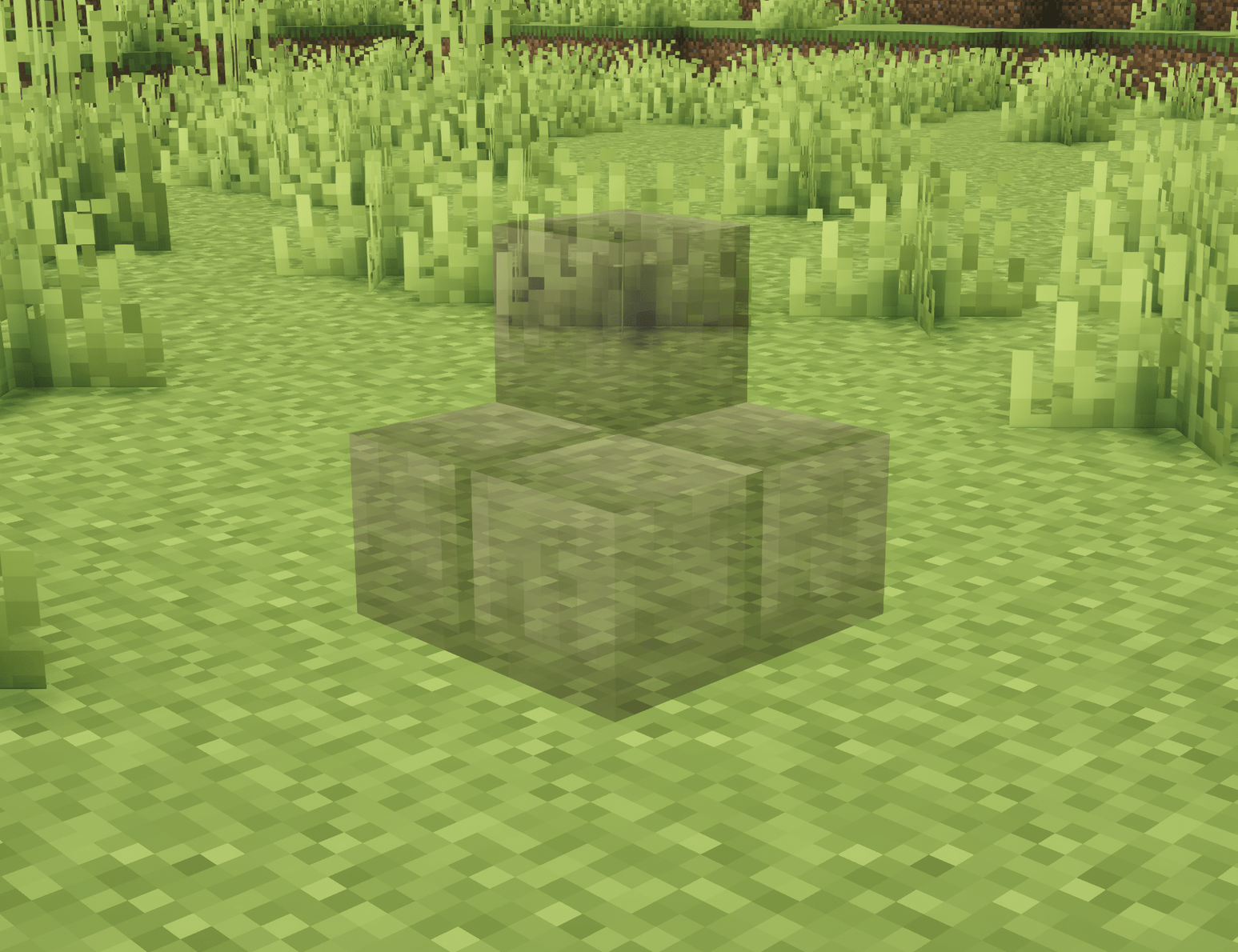
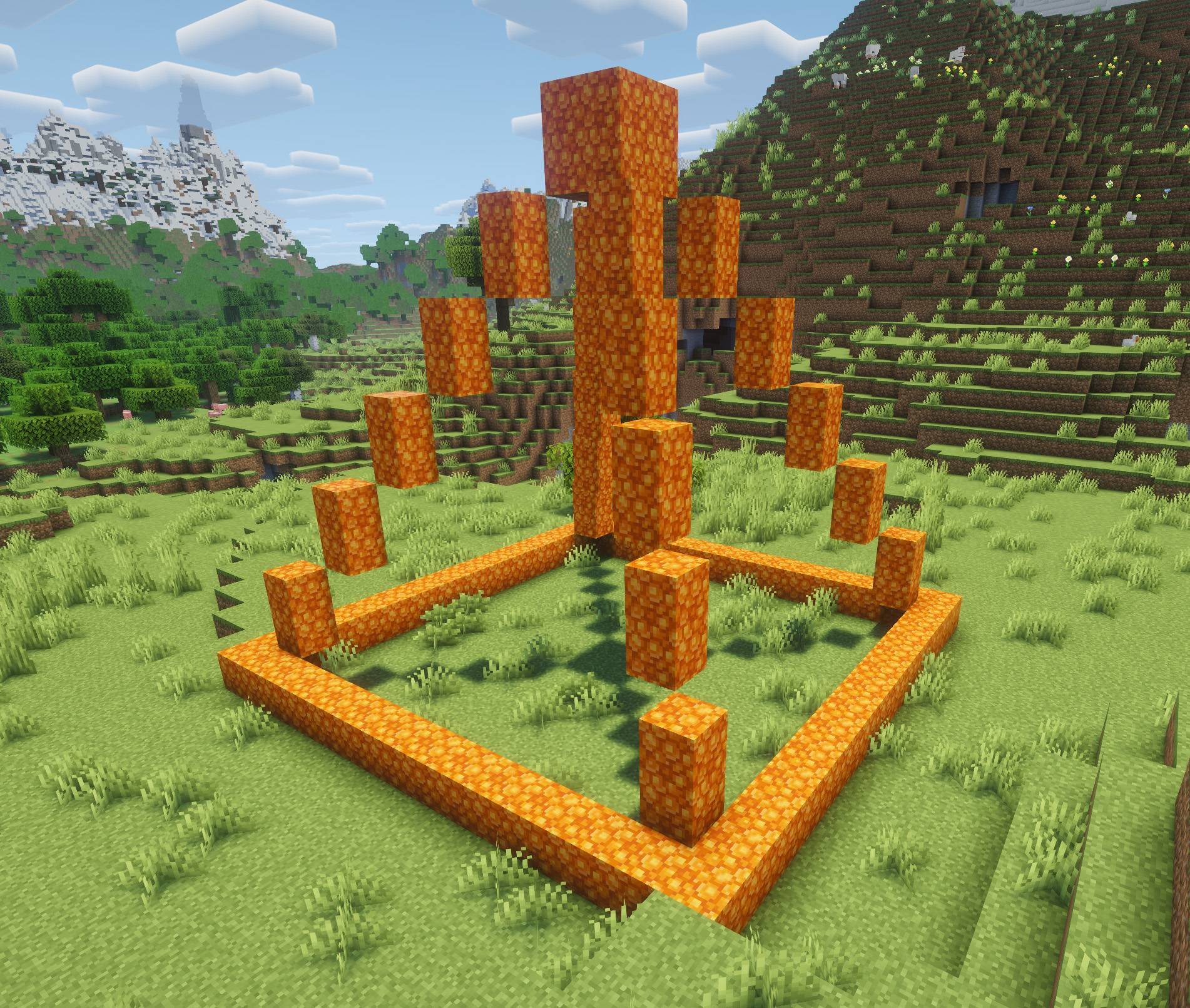
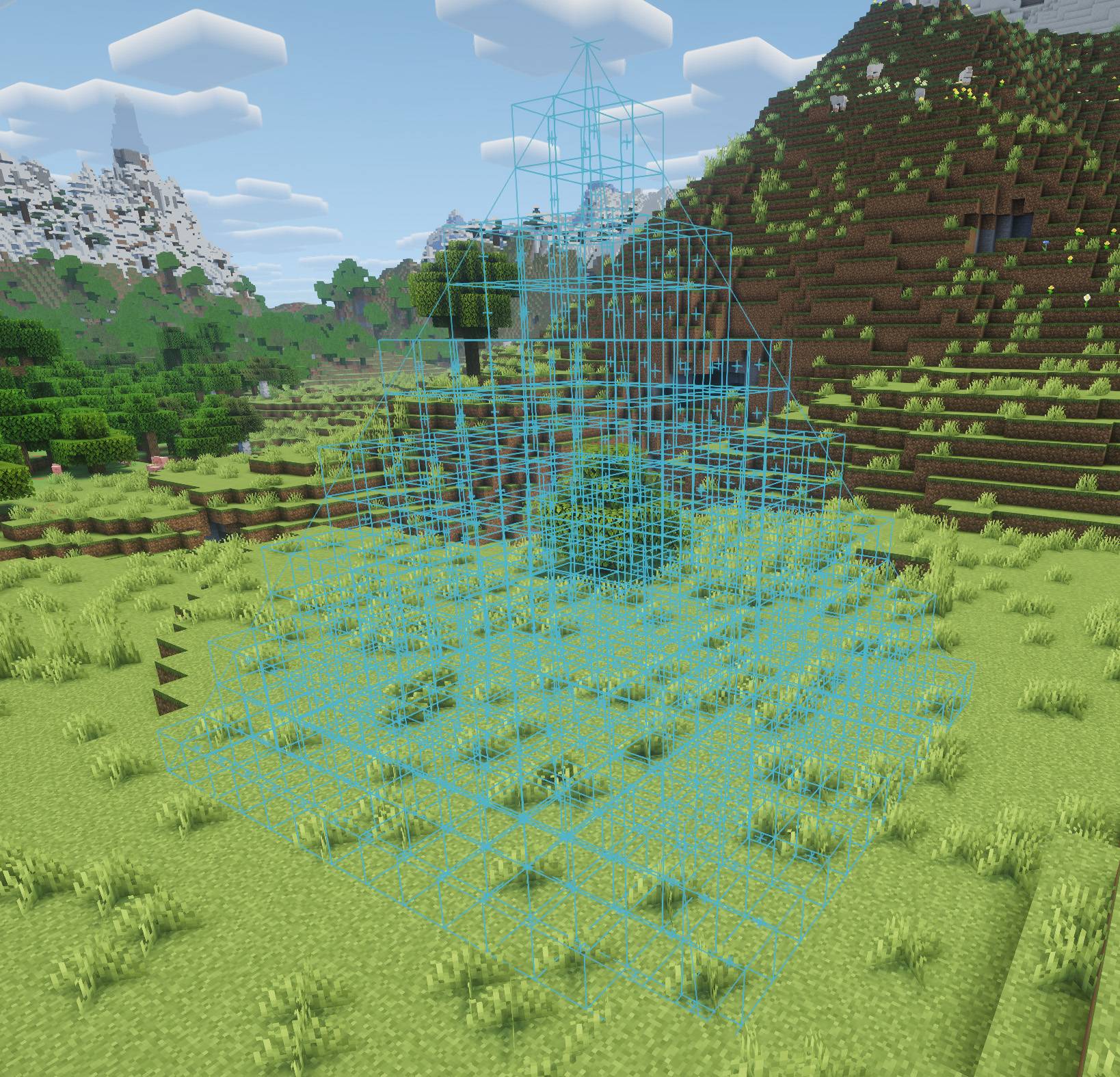
- Pyramid — Pyramid with Keep, Replace, Hollow, Shell, and Frame fill modes.
- Wedge — Wedge/ramp with North, South, East, West direction variants.
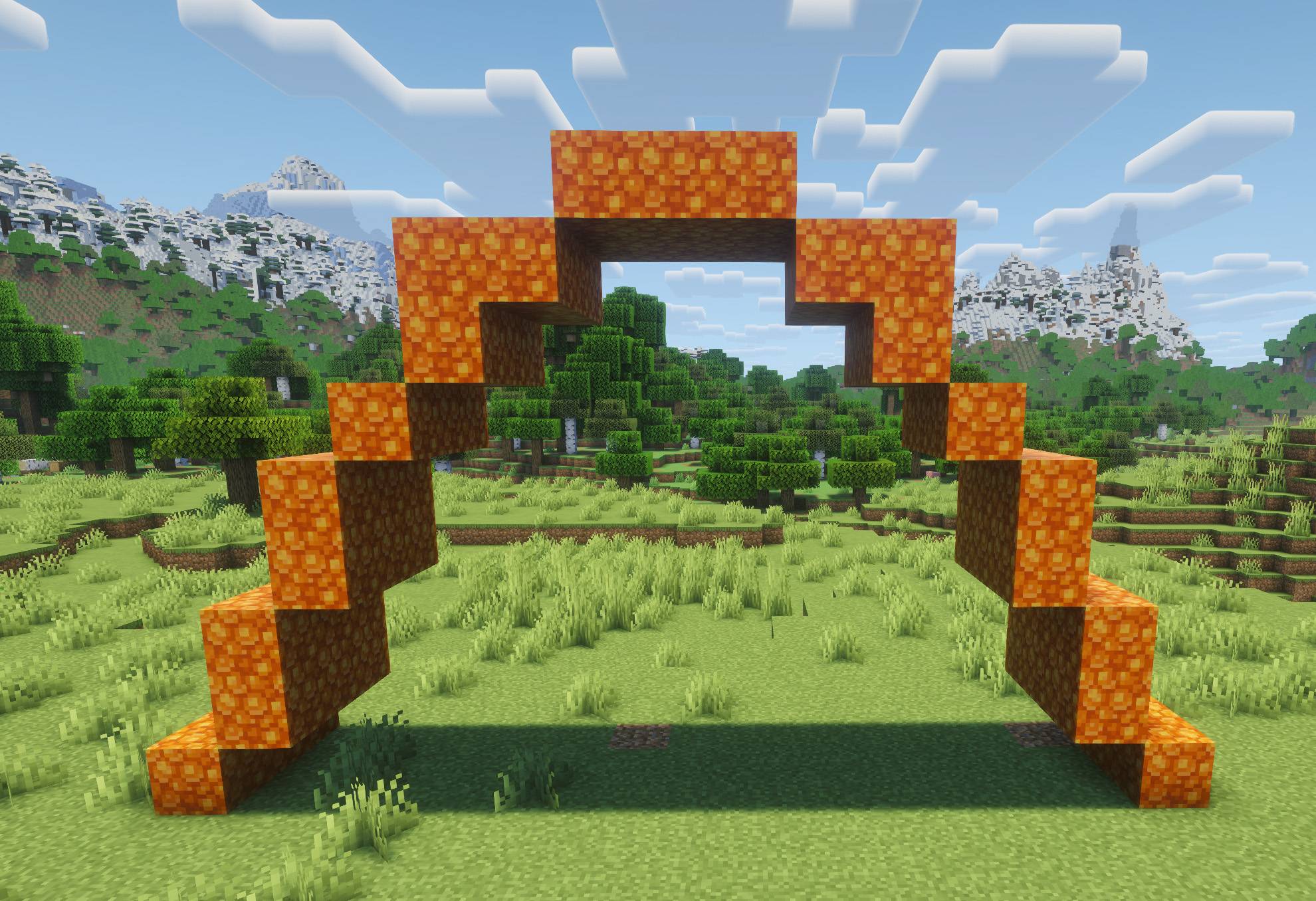
- Parabolic Arch — Arch with Standard, Steep, and Wide variants. Surface fill mode for arch walls.
- Semicircular Arch — Round arch with Semicircle, Segmental, and Flat variants. Configurable axis.
- Pointed Arch — Gothic-style arch with Equilateral, Lancet, and Steep Lancet variants. Configurable axis.
- Most shapes support Free and Perfect sizing variants. Use scroll to cycle shapes, Ctrl+Scroll for fill mode, Alt+Scroll for variant, and Shift+Scroll for axis.
- Nudge corners with arrow keys, or Ctrl+Arrows to move the entire shape.
- Pattern (Creative only) — Create, repeat, and fill patterns. Use Ctrl+Scroll to switch between sub-modes:
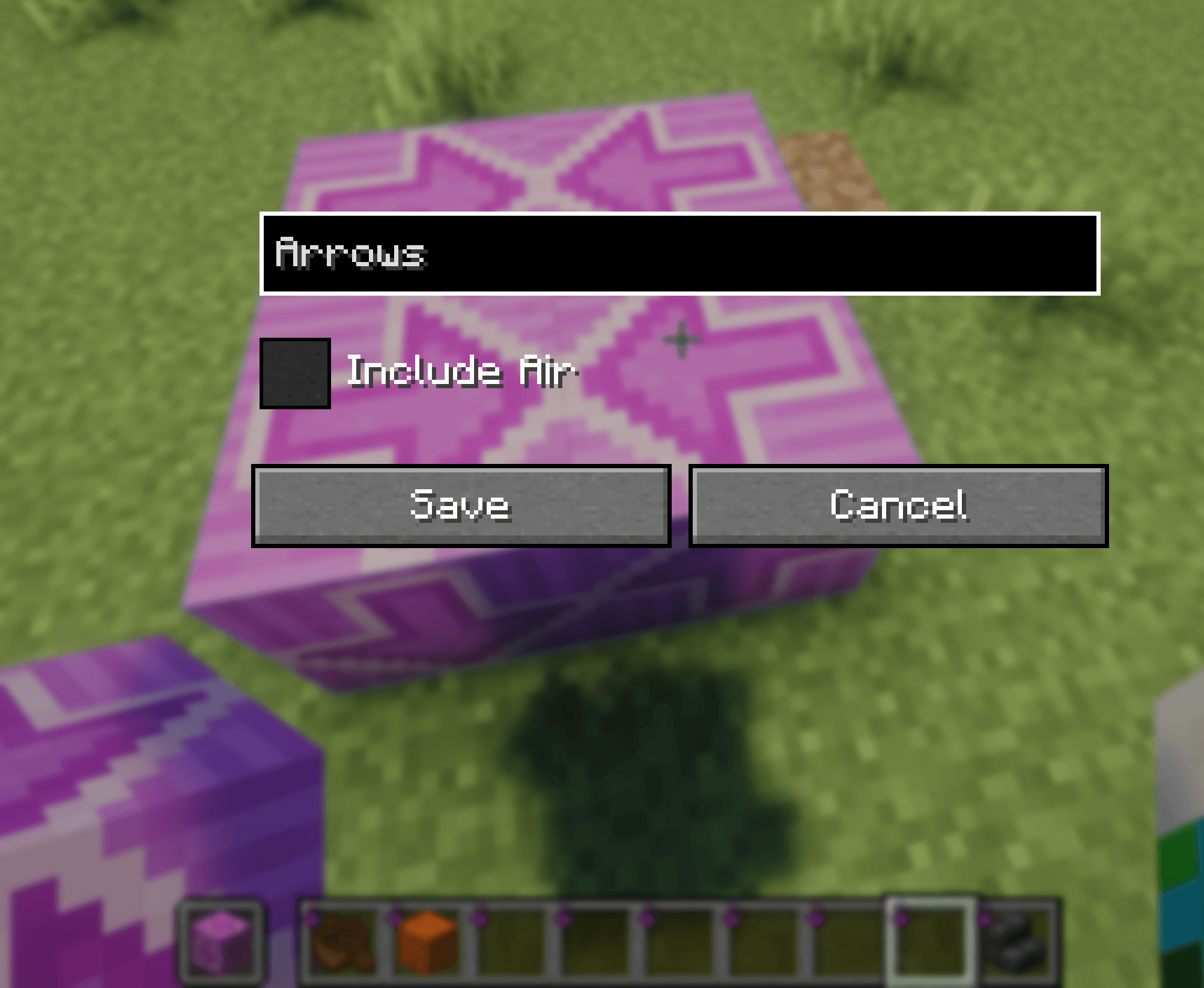
- Create — Select two corners to capture a region of blocks as a reusable pattern.
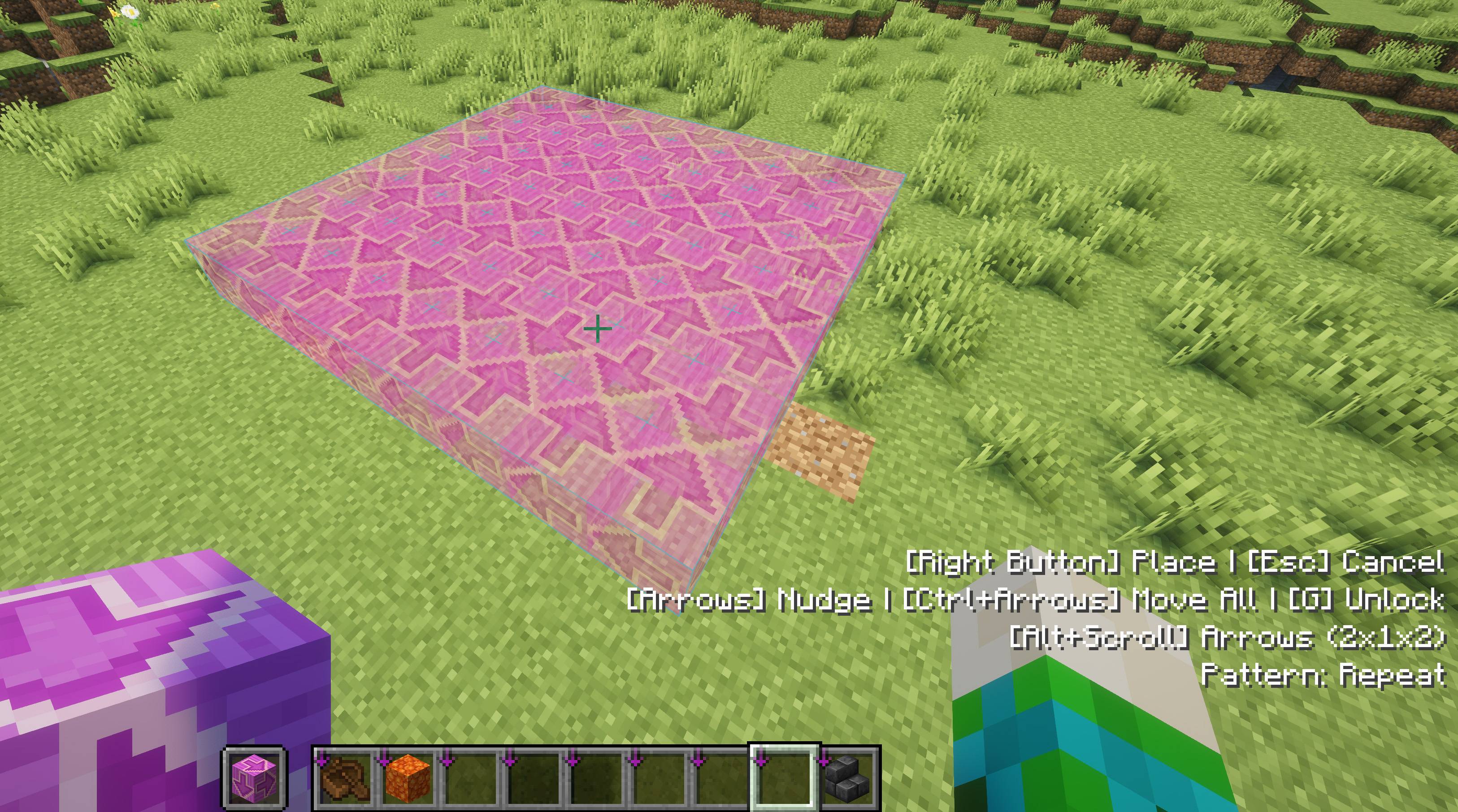
- Repeat — Tile a saved pattern outward from a starting point. Nudge extends by one full pattern copy at a time.
- Fill — Tile a saved pattern across a two-corner volume, with fill mode control (Keep, Replace, Hollow).
- Rotate — Scroll to rotate patterns 90/180/270 degrees. Directional blocks (stairs, logs, etc.) rotate correctly.
- Mirror — Shift+Scroll to mirror patterns on X, Z, or both axes.
Shapes and Pattern modes are only available in creative mode. In survival, they appear disabled in the selection screen.
Build Plane
Press J to lock placement and breaking to a specific axis-aligned plane. Use Alt+Scroll to shift the plane level. Useful for building floors, walls, or ceilings at a consistent height without accidentally placing blocks above or below.
Block Randomization
Hold a block and press Ctrl+Alt+Scroll to add it to a randomizer group with configurable ratios (e.g., 70% stone, 20% cobble, 10% andesite). Works with all placement modes including shapes and patterns.
Feedback Welcomed, Here
Controls
| Key | Action |
|---|---|
| B (tap) | Cycle placement mode |
| B (hold) | Open mode selection screen |
| H (tap) | Activate current hold mode |
| H (hold) | Open hold mode selection screen |
| J | Toggle build plane |
| Alt+Scroll | Shift build plane level |
| Arrow Keys | Nudge held preview / corners (camera-relative) |
| Ctrl+Arrows | Move entire shape / pattern (when second corner is locked) |
| Page Up / Page Down | Nudge held preview up / down |
| Ctrl+Scroll | Cycle block property value / fill mode / pattern sub-mode |
| Ctrl+Shift+Scroll | Switch active property |
| Scroll | Cycle shape type (during Shapes) / rotate pattern (during Pattern Repeat) / fill mode (during Pattern Fill) |
| Alt+Scroll | Cycle shape variant / saved pattern (in Pattern mode) |
| Shift+Scroll | Cycle shape axis (during Shapes) / mirror pattern (during Pattern) |
| Right-Click | Place / fill / save pattern |
| Left-Click | Clear volume (Shapes / Pattern Fill) |
| Esc | Cancel active operation |
All keybindings are remappable in Minecraft's controls settings.
Compatibility
- Minecraft: 1.21.1-11
- Fabric: Requires Fabric API
- NeoForge: Standalone
- Sodium: Compatible
- Side: Client only — no server installation needed
- Mod Menu: Supported (Fabric) — access settings from the mod list
Build Better
Build Better lets you focus on how you want to build things, not fiddling with minecrafts default build UI. Client Side, Build Better gives you more control over block placement and let's you see where and how blocks will be placed before you place them. Preview, adjust orientation, and nudge position precisely with free placement mode.
Create Issues: On Github
Inspired by:
- Effortless Building ...no updates for a while ::sad face::
- Tweakeroo ... and literally everything Masa makes.
- Satisfactory They know how to make a game playable.
Features
Placement Preview
- Shows a "ghost block" where you're pointing so you know where you're about to place it.
- Block-specific placement rules for stair variants, fences, hopper direction... basically everything. so you can see what you'll get when you place it.
- Falling blocks like sand show where they'll actually land--even scaffolding.
- If you cannot place the block, the preview turns red and shows a warning icon.
Four Placement Modes
Press B to cycle between modes, or hold B to open a selection screen.
- Vanilla — No preview, standard Minecraft placement.
- Preview — Always-on ghost block preview. The mod default mode.
- Hold to Preview — Preview appears while holding right-click. Release to place.
- Click and Release — First click shows the preview, second click confirms placement.
Control Orientation
Ctrl+Scroll cycles through valid property values for the block you're holding — stair facing, slab half, log axis, glazed terracotta direction, and more. The preview updates in real-time so you can see the result before placing.
For blocks with multiple properties, Ctrl+Shift+Scroll switches which property you're cycling. Only build related properties are shown.
Hold Modes
Press H to activate the current hold mode, or hold H to open a hold mode selection screen. Three modes are available:
- Nudge — Lock the preview in place and nudge it with arrow keys and Page Up/Page Down. Movement is camera-relative. Right-click to place at the held position. Works across all placement modes. In creative mode, free placement has unlimited range. In survival, placement is limited to your normal block interaction range.
- Shapes (Creative only) — Select two corners to define a volume, then generate a shape. 10 shape types are available:
- Cubish — Box with Keep, Replace, Hollow, and Frame fill modes.
- Sphereish — Ellipsoid with Keep, Replace, and Hollow fill modes.
- Cylinderish — Cylinder/elliptic cylinder with Keep, Replace, Hollow, and Tube fill modes. Configurable axis.
- Cone — Cone with Keep, Replace, Hollow, and Shell fill modes. Configurable axis.
- Dome — Half-sphere with Y, X, or Z orientation variants.
- Pyramid — Pyramid with Keep, Replace, Hollow, Shell, and Frame fill modes.
- Wedge — Wedge/ramp with North, South, East, West direction variants.
- Parabolic Arch — Arch with Standard, Steep, and Wide variants. Surface fill mode for arch walls.
- Semicircular Arch — Round arch with Semicircle, Segmental, and Flat variants. Configurable axis.
- Pointed Arch — Gothic-style arch with Equilateral, Lancet, and Steep Lancet variants. Configurable axis.
- Most shapes support Free and Perfect sizing variants. Use scroll to cycle shapes, Ctrl+Scroll for fill mode, Alt+Scroll for variant, and Shift+Scroll for axis.
- Nudge corners with arrow keys, or Ctrl+Arrows to move the entire shape.
- Pattern (Creative only) — Create, repeat, and fill patterns. Use Ctrl+Scroll to switch between sub-modes:
- Create — Select two corners to capture a region of blocks as a reusable pattern.
- Repeat — Tile a saved pattern outward from a starting point. Nudge extends by one full pattern copy at a time.
- Fill — Tile a saved pattern across a two-corner volume, with fill mode control (Keep, Replace, Hollow).
- Rotate — Scroll to rotate patterns 90/180/270 degrees. Directional blocks (stairs, logs, etc.) rotate correctly.
- Mirror — Shift+Scroll to mirror patterns on X, Z, or both axes.
Shapes and Pattern modes are only available in creative mode. In survival, they appear disabled in the selection screen.
Build Plane
Press J to lock placement and breaking to a specific axis-aligned plane. Use Alt+Scroll to shift the plane level. Useful for building floors, walls, or ceilings at a consistent height without accidentally placing blocks above or below.
Block Randomization
Hold a block and press Ctrl+Alt+Scroll to add it to a randomizer group with configurable ratios (e.g., 70% stone, 20% cobble, 10% andesite). Works with all placement modes including shapes and patterns.
Feedback Welcomed, Here
Controls
| Key | Action |
|---|---|
| B (tap) | Cycle placement mode |
| B (hold) | Open mode selection screen |
| H (tap) | Activate current hold mode |
| H (hold) | Open hold mode selection screen |
| J | Toggle build plane |
| Alt+Scroll | Shift build plane level |
| Arrow Keys | Nudge held preview / corners (camera-relative) |
| Ctrl+Arrows | Move entire shape / pattern (when second corner is locked) |
| Page Up / Page Down | Nudge held preview up / down |
| Ctrl+Scroll | Cycle block property value / fill mode / pattern sub-mode |
| Ctrl+Shift+Scroll | Switch active property |
| Scroll | Cycle shape type (during Shapes) / rotate pattern (during Pattern Repeat) / fill mode (during Pattern Fill) |
| Alt+Scroll | Cycle shape variant / saved pattern (in Pattern mode) |
| Shift+Scroll | Cycle shape axis (during Shapes) / mirror pattern (during Pattern) |
| Right-Click | Place / fill / save pattern |
| Left-Click | Clear volume (Shapes / Pattern Fill) |
| Esc | Cancel active operation |
All keybindings are remappable in Minecraft's controls settings.
AI Statement
All in-game assets: image, text, and sounds are made by hand. AI Coding Assistants are used to generate java code. All code is verified by human eyes.
Compatibility
- Minecraft: 1.21.1-11
- Fabric: Requires Fabric API
- NeoForge: Standalone
- Sodium: Compatible
- Side: Client only — no server installation needed
- Mod Menu: Supported (Fabric) — access settings from the mod list
Screenshots
Gallery
-
 2026-02-16_09.57.02.png 2026-02-16_09.57.02.png
 -
 2026-02-16_09.56.49.png 2026-02-16_09.56.49.png
 -
 2026-02-16_10.04.31.png 2026-02-16_10.04.31.png
 -
 2026-02-16_10.00.03.png 2026-02-16_10.00.03.png
 -
 2026-02-16_09.59.21.png 2026-02-16_09.59.21.png
 -
 2026-02-16_10.03.59.png 2026-02-16_10.03.59.png
 -
 2026-02-16_10.05.44.png 2026-02-16_10.05.44.png
 -
 2026-02-16_10.06.19.png 2026-02-16_10.06.19.png
 -
 2026-02-16_10.01.10.png 2026-02-16_10.01.10.png
 -
 2026-02-16_10.00.41.png 2026-02-16_10.00.41.png
 -
 2026-02-20_15.31.jpg 2026-02-20_15.31.jpg
 -
 2026-02-20_15.32.jpg 2026-02-20_15.32.jpg
 -
 2026-02-20_15.34.png 2026-02-20_15.34.png
 -
 2026-02-20_15.35.jpg 2026-02-20_15.35.jpg
 -
 2026-02-20_15.36.jpg 2026-02-20_15.36.jpg
 -
 2026-02-20_15.37.jpg 2026-02-20_15.37.jpg
-
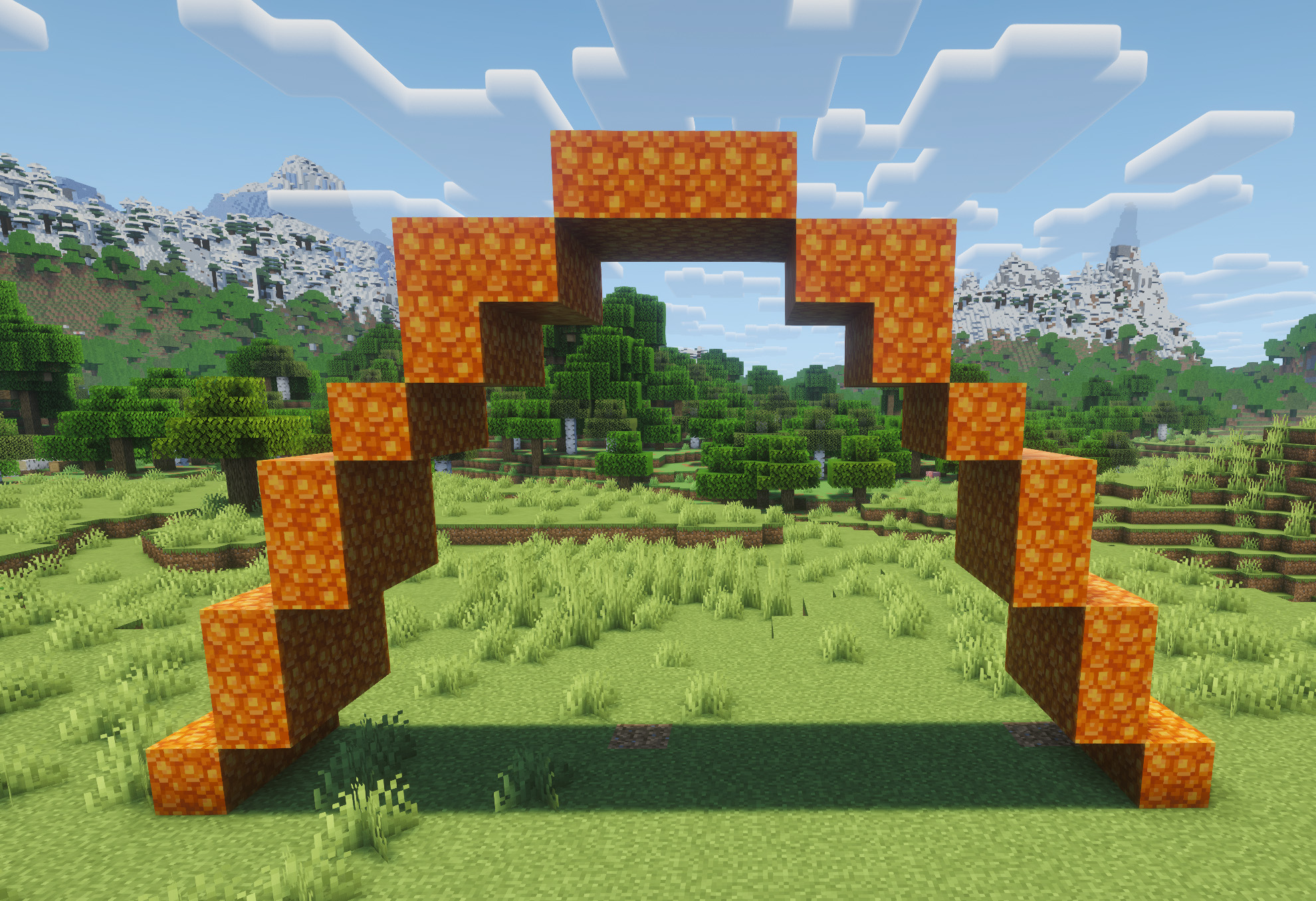 Parabolic Arch
 -
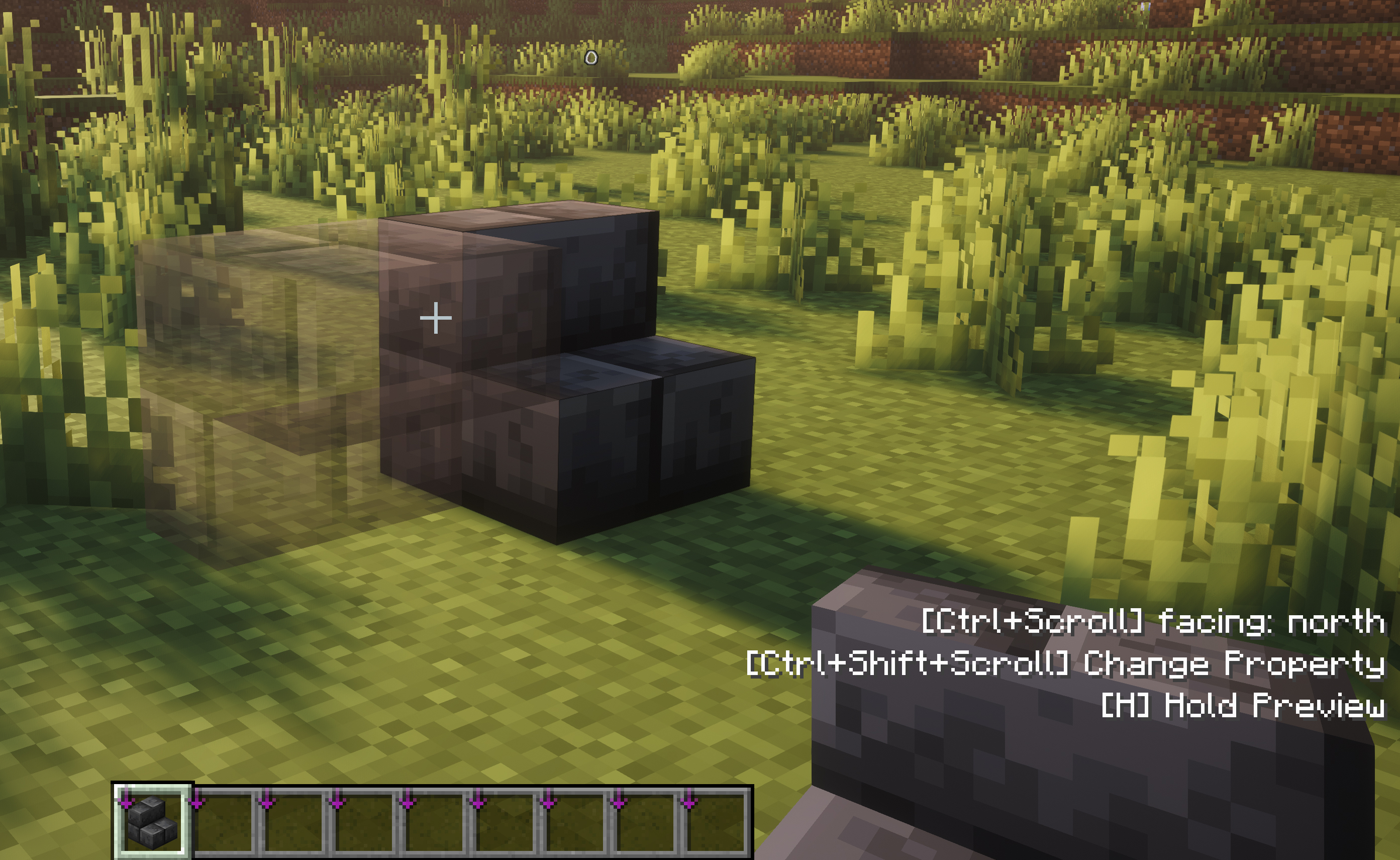 Preview! Shows how a block is going to appear before you place it.
 -
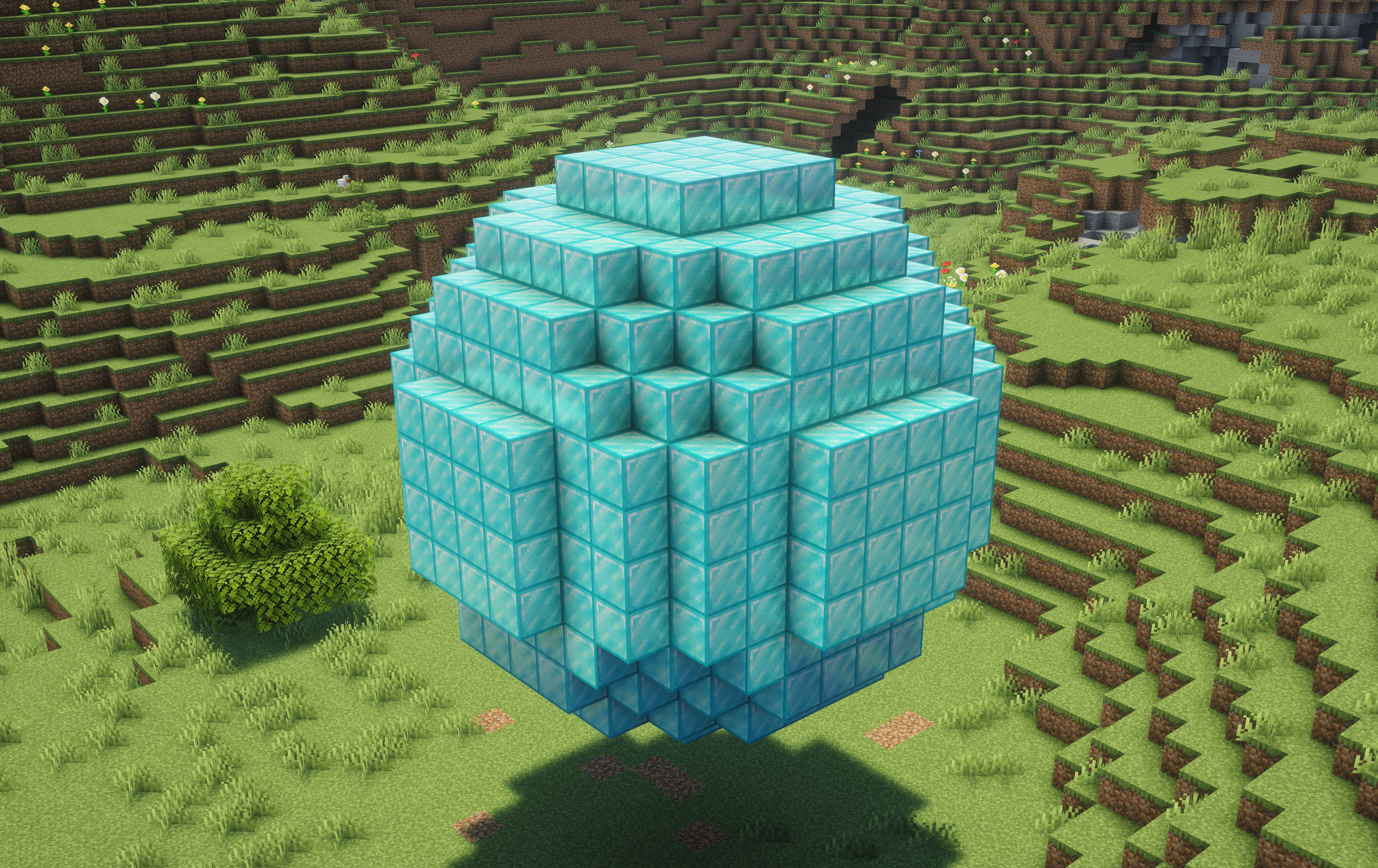 Spheres! Because of course, spheres.
 -
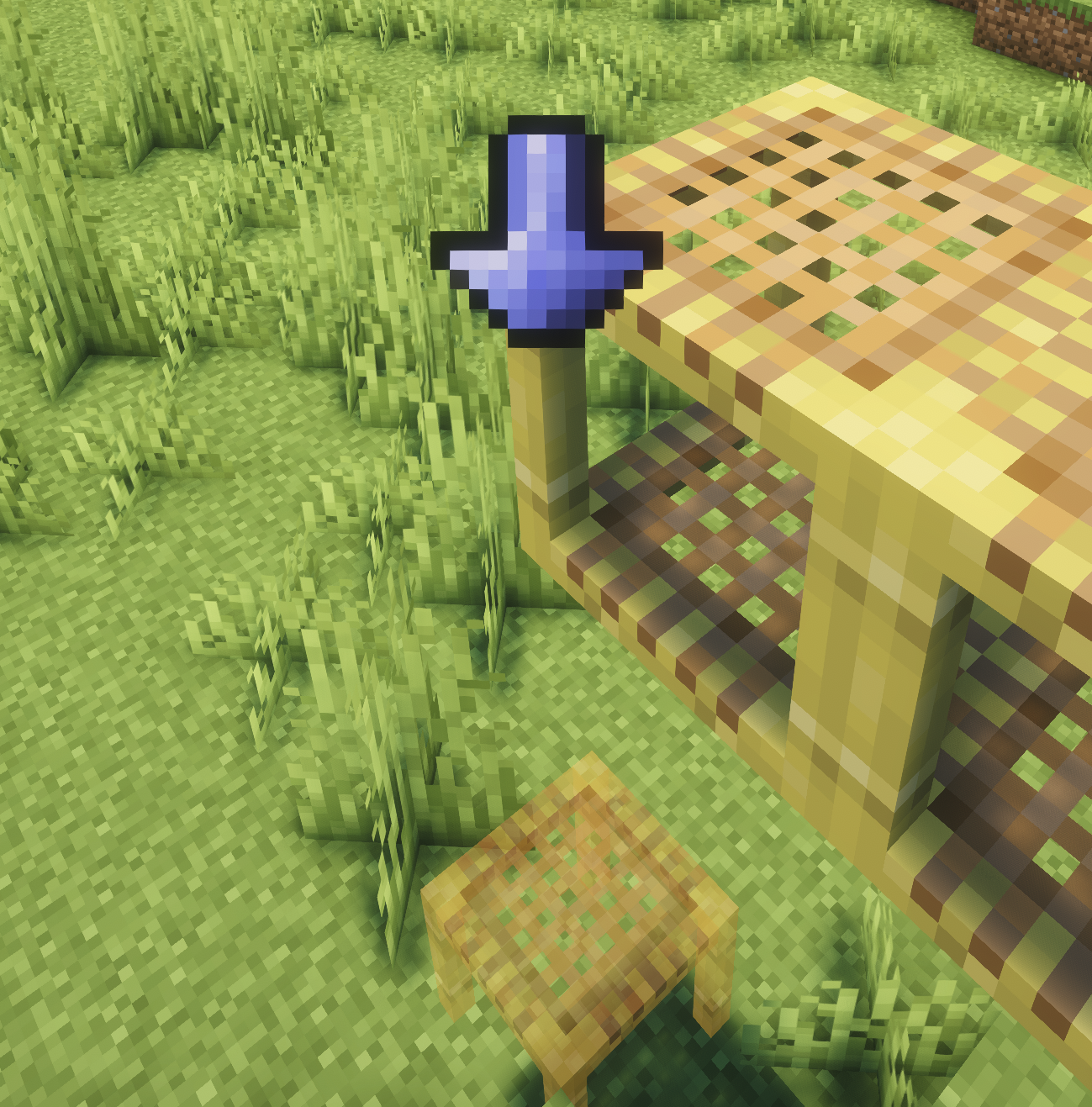 Scaffolding! Scaffolding shows where blocks will build or drop, depending on the bridging length.
 -
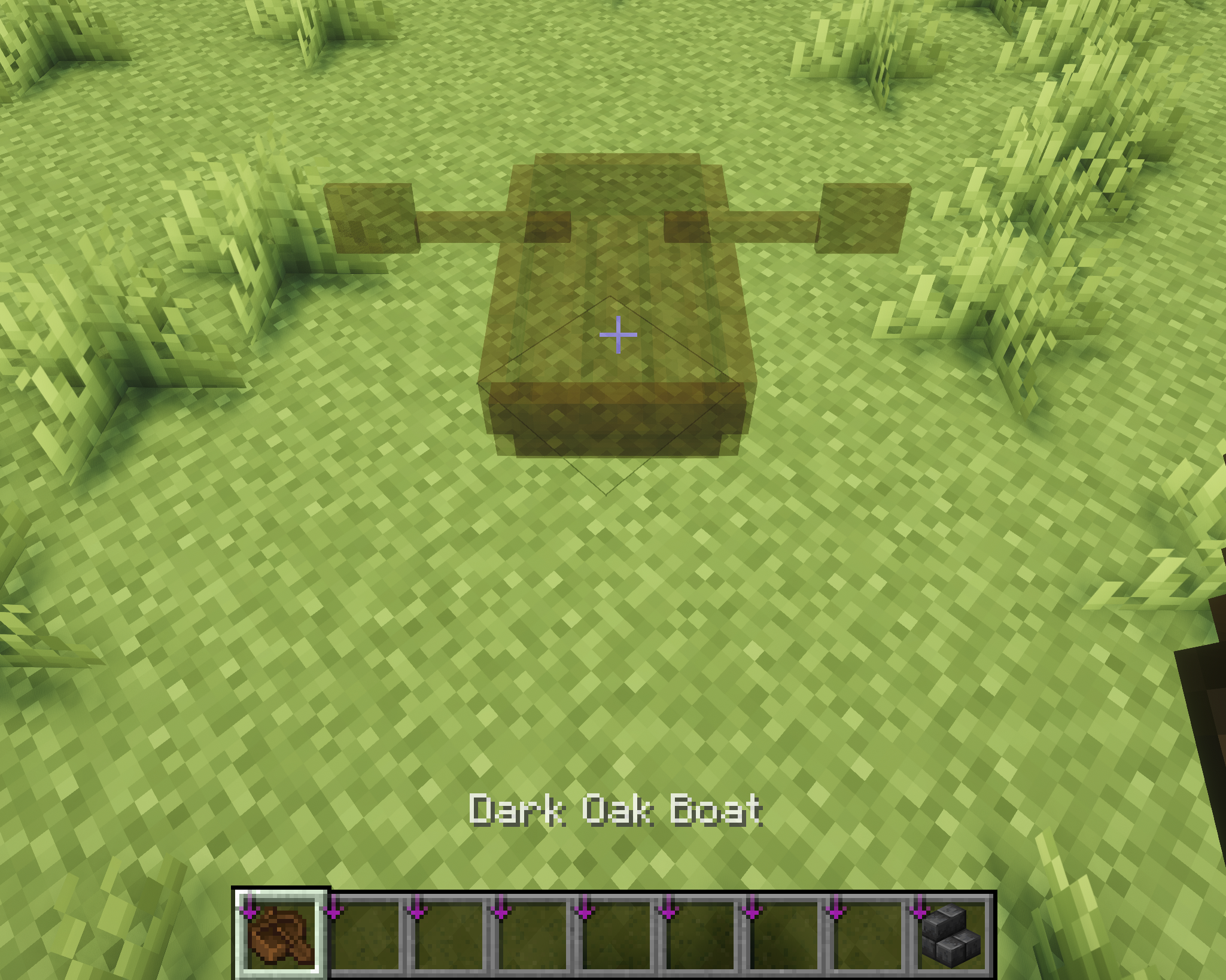 EntityPlacement Boats, Minecarts, etc.
 -
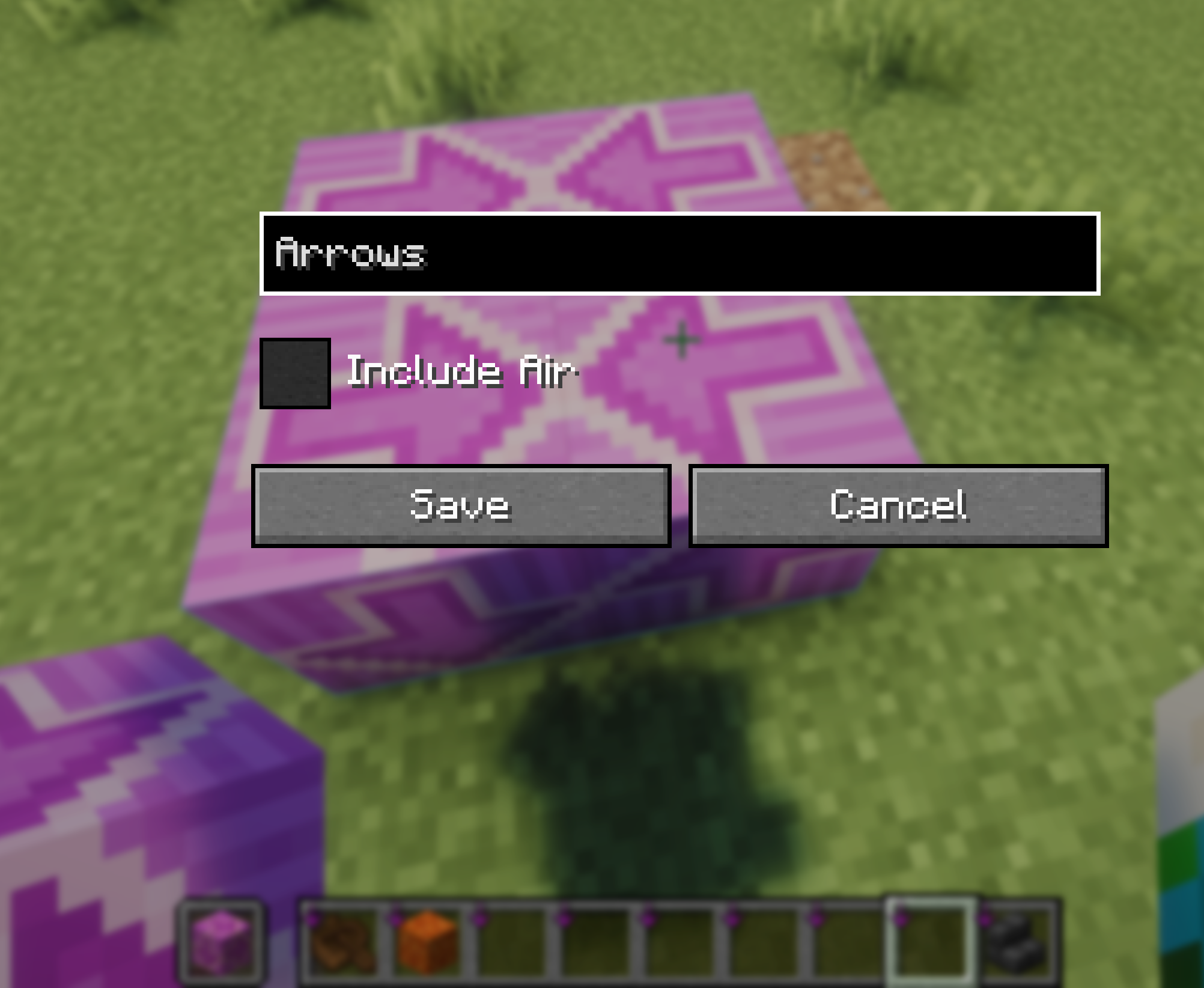 Save Patterns Save any 3D volume as a pattern and then build arrays
 -
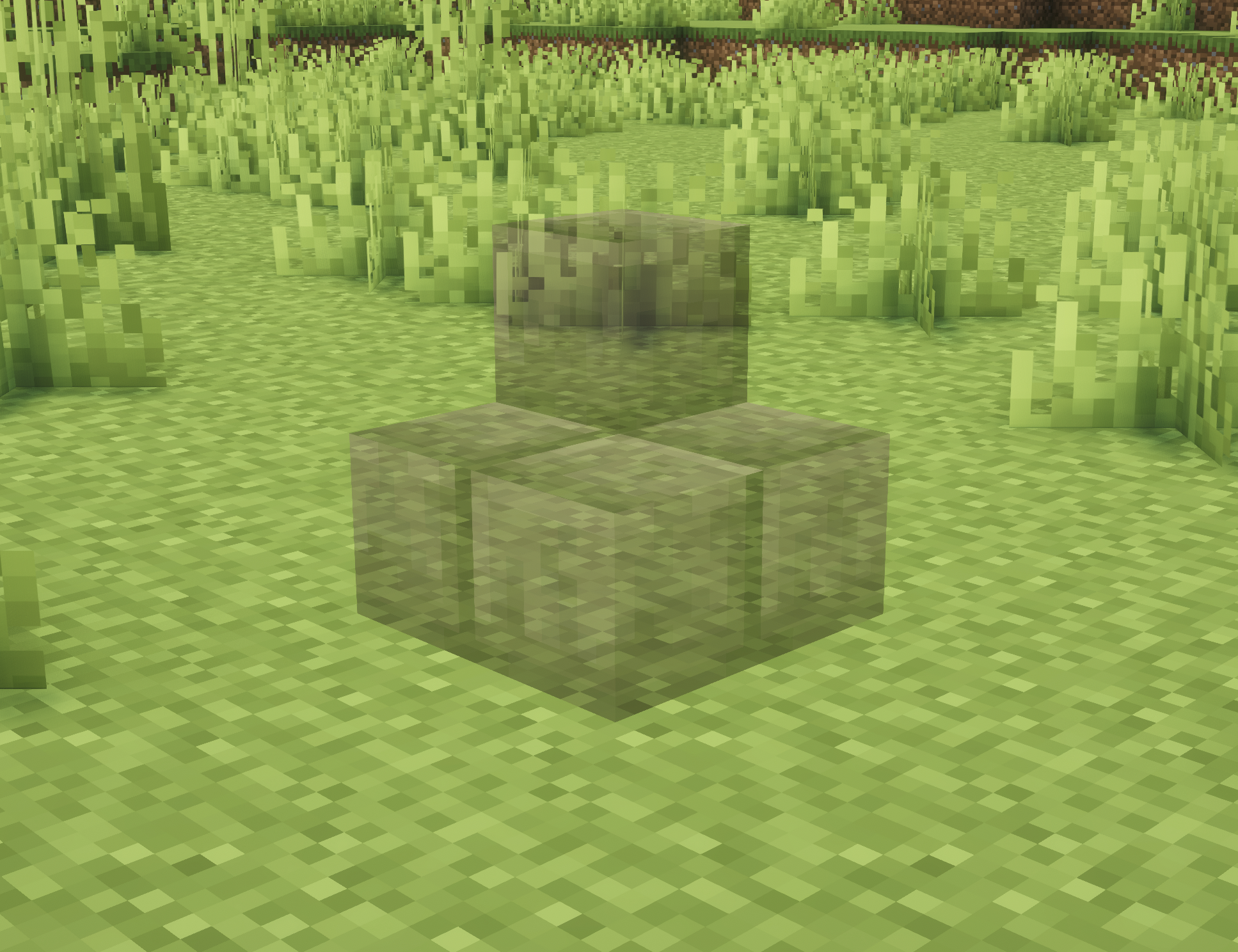 Place how you want Control how stairs and other blocks with fiddly placement rules.
 -
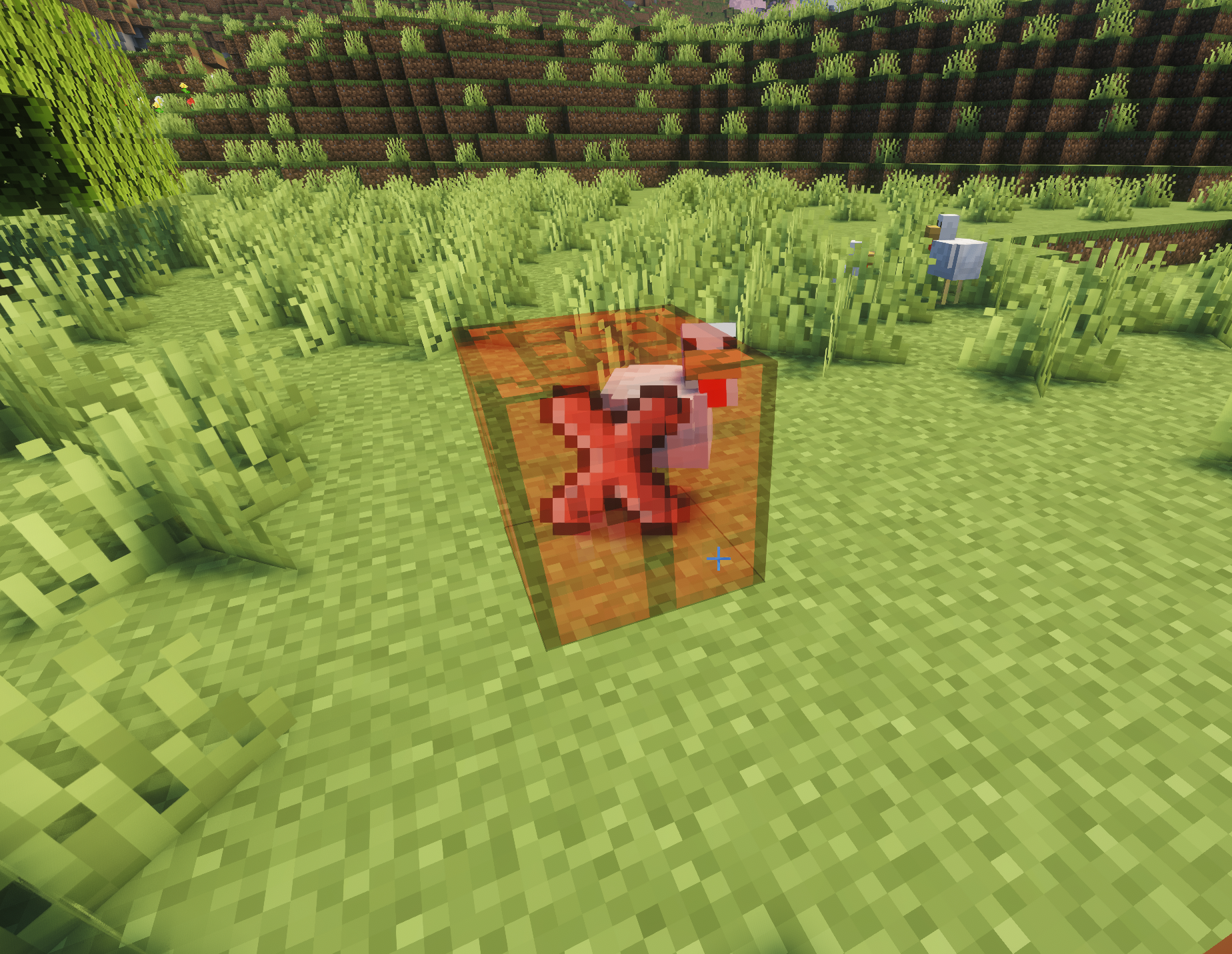 Failure to place Shows a red tinted box with an icon showing placement will fail.
 -
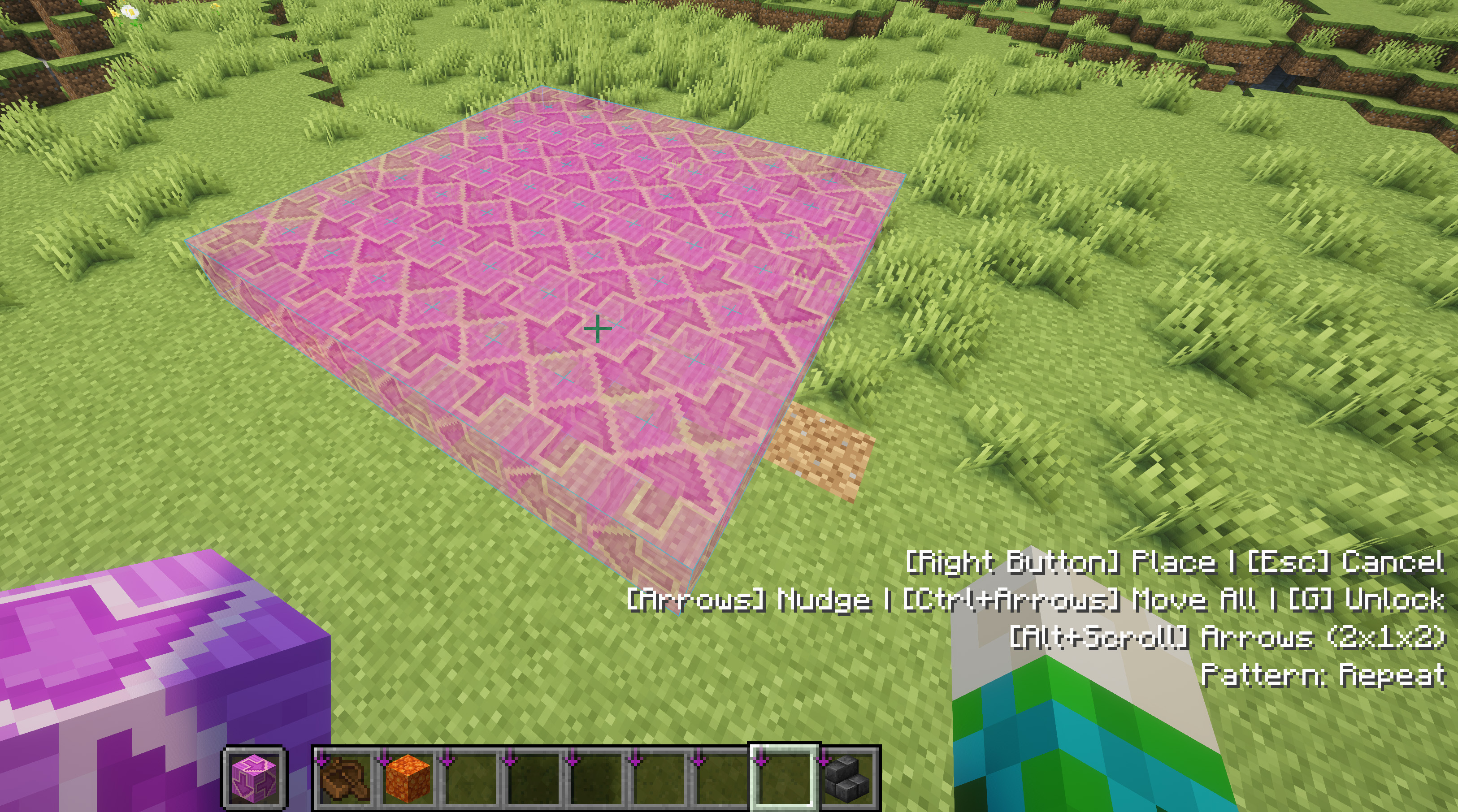 Pattern Building Build arrays of patterns
 -
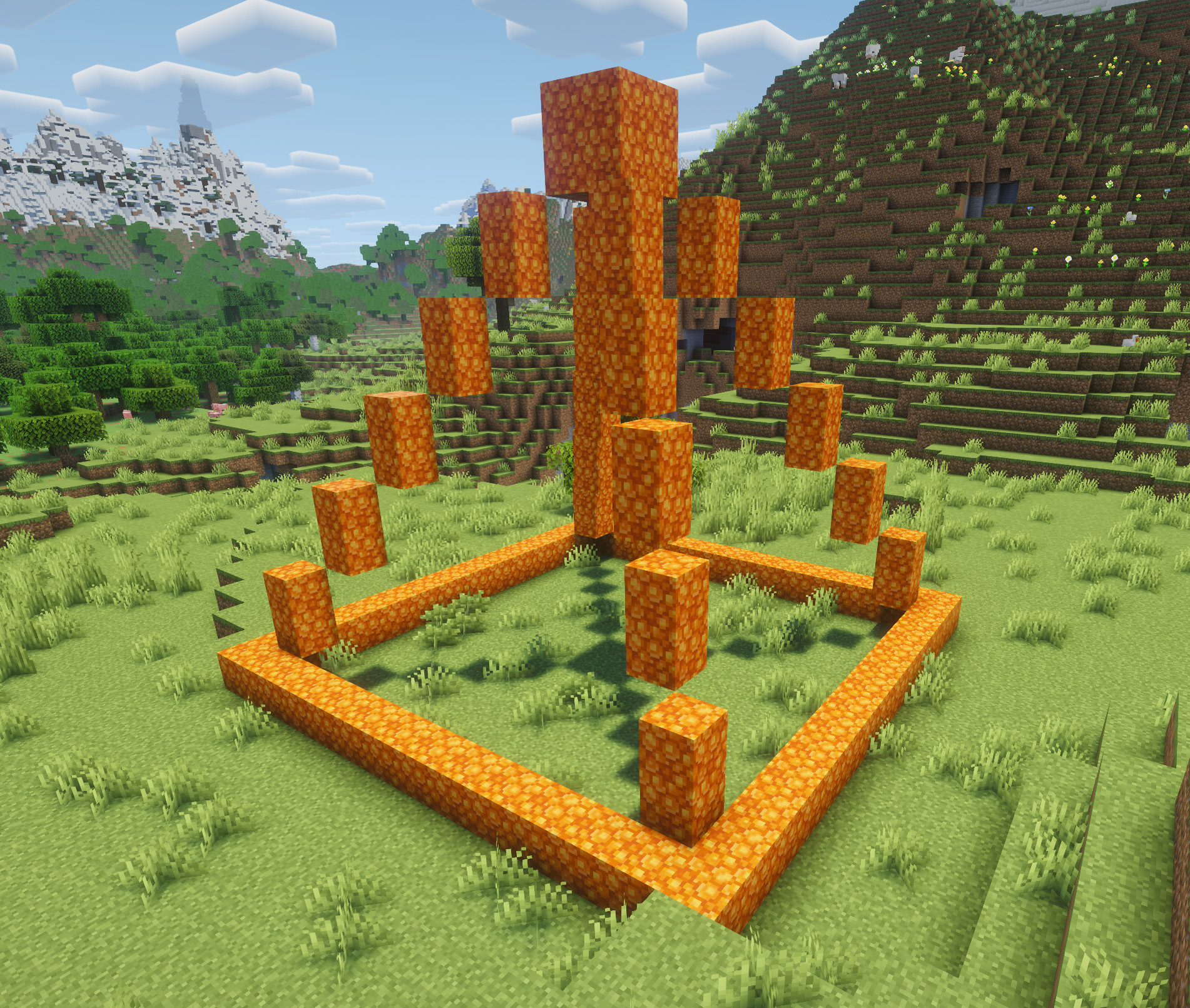 Frame Mode Pyramid
 -
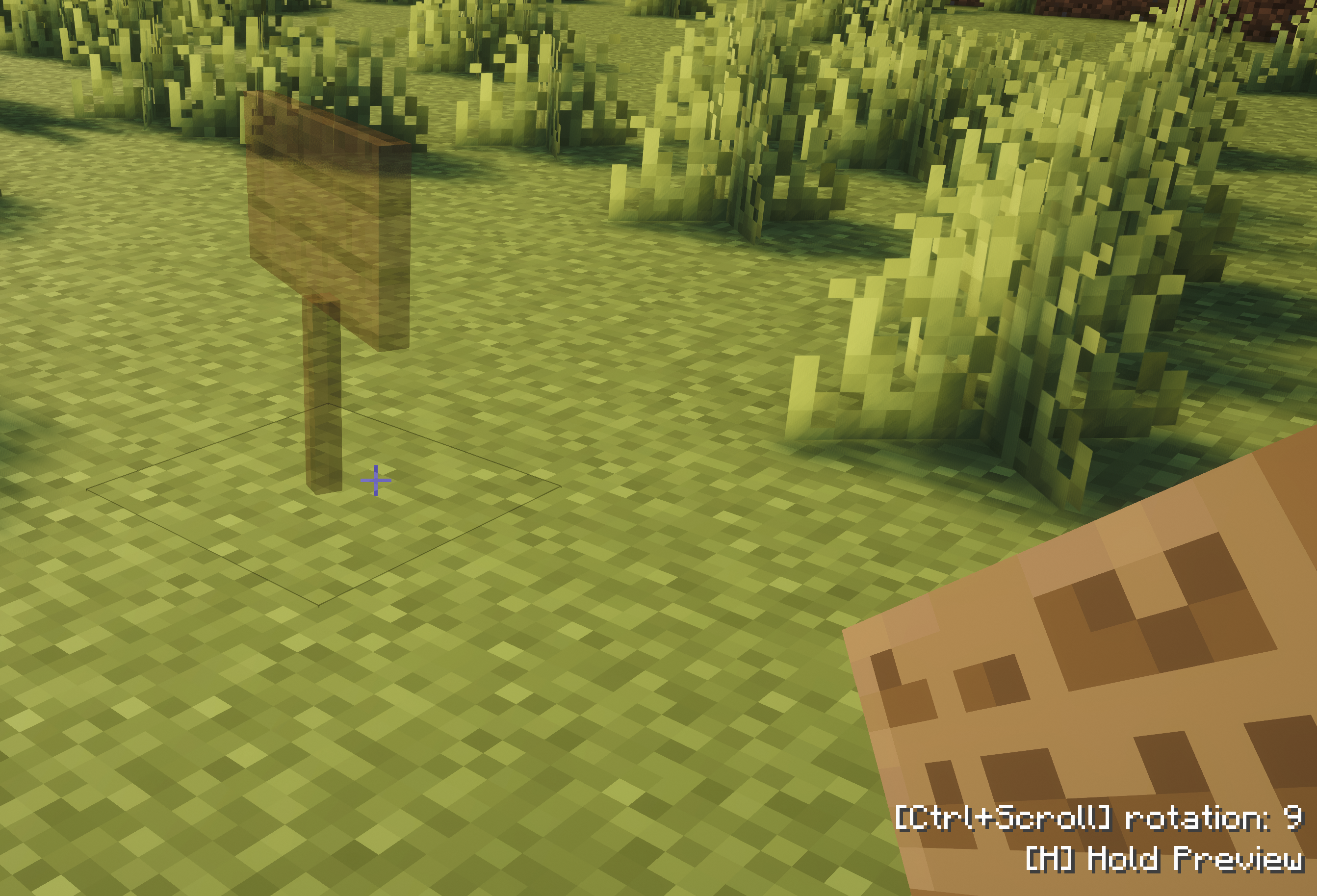 Scroll to rotate Use ctrl-scroll to set specific rotations or styles to blocks.
 -
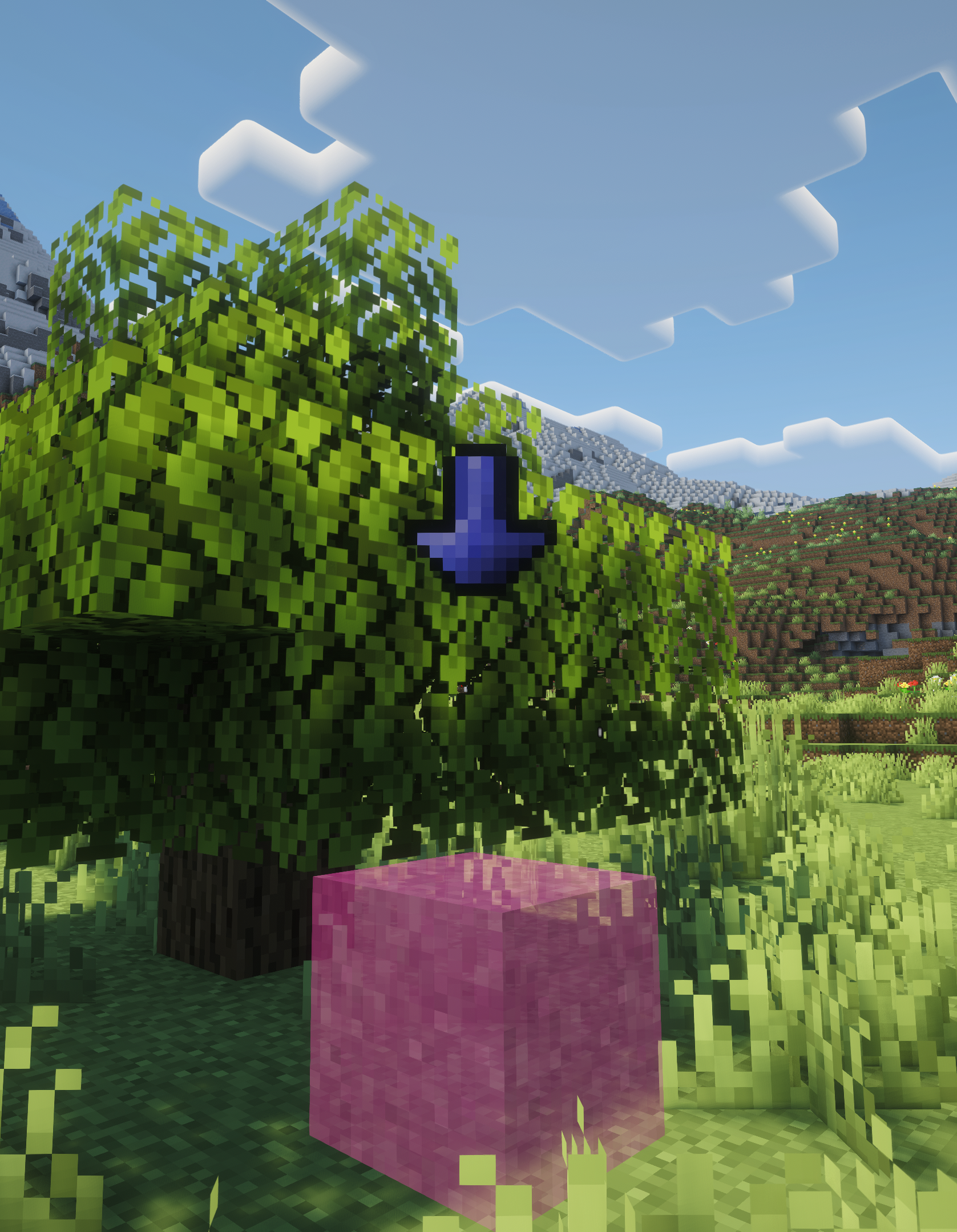 Falling Blocks Shows where a falling block will land based on where you're placing it.
 -
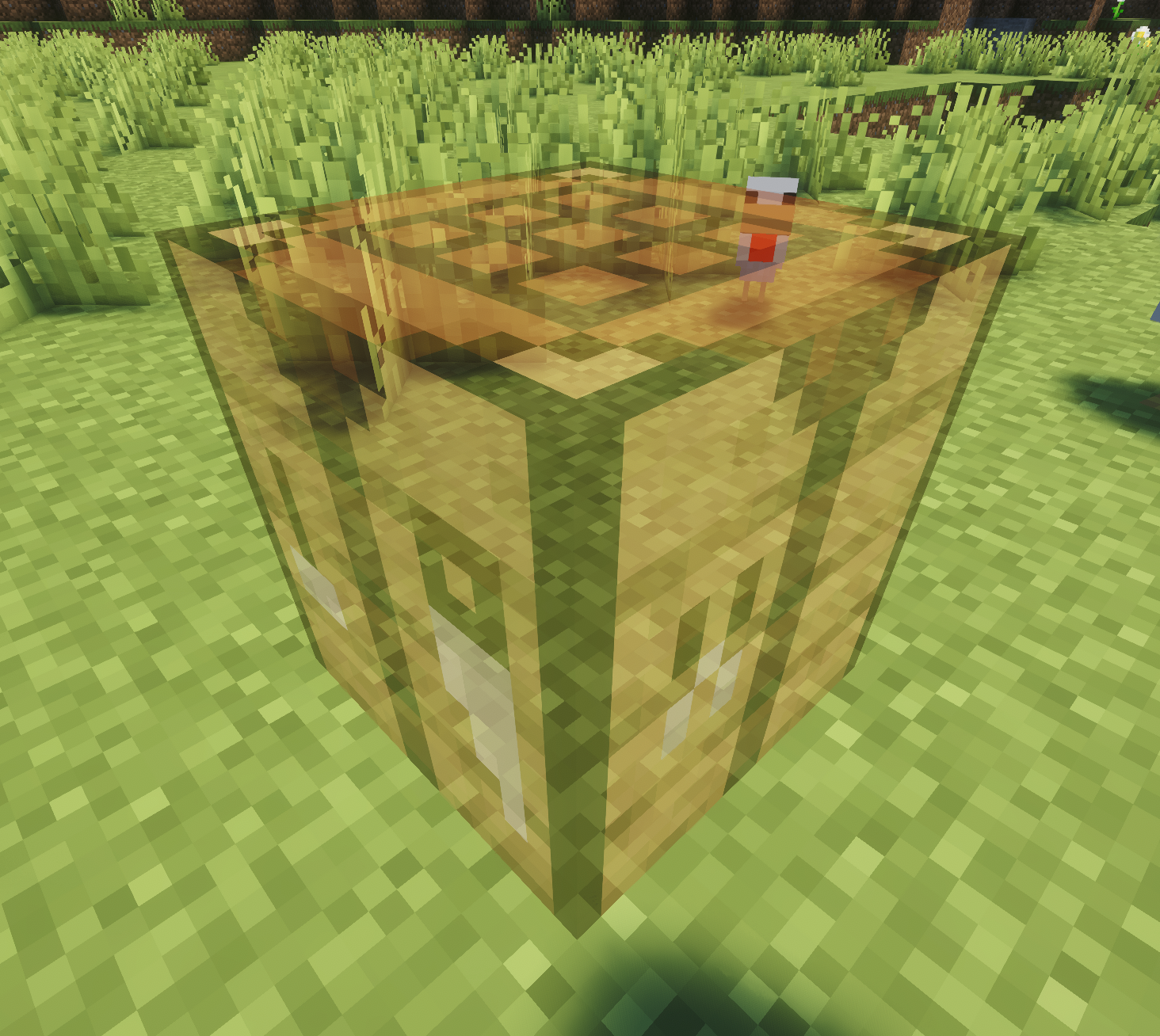 Preview Before Building A Ghost Block appears where you're about to build.
 -
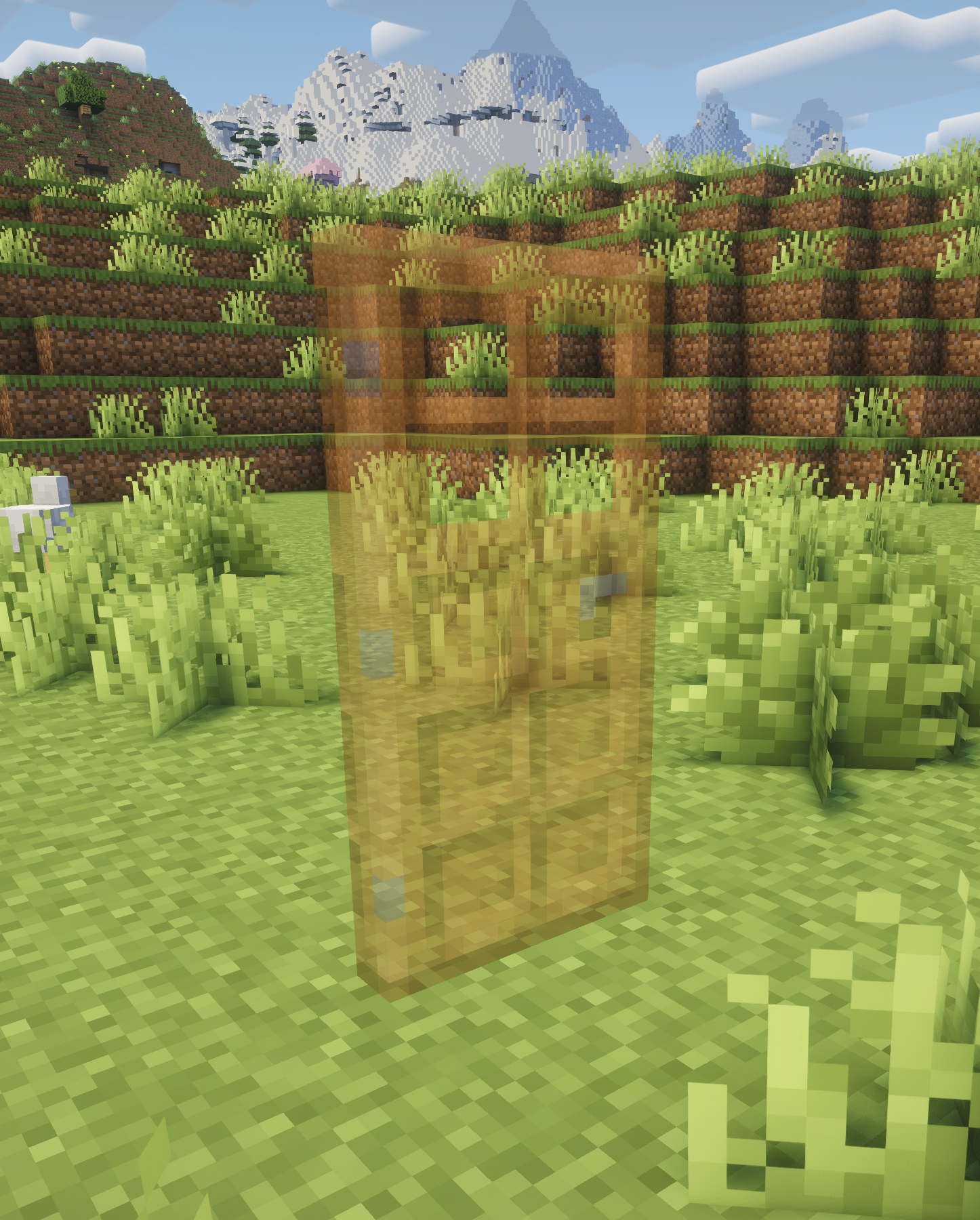 Doors
Doors -
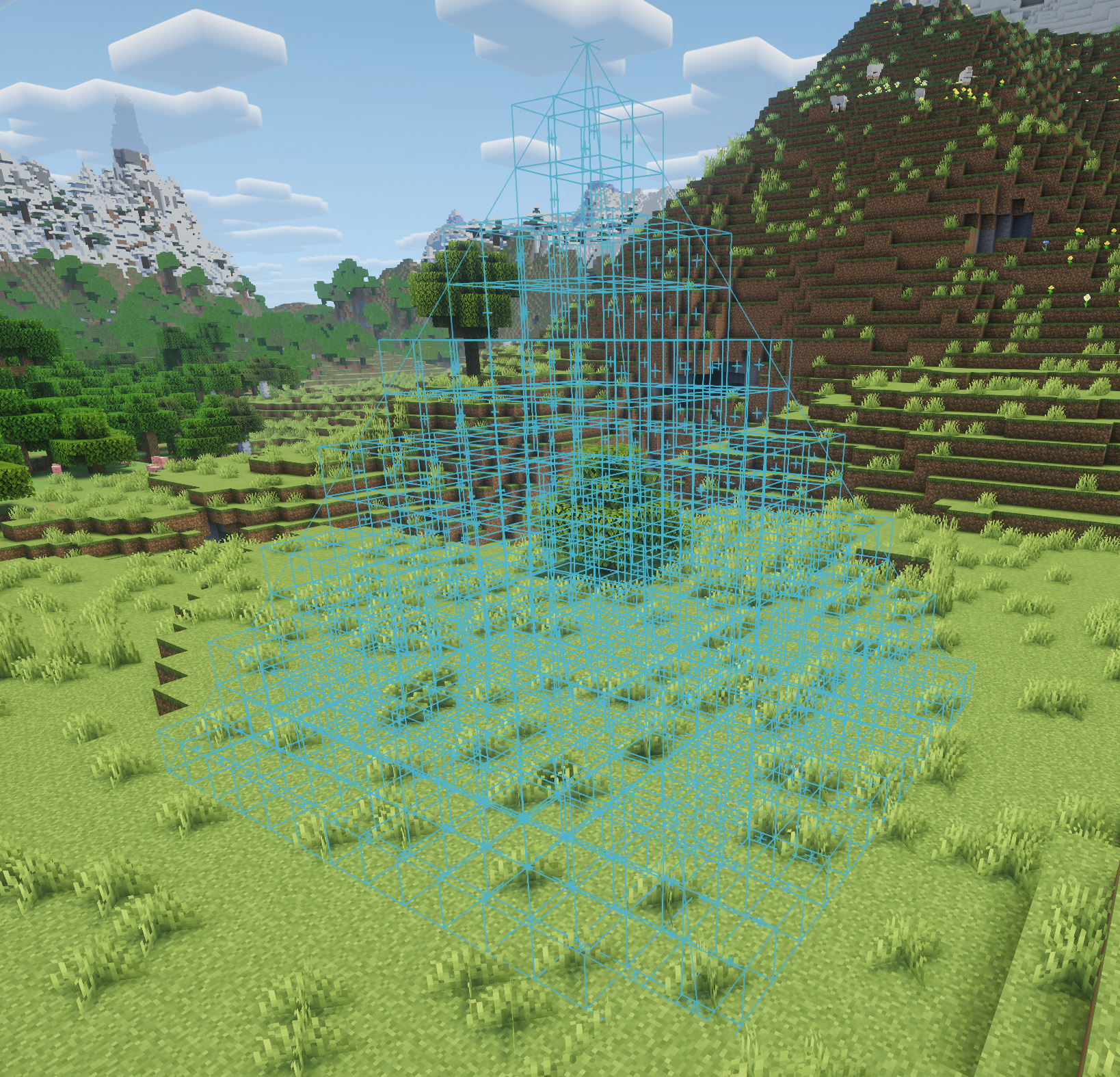 Preview Shape before building
 -
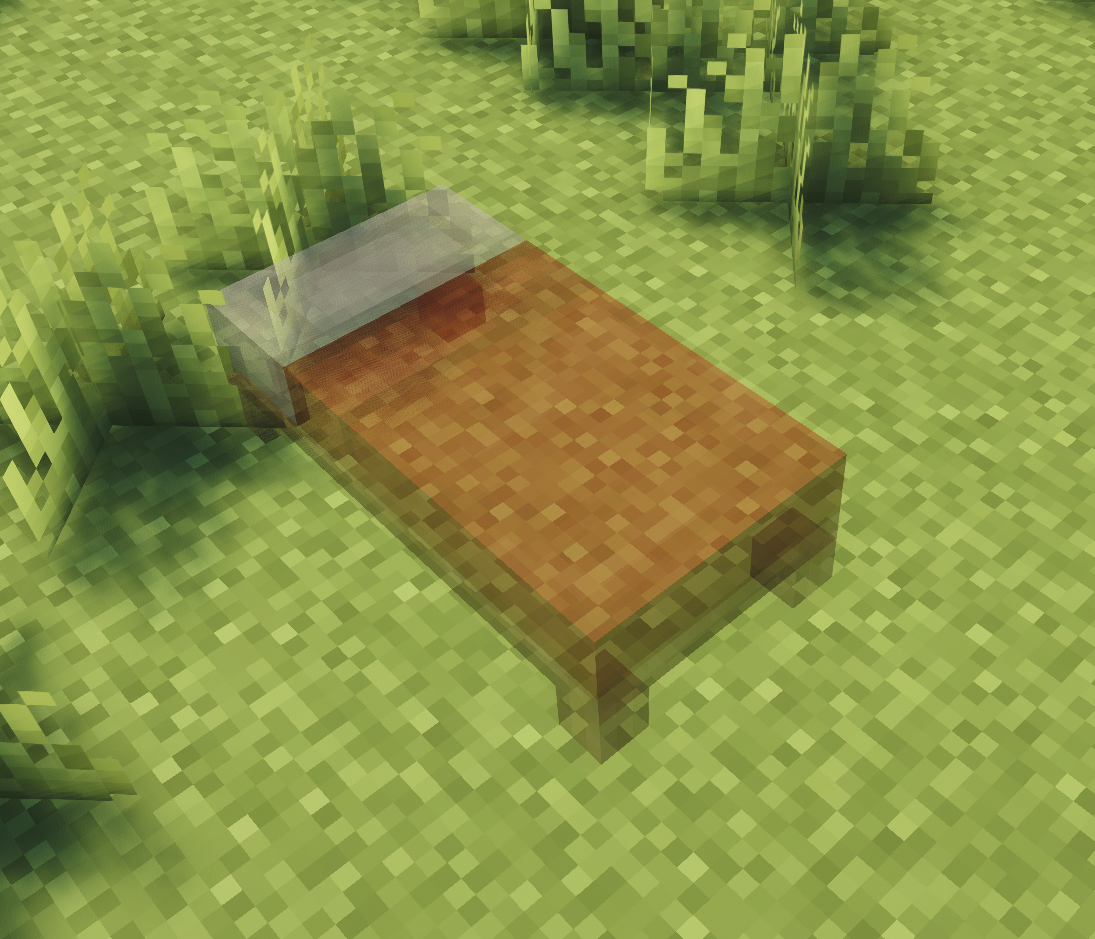 Beds
Beds
Versions
Files
Relations
Project Relations
More like this
Similar Mods
Suggestions use data such as tags, dependencies, dependents, descriptions, titles, and more to rank how much they overlap with this mod.
On ModDex
Community snapshot
By the numbers
Statistics
Want to reach Minecraft players?
We're looking for a server hosting partner to feature here and other parts of the site. Interested? Send us a message!
Get in touchGet it on
Available Platforms
On ModDex
Community snapshot
By the numbers