
Community listing page, reviews here may not be monitored by the author.
Client Sort


No reviews yet
Versatile and easy inventory sorting.
Community voices
Reviews
No reviews yet. Be the first to review this project!
Get it on
Available Platforms
Compatibility
Supported Environments
Required on the client. Installing it on the server adds functionality.
The author has not specified where this runs.
Varies by version.
About
Project Details
For authors
Embed Badge
If you're the author of this project, you can embed a live badge anywhere that supports HTML or Markdown. It updates automatically whenever ratings change.
Use HTML for any page that supports it, or Markdown for README files and Markdown-based descriptions.
Identifiers
Platform IDs
About
Description
ClientSort
Versatile and easy inventory sorting.
Operations
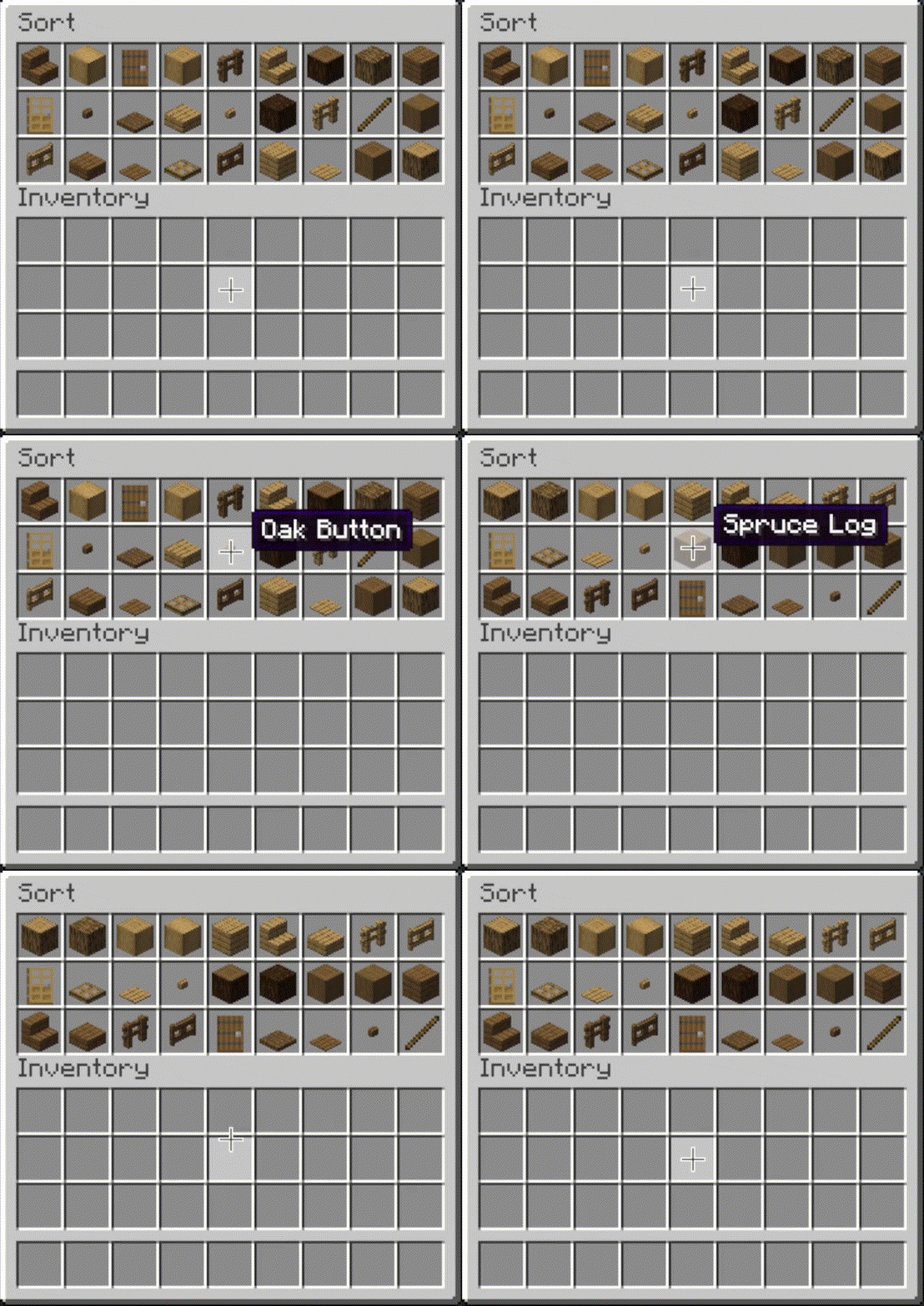
 Sort
Sort
- Press the button, or hover over the inventory with
your mouse and press the keybind (default: middle mouse button).
- When activated, items are sorted by their position in the creative inventory search tab.
Alternative sort orders can be used by holding down a modifier key while sorting.
Shift- descending order of quantity.Control- alphabetical order.Alt- ascending order of item ID.
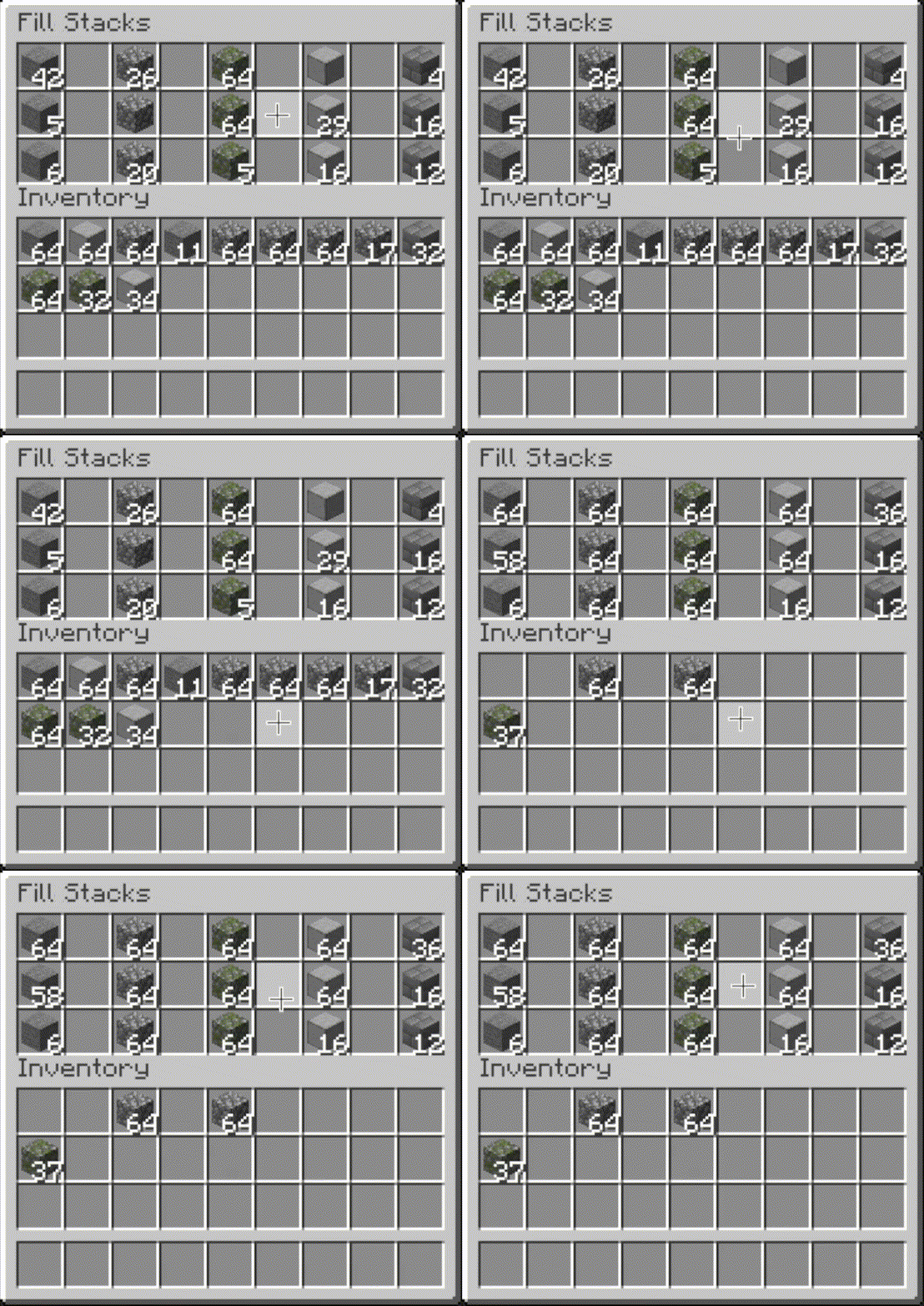
 Fill Stacks
- Press the button, or hover over
the inventory that you want to move items out of and press the keybind (default: unbound).
- When activated, partial stacks in the other inventory are topped-up using items in the origin inventory.
- This button is disabled on the player inventory by default, but can be enabled via the editor (see below).
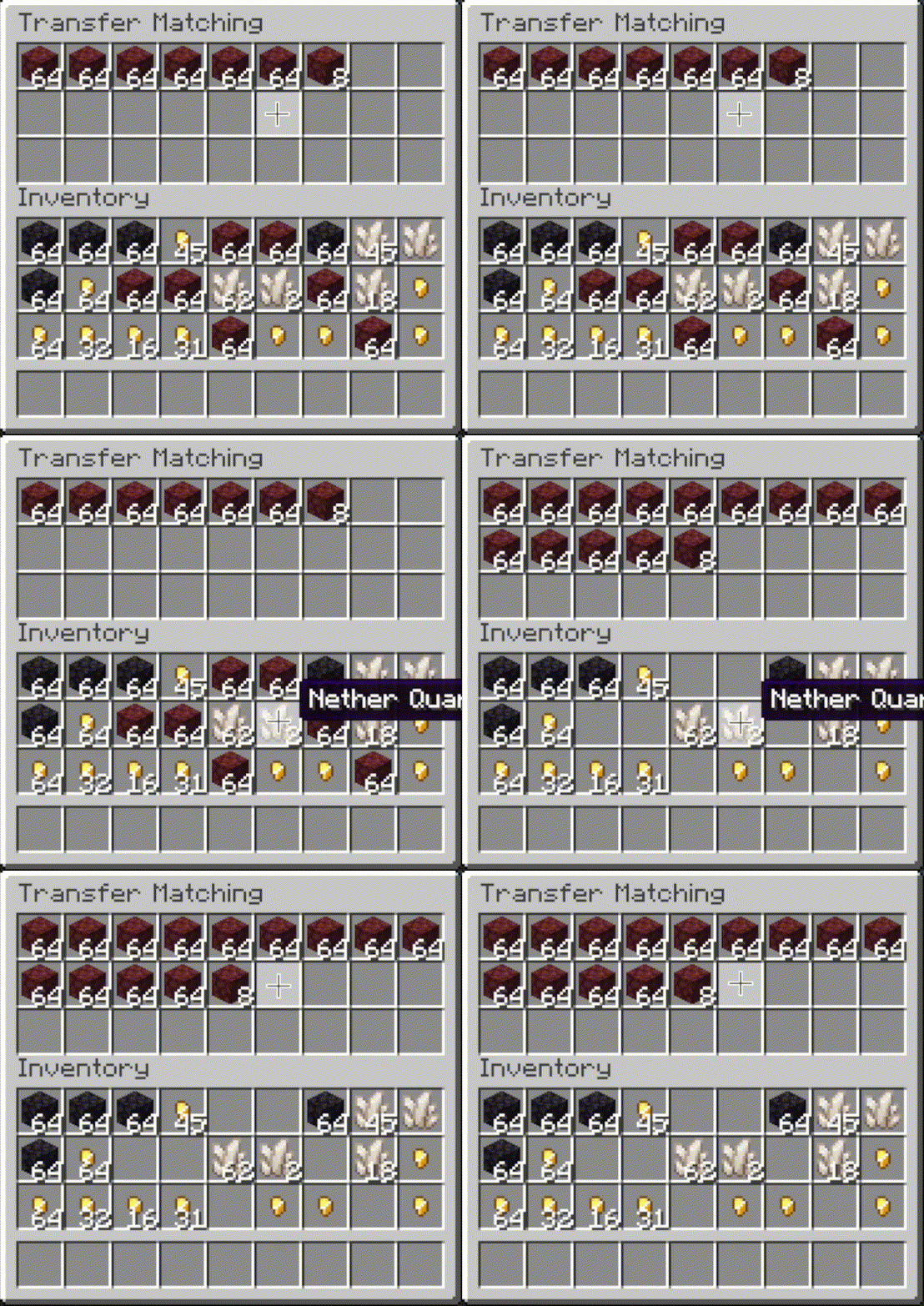
 Transfer Matching
- Press the button, or
hover over the inventory that you want to move items out of and press the keybind (default:
unbound).
- When activated, the other inventory is restocked using items in the origin inventory. No new item types are added to the other inventory.
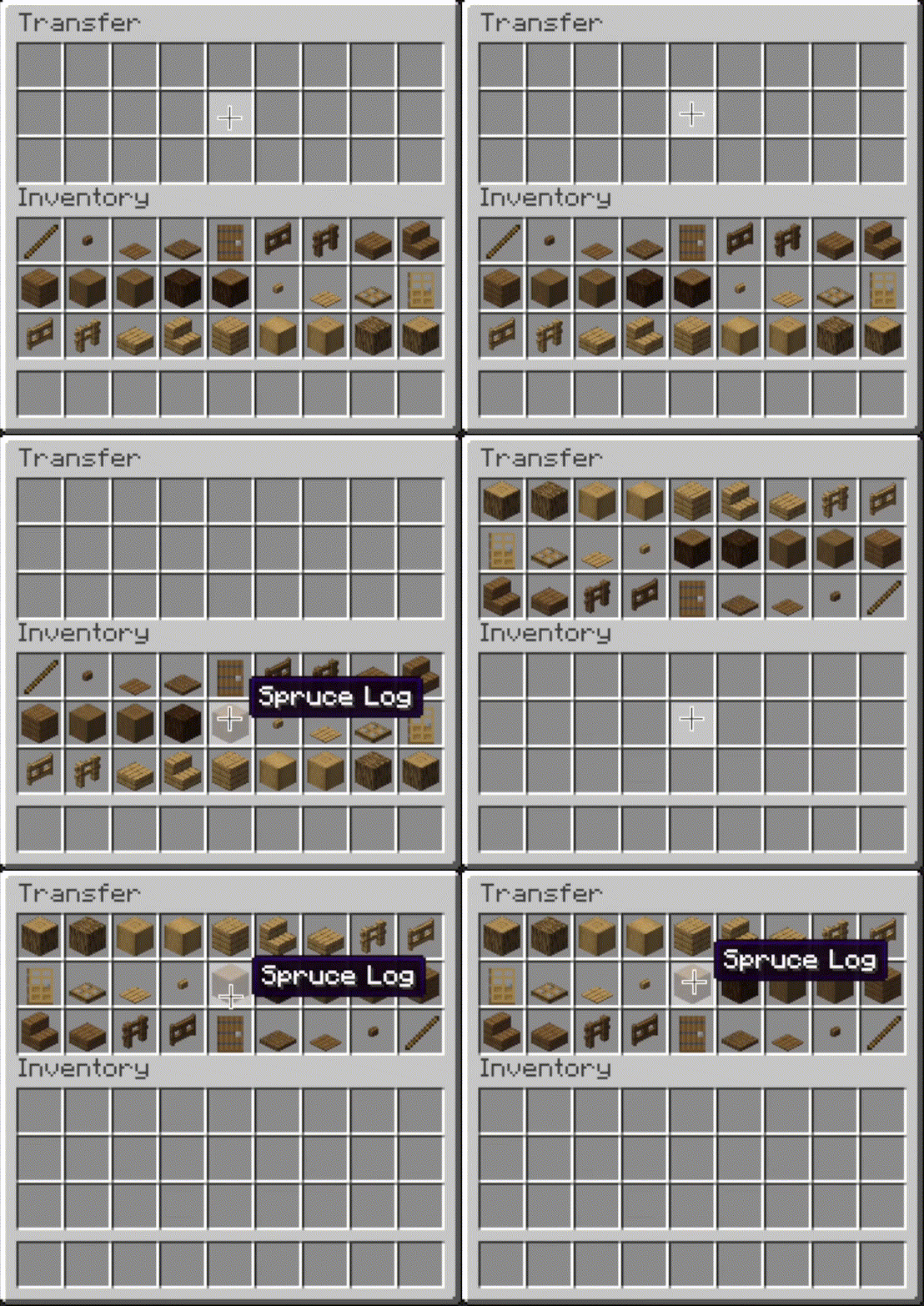
 Transfer
- Press the button, or hover over the
inventory that you want to move items out of and press the keybind (default: unbound).
- When activated, as many items as possible are moved from the origin inventory to the other inventory.
 |
 |
 |
 |
Editor
- The editor can be opened in two ways:
- If a trigger button is visible, right-click on it.
- Otherwise, bind the
Open Editorkeybind (unbound by default) and press it while viewing an inventory.
- When you've opened the editor, hover over
Instructionsfor more information. - Note: fill and transfer buttons are only shown if set to show on both the player inventory and the container, so you can easily hide them everywhere by hiding them on just the player inventory.
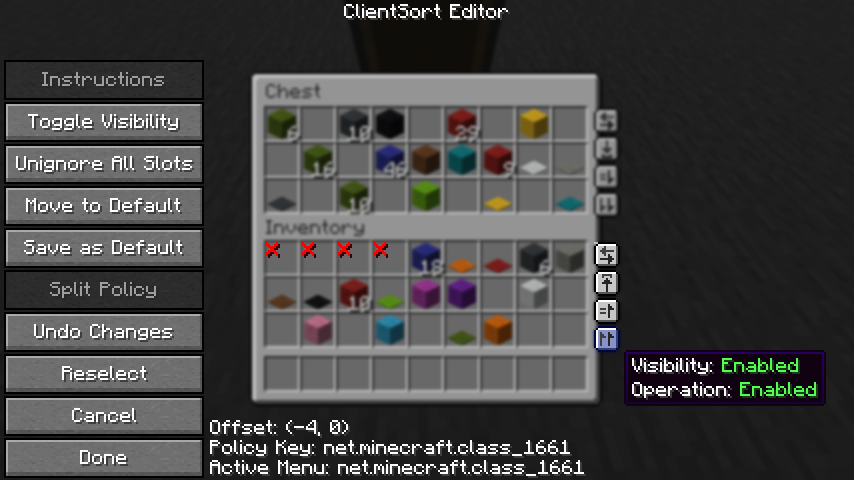
Client-Side Policies
- ClientSort uses a policy system to determine when to allow operations, when to show the trigger
buttons, and when to ignore slots. The policy can be configured either via the editor screen or via
the
Policiestab of the mod options. - Read the in-game instructions for more information on editing policies.
Server-Side Policies
- If installed on a dedicated server, ClientSort uses policies to automatically disable server-accelerated operations when it detects an incorrect state (such as item duplication).
- The policy list is stored in the
clientsort-server.jsonconfig file, which can be manually edited and reloaded using the/clientsort reloadcommand.
Serverside policies are not synced to clients, so if a client attempts to perform a server-accelerated operation that the server does not allow, a warning message will be shown to the client. The player can then opt to add a client-side policy to disable the operation entirely, disable server acceleration, or enable automatically falling back to client operations.
Serverside Config File
{
  "options": {
    // Whether validation and automatic blacklisting should be enabled when the mod is used on a
    // dedicated server.
    "validationActiveServer": true,

    // Whether inventories should be blacklisted when the wrong type of item is found in a slot.
    "validateItemType": true,

    // Whether inventories should be blacklisted when the wrong number of items is found in a slot.
    "validateStackSize": true,
    // The minimum difference between expected and actual which should be considered invalid.
    "validateStackSizeThreshold": 32,

    // Whether to always log a message when the result is not exactly as expected (even if
    // validation is disabled, the difference is less than the threshold, etc.)
    "alwaysLogUnexpectedResults": true,

    // The list of policies for different inventory and container types.
    "classPolicies": {
      // An example entry.
      "com.simibubi.create.content.equipment.toolbox.ToolboxMenu": {
        "className": "com.simibubi.create.content.equipment.toolbox.ToolboxMenu",
        "sortEnabled": false,
        "stackFillEnabled": true,
        "transferEnabled": true,
        // Updated automatically when an inventory is blacklisted.
        "lastAutoEditTime": "2025-09-20T14:58:41.1620876+08:00",
        "lastAutoEditReason": "Sort operation failed at slot mapping 12->5: Expected '2 minecraft:spruce_slab' in destination after set, got '0 minecraft:air'!"
      }
    }
  }
}
Installation
Client Required, Server Optional
As the name suggests, ClientSort is fully functional when it is only installed on the client. However, if it is also installed on a server, connected clients with the mod will be able to use server-accelerated (near-instant) operations instead of the normal rate-limited operations.
Dependencies
Fabric: Fabric API, ModMenu, Cloth Config API
Neo/Forge: Cloth Config API
Credits
ClientSort uses code from the following mods, in both modified and unmodified form, in accordance with their respective licenses.
Mouse Wheelie by Siphalor (Apache-2.0 license)
- Item comparison
- Client and server-side sorting
- Client-side interaction manager
Inventory Management by Roundaround (MIT license)
- Inventory trigger buttons
- Button generation
- Button position editor
Related Mods
- Mouse Tweaks - item scrolling, mouse dragging.
- More Mouse Tweaks - single-click crafting and trading, quick-move and quick-drop.
- Tweakeroo - hand restock, auto tool-switch, tool break prevention and more.
Contact




ClientSort
Versatile and easy inventory sorting.








Operations
Sort
- Press the button, or hover over the inventory with
your mouse and press the keybind (default: middle mouse button).
- When activated, items are sorted by their position in the creative inventory search tab.
Alternative sort orders can be used by holding down a modifier key while sorting.
Shift- descending order of quantity.Control- alphabetical order.Alt- ascending order of item ID.
Fill Stacks
- Press the button, or hover over
the inventory that you want to move items out of and press the keybind (default: unbound).
- When activated, partial stacks in the other inventory are topped-up using items in the origin inventory.
- This button is disabled on the player inventory by default, but can be enabled via the editor (see below).
Restock
- Press the button, or
hover over the inventory that you want to move items out of and press the keybind (default:
unbound).
- When activated, the other inventory is restocked using items in the origin inventory. No new item types are added to the other inventory.
Transfer
- Press the button, or hover over the
inventory that you want to move items out of and press the keybind (default: unbound).
- When activated, as many items as possible are moved from the origin inventory to the other inventory.
|
|
|
|
Other Options
- Slot ignoring:
- Exclude slots from being processed by operations.
- Configurable via the editor screen.
- Auto operations:
- Automatically perform an operation (e.g. sorting) when opening an inventory.
- Configurable via the editor screen.
- Scoping:
- Include or exclude the hotbar and extra slots from being processed with the inventory.
- Configurable via mod config,
Generaltab.
- Sorting overrides:
- Always sort specific items to the start or end.
- Configurable via mod config,
Sortingtab.
- Matching overrides:
- Ignore NBT data (e.g. enchantments) when comparing items in sort or restock operations.
- Configurable via mod config,
Matchingtab.
- Interaction sounds:
- Play a sound when clicking in client-side operations.
- Configurable via mod config,
Soundstab.
Editor Screen
- The editor can be opened in two ways:
- If a trigger button is visible, right-click on it.
- Otherwise, bind the
Open Editorkeybind (unbound by default) and press it while viewing an inventory.
- When you've opened the editor, hover over
Instructionsfor more information. - Note: fill and transfer buttons are only shown if set to show on both the player inventory and the container, so you can easily hide them everywhere by hiding them on just the player inventory.
Client-Side Policies
- ClientSort uses a policy system to determine when to allow operations, when to show the trigger
buttons, and when to ignore slots. The policy can be configured either via the editor screen or via
the
Policiestab of the mod options. - Read the in-game instructions for more information on editing policies.
Server-Side Policies
- If installed on a dedicated server, ClientSort can use policies to automatically disable server-accelerated operations when it detects an incorrect state (such as item duplication).
- The policy list is stored in the
clientsort-server.jsonconfig file, which can be manually edited and reloaded using the/clientsort reloadcommand.
Serverside policies are not synced to clients, so if a client attempts to perform a server-accelerated operation that the server does not allow, a warning message will be shown to the client. The player can then opt to add a client-side policy to disable the operation entirely, disable server acceleration, or enable automatically falling back to client operations.
Serverside Config File
{
  "options": {
    // Whether validation and automatic blacklisting should be enabled when the mod is used on a
    // dedicated server.
    "validationActiveServer": false,

    // Whether inventories should be blacklisted when the wrong type of item is found in a slot.
    "validateItemType": true,

    // Whether inventories should be blacklisted when the wrong number of items is found in a slot.
    "validateStackSize": true,
    // The minimum difference between expected and actual which should be considered invalid.
    "validateStackSizeThreshold": 32,

    // Whether to always log a message when the result is not exactly as expected (even if
    // validation is disabled, the difference is less than the threshold, etc.)
    "alwaysLogUnexpectedResults": true,

    // The list of policies for different inventory and container types.
    "classPolicies": {
      // An example entry.
      "com.simibubi.create.content.equipment.toolbox.ToolboxMenu": {
        "className": "com.simibubi.create.content.equipment.toolbox.ToolboxMenu",
        "sortEnabled": false,
        "stackFillEnabled": true,
        "transferEnabled": true,
        // Updated automatically when an inventory is blacklisted.
        "lastAutoEditTime": "2025-09-20T14:58:41.1620876+08:00",
        "lastAutoEditReason": "Sort operation failed at slot mapping 12->5: Expected '2 minecraft:spruce_slab' in destination after set, got '0 minecraft:air'!"
      }
    }
  }
}
Installation
Client Required, Server Optional
- As the name suggests, ClientSort is fully functional when it is only installed on the client. However, if it is also installed on a server, connected clients with the mod will be able to use server-accelerated (near-instant) operations instead of the normal rate-limited operations.
Dependencies
- Fabric: Fabric API, ModMenu, Cloth Config API
- Neo/Forge: Cloth Config API
Credits
ClientSort uses code from the following mods, in both modified and unmodified form, in accordance with their respective licenses.
-
Mouse Wheelie by Siphalor (Apache-2.0 license)
- Item comparison
- Client and server-side sorting
- Client-side interaction manager
-
Inventory Management by Roundaround (MIT license)
- Inventory trigger buttons
- Button generation
- Button position editor
Related Mods
- Mouse Tweaks - item scrolling, mouse dragging.
- More Mouse Tweaks - single-click crafting and trading, quick-move and quick-drop.
- Tweakeroo - hand restock, auto tool-switch, tool break prevention and more.
Contact

Screenshots
Gallery
-
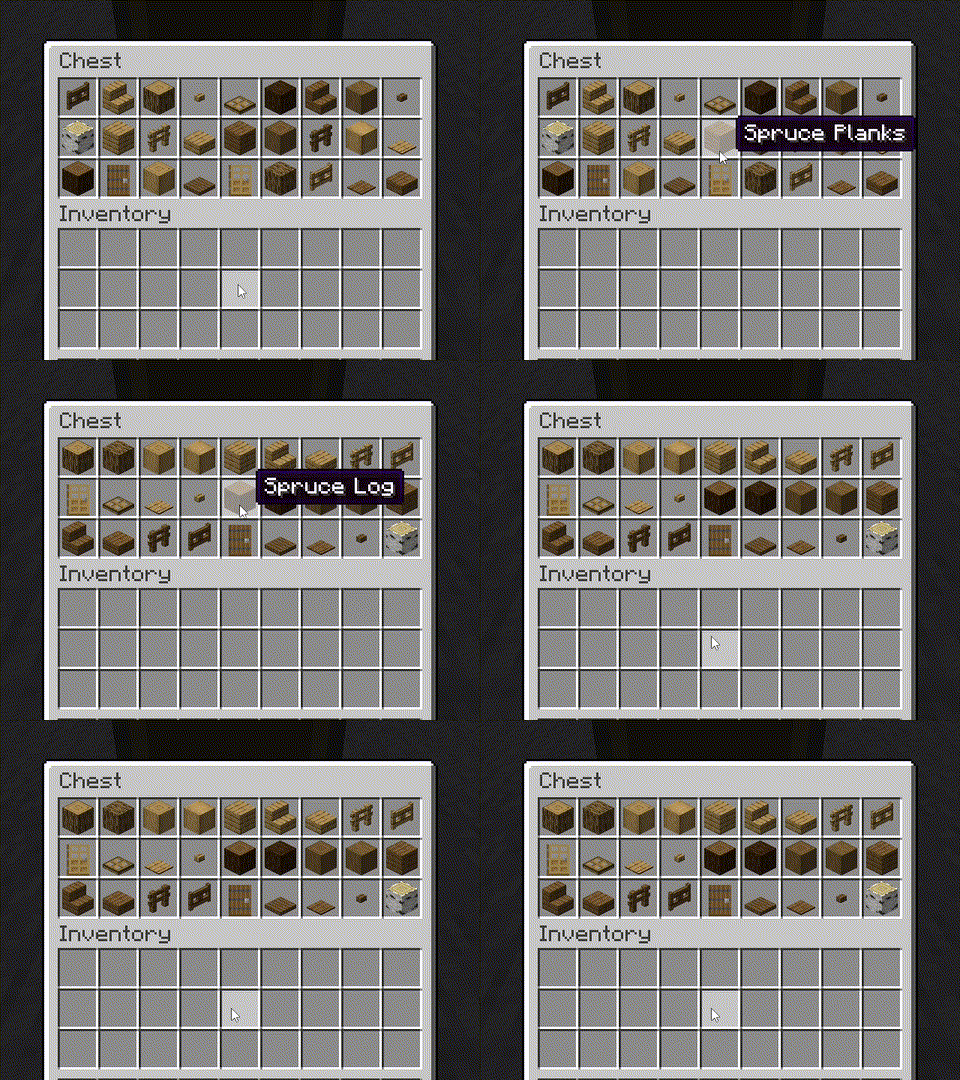 Sorting
Versions
Files
Relations
Project Relations
More like this
Similar Mods
Suggestions use data such as tags, dependencies, dependents, descriptions, titles, and more to rank how much they overlap with this mod.
On ModDex
Community snapshot
By the numbers
Statistics
Want to reach Minecraft players?
We're looking for a server hosting partner to feature here and other parts of the site. Interested? Send us a message!
Get in touchGet it on
Available Platforms
On ModDex
Community snapshot
By the numbers