Community listing page, reviews here may not be monitored by the author.
Color-Block-Mod

No reviews yet
A Mod that allows you to have every color as a block in Mineraft and inload Images
Community voices
Reviews
No reviews yet. Be the first to review this project!
Get it on
Available Platforms
About
Project Details
For authors
Embed Badge
If you're the author of this project, you can embed a live badge anywhere that supports HTML or Markdown. It updates automatically whenever ratings change.
Use HTML for any page that supports it, or Markdown for README files and Markdown-based descriptions.
Identifiers
Platform IDs
About
Description
THIS IS FOR MINECRAFT/FORGE 1.16.4/35.0.0 AND NEWER! (Only 1.16.x)
Support: https://discord.gg/8pUpWCEUe2
Color-Block-Mod
I'm partnered with Bisect Hosting:

You can color the ColorBlock in every RGB Color. You can customize the Color with Minecraft Dye, an MultiDye Item for Random Colors, a Color-Tool or an GUI
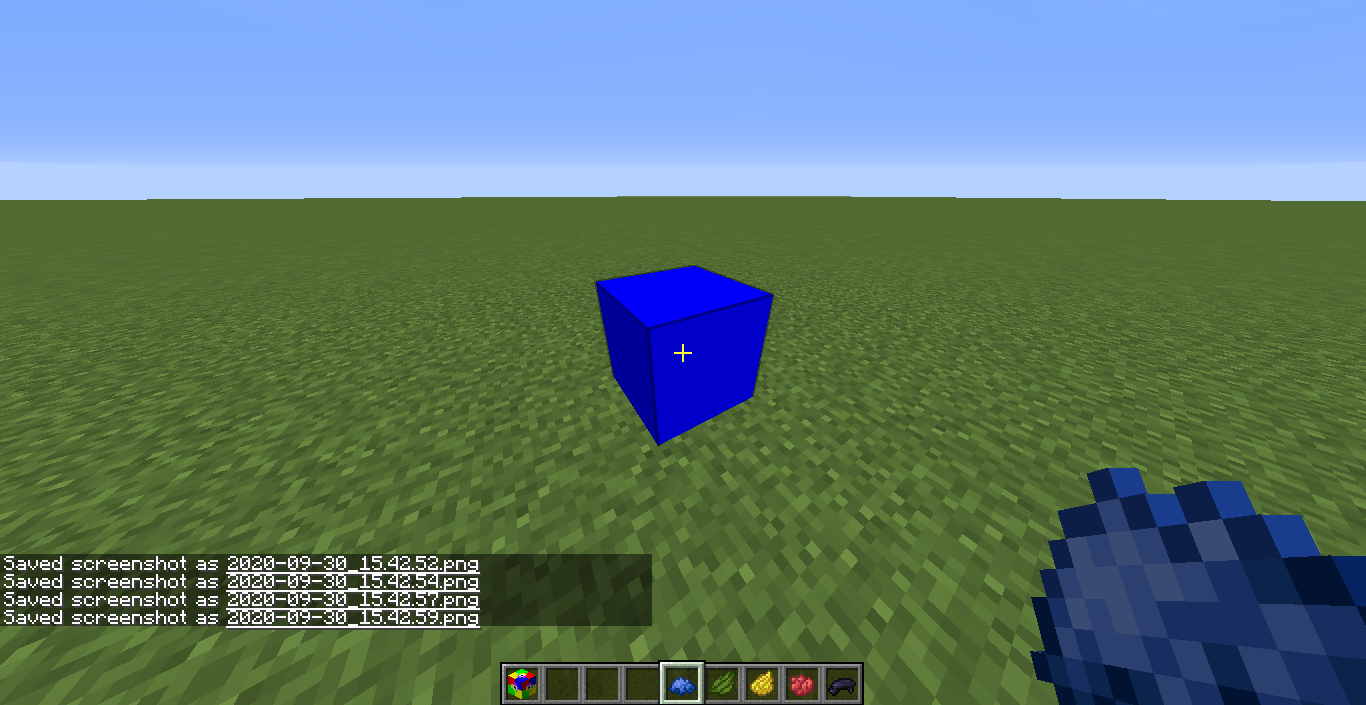
You simply click on the placed ColorBlock with the Dye in your Hand and the Color will update itself
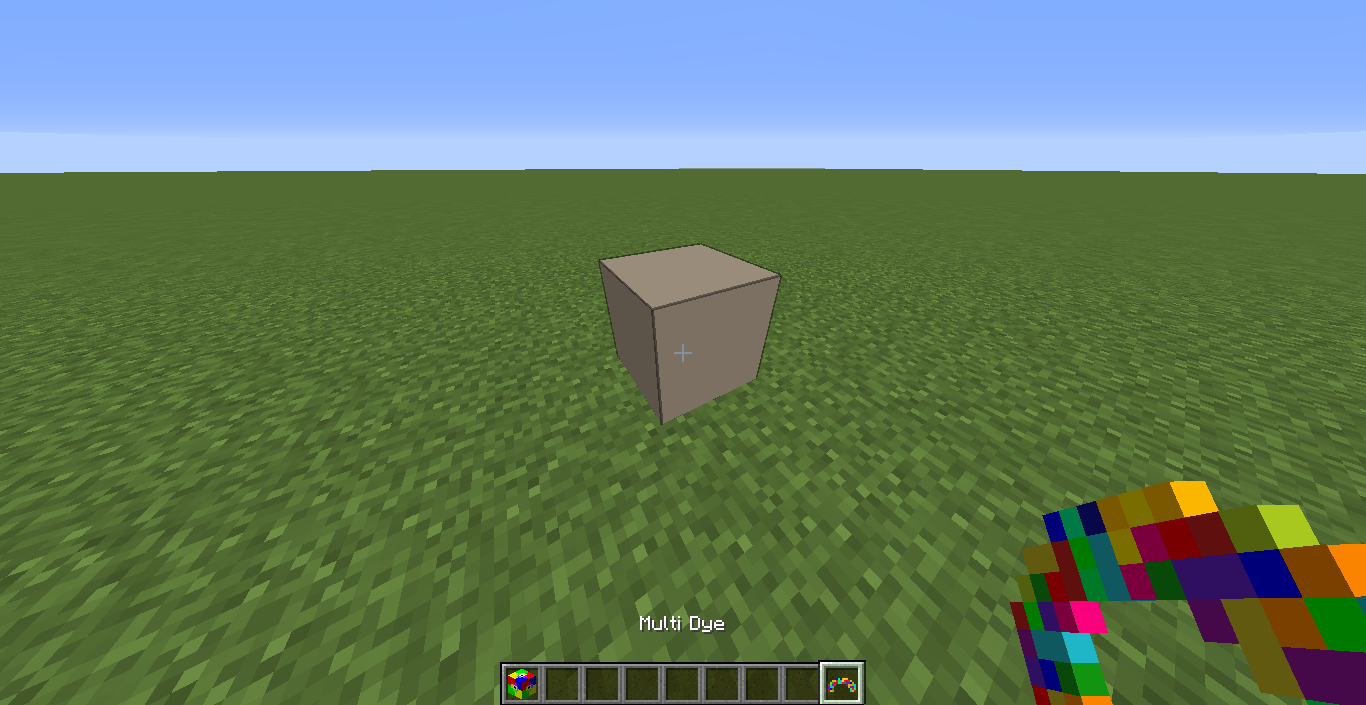
You use MultiDye the same way.
You can use the ColorTool in two ways:
1. You use it like Dye and set the Color in an Anvil, like you rename a Item, then click on the Color-Block.(Decimal-RGB Colors are needed)
2. Sneak-click on an already colored ColorBlock and the ColorTool will adapt this color and have it's code as name. Then click on the ColorBlock and it will update the Color likein the first example.
You can open the GUI when you have nothing in your hand. There is a TextField and a Button
In the TextField you write the Color you want the Block to have. With the Button you can choose the numbering system you want to use for the Color.
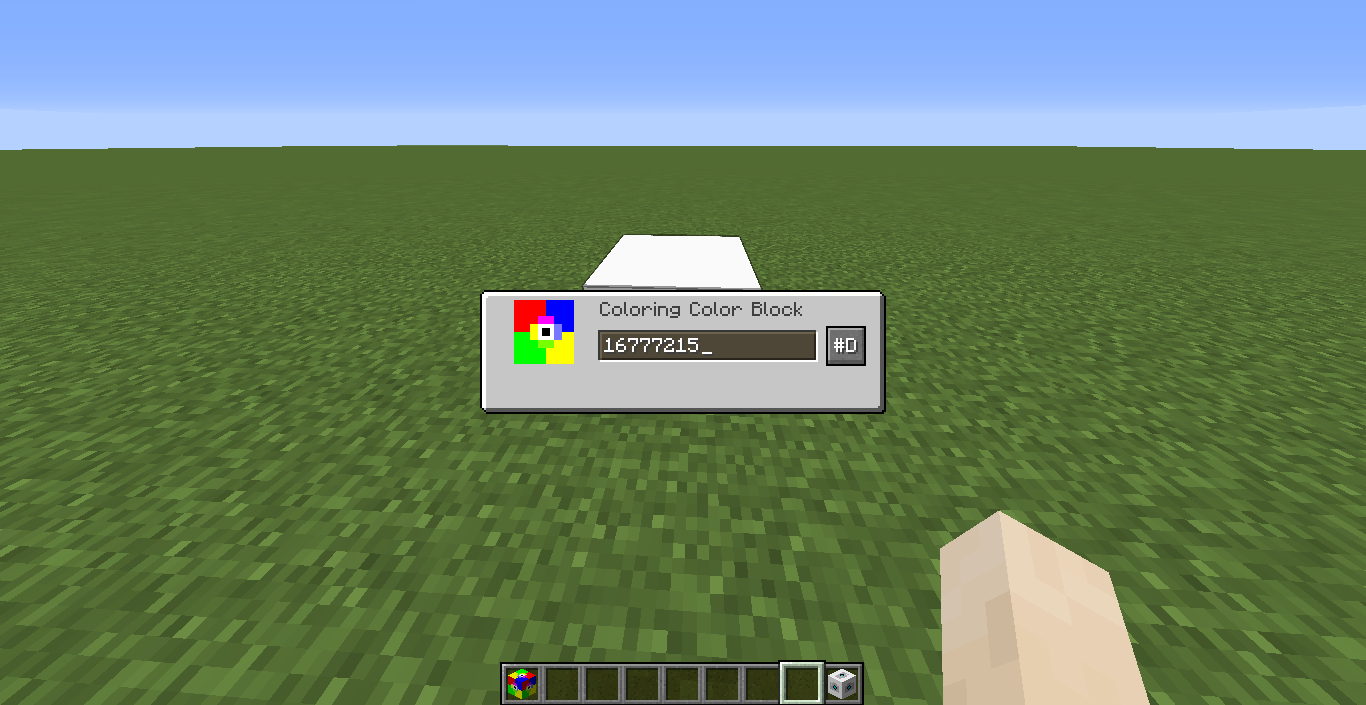
IMAGE-BLOCK
With the ImageBlock you can Import Images from your Filesystem in Minecraft. In the GUI you can write the Path of the Image or choose it with the ImportButton.
You can Rotate the Image or choose the Axis of the Image. With three textfields you can set an Offset to the Block. With the "Finish" Button you build the Image.
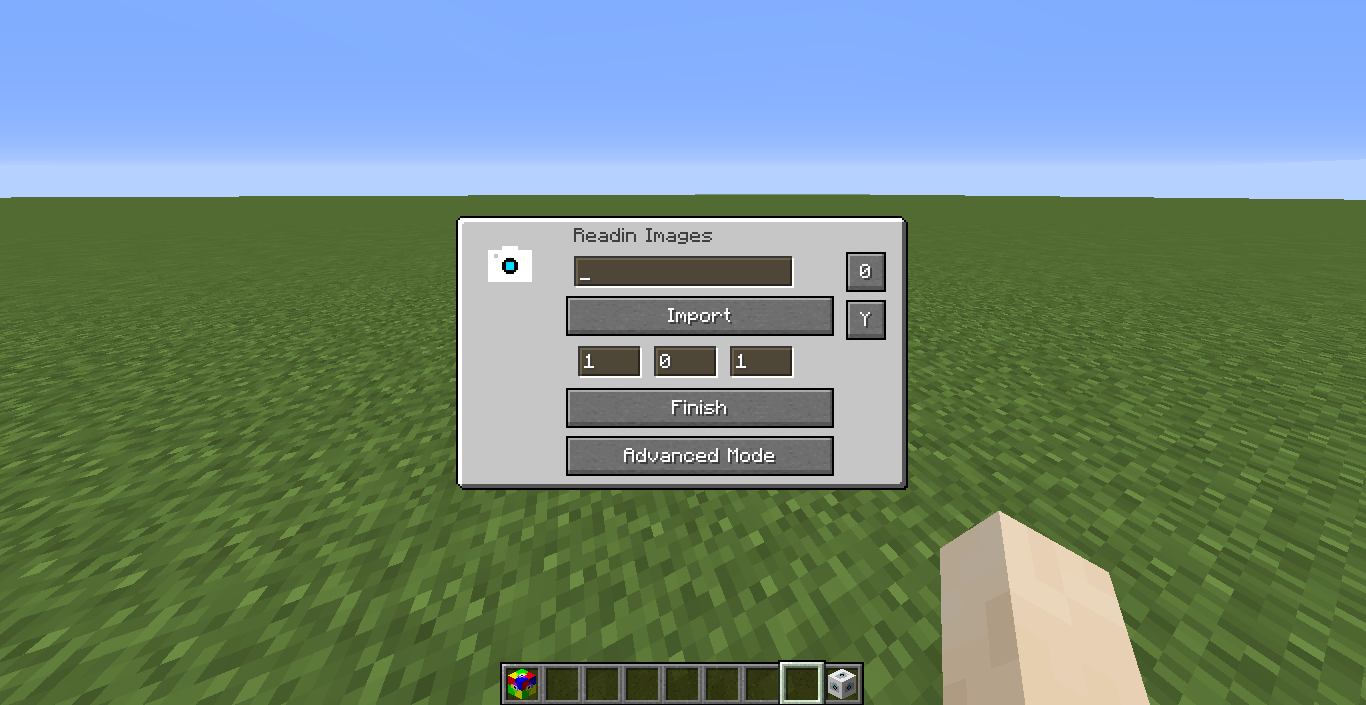
Everyone who wants more Options can click the Advanced Mode Button to open the Advanced Mode, where you can choose an max Image Size or if you want empty pixels to be filled
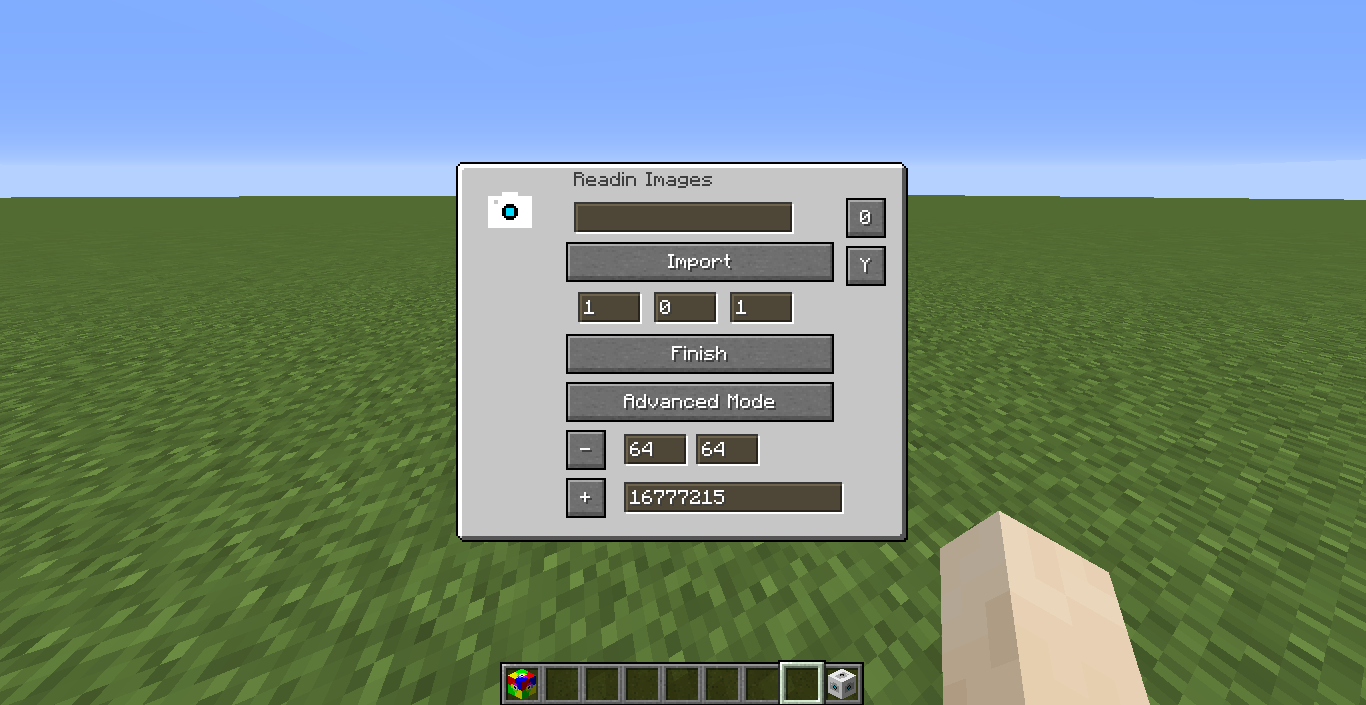
What is the Image Block doing?
- It will place Color Blocks, which are configured to the RGB Color of the Image
- In the Config of the Image Block, you can only change in which rotation or Axis the Image is build.
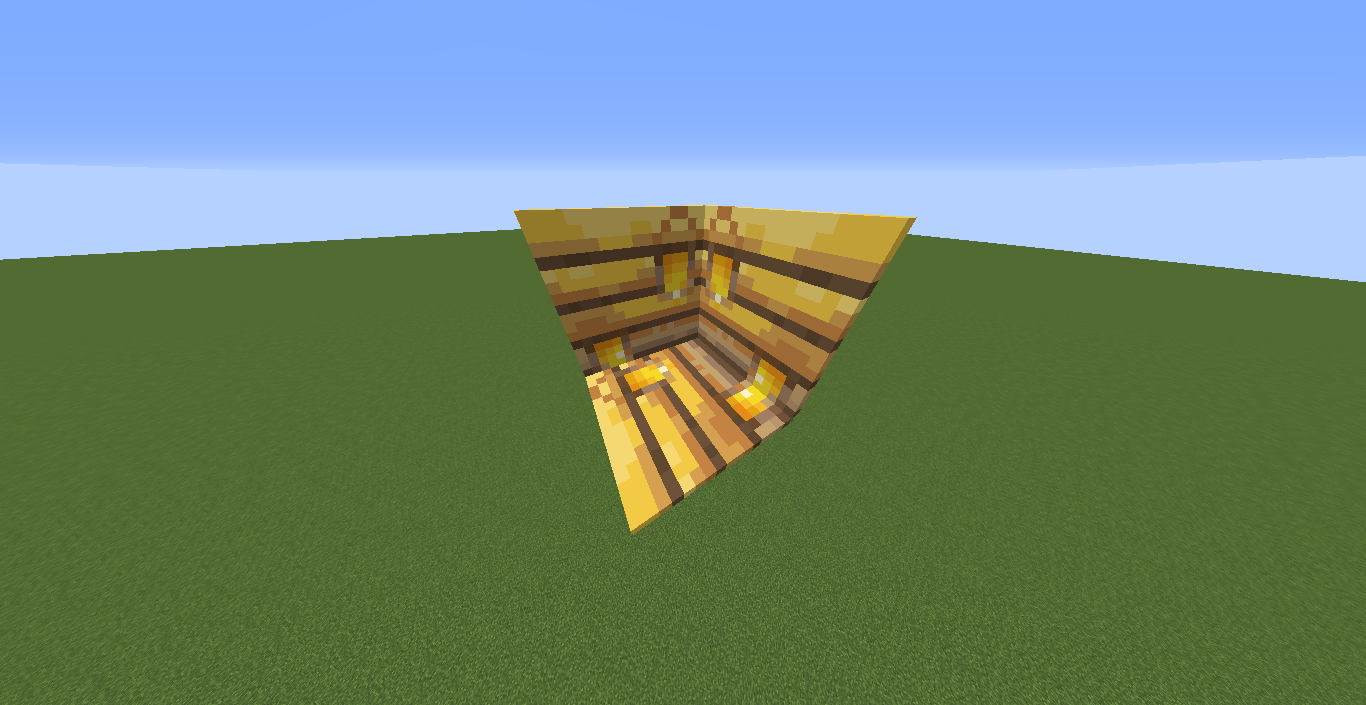
The "Undo" Button allow Players to remove Images which aren't like they want. Be careful with the "Fill Empty Pixel" Setting, because Blocks, which are replaced with Air, can't come back.
Overwritten Colors from other Images can't be undone.
Take care!
Screenshots
Gallery
-
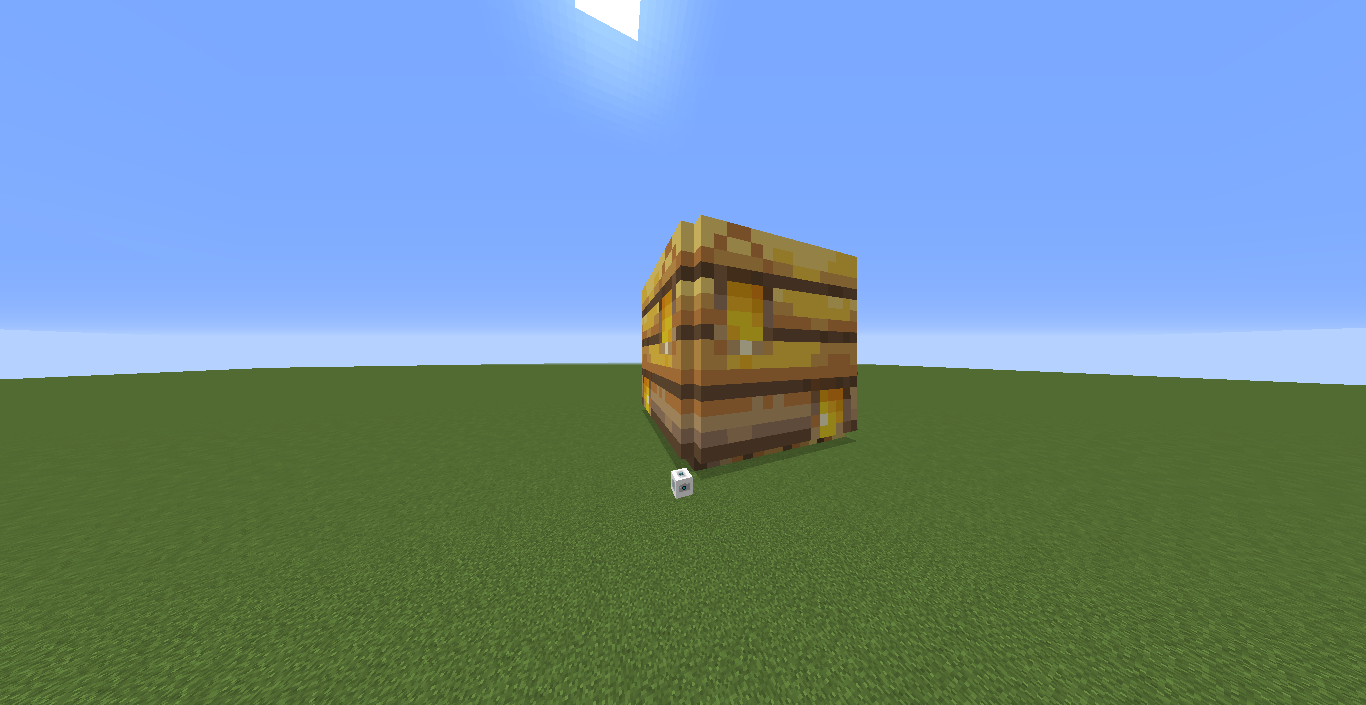
ImageBlock Beenest 2
-
ImageBlock Beenest
-
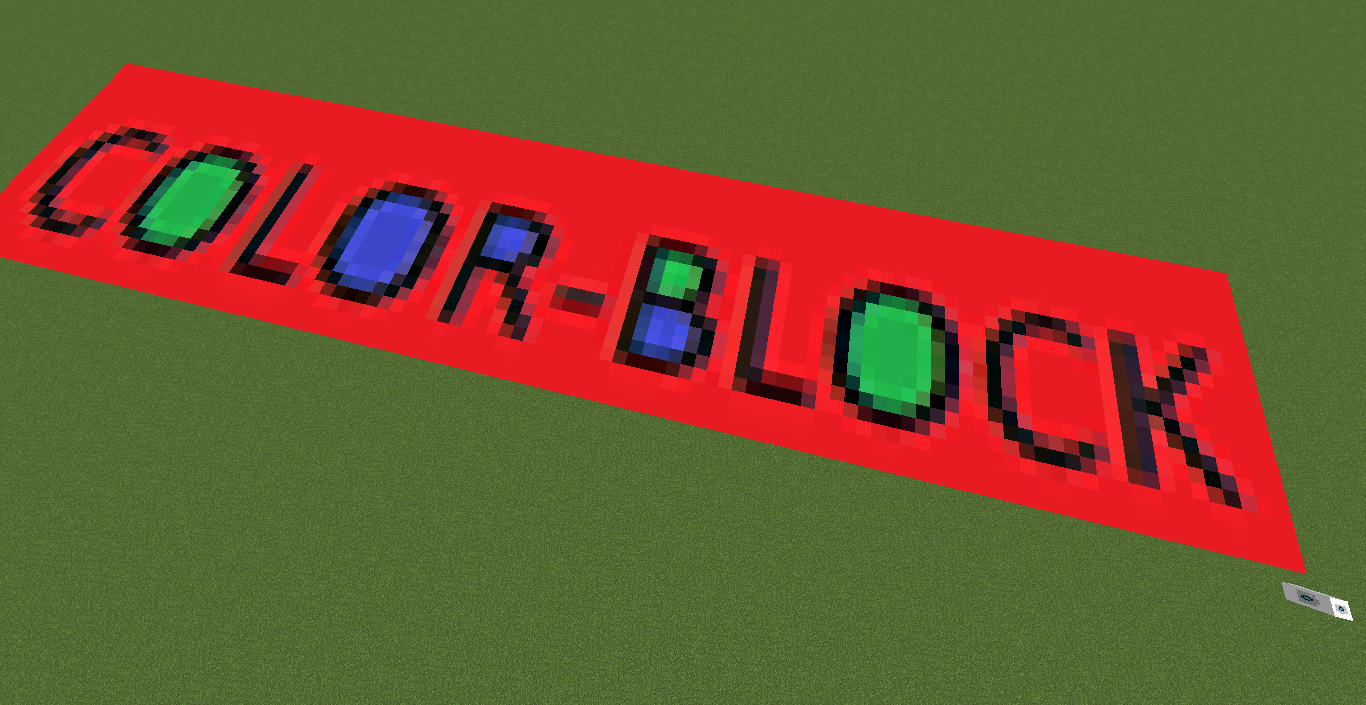
ImageBlock Image This ColorBlock Sign is read in with the Import Button. Its the same like in the Icon of the Project
-
ImageBlock Advanced GUI
-
ImageBlock Normal GUI
-
ColorBlock GUI
-
Coloring ColorBlock with MultiDye
-
Coloring ColorBlock with Dye
Versions
Files
Relations
Project Relations
More like this
Similar Mods
Suggestions use data such as tags, dependencies, dependents, descriptions, titles, and more to rank how much they overlap with this mod.
On ModDex
Community snapshot
By the numbers
Statistics
Want to reach Minecraft players?
We're looking for a server hosting partner to feature here and other parts of the site. Interested? Send us a message!
Get in touchGet it on
Available Platforms
On ModDex
Community snapshot
By the numbers