
Community listing page, reviews here may not be monitored by the author.
f2-screenshot-clipboard

No reviews yet
Press F2, paste anywhere — screenshots go straight to your clipboard. 截图自动复制,直接粘贴到微信/QQ/Discord
Community voices
Reviews
No reviews yet. Be the first to review this project!
Get it on
Available Platforms
Compatibility
Supported Environments
Runs entirely on the client. Works on vanilla servers.
About
Project Details
For authors
Embed Badge
If you're the author of this project, you can embed a live badge anywhere that supports HTML or Markdown. It updates automatically whenever ratings change.
Use HTML for any page that supports it, or Markdown for README files and Markdown-based descriptions.
Identifiers
Platform IDs
Resources
External Links
About
Description
按 F2 截图后,自动把截图图片复制到系统剪贴板,可直接粘贴到微信、QQ 等软件。
功能
- F2 截图完成后自动复制到剪贴板
- 复制成功播放轻快 UI 点击音效,并在聊天栏显示绿色“已复制”提示与文件名
- 设置界面:复制开关 / 保留原文件 / 反馈模式(按 K 打开,关闭时自动保存)
- 复制热键默认 F2,可在 选项 → 控制 中修改;截图复制器物品右键可快速复制最近截图
- 配置文件
config/f2.json
使用
- 直接按 F2 截图即可,截图完成后图片已在剪贴板
- 按 K 打开设置界面,可切换“复制到剪贴板”“保留原文件”“反馈模式”
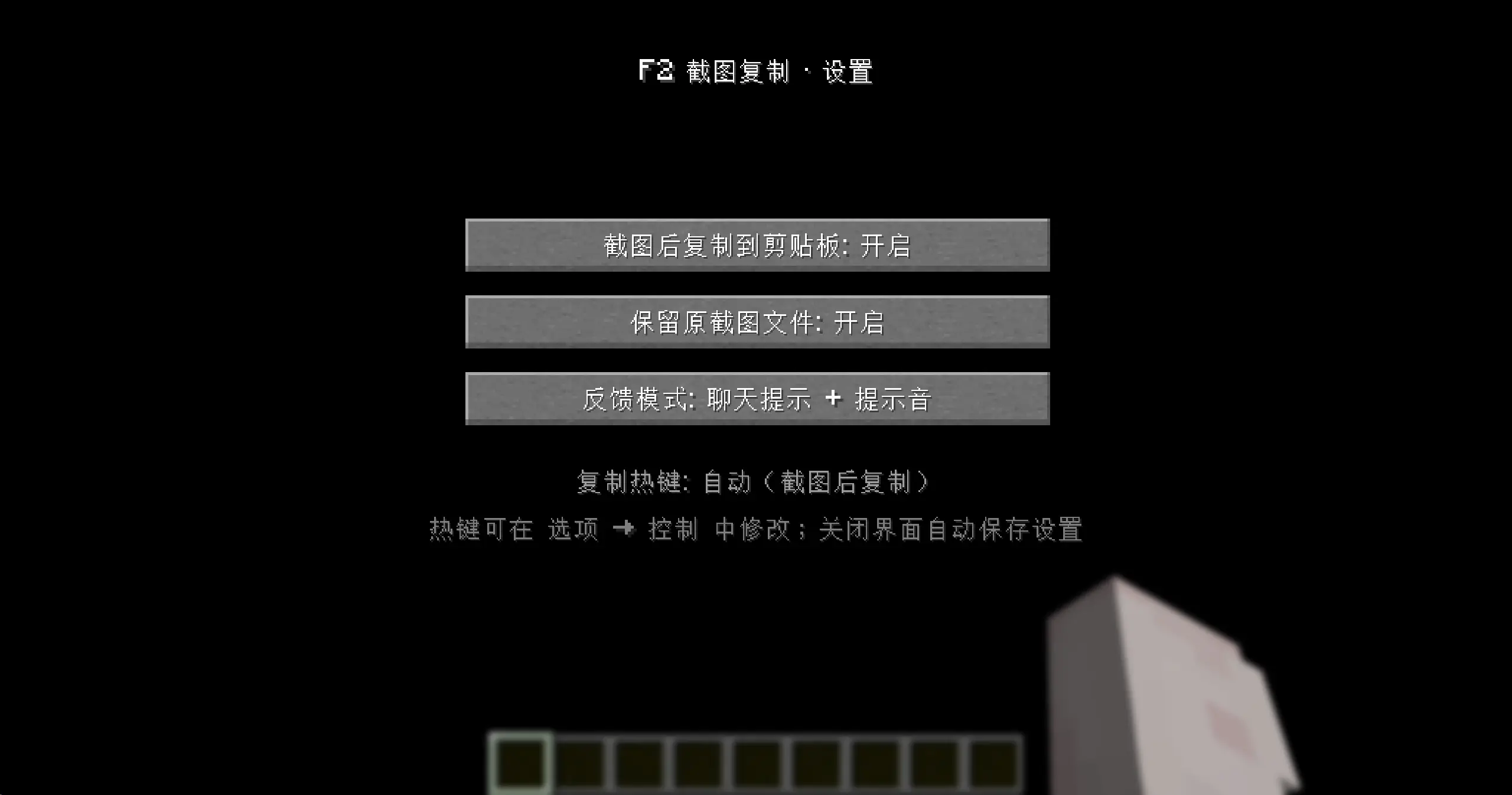
语言
目前仅支持中文与英文,未来将支持更多语言
Pressing F2 to take a screenshot automatically copies the image to the system clipboard, allowing you to paste it directly into applications like WeChat or Discord.
Features
- Automatically copies the screenshot to the clipboard upon completion (executed in a background thread to avoid impacting frame rate).
- Plays a crisp UI click sound upon successful copying and displays a green "Copied" notification along with the filename in the chat area.
- Settings menu: Toggle copy function / Keep original file / Feedback mode (Press K to open; settings save automatically upon closing).
- Default copy hotkey is F2 (customizable under Options → Controls); right-clicking the "Screenshot Copier" item allows for quick copying of the most recent screenshot.
- Configuration is persisted to
config/f2.json.
Usage
- Simply press F2 to take a screenshot
- Press K to open the settings menu to toggle "Copy to clipboard," "Keep original file," and "Feedback mode."
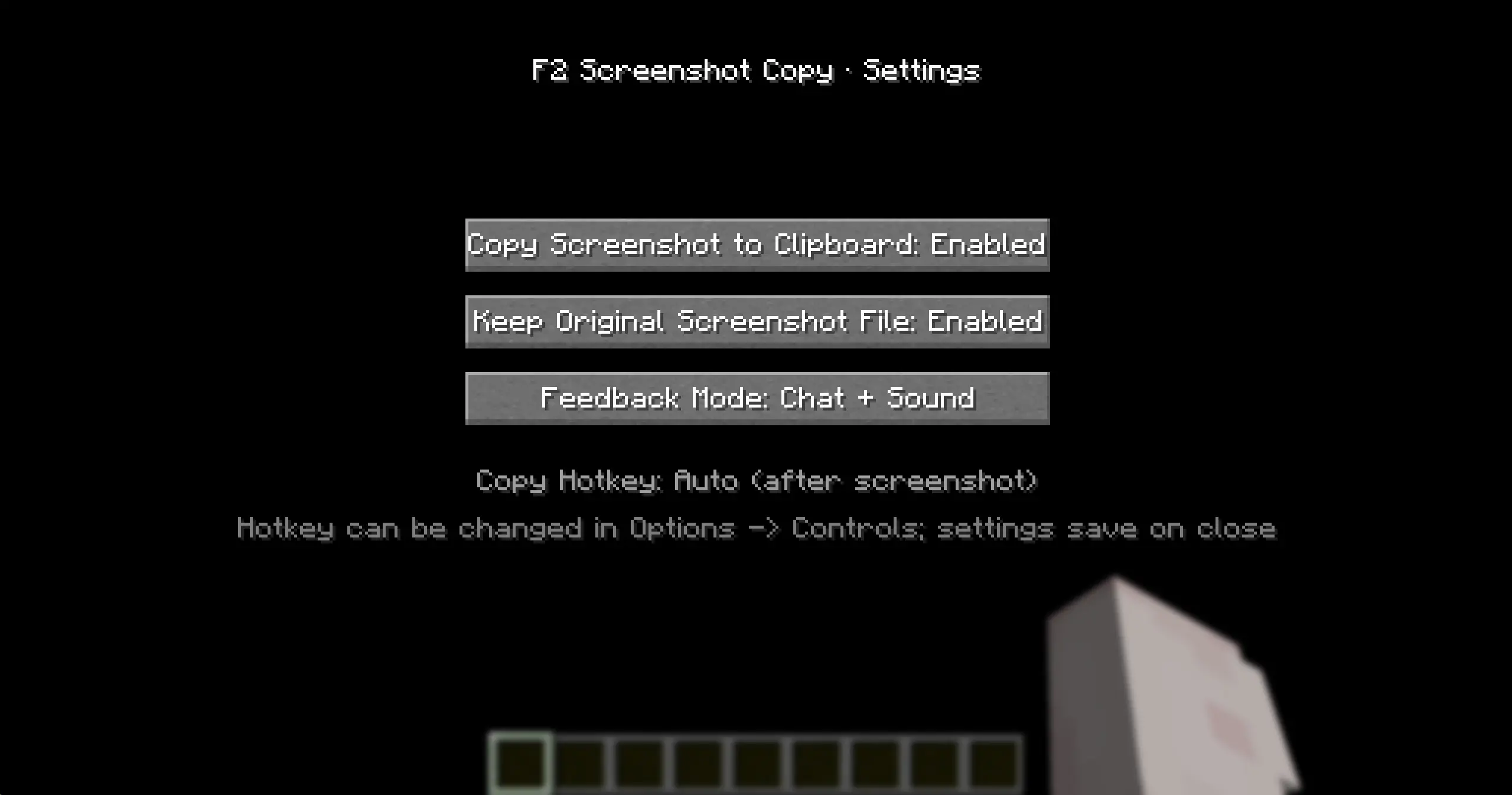
Language
Currently, only Chinese and English are supported; support for more languages will be added in the future.
Screenshots
Gallery
-
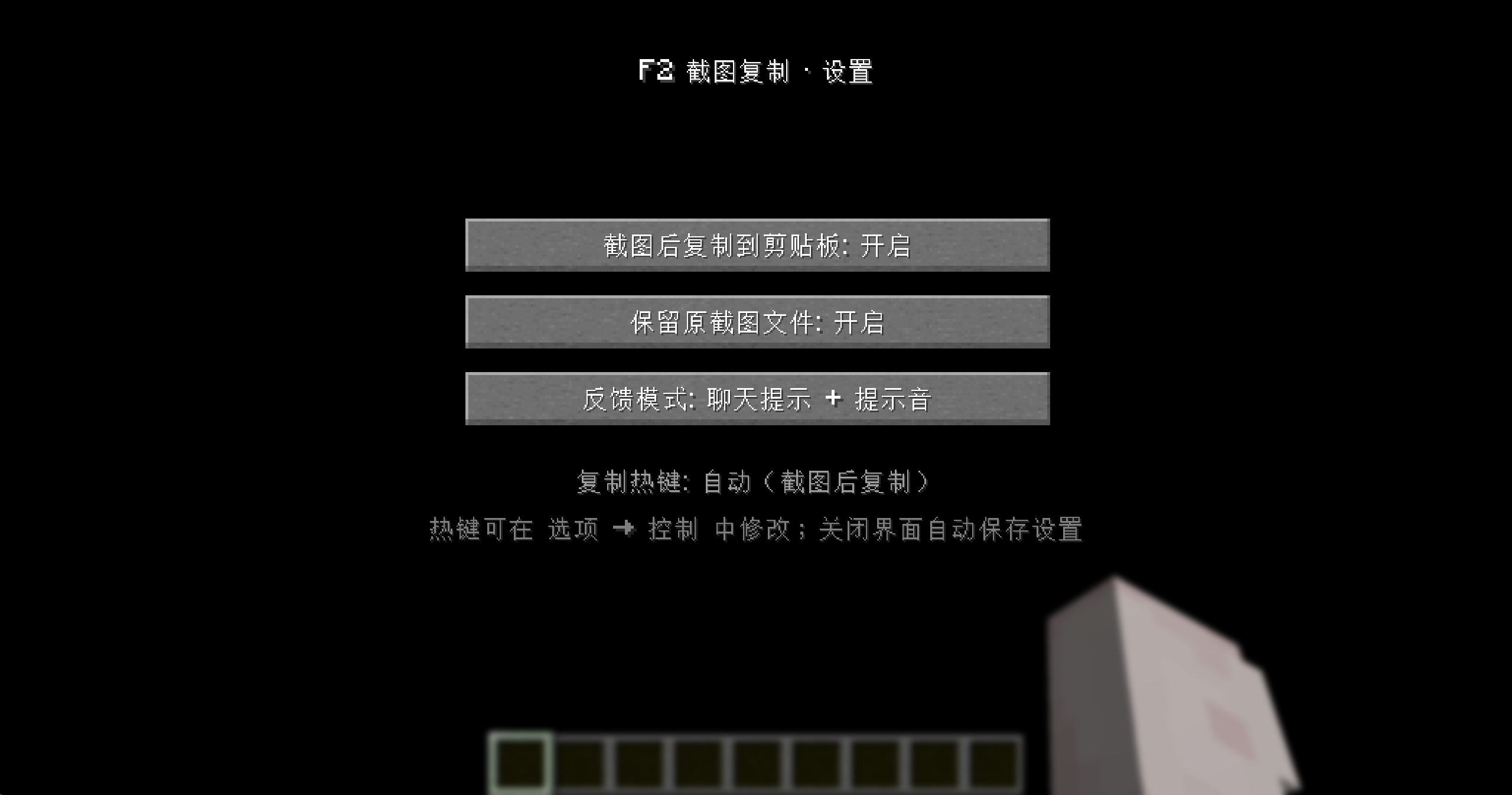 中文设置界面
 -
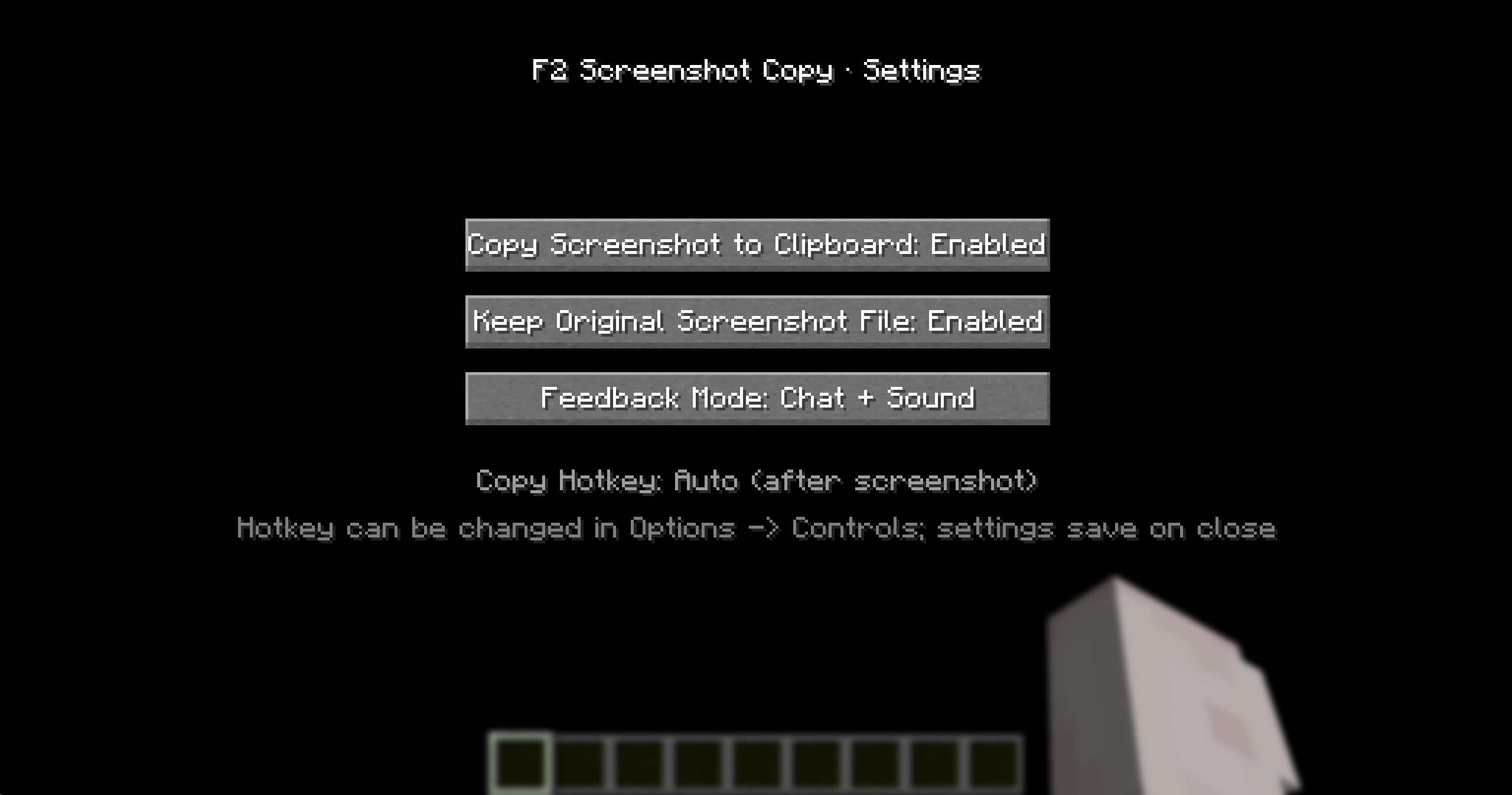 English Settings Interface
Versions
Files
Relations
Project Relations
More like this
Similar Mods
Suggestions use data such as tags, dependencies, dependents, descriptions, titles, and more to rank how much they overlap with this mod.
On ModDex
Community snapshot
By the numbers
Statistics

Want to reach Minecraft players?
We're looking for a server hosting partner to feature here and other parts of the site. Interested? Send us a message!
Get in touchGet it on
Available Platforms
On ModDex
Community snapshot
By the numbers
Statistics
Resources