
Community listing page, reviews here may not be monitored by the author.
MiniHUD


No reviews yet
A "mini F3" HUD mod, with light level, spawn & slime chunk overlays etc.
Community voices
Reviews
No reviews yet. Be the first to review this project!
Get it on
Available Platforms
Compatibility
Supported Environments
Runs entirely on the client. Works on vanilla servers.
About
Project Details
For authors
Embed Badge
If you're the author of this project, you can embed a live badge anywhere that supports HTML or Markdown. It updates automatically whenever ratings change.
Use HTML for any page that supports it, or Markdown for README files and Markdown-based descriptions.
Identifiers
Platform IDs
About
Description
See this about MC 1.20.5 and later versions
TL;DR; I won't maintain the 1.20.5+ versions myself anymore, at least for now. There are ports by Sakura-Ryoko. They will be here once they are more stable, see the post for the links and details before then.
Description
A client-side mod that allows displaying various "info lines" on the screen ("mini-F3"). The alignment (screen corner), background and text color and font size are configurable. Note: This is a client-side-only mod! You can't put it on a server.
The mod also has various "overlay renderers", such as:
- Structure Bounding Boxes (These only work in single player, without a server-side mod! Currently the only server-side mods that send the data in a format that MiniHUD knows about are Servux and QuickCarpet. If you have FabricCarpet, then you also need Servux.
- Spawn Chunks
- Light Level overlay with markers and/or numbers (configurable)
- Region File Boundaries
- Random Tick range
- Shapes: A mob Despawn Sphere, plus 24 and 32 block Spawn Spheres, a generic configurable radius Sphere, a Circle/Cylinder. More shapes are also planned.
- Block Grid
- Mob spawn algorithm chunks range (< 1.14 only, in 1.14+ it's the same as the random ticked chunks)
- Height map (used by the mob spawn algorithm)
(note that many of these currently are only available in the more recent LiteLoader, Rift and Fabric versions.)
The mod also adds hotkeys for toggling on/off the vanilla debug renderers for blocks collision boxes, heightmap, entity path finding etc.
The displayed information lines can also be toggled on/off with hotkeys, and the HUD itself can be toggled ON and OFF.
Some example screenshots are on the Images page.
Generic info
- The default in-game config menu hotkey is H + C
- The default on/off toggle key is H
- You can provide the world seed for MiniHUD (only used for the Slime Chunks info line and overlay) in multiplayer either by running the vanilla /seed command if you have the permission, or you can give it manually with a regular chat message in the form minihud-seed 12345. In single player the mod grabs the seed directly.
NOTE: MiniHUD also requires the MaLiLib library mod.
Be sure to download the correct version of both mods from the Files page!
https://www.curseforge.com/minecraft/mc-mods/malilib
Overlay colors are all opaque, what to do?!
In the current 0.19.0-dev versions for MC 1.16+, there are a bunch of features that are temporarily ported over from the main development version on 1.12.2. Due to it being a temporary port, I didn't bother trying to fix everything that is broken due to there being missing things in malilib, and there is currently also a bug in malilib's Color Edit menu in 1.13.2+ which causes the alpha channel (transparency) to reset to fully opaque when you use the Color Editor menu.
So currently, until the new malilib and other mod updates with the latest code from 1.12.2 can happen, you just have to manually fix the color value after using the color editor. Basically you just need to change the first two letters (after the #) in the hex color code from FF (fully opaque) to something between 30 to 60 or so, and then toggle off/on the overlay or shape in question to update it.
Different mod loaders vs. mod versions
Be sure to download the correct version for the mod loader you are using!
The newer builds will all include the mod loader name in the mod filename.
(Also note that the 1.13.2 versions ONLY work on MC 1.13.2, and NOT on the earlier 1.13 versions!)
For MC 1.14.x there are currently versions for the Fabric mod loader, those versions have '-fabric' in their filename.
Future Forge versions will also include -forge in the mod file name.
Key combinations
The mod's main rendering toggle key is by default H.
The in-game config menu hotkey is by default H + C.
Recent MiniHUD versions that use malilib
For the more recent versions of MiniHUD that use malilib, all the hotkeys are in MiniHUD's own in-game config menu, which by default opens with H + C.
Old Forge versions of MiniHUD
For the old Forge versions of the mod, the keybinds can be changed in the vanilla Controls menu.
For the old Forge versions:
- Toggle Mode key (by itself): Toggle the HUD state ON/OFF.
- Toggle Mode key + "info key": Toggle ON/OFF the different pieces of information (the keys can be set in the mod configs).
Available information
NOTE: The information below this is outdated and doesn't include everything that is in the recent LiteLoader, Rift and Fabric versions of the mod.
Look through the in-game config menu to see everything that is available in addition to the things mentioned below.
The following information is currently available:
- Real time (ie. a clock...)
- World time in ticks
- World time formatted to days, hours, minutes
- Player's current block position
- Player's current position in chunk
- Player's coordinates
- Player's current dimension ID
- Player's yaw rotation
- Player's pitch rotation
- Player's current moving speed
- Player's facing
- The Chunk the player is currently in
- The region file the player is currently in
- Looked-at-entity's name and health
- Looked-at-entity's registry name (1.11+) or ID (1.10.2)
- The block the player is looking at
- Block's registry name and the BlockState properties of the looked-at-block (like on the F3 screen)
- Current light level
- Current biome
- Current biome's registry name.
- Current FPS
- Entity count
- C value (rendered chunk sections) from F3
- P value (number of particles) from F3
- Current local difficulty number (from F3)
- Is the current chunk a slime chunk. Note: in multiplayer you need to manually run the /seed command!
Starting from version 0.13.0, there is now a region file boundary overlay renderer. The default hotkey to toggle it ON/OFF is Toggle (H) + J.
Note: Starting from version 0.9.0, you can change all these quick toggle keys via the config file or the in-game config menu.
Note: Starting from version 0.11.0, you can change the order of these info lines via the config file or the in-game config menu.
To temporarily (= not saved in the configs) toggle the info types while in-game, do this:
- In version 0.9.0 or later, press and hold the main Toggle key, and then press the configured hotkey for the info type you want to toggle
- Before version 0.9.0, first press and hold the indicated info type key and then press the Toggle key
Old Configuration options
Below are the bit mask values for the different information types. This is now redundant, just use the on/off options in the in-game config menu instead!
These were removed entirely in version 0.11.0.
- 1 = coordinates
- 2 = yaw
- 4 = pitch
- 8 = speed
- 16 = biome
- 32 = light level
- 64 = facing
- 128 = block position
- 256 = chunk position
- 512 = block looking at
- 1024 = fps
- 2048 = entity count
- 4096 = dimension id
- 8192 = world time (ticks)
- 16384 = world time (formatted)
- 32768 = IRL time (ie. a clock)
- 65536 = looking at entity
- 131072 = slime chunk
- 262144 = blockstate properties
Configuration
There are a few things that can be adjusted either via the in-game configuration menu or in the configuration file.
- The information to be displayed on the Info Lines HUD
- Font scale factor
- The font and backgrond colors
- Whether to use a font shadow in the text rendering
- Whether to use a background color for the text
- Whether to sort the displayed information lines by their length
- Whether to reverse the above mentioned sorting order
- Whether to use a custom format string for the coordinate line, and the format string to use
- Multiple options to configure the Light Level overlay
- The colors of all the overlay renderers
Note: The custom format string for the coordinates has to have three float number format specifiers.
An example of that would be "X: %.1f Y: %.1f Z: %.1f" (without the quotes) to give an output like: X: 1234.2 Y: 64.0 Z: 4321.7.
Vanilla debug renderers
Starting from mod version 0.12.0, there are hotkeys to toggle ON/OFF the debug renderers that exist in vanilla, but are normally not usable/accessible. The hotkeys for these can be set in the Hotkeys config category. Note: The neighbor updates debug renderer only works in single player.
Note: The pathfinding debug renderer also only works in single player, unless another mod sends the appropriate custom payload vanilla packet from the server, to add the path data to the debug renderer. Currently I'm not aware of any such mods however.
Some example screenshots of the debug renderers: Collision boxes: 
Height map: 
Neighbor updates: 
Pathfinding: 
Solid block faces: 
Water: 
Snapshot versions and latest development builds
There are (at least at times) versions of my mods available for the latest Minecraft snapshots here: https://masa.dy.fi/mcmods/client_mods/
That page also sometimes includes newer development builds than what is available here on CurseForge.
If you encounter bugs, then try to update all the mods (from the ones that you use) from that page to see if the issue has been fixed already.
(There are at times changes in malilib or the mods that require both of them to be updated at the same time!)
If you have questions or need help with something, the best/fastest way to get answers is on my Discord server.

Basic Info and Hotkeys
MiniHUD is a client-side mod that has various "mini F3" info lines that you can choose from. It also contains a number of "overlay renderers", such as light level, slime chunks, world spawn chunks, structure bounding boxes, region file boundaries, and various shape renderers such as circles and spheres.
You should never put MiniHUD on the server. It doesn't do anything there. Only put Servux on the server.
Dependencies
MiniHUD requires the MaLiLib library mod, as it uses among other things the config system and config menus and hotkey system from malilib. There are no other hard dependencies.
Default Hotkeys
- The mod's main rendering toggle key is by default
H- This key turns of ALL rendering in the mod, both info lines and all overlay renderers
- The in-game config menu hotkey is by default
H + C
Warning about the Sphere shape
The sphere shape is currently slightly broken since the mod update for MC 1.18, where the shape generation was rewritten. The sphere is currently slightly crooked at least on one side. See this GitHub issue.
As a temporary workaround you may be able to use the Adjustable Spawn Sphere shape instead, as it uses different generation code. However that sphere is not perfectly symmetrical horizontally vs. vertically due to how the boundary condition works.
Structure Bounding Boxes
The Structure Bounding Box renderer works in single player and on servers that have installed the Servux mod. That mod is required on the server side so that it can send the actual structure bounding box data from the world when MiniHUD requests for it. MiniHUD does not try to simulate and guess things based on the world seed. IMO that would not be reliable, and it couldn't account for changes in world generation during some MC updates.
Slime Chunks Overlay
One common question about the Slime Chunk Overlay is the height. The rendering in MiniHUD does not represent the slime spawning height range! The overlay is just meant to see which chunks are slime chunks.
By default the top y-position of the overlay is put to the player's position when the overlay is toggled on. Note that in older mod versions this didn't happen when toggling the overlay on via the config menu, only when toggling it on using the hotkey.
You can also adjust the top y-position of the overlay by holding down the overlay toggle hotkey and scrolling with the mouse wheel.
Slime Chunk Overlay in multiplayer
Slime Chunk Overlay in multiplayer
If you are on a server, and you want to use the Slime Chunk Overlay, and you know the world seed, you can input the seed for MiniHUD via a regular chat message in the format minihud-seed 12345. MiniHUD will grab the seed from that message and the message will not be sent.
In later game versions (todo: starting from which mod version?) you can also add a slash in front of that string (/minihud-seed 12345), that way it will never accidentally get sent as a chat message. However if you make a typo, then the invalid command will get sent to the server and it will be visible in the server console.
Other Info
Very old mod versions info
For now see the CurseForge project page for information about the very old mod versions (for MC 1.12.2 or older) until that information is moved to a wiki.
Note that this does not mean all mod versions for 1.12.2 are "very old". On the contrary, the mod main development still happens in MC 1.12.2. This means mod versions older than 0.11.0 or even 0.11.0 to 0.13.1 still used some old janky configs and things. Things were modernized and improved when development of the LiteLoader versions started, and especially when the mod started using malilib.
Change logs
The change logs for the old mod releases will be added slowly over time.
Screenshots
Gallery
-
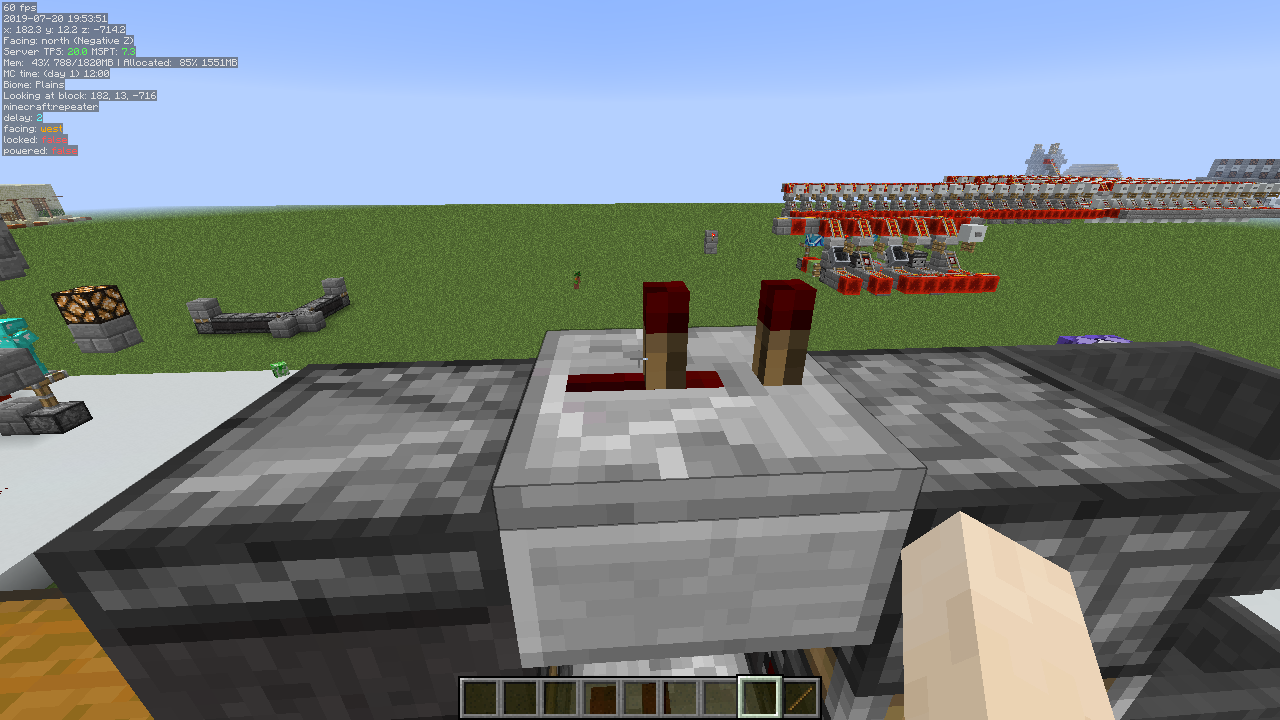 Info lines text
 -
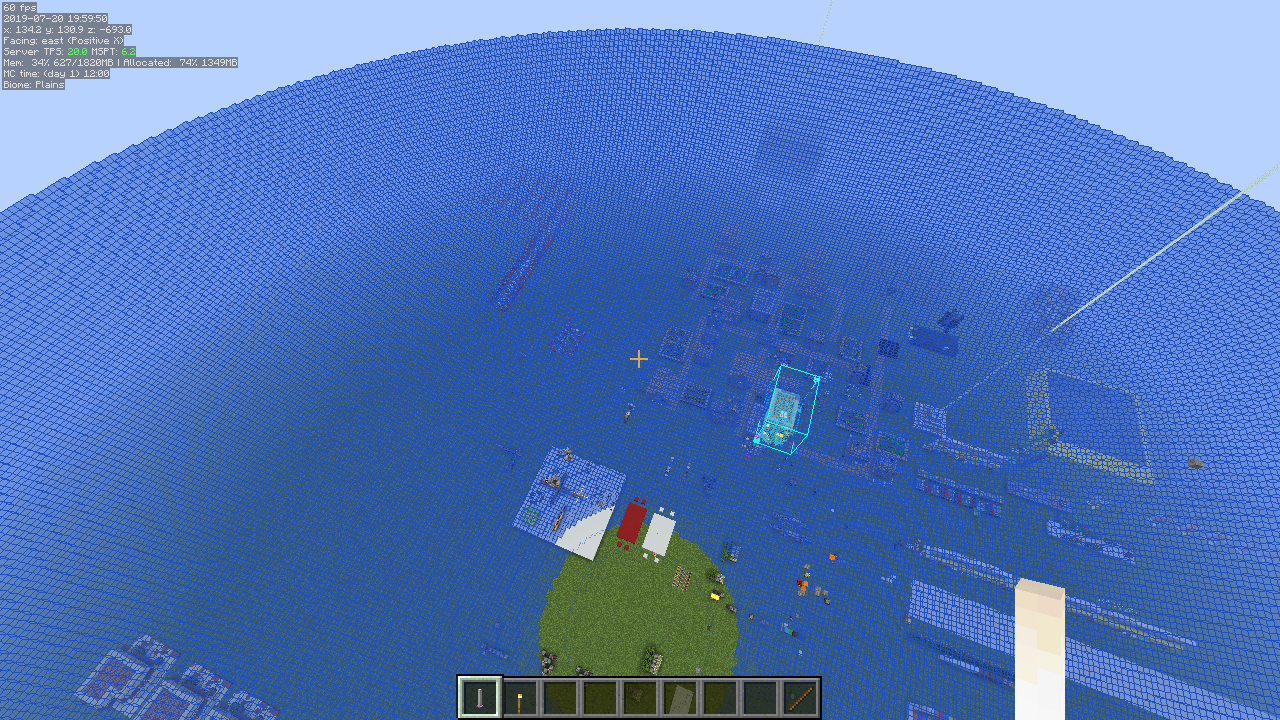 Mob Despawn Sphere shape overlay
 -
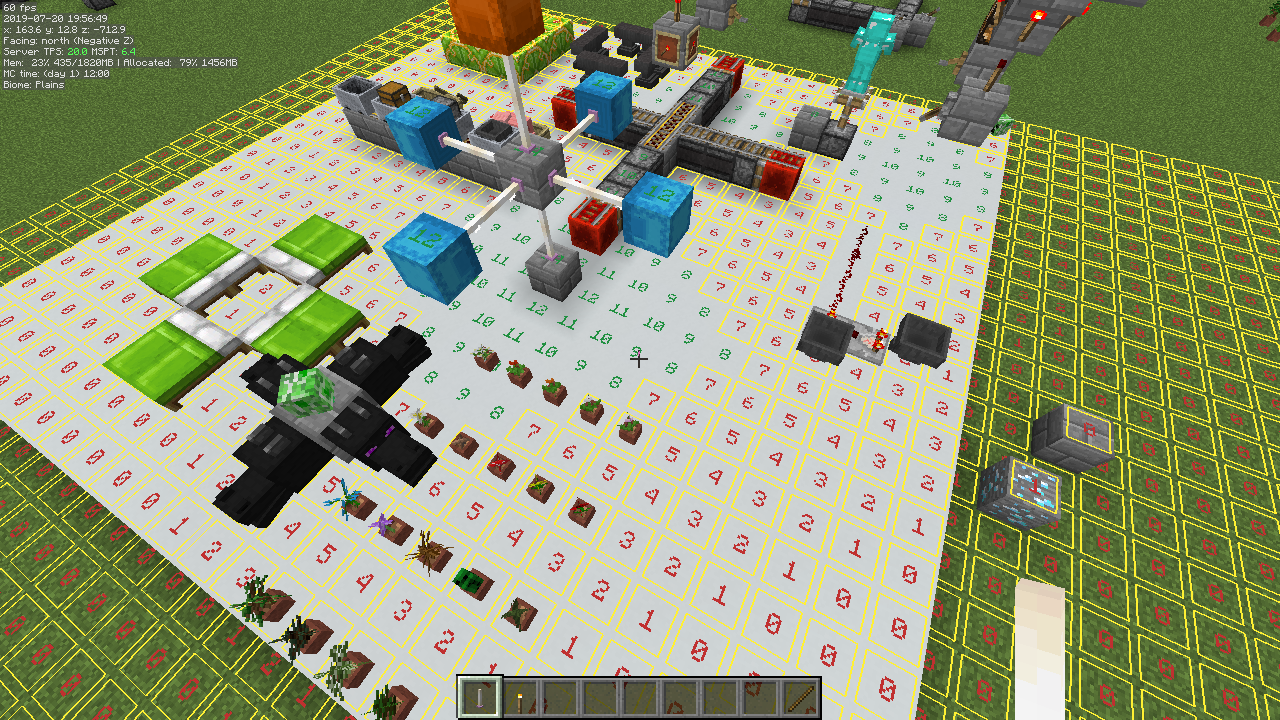 Light Level overlay
 -
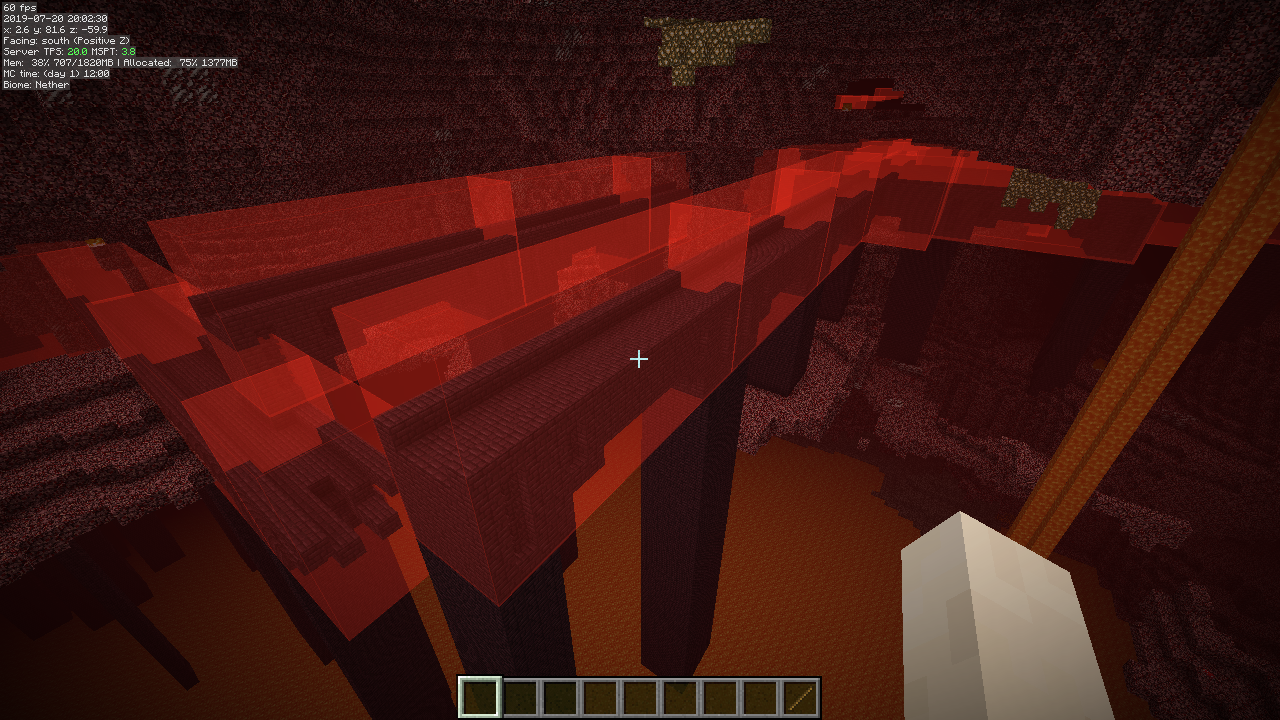 Structure Bounding Boxes overlay
 -
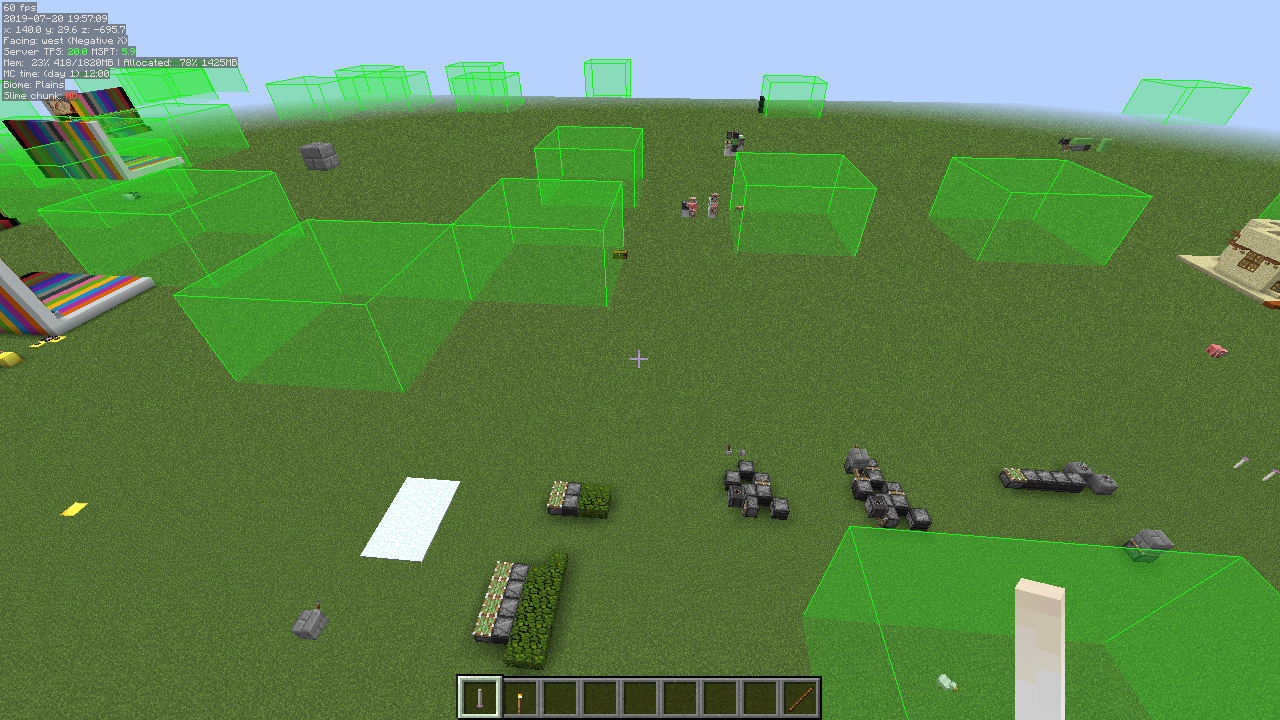 Slime Chunks overlay
 -
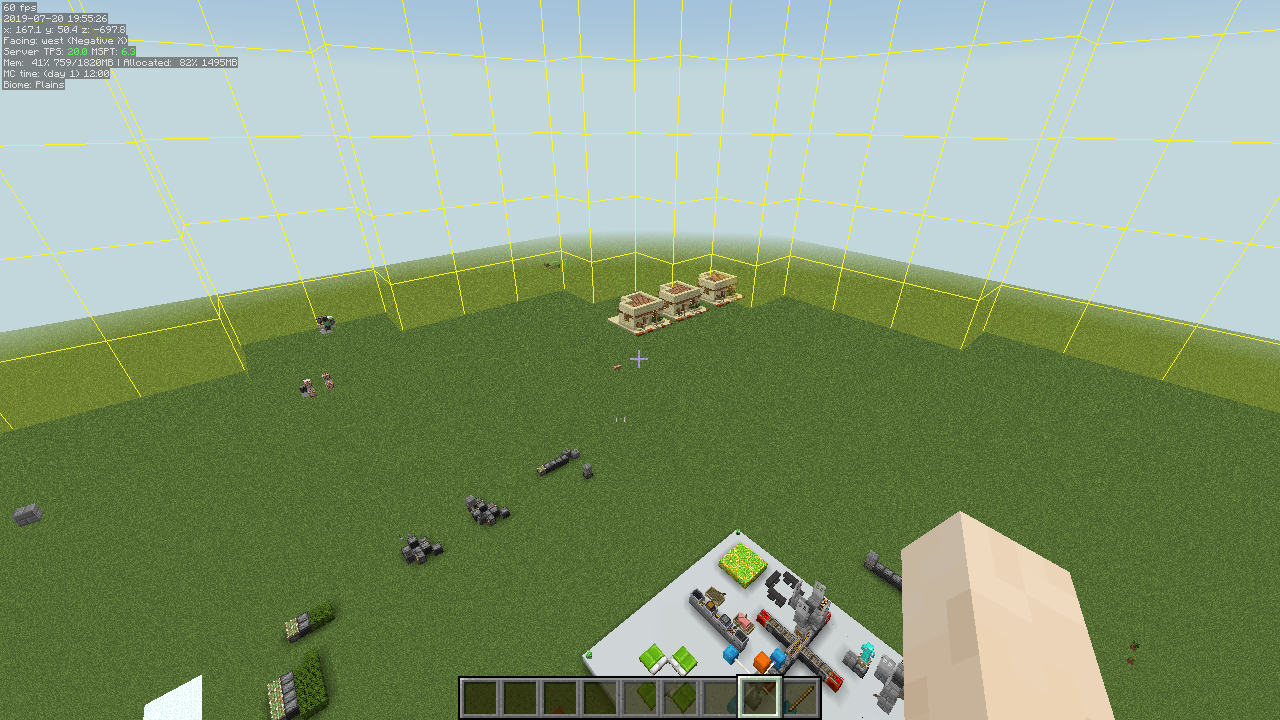 Random Tick Range overlay
 -
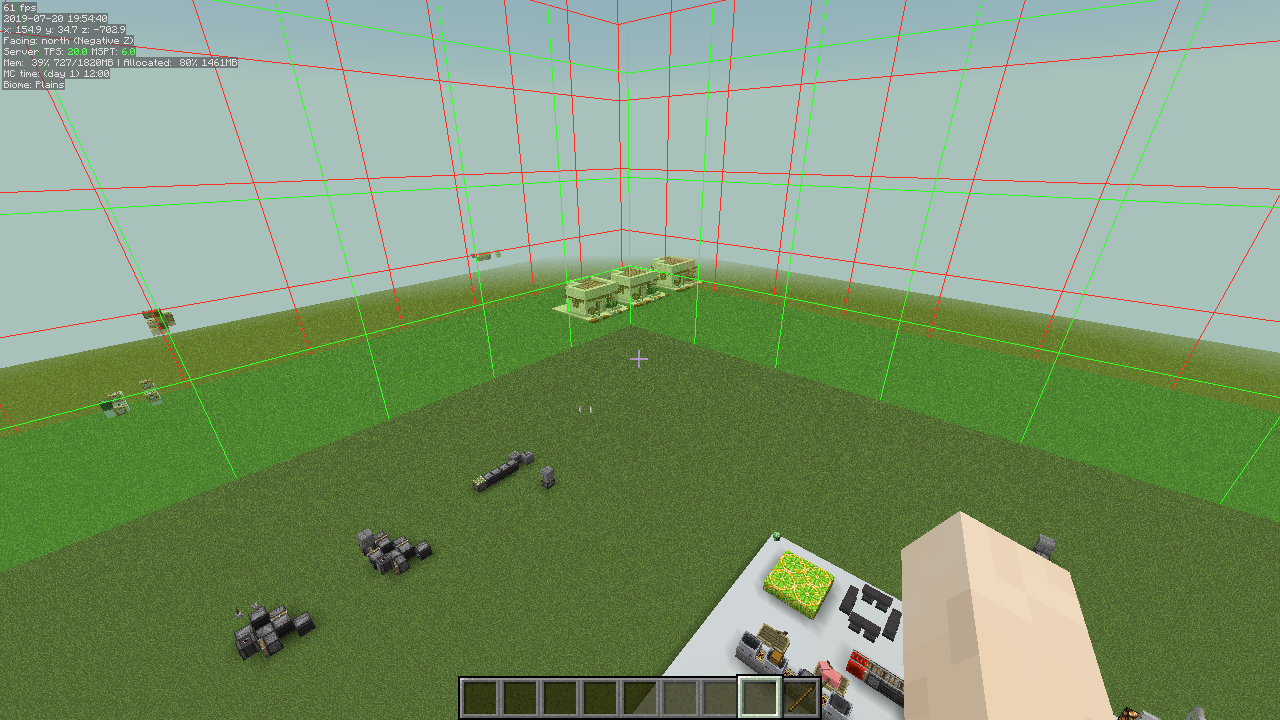 Spawn Chunks overlay
 -
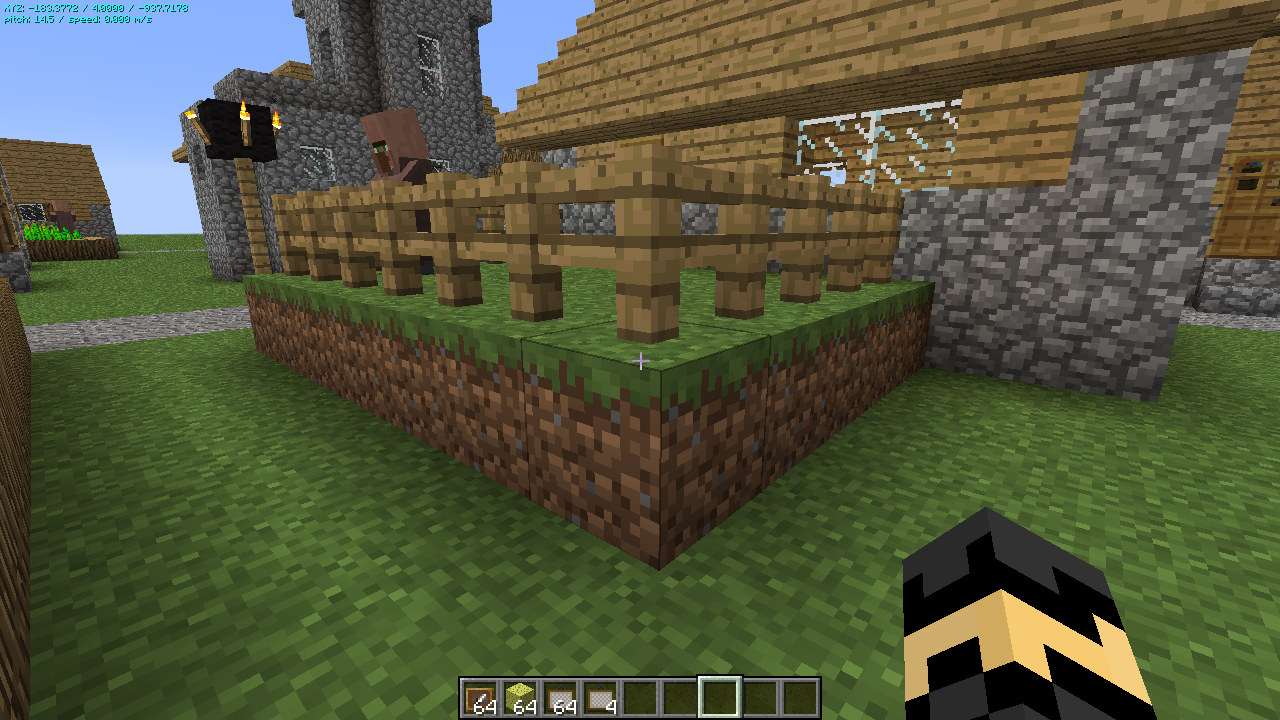 HUD Example 5 A small subset of the available information displayed in 0.5x scale font using a customized font color, with text shadow, but without a solid background.
 -
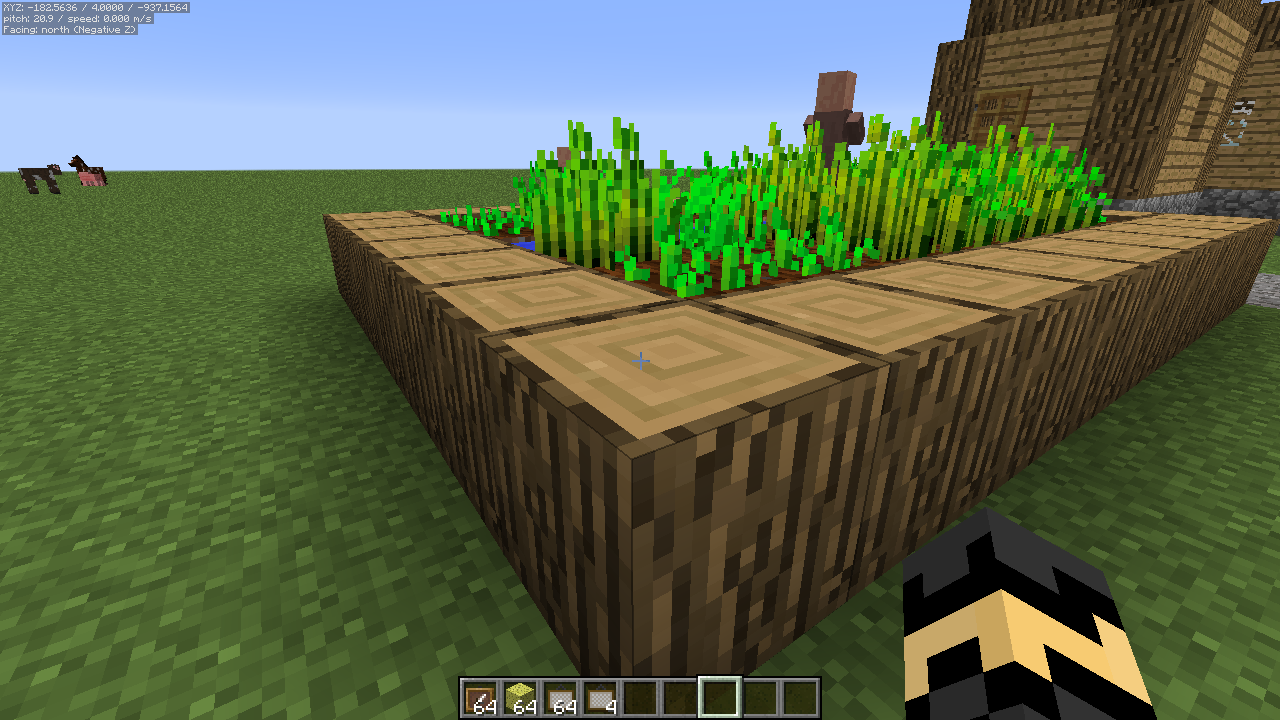 HUD Example 4 A small subset of the available information displayed in 0.5x scale font using the default colors.
 -
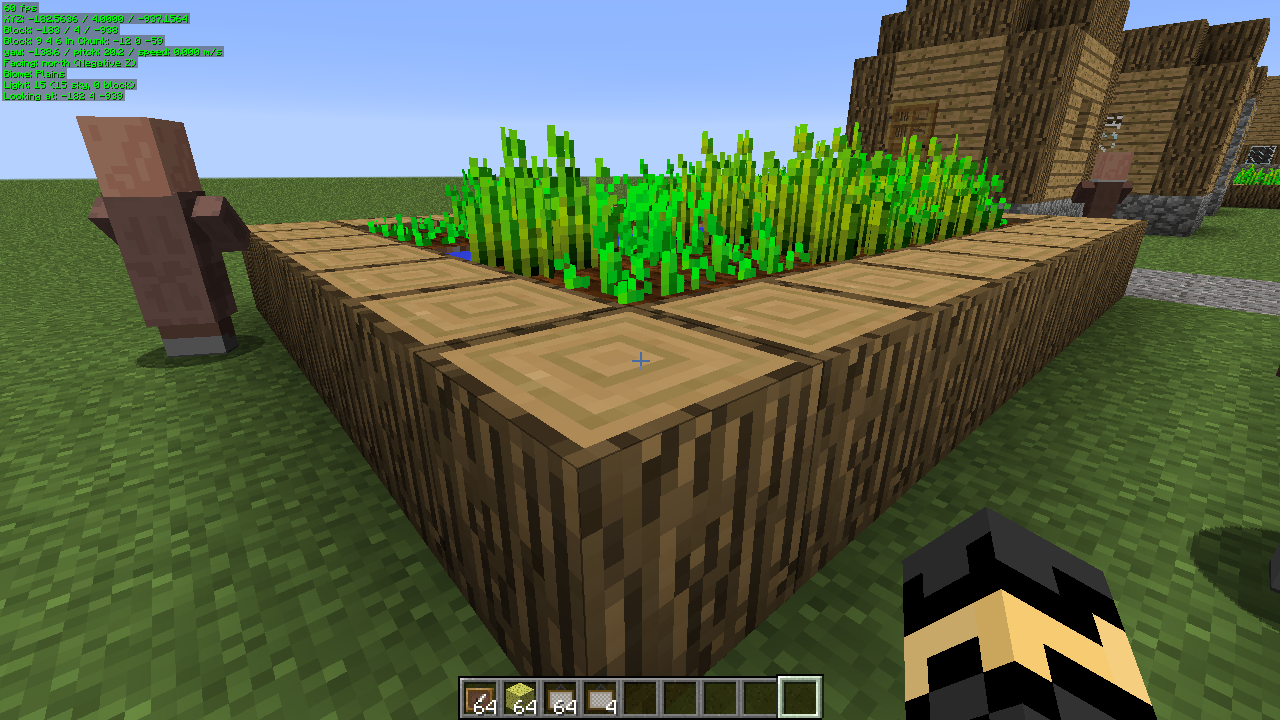 HUD Example 3 All available information displayed in 0.5x scale font using customized font color (green) with text shadow.
 -
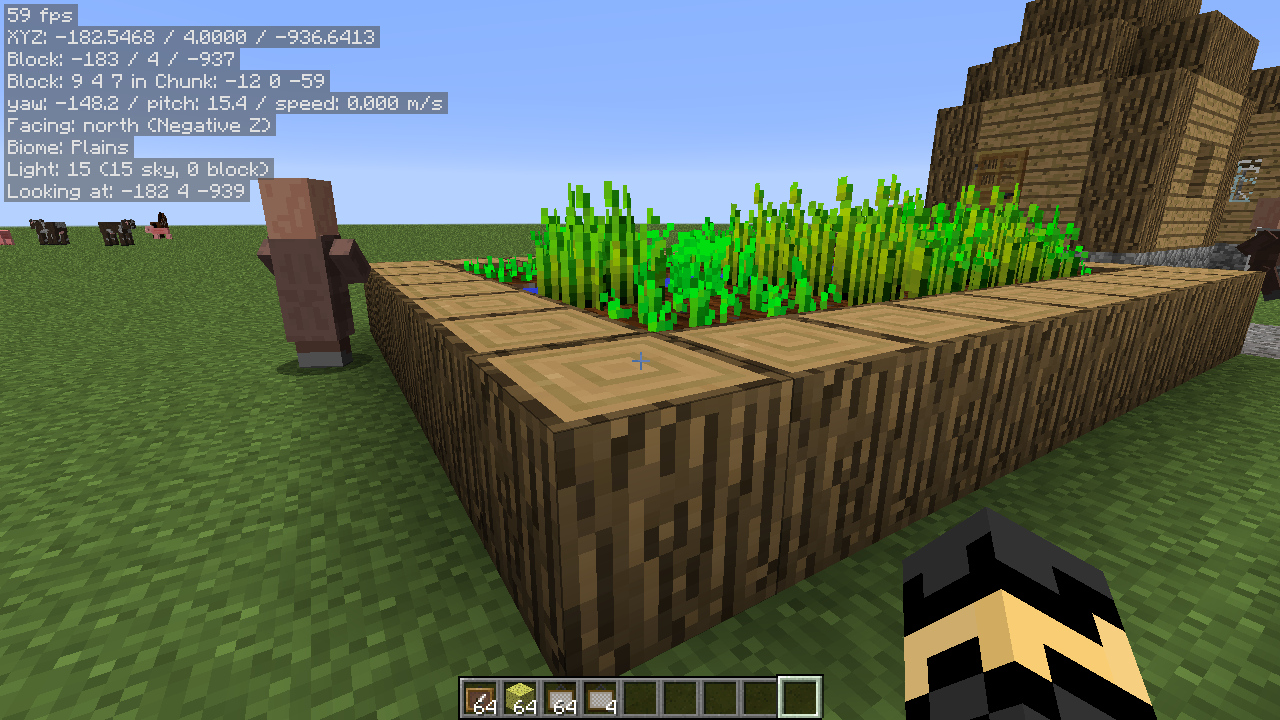 HUD Example 2 All available information displayed in the regular full-sized font using the default colors.
 -
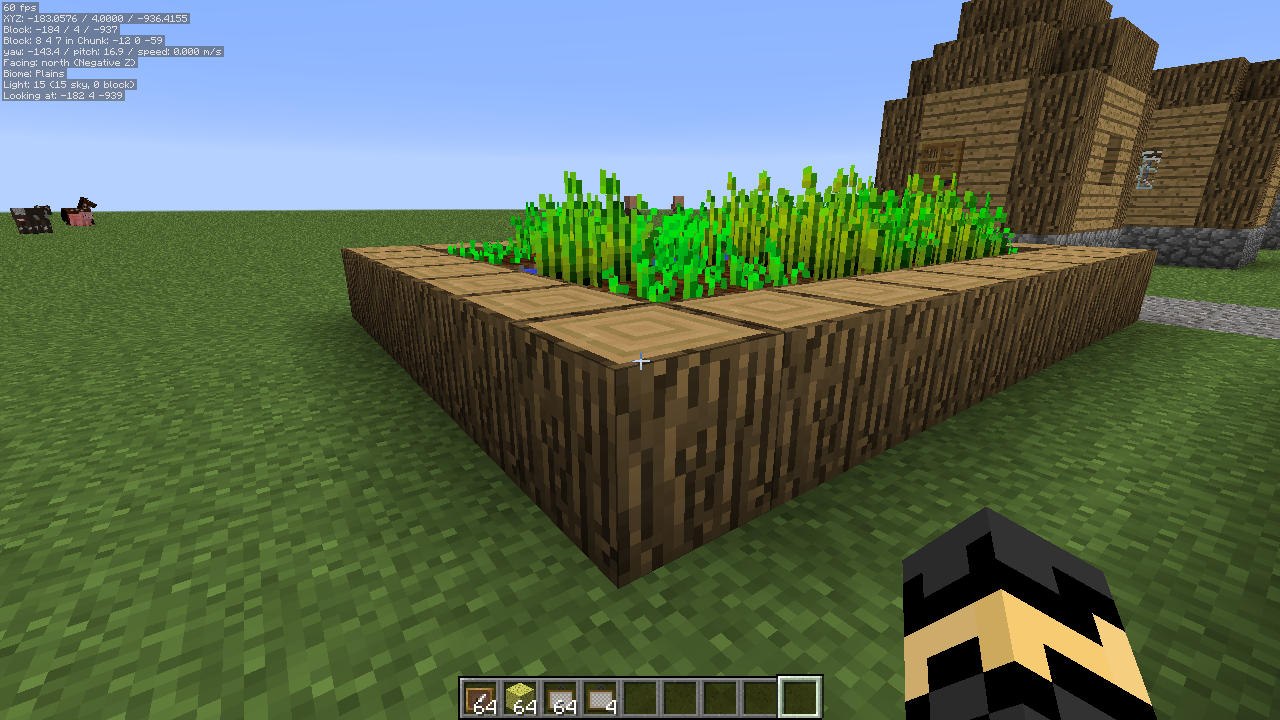 HUD Example 1 All available information displayed in 0.5x scale font using the default colors.
Versions
Files
Relations
Project Relations
More like this
Similar Mods
Suggestions use data such as tags, dependencies, dependents, descriptions, titles, and more to rank how much they overlap with this mod.
On ModDex
Community snapshot
By the numbers
Statistics
Want to reach Minecraft players?
We're looking for a server hosting partner to feature here and other parts of the site. Interested? Send us a message!
Get in touchGet it on
Available Platforms
On ModDex
Community snapshot
By the numbers